Ed Nisley's Blog: Shop notes, electronics, firmware, machinery, 3D printing, laser cuttery, and curiosities. Contents: 100% human thinking, 0% AI slop.
Tag: Improvements
Making the world a better place, one piece at a time
The solid box lets you check the outside dimensions (20 x 20 x 5 mm) and the slicer’s infill parameters.
The first few attempts with a new setup won’t look very good, but that’s the whole point:
M2 V4 Calibration Objects
Getting a workable profile and accurate Z-axis setting required maybe a dozen quick prints & parameter changes. After that, they’re good for verifying that any change you make hasn’t screwed up something beyond recovery.
Put five of them on the platform to verify overall alignment (“leveling”) and first-layer thickness:
Thinwall Calibration Cubes – 5 copies
A few iterations will generate plenty of show-n-tell tchotchkes:
Thinwall open boxes from platform leveling
As nearly as I can tell, if you can’t print these reliably, there’s no point in trying to print anything else.
Even better, when you suddenly can’t print anything else reliably, these simple boxes will tell you what’s gone wrong…
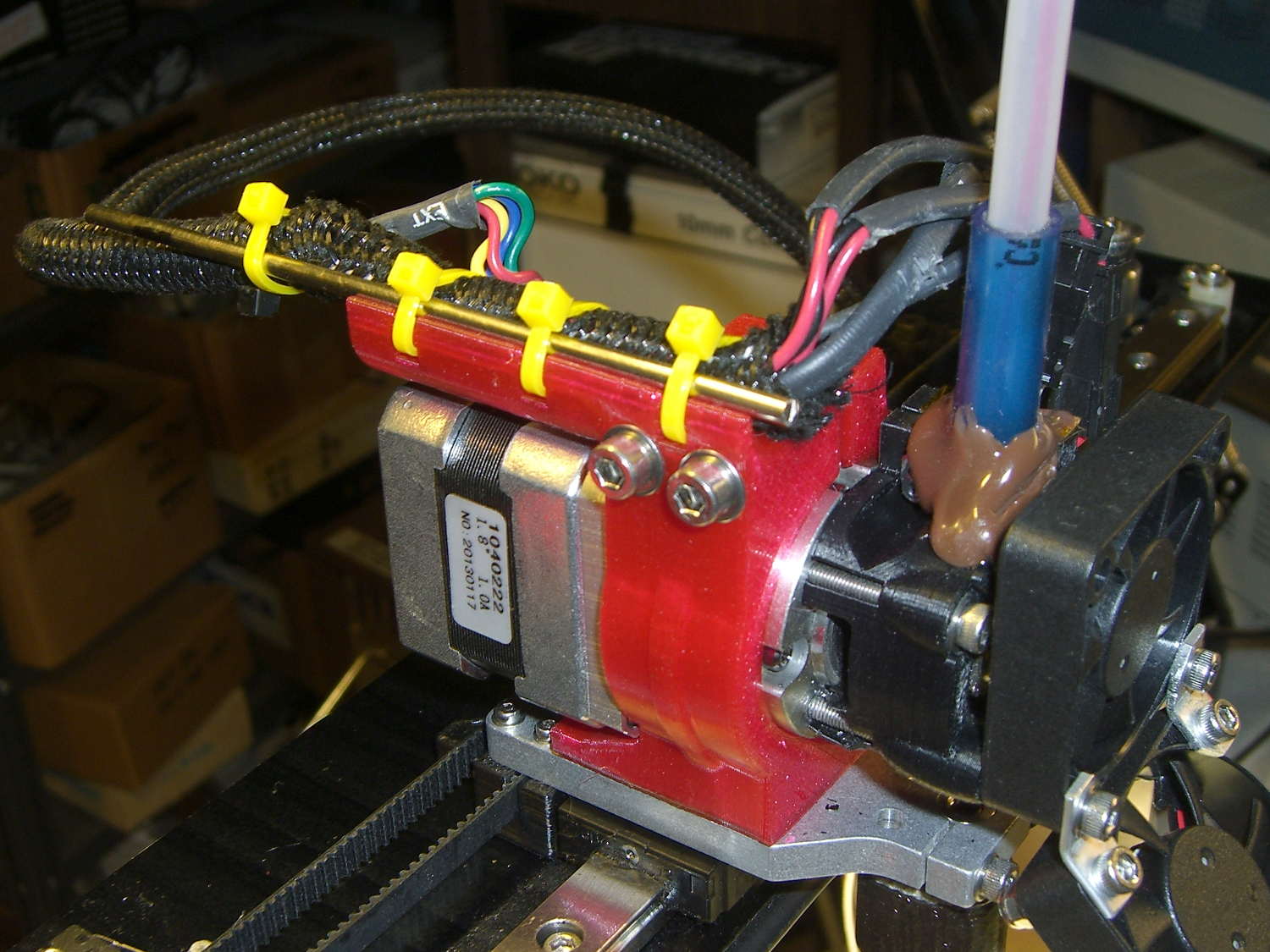
The M2’s extruder motor mounts in a printed holder that attaches to the X-axis linear rail. The wire guide on the original holder snapped when I installed it, with the fractured end showing poor infill and bonding, but the rest of the mount held together and, my initial misgivings notwithstanding, I never had much motivation to print a replacement. With the PETG settings working pretty well, I fetched the updated STL file, oriented it for printing, and ran off a motor mount:
M2 Motor Mount – PETG on platform
That’s at 40% 3D Honeycomb infill, three perimeters and three top/bottom layers, which seems plenty strong enough for the purpose: I can’t bend the wire guide at all, no how, no way!
Despite a few hairs, the nozzle didn’t deposit any boogers. Things are looking up…
A cap should fit over the cable guide, presumably for neatness, but I didn’t see much point in that. Instead, I added a steel rod to support the loom and provide some strain relief beyond the end of the guide, as the wires want to flex at that spot:
M2 Motor Mount – PETG installed – cable brace
Because the V4 hot end mounts to that aluminum plate, rather than the filament drive, the whole operation didn’t disturb the nozzle position at all. Whew!
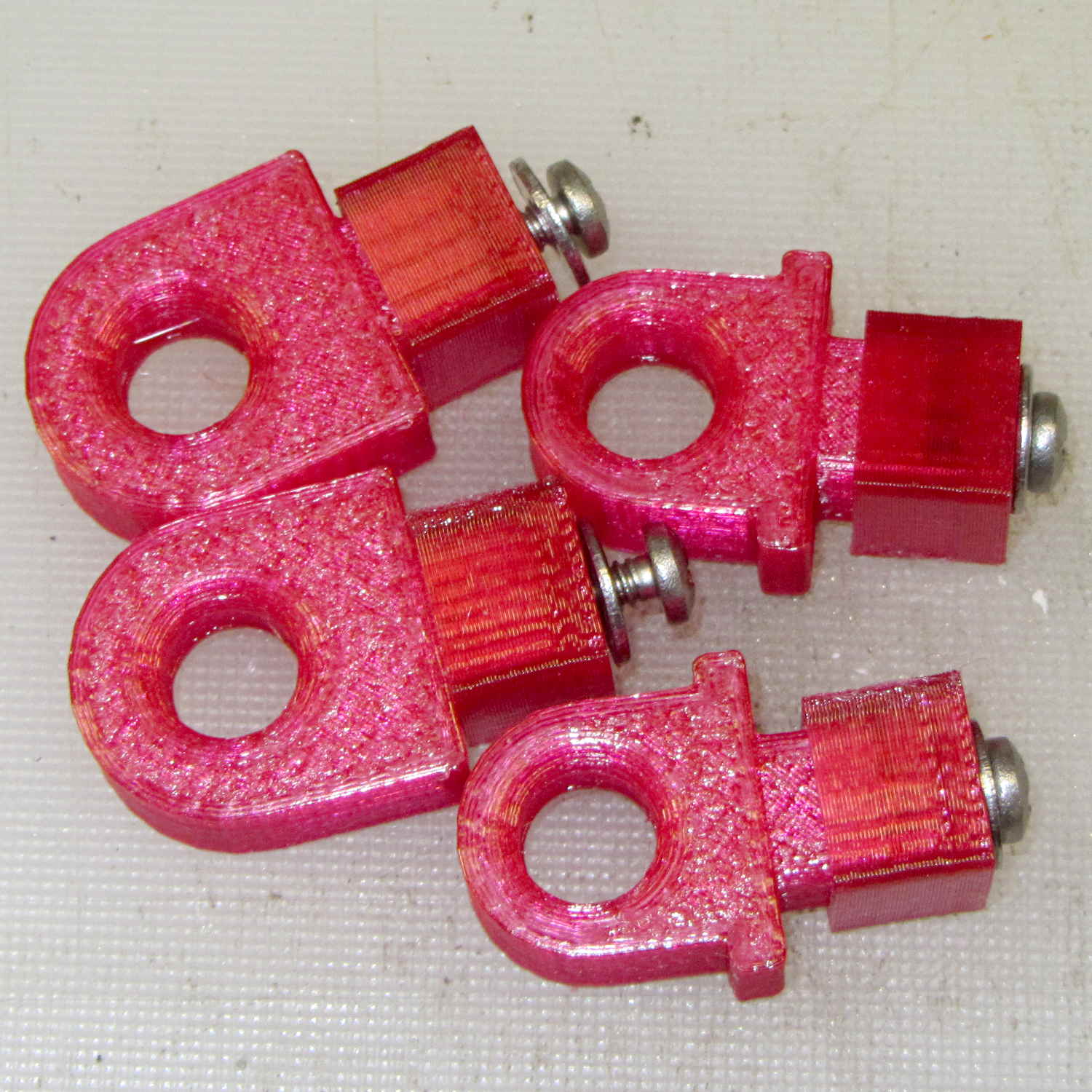
Our Larval Engineer reports that the PLA pivot for the Sienna’s hood rod didn’t survive contact with the van’s NYS Inspection. I’m not surprised, as PLA tends to be brittle and the inspection happened on a typical February day in upstate New York. Seeing as how PETG claims to be stronger and more durable than PLA, I ran off some replacements:
Toyota Sienna hood rod pivot – small – PETG
The square cap fit snugly over the bottom of the post; PETG tolerances seem pretty much the same as for PLA.
A slightly larger loop may be more durable, so I changed one parameter in the OpenSCAD code to get this:
Toyota Sienna Hood Rod Pivot – up-armored – solid model
Which printed just like you’d expect:
Toyota Sienna hood rod pivot – large – PETG hairs
Despite the hairs stretching between each part, the nozzle didn’t deposit any boogers during the print. The top and bottom use Hilbert Curve infill, which looks pretty and keeps the nozzle from zipping back and forth quite so much; perhaps that’s a step in the right direction.
Tapping the holes for 6-32 stainless machines screws went easily enough:
Toyota Sienna hood rod pivot – PETG – assembled
She gets one of each and I keep the others for show-n-tell sessions.
The OpenSCAD source code, which differs from the original by a constant or two:
// Sienna Hood Rod Pivot
// Ed Nisley KE4ZNU November 2013

//- Extrusion parameters must match reality!
//  Print with 2 shells and 3 solid layers

ThreadThick = 0.25;
ThreadWidth = 0.40;

HoleWindage = 0.2;

Protrusion = 0.1;			// make holes end cleanly

inch = 25.4;

function IntegerMultiple(Size,Unit) = Unit * ceil(Size / Unit);

//----------------------
// Dimensions

ShellOD = 20.0;
ShellID = 8.75;
ShellLength = 10.0;

TaperLength = 1.5;
TaperID = 11.4;

BaseWidth = 20.0;
BaseThick = 3.0;

PegSide = 9.5;					// mounting peg through sheet metal
PegLength = 7.0;
PegCornerTrim = 0.75;
PegHoleOD = 0.107*inch;			//  6-32 tap hole

PegTrimSide = sqrt(2)*PegSide - PegCornerTrim;

ClampWall = 3.0;				// clamping cap under sheet metal
ClampHoleOD = 0.150*inch;		//  6-32 clearance hole
ClampCap = 3.0;					// solid end thickness

PanelThick = 2.0;				// sheet metal under hood

NumSides = 6*4;

//----------------------
// Useful routines

module PolyCyl(Dia,Height,ForceSides=0) {			// based on nophead's polyholes

  Sides = (ForceSides != 0) ? ForceSides : (ceil(Dia) + 2);

  FixDia = Dia / cos(180/Sides);

  cylinder(r=(FixDia + HoleWindage)/2,
           h=Height,
	   $fn=Sides);
}

module ShowPegGrid(Space = 10.0,Size = 1.0) {

  Range = floor(50 / Space);

	for (x=[-Range:Range])
	  for (y=[-Range:Range])
		translate([x*Space,y*Space,Size/2])
		  %cube(Size,center=true);

}

//----------------------
// Build it

//ShowPegGrid();

// pivot

translate([-ShellOD,0,0])
	difference() {
		union() {
			cylinder(r=ShellOD/2,h=ShellLength,$fn=NumSides);		// housing
			translate([-ShellOD/2,0,0])								// filler
				cube([ShellOD,(ShellOD/2 + BaseThick),ShellLength],center=false);
			translate([0,(ShellOD/2 + BaseThick/2),ShellLength/2])	// foot
				cube([BaseWidth,BaseThick,ShellLength],center=true);

			translate([0,											// peg
						(ShellOD/2 + PegLength/2 + BaseThick - Protrusion),
						PegSide/2])
				intersection() {
					cube([PegSide,(PegLength + Protrusion),PegSide],center=true);
					rotate([0,45,0])
						cube([PegTrimSide,2*PegLength,PegTrimSide],center=true);
				}
		}

		PolyCyl(ShellID,ShellLength,NumSides);		// central hole

		translate([0,0,-Protrusion])				// end bevels
			cylinder(r1=TaperID/2,r2=ShellID/2,h=(TaperLength + Protrusion),$fn=NumSides);
		translate([0,0,(ShellLength + Protrusion)])
			rotate([180,0,0])
				cylinder(r1=TaperID/2,r2=ShellID/2,h=(TaperLength + Protrusion),$fn=NumSides);

		translate([0,0,PegSide/2])					// screw tap hole
			rotate([-90,0,0])
				PolyCyl(PegHoleOD,(ShellOD + BaseThick + PegLength),6);

	}

// anchor cap

translate([2*PegSide,0,0])
	difference() {
		translate([0,0,(PegLength + ClampCap)/2])					// overall shape
			cube([(PegSide + ClampWall),(PegSide + ClampWall),(PegLength + ClampCap)],center=true);
		translate([0,0,(PegLength/2 + ClampCap + Protrusion)])		// peg cutout
			cube([(PegSide + ThreadWidth),(PegSide + ThreadWidth),(PegLength + Protrusion)],center=true);
		translate([0,0,-Protrusion])								// screw clearance
				PolyCyl(ClampHoleOD,2*PegLength,6);
	}
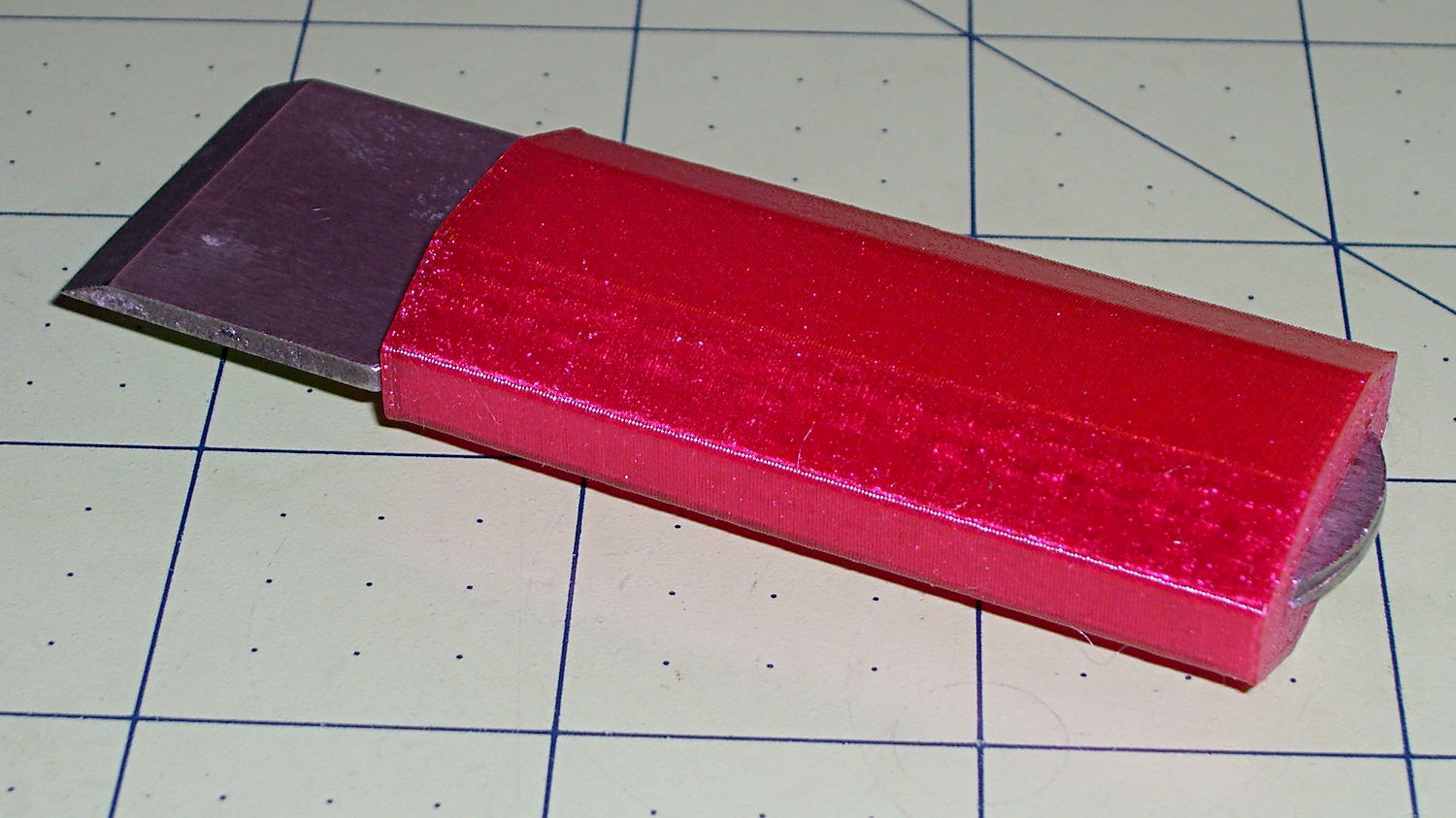
My father used a little chisel for some unknown purpose while he was an instrument repair tech at Olmstead AFB during the mid-60s. Its homebrew wood handle eventually disintegrated and I made a quick-and-truly-dirty replacement from epoxy putty and heatshrink tubing, promising that I’d eventually do better.
Seeing as how I use it to pop objects off the M2’s build platform and being in need of a tall, skinny object to see how PETG works with towers, that chisel now has a nice magenta handle:
Platform Chisel – PETG handle
Well, OK, it may not be the prettiest handle you’ve ever seen, but it’s much better than an epoxy turd, as measured along several axes.
Incidentally, epoxy putty bonds to clean steel like there’s no tomorrow. I had to file the last remaining chunks off and sandpaper the residue down to clean steel again.
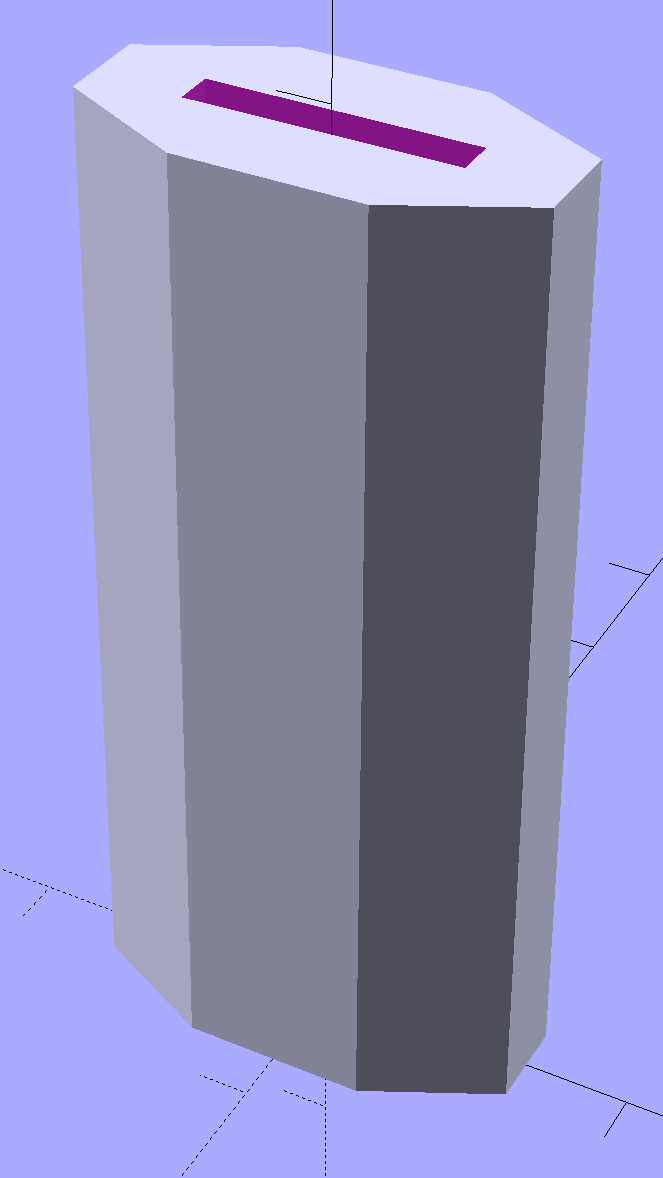
The solid model shows it in build-a-tower mode:
Chisel Handle – solid model
I think at least one rounded end would improve its appearance. Two rounded ends would make it un-printable in that orientation, although a low-vertex polygonal approximation might have enough of a flat bottom to suffice. Given how long it took me to replace the epoxy, that could take a while.
The central slot fits snugly around the handle, requiring persuasion from a plastic mallet to set in in position.
Once again, the nozzle shed a small brown PETG booger after the first few layers:
PETG Chisel Handle – oxidized plastic
I’m beginning to think PETG infill needs more attention than I’ve been giving it: that’s 15% 3D Honeycomb combined over three layers.
The OpenSCAD source code:
// Chisel Handle
// Ed Nisley KE4ZNU - March 2015

Layout = "Show";			// Show Build

//-------
//- Extrusion parameters must match reality!

ThreadThick = 0.25;
ThreadWidth = 0.40;

HoleWindage = 0.2;

Protrusion = 0.1; 				// make holes end cleanly

function IntegerMultiple(Size,Unit) = Unit * ceil(Size / Unit);

//-------
// Dimensions

Shank = [16.0,2.4,59];			// width, thickness, length to arched end

BladeWidth = 27.0;

HandleSides = 8;

//-------

module ShowPegGrid(Space = 10.0,Size = 1.0) {

  RangeX = floor(95 / Space);
  RangeY = floor(125 / Space);

	for (x=[-RangeX:RangeX])
	  for (y=[-RangeY:RangeY])
		translate([x*Space,y*Space,Size/2])
		  %cube(Size,center=true);

}

module PolyCyl(Dia,Height,ForceSides=0) {			// based on nophead's polyholes
  Sides = (ForceSides != 0) ? ForceSides : (ceil(Dia) + 2);
  FixDia = Dia / cos(180/Sides);
  cylinder(r=(FixDia + HoleWindage)/2,h=Height,$fn=Sides);
}


module Handle() {
	difference() {
		scale([1.0,0.5,1.0])
			rotate(180/HandleSides)
				cylinder(d=BladeWidth/cos(180/HandleSides),h=Shank[2],$fn=HandleSides);
		translate([0,0,Shank[2]/2])
			cube(Shank + [0,0,2*Protrusion],center=true);
	}
}

//-------
// Build it!

//ShowPegGrid();

if (Layout == "Show") {
	Handle();
}

if (Layout == "Build") {
	translate([0,0,0])
		rotate([0,0,0])
			Handle();
}
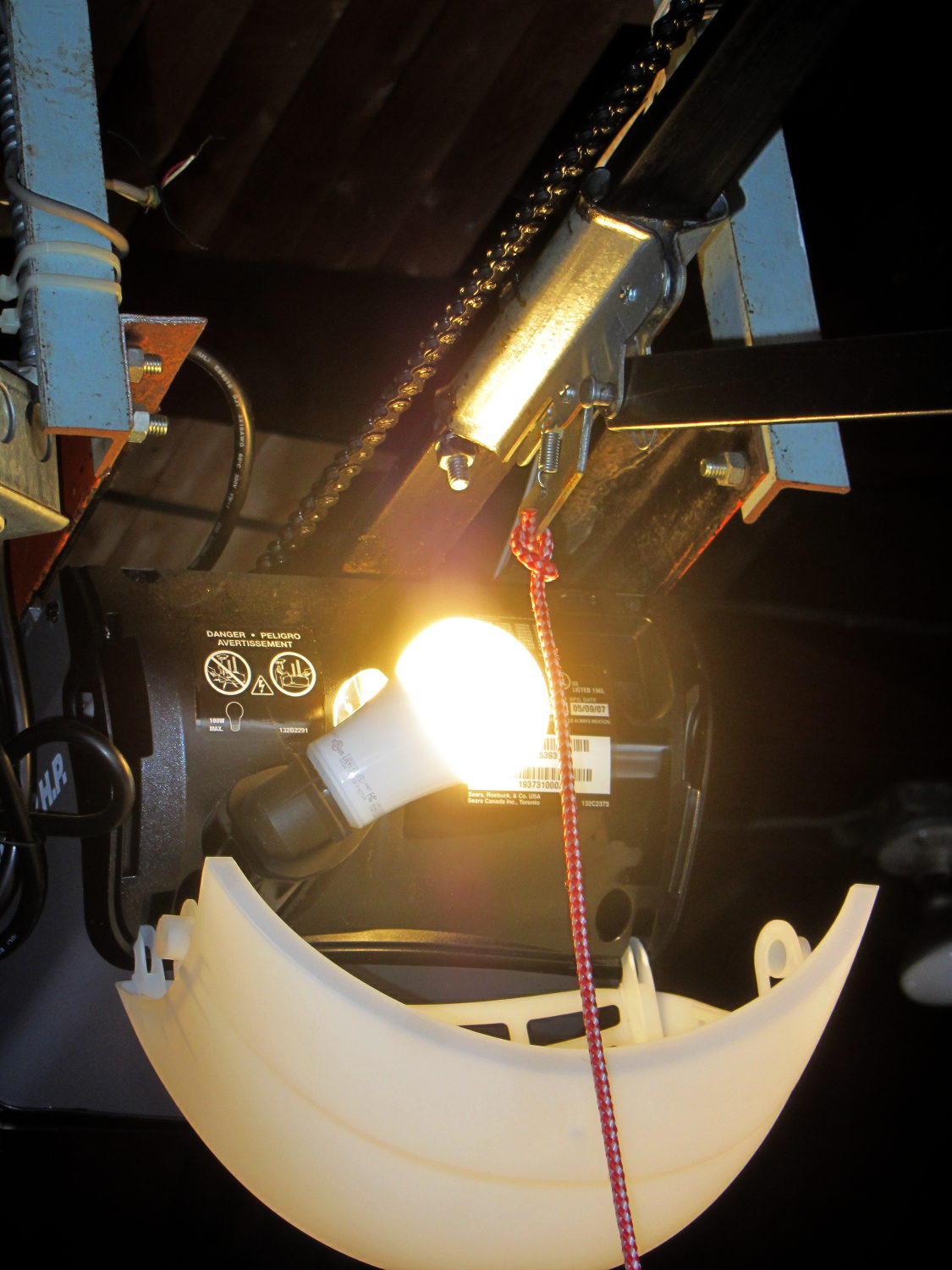
The garage door opener just ate another rough-duty bulb, so let’s see how a $7 LED bulb fares:
Walmart 60 W LED Bulb – garage door opener
It has no external heatsink fins and the color temperature looks just like the old-school incandescent bulb it’s replacing, so they’re getting a clue about what’s acceptable to ordinary folks.
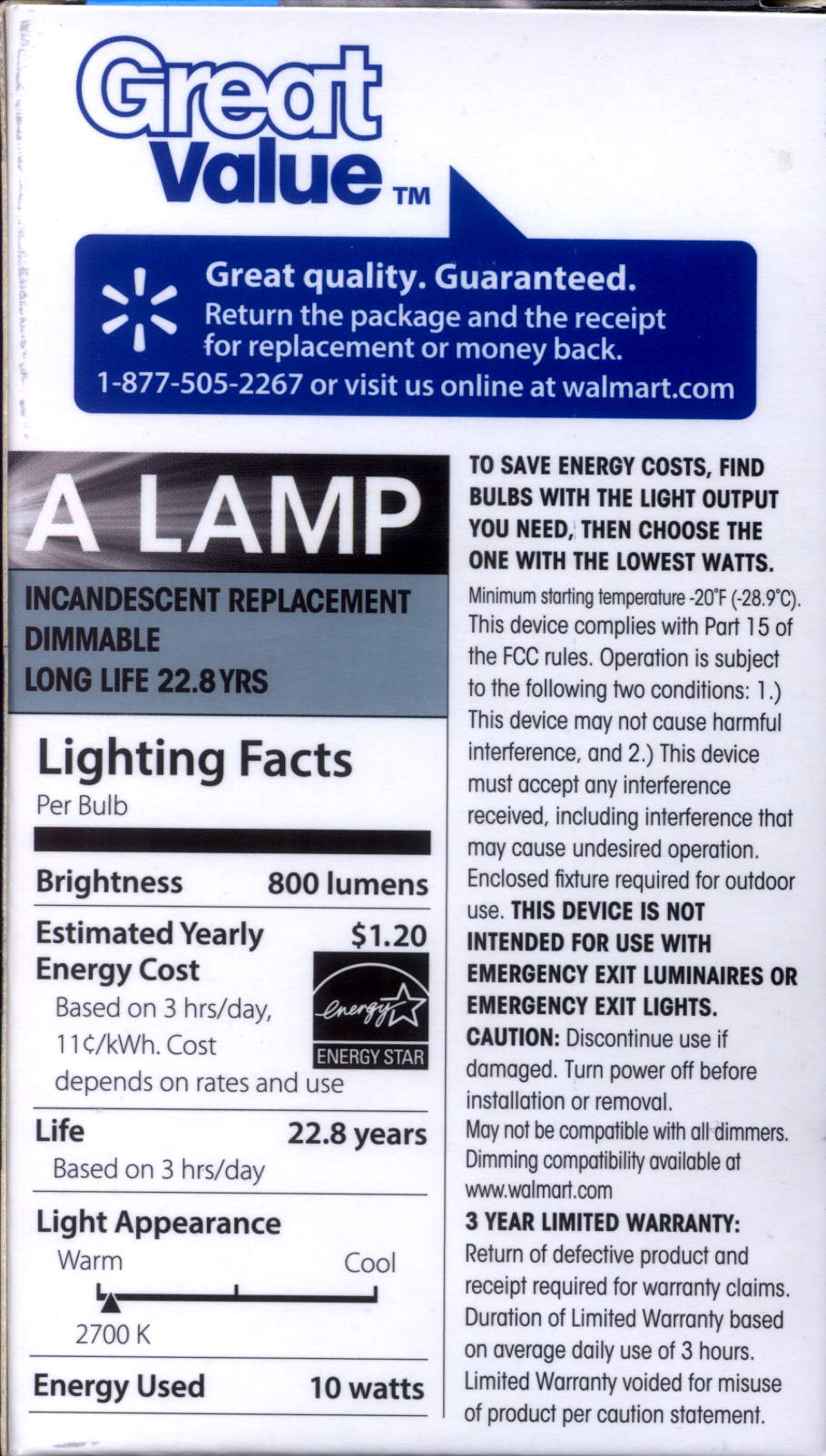
That’s equivalent to a 60 W incandescent bulb, too, at least according to the package:
Walmart 60 W LED Bulb – package data
I love the “Return the package and reciept for replacement or money back” part…
Changing from PLA to PETG with a V4 hot end and 24 V power required several slicing adjustments, some of which weren’t at all obvious. It’s not all settled down, but what you see here comes from a bunch of test objects and tweaks that you’ll see over the next few days; this is basically a peek into the future.
M2 V4 Calibration Objects
The obvious changes:
Extrusion temperature: 250 °C
Platform temperature: 90 °C
Hot PETG seems rather sticky and produces hair-fine strings that aren’t due to poor retraction. Running at 230 °C is possible, but the strings are nasty. The V4 hot end shouldn’t run over 250 °C; fortunately, some tests suggest the stringing doesn’t Go Away at 260 °C, so moah powah! isn’t required.
Hair spray on glass works well above 90 °C and not at all below 80 °C. A stick of Elmer’s Washable Glue Stick, chosen because it was on the Adhesive Shelf, produced exactly zero adhesion at any platform temperature I was willing to use. Its “washable” nature surely contributed to the failure; you want something that’s gonna stick with you forever.
The eSun PETG filament diameter varies from 1.63 to 1.72 mm, which seems like a lot compared to the MakerGear PLA I’d been using; I’ve told Slic3r to run with 1.70 mm. In practice, it doesn’t seem to matter; the average over a meter works out to 1.70, I haven’t seen any abrupt bulges, and the objects come out fine. This spool arrived late last year, early in eSun’s production, so perhaps they’ve smoothed things out by now.
A few iterations of thinwall box building put the Extrusion Multiplier at 1.11, producing a spot-on 0.40 mm thread width at either 0.20 or 0.25 mm thread thickness.
Infill:
Infill overlap: 10%
Max infill: 40%
Infill pattern: 3D Honycomb
Top/bottom pattern: Hilbert Curve
Combine infill: 3 layers
The first attempt at a solid box (left of center, first row) became so overstuffed I canceled the print; the top bulges upward. A few parameter tweak iterations produced the perfect 100% filled solid box to its right, but in actual practice a 40% 3D Honeycomb will be entirely strong enough for anything I build.
Reducing the overlap from 15% to 10% reduced the obviously overstuffed junction just inside the perimeter threads.
Cooling:
Fan for layers below 20 s
Minimum layer time: 10 s
Minimum speed: 10 mm/s
PETG wants to go down hot, but printing a single thinwall box requires that much cooling to prevent slumping. Might be excessive; we shall see.
Speeds:
First layer: 15 mm/s
External perimeters: 25 mm/s
Perimeters: 50 mm/s
Infill: 75 mm/s
Travel: 300 mm/s
Slower XY speeds seem to produce better results, although those values aren’t based on extensive experience.
The first layer doesn’t work well at higher speeds, with acute corners and edges pulling up as the nozzle moves away. Using the Hilbert Curve pattern not only looks pretty, but also ensures the nozzle spends plenty of time in the same general area. Higher platform temperatures work better, too, and I may goose the 40 V supply a bit to improve the 0.2 °C/s warmup rate.
The travel speed went up from 250 mm/s in an attempt to reduce stringing, but it may be too aggressive for the Y axis with the new 24 V supply. On very rare occasions, the Y axis stalls during homing, despite not changing the speeds in the startup G-Code, and I’m still accumulating experience with that.
Bridging isn’t nearly as clean as PLA. After some tinkering, a bridge speed of 25 mm/s and flow of 0.90 seems to work, but some chain mail patches suggest there’s plenty of room for improvement.
Mechanically, PETG is softer and more resilient than PLA, with a much higher glass transition temperature. Larger objects with 40% infill are essentially rigid and smaller objects are bendy, rather than brittle.
On the whole, PETG seems like it will work well for the stuff I build, although magenta isn’t my favorite color…
CAUTION: Don’t use this Slic3r configuration unless:
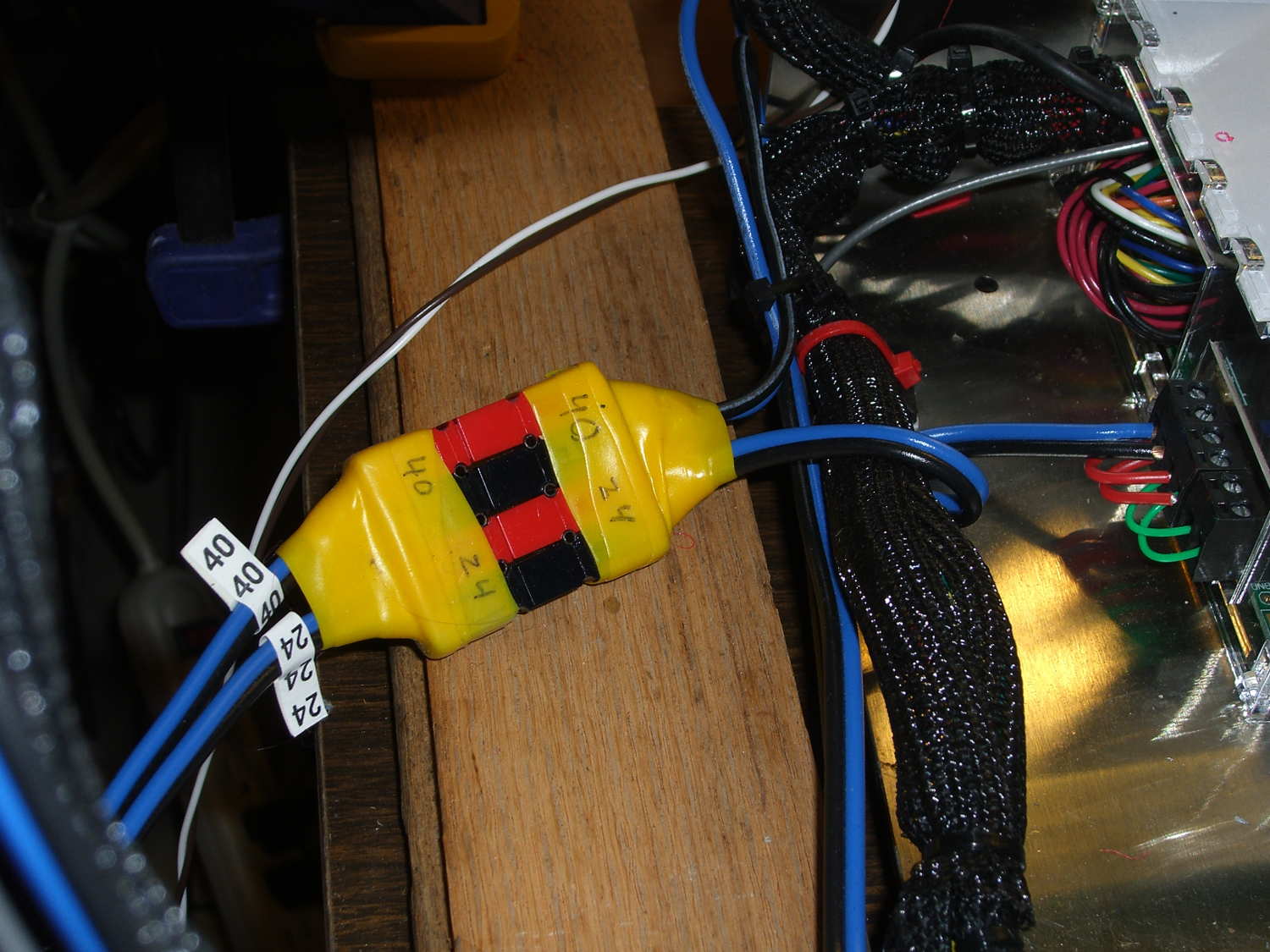
Now, with the V4 hot end and fans installed, I popped a 24 V supply brick off the heap and connected another set of Powerpoles:
M2 – Powerpole connector block
The 24 V supply now powers everything on the RAMBo board, with the platform heater running from the 40 V supply through the DC-DC solid state relay.
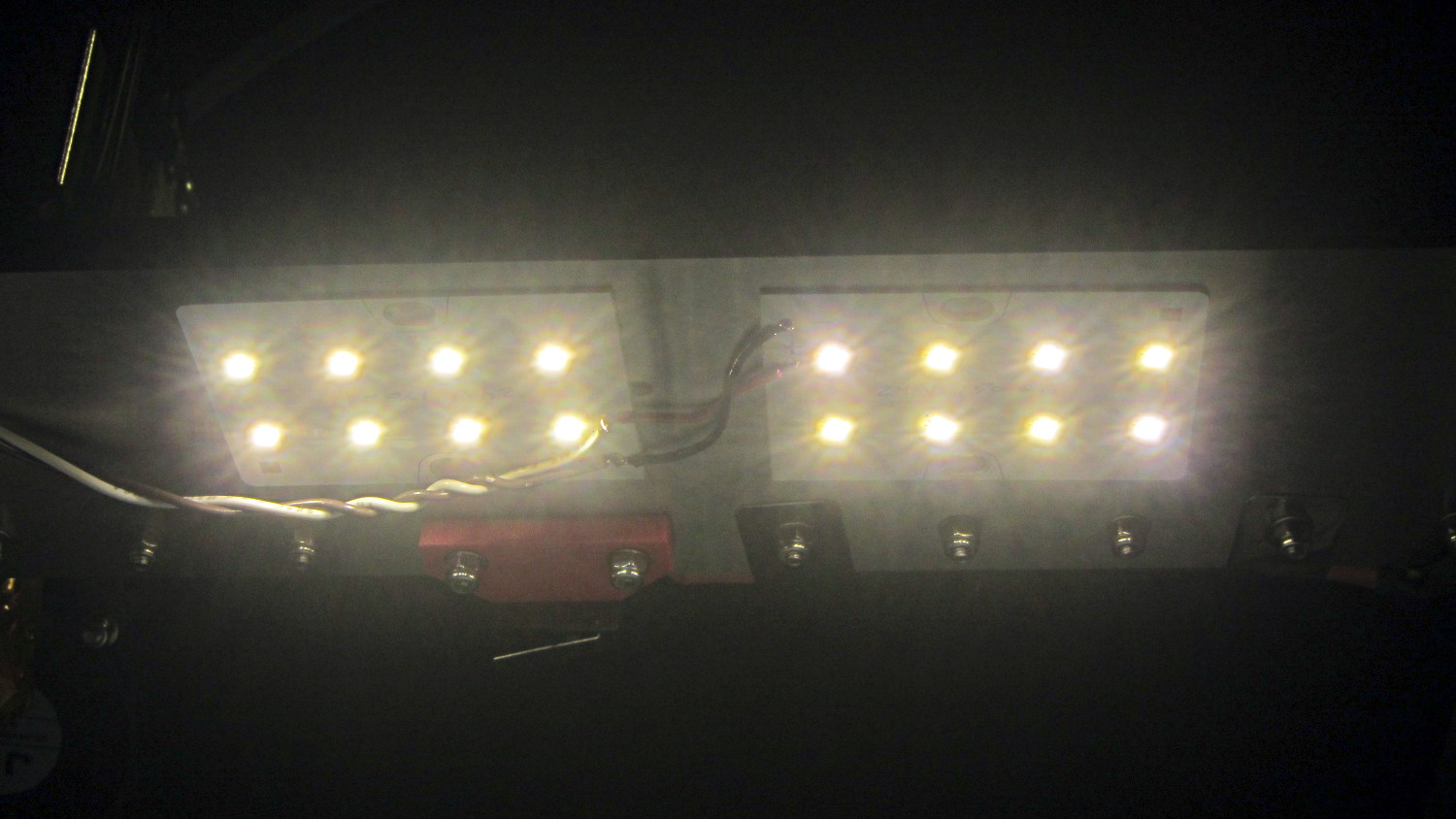
Unfortunately, wiring the LED panels to the RAMBo MOSFET driving the fans didn’t quite work. Turns out that the extruder PWM pulses produce corresponding LED blinks; the V4 hot end draws 1.5 A and that’s enough to flicker the lights. So they’re back on the wall wart and glow steadily again.
For whatever it’s worth, the panels don’t have limiting resistors, just eight 150 mA LED emitters in series…




 The Smell of Molten Projects in the Morning