The Smell of Molten Projects in the Morning

Ed Nisley's Blog: Shop notes, electronics, firmware, machinery, 3D printing, laser cuttery, and curiosities. Contents: 100% human thinking, 0% AI slop.

Tag: RPi

Raspberry Pi

  • Algorithmic Art

    This evening I’ll be showing off my Algorithmic Art at the HV Open Mad Science Fair.

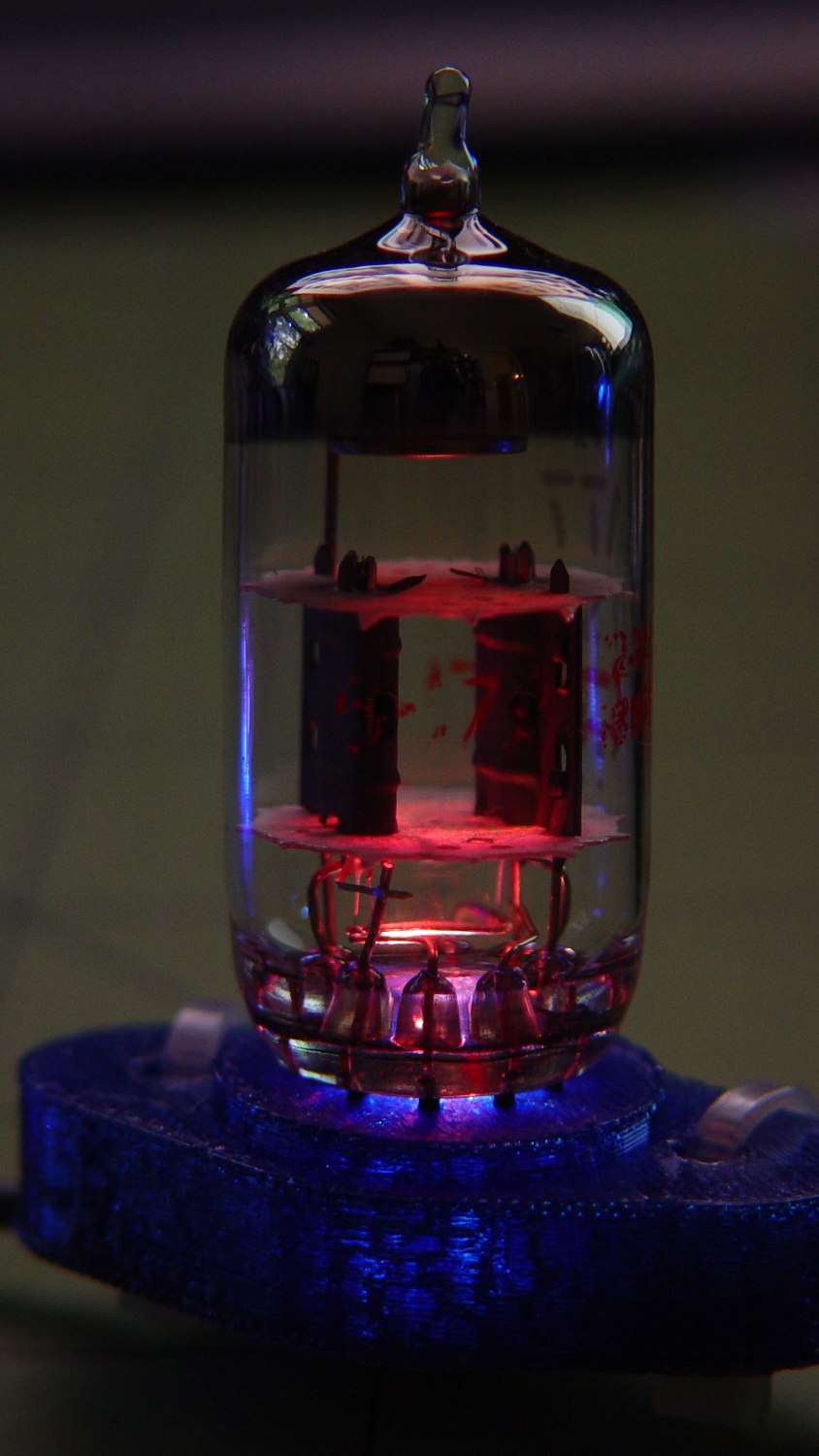
    There’ll be glowing glassware:

    Vacuum Tube LEDs - halogen lamp - purple phase
    Vacuum Tube LEDs – halogen lamp – purple phase

    Ancient electronics with modern hardware:

    21HB5A - Guilloche platter
    21HB5A – Guilloche platter

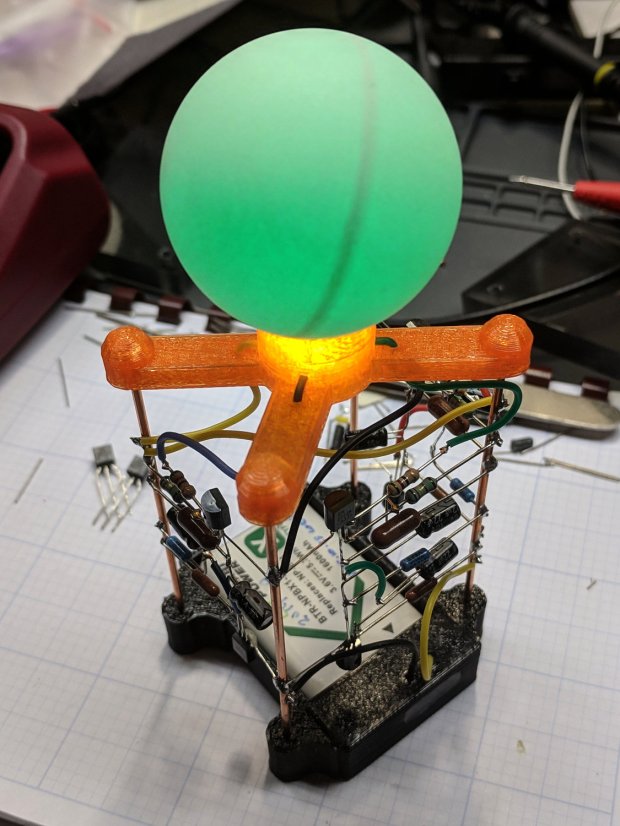
    Blinking LEDs atop Brutalist analog electronics:

    Astable RGB LED - green phase
    Astable RGB LED – green phase

    A classic HP 7475A plotter hammering math onto paper from a Raspberry Pi running Chiplotle:

    HP 7475A Plotter - LED paper illumination
    HP 7475A Plotter – LED paper illumination

    Some take-home art:

    Superformula Plots - A-size paper
    Superformula Plots – A-size paper

    And, as always, a good time will be had by all!

  • 3D Printing: Peculiar Octopi Problem

    From a discussion on the Makergear 3D printer forums

    A Makergear M2 user had a strange problem:

    Octopi claims the serial connection went down.

    LED2 was blinking red, rapidly, and LED3 was shining with a steadfast red light.

    LED2 shows the extruder heater PID loop is running and LED3 shows the extruder fan is on:
    https://reprap.org/wiki/Rambo_v1.1

    You just never noticed the blinkiness before … [grin]

    Because the extruder heater is still running, the firmware hasn’t detected a (possibly bogus) thermal runaway or any other fatal problem. It’s just waiting for the next line of G-Code, but Octopi isn’t sending it.

    Casually searching the GitHub issues, there’s a report of intermittent serial problems from last year:
    https://github.com/foosel/OctoPrint/issues/2647

    Which points to the FAQ:
    https://community.octoprint.org/t/octop … eption/228

    Look at the Octopi Terminal log to see if the conversation just before the failure matches those descriptions.

    Assuming you haven’t updated the printer firmware or anything on the Octopi, then something physical has gone wrong.

    First and least obviously, the Pi’s MicroSD card has probably started to fail: they’re not particularly durable when used as a mass storage device and “the last couple of years” is more than you should expect. Download a fresh Octopi image, put it on a shiny-new, good-quality card (*), and see if the situation improves.

    Then I’d suspect the Pi’s power supply, even though you’re using the “official rpi power supply”. All of those things contain the cheapest possible electrolytic capacitors, running right on the edge of madness, and produce bizarre errors when they begin to go bad. Get a good-quality wall wart (**), ideally with a UL rating, and see if the situation improves.

    While you’re buying stuff, get a good-quality USB cable (***) to replace the one that (assuming you’re like me) you’ve been saving for the last decade Just In Case™. Use the shortest cable possible, because longer does not equal better.

    After that, the problems get truly weird. Apply some tweakage and report back.

    (*) This is harder to do than you might think. You may safely assume all cards available on eBay and all “Sold by X, Fulfilled by Amazon” cards will be counterfeit crap. I’ve been using Samsung EVO / EVO+ cards (direct from Samsung) with reasonable success:

    https://softsolder.com/2018/10/16/raspb … sk-memory/
    https://softsolder.com/2017/11/22/samsu … ification/
    https://www.samsung.com/us/computing/me … 22y+zq29p/

    The card in question eventually failed, so having a backup card ready to go was a Good Idea™.

    (**) Top-dollar may not bring top quality, but Canakit has a good rep and costs ten bucks through Prime.

    (***) Amazon Basics cables seems well-regarded and work well for what I’ve needed.

  • Icecast and Ezstream Configuration

    Plugging a 64 GB USB stick with directories full of MP3 / OGG files into an always-on Raspberry Pi running Pi-Hole, one can use Icecast to stream them for clients on the LAN, so as to avoid over-the-Intertubes streaming issues.

    The only changes in the /etc/icecast2/icecast.xml file cover passwords, the number of source streams, and the hostname. It’s that simple, really.

    Given a directory of files, generate a file-per-line playlist:

    find /mnt/music/goodmusic/ -name \*mp3 | sort > /mnt/music/goodmusic/playlist.m3u
    

    Then set up a corresponding Ezstream XML file, perhaps imaginatively named goodmusic.xml:

    <ezstream>
        <url>http://localhost:8000/goodmusic</url>
        <sourcepassword>make-up-your-own</sourcepassword>
        <format>MP3</format>
        <filename>/mnt/music/goodmusic/playlist.m3u</filename>
        <shuffle>1</shuffle>
        <stream_once>0</stream_once>
        <svrinfoname>Good Music</svrinfoname>
        <svrinfourl>pihole.local</svrinfourl>
        <svrinfogenre>Good Music Streaming 24x7</svrinfogenre>
        <svrinfodescription>Techno Dub</svrinfodescription>
        <svrinfobitrate>128</svrinfobitrate>
        <svrinfochannels>2</svrinfochannels>
        <svrinfosamplerate>44100</svrinfosamplerate>
        <svrinfopublic>1</svrinfopublic>
    </ezstream>
    

    Fire off the source stream in /etc/rc.local:

    ezstream -c /home/pi/Icecast/goodmusic.xml &
    

    The ampersand tells Bash to fire-and-forget the process, so it runs all the time. One could, I suppose, put it in crontab to start after each boot or puzzle out the corresponding systemd incantation, but …

    Add the station to your streaming media player:

             'KEY_KP5'   : ['Good Music',False,['mplayer','-playlist','http://192.168.1.2:8000/goodmusic.m3u']],
    

    And then It Just Works™.

  • Raspberry Pi vs. MicroSD-as-Disk Memory

    The MPCNC has bCNC running on a Raspberry Pi, with a Samsung EVO MicroSD card serving as the “hard drive”:

    Sandisk Extreme Plus vs. Samsung EVO MicroSD cards
    Sandisk Extreme Plus vs. Samsung EVO MicroSD cards

    The picture also shows a defunct Sandisk Extreme Plus killed by continuous video recording in my Fly6 bike camera. I later replaced the EVO with a video-rated Samsung card which has been running fine ever since, albeit with the occasional crash-and-reformat expected with “action” cameras.

    With that as background, a different Samsung EVO card from the same batch has been running the MPCNC’s Raspberry Pi for about a year. Over the course of a few days last week, the RPi went from an occasional stall to a complete lockup, although waiting for minutes to hours would sometimes resolve the problem. As I’ve learned by now, it’s not a software crash, it’s the controller inside the card suffering from write amplification while trying to move data from failing sectors.

    Applying f3write to the card shows the problem:

    MPCNC MicroSD - f3write slowdown
    MPCNC MicroSD – f3write slowdown

    The write speed started out absurdly high as the card’s write cache fills, then slowed to to the flash memory’s ability to absorb data, and eventually ran out of steam during the last few files.

    But, as you might not expect, f3read reported the data was fine:

    sudo f3read /mnt/part
    F3 read 7.0
    Copyright (C) 2010 Digirati Internet LTDA.
    This is free software; see the source for copying conditions.
    
                      SECTORS      ok/corrupted/changed/overwritten
    Validating file 1.h2w ... 2097152/        0/      0/      0
    Validating file 2.h2w ... 2097152/        0/      0/      0
    Validating file 3.h2w ... 2097152/        0/      0/      0
    Validating file 4.h2w ... 2097152/        0/      0/      0
    Validating file 5.h2w ... 2097152/        0/      0/      0
    Validating file 6.h2w ... 2097152/        0/      0/      0
    Validating file 7.h2w ... 2097152/        0/      0/      0
    Validating file 8.h2w ... 2097152/        0/      0/      0
    Validating file 9.h2w ... 2097152/        0/      0/      0
    Validating file 10.h2w ... 2097152/        0/      0/      0
    Validating file 11.h2w ... 2097152/        0/      0/      0
    Validating file 12.h2w ... 2097152/        0/      0/      0
    Validating file 13.h2w ... 2097152/        0/      0/      0
    Validating file 14.h2w ... 2097152/        0/      0/      0
    Validating file 15.h2w ... 2097152/        0/      0/      0
    Validating file 16.h2w ... 2097152/        0/      0/      0
    Validating file 17.h2w ... 2097152/        0/      0/      0
    Validating file 18.h2w ... 2097152/        0/      0/      0
    Validating file 19.h2w ... 2097152/        0/      0/      0
    Validating file 20.h2w ... 2097152/        0/      0/      0
    Validating file 21.h2w ... 1322894/        0/      0/      0
    
      Data OK: 20.63 GB (43265934 sectors)
    Data LOST: 0.00 Byte (0 sectors)
    	       Corrupted: 0.00 Byte (0 sectors)
    	Slightly changed: 0.00 Byte (0 sectors)
    	     Overwritten: 0.00 Byte (0 sectors)
    Average reading speed: 43.04 MB/s
    

    Obviously, the card’s read speed isn’t affected by the write problems.

    Assuming the actual data & programs on the card were still good, I slurped the partitions:

    sudo partimage save /dev/sdf1 mpcnc_boot.gz
    sudo partimage save /dev/sdf2 mpcnc_partition.gz
    

    And wrote them back:

    sudo partimage restmbr  mpcnc_boot.gz.000 
    sudo partimage restore /dev/sdf1 mpcnc_boot.gz.000 
    sudo partimage restore /dev/sdf2 mpcnc_partition.gz.000
    

    Unshown: a finger fumble requiring MBR restoration.

    Having forced the card controller to reallocate all the failed sectors, the card works now fine and runs at full speed again. This won’t last long, but it’ll be interesting to see how it plays out.

    While I was at it, I wrote the partitions to a new-ish / unused Samsung EVO Plus card, now tucked under the MPCNC’s monitor in case of emergency.

    An old SFF Optiplex with an SSD may be a better fallback.

  • Pi-Hole with DNS-over-HTTPS

    With none other than Troy Hunt recommending Pi-Hole, I got a Round Tuit:

    unzip 2018-06-27-raspbian-stretch-lite.zip -d /tmp
    sudo dcfldd status=progress bs=1M of=/dev/sde if=/tmp/2018-06-27-raspbian-stretch-lite.img
    

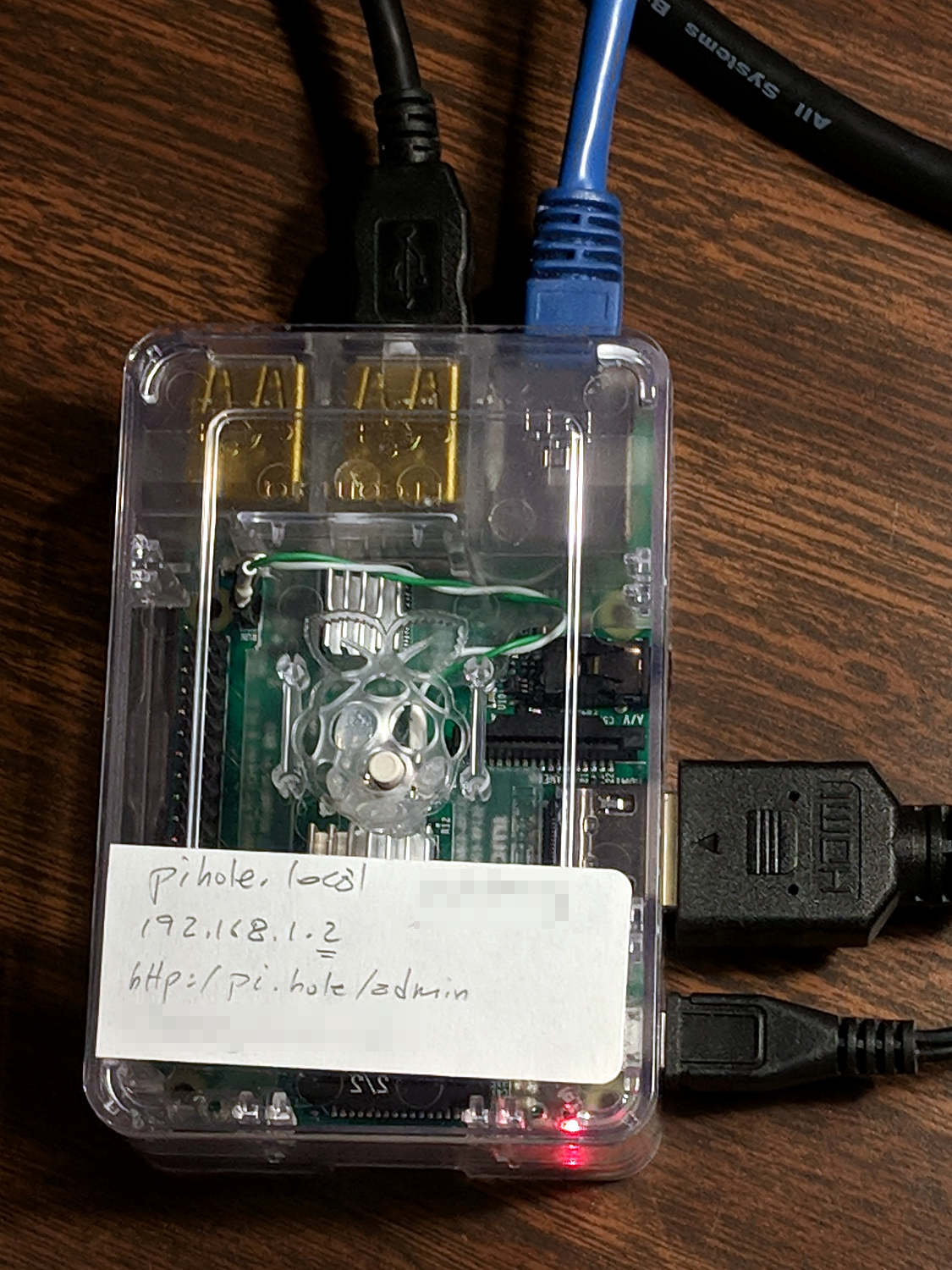
    Raspbian now arrives with ssh disabled, so the first boot requires a keyboard and display:

    Pi-Hole first boot wiring
    Pi-Hole first boot wiring

    Then do some configuration required to get a fresh Raspberry Pi ready for remote access:

    sudo apt-get update
    sudo apt-get upgrade
    sudo apt-get install screen iotop
    sudo raspi-config   # enable ssh
    ssh-keygen -t rsa
    cd ~/.ssh
    cp -a /my/public/key authorized_keys
    chmod go-rwx authorized_keys
    cd
    sudo nano /etc/ssh/sshd_config  # unusual port, no root login, etc
    sudo service ssh restart
    

    As the good folks at Pi-Hole say, “Piping to bash is controversial, as it prevents you from reading code that is about to run on your system.” I took a look, it’s beyond my comprehension, so just get it done:

    curl -sSL https://install.pi-hole.net | bash
    

    Configure Pi-Hole:

    • Static IP: 192.168.1.2/24
    • DNS using, say, Cloudflare’s 1.1.1.1
    • DHCP turned off, which is the default

    Configure the router’s DHCP to hand out the Pi-Hole’s IP, with, say, 9.9.9.9 as a backup.

    Boot a few random PCs and whatnot to verify it works as expected, which it did the second time around, thus this particular post.

    Install the Cloudflare Argo Tunnel dæmon, approximately according to suggestions:

    mkdir Downloads
    cd Downloads/
    wget https://bin.equinox.io/c/VdrWdbjqyF/cloudflared-stable-linux-arm.tgz
    tar zxvf cloudflared-stable-linux-arm.tgz
    sudo mkdir /opt/cloudflare
    sudo cp cloudflared /opt/cloudflare/
    

    Start the daemon from within a screen session, also as suggested:

    sudo /opt/cloudflare/cloudflared proxy-dns --port 54 --upstream https://1.1.1.1/.well-known/dns-query --upstream https://1.0.0.1/.well-known/dns-query
    INFO[0000] Adding DNS upstream                           url="https://1.1.1.1/.well-known/dns-query"
    INFO[0000] Adding DNS upstream                           url="https://1.0.0.1/.well-known/dns-query"
    INFO[0000] Starting metrics server                       addr="127.0.0.1:37777"
    INFO[0000] Starting DNS over HTTPS proxy server          addr="dns://localhost:54"
    

    Contrary to the suggestions, you can configure Pi-Hole to use the DoH tunnel (or whatever it’s called) by tweaking its upstream DNS configuration:

    Pi-Hole - Cloudflare DNS config
    Pi-Hole – Cloudflare DNS config

    Then set up systemd to start the daemon automagically:

    sudo nano /etc/systemd/system/dnsproxy.service
    

    Because I put the daemon in /opt/cloudflare, that file differs slightly from the suggestion:

    [Unit]
    Description=CloudFlare DNS over HTTPS Proxy
    Wants=network-online.target
    After=network.target network-online.target
    
    [Service]
    ExecStart=/opt/cloudflare/cloudflared proxy-dns --port 54 --upstream https://1.1.1.1/.well-known/dns-query --upstream https://1.0.0.1/.well-$
    Restart=on-abort
     
    [Install]
    WantedBy=multi-user.target
    

    And then It Just Worked.

    Controversies over the ethics of ad and tracker blocking will go nowhere here, as I’ve cleaned out enough Windows machines to have absolutely no sympathy with the unholy spawn of adtech (not just the company, which I didn’t know existed until just now, but, yeah, them too).

  • Debranded HP w2408 Monitor: Revived

    Three years ago I found a bulgy electrolytic cap inside a failed HP w2408 monitor:

    HP 2408 monitor power supply - HV cap bulge
    HP 2408 monitor power supply – HV cap bulge

    Back then, a 150 µF 450 V cap of the proper size (the 30 mm height being critical) was difficult to find and relatively expensive to purchase in onesies from the usual reliable sources, particularly as the repair advice I could find suggested it probably wasn’t the causing the monitor’s problems. So the monitor sat in pieces in an out-of-the-way corner of the Basement Laboratory while other events transpired.

    As part of a long-delayed Great Cleanup of Small Projects, I discovered the caps are now four bucks delivered from halfway around the planet, so I got one, did the swap, reassembled the pieces, and the monitor works just like new. No pix, but you get the general idea.

    For another few years, anyway.

    For whatever reason, the 3.5 mm audio output seems dead. The monitor has a pair of teeny speakers that don’t do justice to its magnificent HDMI audio, but they’re entirely adequate for my simple needs: pre-SSH Raspberry Pi setup doesn’t call for much.

  • Streamripper Setup

    The Intertubes occasionally clog up while streaming low-bit-rate audio, for no reason I can fathom, leading to discontent in the User Community when it affects quiet classical music played in the dead of night. Given that the stream from far-off Switzerland consists entirely of public-domain performances, I set up Raspbian Lite on a headless Raspberry Pi 1 Model B+ in a spot where it won’t be disturbed:

    Raspberry Pi 1 for streamripper
    Raspberry Pi 1 for streamripper

    Connecting to the Pi with a screen session, so as to allow disconnection & reconnection without anguish, I fired streamripper thusly:

    streamripper http://relay.publicdomainproject.org/classical.mp3.m3u -xs2 -o larger -u "MPlayer2" -m 30 -r -R 6 --with-id3v1
    

    The -r -R 6 options set up a relay stream on http://ripper.local:8000 for the benefit of my local streamers, so only one trickle of bits crosses the Atlantic.

    The total CPU load amounts to a percent or two, tops, so a single-core 700 MHz Pi has no trouble keeping up.

    Because streamripper slings bits in more-or-less real time, the local servers don’t get any track title data when they start up, so the OLED display doesn’t update immediately. This is less of a problem than you might think, as we’re generally not hanging on the display to find out exactly which Vivaldi bassoon concerto is playing.

    Given a suitable collection of tracks, I’ll set up an icecast server as the classical music “station” for the streamers, but that’s an adventure for another day. I also want to splice separate movements back into continuous symphonies, the way they’re suppose to be heard.