The Smell of Molten Projects in the Morning

Ed Nisley's Blog: Shop notes, electronics, firmware, machinery, 3D printing, laser cuttery, and curiosities. Contents: 100% human thinking, 0% AI slop.

Category: PC Tweakage

Remembering which tweaks worked

  • Raspberry Pi: WLAN to Wired Network

    Raspberry Pi: WLAN to Wired Network

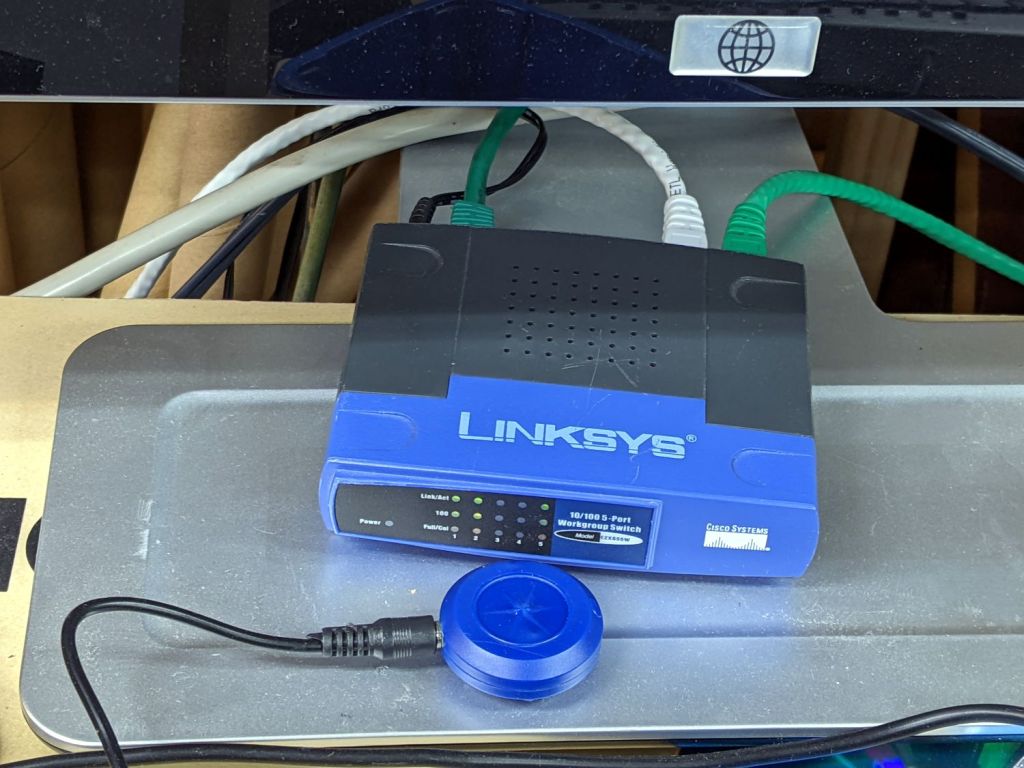
    The CNC-3018XL and MPCNC machines each have a Raspberry Pi feeding G-Code into an Arduino clone controlling the stepper motors. The former grew a USB WiFi interface in place of its internal WiFi hardware when it seemed to have difficulty connecting to the house router, while the latter pretty much worked. Of late, however, I’ve been trying to reduce the number of WiFi devices cluttering the airwaves, with the result of wiring both machines to an old Ethernet switch from the Box o’ Network Stuff:

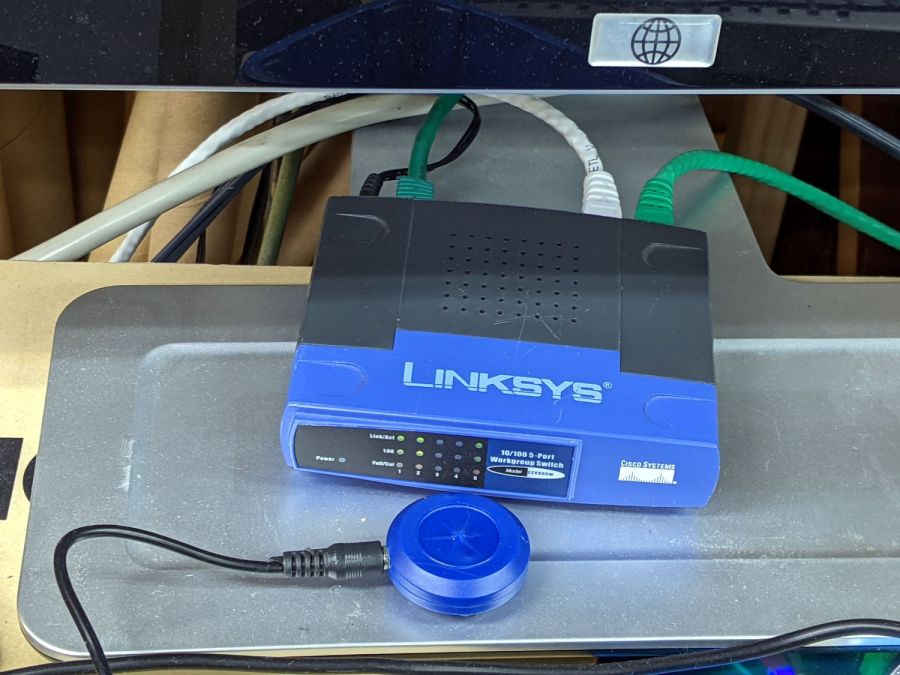
    LinkSys Switch for CNC machines
    LinkSys Switch for CNC machines

    The blue puck is the KVM button to select one of the machines for the keyboard / mouse / monitor on the bench.

    One key point I generally screw up: the WiFi IP address cannot become the wired IP address without rebooting everything else on the network. Instead, just change the IP addresses and be done with it.

    Collecting all the pieces in one place:

    Disable the both internal WiFi hardware and Bluetooth in /boot/config.txt, thereby eliminating the need to force the WiFi down in /etc/rc.local:

    dtoverlay=pi3-disable-wifi
    dtoverlay=pi3-disable-bt
    

    Define the static IP address in /etc/dhcpcd.conf:

    interface eth0
    static ip_address=192.168.1.34/24
    static routers=192.168.1.1
    static domain_name_servers=192.168.1.2
    

    Kill IPV6 activity in /etc/sysctl.conf:

    net.ipv6.conf.all.disable_ipv6=1
    

    I very much doubt this information is either complete or correct, but it serves the purpose as of early 2022.

  • XFCE: Remote Desktop via X11vnc Through an SSH Tunnel

    For the first time in a loooong time I (had to) set up remote desktop sharing, starting from an existing SSH login through a single-port pinhole in an immutable router firewall.

    The remote PC runs Xubuntu 20.4 LTS and I verified it already had x11vnc installed. If that’s not the case, make it so.

    In order to share / control the desktop of a different user (hereinafter known as kay), I must SSH into that PC as kay. My SSH session uses public key authentication and kay has no need for outbound SSH, so just use my PC’s public key in kay‘s authorized_keys file. On the remote PC, where I am signed in as me:

    cd ~
    sudo mkdir /home/kay/.ssh        # kay does not have a public key
    sudo cp .ssh/authorized_keys /home/kay/.ssh     # so just copy mine
    sudo chown -R kay:kay /home/kay/.ssh     # transfer ownership
    sudo chmod go-rwx /home/kay/.ssh     # set proper permissions
    

    From my local PC, I can now SSH into the remote PC as kay and start x11vnc through the SSH tunnel:

    ssh -v kay@remote.address -L 5900:localhost:5900 "x11vnc -display :0 -noxdamage -ncache 10 -ncache_cr -nopw"
    

    Still on my PC, aim a VNC client at the local end of the tunnel:

    novnc localhost:5900
    

    Using novnc presents the remote desktop as a web page in a browser, although you may prefer something more traditional.

    Somewhat to my surprise, It Just Worked™.

  • Clearing the Noto Font Clutter: Again

    Installing Atkinson Hyperlegible reminded me to clear out the Noto font clutter in this (relatively nerecentw) Manjaro installation. Of course fonts now appear in slightly different locations with slightly different names, so this remains just a serving suggestion:

    cd /usr/share/fonts/noto
    sudo chmod a-w NotoSans-*
    sudo chmod a-w NotoSansMono*
    sudo chmod a-w NotoSansDisplay*
    sudo chmod a-w NotoSansMath*
    sudo chmod a-w NotoSansSymbol*
    sudo chmod a-w NotoSerif-*
    sudo chmod a-w NotoSerifDisplay*
    sudo chmod a-w NotoMusic*
    sudo chmod a-w NotoMath*
    sudo find . -perm /u=w -name \*ttf -delete
    

    Get rid of some other clutter:

    cd ../TTF
    sudo chmod a-w DejaVu*
    sudo chmod a-w Inconsolata-*
    sudo find . -perm /u=w -name \*ttf -delete
    cd ../droid
    sudo chmod a-w DroidSans-Bold.ttf 
    sudo chmod a-w DroidSans.ttf 
    sudo chmod a-w DroidSansFallback*
    sudo chmod a-w DroidSansMono.ttf 
    sudo chmod a-w DroidSerif-*
    cd ../adobe-source-han-sans
    sudo rm *otf
    

    For unknown reasons, we now have two font cache updaters:

    sudo fc-cache -v -f
    sudo fc-cache-32 -v -f
    

    Now font selection in, say, LibreOffice doesn’t involve paging through a myriad fonts in languages I cannot recognize, let alone read. Admittedly, Inconsolata does have more variations than I’ll ever use.

  • Naming Is Hard

    A recent update to the X Windowing System (or whatever it’s called) once again changed the names of its monitors / displays / output devices, so that my startup script no longer confined the tablet to the landscape display.

    In mostly reverse chronological order, here are various commands I’ve puzzled out:

    #xsetwacom --verbose set "HUION Huion Tablet stylus" MapToOutput "DP1-8"
    xsetwacom --verbose set "HUION Huion Tablet stylus" MapToOutput "DP-1-8"
    #xsetwacom --verbose set "HUION Huion Tablet Pen stylus" MapToOutput "DP-1"
    #xsetwacom --verbose set "Wacom Graphire3 6x8 Pen stylus" MapToOutput "DP-1"
    #xsetwacom --verbose set "Wacom Graphire3 6x8 Pen stylus" MapToOutput "HEAD-0"
    #xsetwacom --verbose set "Wacom Graphire3 6x8 Pen eraser" MapToOutput "DP-1"
    #xsetwacom --verbose set "Wacom Graphire3 6x8 Pen eraser" MapToOutput "HEAD-0"
    

    Over the last two years, the display name changed from DP-1 to DP-1-8 to DP1-8, and back to DP-1-8. I grew accustomed to this with the Wacom tablet (HEAD-0‽)and now know where to look, but I still have no idea of the motivation.

    Aaaand the tablet’s stylus name? The Wacom names were stable, but the Huion names apparently come from the Department of Redundancy Department.

  • KeyboardIO Atreus: LED Diffuser

    KeyboardIO Atreus: LED Diffuser

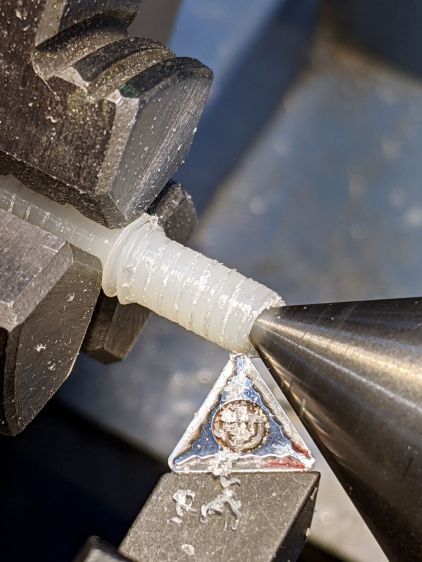
    After staring at the RGB LED I installed in my Atreus keyboard for a while, I converted the stub of a ¼-20 nylon screw into a light diffuser:

    Atreus keyboard - LED diffuser
    Atreus keyboard – LED diffuser

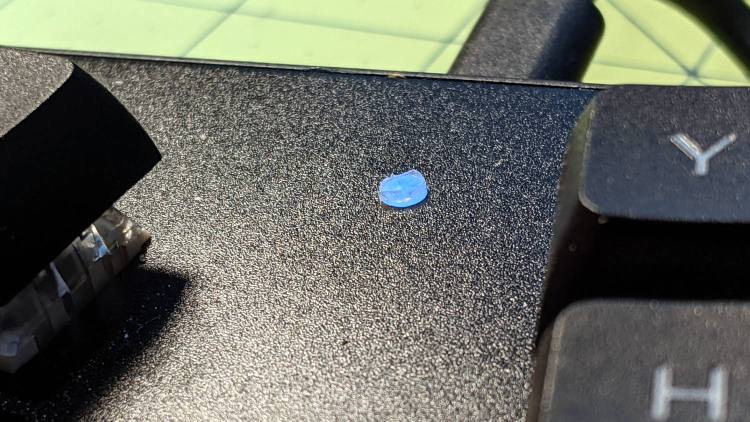
    It stands slightly proud of the surface plate so I can extract it without dismantling the whole keyboard again:

    Atreus keyboard - LED diffuser installed
    Atreus keyboard – LED diffuser installed

    I’ll eventually make a better-looking diffuser from a recently arrived translucent acrylic rod, but this will reduce the accumulation of fuzz inside the keyboard until the matching Round Tuit arrives.

  • KeyboardIO Atreus: RGB LED Installation

    KeyboardIO Atreus: RGB LED Installation

    Having scouted out the territory inside the KeyboardIO Atreus, adding an LED requires taking it completely apart to drill a hole in the aluminum faceplate:

    Atreus keyboard - panel drilling
    Atreus keyboard – panel drilling

    Reattaching the plate to the PCB with only three screws allows marking the hole position on the PCB, which is much easier than pretending to derive the position from first principles:

    Atreus keyboard - LED marking
    Atreus keyboard – LED marking

    Despite appearances, I traced the hole with a mechanical pencil: black graphite turns shiny silvery gray against matte black soldermask. Also, the PCB trace is off-center, not the hole.

    Overlay the neighborhood with Kapton tape to protect the PCB from what comes next:

    Atreus keyboard - Kapton tape

    Snip a WS2812 RGB LED from a strip, stick it in place with eyeballometric alignment over the target, and wire it up:

    Atreus keyboard - LED wiring
    Atreus keyboard – LED wiring

    Despite the terrible reliability of WS2812 RGB LEDs mounted on PCB carriers, a different set on a meter of high-density flex tape have worked reasonably well when not thermally stressed, so I’ll assume this one arrived in good order.

    Aligning the LED directly under the hole required a few iterations:

    Atreus keyboard - LED positioning
    Atreus keyboard – LED positioning

    The iridescent green patch is a diffraction pattern from the controller chip’s internal circuitry.

    The data comes from MOSI, otherwise known as B2, down in the lower left corner:

    Atmel 32U4 - JTAG pins
    Atmel 32U4 – JTAG pins

    Actually lighting the LED now becomes a simple matter of software QMK firmware.

  • KeyboardIO Atreus Keymapping

    KeyboardIO Atreus Keymapping

    Having a customizable keyboard like the KeyboardIO Atreus means one must customize it. As it turns out, I wanted to use some features of the underlying QMK Kaleidoscope firmware that aren’t exposed by Chrysalis, KeyboardIO’s otherwise competent keymap configuration utility, so what you see below runs on hard mode.

    Start by installing QMK, compiling the default Atreus layout, and flashing the keyboard just to confirm all the steps work:

    Atreus keyboard - overview
    Atreus keyboard – overview

    With all that working, add (or create) two lines to the rules.mk file in the keymap directory you’re tweaking:

    AUTO_SHIFT_ENABLE = yes			# allow automagic shifting
    TAP_DANCE_ENABLE = yes			# allow multi-tap keys

    Enabling Auto-Shift lets you generate shifted characters (like Z) by briefly holding down the unshifted key (like z). This requires unlearning an entire lifetime of touch typing practice, but is definitely worthwhile; if a thumb still reaches for the shift key, there’s no harm done. There are, of course, a myriad options, all of which I left unchanged.

    Complex passwords suffer, as you must blind-type carefully while tapping each key rapidly.

    Enabling Tap Dance lets a key generate one character when tapped and another when double-tapped; you can go crazy with more taps. An enum{} in the keymap.c file generates indexes for the keys and an array holds the action definitions:

    enum {
        TD_SPC_ENT,
        TD_BS_DEL,
    };
    
    qk_tap_dance_action_t tap_dance_actions[] = {
        [TD_SPC_ENT] = ACTION_TAP_DANCE_DOUBLE(KC_SPC, KC_ENT),
        [TD_BS_DEL] = ACTION_TAP_DANCE_DOUBLE(KC_BSPC, KC_DEL),
    };

    Then each key uses a TD() macro in the keymap.c file:

    … TD(TD_BS_DEL), … TD(TD_SPC_ENT), …

    In contrast, layer shifting uses straightforward built-in macros. The Fun key produces a momentary shift to Layer 1 (known as _RS) when held down:

    … MO(_RS), …

    The ESC key in the lower left corner emits the expected Escape key code when tapped and switches to Layer 2 (a.k.a. _LW) when held:

    LT(_LW,KC_ESC), …

    For reference, the current state of the keymap.c file:

    // Modified from the KeyboardIO layout
    // Ed Nisley - KE4ZNU
    // Enable Auto Shift and Tap Dance in rules.mk
    
    #include QMK_KEYBOARD_H
    
    enum layer_names {
        _QW,
        _RS,
        _LW,
    };
    
    enum {
        TD_SPC_ENT,
        TD_BS_DEL,
    };
    
    qk_tap_dance_action_t tap_dance_actions[] = {
        [TD_SPC_ENT] = ACTION_TAP_DANCE_DOUBLE(KC_SPC, KC_ENT),
        [TD_BS_DEL] = ACTION_TAP_DANCE_DOUBLE(KC_BSPC, KC_DEL),
    };
    
    const uint16_t PROGMEM keymaps[][MATRIX_ROWS][MATRIX_COLS] = {
      [_QW] = LAYOUT( /* Qwerty */
        KC_Q,    KC_W,    KC_E,    KC_R,    KC_T,                      KC_Y,    KC_U,    KC_I,    KC_O,    KC_P    ,
        KC_A,    KC_S,    KC_D,    KC_F,    KC_G,                      KC_H,    KC_J,    KC_K,    KC_L,    KC_SCLN ,
        KC_Z,    KC_X,    KC_C,    KC_V,    KC_B,    KC_GRV,  KC_LALT, KC_N,    KC_M,    KC_COMM, KC_DOT,  KC_SLSH ,
        LT(_LW,KC_ESC), KC_TAB, KC_LGUI,  TD(TD_BS_DEL), KC_LSFT,  KC_LCTL, KC_ENT , TD(TD_SPC_ENT),  MO(_RS), KC_MINS, KC_QUOT, KC_BSLS),
    
      [_RS] = LAYOUT( /* [> RAISE <] */
        KC_EXLM, KC_AT,   KC_UP,   KC_DLR,  KC_PERC,                  KC_PGUP, KC_7,    KC_8,   KC_9, KC_HOME,
        KC_LPRN, KC_LEFT, KC_DOWN, KC_RGHT, KC_RPRN,                  KC_PGDN, KC_4,    KC_5,   KC_6, KC_END,
        KC_LBRC, KC_RBRC, KC_HASH, KC_LCBR, KC_RCBR, KC_CIRC, KC_AMPR,KC_ASTR, KC_1,    KC_2,   KC_3, KC_PLUS,
        KC_NO  , KC_INS,  KC_LGUI, KC_DEL , KC_BSPC, KC_LCTL, KC_LALT,KC_SPC,  KC_TRNS, KC_DOT, KC_0, KC_EQL ),
    
      [_LW] = LAYOUT( /* [> LOWER <] */
        KC_INS,  KC_HOME, KC_UP,   KC_END,  KC_PGUP,                   KC_UP,   KC_F7,   KC_F8,   KC_F9,   KC_F10  ,
        KC_DEL,  KC_LEFT, KC_DOWN, KC_RGHT, KC_PGDN,                   KC_DOWN, KC_F4,   KC_F5,   KC_F6,   KC_F11  ,
        KC_NO,   KC_VOLU, KC_NO,   KC_NO,   RESET,   _______, _______, KC_NO,   KC_F1,   KC_F2,   KC_F3,   KC_F12  ,
        KC_NO,   KC_VOLD, KC_LGUI, KC_LSFT, KC_BSPC, KC_LCTL, KC_LALT, KC_SPC,  TO(_QW), KC_PSCR, KC_SLCK, KC_PAUS )
    };
    

    With all that set up, It Just Works and I can contemplate grafting a status LED into the thing.