Ed Nisley's Blog: Shop notes, electronics, firmware, machinery, 3D printing, laser cuttery, and curiosities. Contents: 100% human thinking, 0% AI slop.
Tag: Improvements
Making the world a better place, one piece at a time
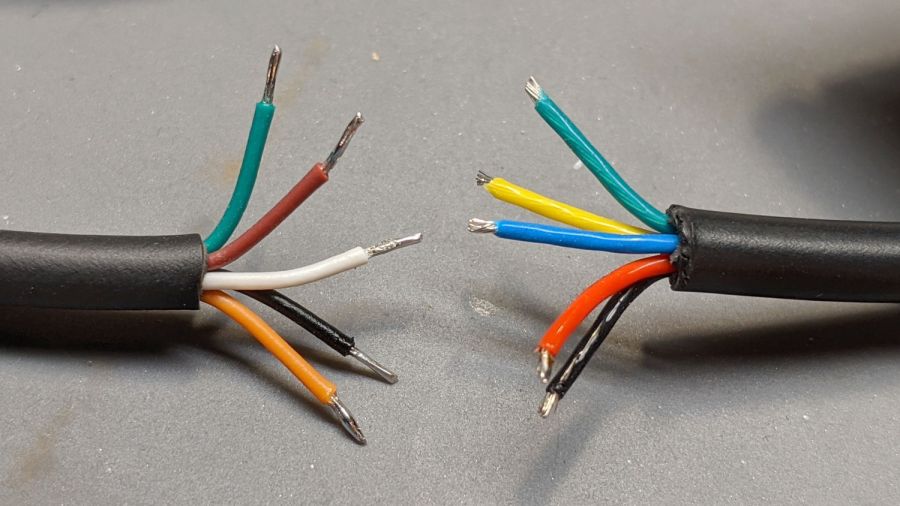
The new cable on the left seemed like it might match the canonical colors:
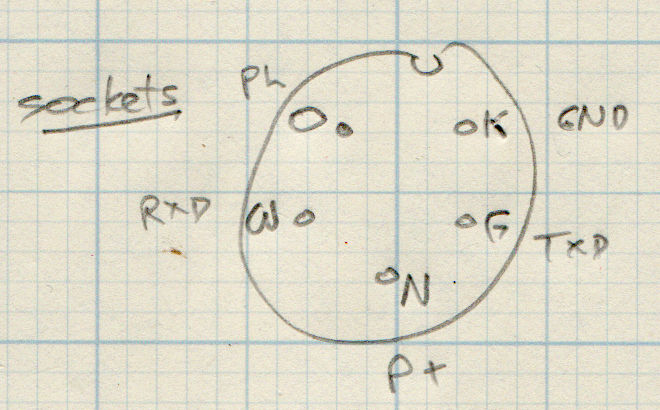
Bafang BBS02 display cable pinout
It comes heartbreakingly close:
Bafang Display Cable – extension colors
Brown and Orange connect as the naive user might expect, which does reduce the likelihood of incinerating the motor controller / USB adapter / laptop by connecting the 48 V battery directly to the logic-level electronics.
However, White wasn’t on the original menu, Green is now TXD, and Black has become, comfortingly, GND.
Verily, it is written: Hell hath no fury like that of an unjustified assumption.
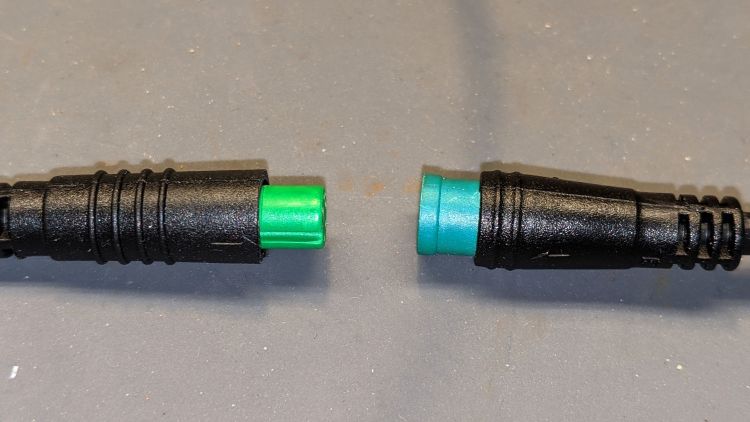
This socket connector has a watertight shell making it extremely difficult to mate and unmate with the pin connector on the bike. Watertightness being unnecessary, a little razor-knife action seems in order:
Bafang Display Extension Cable – shroud trimming
Visually, they’re both green-ish, but sometimes the Pixel camera accentuates any differences.
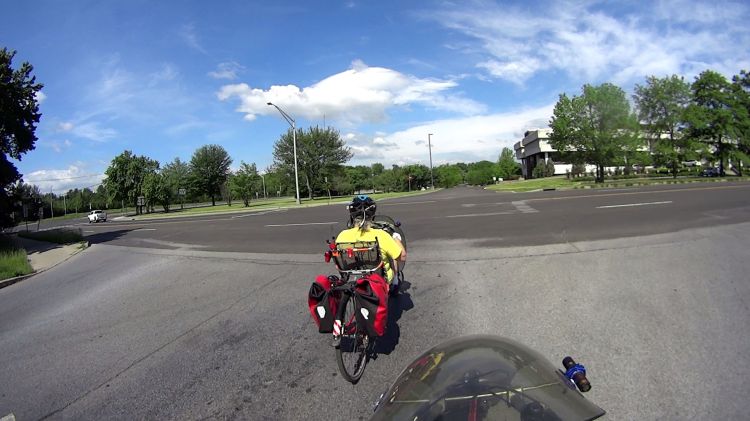
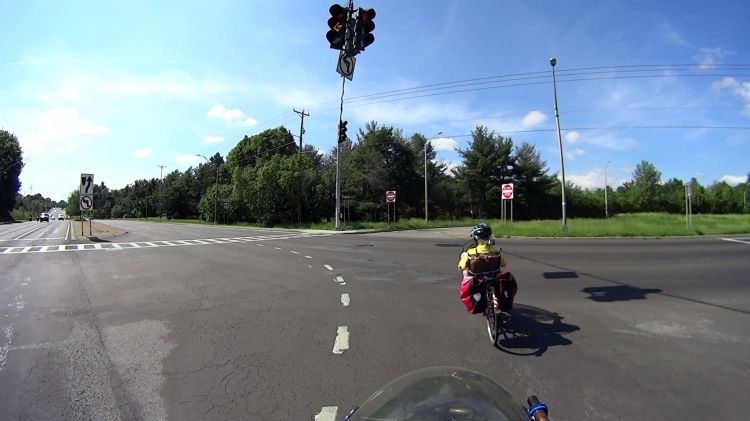
We have just started rolling from Overocker Road and the traffic signal on Burnett Blvd at Rt 55 (on the far left) has just turned green for the single car on the sensor loop:
Burnett Blvd Rt 55 – 2021-05-23 – 0 s
Much to our surprise, 17 s later the signal is still green:
Burnett Blvd Rt 55 – 2021-05-23 – 17 s
As usual, the unmarked sensor loop doesn’t detect bicycles and the control doesn’t take our clearing time into account, so the signal turns yellow 5 s later (after 22 s from turning green) while we’re still in the intersection:
After another 6 s, though, we’re through the intersection and lined up on the right side of Rt 55, just as the Rt 55 signal turns green:
Burnett Blvd Rt 55 – 2021-05-23 – 28 s
Note that the Burnett Blvd signal remained green for 22 s, much longer than in bygone years, and the green-to-green time is now 28 s. We got through the intersection without any difficulty, although the green-to-red clearance time remains scanty.
Mary recently discovered a reason why NYS DOT may have suddenly changed the signal timing at the Burnett intersection after all those years:
During the incident, a black Nissan Titan, driven by a 51-year-old male resident of Lagrangeville, collided with a bicycle, ridden by a 58-year-old male resident of Poughkeepsie, in the area of the crosswalk on the southeast portion of the intersection, said the Town of Poughkeepsie Police.
The bicyclist sustained serious injuries and was transported to MidHudson Regional Hospital.
The crosswalk mentioned in the article appears in the last picture.
The cyclist died of his injuries shortly after that article went live.
Mary knew him. He was one of the gardeners near her plot in the Vassar Community Garden who lived in the apartments a few hundred yards from that intersection, didn’t own a car, and, for years, rode through that intersection to the grocery store at the far end of Burnett Blvd (across another of DOT’s intersections). Everyone knew him as a nice, considerate guy.
Death is the only thing that will convince NYS DOT’s engineers to change the signal timing at an intersection.
As far as I can tell, all of the other intersections along our usual routes still have the same inadequate clearance times. Evidently, the bicyclist death toll isn’t high enough to get their attention and evidence here doesn’t matter there, because motor vehicle traffic cannot be delayed, even for a few seconds, merely to protect the most vulnerable “users” of their facilities.
We’ve been bicycling all our adult lives and haven’t been killed yet, despite NYS DOT’s complete lack of attention. Our experiences justify my cynicism and bitterness.
I eventually figured out why no NYS DOT staffer will accompany me on bike trips along their “safe for all users” roads. If they did, they’d be unable to deny knowing how hazardous their engineering designs & maintenance practices are in real life, should the question come up in a court of law.
If you think that’s not the case, then let’s go riding together …
Road design, build quality, and attention to details matter, even though drivers and, yes, cyclists share some of the blame.
The objective being to reduce the number of onion maggots in Mary’s Vassar Farm plot without chemical agents, I conjured sticky trap screen frames from the vasty digital deep:
Sticky Trap – first production run
Each one contains half a sheet of yellow sticky plastic, which is easy enough to cut before peeling off the protective covering sheets. The cage is half-inch galvanized hardware cloth snipped with hardened diagonal cutters. A bead of acrylic adhesive around the base holds the cage in place
Although you can deploy sticky sheets without cages, they tend to attract and affix beneficial critters: butterflies, small birds, furry critters, toads, gardeners, and the like. We don’t know how effective the cages will be, but they seemed better than nothing.
They mount on ski poles cut in half:
Sticky Trap – ski pole installed
And on fence posts around the perimeter:
Sticky Trap – angle bracket installed
To my untrained eye, some of those doomed critters are, indeed, onion maggot flies. The rest seem to be gnats and other nuisances, so IMO we’re applying population pressure in the right direction.
Each base-and-cap frame takes about three hours to print, so I did them one at a time over the course of a few days while applying continuous product improvement.
The sheets rest on small V blocks intended to keep them centered within the cage:
Sticky Sheet Cage – angle bracket – solid model
The ski pole attachment must build with the cap on top, but it bridges well enough for the purpose:
Sticky Sheet Cage – ski pole – solid model
The overhanging hooks on the blocks (just barely) engage the grid to keep the lid in place, while remaining short enough to not droop too badly. You could probably delete the hooks from the bottom plate, but they align the cage while the adhesive cures.
The sheets tend to bend in the middle, so I’ll stick a thin slat or two vertically to keep them straight.
This file contains hidden or bidirectional Unicode text that may be interpreted or compiled differently than what appears below. To review, open the file in an editor that reveals hidden Unicode characters.
Learn more about bidirectional Unicode characters
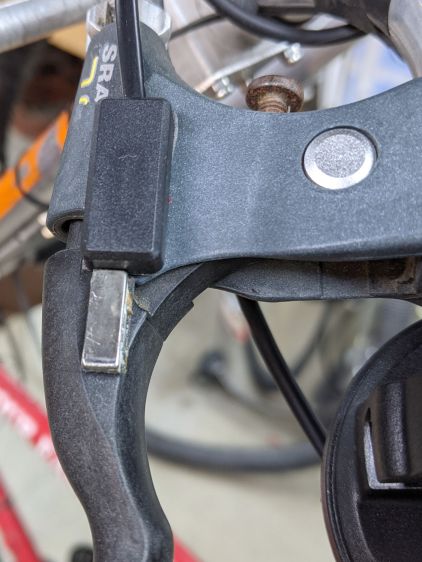
As mentioned earlier, the Bafang brake sensors on Mary’s Tour Easy require a magnet on the brake levers to activate the switches. They arrived with disk magnets that did not suit the levers, so I used neodymium “bar magnets”:
Tour Easy Bafang BBS02 – brake sensor – installed
That worked for a few rides, but the alignment turned out to be entirely too critical, because the magnetization is through the bar’s thin dimension, rather than along its length, making the field weakest in the direction of the switch.
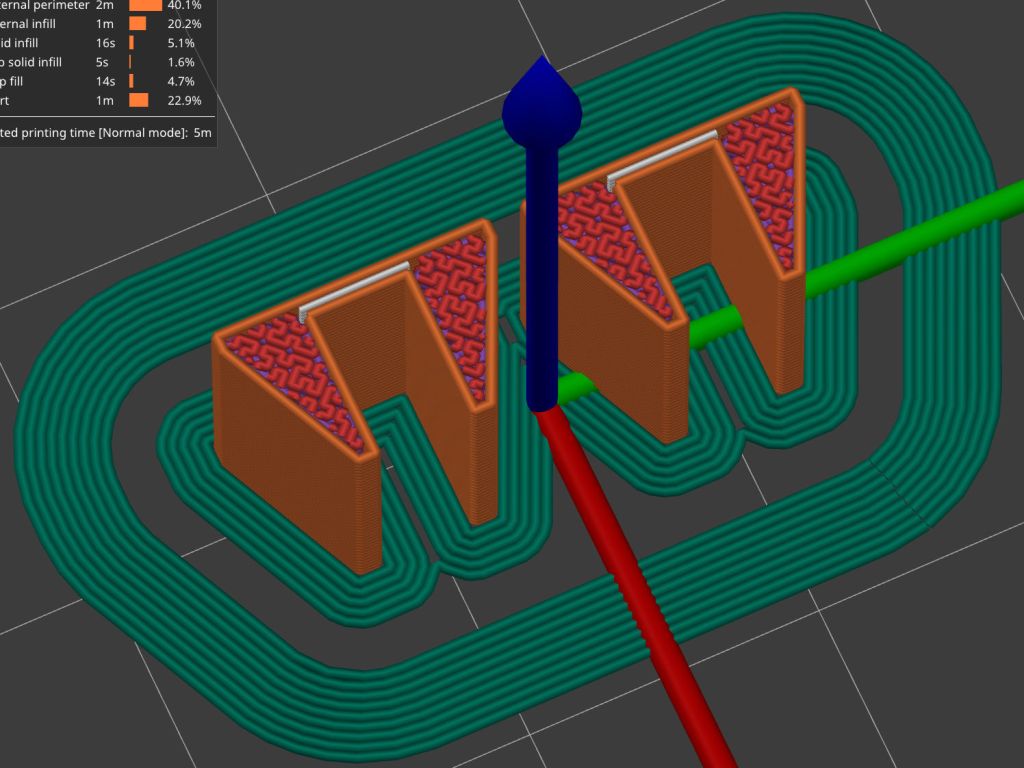
That’s a slightly shorter magnet from a different toothbrush head, cemented edgewise into a holder conjured from the vasty digital deep:
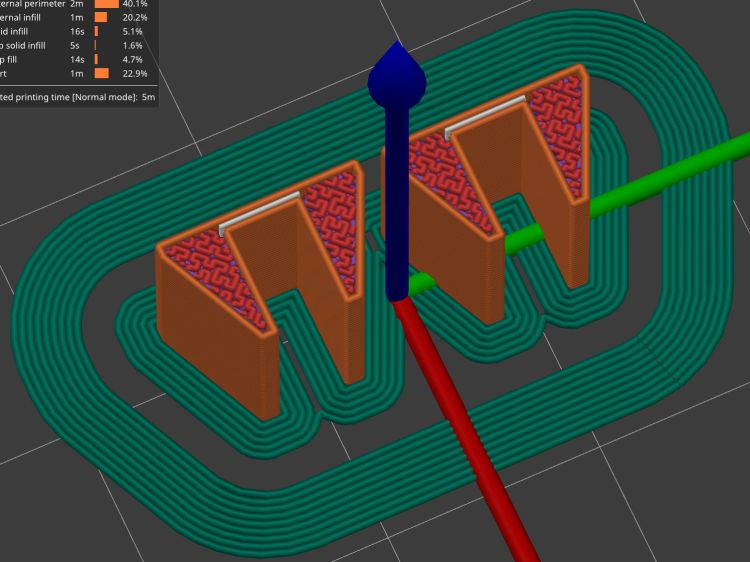
Brake Magnet Mount – PrusaSlicer prevew
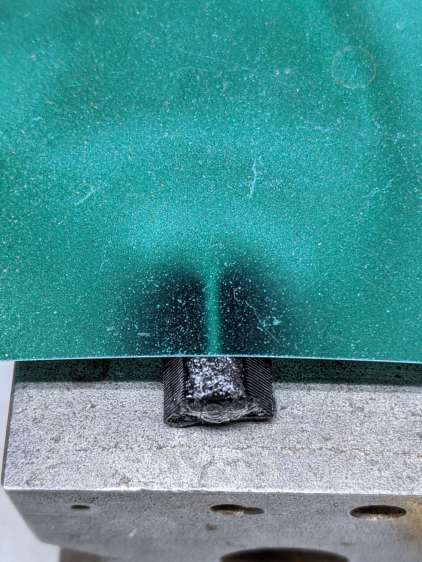
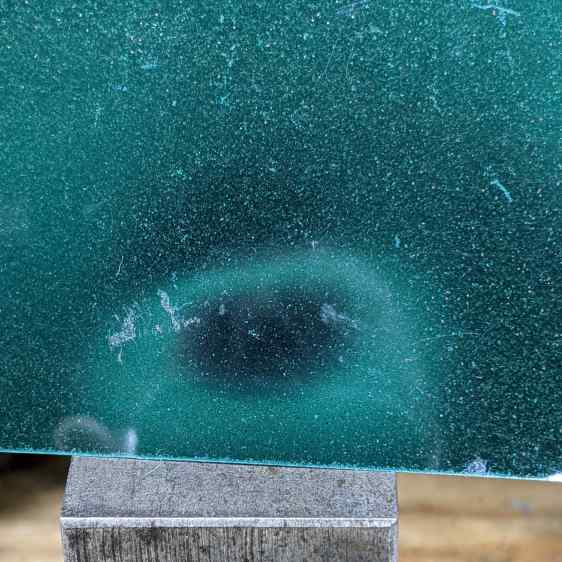
The field is much more uniform on the flat side of the bar:
Neodymium bar magnet – side field
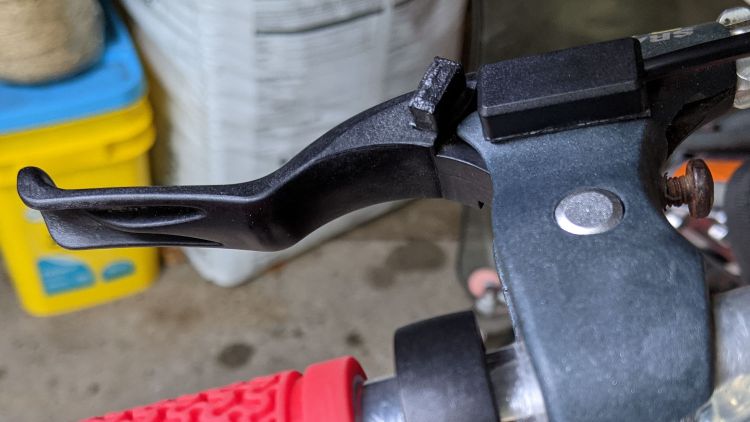
Some double-sided foam tape snuggles the sensor and the magnet together on the brake lever:
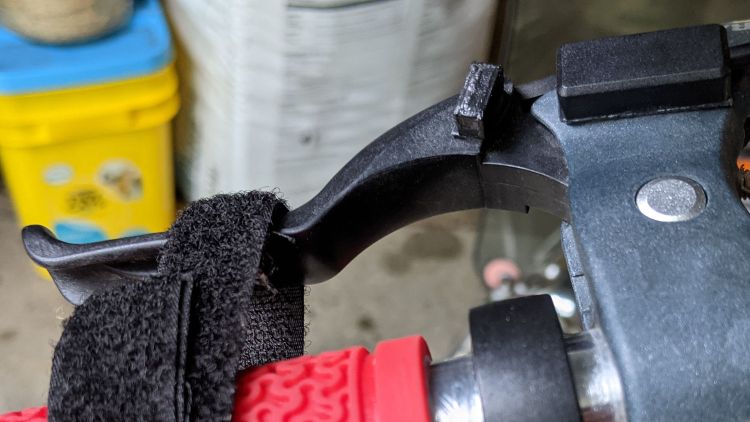
Bafang Brake Sensor – released detail
I coated the magnet with JB Plastic Bonder urethane adhesive in the hope of filling any gaps in its nickel coating caused while extricating it from the toothbrush head.
The rusty screw head in the upper right positions the lever at the proper distance from the grip to suit Mary’s hand. An earlier version of the holder shows the alignment:
Bafang Brake Sensor – released position
The switch trips (opens) with the lever roughly parallel to the grip, again with the earlier holder:
Bafang Brake Sensor – activated position
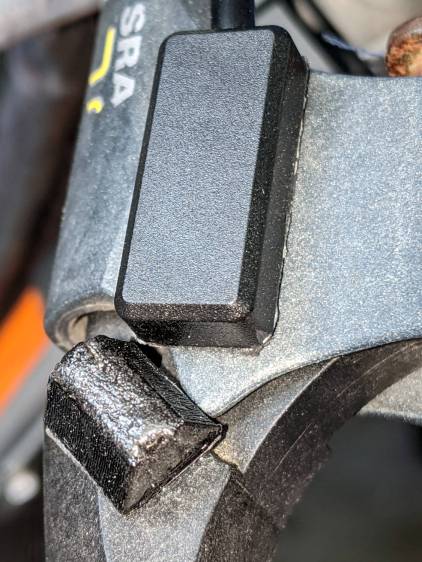
A detailed view of the gap with the lever at the tripped position:
Bafang Brake Sensor – activated detail
The levers have enough travel to prevent accidental trips due to light finger pressure, which turned out to be a problem with the original end-on alignment.
The brake pads don’t quite touch the rim when the switch trips, so the motor has plenty of time to shut off before the brakes take effect. It also stops when the pedals stop turning, so we should not see any disagreement between motor and brakes as to the bike’s momentum.
The wider base on the new mounts makes them much more stable on the levers, although I don’t like having them stick up so far. Mounting everything underneath the levers would look better, but any problems will be more obvious with everything in plain sight.
I may affix the magnets directly to the levers with Plastic Bonder if the foam tape doesn’t live up to its reputation. Removing them would be more challenging; a shot with a small chisel should suffice.
All the work on Mary’s bike reminded me of the rear fender bracket I meant to install on mine, with more clearance for the strut stabilizing the under-seat packs:
Tour Easy Rear Fender Bracket – long setback – solid model – show
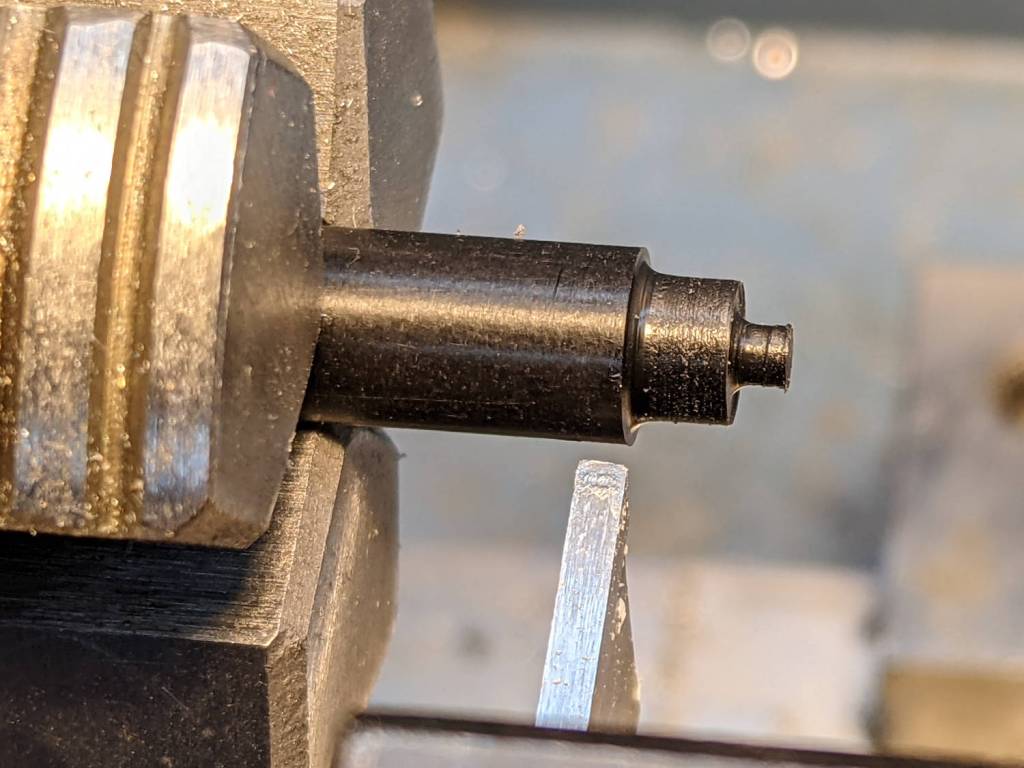
Rather than glue a PETG filament snippet into a screw, I turned a little Delrin plug:
Tour Easy Rear Fender Bracket – screw insert
It’s ready for installation when I’m willing to put the bike up on the rack and pull the rear wheel:
Tour Easy Rear Fender Bracket – screw detail
That’s actually the second iteration for the screw, as the first suffered a lethal encounter with the Greater Shopvac. I know exactly where it is, but I’m not going there …
For unknown reasons, the Bafang BBS02 motor puts the left pedal 15.5 mm closer to the frame than the right pedal:
Bafang BBS02 dimensions
The diagram presents the motor assembly as seen from the bottom, lying on the ground looking upward with your feet forward around the front wheel.
That much offset may be acceptable for some (upright?) bikes and some riders, but this seemed better for Mary:
Tour Easy – Lekkie 160mm offset crank – installed
Lekkie Buzz Bars have a matching 15.5 mm offset in the left crank to center both pedals on the frame. She’s been pushing 165 mm cranks for long enough to know standard 170 mm cranks require too much leg travel, so that’s a 160 mm Lekkie crank.
With cranks installed in the BBS02, measured from the frame tube to the inside of the crank at the pedal axis:
Bafang 170 mm: L 42, R 62
Shimano 105 triple 170 mm: L 46, R 67
Lekkie 160 mm: both sides 60
For comparison, the Shimano 105 cranks on my Tour Easy measure 35 mm on both sides with an ordinary Shimano UM-BB72 bottom bracket cartridge, so the BBS02 + Lekkie cranks put each pedal 25-ish mm farther out. However,my pedals screw into 20 mm Kneesavers, putting them pretty close to the Lekkie spacing.
We hope the additional space won’t make much difference to Mary; it’s certainly better than sitting offset to the right to match the pedals, as she’s found herself doing with both the Bafang and Shimano cranks on the BBS02. Her right shoe just barely tapped the crank, so we moved the cleat a few millimeters inboard and it’s all good again.
The Cateye cadence sensor now has a rakish tilt to match the crank offset and looks scarily exposed. More riding is in order.
The Lekkie cranks have a hollow cross-section that’s concave on the frame side, so the magnet sits on a simple riser to get it out where the sensor can experience it:
It’s held in place with good foam tape; the cable tie makes me feel better.
The OpenSCAD code for the riser fits into the GitHub Gist:
Bafang Battery Mount – build view – cadence magnet
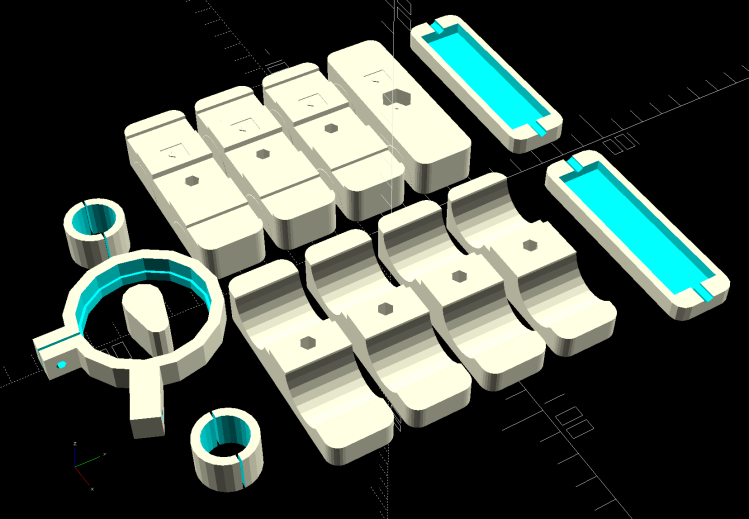
In point of fact, that array pretty much fills the M2’s platform and would require over 11 hours of print time, which is just crazy talk. Have the slicer break it into separate parts, delete whatever you don’t want at the moment, print what’s left, and iterate until you have everything you need to finish the job.
For inscrutable reasons, the Bafang 500C display includes all stopped time in its average trip speed. While that is, in fact, the average speed over the entire trip, the Cateye cyclocomputers we’ve been using forever stop averaging after a few seconds at 0 mph.
Bonus: Although the Bafang BBS02 motor knows the pedal cadence, it’s not part of the display.
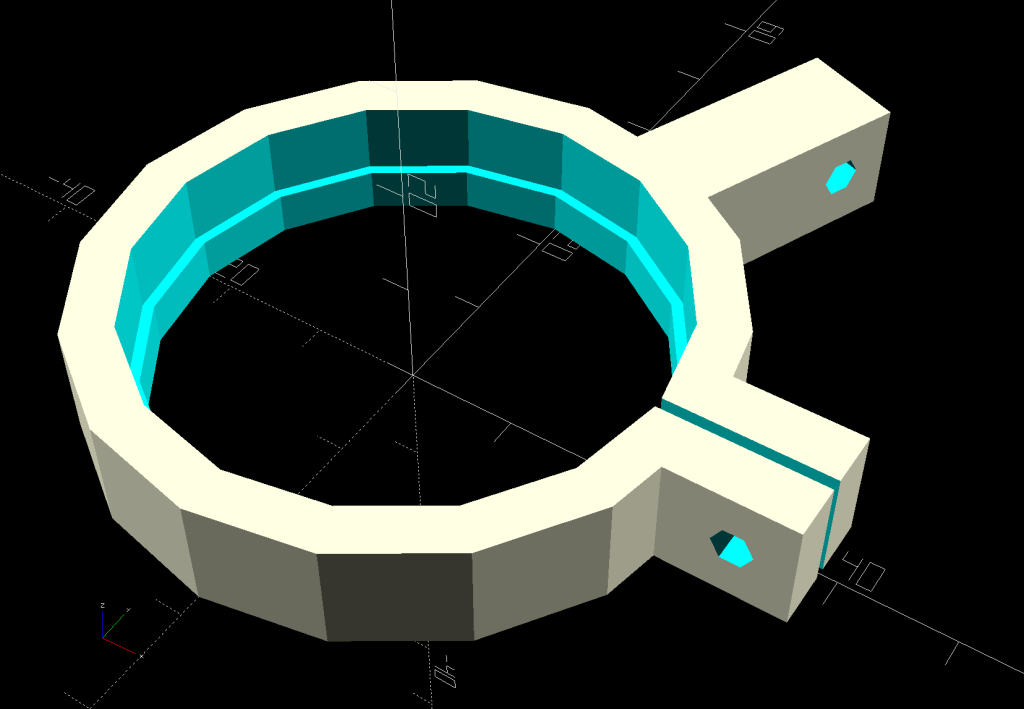
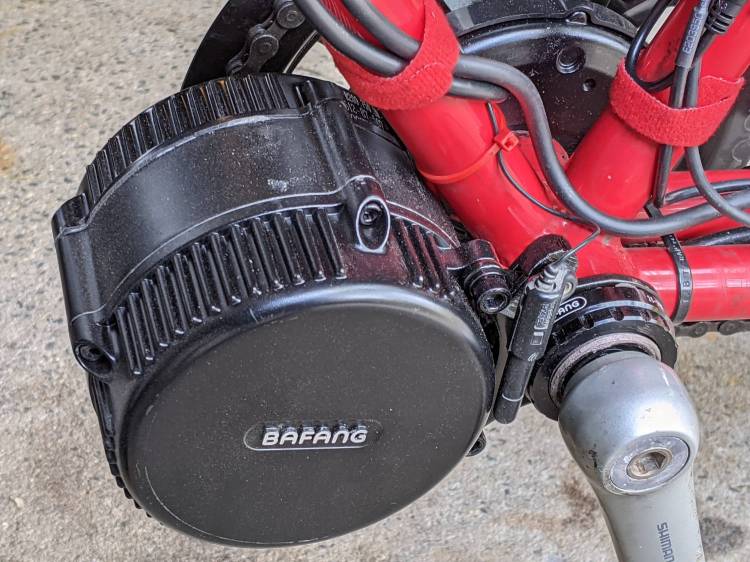
The Bafang BBS02 bottom bracket shaft put its pedal cranks much farther from the Tour Easy’s frame than the Shimano cranks, to the extent that the existing Cateye cadence sensor position just wasn’t going to work, so I printed a simple clip to fit over the motor’s “fixing plate”:
Tour Easy Bafang BBS02 motor
It turns out putting a magnetic sensor immediately next to the winding end of a high-current three-phase motor isn’t the brightest idea I’ve ever had. The Cateye cadence display spent most of its time maxed out at 199 rpm, far faster than Mary can spin for, well, a single revolution.
A somewhat more complex mount put the sensor roughly where it used to be:
Cateye Cadence Sensor mount – installed
It looks precarious, but it spent nigh onto two decades there without incident, so we have precedent.
Those are the original 165 mm Shimano cranks, because the 170 mm Bafung cranks threatened to lock out her knees. More on this in a while, as it’s a more complex issue than it may appear.