Ed Nisley's Blog: Shop notes, electronics, firmware, machinery, 3D printing, laser cuttery, and curiosities. Contents: 100% human thinking, 0% AI slop.
The fundamental limit comes from the heater’s ability to bring cold plastic up to extrusion temperature inside the 20 mm hot zone.
Using airscape’s example, the extruded thread is 0.5 mm thick × 0.8 mm wide = 0.4 mm², so laying down that thread at 50 mm/s means the extruder is heating plastic at 20 mm³/s and is “pushing it with PLA”.
In round numbers, normal printing speeds with a normal nozzle and normal plastics runs around 10 mm³/s, so a practical upper limit is probably around 15 mm³/s.
As far as thread size goes, the diameter of the flat area around the nozzle orifice sets the maximum thread width, because the nozzle must compress the thread against the previous layer. If the thread is wider than the nozzle, the gooey plastic curls up around the sides of the nozzle and doesn’t bond well. The rule of thumb is to round up the orifice diameter to the next convenient number:
0.35 mm nozzle → 0.4 mm thread
0.75 mm nozzle → 0.8 mm thread
The maximum thread (= layer) thickness should be about 60% of the thread width, which is why a 0.8 mm wide thread calls for a 0.5 mm layer thickness.
Assuming the extruder can heat 15 mm³/s of plastic, the maximum printing speed will be 15 mm³/s / 0.4 mm² = 37.5 mm/s: comfortably under airscape’s “pushing it” 50 mm/s.
Aaaaand, as always, calibrate the Extrusion Multiplier for whatever conditions you’re using to ensure the slicer and the hardware agree on how much plastic is coming out of the nozzle.
It’s not a Purple Crayon, but it suffices for my simple needs.
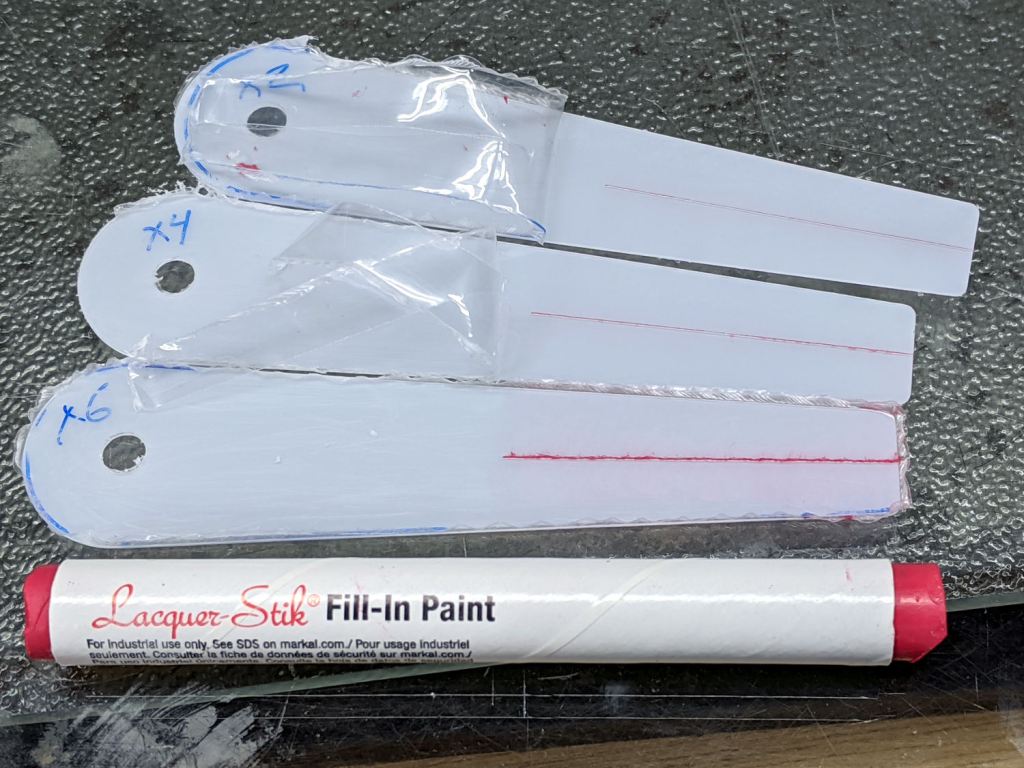
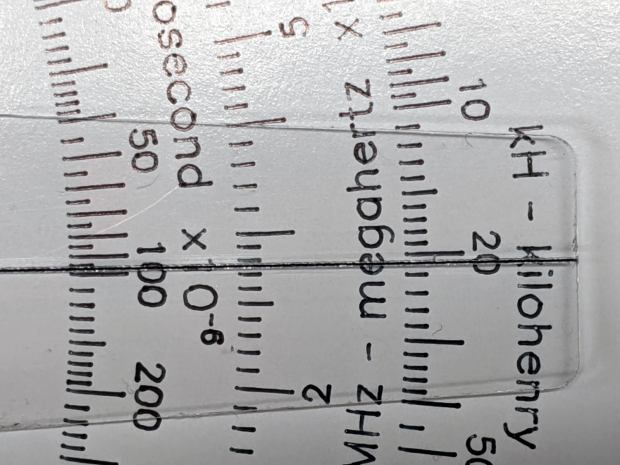
Scribbling a (soft!) lacquer crayon over transparent plastic still scuffs the pristine surface around the engraved line, so I tried scribbling the six-pass cursor before peeling the film, as shown above. Unfortunately, the film shreds left around the line either prevent a clean fill or pull the paint out of the ditch as the film peels back:
Tek CC – Cursor lacquer fill
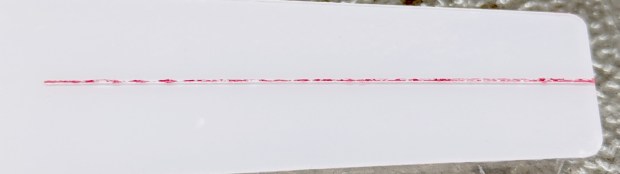
Peeling the film and scribbling ever-so-gently left a more complete line, but, if you look very closely (perhaps opening the image in a new tab for more dots), you can see the scuffs left by the scribbles on either side of the line:
Tek CC – Cursor 2 4 6 scribes
When seen from the other side against laminated decks, though, the scuffs pretty much vanish:
Tek CC – Classic Tek Logo vectorized – red hairline
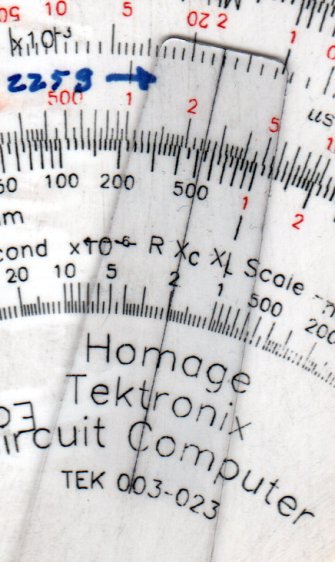
It’s a bitty thing, with the CRT about 0.7 inch long, scanned directly from my original Tek CC.
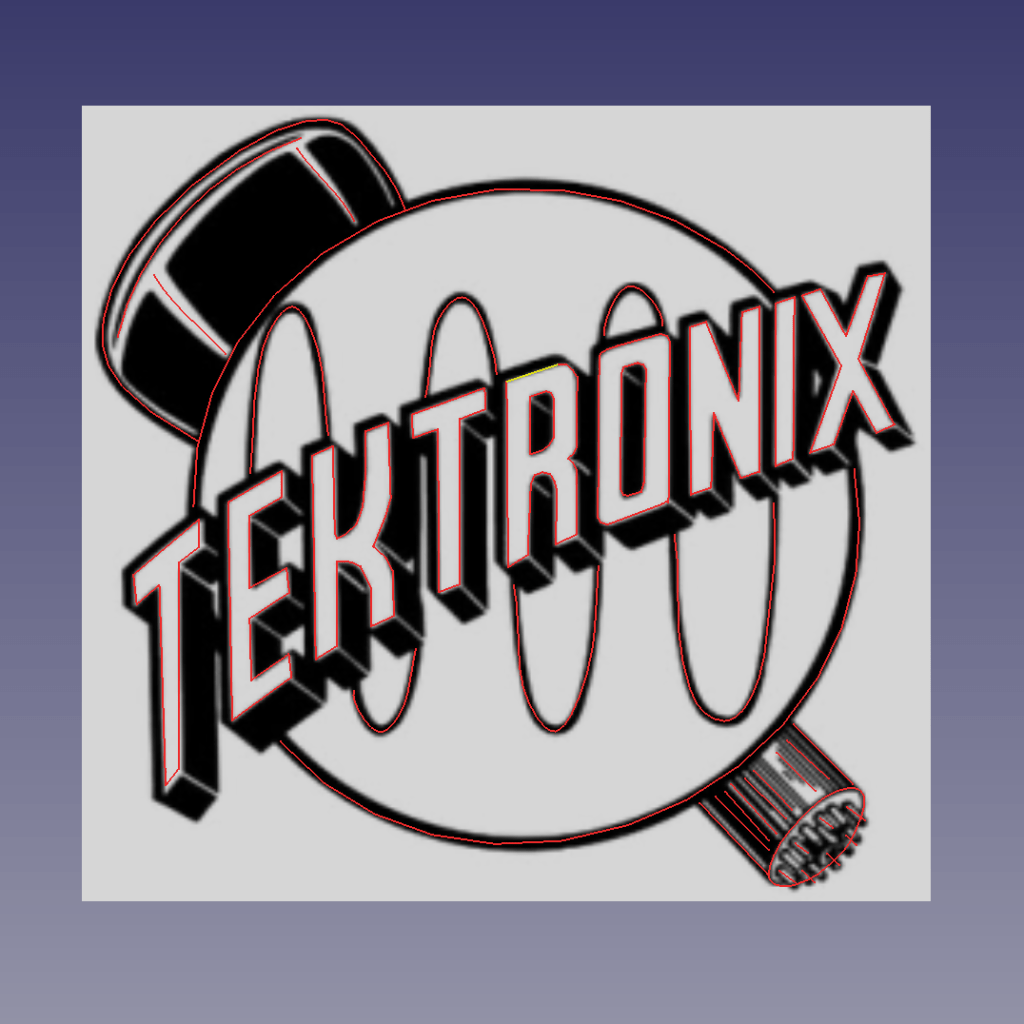
Import the PNG image into FreeCAD at 0.2 mm below the XY plane, resize it upward a smidge so the CRT is maybe 0.8 inch long, then trace “wires” all over it:
Tek Logo – FreeCAD tracing – overlay
Given FreeCAD’s default gradient background, the wires definitely don’t stand out by themselves:
Tek Logo – FreeCAD tracing – vectors
Several iterations later, the vectorized logo sits at the correct angle and distance from the origin at the center:
Tek Logo – FreeCAD tracing – rotated
The cheerful colors correspond to various “groups” and make it easier to find errant vectors.
Rather than figure out how to coerce FreeCAD into converting wires into proper G-Code, export the vectors into a DXF file and slam it into DXF2GCODE:
Tek Logo – DXF2GCODE vectors
Export as G-Code, iterate around the whole loop a few times to wring out the obvious mistakes, indulge in vigorous yak shaving, eventually decide it’s Good Enough™ for the moment.
Protip: set DFX2GCODE to put “0” digits before the decimal point to eliminate spaces between the coordinate axes and the numeric values which should not matter in the least, but which confuse NCViewer into ignoring the entire file.
Tinker the script running the GCMC source code to prepend the logo G-Code to the main file and it all comes out in one run:
Tek CC – with vectorized logo – cutting
That’s the top deck, laminated in plastic, affixed to a Cricut sticky mat on the MPCNC platform, ready for drag-knife cutting.
Assembled with a snappy red hairline:
Tek CC – Classic Tek Logo vectorized – red hairline
Isn’t it just the cutest thing you’ve seen in a while?
It needs more work, but it’s pretty close to right.
After removing debris, flattening the top surface, and generally paying more attention to detail, the PETG sheet has much better adhesion to the fixture:
Tek CC – Milled cursor – cleaned fixture
This time, I traced the inside of a drag-knife cut cursor to extract the blank from the stock and, yes, used new double-sided tape under the lower white protective film on the PETG.
Fewer air bubbles means better adhesion:
Tek CC – Milled cursor – fixture adhesion
Spinning the 1/8 inch end mill at about 5000 RPM produced finer swarf at the Sherline’s maximum 609 mm/min = 24 inch/min pace, with less uplift. I suspect Moah RPMs! would be even better, constrained by melting the plastic into heartache & confusion.
Scribe the hairline with the diamond tool, ease the finished cursor off the fixture, scribble Sharpie into the scratch, and wipe
Tek CC – Milled cursor – second try
It’s Pretty Good™ when seen against an un-laminated bottom deck drawn with a Pilot V5RT pen:
Tek CC – Milled cursor – unlaminated bottom deck
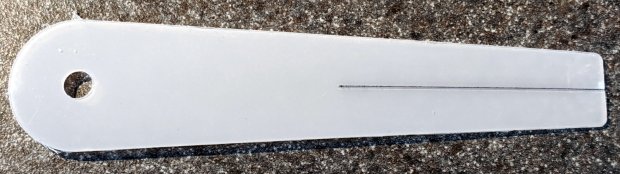
The diamond point tears a slightly gritty path through the PETG, which then looks a bit more granular than a real hairline. I’ve been using four passes for emphasis; perhaps fewer would be better.
The white separating film on the double-sided tape makes the cursor milling fixture look presentable:
Tek CC – Cursor milling fixture – 2-side tape applied
Some deft X-acto knife work exposed the trench around what will be the cursor’s perimeter, in the hope of keeping tape stickiness out of the milling cutter.
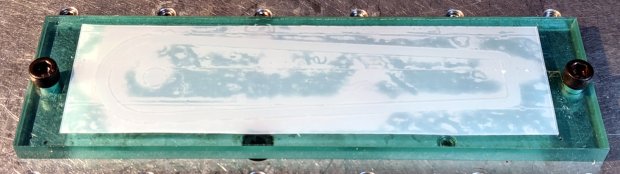
Peeling off the white film and sticking a PETG cursor blank to the tape reveals I didn’t do a particularly good job of cleaning the rubble from the trench edges:
Tek CC – Milled cursor – bad tape application
These PETG sheets arrive with a transparent film on one side and a white film on the other. The picture shows the white film on the bottom of the PETG sheet, with the dark areas corresponding to places where the film sticks to the tape and the tape sticks to the fixture. The lighter areas show an air gap in (at least) one of those interfaces; given the amount of clutter, I think it’s mostly between the tape and the fixture.
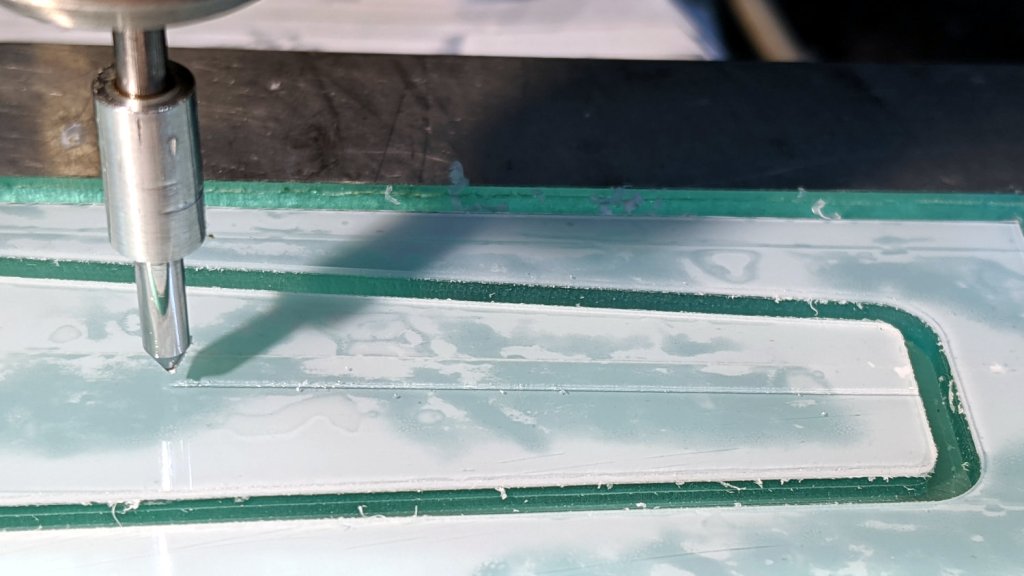
I milled the cursor with a 1/8 inch = 3.175 mm cutter:
Tek CC – Milled cursor – outline
The ball of swarf around the cutter wasn’t as threatening as it appears, because it had very little adhesive holding it together. The rows of swarf surrounding the PETG show why putting the tape all over the fixture isn’t a particularly good idea. ‘Nuff said.
Engraving the hairline with the diamond drag bit was entirely uneventful:
Tek CC – Milled cursor – hairline scribe
Four passes at Z=-2 mm = 300 g downforce put a delicate scratch across the surface. Run a fat black Sharpie along the hairline, wipe off the excess with denatured alcohol, and peel the white film from the other side:
Tek CC – Milled cursor – first try
It’s sitting atop the doodle giving the dimensions, such as they are, for the milling fixture.
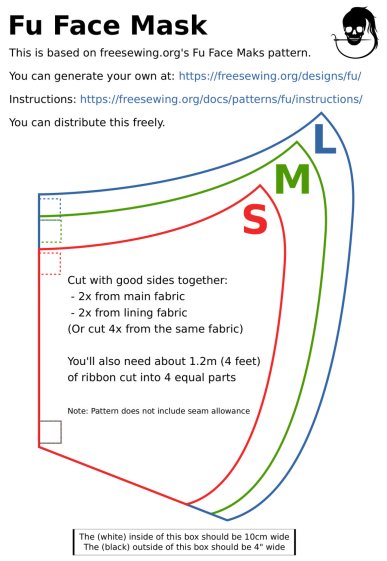
A local hospital contacted Mary’s quilting group to sew up cloth covers to prolong the life of their medical-grade N95 masks. Their recommended pattern, the Fu Face Mask from the FreeSewing group, comes in three sizes:
Freesewing – Fu Mask
N.B.: Use their original PDF, because a JPG picture probably won’t come out at the right size.
Also N.B.: Used by itself, this is not a medical-grade filter mask.
The patterns do not include the usual 1/4 inch seam allowance around the outside, so I cranked out 3D printed plastic cutting templates.
If you’re not interested in 3D printing, 2D print the PDF file on cardboard, sketch a seam allowance, and cut it out, as quilters have been doing since slightly after home printers happened.
The plan of attack:
Convert mask outlines into a bitmap image (GIMP)
Create Bezier curves by tracing outlines (Inkscape)
Save curves as SVG files
Convert SVG into solid model (OpenSCAD)
Add stiffening ribs &c
Save as STL solid model
Slice into G-Code file (Slic3r)
Fire the M2!
So, we begin …
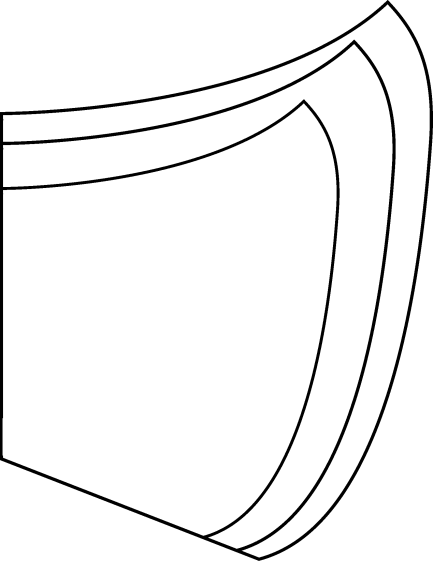
Import the PDF into The GIMP, delete the text & suchlike, convert to monochrome, and save the pattern outlines as a PNG file:
Fu Facemask – outlines
It turns out Inkscape can directly import the PDF, but it valiantly tries to convert all the text and the incidental graphic elements, none of which will be useful in this situation. It’s easier to delete them in The GIMP and make a bank shot off a PNG file.
Import the PNG into Inkscape and trace one outline with the Bezier curve tool:
Fu Mask – Inkscape Bezier trace
If you squint really carefully, you’ll see Bezier control handles sticking out of the nodes. I laid three nodes along the top arc and four along the right side, but do what’cha like; the Insert key or Shift+I inserts and Delete removes nodes. It’s easier to center a node in the middle of the PNG line with snapping turned off: Shift+drag while mousing or globally with #.
You could unleash the bitmap auto-tracer, but it generates a bazillion uselessly tiny Bezier curves.
When you’re happy, select and copy the path with Ctrl+C, paste it into a shiny new Inkscape document (Ctrl+N) with Ctrl-V, save it with a catchy file name like Fu Mask - Small - nominal.svg, and close that document to return to the document with the PNG outlines and the original path.
Select the original path again, create a dynamic offset with Ctrl+J, open the XML editor with Ctrl+Shift+X (which automagically selects the proper SVG element), and change the inkscape:radius value from 0 to 6.35 (mm, which everyone should use) to get a 1/4 inch seam allowance:
Fu Mask – Inkscape XML Editor – Offset radius
The path will puff out with curved corners:
Fu Mask – Inkscape offset
Copy into a new document, save as Fu Mask - Small - seam allowance.svg, and close.
Repeat that process for each of the three mask sizes to create three pairs of SVG files: the nominal mask outline and the corresponding seam allowance outline for each size.
The OpenSCAD program imports the SVG files, removes the nominal outline from within the seam allowance to leave the outline, adds stiffening ribs, and stamps an ID letter on both sides of the central button:
Fu Mask Cutting Template – Small – solid model
Choose one of the three sizes with the OpenSCAD customizer, save the resulting model as an STL file, repeat for the three sizes, and you’re done.
This process can convert any outline paths in SVG files into cutting templates, so, should the Fu Mask not suit your fancy, Use The Source.
For convenience, the STL files are on Thingiverse.
This file contains hidden or bidirectional Unicode text that may be interpreted or compiled differently than what appears below. To review, open the file in an editor that reveals hidden Unicode characters.
Learn more about bidirectional Unicode characters
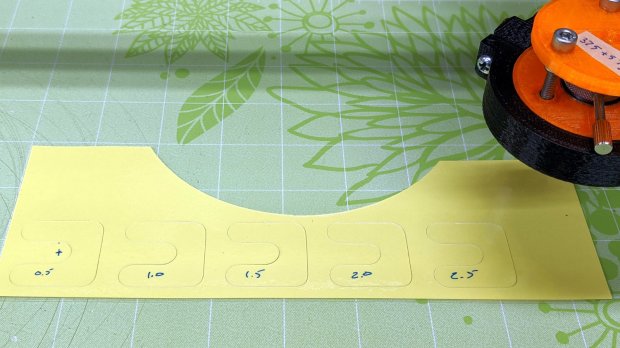
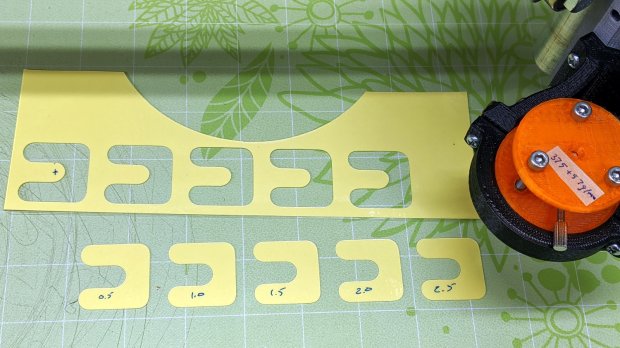
It’s not obvious, but each pattern steps downward by 0.5 mm from left to right. With the spring force equal to 375 g + 57 g/mm, the downforce ranges from 400 to 520 g over the five patterns.
Laminated scrap, meet drag knife:
Drag Knife Cal – Depth – as cut
Pulling up on the surrounding scrap left the patterns on the sticky mat:
Drag Knife Cal – Depth – extracted
Which suggested any cutting force would work just fine.
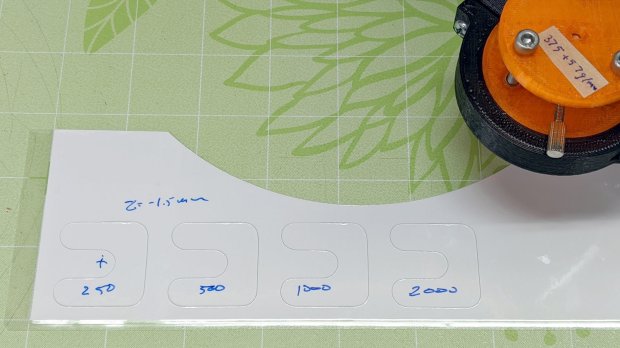
Flushed with success, I cut some speed variations at the minimum depth of Z=-0.5 mm = 400 g:
Drag Knife Cal – Speed – 0.5 mm – as cut
The blade cut through the top laminating film, the paper, and some sections of the bottom film, but mostly just scored the latter.
Repeating at Z=-1.5 mm = 460 g didn’t look much different:
Drag Knife Cal – Speed – 1.5 mm – as cut
However, the knife completely cut all the patterns:
Drag Knife Cal – Speed – 1.5 mm – extracted
As far as I can tell, the cutting speed doesn’t make much difference, although the test pattern is (deliberately) smooth & flowy like the Tek CC deck outlines. I’d been using 1000 mm/min and 2000 mm/min seems scary-fast, so 1500 mm/min may be a good compromise.
This file contains hidden or bidirectional Unicode text that may be interpreted or compiled differently than what appears below. To review, open the file in an editor that reveals hidden Unicode characters.
Learn more about bidirectional Unicode characters


















 The Smell of Molten Projects in the Morning