The Smell of Molten Projects in the Morning

Ed Nisley's Blog: Shop notes, electronics, firmware, machinery, 3D printing, laser cuttery, and curiosities. Contents: 100% human thinking, 0% AI slop.

Category: Electronics Workbench

Electrical & Electronic gadgets

  • Cycliq Fly6 Failure and Teardown

    Cycliq Fly6 Failure and Teardown

    My Cycliq Fly6 continued to shut down during rides, even with a new video-rated card, suggesting:

    • The fault resides in the camera
    • The Samsung card is just fine

    Following all the steps recommended by Cycliq Tech Support didn’t improve the situation. It’s just under two years old and thus outside the warranty, so they advised me to buy their new, not-quite-released-yet Fly6, now with Bluetooth / ANT+ / phone app / shiny, but still with a non-replaceable battery.

    Seeing as how the Fly6 works as well as it ever did, apart from the minor issue of shutting down both dependably and intermittently, the problem is almost certainly a bad battery. Cycliq does not offer a repair service, nor a battery replacement service; being based in Australia probably contributes to not wanting to get into those businesses. You’re supposed to responsibly recycle the Whole Damn Thing when the battery goes bad. Which, inevitably, it does.

    Protip: anything with a non-replaceable battery is a toy, not a tool.

    The most recent ride gave some evidence supporting a bad battery. The first shutdown happened after about half an hour and it gave off three battery status beeps (four = full charge, as at the start of the ride) when I restarted it a few minutes later. It shut down again a few minutes later while we were stopped at a traffic signal and gave off one lonely charge beep when I reached back to restart it, indicating a very low battery voltage. The battery voltage (and the number of startup beeps) increased with longer delays between shutdown and restart, but after the first shutdown it’s never very enthusiastic.

    Having nothing to lose, let’s see what’s inside:

    Cycliq Fly6 Teardown from inside
    Cycliq Fly6 Teardown from inside

    Don’t do as I did: you should extract the MicroSD card before you dismantle the camera.

    Remove the rubber plugs sealing the four case screws:

    Fly6 - Exterior screw plugs out
    Fly6 – Exterior screw plugs out

    The case pops open, with a ribbon cable between the LEDs and the main circuit board:

    Fly6 - Case opened
    Fly6 – Case opened

    Pull the ribbon cable latch away from the connector before pulling the cable out.

    It’s amazing what you find inside a blinky taillight these days:

    Fly6 - PCB Top side
    Fly6 – PCB Top side

    I’m sure there’s a fancy 32 bit RISC computer in the big chip, along with plenty of flash ROM just below it. The clutter over on the right seems to be the power supply. Yeah, it has a camera in addition to blinky LED goodness, plus USB charging, so eight bits of microcontroller aren’t nearly enough.

    There’s supposed to be some nanotech waterproofing protecting everything inside. It sure looks like magic to me and, in any event, solders just like a layer of ordinary air.

    Note: the case screws are slightly longer than the PCB retaining screws:

    Fly6 - Case and PCB Screws
    Fly6 – Case and PCB Screws

    The underside of the PCB has even more teeny parts, along with, mirabile dictu, a battery connector and (most likely) battery charging stuff:

    Fly6 - PCB Underside
    Fly6 – PCB Underside

    A plastic piece holds the “Rechargeable Li-Ion Battery Pack” in place:

    Fly6 - Battery in place
    Fly6 – Battery in place

    A strip of gooey adhesive holding the mic and speaker wires in place also glues the battery strap to the case, but it will yield to gentle suasion from a razor knife.

    Pause to count ’em up:

    • Four case screws (longer)
    • Three PCB screws
    • Two battery screws

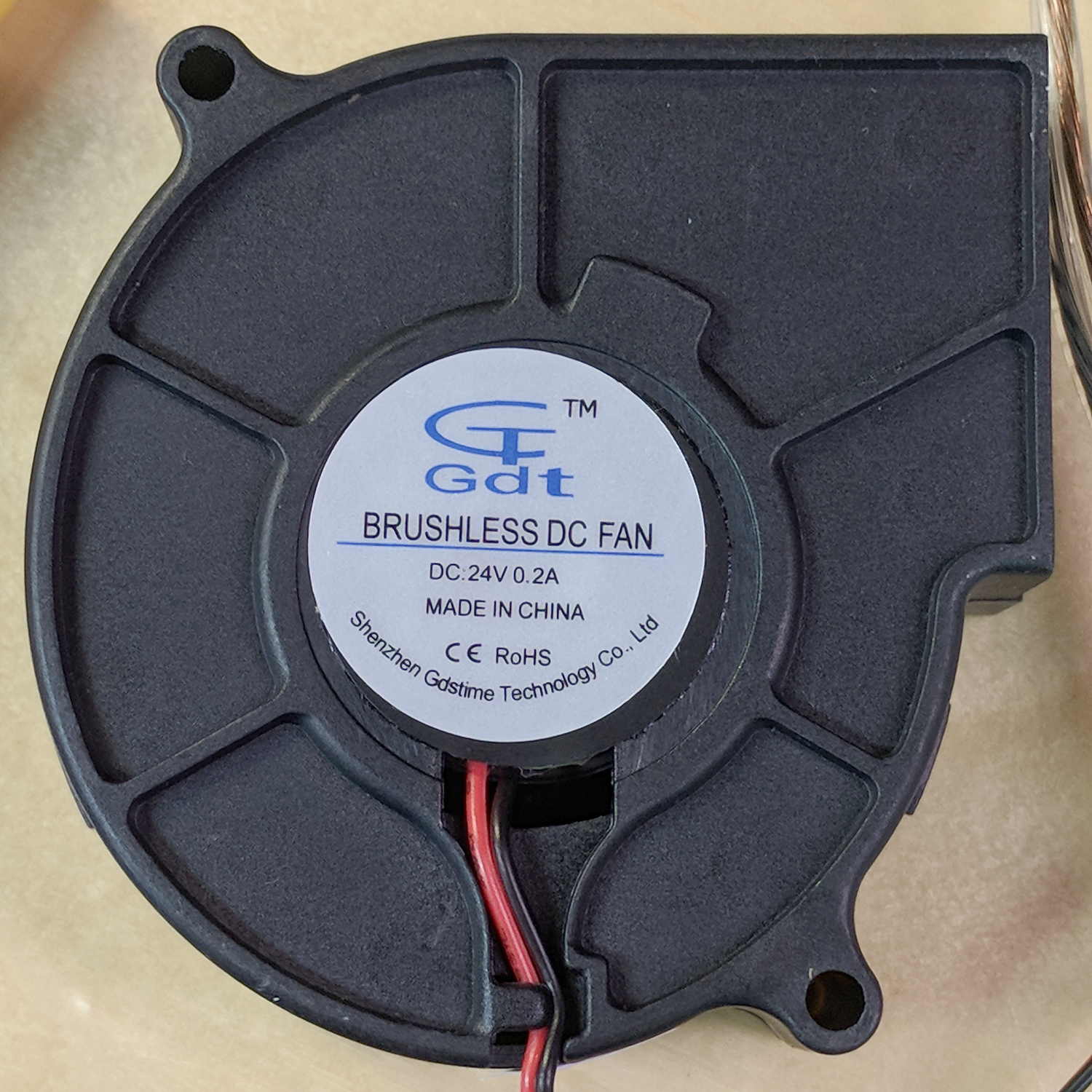
    It looked a lot like an ordinary 18650 lithium cell to me and, indeed, it is:

    Fly6 - Battery - label
    Fly6 – Battery – label

    More razor knife work removes the outer shrinkwrap. The cell has a protection PCB under the black cardboard cover:

    Fly6 - Battery Protection PCB - on 18650 cell
    Fly6 – Battery Protection PCB – on 18650 cell

    I don’t know what the yellow wire does:

    Fly6 - Battery Protection PCB - wire side
    Fly6 – Battery Protection PCB – wire side

    The FS8205A on the left may be an SII S8205 protection IC preset and packaged for a single cell:

    Fly6 - Battery Protection PCB - components
    Fly6 – Battery Protection PCB – components

    After all that, yeah, it’s a dead battery:

    Fly6 OEM 18650 - EOL - 2017-12-06
    Fly6 OEM 18650 – EOL – 2017-12-06

    The red curve shows the in-circuit charge state after taking it apart, the green curve comes from charging the bare cell in my NiteCore D4 charger. I have no idea what the nominal current drain might be, but a 0.25 Ah capacity is way under those Tenergy cells.

    A new cell-with-tabs should arrive next week, whereupon I’ll solder the protection circuit in place, wrap it up, pop it back in the case, and see how it behaves.

  • MPCNC: Z Axis Upward Homing with Opto Proximity Sensor

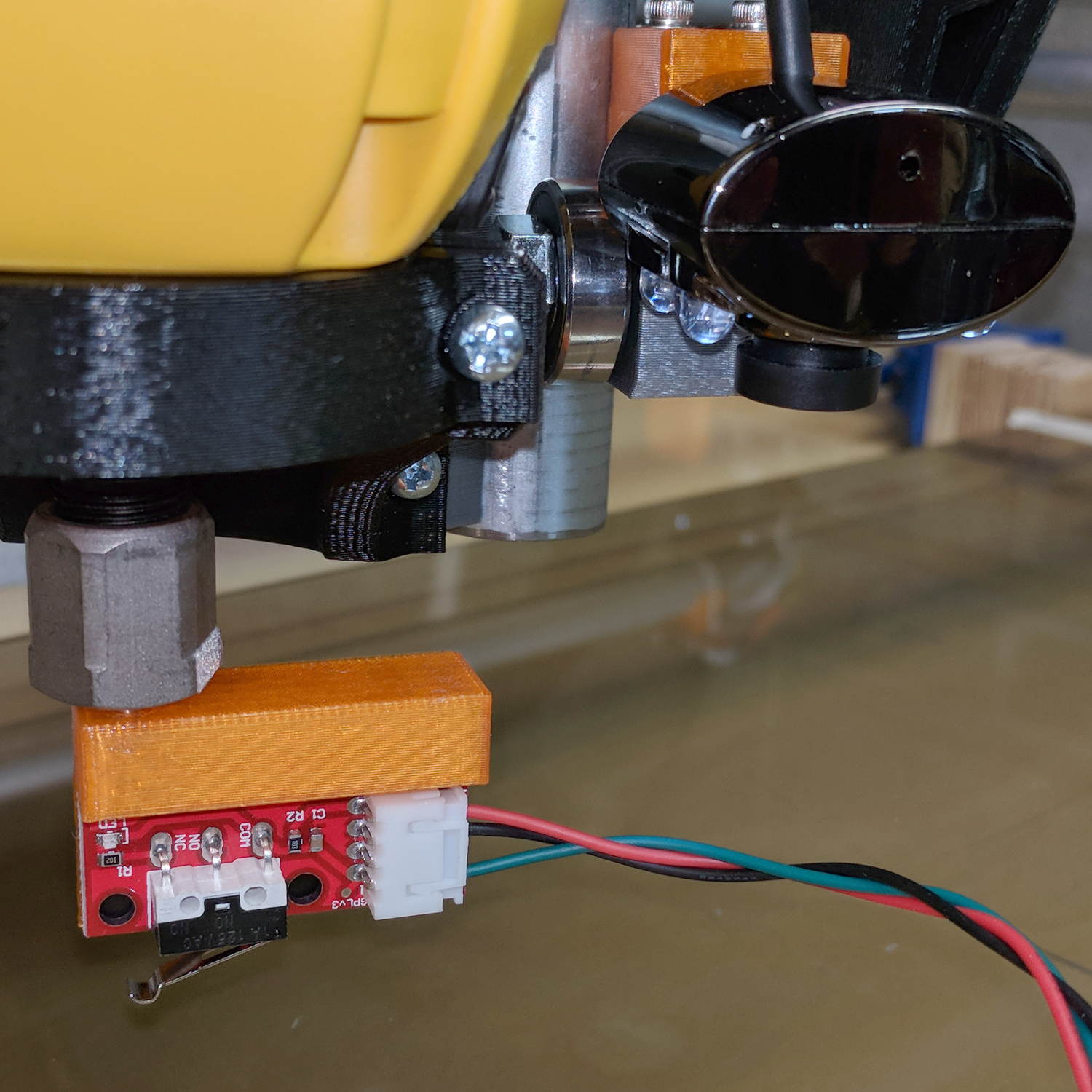
    Homing the MPCNC’s Z axis at the bottom end of its travel made no sense, but the Z stage lacks a convenient spot to mount / trigger a switch at the top of its travel, so this sufficed for initial tests & fiddling:

    MPCNC - Z min endstop
    MPCNC – Z min endstop

    The EMT rail carrying the switch moves downward, tripping the lever when it hits the MPCNC’s central assembly.

    Somewhat to my surprise, a TRCT5000-based optical proximity sensor (harvested from the Kenmore 158 Crash Test Dummy’s corpse) and a strip of black electrical tape work perfectly:

    MPCNC - Z Axis Opto Proximity Endstop
    MPCNC – Z Axis Opto Proximity Endstop

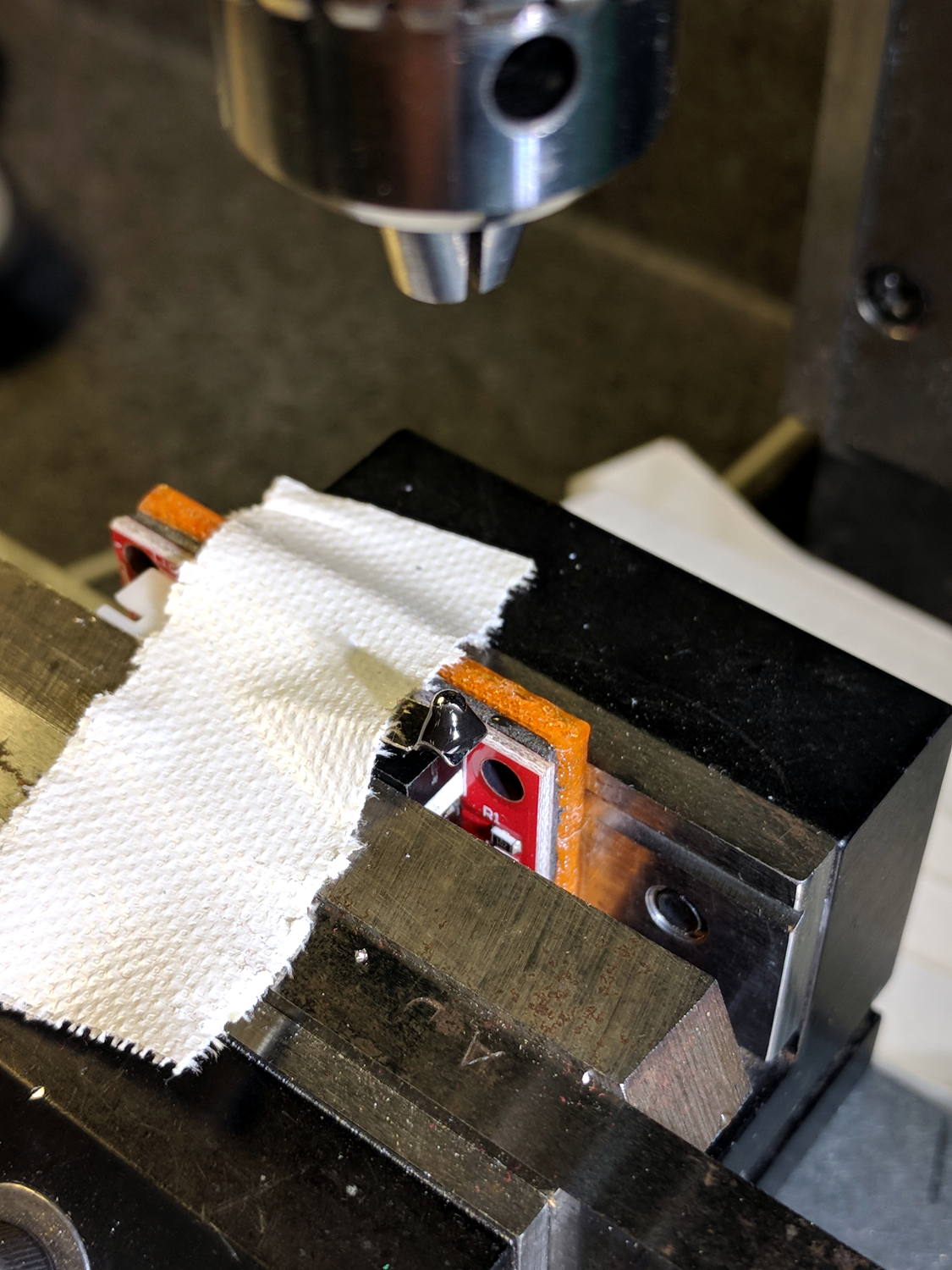
    The PCB wears a shiny new epoxy coat:

    MPCNC - Epoxy-coated Endstop - Opto Prox Sensor
    MPCNC – Epoxy-coated Endstop – Opto Prox Sensor

    I soldered the wires (harvested from the previous endstop) directly to the PCB, because the pinout isn’t the same and fewer connectors should be better.

    The mount uses black PETG, rather than translucent orange, in hope of IR opacity, and wraps around the EMT rail at (roughly) the 2 mm standoff producing the peak response:

    IR Reflective Sensor module - TCRT5000 - response vs distance
    IR Reflective Sensor module – TCRT5000 – response vs distance

    In truth, I set the gap by eyeballometric guesstimation to make the entire mount arc sit equidistant from the EMT:

    MPCNC - Z Opto Prox Endstop - top view
    MPCNC – Z Opto Prox Endstop – top view

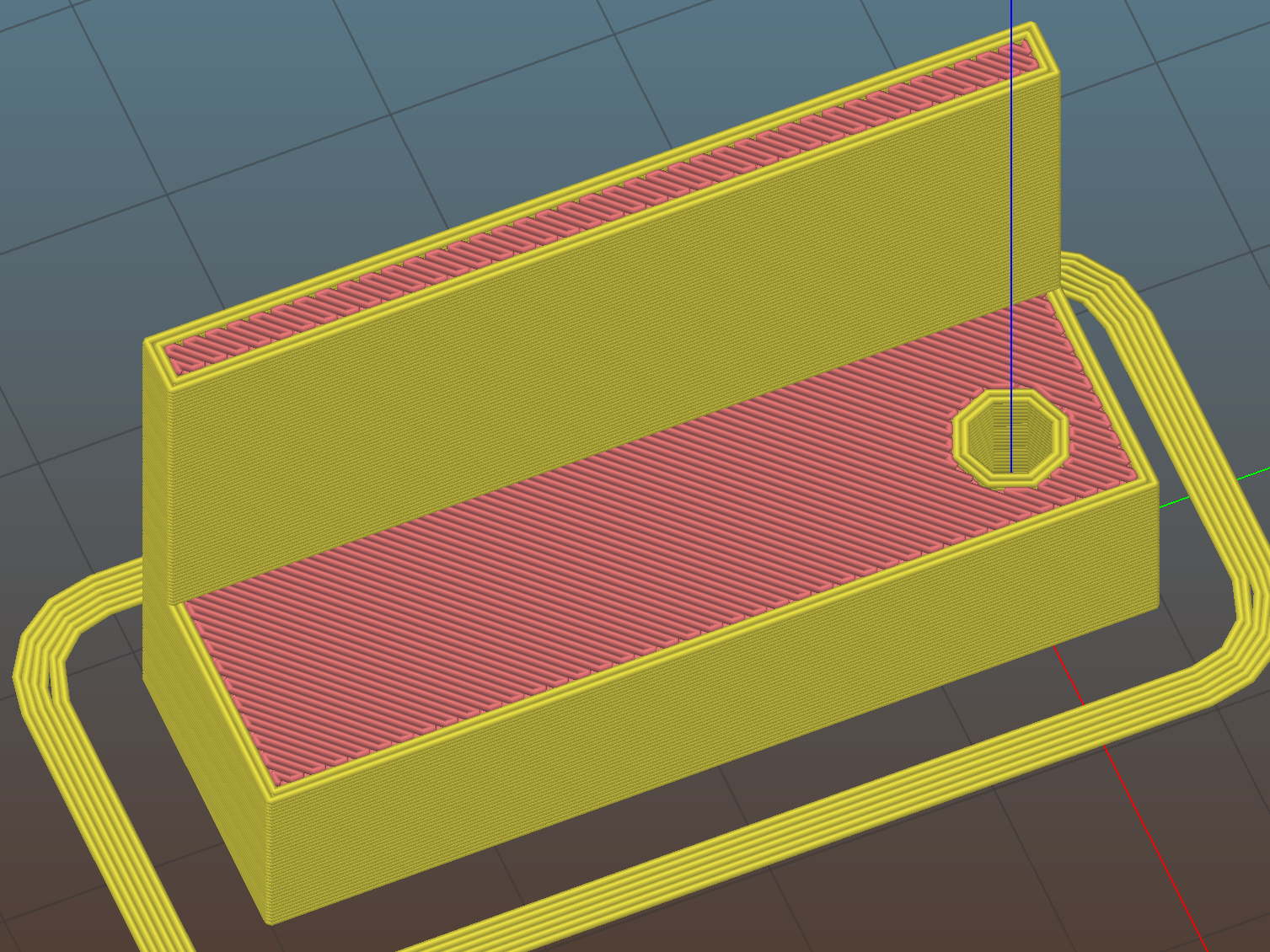
    The mount includes the 2 mm spacing around the EMT OD and puts the sensor tip flush with the arc OD, so it should be pretty close:

    TCRT5000 Z Axis Endstop Mount - solid model
    TCRT5000 Z Axis Endstop Mount – solid model

    A strip of 3M permanent tape, cut to clear the 608 bearings, affixes the mount to the MPCNC’s central assembly. The solid model now includes a midline reference notch, with a height rounded up to the next-highest multiple of 2.0 mm. It needs a loop to anchor the cable.

    The blue twiddlepot sets the comparator threshold midway between the response over black tape (incorrectly on = too low) and bare EMT (incorrectly off = too high), in the hope of noise immunity. The range spanned nearly half of the pot rotation, so I think it’s all good.

    The sensor doesn’t trip when the edge of the tape exactly meets its midline, which meant I had to trim a strip of tape to suit. As part of setting the twiddlepot, I shut off the Z axis motor and laid some test strips on the EMT:

    MPCNC - Z Axis Opto Prox Endstop - Test Tape
    MPCNC – Z Axis Opto Prox Endstop – Test Tape

    I spun the leadscrew with one hand, held the sensor with the other, twiddled the trimpot, trimmed the upper and lower ends of the tape, and generally had a fine time. The sensor responds equally well to a half-wide strip of tape (in the upper picture), with the distinct advantage of not encroaching on the 608 bearing tracks.

    The GRBL setup now homes Y and Z toward the positive end of their travel, with X still toward the negative end while a set of extension cables remains in transit around the planet.

    The OpenSCAD source code as a GitHub Gist:

    // TCRT5000 Z Axis Endstop Mount
    // Ed Nisley KE4ZNU – 2017-12-04
    /* [Build Options] */
    Layout = "Show"; // [Build, Show, Block]
    Section = true; // show internal details
    /* [Extrusion] */
    ThreadThick = 0.25; // [0.20, 0.25]
    ThreadWidth = 0.40; // [0.40]
    function IntegerMultiple(Size,Unit) = Unit * ceil(Size / Unit);
    /* [Hidden] */
    Protrusion = 0.01; // [0.01, 0.1]
    HoleWindage = 0.2;
    ID = 0;
    OD = 1;
    LENGTH = 2;
    /* [Sizes] */
    RailOD = 23.5; // actual rail OD
    OptoPCB = [32.5,14.2,1.6]; // prox sensor PCB
    ComponentHeight = 5.0; // max component height above PCB
    OptoSensor = [5.8,10.2,10.5]; // sensor head below PCB
    OptoOffset = 3.0; // sensor head center from PCB edge
    OptoRange = 2.0; // sensor to rail distance
    TapeThick = 1.0; // foam mounting tape
    WallThick = 4.0; // basic wall thickness
    Block = [WallThick + OptoRange + RailOD/2 + (OptoPCB[0] – OptoOffset),
    RailOD/2 + OptoRange + OptoSensor[2] – TapeThick,
    IntegerMultiple(OptoPCB[1] + 2*WallThick,2.0)]; // basic block shape
    echo(str("Block: ",Block));
    NumSides = 6*4;
    //- Adjust hole diameter to make the size come out right
    module PolyCyl(Dia,Height,ForceSides=0) { // based on nophead's polyholes
    Sides = (ForceSides != 0) ? ForceSides : (ceil(Dia) + 2);
    FixDia = Dia / cos(180/Sides);
    cylinder(r=(FixDia + HoleWindage)/2,h=Height,$fn=Sides);
    }
    //- Shapes
    // Main block constructed with PCB along X, opto sensor at Y=0
    module PCBBlock() {
    difference() {
    translate([-(WallThick + OptoRange + RailOD/2),
    (-Block[1] + RailOD/2 + OptoRange),
    -Block[2]/2])
    cube(Block,center=false);
    for (i=[-(RailOD/2 + OptoRange + WallThick),
    (OptoPCB[0] – OptoOffset)])
    translate([i,0,0])
    rotate([90,0,0]) rotate(45)
    cube([2*ThreadWidth,2*ThreadWidth,2*Block[2]],center=true);
    translate([0,(RailOD/2 + OptoRange),0])
    cylinder(d=(RailOD + 2*OptoRange),
    h=(Block[2] + 2*Protrusion),
    $fn=NumSides,center=true);
    rotate([90,0,0])
    cube(OptoSensor + [0,0,Block[1]],center=true);
    }
    }
    //- Build things
    if (Layout == "Block")
    PCBBlock();
    if (Layout == "Show") {
    translate([0,-(RailOD/2 + OptoRange),0])
    PCBBlock();
    color("Yellow",0.5)
    cylinder(d=RailOD,h=2*Block[2],$fn=NumSides,center=true);
    }
    if (Layout == "Build")
    translate([0,0,OptoSensor[2] – TapeThick])
    rotate([90,0,0])
    PCBBlock();

    The original doodles, including a bunch of ideas left on the cutting room floor:

    MPCNC Z Opto Proximity Sensor Endstop - doodles
    MPCNC Z Opto Proximity Sensor Endstop – doodles

  • MPCNC: Epoxy-Coated Endstop Switches

    Using 3D printer style endstop switches has the advantage of putting low-pass filters (i.e. caps) at the switches, plus adding LED blinkiness, but it does leave the +5 V and Gnd conductors hanging out in the breeze. After mulling over various enclosures, it occured to me I could just entomb the things in epoxy and be done with it.

    The first step was to get rid of the PCB mounting screws and use 3M permanent foam tape:

    MPCNC - Epoxy-coated Endstop - Adhesive Tape
    MPCNC – Epoxy-coated Endstop – Adhesive Tape

    Get all the switches set up and level, mix up 2.8 g of XTC-3D (because I have way too much), and dab it on the switches until all the exposed conductors have at least a thin coat:

    MPCNC - Epoxy-coated Endstop - Installed
    MPCNC – Epoxy-coated Endstop – Installed

    You should use a bit more care than I: the epoxy can creep around the corner of the switch and immobilize the actuator in its relaxed position. Some deft X-Acto knife work solved the problem, but only after firmly smashing the X axis against the nonfunctional switch.

    Epoxy isn’t a particularly good encapsulant, because it cures hard and tends to crack components off the board during temperature extremes. These boards live in the basement, cost under a buck, and I have plenty of spares, so let’s see what happens.

    At least it’s now somewhat more difficult to apply a dead short across the Arduino’s power supply, which comes directly from a Raspberry Pi’s USB port.

  • MPCNC: A4988 Driver Microstep Waveforms

    I measured stepper motor winding current with a pair of Tek Hall effect probes for future reference.

    MPCNC - X Axis current measurement setup - overview
    MPCNC – X Axis current measurement setup – overview

    The pistol-shaped A6303 measures up to 100 A, so it’s grossly overqualified for the job. The much smaller A6302 goes to 20 A and is definitely the right hammer. The single-trace pix show 200 mA/div.

    I’m using the default 12 V6 A MPCNC stepper power supply, with A4988 stepper driver boards on the Protoneer CNC Shield atop a knockoff Arduino UNO running GRBL firmware. The blue USB cable goes off to a Raspberry Pi running minicom for manual control.

    All the pix use the same G-Code command: G1 X2.4 F180. Running at 180 mm/min = 3 mm/s eliminates pretty nearly all visible acceleration.

    Each picture requires:

    • m9 to disable stepper power
    • Remove X axis A4988 driver board
    • Set jumpers to select new microstep mode
    • Reinstall driver board
    • Change GRBL $100 step/mm setting to match jumpers
    • Ctrl-X = reset GRBL
    • $x = unlock
    • m8 = enable power
    • Enable scope trigger (single-trigger mode)
    • g1x2.4f180 motion for next image
    • x0 = return to origin

    With the A4988 stepper driver in 16:1 microstep mode:

    MPCNC g1x2.4f180 - 16 ustep - 200 mA-div
    MPCNC g1x2.4f180 – 16 ustep – 200 mA-div

    Notice how some of the microsteps aren’t particularly crisp, notably around the zero crossings. I think the relatively low 12 V supply doesn’t give the A4988 enough control authority to boss the current around, resulting in difficulty holding the current setpoint, even at low speed:

    MPCNC X 10mm 60mm-s 500mA-div
    MPCNC X 10mm 60mm-s 500mA-div

    More on that problem in a while.

    In 8:1 microstep mode:

    MPCNC g1x2.4f180 - 8 ustep - 200 mA-div
    MPCNC g1x2.4f180 – 8 ustep – 200 mA-div

    In 4:1 microstep mode:

    MPCNC g1x2.4f180 - 4 ustep - 200 mA-div
    MPCNC g1x2.4f180 – 4 ustep – 200 mA-div

    In 2:1 microstep mode:

    MPCNC g1x2.4f180 - 2 ustep - 200 mA-div
    MPCNC g1x2.4f180 – 2 ustep – 200 mA-div

    And, a rarity in modern times, both windings at 500 mA/div in full step mode:

    MPCNC g1x2.4f180 - 1 ustep - dual 500 mA-div
    MPCNC g1x2.4f180 – 1 ustep – dual 500 mA-div

    The A4988 driver reduces the peak current to 1/√2 of the stepped sine wave peak to maintain the same average power dissipation and torque. For reasons I cannot explain, the full-step move takes far less time than the others; it must have something to do with how GRBL computes the average speed. It sounds like a robotic woodpecker hammering on the MPCNC’s frame, so I flipped back to 16:1 microstep mode after taking that picture.

    Now I can refer to these from elsewhere …

  • MPCNC: Stepper Motor Power Control

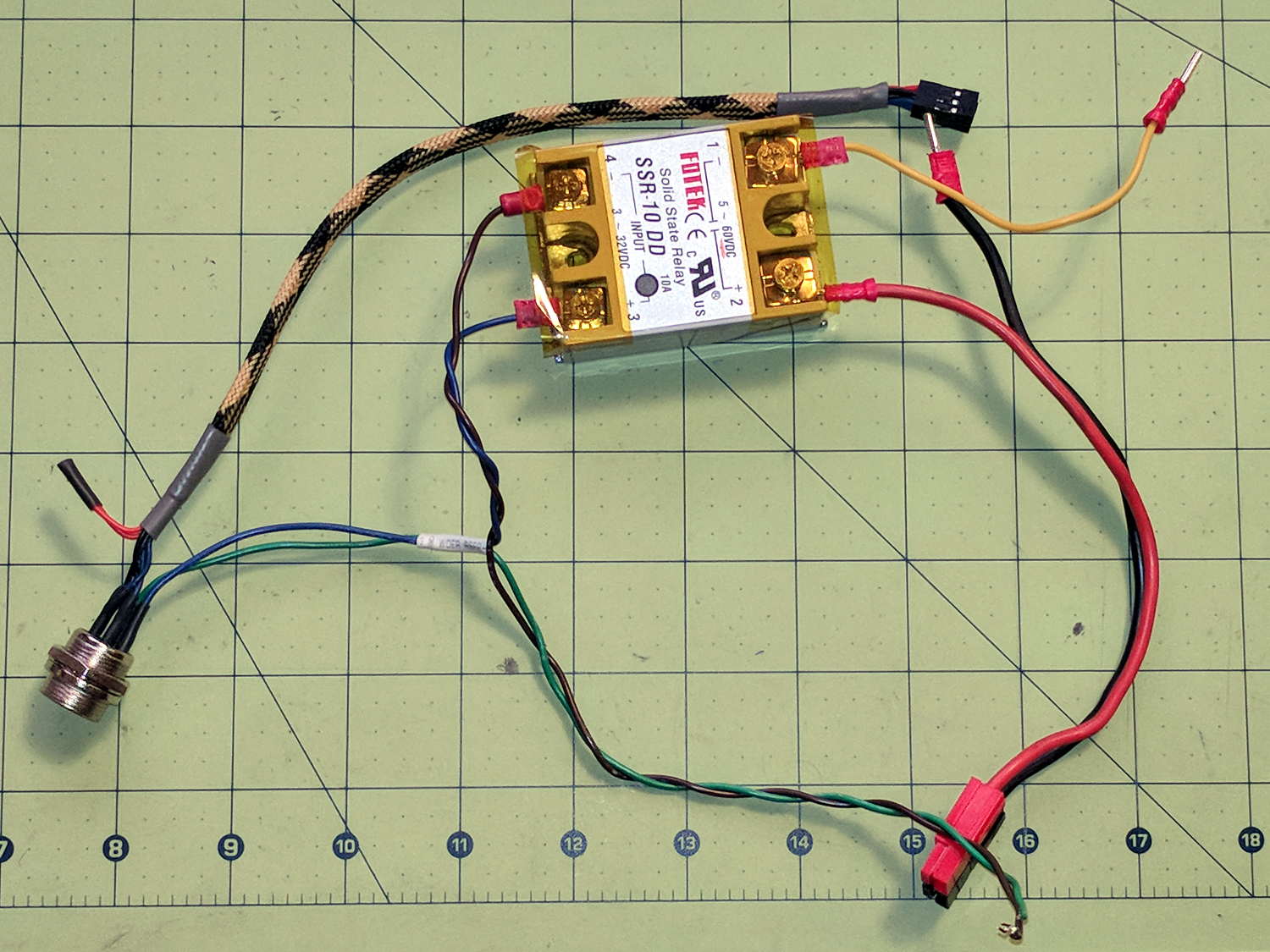
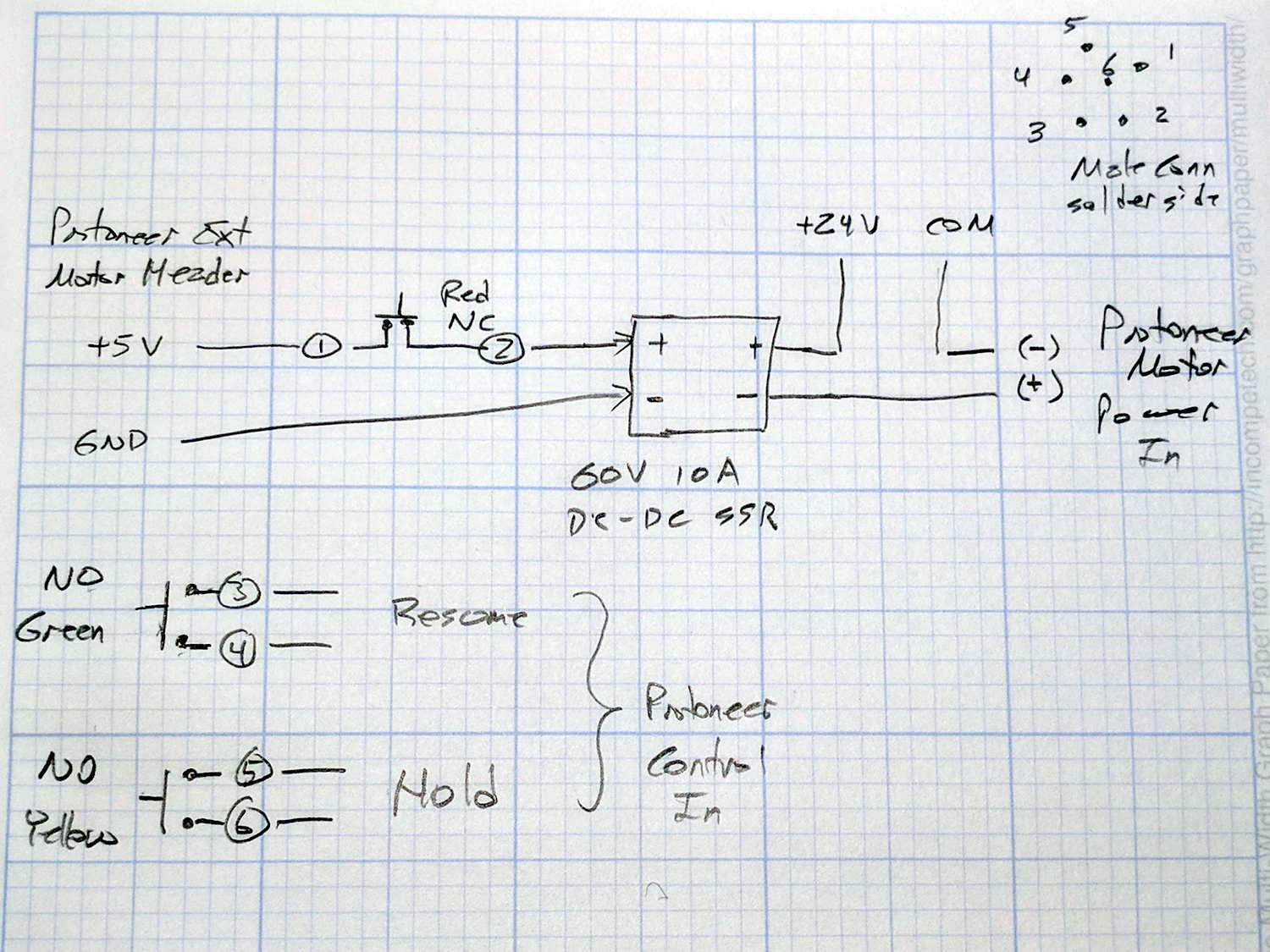
    GRBL responds to critical errors by disabling its outputs, which seems like a useful feature for a big-enough-to-hurt CNC machine like the MPCNC. Unlike the RAMPS 1.4 board, there’s no dedicated power-control pin, so I connected the Coolant output to the same DC-DC SSR I tried out with the RAMPS board:

    MPCNC - CNC Shield - Power SSR
    MPCNC – CNC Shield – Power SSR

    With homing enabled, GRBL emerges from power-on resets and error conditions with the spindle and coolant turned off and the G-Code interpreter in a locked state requiring manual intervention, so turning the stepper power on fits right in:

    • $x – Unlock the controls
    • m8 – Coolant output on = enable stepper power
    • $h – Home all axes

    The steppers go clunk as the power supply turns on, providing an audible confirmation. The dim red LED on the SSR isn’t particularly conspicuous.

    Turning the stepper power off:

    • m9 – Coolant output off = disable stepper power

    I think the A4988 drivers maintain their microstep position with the stepper power supply off, because their logic power remains on. In any event, you probably wouldn’t want to restart after an emergency stop without clearing the fault and re-homing the axes.

    The board has Cycle Start, Feed Hold, and Abort inputs just crying out for big colorful pushbutton switches.

    Unlike the RAMPS board, the Prontoneer CNC Shield does not feed stepper power to the underlying Arduino UNO, leaving it safely powered by USB or the coax jack.


  • MPCNC: Makerbot-style Endstop Switch Modification

    The Protoneer CNC Shield has headers for two endstops on each axis, although they’re wired to the same Arduino input pin. I installed a pair of Makerbot-style endstops on the Y axis, plugged them in, triggered one, and … the Arduino crashed. Hard. As in, a complete loss of power and reboot.

    Some fiddling around produced absolutely baffling symptoms, as I replaced each endstop board and their cables to no avail.

    Perusing the schematic (the “full instructions” link is dead, of course) eventually revealed the problem:

    Makerbot style endstop - schematic
    Makerbot style endstop – schematic

    Got it?

    Although there’s a pullup on the COM switch terminal, the switch’s NC terminal is connected to the +5 V supply, shorting across the both resistor and the LED+resistor. With two endstops in parallel, triggering one crowbars the other’s power supply to ground. I’m sure it made sense at the time, perhaps by ensuring no possible noise source could interfere with the pullup.

    The solution is simple: disconnect the NC terminal from the power supply. As it turns out, the PCB layout routes +5 V on the bottom layer, up through the via around the NC switch terminal, thence to the LED and resistor, leaving only one choice:

    MPCNC - dual MG endstop hack
    MPCNC – dual MG endstop hack

    Yup, amputate the NC terminal and be done with it.

    After that, the pullup resistor lets the endstops cooperate like you’d expect: triggering either one lights up both LEDs.

  • MPCNC: 12 V Supply vs. Stepper Current vs. Axis Speed

    The default MPCNC configuration wires the two stepper motors on each axis in series, doubling the total resistance and inductance of a single motor. The stock Automation Technology motor presents 2.8 Ω and 4.8 mH in each winding to the driver, for an L/R time constant of τ = 1.7 ms. Doubling both doesn’t change the ratio, but including the harness wiring resistance gives 1.6 ms = 9.6 mH / 6 Ω.

    The default DRV8825 driver configuration uses 1:32 microstepping, which I thought was excessive. I replaced the stock RAMPS setup with a Protoneer / GRBL setup using A4988 drivers in 1:16 microstepping mode, got it configured, and made a few measurements:

    MPCNC CNC Shield - Current Measurement Setup
    MPCNC CNC Shield – Current Measurement Setup

    The current probe measures the winding current in the red wire. The voltage probe at the bottom isn’t doing anything, because I ran out of hands.

    Here’s a 10 mm X axis move at 3600 mm/min = 60 mm/s:

    MPCNC X 10mm 60mm-s 500mA-div
    MPCNC X 10mm 60mm-s 500mA-div

    The top trace shows the winding current at 500 mA/div. The bottom trace shows the voltage applied to the winding at the A4988 driver pin.

    Basically, the +12 V supply doesn’t provide enough headroom to let the driver force the required current into the winding at full speed, which is why the peak current decreases as the step rate increases and the sinusoid becomes a square(-ish) wave. The applied voltage switches rapidly to maintain the proper winding current when the axis is stationary or moving slowly (where the driver’s PWM current control works fine), but turns into a square (well, rectangular) wave as the pace picks up (and the driver loses control of the current).

    The motor drives a 16 tooth pulley with a 2 mm belt pitch, so each revolution moves 32 mm of belt. With 1:16 microstepping, each revolution requires 3200 = 200 full step × 16 microstep/step pulses, which works out to 100 step/mm = (3200 step/rev) / (32 mm/rev). At the commanded speed near the middle of the trace, the driver must produce 6000 step/s = 60 mm/s × 100 step/mm, so each step lasts 167 μs, about τ/10.

    In round numbers, the first full cycle on the left has a 20 ms period. Each full cycle = 4 full steps = 64 microsteps, so the belt moved (60 step) / (100 step/mm) = 0.6 mm, at an (average) speed of 30 mm/s = 1800 mm/min. The current begins to fall off by the third cycle with a 12 ms period, a pace of 50 mm/s = 3000 mm/s, and pretty much falls off a cliff by 60 mm/s in the middle.

    To be fair, those are aggressive speeds for milling, but lasers and 3D printers tick along pretty quickly, so they’re not unreasonable.

    More study is indicated, as the saying goes …