Ed Nisley's Blog: Shop notes, electronics, firmware, machinery, 3D printing, laser cuttery, and curiosities. Contents: 100% human thinking, 0% AI slop.
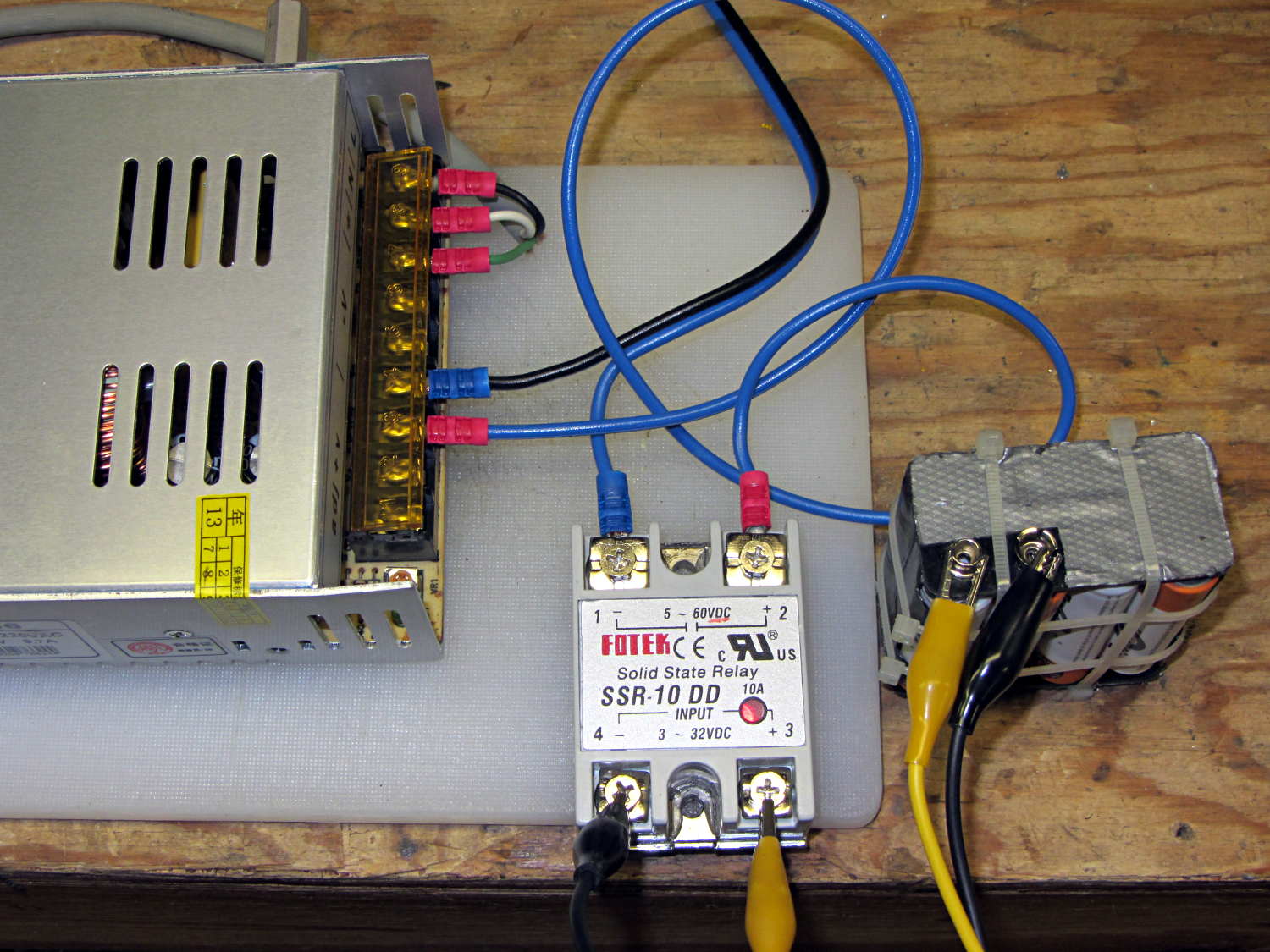
The 36 V 350 W power brick for the improved M2 HBP arrived and seems to work fine, apart from a distinct smell of hot electronics under load. Dialed back to 30.1 V at the terminals (to match the HBP spec) and with the HBP connected through the same length of 12 AWG wire as before, the supply draws 150 W from the AC line.
It draws 160 W at 31.7 V and stabilizes at about 100 °C. The heater resistance is 7.6 Ω before it has a chance to cool off, so the heater runs at 4.17 A and 132 W. The supply efficiency is 83% = 132/160, about what you’d expect. The fan runs intermittently with that load.
In order to dissipate 150 W in the panel at the same resistance, the voltage must be 33.5 V at 4.5 A. I’d want to install it in the M2 and make some measurements before jumping to any conclusions.
The SSR’s forward drop runs around 1.0 to 1.1 V at 4 A, which suggests a drain-source resistance near 0.25 Ω, rather more than you’d expect for a bare MOSFET, but probably about right for an up-armored device. Or it could just be a crap MOSFET inside there…
So I think the brick will wind up at about 35 V to make up for the SSR drop. The SSR will dissipate about 5 W and won’t need much heatsinking; just bolting it to an aluminum chassis may suffice.
Part of the Curvelicious Cookie Cutter effort involved making the thinnest possible cutter blade wall consisting of two adjacent threads, because that’s about what the Afinia printer was producing (from a different model). My OpenSCAD code, based on an Inkscape model derived from the as-printed Afinia cutter, enlarges the cookie shape by a specific distance with a Minkowski sum; the model ultimately becomes G-Code directing the extruder nozzle around the outline.
Obviously, that required a bit of fiddling:
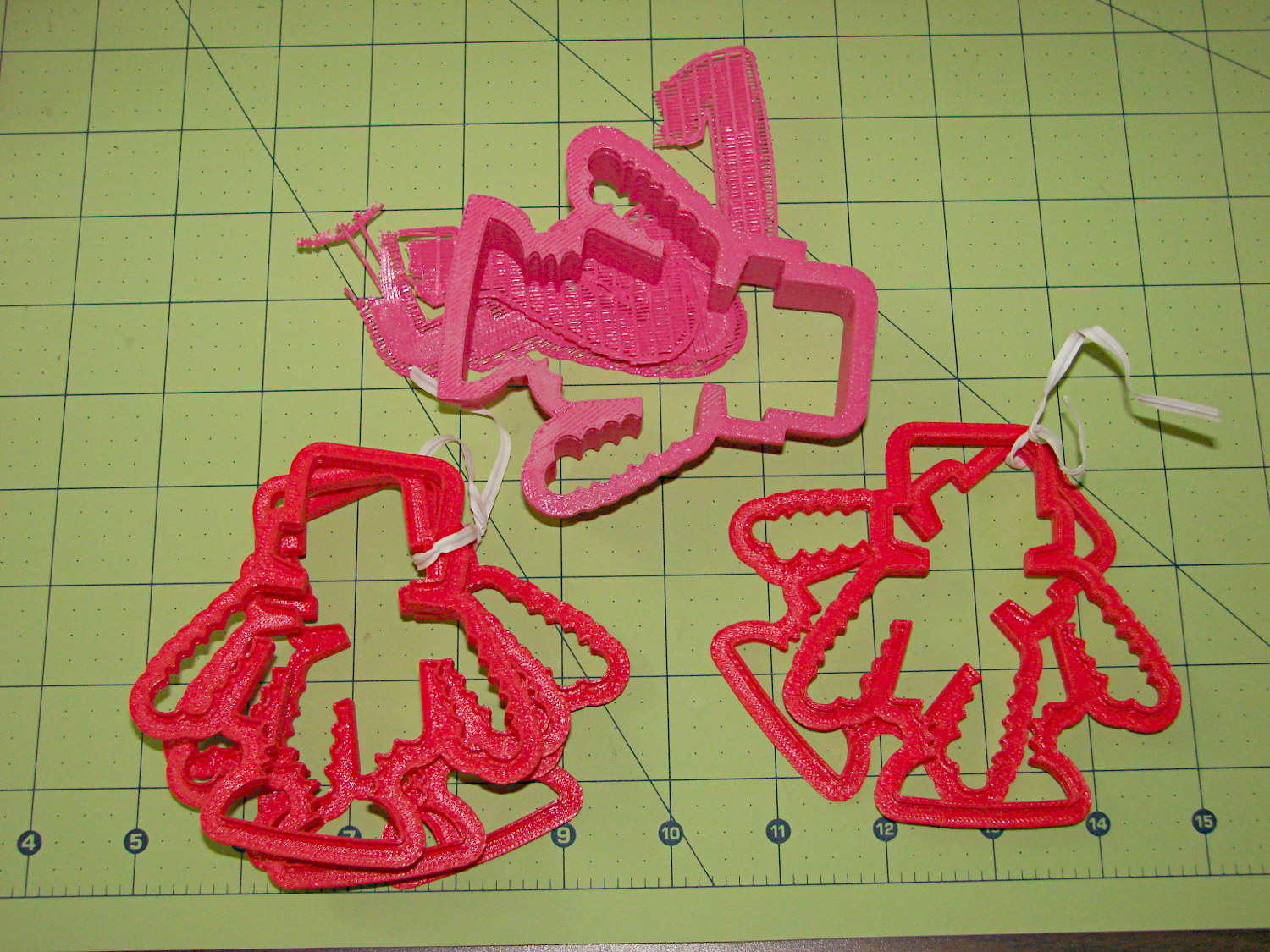
Robot Cutter Variations
The pink cutter on the top came from the Afinia, complete with raft. The red cutters, all with short blades to speed up the printing, came from my M2.
The printer mechanics determine the step/mm values for all four axes: X, Y, Z, and the extruder. The effective diameter of the “gear” driving the filament into the extruder seems subject to some quibbling, but setting it so the thinwall box comes out with the proper filament width seems reasonable. Given those four values, the slicing software can control the extruder speed to produce the proper volume of plastic as the XY speed varies.
The slicing software must also know the raw filament diameter, which seems to be consistent within a few percent for the filaments in my collection. Because a 1% change in filament diameter produces a 3% change in extruded volume, a few percent is about all you can tolerate; broad-tolerance filament may require sensors and adjustments that printers don’t currently offer.
There is one remaining variable, essentially a Fudge Factor, which Slic3r calls the extrusion multiplier. This seems to be a linear factor applied to the extrusion volume, so that increasing the factor proportionally increase the flow rate. Given correct step/mm settings and the measured filament diameter, you (well, I) adjust the extrusion multiplier to get the proper extrusion flow. As it turned out, the multiplier I’ve been using with the M2 worked out to 1.00, although I’ve also used 0.97 on occasion. Although I haven’t read the Slic3r source code to verify this, varying the multiplier by +3% should fudge the diameter by about +0.017 mm = 1% of the measured 1.72 mm.
Note that the Makergear-modified Marlin firmware in the M2 will produce different results, as they use a different value for the extruder gear’s effective diameter. More discussion on that is there.
Soooo, I set up the extrusion multiplier to produce parts with accurate dimensions, because that’s what I care about, and didn’t worry too much about perfect surface finish, because I don’t really care about that. Cookie cutters, however, need a completely filled surface that prevents dough from collecting inside, but have essentially no dimensional accuracy requirements.
The quartet of stumpy cutters bundled together on the left of the top photo explored the effect of changing the extrusion multiplier. I used the same STL model for all the cutters and varied only the extrusion factor, so the results depend only on the plastic flow rate and the M2’s impeccable mechanical stability.
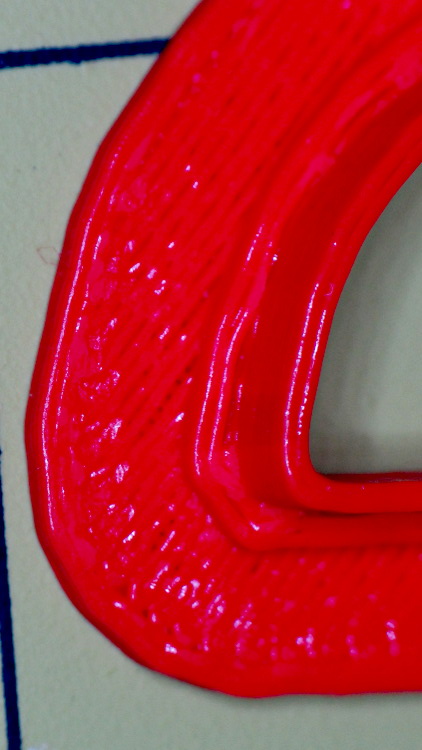
A sharp cusp at 0.96 has a slight opening:
Robot Cutter – 0.96 extrusion multiplier
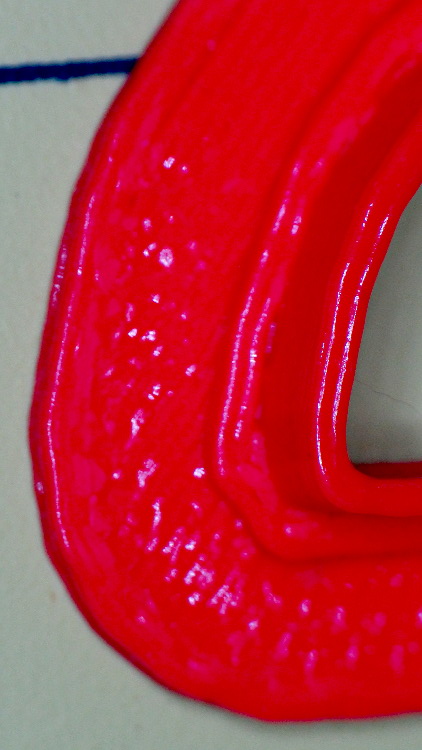
The cusp fills in at 1.10:
Robot Cutter – 1.10 extrusion multiplier
The handle surface is slightly open at 0.96:
Robot Cutter – 0.96 extrusion multiplier
And filled in at 1.10:
Robot Cutter – 1.10 extrusion multiplier
In all those cases, the measured blade thickness varied slightly, but not enough to matter in this application. I didn’t record those numbers and no longer have the models, but … you just tune for best picture.
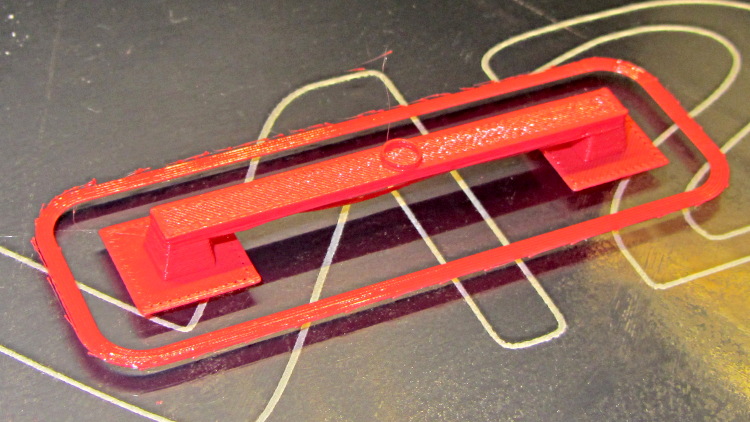
Although I’ve pretty much given up on torture tests, I saw a note about the troubles someone had with Triffid Hunter’s Bridge Torture Test object. I did a bit of tweaking to the OpenSCAD source to shorten the struts and add the pads (which could be done with Slic3r’s Brim settings), but it’s otherwise about the same. The clear span is about 50 mm:
Bridge Torture Test – solid model
Using my usual settings, with no special setup, the front looked OK:
Bridge torture test – overview
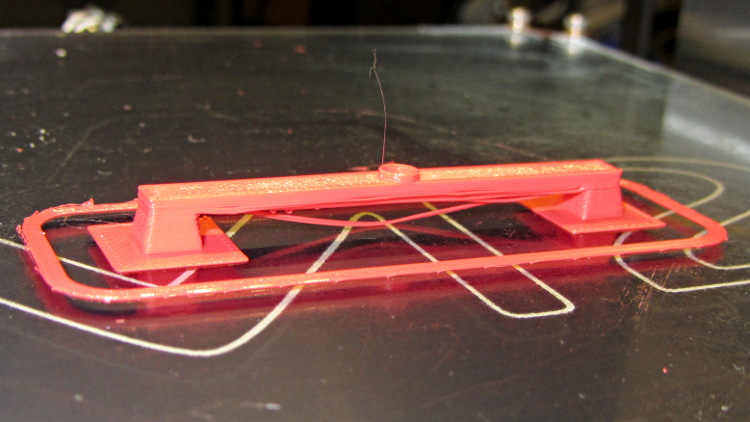
One strand came out rather droopy:
Bridge torture test – front
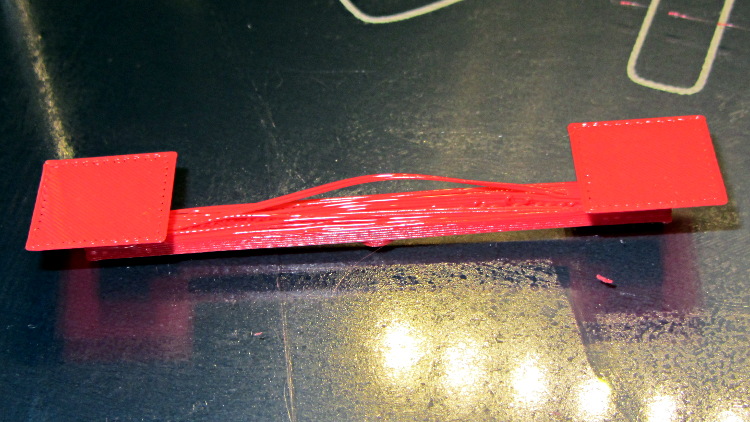
The bottom layer of the bridge isn’t as consolidated as it could be:
Bridge torture test – bottom
The overall speed dropped considerably as the Cool setting limited the layer time to 20 seconds; the Bridge settings didn’t apply.
I could probably tighten the bottom strands a bit, but it’s OK for a first pass.
Although the M2’s heated build platform works well enough, somebody who knows what he’s doing (you know who you are: thanks!) sent me an improved version. It’s a PCB heater, laid out to compensate for the usual edge cooling, firmly attached to a tempered glass plate with genuine 3M thermally conductive tape:
Improved M2 HBP – test setup
They designed the heater around the 30 VDC power supply used in their other equipment. Although I had high moderate hopes that a boost power supply would convert the 24 V supply I already had for the stepper driver bricks into the 30 V for the heater, it was not to be. So there’s a 36 V 9.7 A 350 W supply arcing around the planet that (I think) should work better: adjust the voltage down as far as it’ll go, soak up another few volts in the solid-state relay, and Things Should Be Close Enough to 30 V. One can buy a genuine 30 V supply, but it costs surprisingly more than either 24 V or 36 V supplies on the surplus / eBay market and won’t really provide the proper voltage without upward tweaking anyway.
I replaced their standard 0.156 inch square terminals with Anderson Powerpoles, soldered a length of shielded cable to the 100 kΩ thermistor pads, and gimmicked up a connection to the 24 V supply; it delivered 23.7 V at the PCB terminals. The thermistor is 100 kΩ at 25 °C and 11.4 kΩ at 77 °C. The PCB heater is 5.9 Ω at 25 °C and 7.3 Ω at 77 °C; it dissipates 77 W at 77 °C (no, that’s not a typo).
The ultimate temperature looks to be about 90 °C with a 24 V supply, which isn’t quite enough for ABS (which I’m not using in the M2 right now, but probably will eventually). The time constant, assuming the 1-e-1 point is 66 °C, works out to about 9 minutes; it’ll be up to final temperature in half an hour. Those numbers aren’t quite as accurate as one might wish, because the heater power drops as the temperature rises and the copper resistance increases.
A 30 V supply would dissipate 120 W at 77 °C and rumor has it that the ultimate temperature is around 125 °C, which would be fine for ABS. Goosing the power a bit would produce more heat, but I’v been running the Thing-O-Matic at 110 °C and that’s good enough. More power, of course, gets it to the temperature setpoint faster, which is probably a Very Good Thing.
Obviously, you need PWM to control the temperature; given a 9 minute time constant, a bang-bang controller will work perfectly well.
The original data, including the thermistor resistance after I got my act together, plus a cute little temperature-vs-time graph:
Improved M2 HBP – 24 V supply
The colored flyspecks are part of the paper; I salvaged a stack of fancy menu cards from a trash can and padded them up as geek scratch paper.
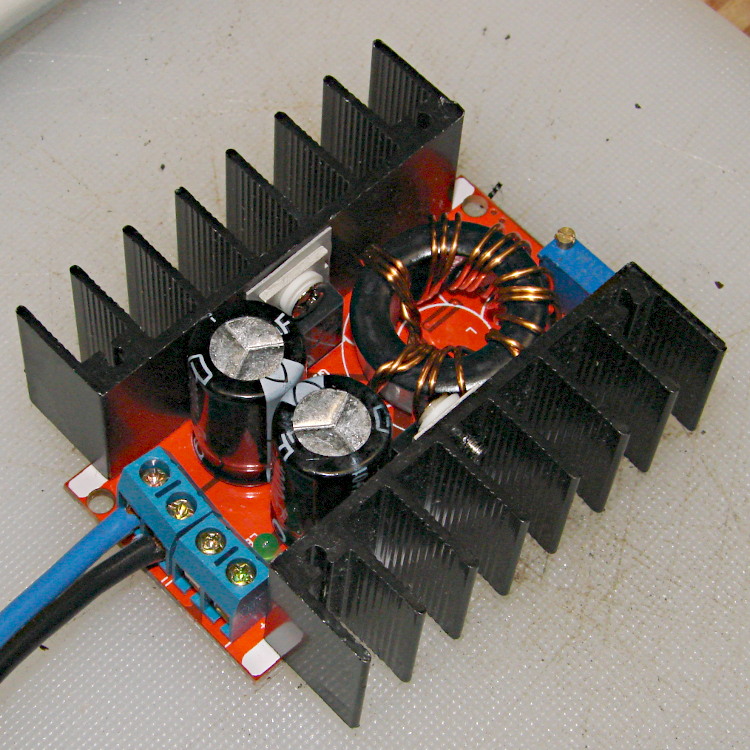
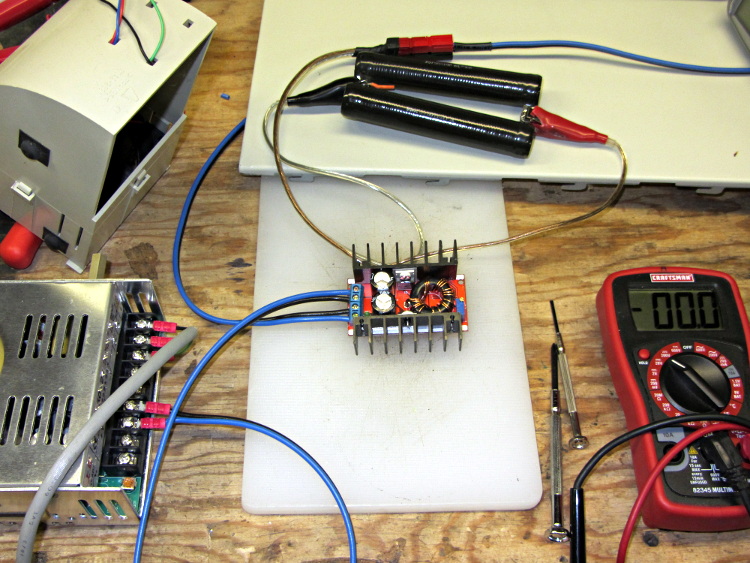
For reasons that will become apparent in a while, I got a pair (*) of boost power supplies from the usual eBay source, allegedly capable of boosting a 10-to-32 VDC input to a 12-to-35 VDC output, up to 10 A and 150 W:
Boost power supply
After establishing that it would not produce 30 V into a 5.9 Ω load (5.1 A, but 152 W), I got systematic.
A 100 Ω resistor drew 1/4 A while I set the output to 28 V. Doubling up the resistors showed that it worked OK at half an amp:
Boost supply – 50 ohm load
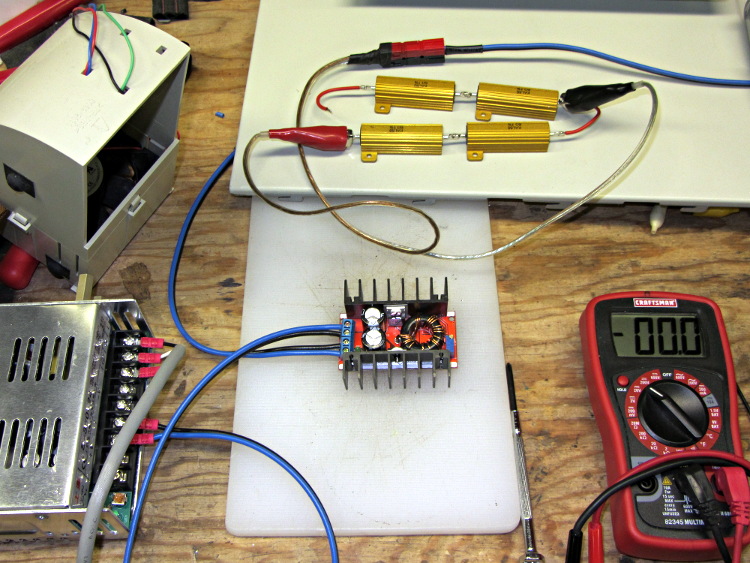
Four 6 Ω resistors in series draw 1.2 A, then (channeling the true spirit of DIY 3D printing) two in series drew 2.3 A:
Boost supply – 12 ohm load
That’s 32 W each and, yes, they did get toasty, but, no, I didn’t leave them turned on all that long.
But a 6 Ω resistance still didn’t work, so the supply can’t provide 4.7 A at 130 W. In case you were wondering, that’s two 6 Ω resistors in series and a pair of those strings in parallel, so each resistor still sees 32 W.
In terms of driving the actual load, these supplies aren’t going to light it up.
Ah, well, whaddaya want for five buck from halfway around the planet?
(*) Davy’s Aphorism: Never buy only one of any surplus item, because you’ll never find another. Get at least two, maybe three if it’s something you might actually use.
The cutter is still attached to the raft that, it seems, is required for passable results on the Afinia’s platform.
Having already figured out how to wrap a cutter around a shape, the most straightforward procedure starts by extracting the cutter’s shape. So, lay the cutter face down on the scanner and pull an image into GIMP:
Afinia Robot – scan
Blow out the contrast to eliminate the background clutter, then posterize to eliminate shadings:
Afinia Robot – scan enhanced
Select the black interior region, grow the selection by a pixel or two, then shrink it back to eliminate (most of) the edge granularity, plunk it into a new image, and fill with black:
Afinia Robot – scan filled
Now the magic happens…
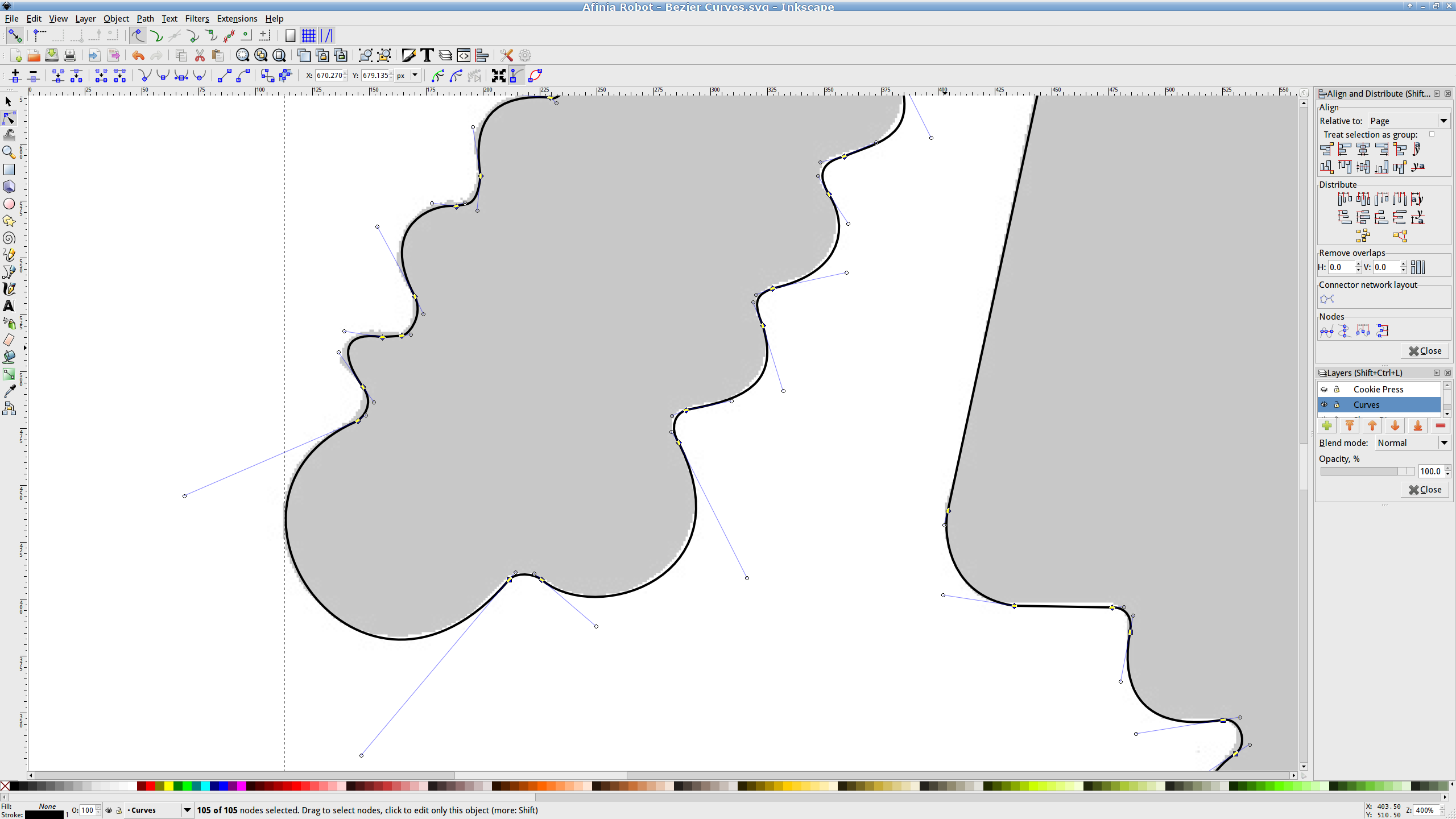
Import the bitmap image into Inkscape. In principle, you can auto-trace the bitmap outline and clean it up manually, but a few iterations of that convinced me that it wasn’t worth the effort. Instead, I used Inkscape’s Bézier Curve tool to drop nodes (a.k.a. control points) at all the inflection points around the image, then warped the curves to match the outline:
Afinia Robot – Bezier spline fitting
If you’re doing that by hand, you could start with the original scanned image, but the auto-trace function works best with a high-contrast image and, after you give up on auto-tracing, you’ll find it’s easier to hand-trace a high-contrast image.
Anyhow, the end result of all that is a smooth path around the outline of the shape, without all the gritty details of the pixelated version. Save it as an Inkscape SVG file for later reference.
OpenSCAD can import a painfully limited subset of DXF files that, it seems, the most recent versions of Inkscape cannot produce (that formerly helpful tutorial being long out of date). Instead, I exported (using “Save as”) the path from Inkscape to an Encapsulated Postscript file (this is a PNG, as WordPress doesn’t show EPS files):
Afinia Robot – Bezier Curves.eps
It’s not clear what the EPS file contains; I think it’s just a list of points around the path that doesn’t include the smooth Bézier goodness. That may account for the grittiness of the next step, wherein the pstoedit utility converts the EPS file into a usable DXF file:
Unfortunately, either the EPS file doesn’t have enough points on each curve or pstoedit automatically sets the number of points and doesn’t provide an override: contrary to what you (well, I) might think, the -splineprecision option doesn’t apply to whatever is in the EPS file. In any event, the resulting DXF file has rather low-res curves, but they were good enough for my purposes and OpenSCAD inhaled the DXF and emitted a suitable STL file:
Afinia Robot – shape slab
To do that, you set the Layout variable to “Slab”, compile the model, and export the STL.
Being interested only in the process and its results, not actually cutting and baking cookies, I tweaked the OpenSCAD parameters to produce stumpy “cutters”:
Afinia Robot – solid model
You do that by setting the Layout variable to “Build”, compile the model, and export yet another STL. In the past, this seemed to be a less fragile route than directly importing and converting the DXF at each stage, but that may not be relevant these days. In any event, having an STL model of the cookie may be useful in other contexts, so it’s not entirely wasted effort.
Run the STL through Slic3r to get the G-Code as usual.
The resulting model printed in about 20 minutes apiece on the M2:
Robot Cutter – stumpy version
As it turns out, the fact that the M2 can produce ready-to-use cutters, minus the raft, is a strong selling point.
Given a workable model, the next step was to figure out the smallest possible two-thread-wide cutter blade, then run variations of the Extrusion Factor to see how that affected surface finish. More on that in a while.
The OpenSCAD source isn’t much changed from the original Tux Cutter; the DXF import required different scale factors:
// Robot cookie cutter using Minkowski sum
// Ed Nisley KE4ZNU - Sept 2011
// August 2013 adapted from the Tux Cutter

Layout = "Build";				// Build Slab

//- Extrusion parameters - must match reality!

ThreadThick = 0.25;
ThreadWidth = 0.40;

function IntegerMultiple(Size,Unit) = Unit * ceil(Size / Unit);

MaxSize = 150;				// larger than any possible dimension ...

Protrusion = 0.1;

//- Cookie cutter parameters

Size = 95;

TipHeight = IntegerMultiple(3.0,ThreadThick);
TipThick = 1.5*ThreadWidth;			// 1.5* = thinnest 2-thread wall, 1.0* thread has gaps

WallHeight = IntegerMultiple(1.0,ThreadThick);
WallThick = 4.5*ThreadWidth;

LipHeight = IntegerMultiple(1.0,ThreadWidth);
LipThick = IntegerMultiple(5,ThreadWidth);

//- Wrapper for the shape of your choice

module Shape(Size) {
  Robot(Size);
}

//- A solid slab of Tux goodness in simple STL format
// Choose magic values to:
//		center it in XY
//		reversed across Y axis (prints with handle on bottom)
//		bottom on Z=0
//		make it MaxSize from head to feet

module Tux(Scale) {
  STLscale = 250;
  scale(Scale/STLscale)
	translate([105,-145,0])
	  scale([-1,1,24])
		import(
		  file = "/mnt/bulkdata/Project Files/Thing-O-Matic/Tux Cookie Cutter/Tux Plate.stl",
		  convexity=5);
}

module Robot(Scale) {
    STLscale = 100.0;
    scale(Scale / STLscale)
			scale([-1,1,10])
				import("/mnt/bulkdata/Project Files/Thing-O-Matic/Pinkie/M2 Challenge/Afinia Robot.stl",
					convexity=10);
}

//- Given a Shape(), return enlarged slab of given thickness

module EnlargeSlab(Scale, WallThick, SlabThick) {

	intersection() {
	  translate([0,0,SlabThick/2])
		cube([MaxSize,MaxSize,SlabThick],center=true);
	  minkowski(convexity=5) {
		Shape(Scale);
		cylinder(r=WallThick,h=MaxSize,$fn=16);
	  }
	}

}

//- Put peg grid on build surface

module ShowPegGrid(Space = 10.0,Size = 1.0) {

  RangeX = floor(100 / Space);
  RangeY = floor(125 / Space);

	for (x=[-RangeX:RangeX])
	  for (y=[-RangeY:RangeY])
		translate([x*Space,y*Space,Size/2])
		  %cube(Size,center=true);

}

//- Build it

ShowPegGrid();

if (Layout == "Slab")
	Shape(Size);

if (Layout == "Build")
	difference() {
	union() {
		translate([0,0,(WallHeight + LipHeight - Protrusion)])
		EnlargeSlab(Size,TipThick,TipHeight + Protrusion);
		translate([0,0,(LipHeight - Protrusion)])
		EnlargeSlab(Size,WallThick,(WallHeight + Protrusion));
		EnlargeSlab(Size,LipThick,LipHeight);
	}
	Shape(Size);					// punch out cookie hole
	}
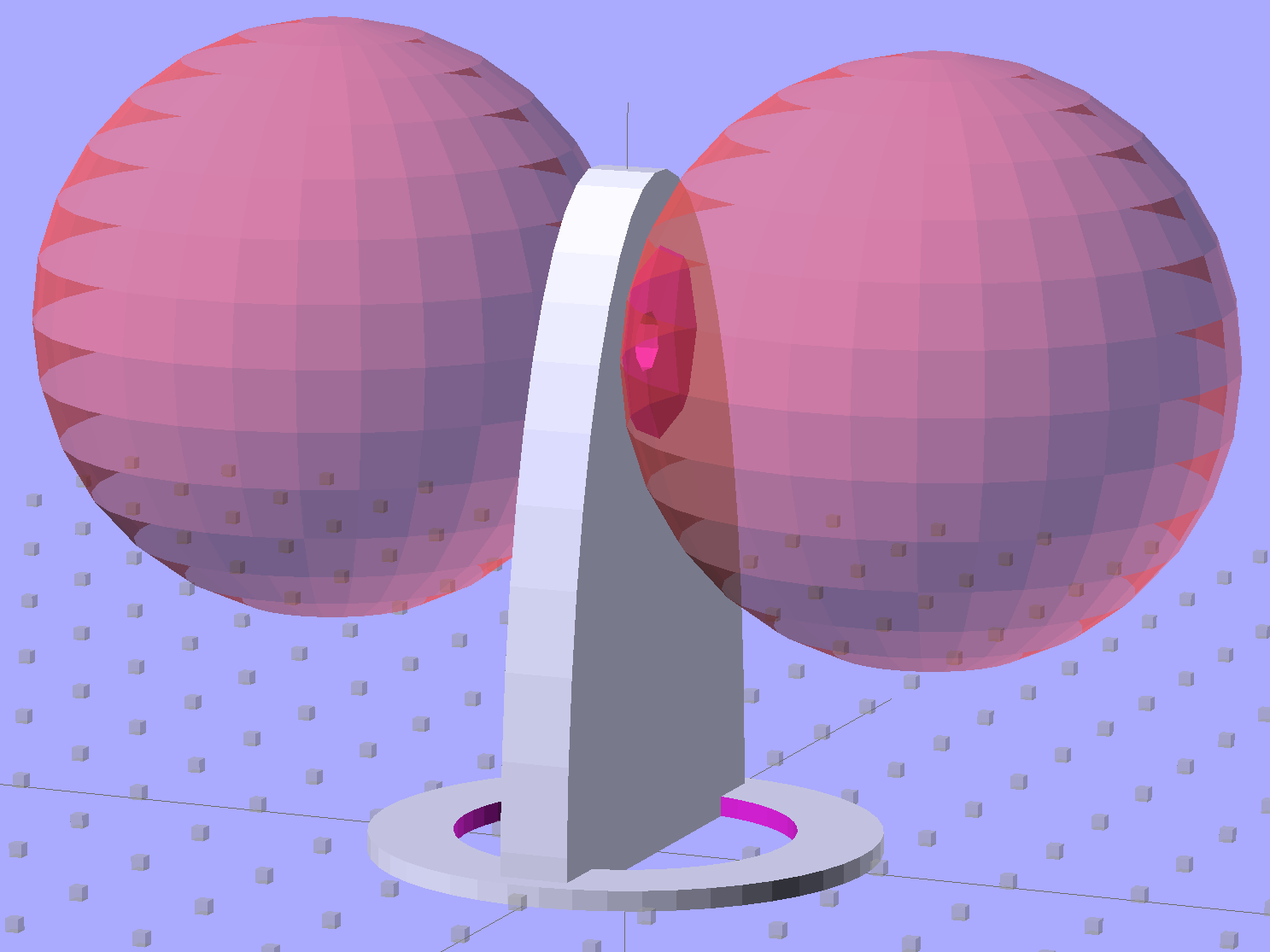
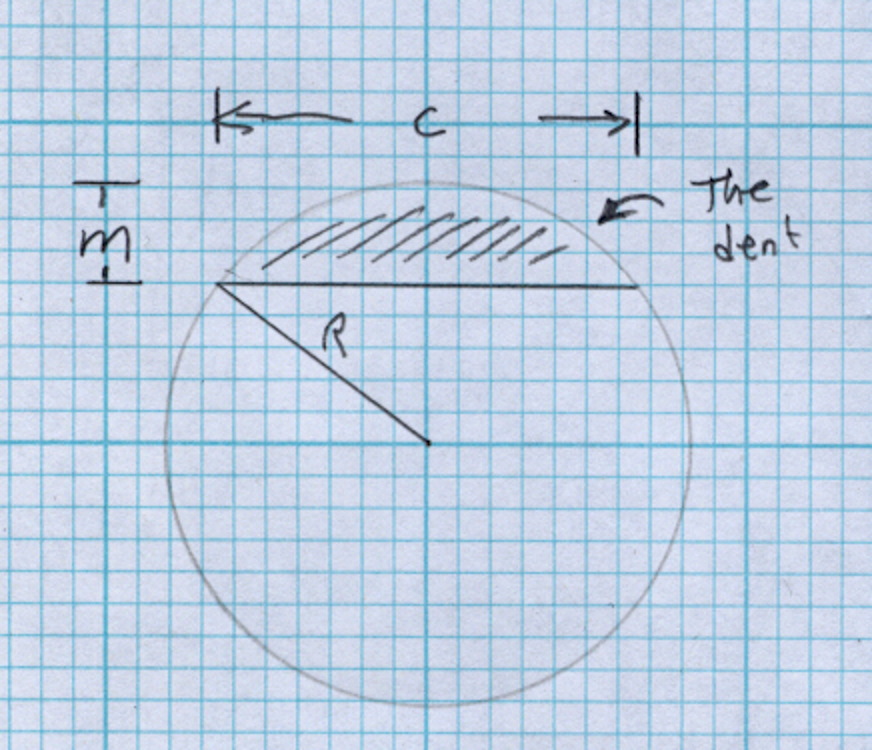
Then generate the sphere (well, two spheres, one for each dent) and offset it to scoop out the dent:
for (i=[-1,1]) {
	translate([i*(DentSphereRadius + HandleThick/2 - DentDepth),0,StringHeight])
		sphere(r=DentSphereRadius);
HandleThick controls exactly what you’d expect. StringHeight sets the location of the hole punched through the handle for a string, which is also the center of the dents.
The spheres have many facets, but only a few show up in the dent. I like the way the model looks, even if the facets don’t come through clearly in the plastic:
Quilting circle template – handle dent closeup – solid model
It Just Works and the exact math produces a better result than by-guess-and-by-gosh positioning.
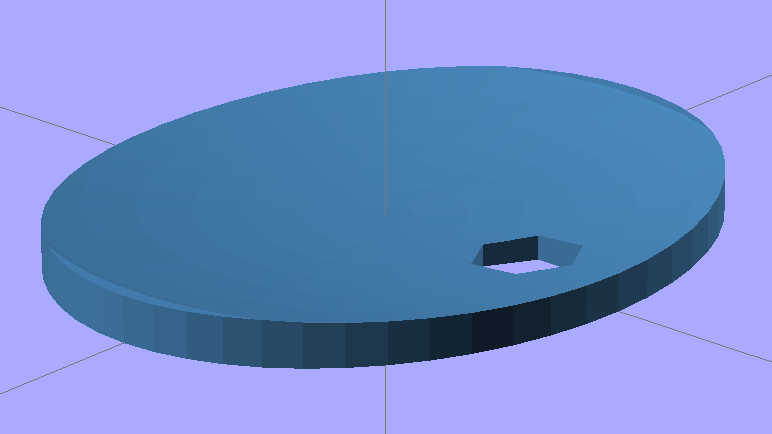
The sphere radius will come out crazy large for very shallow dents. Here’s the helmet plate for my Bicycle Helmet Mirror Mount, which has an indentation (roughly) matching the curve on the side of my bike helmet:
Helmet mirror mount – plate
Here’s the sphere that makes the dent, at a somewhat different zoom scale:
Helmet mirror mount – plate with sphere
Don’t worry: trust the math, because It Just Works.
You find equations like that in Thomas Glover’s invaluable Pocket Ref. If you don’t have a copy, fix that problem right now; I don’t get a cut from the purchase, but you’ll decide you owe me anyway. Small, unmarked bills. Lots and lots of small unmarked bills…