The Smell of Molten Projects in the Morning

Ed Nisley's Blog: Shop notes, electronics, firmware, machinery, 3D printing, laser cuttery, and curiosities. Contents: 100% human thinking, 0% AI slop.

Tag: CNC

Making parts with mathematics

  • Edge-Lit Acrylic “Nixie” Display: Doodles

    The Basement Warehouse Wing has an essentially unlimited supply of pristine CD cases (remember CDs?) that, with a bit of deft bandsaw work, will each emit a pair of 4×4 inch sheets of perfectly transparent acrylic plastic. The sheets are about 1.3 mm = 50 mils thick, which is just about exactly what you want for a Nixie-style display that doesn’t require high voltages, because you can edge-light a sheet with 0603 amber SMD LEDs. Obviously, this is not a Shining New Idea, but this post collects my doodles so they don’t get lost along the way.

    The Squidwrench StickerLab session prodded me into lashing a prototype together to see how this would work; they have a Silhouette Cameo vinyl cutter driven with Robotcut that works well. I’d hoped to do some laser cutting at the subsequent session, but our schedules didn’t mesh.

    The compelling advantage of laser cutting is that you could crack the CD cases apart, throw out the CD holder gimcrackery, lay the sheets flat on the cutter table with the latches & other junk upward, and burn the digits out of the middle without any further preparation. I think I could get much the same effect, at least for a crude prototype, by milling & engraving with the Sherline.

    The sheets are about 4 threads of 3D printed plastic extruded at the M2’s default 0.4 mm width. You could print a black baseplate with slots to hold the sheets, put two threads between each sheet, and have the sheet 6 threads apart on center = 2.4 mm spacing:

    Tab vs 3D thread size doodle
    Tab vs 3D thread size doodle

    Ten such sheets would produce a standard 0-to-9 display about an inch deep, plus protective sheets front and back, so the whole affair would be maybe 1.25 inch deep. You’d probably want to offset the tabs on adjacent sheets to reduce light leakage between LEDs. The baseplate fits atop a PCB with LEDs at the right locations, so you get an opaque holder for the sheets that’s easy to produce and easy to assemble:

    Sheet tab layout doodle
    Sheet tab layout doodle

    If you were clever, you could have different tab locations on each sheet so they’d fit only in the proper orientation; that might be important for cough mass production.

    The M2 has a platform big enough to build an entire clock base in one pass, plus a matching piece to capture the tops of the digits. I think edge-lit acrylic needs a complete opaque surround for each digit sheet to block light leaking from the edges; it might be easier to build the mount in the other direction, lying flat on the platform, stack the mounts together with the digit sheets, then bolt the whole assembly from the front; that would ensure perfect alignment of everything.

    In that case, the 3D printed layers are 0.25 mm (or smaller), but the resolution for the tabs would be 0.4 mm. If you were exceedingly brave & daring, you could lay the digit sheets in place during the build and come out with a monolithic unit; that might require a bit of clearance atop each sheet, as a grazing touch from a hot nozzle would be painfully obvious.

    There’s no reason you couldn’t have 16 sheets for a hexadecimal display; this would work out nicely with 8-bit shift registers using SPI from the usual Arduino-love controller. One might prefer current-limiting LED drivers.

    There’s also no reason you couldn’t use a wider “digit” sheet and engrave, say, the days of the week or the units of measurement or something like that on each panel.

    If the display will be 30 mm deep, then the digits must be large enough that the depth doesn’t turn each digit into a tunnel. Large Nixe tubes had digits about 40 mm tall, so I went with a 30 x 45 panel, plus 1 mm tabs on the top and bottom:
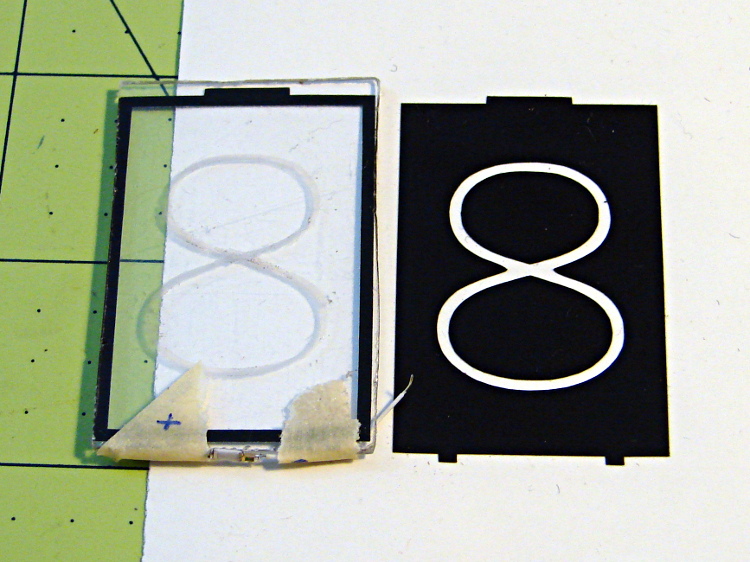
    Crude edge-lit acrylic panel vs vinyl stencil
    Crude edge-lit acrylic panel vs vinyl stencil

    The “engraved” digit on the left came from a vinyl mask similar to the one on the right, using fine sandpaper to rough up the acrylic surface. I deliberately started with a battered old CD case in order to prevent myself from getting too compulsive with neatness; as you’ll see, edge-lit acrylic reveals any surface imperfections, so cleanliness is important.

    The black border could be a light-shield gasket around the outer edge of the display panel to reduce glare from the edges. This might be more important for laser-cut pieces with highly reflective edges or for milled pieces with diffuse edges; there’s no way to tell without actually building one to see. I simply bandsawed the sheet around the edges of the mask, then filed off the larger chunks: the edges are very, very rough, indeed.

    There doesn’t seem to be an easy way to stash the Inkscape SVG file on WordPress.

    I solder-blobbed some wire-wrap wire, a 1206 SMD resistor, and a 0603 LED together:

    Crude 0603 SMD LED lashup
    Crude 0603 SMD LED lashup

    The 0603 SMD LED fits neatly along the edge of the sheet:

    0603 SMD on CD case edge
    0603 SMD on CD case edge

    A 3rd hand holds it upright on the bench over the LED lashup:

    Edge-lit acrylic - front layout
    Edge-lit acrylic – front layout

    It looks marginally better with the lights out, but you can see all the scratches:
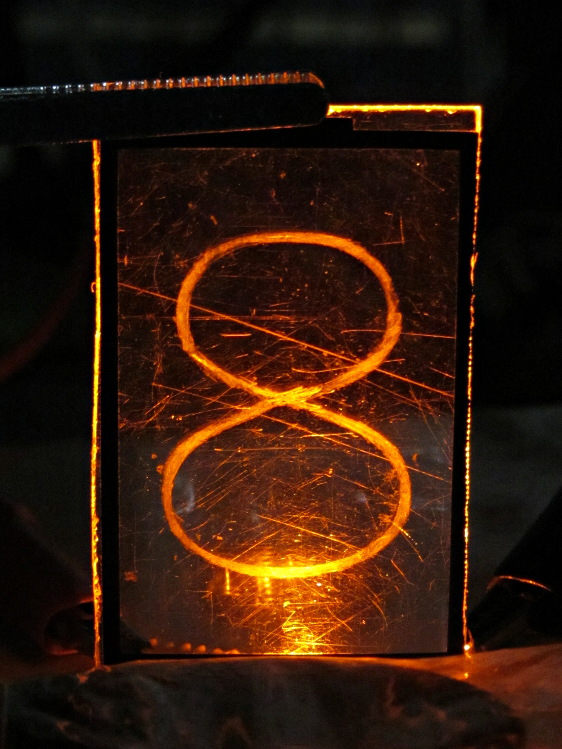
    Edge-lit acrylic - front detail
    Edge-lit acrylic – front detail

    The hot spot at the bottom of the digit isn’t nearly that awful in person.

    A top view shows the glowing edges, plus the nuclear glow from the LED:
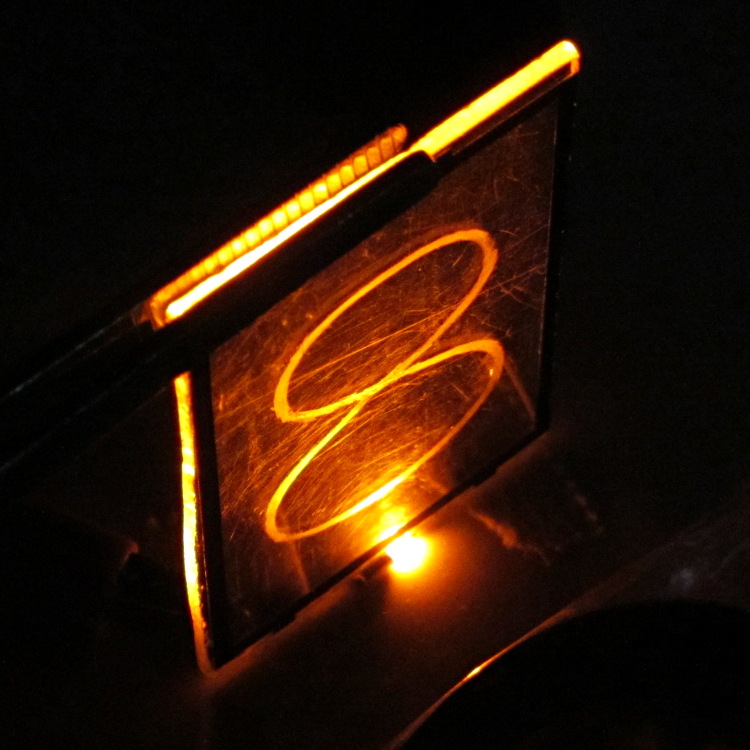
    Edge-lit acrylic - top view
    Edge-lit acrylic – top view

    A touch of soft focus, plus moving the LED under a tab location, helps a bit:

    Edge-lit acrylic - front soft focus
    Edge-lit acrylic – front soft focus

    You’d want two LEDs per digit and maybe one at the top, but that’s in the nature of fine tuning.

    All in all, I like how it looks. Getting from this crud to a workable display will require far more effort than I can devote to it right now…

  • Makergear M2: Bridge Torture Test

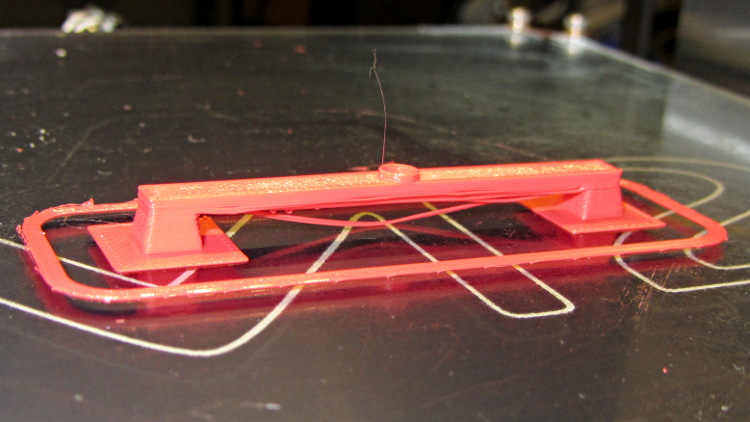
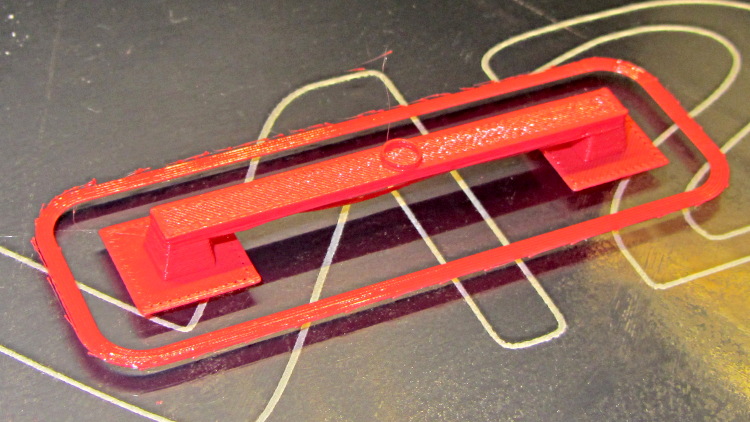
    Although I’ve pretty much given up on torture tests, I saw a note about the troubles someone had with Triffid Hunter’s Bridge Torture Test object. I did a bit of tweaking to the OpenSCAD source to shorten the struts and add the pads (which could be done with Slic3r’s Brim settings), but it’s otherwise about the same. The clear span is about 50 mm:

    Bridge Torture Test - solid model
    Bridge Torture Test – solid model

    Using my usual settings, with no special setup, the front looked OK:

    Bridge torture test - overview
    Bridge torture test – overview

    One strand came out rather droopy:

    Bridge torture test - front
    Bridge torture test – front

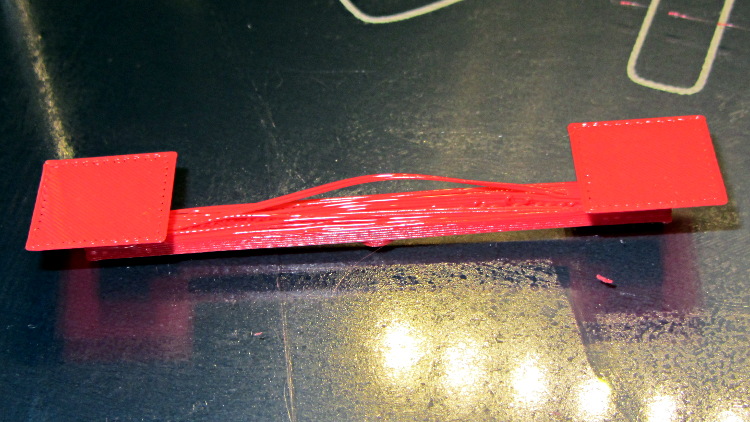
    The bottom layer of the bridge isn’t as consolidated as it could be:

    Bridge torture test - bottom
    Bridge torture test – bottom

    The overall speed dropped considerably as the Cool setting limited the layer time to 20 seconds; the Bridge settings didn’t apply.

    I could probably tighten the bottom strands a bit, but it’s OK for a first pass.

    The OpenSCAD source code:

    bridge_length = 50;
    bridge_angle = 0;
    bridge_width = 5;
    
    strut_height = 4;
    
    layer_height = 0.25;
    extrusion_width = 0.5;
    
    bridge_recovery_layers = 2 / layer_height;
    
    module foot() {
    	rotate([0, 0, 180/4]) cylinder(r=bridge_width * 2, h=layer_height, $fn=4);
    }
    
    module strut() {
    	rotate([0, 0, 180/4])
    	difference() {
    		cylinder(r1=bridge_width / 1.5 / cos(45), r2=bridge_width / 2 / cos(45),
    			h=strut_height, $fn=4);
    		translate([0, 0, -1]) cylinder(r1=(bridge_width / 1.5 - extrusion_width * 2) / cos(45),
    			r2=(bridge_width / 2 - extrusion_width * 2) / cos(45), h=10, $fn=4);
    	}
    }
    
    translate([-bridge_length/2,0,0])
    rotate(bridge_angle) {
    	translate([00, 0, 0]) foot();
    	translate([bridge_length + bridge_width, 0, 0]) foot();
    
    	translate([00, 0, 0]) strut();
    	translate([bridge_length + bridge_width, 0, 0]) strut();
    
    	translate([bridge_width / -2, bridge_width / -2, strut_height]) cube([bridge_length + bridge_width * 2, bridge_width, layer_height * bridge_recovery_layers]);
    
    	translate([bridge_length / 2 + bridge_width / 2, 0, strut_height + layer_height * bridge_recovery_layers])
    	difference() {
    		cylinder(r=bridge_width / 2, h=1, $fn=32);
    		cylinder(r=bridge_width / 2 - extrusion_width, h=1.01, $fn=32);
    	}
    }
    
  • Cheap Boost Power Supply Evaluation

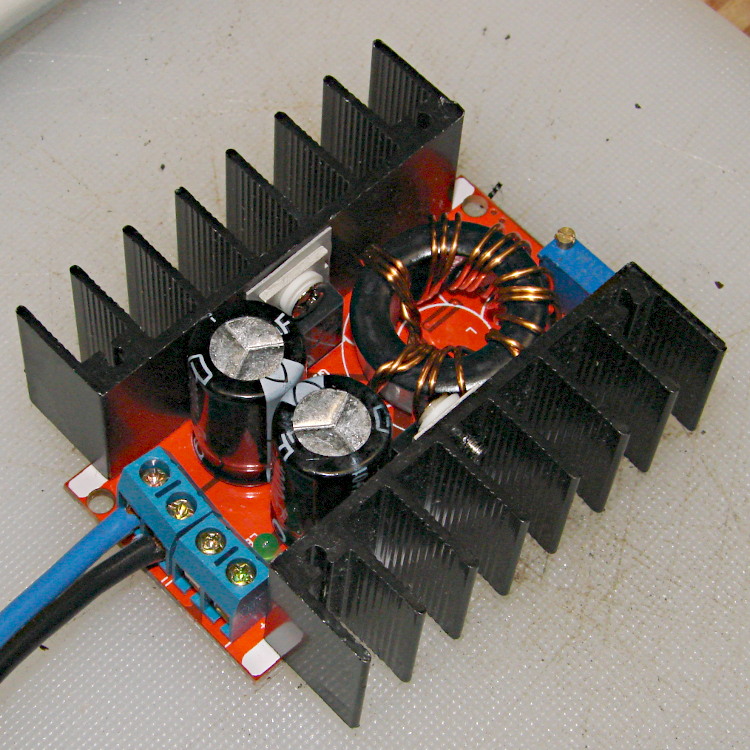
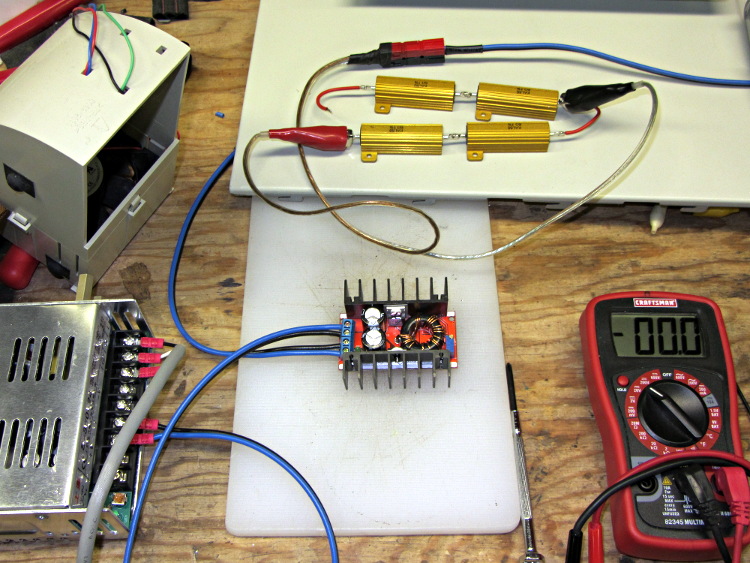
    For reasons that will become apparent in a while, I got a pair (*) of boost power supplies from the usual eBay source, allegedly capable of boosting a 10-to-32 VDC input to a 12-to-35 VDC output, up to 10 A and 150 W:

    Boost power supply
    Boost power supply

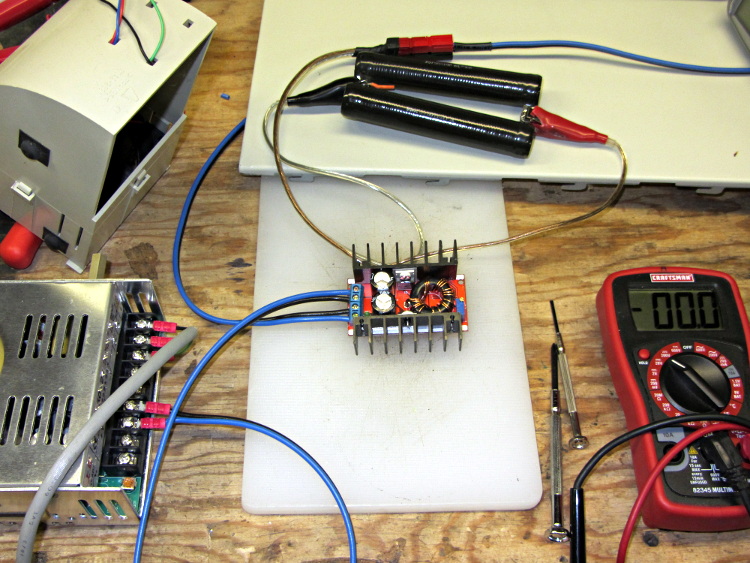
    After establishing that it would not produce 30 V into a 5.9 Ω load (5.1 A, but 152 W), I got systematic.

    A 100 Ω resistor drew 1/4 A while I set the output to 28 V. Doubling up the resistors showed that it worked OK at half an amp:

    Boost supply - 50 ohm load
    Boost supply – 50 ohm load

    Four 6 Ω resistors in series draw 1.2 A, then (channeling the true spirit of DIY 3D printing) two in series drew 2.3 A:

    Boost supply - 12 ohm load
    Boost supply – 12 ohm load

    That’s 32 W each and, yes, they did get toasty, but, no, I didn’t leave them turned on all that long.

    But a 6 Ω resistance still didn’t work, so the supply can’t provide 4.7 A at 130 W. In case you were wondering, that’s two 6 Ω resistors in series and a pair of those strings in parallel, so each resistor still sees 32 W.

    In terms of driving the actual load, these supplies aren’t going to light it up.

    Ah, well, whaddaya want for five buck from halfway around the planet?

    (*) Davy’s Aphorism: Never buy only one of any surplus item, because you’ll never find another. Get at least two, maybe three if it’s something you might actually use.

  • Creating a Curvelicious Cookie Cutter

    So, for reasons I need not go into, I needed an OpenSCAD solid model of a custom cookie cutter produced on an Afinia 3D printer from a Trimble Sketchup model:

    Afinia Robot Cutter - on raft
    Afinia Robot Cutter – on raft

    The cutter is still attached to the raft that, it seems, is required for passable results on the Afinia’s platform.

    Having already figured out how to wrap a cutter around a shape, the most straightforward procedure starts by extracting the cutter’s shape. So, lay the cutter face down on the scanner and pull an image into GIMP:

    Afinia Robot - scan
    Afinia Robot – scan

    Blow out the contrast to eliminate the background clutter, then posterize to eliminate shadings:

    Afinia Robot - scan enhanced
    Afinia Robot – scan enhanced

    Select the black interior region, grow the selection by a pixel or two, then shrink it back to eliminate (most of) the edge granularity, plunk it into a new image, and fill with black:

    Afinia Robot - scan filled
    Afinia Robot – scan filled

    Now the magic happens…

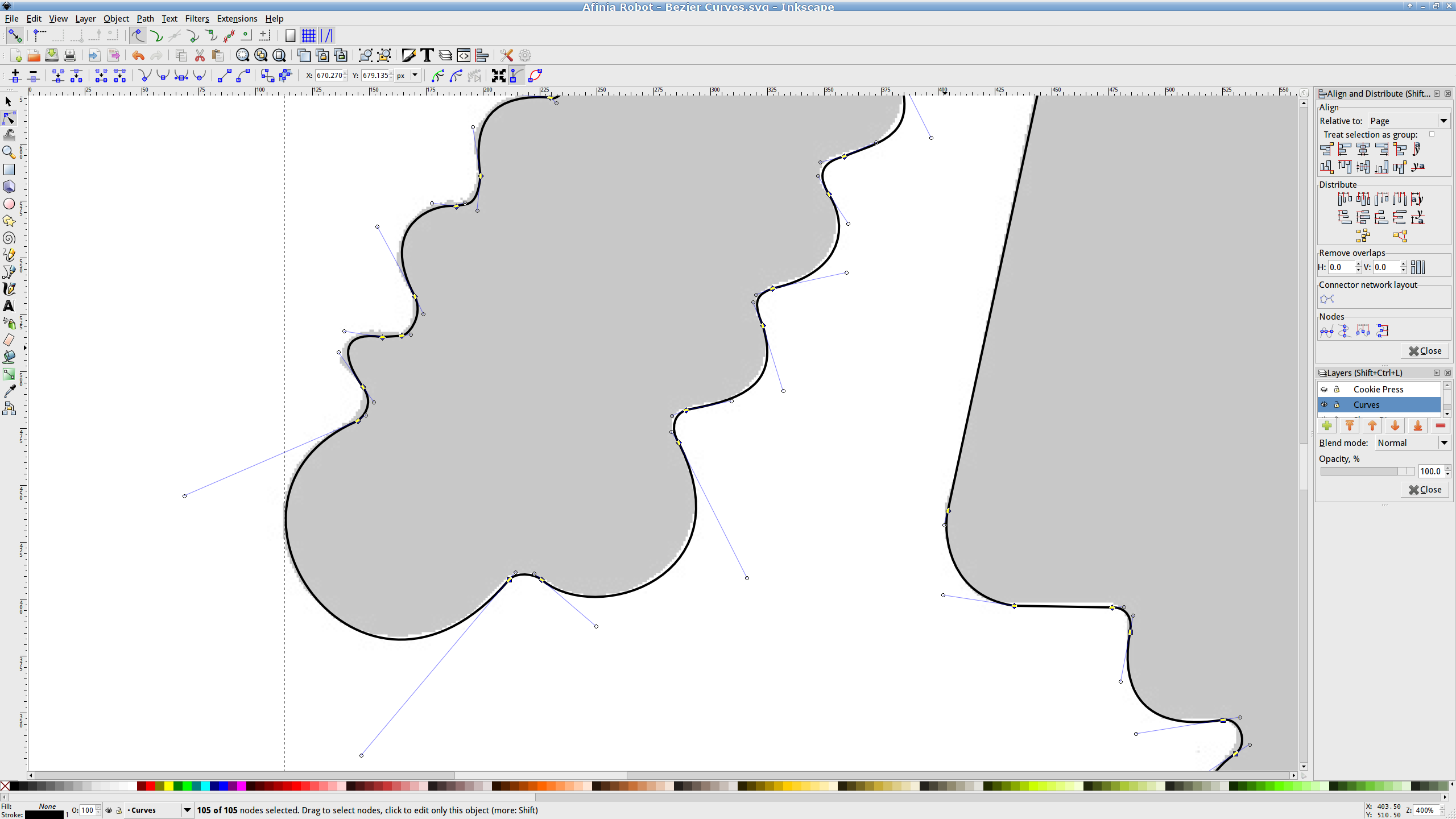
    Import the bitmap image into Inkscape. In principle, you can auto-trace the bitmap outline and clean it up manually, but a few iterations of that convinced me that it wasn’t worth the effort. Instead, I used Inkscape’s Bézier Curve tool to drop nodes (a.k.a. control points) at all the inflection points around the image, then warped the curves to match the outline:

    Afinia Robot - Bezier spline fitting
    Afinia Robot – Bezier spline fitting

    If you’re doing that by hand, you could start with the original scanned image, but the auto-trace function works best with a high-contrast image and, after you give up on auto-tracing, you’ll find it’s easier to hand-trace a high-contrast image.

    Anyhow, the end result of all that is a smooth path around the outline of the shape, without all the gritty details of the pixelated version. Save it as an Inkscape SVG file for later reference.

    OpenSCAD can import a painfully limited subset of DXF files that, it seems, the most recent versions of Inkscape cannot produce (that formerly helpful tutorial being long out of date). Instead, I exported (using “Save as”) the path from Inkscape to an Encapsulated Postscript file (this is a PNG, as WordPress doesn’t show EPS files):

    Afinia Robot - Bezier Curves.eps
    Afinia Robot – Bezier Curves.eps

    It’s not clear what the EPS file contains; I think it’s just a list of points around the path that doesn’t include the smooth Bézier goodness. That may account for the grittiness of the next step, wherein the pstoedit utility converts the EPS file into a usable DXF file:

    pstoedit dxf:-polyaslines Afinia\ Robot\ -\ Bezier\ Curves.eps Afinia\ Robot\ -\ outline.dxf
    

    Unfortunately, either the EPS file doesn’t have enough points on each curve or pstoedit automatically sets the number of points and doesn’t provide an override: contrary to what you (well, I) might think, the -splineprecision option doesn’t apply to whatever is in the EPS file. In any event, the resulting DXF file has rather low-res curves, but they were good enough for my purposes and OpenSCAD inhaled the DXF and emitted a suitable STL file:

    Afinia Robot - shape slab
    Afinia Robot – shape slab

    To do that, you set the Layout variable to “Slab”, compile the model, and export the STL.

    Being interested only in the process and its results, not actually cutting and baking cookies, I tweaked the OpenSCAD parameters to produce stumpy “cutters”:

    Afinia Robot - solid model
    Afinia Robot – solid model

    You do that by setting the Layout variable to “Build”, compile the model, and export yet another STL. In the past, this seemed to be a less fragile route than directly importing and converting the DXF at each stage, but that may not be relevant these days. In any event, having an STL model of the cookie may be useful in other contexts, so it’s not entirely wasted effort.

    Run the STL through Slic3r to get the G-Code as usual.

    The resulting model printed in about 20 minutes apiece on the M2:

    Robot Cutter - stumpy version
    Robot Cutter – stumpy version

    As it turns out, the fact that the M2 can produce ready-to-use cutters, minus the raft, is a strong selling point.

    Given a workable model, the next step was to figure out the smallest possible two-thread-wide cutter blade, then run variations of the Extrusion Factor to see how that affected surface finish. More on that in a while.

    The OpenSCAD source isn’t much changed from the original Tux Cutter; the DXF import required different scale factors:

    // Robot cookie cutter using Minkowski sum
    // Ed Nisley KE4ZNU - Sept 2011
    // August 2013 adapted from the Tux Cutter
    
    Layout = "Build";				// Build Slab
    
    //- Extrusion parameters - must match reality!
    
    ThreadThick = 0.25;
    ThreadWidth = 0.40;
    
    function IntegerMultiple(Size,Unit) = Unit * ceil(Size / Unit);
    
    MaxSize = 150;				// larger than any possible dimension ...
    
    Protrusion = 0.1;
    
    //- Cookie cutter parameters
    
    Size = 95;
    
    TipHeight = IntegerMultiple(3.0,ThreadThick);
    TipThick = 1.5*ThreadWidth;			// 1.5* = thinnest 2-thread wall, 1.0* thread has gaps
    
    WallHeight = IntegerMultiple(1.0,ThreadThick);
    WallThick = 4.5*ThreadWidth;
    
    LipHeight = IntegerMultiple(1.0,ThreadWidth);
    LipThick = IntegerMultiple(5,ThreadWidth);
    
    //- Wrapper for the shape of your choice
    
    module Shape(Size) {
      Robot(Size);
    }
    
    //- A solid slab of Tux goodness in simple STL format
    // Choose magic values to:
    //		center it in XY
    //		reversed across Y axis (prints with handle on bottom)
    //		bottom on Z=0
    //		make it MaxSize from head to feet
    
    module Tux(Scale) {
      STLscale = 250;
      scale(Scale/STLscale)
    	translate([105,-145,0])
    	  scale([-1,1,24])
    		import(
    		  file = "/mnt/bulkdata/Project Files/Thing-O-Matic/Tux Cookie Cutter/Tux Plate.stl",
    		  convexity=5);
    }
    
    module Robot(Scale) {
        STLscale = 100.0;
        scale(Scale / STLscale)
    			scale([-1,1,10])
    				import("/mnt/bulkdata/Project Files/Thing-O-Matic/Pinkie/M2 Challenge/Afinia Robot.stl",
    					convexity=10);
    }
    
    //- Given a Shape(), return enlarged slab of given thickness
    
    module EnlargeSlab(Scale, WallThick, SlabThick) {
    
    	intersection() {
    	  translate([0,0,SlabThick/2])
    		cube([MaxSize,MaxSize,SlabThick],center=true);
    	  minkowski(convexity=5) {
    		Shape(Scale);
    		cylinder(r=WallThick,h=MaxSize,$fn=16);
    	  }
    	}
    
    }
    
    //- Put peg grid on build surface
    
    module ShowPegGrid(Space = 10.0,Size = 1.0) {
    
      RangeX = floor(100 / Space);
      RangeY = floor(125 / Space);
    
    	for (x=[-RangeX:RangeX])
    	  for (y=[-RangeY:RangeY])
    		translate([x*Space,y*Space,Size/2])
    		  %cube(Size,center=true);
    
    }
    
    //- Build it
    
    ShowPegGrid();
    
    if (Layout == "Slab")
    	Shape(Size);
    
    if (Layout == "Build")
    	difference() {
    	union() {
    		translate([0,0,(WallHeight + LipHeight - Protrusion)])
    		EnlargeSlab(Size,TipThick,TipHeight + Protrusion);
    		translate([0,0,(LipHeight - Protrusion)])
    		EnlargeSlab(Size,WallThick,(WallHeight + Protrusion));
    		EnlargeSlab(Size,LipThick,LipHeight);
    	}
    	Shape(Size);					// punch out cookie hole
    	}
    
  • Storm Door Latch: Repair Parts

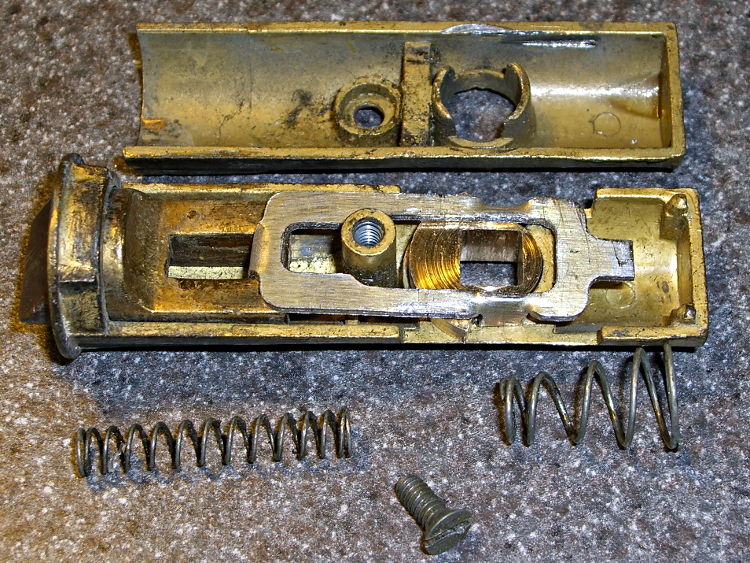
    The discussion following that post on getting feature coordinates from an existing part reminded me of an old project that I’d written up for Digital Machinist: making repair parts for the half-century old storm doors on our house. Here’s the whole latch, with a replacement drawbar and cam:

    Latch Assembly
    Latch Assembly

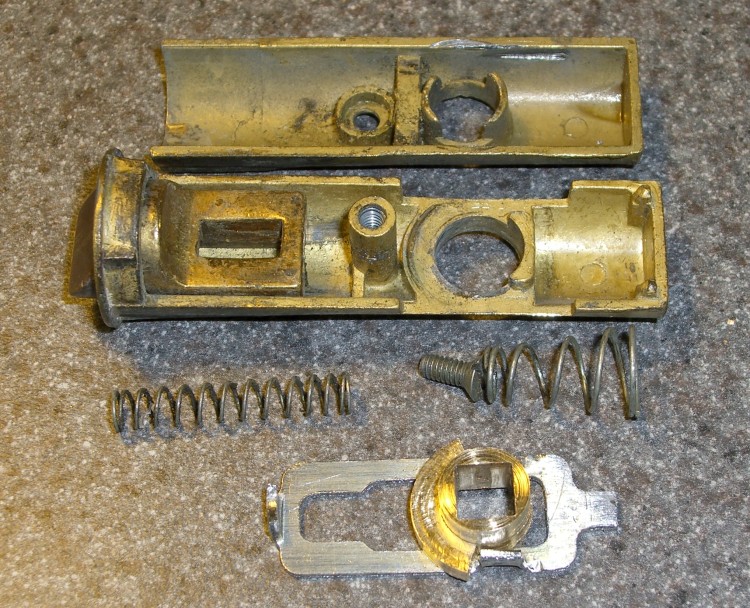
    The other side of the drawbar and cam:

    Door Latch Parts
    Door Latch Parts

    An early version of the drawbar that engages the latch strike and gets pulled by cam:

    New and Old latch pulls
    New and Old latch pulls

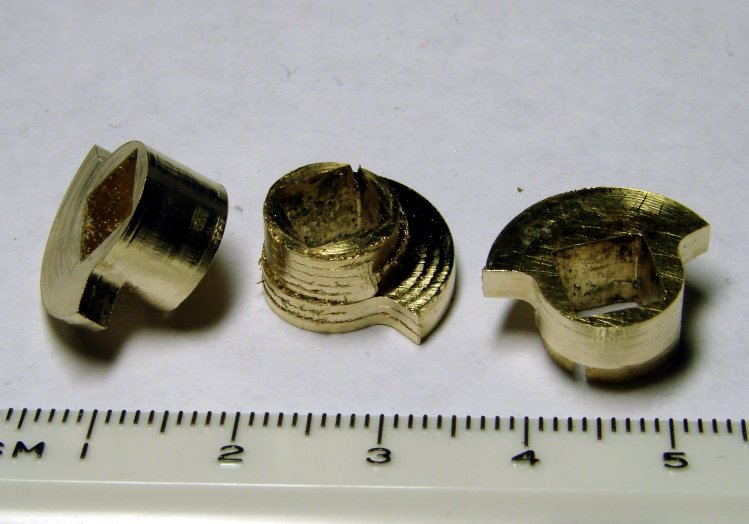
    Three iterations on a cam; the messed-up one in the center, IIRC, helped track down an EMC2 bug:

    Latch Cams
    Latch Cams

    Now that I look at it again, there’s nowhere near enough meat around that square hole for a 3D printed plastic part… so the notion of printing the complex part of the cam and adding wear bars along those ears just isn’t going to work.

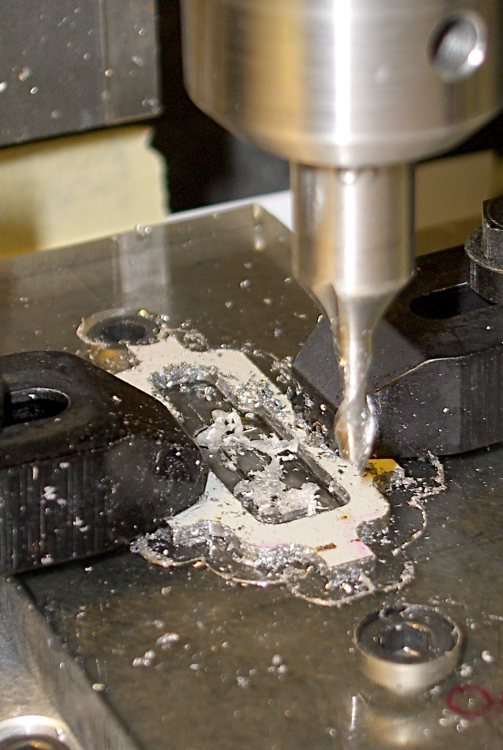
    I made a fixture for the Sherline CNC mill to hold the drawbar for inside milling:

    Latch pull - Inside milling
    Latch pull – Inside milling

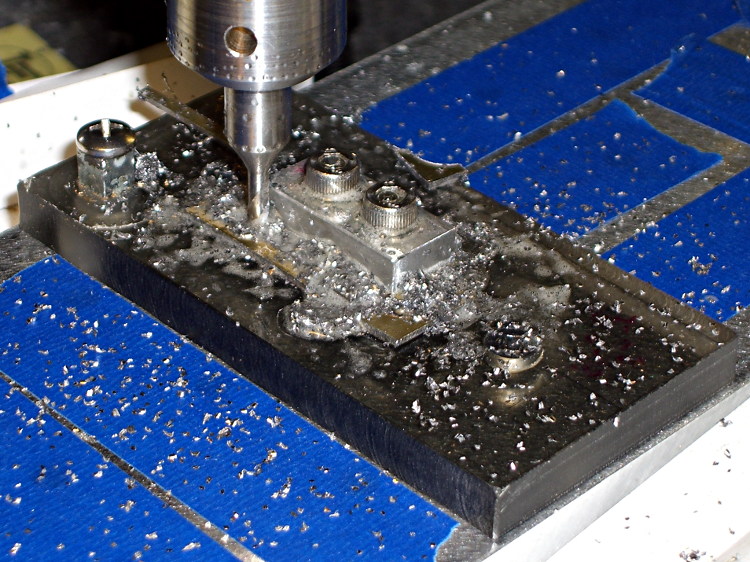
    Then a block screwed down in the middle clamps the drawbar in the same place for outside milling:

    Latch pull - Outside milling
    Latch pull – Outside milling

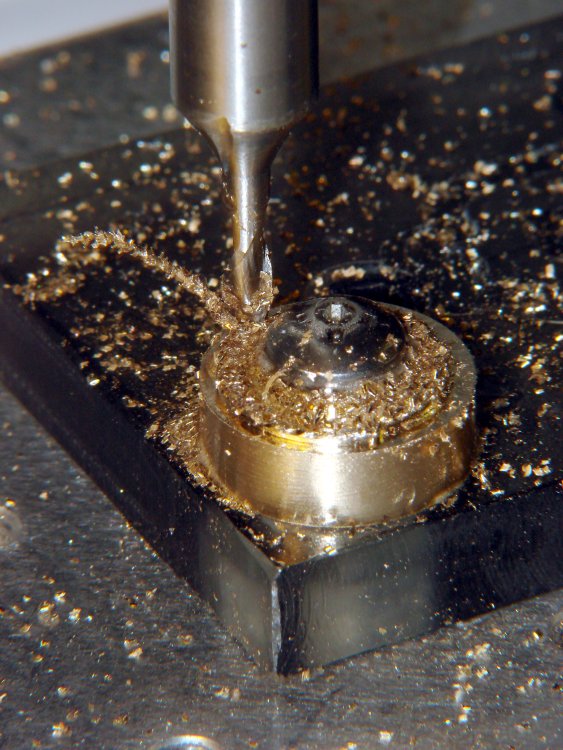
    The square post in the left rear corner holds the cam:

    Latch Cam - First Attempt
    Latch Cam – First Attempt

    Note that I had to file the square hole before milling the cam shape, which meant that if the CNC process screwed up, all that handwork went into the show-n-tell bin… which I’m not going to show you.

    I used an early version of the grid-overlay technique to map out the drawbar coordinates; this was an illustration for the column:

    Latch Pull Dimensions
    Latch Pull Dimensions
  • eBay “49E” Hall Effect Sensors: Parameter Spread

    A bag of 50 cheap Hall effect sensors arrived from the usual eBay vendor, who was different from all previous eBay vendors (if in name only). Passing 124 mA through the armored FT50 toroid with 25 turns of 26 AWG wire, we find this distribution of bias points, measured as the offset from the actual VCC/2:

    eBay 49E Hall Effect Sensor Bias Histogram
    eBay 49E Hall Effect Sensor Bias Histogram

    The bias point is actually referenced to the negative terminal (usually ground) with a ±0.25 V variation around the nominal. SS49 sensors run about 0.5 V below VCC/2 (2.25 V with a 5 V supply), SS49E sensors at 2.5 V with a tighter VCC limit that suggests you better stay pretty close to 5.0 V.

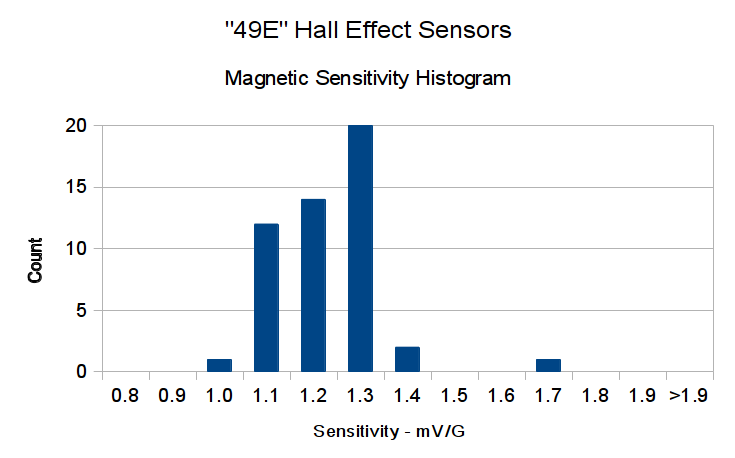
    Allowing for the fact that I really don’t have good control over the actual magnetic field, the gain distribution seems tight:

    eBay 49E Hall Effect Sensor Sensitivity Histogram
    eBay 49E Hall Effect Sensor Sensitivity Histogram

    You’ll recall the Genuine Honeywell sensor specs:

    • SS49 – nominal 0.9 mV/G, limits 0.6 to 1.25 mV/G
    • SS49E – nominal 1.4 mV/G, limits 1.0 to 1.75 mV/G

    The gain is roughly half that of the previous “49E” sensors, confirmed by sticking one of them this field. I don’t know which is more accurate, but these have a much prettier distribution.

    So this lot resembles 49E sensors in both bias and gain.

    Given the bias variation, though, it’s obvious that a DC application must measure the zero-field output and apply an analog offset to the amplifier, because a twiddlepot setting won’t suffice. Most likely, you’d want to update the offset every now and again to compensate for temperature variation, too.

    Tossing the outliers gives an average gain of 1.17, which would give results within 10% over the lot. Given that you don’t care about the actual magnetic field, you could calibrate the output voltage for a known input current and get really nice results.

    If you were doing position sensing from a known magnet, you’d want better control of the magnetic field gradient.

  • Measuring Objects for 3D Modeling: USB Video Camera

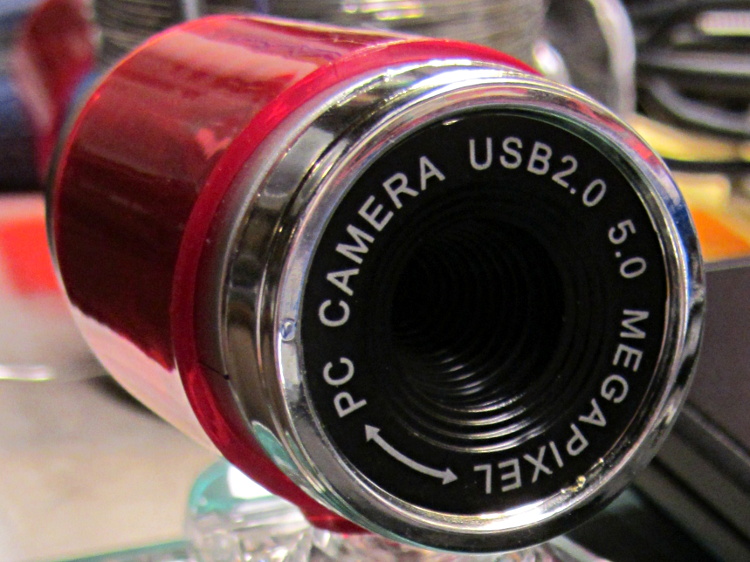
    A brace of “Fashion” USB video cameras arrived from halfway around the planet. According to the eBay description and the legend around the lens, they’re “5.0 Megapixel”:

    Fashion USB camera - case front
    Fashion USB camera – case front

    The reality, of course, is that for five bucks delivered you get 640×480 VGA resolution at the hardware level and their Windows driver interpolates the other 4.7 megapixels. VGA resolution will be good enough for my simple needs, particularly because the lens has a mechanical focus adjustment; the double-headed arrow symbolizes the focus action.

    But the case seemed entirely too bulky and awkward. A few minutes with a #0 Philips screwdriver extracted the actual camera hardware, which turns out to be a double-sided PCB with a lens assembly on the front:

    Fashion USB video - case vs camera
    Fashion USB video – case vs camera

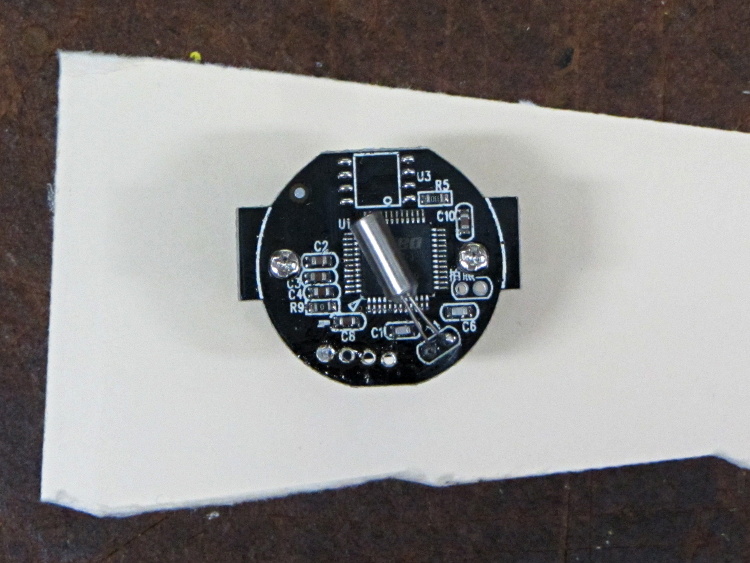
    The PCB has asymmetric tabs that ensure correct orientation in the case:

    Fashion USB camera - wired PCB rear
    Fashion USB camera – wired PCB rear

    In order to build an OpenSCAD model for a more compact case, we need the dimensions of that PCB and those tabs…

    Start with a picture of the back of the PCB against white paper, taken from a few feet to flatten the perspective:

    img_3300 - Camera PCB on white paper
    img_3300 – Camera PCB on white paper

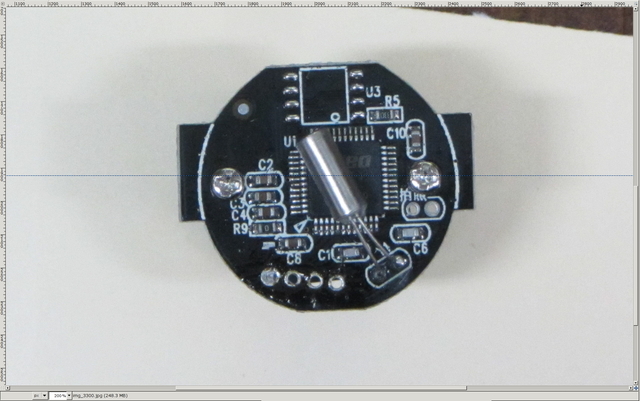
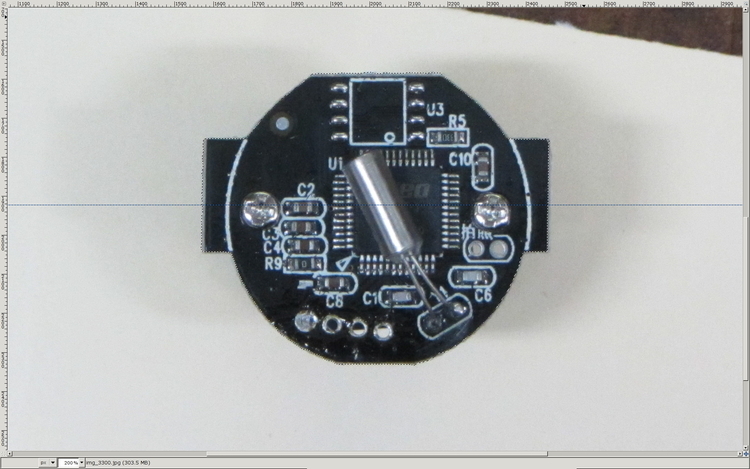
    Load it into The GIMP, zoom in, and pull a horizontal guide line down to about the middle of the image:

    Camera PCB - horizontal guide - scaled
    Camera PCB – horizontal guide – scaled

    Rotate to align the two screws horizontally (they need not be centered on the guide, just lined up horizontally):

    Camera PCB - rotated to match horizontal guide - scaled
    Camera PCB – rotated to match horizontal guide – scaled

    Use the Magic Scissors to select the PCB border (it’s the nearly invisible ragged dotted outline):

    Camera PCB - scissors selection - scaled
    Camera PCB – scissors selection – scaled

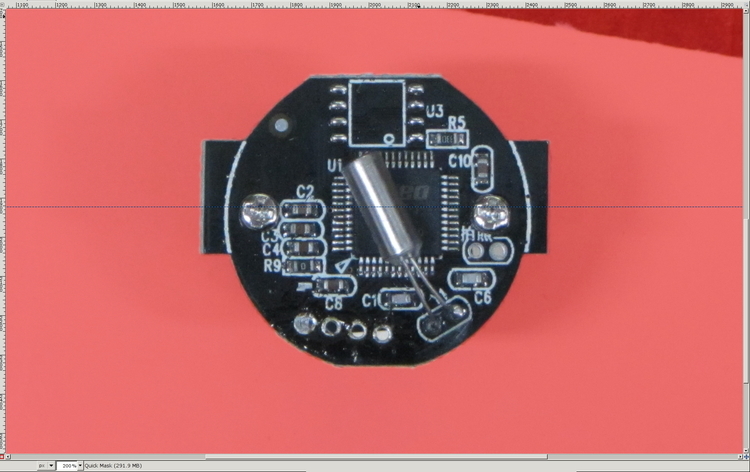
    Flip to Quick Mask mode and clean up the selection as needed:

    Camera PCB - quick mask cleanup - scaled
    Camera PCB – quick mask cleanup – scaled

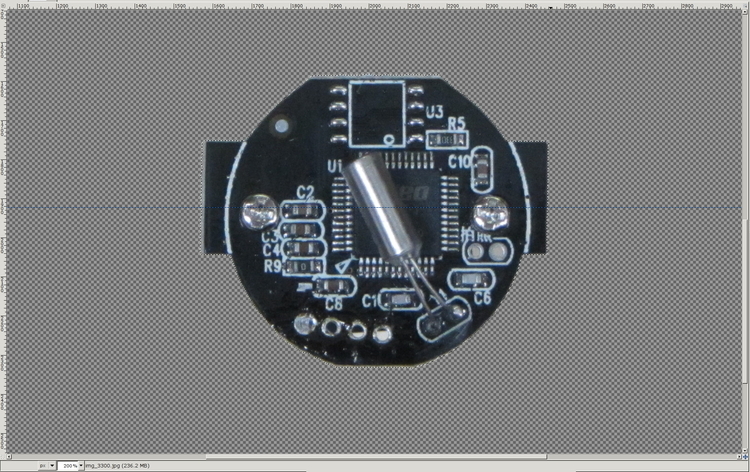
    Flip back to normal view, invert the selection (to select the background, not the PCB), and delete the background to isolate the PCB:

    Camera PCB - isolated - scaled
    Camera PCB – isolated – scaled

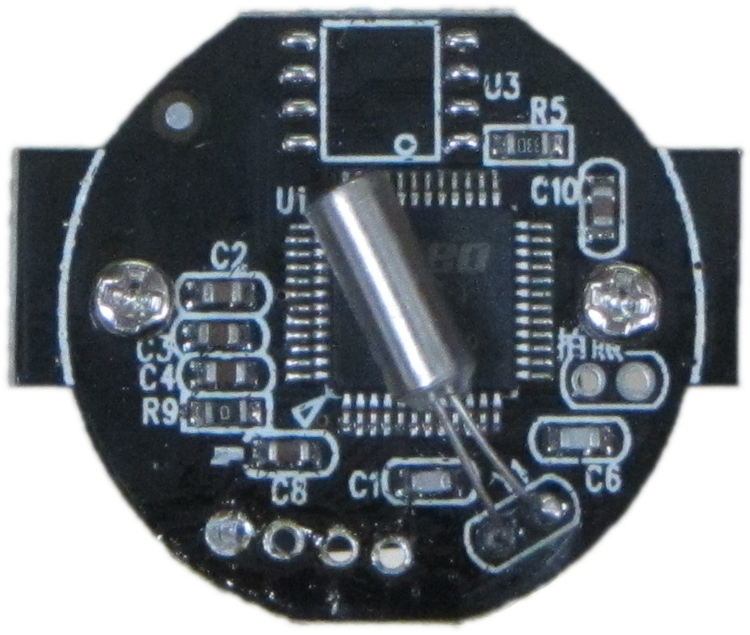
    Tight-crop the PCB and flatten the image to get a white background:

    Camera PCB - isolated - scaled
    Camera PCB – isolated – scaled

    Fetch some digital graph paper from your favorite online source. The Multi-color (Light Blue / Light Blue / Light Grey) Multi-weight (1.0×0.6×0.3 pt) grid (1 / 2 / 10) works best for me, but do what you like. Get a full Letter / A4 size sheet, because it’ll come in handy for other projects.

    Open it up (converting at 300 dpi), turn it into a layer atop the PCB image, use the color-select tool to select the white background between the grid lines, then delete the selection to leave just the grid with transparency:

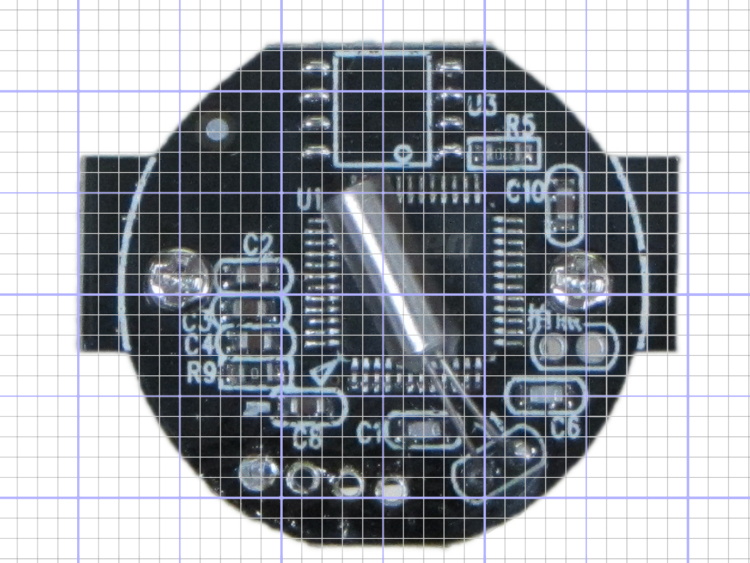
    Camera PCB with grid overlay - unscaled
    Camera PCB with grid overlay – unscaled

    We want one minor grid square to be 1×1 mm on the PCB image, sooo…

    • Accurately measure a large feature on the real physical object: 27.2 mm across the tabs
    • Drag the grid to align a major line with one edge of the PCB
    • Count the number of minor square across to the other side of the image: 29.5
    • Scale the grid overlay layer by image/physical size: 1.085 = 29.5/27.2
    • Drag the grid so it’s neatly centered on the object (or has a major grid intersection somewhere useful)

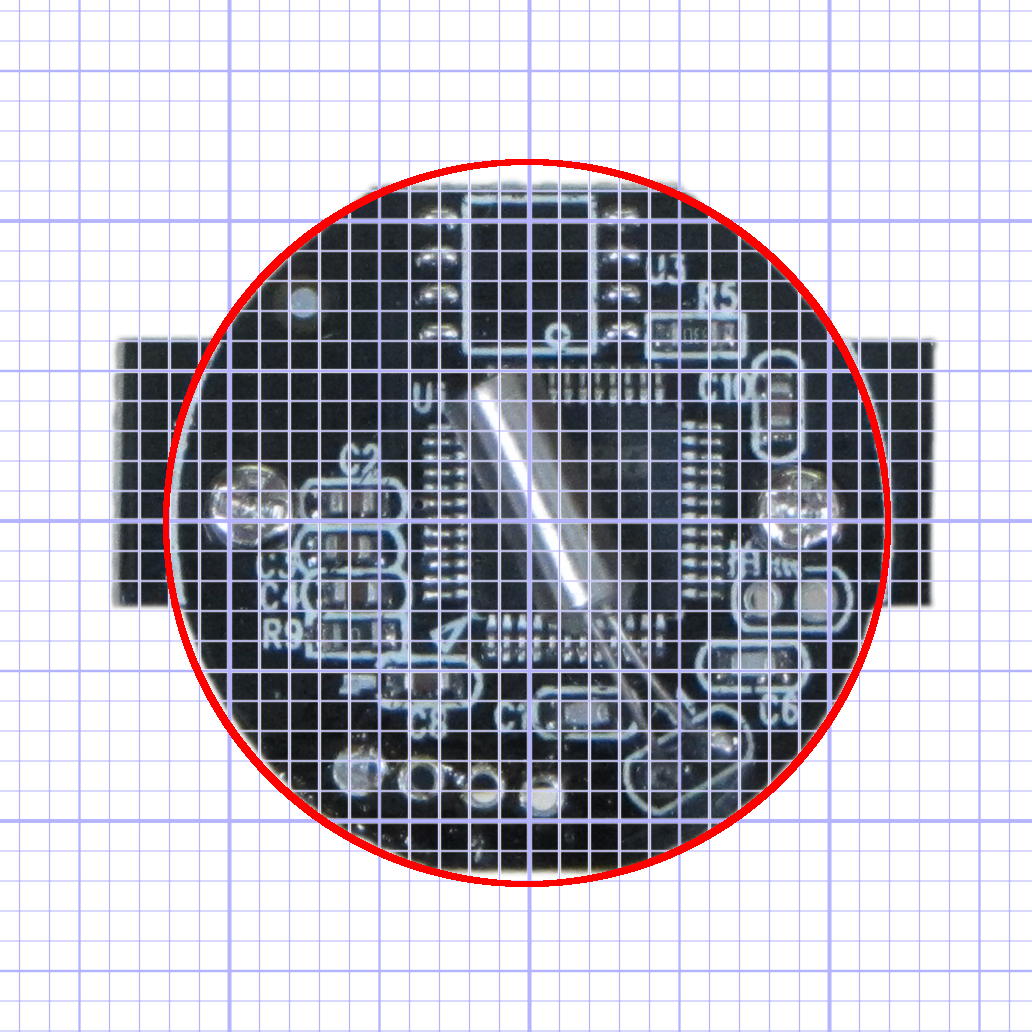
    That produces a calibrated overlay:

    Camera PCB with grid overlay
    Camera PCB with grid overlay

    Then it’s just a matter of reading off the coordinates, with each minor grid square representing 1.0 mm in the real world, and writing some OpenSCAD code…