The Smell of Molten Projects in the Morning

Ed Nisley's Blog: Shop notes, electronics, firmware, machinery, 3D printing, laser cuttery, and curiosities. Contents: 100% human thinking, 0% AI slop.

Category: Software

General-purpose computers doing something specific

  • SK6812 RGBW Test Fixture: Row-by-Row Color Mods

    The vacuum tube LED firmware subtracts the minimum value from the RGB channels of the SK6812 RGBW LEDs and displays it in the white channel, thereby reducing the PWM value of the RGB LEDs by their common “white” component. The main benefit is reducing the overall power by about two LEDs. More or less, kinda sorta.

    I tweaked the SK6812 test fixture firmware to show how several variations of the basic RGB colors appear:

          for (int col=0; col < NUMCOLS ; col++) {              // for each column
            byte Value[PIXELSIZE];                              // figure first row colors
            for (byte p=0; p < PIXELSIZE; p++) {                //  ... for each color in pixel
              Value[p] = StepColor(p,-col*Pixels[p].TubePhase);
            }
            // just RGB
            int row = 0;
            uint32_t UniColor = strip.Color(Value[RED],Value[GREEN],Value[BLUE],0);
            strip.setPixelColor(col + NUMCOLS*row++,UniColor);
    
            byte MinWhite = min(min(Value[RED],Value[GREEN]),Value[BLUE]);
    
            // only common white
            UniColor = strip.Color(0,0,0,MinWhite);
            strip.setPixelColor(col + NUMCOLS*row++,UniColor);
    
            // RGB minus common white + white
            UniColor = strip.Color(Value[RED]-MinWhite,Value[GREEN]-MinWhite,Value[BLUE]-MinWhite,MinWhite);
            strip.setPixelColor(col + NUMCOLS*row++,UniColor);
    
             // RGB minus common white
            UniColor = strip.Color(Value[RED]-MinWhite,Value[GREEN]-MinWhite,Value[BLUE]-MinWhite,0);
            strip.setPixelColor(col + NUMCOLS*row++,UniColor);
    
            // inverse RGB
            UniColor = strip.Color(255 - Value[RED],255 - Value[GREEN],255 - Value[BLUE],0);
            strip.setPixelColor(col + NUMCOLS*row++,UniColor);

    Which looks like this:

    SK6812 Test Fixture - RGBW color variations - diffuser
    SK6812 Test Fixture – RGBW color variations – diffuser

    The pure RGB colors appear along the bottom row, with the variations proceeding upward to the inverse RGB in the top row. The dust specks show it’s actually in focus.

    The color variations seem easier to see without the diffuser:

    SK6812 Test Fixture - RGBW color variations - bare LEDs
    SK6812 Test Fixture – RGBW color variations – bare LEDs

    The white LEDs are obviously “warm white”, which seems not to make much difference.

    Putting a jumper from D2 to the adjacent (on an Nano, anyway) ground pin selects the original pattern, removing the jumper displays the modified pattern:

    SK6812 test fixture - pattern jumper
    SK6812 test fixture – pattern jumper

    For whatever it’s worth, those LEDs have been running at full throttle for two years with zero failures!

    The Arduino source code as a GitHub Gist:

    // SK6812 RGBW LED array exerciser
    // Ed Nisley – KE4ANU – February 2017
    // 2020-01-25 add row-by-row color modifications
    #include <Adafruit_NeoPixel.h>
    //———-
    // Pin assignments
    const byte PIN_NEO = A3; // DO – data out to first Neopixel
    const byte PIN_HEARTBEAT = 13; // DO – Arduino LED
    const byte PIN_SELECT = 2; // DI – pattern select input
    //———-
    // Constants
    #define UPDATEINTERVAL 20ul
    const unsigned long UpdateMS = UPDATEINTERVAL – 1ul; // update LEDs only this many ms apart minus loop() overhead
    // number of steps per cycle, before applying prime factors
    #define RESOLUTION 100
    // phase difference between LEDs for slowest color
    #define BASEPHASE (PI/16.0)
    // LEDs in each row
    #define NUMCOLS 5
    // number of rows
    #define NUMROWS 5
    #define NUMPIXELS (NUMCOLS * NUMROWS)
    #define PINDEX(row,col) (row*NUMCOLS + col)
    //———-
    // Globals
    // instantiate the Neopixel buffer array
    Adafruit_NeoPixel strip = Adafruit_NeoPixel(NUMPIXELS, PIN_NEO, NEO_GRBW + NEO_KHZ800);
    uint32_t FullWhite = strip.Color(255,255,255,255);
    uint32_t FullOff = strip.Color(0,0,0,0);
    struct pixcolor_t {
    byte Prime;
    unsigned int NumSteps;
    unsigned int Step;
    float StepSize;
    float TubePhase;
    byte MaxPWM;
    };
    // colors in each LED
    enum pixcolors {RED, GREEN, BLUE, WHITE, PIXELSIZE};
    struct pixcolor_t Pixels[PIXELSIZE]; // all the data for each pixel color intensity
    unsigned long MillisNow;
    unsigned long MillisThen;
    //– Figure PWM based on current state
    byte StepColor(byte Color, float Phi) {
    byte Value;
    Value = (Pixels[Color].MaxPWM / 2.0) * (1.0 + sin(Pixels[Color].Step * Pixels[Color].StepSize + Phi));
    // Value = (Value) ? Value : Pixels[Color].MaxPWM; // flash at dimmest points
    // printf("C: %d Phi: %d Value: %d\r\n",Color,(int)(Phi*180.0/PI),Value);
    return Value;
    }
    //– Helper routine for printf()
    int s_putc(char c, FILE *t) {
    Serial.write(c);
    }
    //——————
    // Set the mood
    void setup() {
    pinMode(PIN_HEARTBEAT,OUTPUT);
    digitalWrite(PIN_HEARTBEAT,LOW); // show we arrived
    pinMode(PIN_SELECT,INPUT_PULLUP);
    Serial.begin(57600);
    fdevopen(&s_putc,0); // set up serial output for printf()
    printf("WS2812 / SK6812 array exerciser\r\nEd Nisley – KE4ZNU – February 2017\r\n");
    /// set up Neopixels
    strip.begin();
    strip.show();
    // lamp test: run a brilliant white dot along the length of the strip
    printf("Lamp test: walking white\r\n");
    strip.setPixelColor(0,FullWhite);
    strip.show();
    delay(250);
    for (int i=1; i<NUMPIXELS; i++) {
    digitalWrite(PIN_HEARTBEAT,HIGH);
    strip.setPixelColor(i-1,FullOff);
    strip.setPixelColor(i,FullWhite);
    strip.show();
    digitalWrite(PIN_HEARTBEAT,LOW);
    delay(250);
    }
    strip.setPixelColor(NUMPIXELS – 1,FullOff);
    strip.show();
    delay(250);
    // fill the array, row by row
    printf(" … fill\r\n");
    for (int i=NUMROWS-1; i>=0; i–) { // for each row
    digitalWrite(PIN_HEARTBEAT,HIGH);
    for (int j=NUMCOLS-1; j>=0 ; j–) {
    strip.setPixelColor(PINDEX(i,j),FullWhite);
    strip.show();
    delay(100);
    }
    digitalWrite(PIN_HEARTBEAT,LOW);
    }
    // clear to black, column by column
    printf(" … clear\r\n");
    for (int j=NUMCOLS-1; j>=0; j–) { // for each column
    digitalWrite(PIN_HEARTBEAT,HIGH);
    for (int i=NUMROWS-1; i>=0; i–) {
    strip.setPixelColor(PINDEX(i,j),FullOff);
    strip.show();
    delay(100);
    }
    digitalWrite(PIN_HEARTBEAT,LOW);
    }
    delay(1000);
    // set up the color generators
    MillisNow = MillisThen = millis();
    printf("First random number: %ld\r\n",random(10));
    Pixels[RED].Prime = 3;
    Pixels[GREEN].Prime = 5;
    Pixels[BLUE].Prime = 7;
    Pixels[WHITE].Prime = 11;
    printf("Primes: (%d,%d,%d,%d)\r\n",
    Pixels[RED].Prime,Pixels[GREEN].Prime,Pixels[BLUE].Prime,Pixels[WHITE].Prime);
    unsigned int PixelSteps = (unsigned int) ((BASEPHASE / TWO_PI) *
    RESOLUTION * (unsigned int) max(max(max(Pixels[RED].Prime,Pixels[GREEN].Prime),Pixels[BLUE].Prime),Pixels[WHITE].Prime));
    printf("Pixel phase offset: %d deg = %d steps\r\n",(int)(BASEPHASE*(360.0/TWO_PI)),PixelSteps);
    Pixels[RED].MaxPWM = 255;
    Pixels[GREEN].MaxPWM = 255;
    Pixels[BLUE].MaxPWM = 255;
    Pixels[WHITE].MaxPWM = 32;
    for (byte c=0; c < PIXELSIZE; c++) {
    Pixels[c].NumSteps = RESOLUTION * (unsigned int) Pixels[c].Prime;
    Pixels[c].Step = (3*Pixels[c].NumSteps)/4;
    Pixels[c].StepSize = TWO_PI / Pixels[c].NumSteps; // in radians per step
    Pixels[c].TubePhase = PixelSteps * Pixels[c].StepSize; // radians per tube
    printf("c: %d Steps: %5d Init: %5d",c,Pixels[c].NumSteps,Pixels[c].Step);
    printf(" PWM: %3d Phi %3d deg\r\n",Pixels[c].MaxPWM,(int)(Pixels[c].TubePhase*(360.0/TWO_PI)));
    }
    }
    //——————
    // Run the mood
    void loop() {
    MillisNow = millis();
    if ((MillisNow – MillisThen) > UpdateMS) {
    digitalWrite(PIN_HEARTBEAT,HIGH);
    unsigned int AllSteps = 0;
    for (byte c=0; c < PIXELSIZE; c++) { // step to next increment in each color
    if (++Pixels[c].Step >= Pixels[c].NumSteps) {
    Pixels[c].Step = 0;
    printf("Color %d steps %5d at %8ld delta %ld ms\r\n",c,Pixels[c].NumSteps,MillisNow,(MillisNow – MillisThen));
    }
    AllSteps += Pixels[c].Step; // will be zero only when all wrap at once
    }
    if (0 == AllSteps) {
    printf("Grand cycle at: %ld\r\n",MillisNow);
    }
    if (digitalRead(PIN_SELECT)) {
    for (int col=0; col < NUMCOLS ; col++) { // for each column
    byte Value[PIXELSIZE]; // figure first row colors
    for (byte p=0; p < PIXELSIZE; p++) { // … for each color in pixel
    Value[p] = StepColor(p,-col*Pixels[p].TubePhase);
    }
    // just RGB
    int row = 0;
    uint32_t UniColor = strip.Color(Value[RED],Value[GREEN],Value[BLUE],0);
    strip.setPixelColor(col + NUMCOLS*row++,UniColor);
    byte MinWhite = min(min(Value[RED],Value[GREEN]),Value[BLUE]);
    // only common white
    UniColor = strip.Color(0,0,0,MinWhite);
    strip.setPixelColor(col + NUMCOLS*row++,UniColor);
    // RGB minus common white + white
    UniColor = strip.Color(Value[RED]-MinWhite,Value[GREEN]-MinWhite,Value[BLUE]-MinWhite,MinWhite);
    strip.setPixelColor(col + NUMCOLS*row++,UniColor);
    // RGB minus common white
    UniColor = strip.Color(Value[RED]-MinWhite,Value[GREEN]-MinWhite,Value[BLUE]-MinWhite,0);
    strip.setPixelColor(col + NUMCOLS*row++,UniColor);
    // inverse RGB
    UniColor = strip.Color(255 – Value[RED],255 – Value[GREEN],255 – Value[BLUE],0);
    strip.setPixelColor(col + NUMCOLS*row++,UniColor);
    }
    }
    else {
    for (int k=0; k < NUMPIXELS; k++) { // for each pixel
    byte Value[PIXELSIZE];
    for (byte c=0; c < PIXELSIZE; c++) { // … for each color
    Value[c] = StepColor(c,-k*Pixels[c].TubePhase); // figure new PWM value
    // Value[c] = (c == RED && Value[c] == 0) ? Pixels[c].MaxPWM : Value[c]; // flash highlight for tracking
    }
    uint32_t UniColor = strip.Color(Value[RED],Value[GREEN],Value[BLUE],Value[WHITE]);
    strip.setPixelColor(k,UniColor);
    }
    }
    strip.show();
    MillisThen = MillisNow;
    digitalWrite(PIN_HEARTBEAT,LOW);
    }
    }

  • LibreOffice Impress vs. NFS Network Shares vs. Caching

    Whenever I put together a presentation, LibreOffice Impress gradually grinds to a halt with images in the slide thumbnails repeatedly updating and never stabilizing; eventually, LO crashes and sends a crash report to whoever’s watching. This may be due to my enthusiastic use of images to get my point(s) across, although I’m just not gonna back down from that position:

    LibreOffice Impress - Thumbnail thrashing
    LibreOffice Impress – Thumbnail thrashing

    That’s a screenshot of a small thumbnail, enlarged for visibility, so it doesn’t look that crappy in real life.

    Perhaps the problem arises because I insert the images as links, rather than embedding them to create a monolithic presentation file roughly the size of all outdoors?

    Searching with the obvious keywords produces tantalizing hints concerning LO’s file locks clashing with NFS network share locking, which seems appropriate for my situation with all the files living on the grandiosely named file server (a headless Optiplex) in the basement.

    The suggestions include making sure the NFS locking daemon is active, but I have NFC about how that might work in practice. The lockd daemon is running, for whatever that’s worth.

    Seeing as how I’m the only one editing my LO presentations, disabling LO’s locks has little downside and requires tweaking one character in one line inside /usr/bin/libreoffice:

    # file locking now enabled by default
    SAL_ENABLE_FILE_LOCKING=0
    export SAL_ENABLE_FILE_LOCKING
    <<< blank line to show off underscores above >>>

    After a brief bout of good behavior, Impress resumed thrashing and stalling.

    Copying the entire presentation + images to the SSD inside my desktop PC didn’t improve the situation.

    More searches on less obvious keywords suggested disabling the Impress “background cache”, whatever that might be:

    Tools → Options → Impress → General → Settings

    Then un-check the ☐ Use background cache item, which may be the last vestige of the now-vanished memory usage and graphics cache size settings from previous versions.

    In any event, disabling the cache had no effect, so it’s likely a problem deep inside LibreOffice where I cannot venture.

    It autosaves every ten minutes and I must restart it maybe once an hour: survivable, but suboptimal.

    There seems to be an improvement from Version 6.0.7 (Ubuntu 18.04 LTS) to Version 6.2.8 (Manjaro rolling release), although it’s too soon to tell whether it’s a fix or just different symptoms.

  • Raspberry Pi Shutdown / Start Button

    While adding the usual Reset button to a Raspberry Pi destined for a Show-n-Tell with the HP 7475A plotter, I browsed through the latest dtoverlay README and found this welcome surprise:

    Name:   gpio-shutdown
    Info:   Initiates a shutdown when GPIO pin changes. The given GPIO pin
            is configured as an input key that generates KEY_POWER events.
            This event is handled by systemd-logind by initiating a
            shutdown. Systemd versions older than 225 need an udev rule
            enable listening to the input device:
    
                    ACTION!="REMOVE", SUBSYSTEM=="input", KERNEL=="event*", \
                            SUBSYSTEMS=="platform", DRIVERS=="gpio-keys", \
                            ATTRS{keys}=="116", TAG+="power-switch"
    
            This overlay only handles shutdown. After shutdown, the system
            can be powered up again by driving GPIO3 low. The default
            configuration uses GPIO3 with a pullup, so if you connect a
            button between GPIO3 and GND (pin 5 and 6 on the 40-pin header),
            you get a shutdown and power-up button.
    Load:   dtoverlay=gpio-shutdown,<param>=<val>
    Params: gpio_pin                GPIO pin to trigger on (default 3)
    
            active_low              When this is 1 (active low), a falling
                                    edge generates a key down event and a
                                    rising edge generates a key up event.
                                    When this is 0 (active high), this is
                                    reversed. The default is 1 (active low).
    
            gpio_pull               Desired pull-up/down state (off, down, up)
                                    Default is "up".
    
                                    Note that the default pin (GPIO3) has an
                                    external pullup.
    
            debounce                Specify the debounce interval in milliseconds
                                    (default 100)

    So I added two lines to /boot/config.txt:

    dtoverlay=gpio-shutdown
    dtparam=act_led_trigger=heartbeat

    The fancy “Moster heatsink” case doesn’t leave much room for wiring:

    RPi Shutdown Restart Switch - GPIO 3
    RPi Shutdown Restart Switch – GPIO 3

    The switch button is slightly shorter than the acrylic sheet, so it’s recessed below the surface and requires a definite push to activate. It’s not as if it’ll get nudged by accident, but ya never know.

    I’ll eventually migrate this change to all the RPi boxes around the house, because it just makes more sense than any of the alternatives. Heck, it’ll free up a key on the streaming radio player keypads, although I must move the I²C display to Bus 0 to avoid contention on Pin 3.

    For reference, the Raspberry Pi header pinout:

    Raspberry Pi pinout
    Raspberry Pi pinout

    I don’t know if I²C Bus 0 has the same 1.8 kΩ pullups as Bus 1, though; a look at the bus currents will be in order.

  • Homage Tek CC Cursor: Pivot Milling

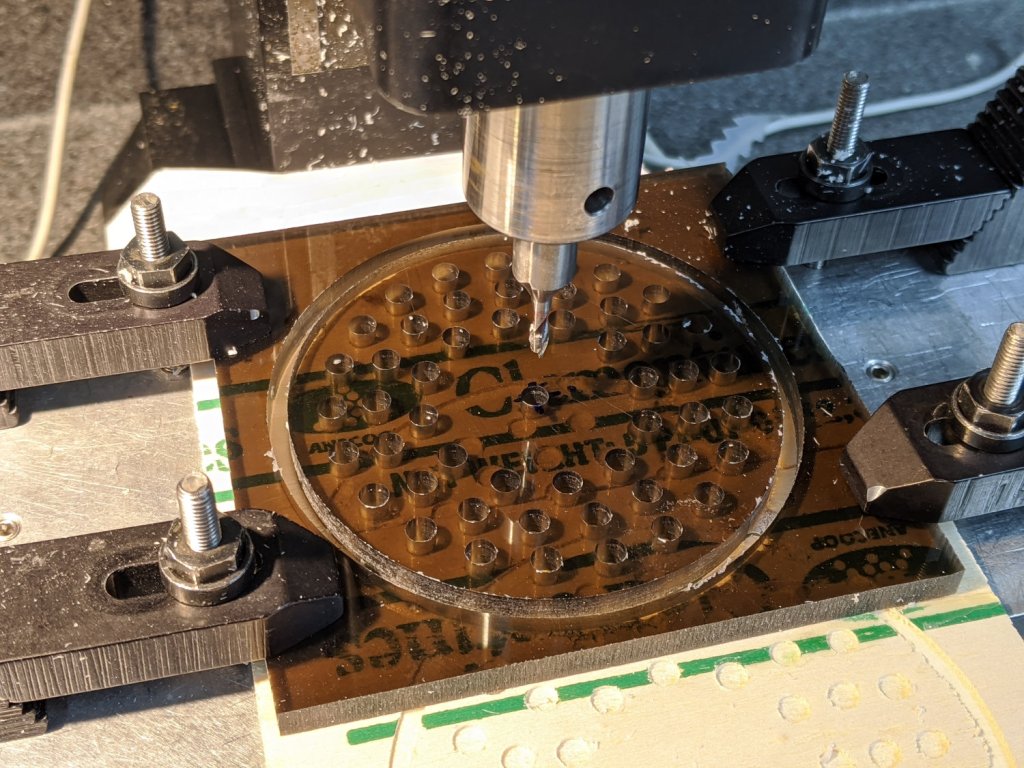
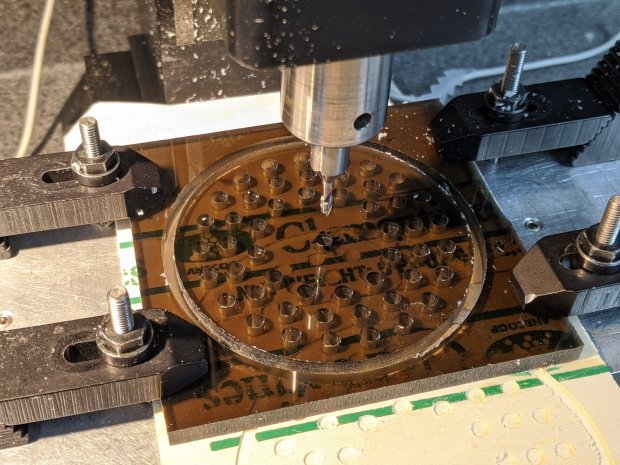
    A test to mill the pivot hole in 0.5 mm PETG sheet worked perfectly:

    Tek CC - cursor pivot hole milling
    Tek CC – cursor pivot hole milling

    The cutter is a 3.175 mm = 1/8 inch router bit, one of a ten-pack that came with the CNC 3018 and to which I have no deep emotional attachment, held in a collet in the Sherline. The hole is 5.5 mm to fit an eyelet. The PETG is taped to a thin plywood scrap.

    The hole happened by feeding G-Code manually into LinuxCNC, after touching off XYZ=0 at the center of the pivot and jogging up a bit:

    g0 y-1.1625
    f1000
    g0 z0.5
    g2 p5 z-1.5 i0 j1.1625

    Yes, I engraved the hairline using a diamond drag tool on the CNC 3018, cut the cursor outline with a drag knife on the MPCNC, then milled the pivot hole on the Sherline. This seems way over the top, even to me, but that’s just how the tooling worked out right now.

    In actual practice, I’d probably mill a stack of cursors and pivot holes on the Sherline in one setup, then engrave the hairlines in a suitable fixture. I think I know enough to fit a spring-loaded diamond drag bit into the Sherline’s 10 mm ID spindle or, worst case, conjure a block for the Z-axis carrier in place of the entire spindle mount.

    At least now I can remember what I did to make the hole.

  • HP 7475A Plotter Data Sniffing: socat Serial Port Tee

    Some hints and examples provided the socat incantation required to sniff serial data between my Superformula demo program (on the Raspberry Pi) and my HP 7475A plotter:

    socat /dev/ttyUSB0,raw,echo=0 SYSTEM:'tee /tmp/in.txt | socat - "PTY,link=/tmp/ttyv0,raw,echo=0,wait-slave" | tee /tmp/out.txt'

    The out.txt file collects data from the program to the plotter, the in.txt file holds data from the plotter to the program, and both files contain exactly and only the serial data, so some interpretation will be required.

    With that in hand, tweak the .chiplotle/config.py file to aim Chiplotle at the virtual serial port:

    serial_port_to_plotter_map = {'/tmp/ttyv0' : 'HP7475A'}

    This is dramatically easier than wiring a pair of additional hardware serial ports onto the RS-232 connection between the two:

    HP 7475A - serial port adapters - hardcore
    HP 7475A – serial port adapters – hardcore

    The adapter stack instantly become a custom cable, although I miss Der Blinkenlights.

    The HPGL output to the plotter (out.txt) comes from the Chiplotle driver with no embedded linefeed / carriage return characters, as HPGL uses semicolon command terminators, making it one humongous line impervious to the usual text utilities. In addition, several plotter configuration commands have prefix ESC (0x1b) characters without semicolon separators. Each LB (label) command within the stream ends with a 0x03 ETX character.

    While one could fix all those gotchas with a sufficiently complex sed script, I manually separated the few lines I needed after each semicolon, then converted the raw ASCII control characters to displayable Unicode glyphs (␛ and ␃), making it legible for a presentation:
    head -c 1000 out.txt
    ␛.B
    ␛.(;
    IN;
    OW;OW;OW;OW;
    ␛.H200:;
    SC;
    OW;OW;OW;OW;
    IP0,0,16640,10365;
    OW;OW;
    SC-8320,8320,-5182,5182;
    SI0.13,0.17;
    VS8;
    PA5320,-4282;
    SP1;
    PA5320,-4282;
    LBStarted 2020-01-09 18:03:57.494617␃;
    SP1;
    PA5320,-4382;
    LBPen 1: ␃;
    SP1;
    LBm=1.9 n1=0.71 n2=n3=0.26␃;
    SP1;
    PU;
    PA8320.00,0.00;
    PD;
    PA8320.00,0.00,
    6283.71,24.59,
    5980.63,46.81,
    5789.79,67.98,
    5648.37,88.44,
    5535.22,108.34,
    5440.50,127.81,
    5358.77,146.89,
    <<< snippage >>>

    The corresponding responses from the plotter to the program (in.txt) are separated by carriage return characters (␍) with no linefeeds (␊), so the entire file piles up at the terminal’s left margin when displayed with the usual text tools. Again, manually splitting the output at the end of each line produces something useful:
    1024
    0,0,16640,10365
    0,0,16640,10365
    0,0,16640,10365
    0,0,16640,10365
    0,0,16640,10365
    0,0,16640,10365
    0,0,16640,10365
    0,0,16640,10365
    0,0,16640,10365
    0,0,16640,10365
    26
    18
    18
    <<< snippage >>>

    The first number gives the size of the serial FIFO buffer. An inexplicable ten OW; commands from deep in the Chiplotle driver code return the Output Window size in plotter units. No other commands produce any output until the plot finishes, whereupon my code waits for a digitized point from the plotter, with the (decimal) 18 indicating a point isn’t ready.

    All that at 9600 bits per second …

  • CNC 3018XL: Adding Run-Hold Switches

    Although the bCNC GUI has conspicuous Run / Hold buttons, it’s easier to poke a physical switch when you really really need a pause in the action or have finished a (manual) tool change. Rather than the separate button box I built for the frameless MPCNC, I designed a chunky switch holder for the CNC 3018XL’s gantry plate:

    CNC 3018-Pro - Run Hold Switches - installed
    CNC 3018-Pro – Run Hold Switches – installed

    The original 15 mm screws were just slightly too short, so those are 20 mm stainless SHCS with washers.

    The switches come from a long-ago surplus deal and have internal green and red LEDs. Their transparent cap shows what might be white plastic underneath:

    CNC 3018-Pro - Run Hold Switches - top unlit
    CNC 3018-Pro – Run Hold Switches – top unlit

    I think you could pry the cap off and tuck a printed legend inside, but appropriate coloration should suffice:

    CNC 3018-Pro - Run Hold Switches - lit
    CNC 3018-Pro – Run Hold Switches – lit

    Making yellow from red and green LEDs always seems like magic; in these buttons, red + green produces a creamy white. Separately, the light looks like what you get from red & green LEDs.

    The solid model shows off the recesses around the LED caps, making their tops flush with the surface to prevent inadvertent pokery:

    Run Hold Switch Mount - Slic3r
    Run Hold Switch Mount – Slic3r

    The smaller square holes through the block may require a bit of filing, particularly in the slightly rounded corners common to 3D printing, to get a firm press fit on the switch body. The model now has slightly larger holes which may require a dab of epoxy.

    A multi-pack of RepRap-style printer wiring produced the cable, intended for a stepper motor and complete with a 4-pin Dupont socket housing installed on one end. I chopped the housing down to three pins, tucked the fourth wire into a single-pin housing, and plugged them into the CAMtool V3.3 board:

    CNC 3018-Pro - Run Hold Switches - CAMtool V3.3 header
    CNC 3018-Pro – Run Hold Switches – CAMtool V3.3 header

    The CAMtool schematic matches the default GRBL pinout, which comes as no surprise:

    CAMtool schematic - Start Hold pinout
    CAMtool schematic – Start Hold pinout

    The color code, such as it is:

    • Black = common
    • Red = +5 V
    • Green = Run / Start (to match the LED)
    • Blue = Hold (because it’s the only color left)

    The cable goes into 4 mm spiral wrap for protection & neatness, with the end hot-melt glued into the block:

    CNC 3018-Pro - Run Hold Switches - bottom
    CNC 3018-Pro – Run Hold Switches – bottom

    The model now includes the wiring channel between the two switches, which is so obviously necessary I can’t imagine why I didn’t include it. The recess on the top edge clears the leadscrew sticking slightly out of the gantry plate.
    The LEDs require ballast resistors: 120 Ω for red and 100 Ω for green, producing about 15 mA in each LED. Those are 1/8 W film resistors; I briefly considered SMD resistors, but came to my senses just in time.
    A layer of black duct tape finishes the bottom sufficiently for my simple needs.

    Note: the CAMtool board doesn’t have enough +5 V pins, so add a row of +5 V pins just below the standard header. If you’ve been following along, you needed them when you installed the home switches:

    3018 CNC CAMTool - Endstop power mod
    3018 CNC CAMTool – Endstop power mod

    A doodle giving relevant dimensions and layouts:

    Run Hold Switch Mount - Layout Doodles
    Run Hold Switch Mount – Layout Doodles

    I originally planned to mount the switches on the other gantry plate and sketched them accordingly, but (fortunately) realized the stepper motor was in the way before actually printing anything.

    The OpenSCAD source code as a GitHub Gist:

    // CNC 3018-Pro Run-Hold Switches
    // Ed Nisley – KE4ZNU – 2020-01
    Layout = "Build"; // [Show,Build,ProjectionX,ProjectionY,ProjectionZ,Block]
    /* [Hidden] */
    ThreadThick = 0.25;
    ThreadWidth = 0.40;
    HoleWindage = 0.2;
    Protrusion = 0.1; // make holes end cleanly
    function IntegerMultiple(Size,Unit) = Unit * ceil(Size / Unit);
    ID = 0;
    OD = 1;
    LENGTH = 2;
    inch = 25.4;
    //———————-
    // Dimensions
    RodScrewOffset = [22,0,-14.5]; // X=left edge, Y=dummy, Z=from top edge
    BeamScrewOffset = [50,0,-10];
    LeadScrewOffset = [RodScrewOffset.x,0,-45]; // may be off the bottom; include anyway
    LeadScrew = [8.0,10.0,5.0]; // ID=actual, OD=clearance, LENGTH=stick-out
    Screw = [5.0,10.0,6.0]; // M5 SHCS, OD=washer, LENGTH=washer+head
    ScrewSides = 8; // hole shape
    WallThick = 3.0; // minimum wall thickness
    FlangeThick = 5.0; // flange thickness
    Switch = [15.0 + 2*HoleWindage,15.0 + 2*HoleWindage,12.5]; // switch body
    SwitchCap = [17.5,17.5,12.0]; // … pushbutton
    SwitchClear = SwitchCap + [2*2.0,2*2.0,Screw[OD]/(2*cos(180/ScrewSides))];
    SwitchContacts = 5.0; // contacts below switch
    SwitchBase = SwitchContacts + Switch.z; // bottom to base of switch
    MountOffset = abs(RodScrewOffset.z) + SwitchClear.z; // top of switch mounting plate
    FrameWidth = 60.0; // CNC 3018-Pro upright
    FrameRadius = 10.0; // … front corner rounding
    CornerRadius = 5.0; // pretty part rounding
    CornerSquare = 10; // dummy for square corner
    MountOAL = [FrameWidth, // covers machine frame
    2*FlangeThick + 2*Screw[LENGTH] + SwitchClear.y, // clear screw heads
    MountOffset + Switch.z + SwitchContacts
    ];
    echo(str("MountOAL: ",MountOAL));
    SwitchOC = [MountOAL.x/2,FlangeThick + 2*Screw[LENGTH] + SwitchClear.y/2,0];
    CableOD = 5.0;
    NumSides = 2*3*4;
    Gap = 2.0; // between build layout parts
    //———————-
    // Useful routines
    module PolyCyl(Dia,Height,ForceSides=0) { // based on nophead's polyholes
    Sides = (ForceSides != 0) ? ForceSides : (ceil(Dia) + 2);
    FixDia = Dia / cos(180/Sides);
    cylinder(r=(FixDia + HoleWindage)/2,
    h=Height,
    $fn=Sides);
    }
    // Projections for intersections
    module ProjectionX() {
    sr = CornerSquare/2;
    rotate([0,90,0]) rotate([0,0,90])
    linear_extrude(height=FrameWidth,convexity=3)
    // mirror([1,0]) // mount on motor side of gantry
    union() {
    translate([0,-MountOAL.z])
    square([FlangeThick,MountOAL.z]);
    hull() {
    translate([MountOAL.y – CornerRadius,-MountOffset + SwitchCap.z – CornerRadius])
    circle(r=CornerRadius,$fn=NumSides);
    translate([sr,-MountOffset + SwitchCap.z – sr])
    square(CornerSquare,center=true);
    translate([sr,-MountOAL.z + sr])
    square(CornerSquare,center=true);
    translate([MountOAL.y – sr,-MountOAL.z + sr])
    square(CornerSquare,center=true);
    }
    }
    }
    module ProjectionY() {
    sr = CornerSquare/2;
    rotate([90,0,0])
    translate([0,0,-FrameWidth])
    difference() {
    linear_extrude(height=2*FrameWidth,convexity=3)
    hull() {
    translate([FrameRadius,-FrameRadius])
    circle(r=FrameRadius,$fn=NumSides);
    translate([FrameWidth – sr,-sr])
    square(CornerSquare,center=true);
    translate([sr,-MountOAL.z + sr])
    square(CornerSquare,center=true);
    translate([MountOAL.x – sr,-MountOAL.z + sr])
    square(CornerSquare,center=true);
    }
    translate([RodScrewOffset.x,RodScrewOffset.z,-Protrusion])
    rotate(180/ScrewSides) PolyCyl(Screw[ID],2*(FrameWidth + Protrusion),ScrewSides);
    for (j=[-FlangeThick,FrameWidth + FlangeThick])
    translate([RodScrewOffset.x,RodScrewOffset.z,j])
    rotate(180/ScrewSides) PolyCyl(Screw[OD],FrameWidth,ScrewSides);
    translate([BeamScrewOffset.x,BeamScrewOffset.z,-Protrusion])
    rotate(180/ScrewSides) PolyCyl(Screw[ID],2*(FrameWidth + Protrusion),ScrewSides);
    for (j=[-FlangeThick,FrameWidth + FlangeThick])
    translate([BeamScrewOffset.x,BeamScrewOffset.z,j])
    rotate(180/ScrewSides) PolyCyl(Screw[OD],FrameWidth,ScrewSides);
    translate([LeadScrewOffset.x,LeadScrewOffset.z,FrameWidth – LeadScrew[LENGTH]])
    rotate(180/ScrewSides) PolyCyl(LeadScrew[OD],2*LeadScrew[LENGTH],ScrewSides);
    }
    }
    module ProjectionZ() {
    translate([0,0,-MountOAL.z])
    // mirror([0,1]) // mount on motor side of gantry
    difference() {
    linear_extrude(height=MountOAL.z,convexity=3)
    difference() {
    square([MountOAL.x,MountOAL.y]);
    translate([SwitchOC.x/2,SwitchOC.y])
    square([Switch.x,Switch.y],center=true);
    translate([3*SwitchOC.x/2,SwitchOC.y])
    square([Switch.x,Switch.y],center=true);
    }
    for (i=[-1,1])
    translate([i*SwitchOC.x/2 + MountOAL.x/2,SwitchOC.y,SwitchBase + MountOAL.z/2])
    cube([SwitchClear.x,SwitchClear.y,MountOAL.z],center=true);
    translate([-Protrusion,SwitchOC.y – 2*CableOD – Switch.y/2,-Protrusion])
    cube([MountOAL.x + 2*Protrusion,CableOD,CableOD + Protrusion],center=false);
    for (i=[-1,1])
    translate([i*SwitchOC.x/2 + MountOAL.x/2,SwitchOC.y – SwitchCap.y/2,CableOD/2 – Protrusion])
    cube([CableOD,SwitchClear.y/2,CableOD + Protrusion],center=true);
    translate([SwitchOC.x/2,SwitchOC.y – CableOD/2,-Protrusion])
    cube([SwitchOC.x,CableOD,CableOD + Protrusion],center=false);
    }
    }
    module Block() {
    intersection() {
    ProjectionX();
    ProjectionY();
    ProjectionZ();
    }
    }
    //- Build things
    if (Layout == "ProjectionX")
    ProjectionX();
    if (Layout == "ProjectionY")
    ProjectionY();
    if (Layout == "ProjectionZ")
    ProjectionZ();
    if (Layout == "Block")
    Block();
    if (Layout == "Show") {
    translate([-MountOAL.x/2,-MountOAL.y/2,MountOAL.z]) {
    Block();
    translate([MountOAL.x/2 + SwitchOC.x/2,SwitchOC.y,SwitchCap.z/2 – MountOAL.z + SwitchBase + 0*Switch.z])
    color("Yellow",0.75)
    cube(SwitchCap,center=true);
    translate([MountOAL.x/2 – SwitchOC.x/2,SwitchOC.y,SwitchCap.z/2 – MountOAL.z + SwitchBase + 0*Switch.z])
    color("Green",0.75)
    cube(SwitchCap,center=true);
    }
    }
    if (Layout == "Build")
    translate([-MountOAL.x/2,-MountOAL.y/2,MountOAL.z])
    Block();

    It seems bCNC doesn’t update its “Restart Spindle” message after a tool change when you poke the green button (instead of the GUI button), but that’s definitely in the nature of fine tuning.

  • CNC 3018XL: Rotating the Axes

    After extending the CNC 3018-Pro platform to 340 mm along the Y axis, I tweaked the Spirograph demo to work with 8-1/2×11 paper:

    Spirograph - 3018XL Platform - Portrait Mode
    Spirograph – 3018XL Platform – Portrait Mode

    Yeah, a Portrait mode plot kinda squinches the annotations into the corners.

    Rotating the coordinates to put the X axis along the length of the new platform is, of course, a simple matter of mathematics, but it’s just a whole lot easier to rearrange the hardware to make the answer come out right without fancy reprogramming.

    The first step is to affix an MBI-style endstop switch to the left end of the gantry upright:

    3018XL - endstop - left gantry
    3018XL – endstop – left gantry

    The gantry carriage sits at the 1 mm pulloff position, with the switch lever just kissing the (fixed) lower carriage plate. As before, good double-sticky foam tape holds everything in place.

    The probe camera hovers just over the switch and the Pilot V5RT pen holder is ready for action.

    Shut down the Raspberry Pi and turn off the power!

    At the CAMtool V3.3 board:

    • Swap the X and Y motor cables
    • Move the former Y endstop switch to the X axis input
    • Plug the new endstop switch into the Y axis input, routing its cable across the top of the gantry
    • Abandon the former X axis switch and its cable in place

    Modify the GRBL configuration:

    • $3=4 – +Y home @ gantry left, +X home @ frame front
    • $130=338 – X axis travel along new frame
    • $131=299 – Y axis travel across gantry

    Tweak the bCNC config similarly, if that’s what you’re into.

    Verify the new home position!

    I reset the G54 coordinate system to put XY = 0 at the (new!) center of the platform, redefined G28 as the “park” position at the (new!) home pulloff position, and set G30 as the “tool change” position at the -X -Y (front right) corner of the platform, with bCNC icons to simplify moving to those points.

    And then It Just Worked™:

    3018XL - rotated axes
    3018XL – rotated axes

    The Spirograph patterns definitely look better in landscape mode:

    Spirograph - 3018XL Platform - Landscape Mode
    Spirograph – 3018XL Platform – Landscape Mode

    I eventually turned the whole machine 90° clockwise to align the axes with the monitor, because I couldn’t handle having the X axis move front-to-back on the table and left-to-right on the screen.