Ed Nisley's Blog: Shop notes, electronics, firmware, machinery, 3D printing, laser cuttery, and curiosities. Contents: 100% human thinking, 0% AI slop.
The Noto (“No Tofu”) font family includes nearly All. The. Languages., which is certainly a noble goal, but I’m just not ever going to need fonts like these:
./NotoSerifTelugu-Regular.ttf
./NotoSansBengali-Bold.ttf
./NotoSansGurmukhiUI-Bold.ttf
./NotoSansGurmukhi-Bold.ttf
./NotoSerifTamil-Regular.ttf
./NotoSansOriyaUI-Bold.ttf
./NotoSerifSinhala-Regular.ttf
./NotoSerifSinhala-Bold.ttf
./NotoSerifMalayalam-Bold.ttf
./NotoSansTelugu-Bold.ttf
./NotoSansAvestan-Regular.ttf
… and so forth and so on …
A bit of searching & listing identified the few I might ever use, so armor those against the coming catastrophe:
There seems no regex-ish way of picking those out; next time, I’ll recycle the list as a script.
With armor in place, remove the rest:
find . -perm -u=w -type f -exec sudo rm '{}' \;
Rebuild the font caches:
sudo fc-cache -v -f
Maybe do such things near the end of the day, when you’re going to shut down anyway, because you’ll want to restart any programs using fonts in any nontrivial way.
Making the desired fonts read-only may confuse the next update involving the Noto fonts, but this setup (Xubuntu 18.04 LTS) is getting old and maybe something else will happen when I get around to installing a whole new release.
The quadrature detector, the black block on the left, is oriented with its lens (and, thus, the actual detectors) pointed away from the IR emitter. I thought it might be an assembly screwup, but it’s actually worse: the PCB layout is wrong.
A note from Tristan in NZ explains the situation:
So I have a later model than yours. It has a 2nd PCB chunk between where the legs normally would be. Just a floating piece with two holes for the legs, holding the legs from the board […] to the main board.It is also pointing the correct way (with the lens towards the three leg emitter).
Kensington scroll wheel revision2
The new quad detector has only three pins and no convex lens, but the active area now faces the emitter across the gap.
Because the interposer PCB occupies the space previously devoted to the emitter & detector leads, Kensington apparently soldered the new parts directly to the top surface without any clearance:
It’s like they failed to put through-vias to the rear or didn’t route them to the bottom another way, hence the solder is under the component
Tristan managed to wreck the detector while attempting to re-solder the intermittent joints, a situation I’m painfully familiar with. He replaced it with a quad detector harvested from a mid-90s optical mouse and it’s back in operation.
So I think the correct “fix” for the old-style PCBs (without the new interposer) is to unsolder the detector, rotate it so the lens faces the emitter, then somehow rewire the pins to the original pads. This won’t be easy and definitely won’t be pretty, but as long as it’s pointed in the right general direction it should work:
mine works off axis quite a bit
Should either of my Expert Mouse trackballs fail, now I know what to do
Many thanks to Tristan for reporting his findings!
A Yubikey 5 NFC turns out to be perfectly compatible with any website using Symantec’s (no longer available) hardware key and VIP Access (definitely a misnomer) app to generate TOTP access codes, because the sites use bog-standard TOTP. The only difficulty comes from Symantec’s proprietary protocol creating the token linking an ID with a secret value to generate the TOTP codes, which is how they monetize an open standard.
Fire up the app, wave the Yubikey behind the phone, scan the QR code, wave the Yubikey again to store it, sign in to the Schwab site, turn on 2FA, enter the ID & current TOTP value from the Yubikey Authenticator, and It Just Works™.
Of course, you can kiss Schwab’s tech support goodbye, because you’re on your own. If you ever lose the Yubikey, make sure you know the answers to your allegedly secret questions.
Equally of course, you’re downloading and running random shit from the Intertubes, but …
Now, if only all my financial institutions would get with the program.
For unknown reasons, likely having to do with ordinary system updates, both the Huion H610Pro (V2) tablet’s device name and the display output’s name have changed. This came to light when I discovered the tablet’s stylus was no longer constrained to the landscape display, which worked fine when I set it up barely a month ago.
Apparently, the device formerly known as HUION Huion Tablet Pen stylus is now called HUION Huion Tablet stylus.
Fine, I can live with that. Try again:
xsetwacom --verbose set "HUION Huion Tablet stylus" MapToOutput "DP-1"
... Display is '(null)'.
... 'set' requested for 'HUION Huion Tablet stylus'.
 <<< snippage >>>
... Checking device 'HUION Huion Tablet stylus' (11).
... Checking device 'HUION Huion Tablet eraser' (19).
... Device 'HUION Huion Tablet stylus' (11) found.
... Found output 'VGA-1' (disconnnected)
... Found output 'DP-1' (disconnnected)
... Found output 'HDMI-1' (disconnnected)
... Found output 'DP-2' (connected)
... CRTC (2560x0) 1440x2560
... Found output 'HDMI-2' (disconnnected)
... Found output 'DP-1-8' (connected)
... CRTC (0x0) 2560x1440
... Found output 'DP-1-1' (disconnnected)
Unable to find output 'DP-1'. Output may not be connected.
Apparently, the video output formerly known as DP-1 has fissioned into DP-1-1 and DP-1-8, with only the latter connected. Weirdly, nothing happened to DP-2.
Actually, I had to constrain the stylus to DP-2, then jam it back on DP-1-8, to spread the tablet’s horizontal extent over the entire monitor. Updating the startup script started the tablet properly the next morning.
The new device name certainly makes more sense and, perhaps, the X output connection now recognizes the landscape monitor’s ability to pass its DisplayPort video stream along to a second monitor.
The Raspberry Pi’s Raspbian PIXEL Desktop UI (not to be confused with the Google Pixel phone) descends from LXDE, with all the advantages & disadvantages that entails. One nuisance seems to be the inability to create a launcher for a non-standard program.
The stock task bar (or whatever it’s called) has a few useful launchers and you can add a launcher for a program installed through the usual Add/Remove Software function, as shown by the VLC icon:
LXDE launcher icons
Adding a bCNC launcher requires a bit of legerdemain, because it’s not found in the RPi repositories. Instead, install bCNC according to its directions:
… install various pre-requisites as needed …
pip2 install --upgrade git+https://github.com/vlachoudis/bCNC
Which is also how you upgrade to the latest & greatest version, as needed.
You then launch bCNC from inside a terminal:
python2 -m bCNC
The installation includes all the bits & pieces required to create a launcher; they’re just not in the right places.
Set Terminal=false if you don’t want a separate terminal window and don’t care about any of the messages bCNC writes to the console during its execution. However, those messages may provide the only hint about happened as bCNC falls off the rails.
With all that in place, it turns out LXDE creates a user-specific panel configuration file only when you change the default system panel configuration. Add a VLC launcher to create the local ~/.config/lxpanel/LXDE-pi/panels/panel file.
With that ball rolled, then add the bCNC launcher:
As you might expect by now, I harvest various bits & pieces from the PCs falling off the trailing edge of my assortment. The bag of obsolete DRAM recently floated to the top of the heap:
DRAM Assortment – overview
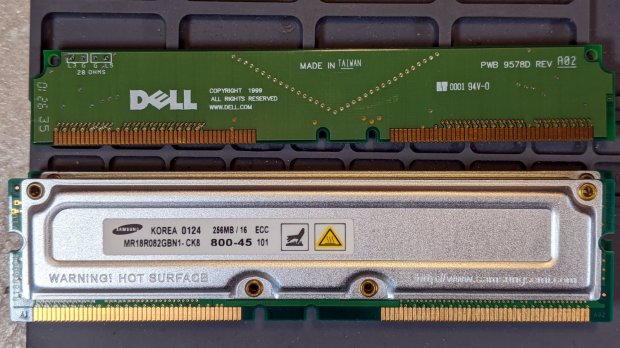
Half a gig of ECC RAM from what might have been a fire-breathing Pentium Pro box:
DRAM Assortment – 256 MB ECC
The PCBs along the top apparently filled vacant memory slots.
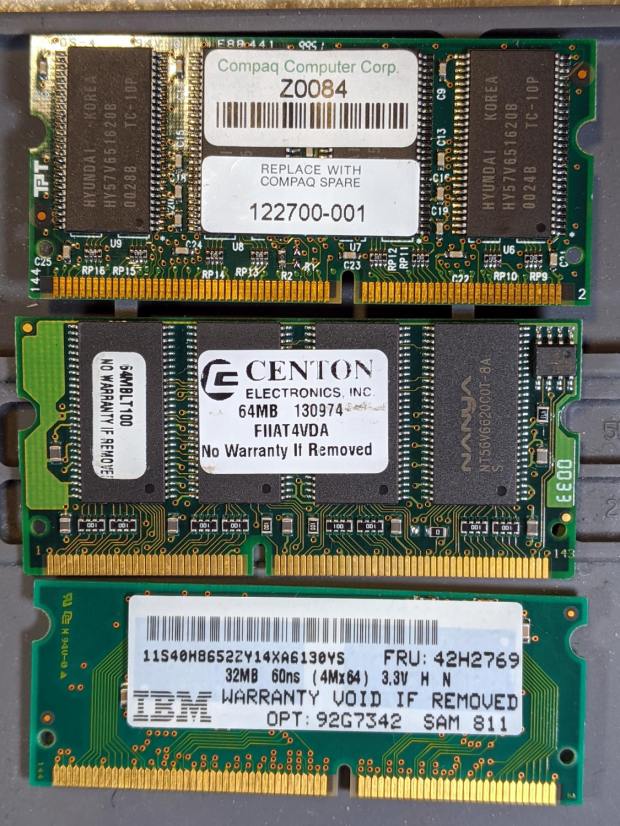
Some 32 and 64 MB DRAM from a few IBM laptops I turned into picture frames:
DDR2 DRAM in assorted sizes & speeds:
DRAM Assortment – PC2 DDR
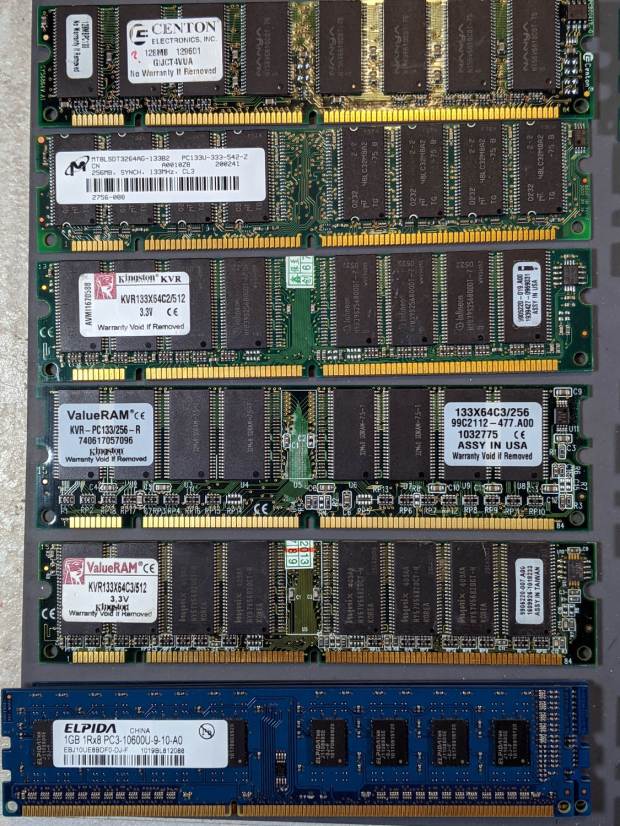
PC133 DDR DRAM, with four sticks of 1 GB PC3 along the bottom:
DRAM Assortment – PC133
If you look closely, you may see something you can use. No reasonable offer refused …
lsusb
Bus 002 Device 002: ID 8087:0024 Intel Corp. Integrated Rate Matching Hub
Bus 002 Device 001: ID 1d6b:0002 Linux Foundation 2.0 root hub
Bus 001 Device 004: ID 248a:ff0f
Bus 001 Device 007: ID 058f:9410 Alcor Micro Corp. Keyboard
Bus 001 Device 006: ID 047d:1020 Kensington Expert Mouse Trackball
Bus 001 Device 005: ID 046d:c508 Logitech, Inc. Cordless Trackball
Bus 001 Device 003: ID 0451:2046 Texas Instruments, Inc. TUSB2046 Hub
Bus 001 Device 002: ID 8087:0024 Intel Corp. Integrated Rate Matching Hub
Bus 001 Device 001: ID 1d6b:0002 Linux Foundation 2.0 root hub
Bus 004 Device 006: ID 05e3:0748 Genesys Logic, Inc.
Bus 004 Device 005: ID 0480:a202 Toshiba America Inc Canvio Basics HDD
Bus 004 Device 004: ID 0bda:0411 Realtek Semiconductor Corp.
Bus 004 Device 003: ID 0451:8041 Texas Instruments, Inc.
Bus 004 Device 002: ID 0bda:0411 Realtek Semiconductor Corp.
Bus 004 Device 001: ID 1d6b:0003 Linux Foundation 3.0 root hub
Bus 003 Device 006: ID 256c:006d
Bus 003 Device 004: ID 0bda:5411 Realtek Semiconductor Corp.
Bus 003 Device 003: ID 0451:8043 Texas Instruments, Inc.
Bus 003 Device 002: ID 0bda:5411 Realtek Semiconductor Corp.
Bus 003 Device 001: ID 1d6b:0002 Linux Foundation 2.0 root hub
Yes, the space normally occupied by the product description is blank. The first blank description comes from a generic wireless keypad’s USB receiver; the 0x248a Vendor ID claims be Maxxter, a step down from the usual Logitech ID rip, and its 0xff0f Device ID looks bogus to me, too.
The 0x256c Vendor ID isn’t in the online databases yet, but some grepping found it in /lib/udev/rules.d/65-libwacom.rules:
Note, however, that the Device ID is 0x006e, where the upgraded V2 tablet is 0x006d; I have no idea why the number goes down as the version goes up. Change all instances of the former to the latter.
Even though the Wacom driver can apparently handle the older H610Pro, the V2 tablet’s buttons were missing in action.
xsetwacom --verbose set "HUION Huion Tablet Pen stylus" MapToOutput "DP-1"
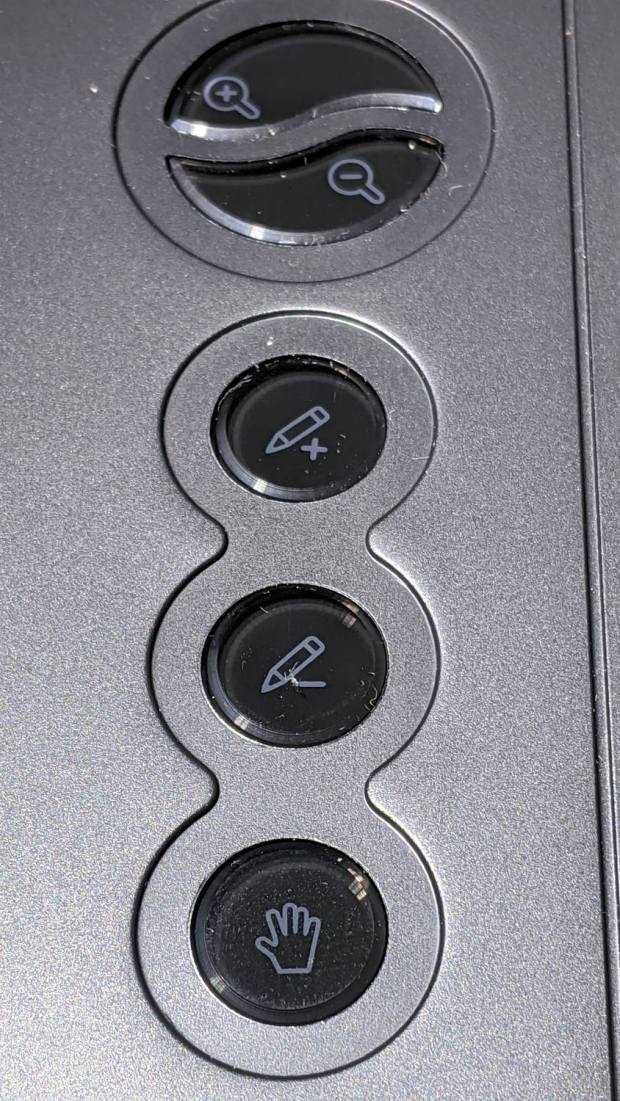
The various buttons still need configuration, although that’s in the nature of fine tuning. The top three buttons are 1, 2, 3, with the rest tagging along at 8 through 12. They take trendy gray-on-black labeling to an absurd limit:
Huion H610Pro V2 – embedded gray-on-black buttons
That’s with intense overhead lighting shining into the buttons and lighting up the lower-surface iconography. In normal light, they’re shiny black disks with invisible legends and, no, they’re not backlit.
The overall button-tweaking syntax:
xsetwacom set "HUION Huion Tablet Pad pad" button 12 key whatever
Where whatever comes from the list in /usr/include/X11/keysymdef.h, per the doc in man xsetwacom and a list of possibilities from:
xsetwacom --list modifiers "HUION Huion Tablet Pad pad"
For example, this causes the bottom button to spit out a question mark:
xsetwacom set "HUION Huion Tablet Pad pad" button 12 key shift /
It’s not obvious changing the buttons from their default button numbers to anything else makes any sense; just tweaking individual programs to map those numbers into useful actions should work better.
(*) It has a “battery-free” stylus which, to my way of thinking, is a major selling point.






 The Smell of Molten Projects in the Morning