Ed Nisley's Blog: Shop notes, electronics, firmware, machinery, 3D printing, laser cuttery, and curiosities. Contents: 100% human thinking, 0% AI slop.
While mulling over the DRO situation, I clamped the compound rest to the cross slide, backed the knob to the limit of the backlash, and poked feeler gauges into the opening:
LMS mini-lathe – measuring compound backlash
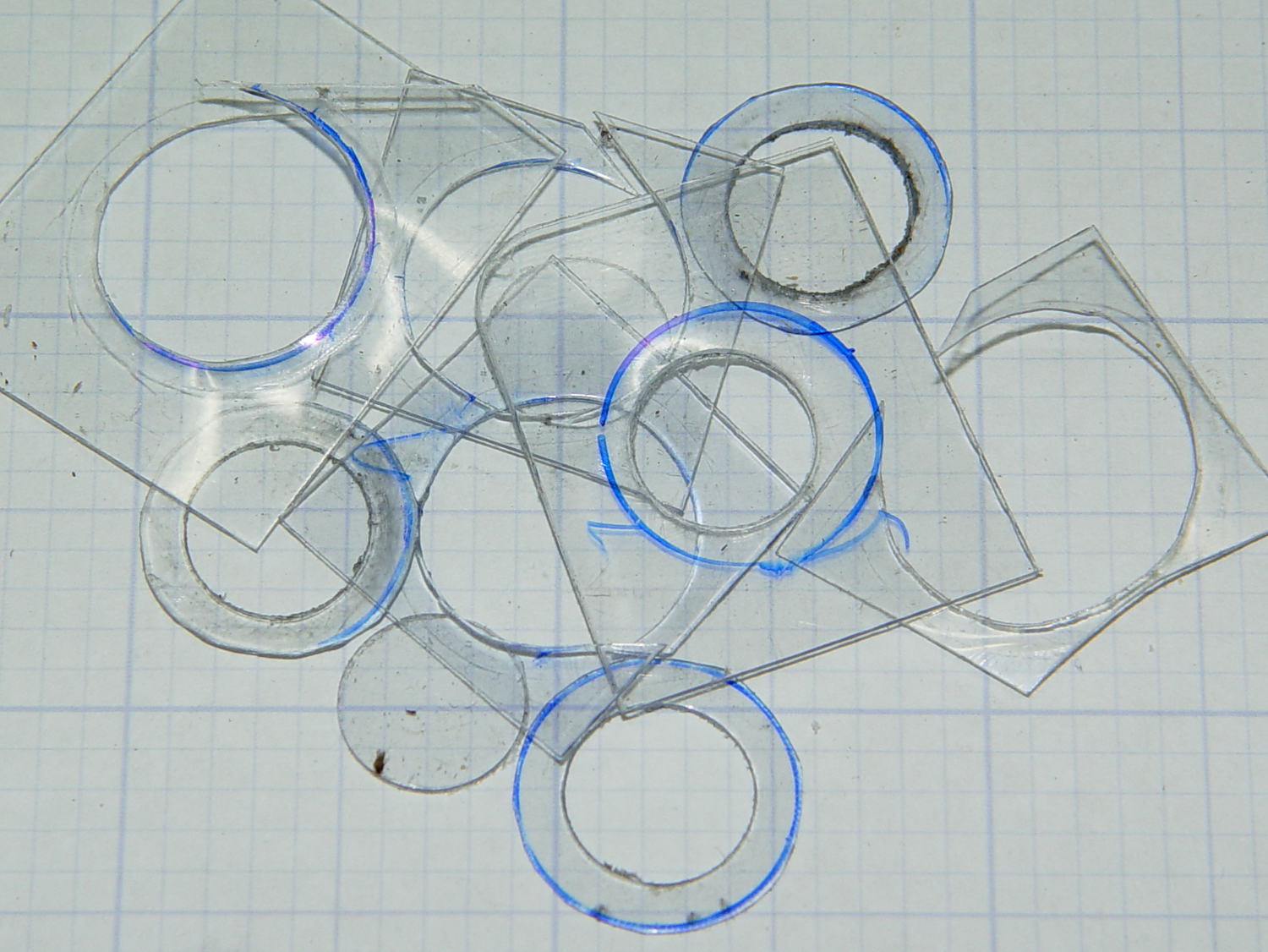
The backlash turned out to be around 20 mil = 0.020 inch = 0.5 mm, which seemed excessive to me, so I fiddled around with the contents of the Big Box o’ Polypropylene Sheets (harvested from various clamshell retail packages), deployed the hollow punches, performed some deft scissors work, and made some shims:
LMS mini-lathe – compound knob shims
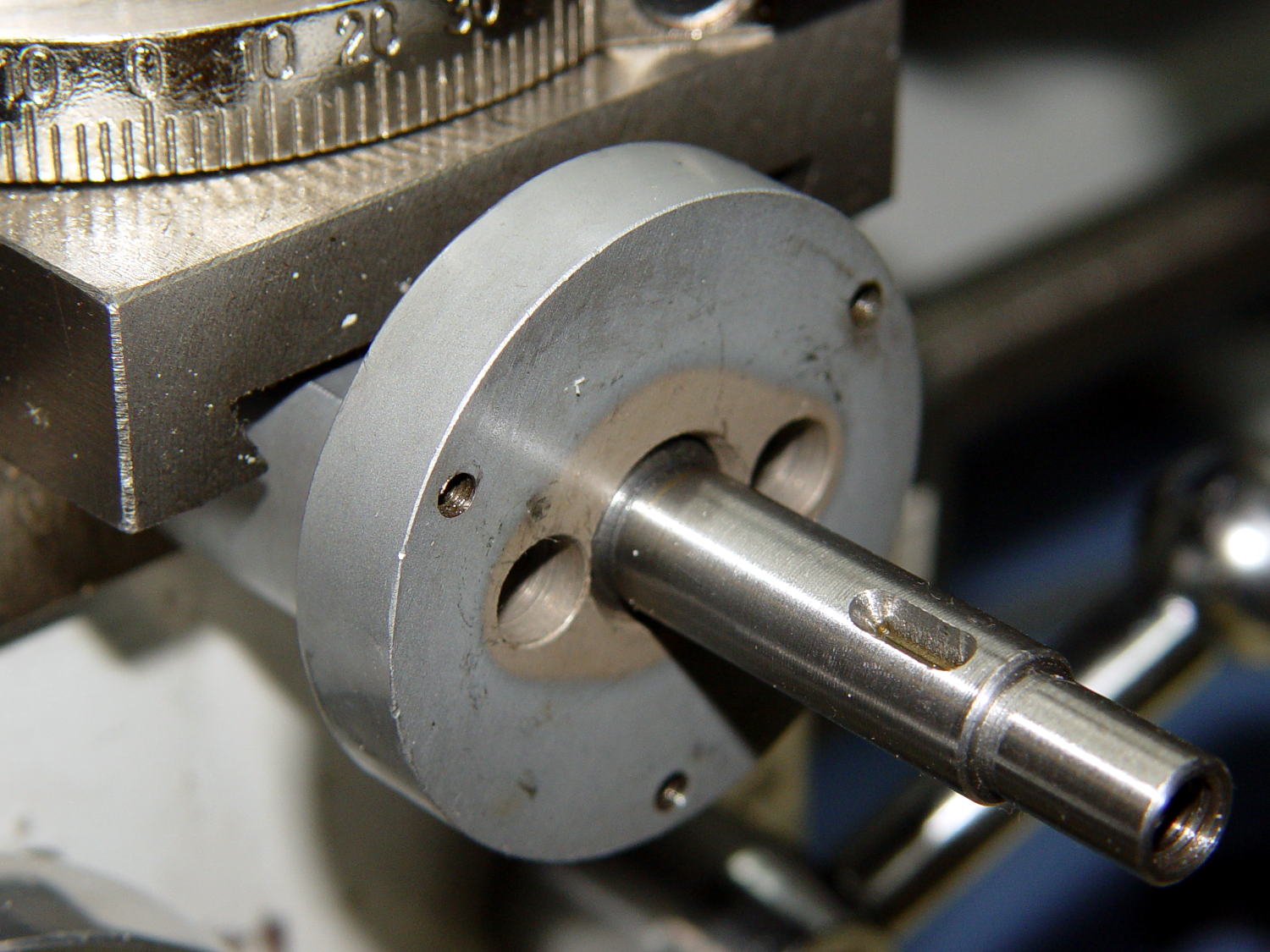
Eventually, one of ’em offered a Good Enough combination of reduced backlash and E-Z turning to suffice for now. The proper solution involves facing off / rebuilding the fat metal washer on the right to put the bore at right angles to the bearing surfaces, but that’s another project.
The final backlash ended up around 4 mils, with a bit of drag due to the slightly irregular metal washer on the left preventing anything tighter. The cross slide knob also has a bit of backlash, but the thinnest sheets are a bit too thick.
Polypropylene isn’t the right plastic for a bearing, but it’s cheap, readily available, easily worked, and served as a bring-along project at Squidwrench…
The Little Machine Shop 5200 lathe package includes DROs on the cross slide and compound cranks. The readouts report the position of the crank, not the slide position, which isn’t a major problem on a lathe.
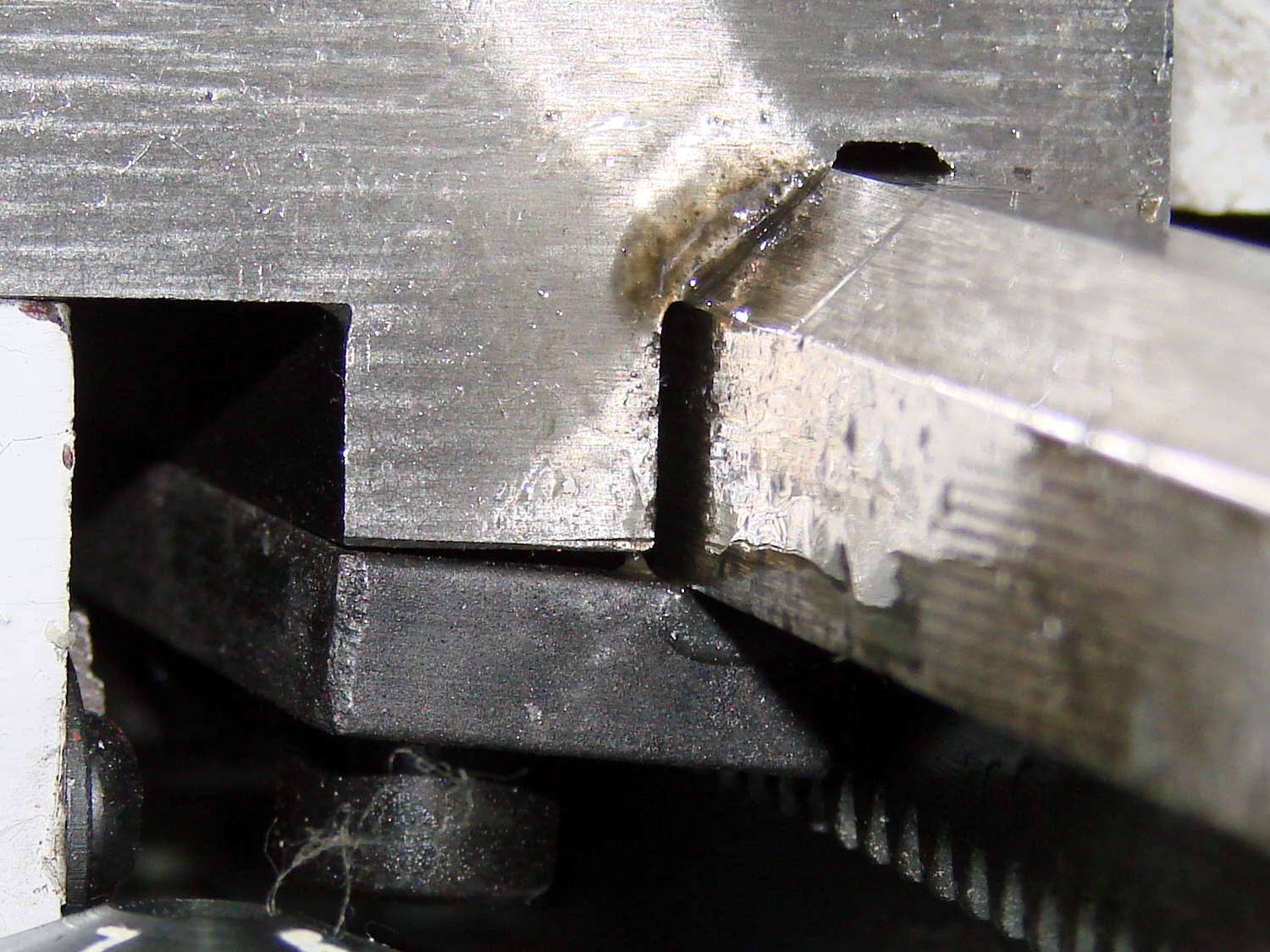
Unfortunately, the compound collides with the DRO on the cross slide:
LMS Mini-lathe – compound vs DRO
That is a major problem on a lathe.
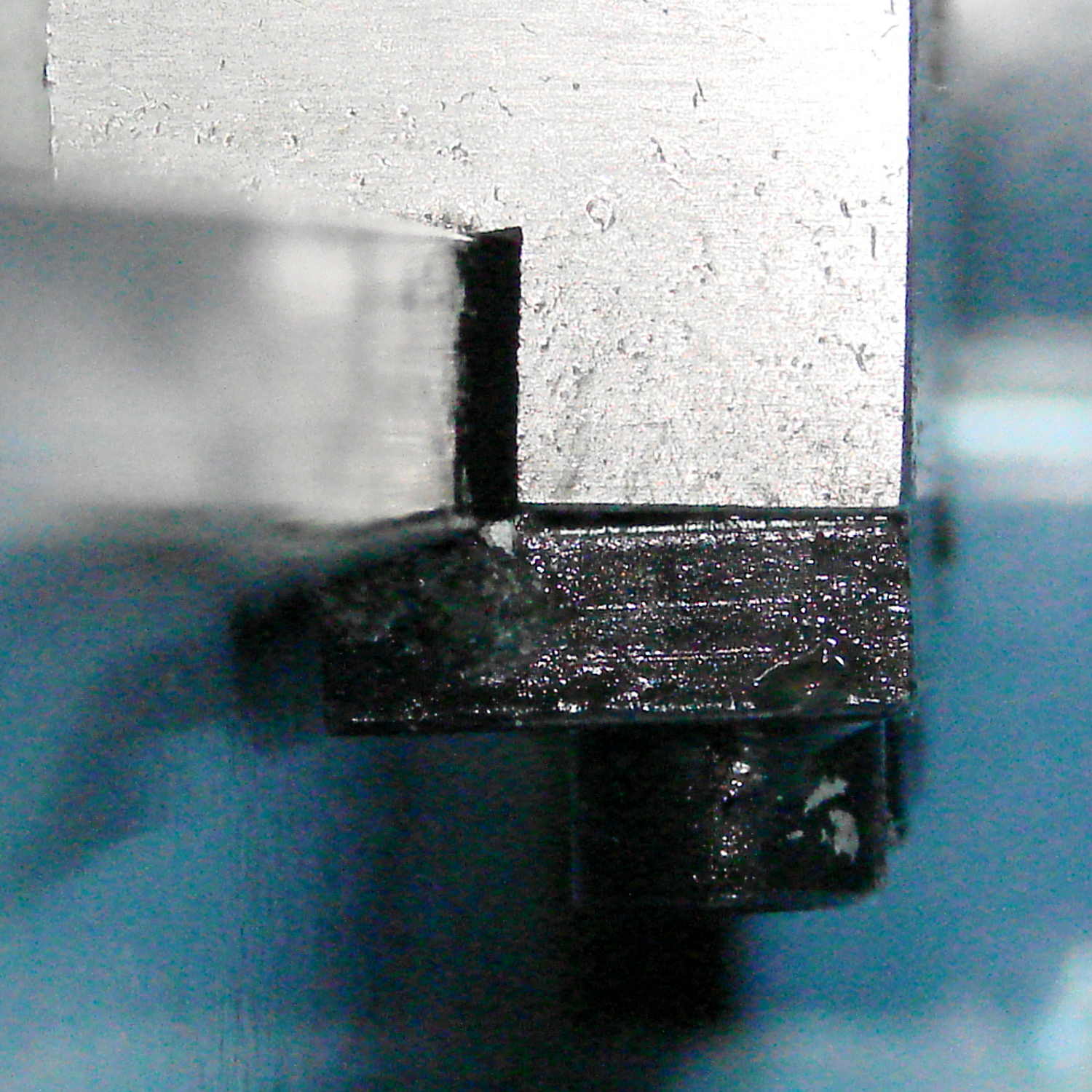
When you can’t turn the cross slide more than 45° from parallel with the bed, you cannot set the compound to the (typical) 29° degrees required for (traditional) thread cutting. That’s measured perpendicular to the bed, so it would be 61° on the compound rest scale, if the scale went that high:
LMS Mini-lathe – compound way
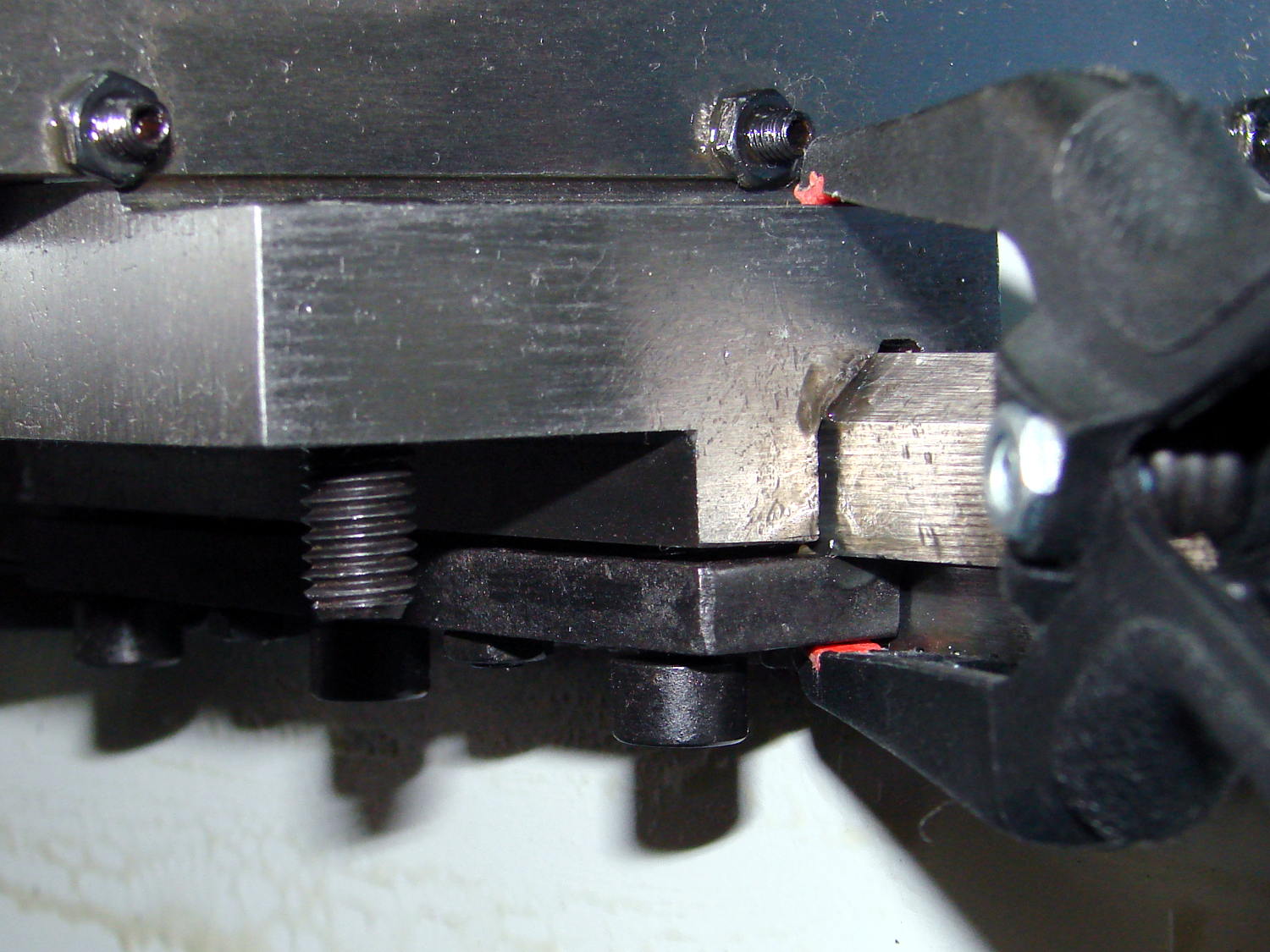
This mess doesn’t have a trivial fix, because the DRO body under the (non-removable) display doesn’t quite clear the compound screw:
LMS Mini-lathe – compound vs DRO – bottom
As nearly as I can tell, removing the entire DRO is the only way to slew the compound beyond 45°, but the DRO replaced the usual manual scale around the cross slide knob, so there’s no analog backup.
The DRO mounts to the cross slide with three screws, so you can’t rotate it 90° to the side to get better clearance:
LMS mini-lathe – DRO mounting screws
The other four screws presumably mount the DRO encoder housing to the outer shell.
The setscrew sticking up from the sleeve anchors it to the cross slide shaft. The slit milled into the shaft captures the end of the setscrew:
LMS mini-lathe – cross slide leadscrew shaft
The knob slides over the shaft, with a screw in the end holding it in place by friction against a split lockwasher; you can apply enough torque to turn the knob under the lockwasher in either direction.
Removing the DRO doesn’t produce more cross slide travel, because the DRO body sits flush with the back side of that large disk.
I think the cross slide knob collides with the compound DRO, but I put it all back together without any further exploration.
Actual 6 inch DROs based on linear encoders seem to run $40-ish and other folks have fitted them to their mini-lathes. Verily, I don’t do much threadcutting, so I’ll just put this mess on the far back burner.
That DRO ticks me off every time I look at it, though…
Our standard dishwasher loadout changed a while back, so I ran off more protectors to fill the bottom rack. The crystalline look of natural PETG is probably wasted in there, even though it puts the old, rather yellowed, PLA protectors to shame:
Dishwasher Rack Protectors – old PLA new PETG
Dollops of silicone sealant hold them in place: the bigger the blob, the better the job.
We don’t activate the drying heater, so the plastic doesn’t get exposed to absurdly high temperatures. As nearly as I can tell, those PLA protectors remain in fine physical condition, even though they’re turning an odd color.
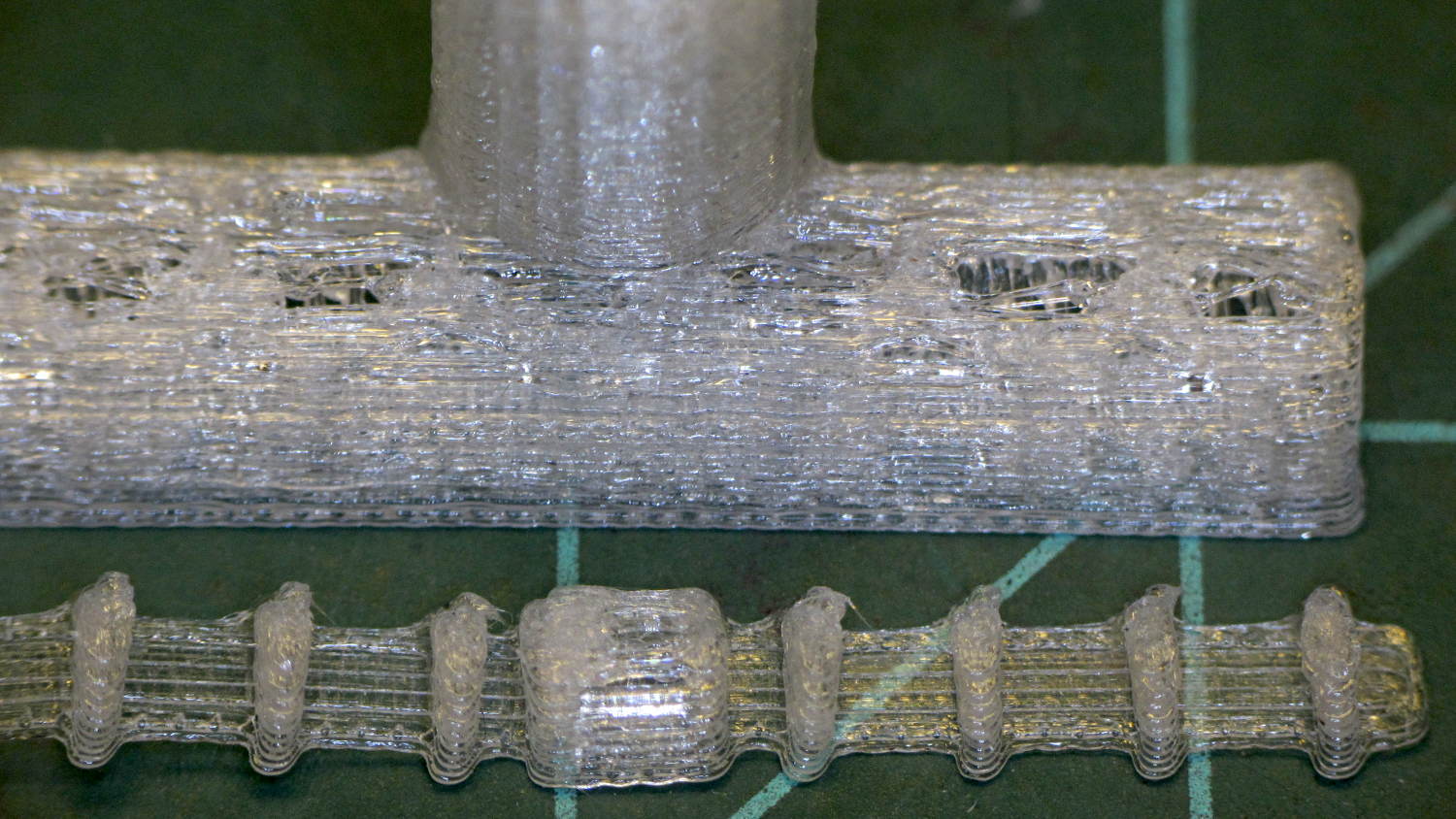
The support structures peeled out easily with a fingernail pull:
Dishwasher Rack Protectors – 0.20 mm PETG bridging – detail
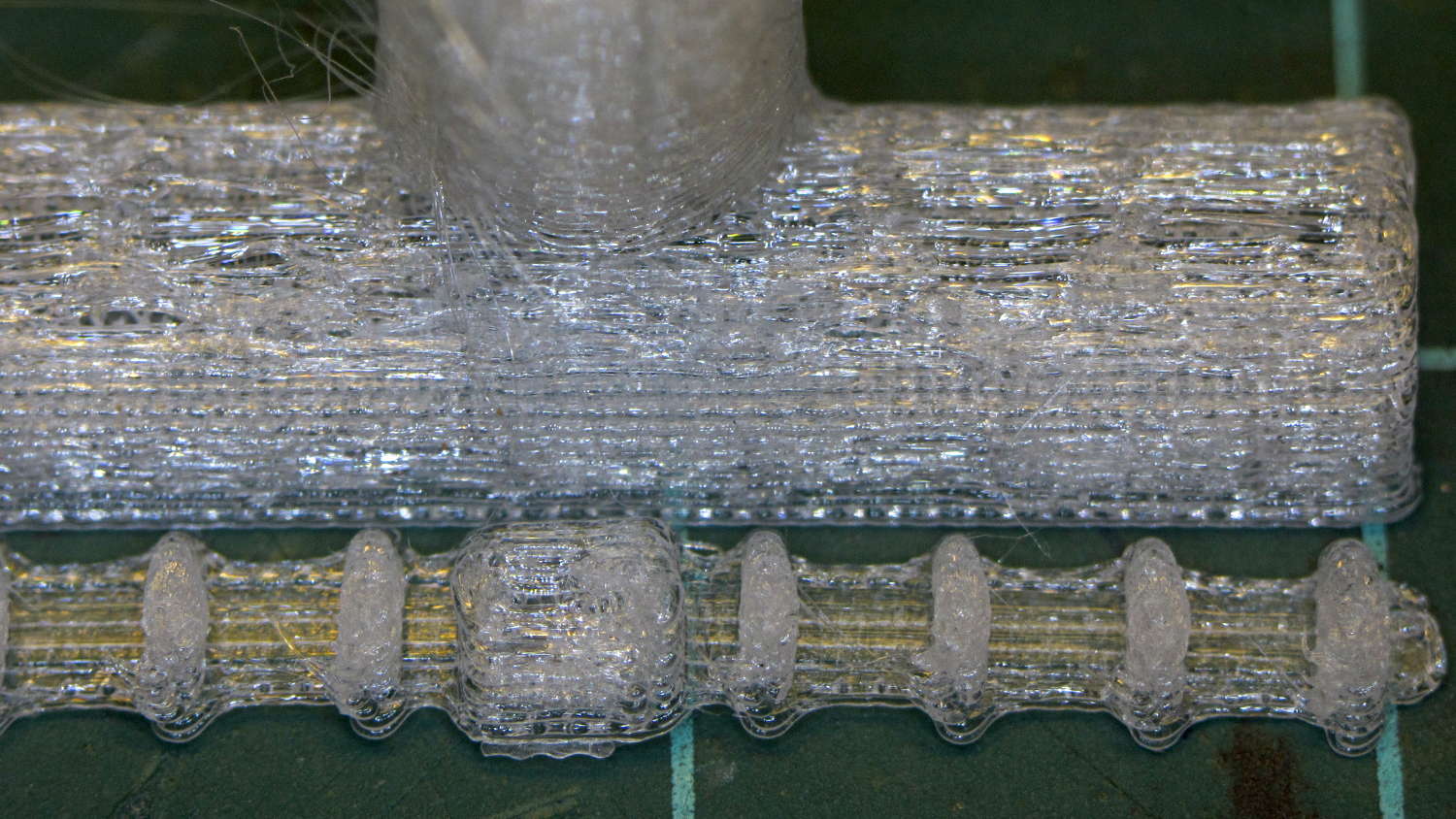
PETG doesn’t bridge well, as shown by the gaps between the support ridges. Those 0.20 mm layers seemed skimpy for lightly supported PETG, so I ran another set at 0.25 mm:
Dishwasher Rack Protectors – 0.25 mm PETG bridging – detail
Not quite enough improvement for a Happy Dance, although fine for the application.
We look forward to seeing what grows in those little crevices…
It turns out that the dual-core Intel Atom Inside an old Dell Mini 10 isn’t up to the demands of rendering modern web design; disk I/O speed has nothing to do with the CPU’s (lack of) ability to chew through multiple layers of cruft adorning what used to be straightforward static HTML.
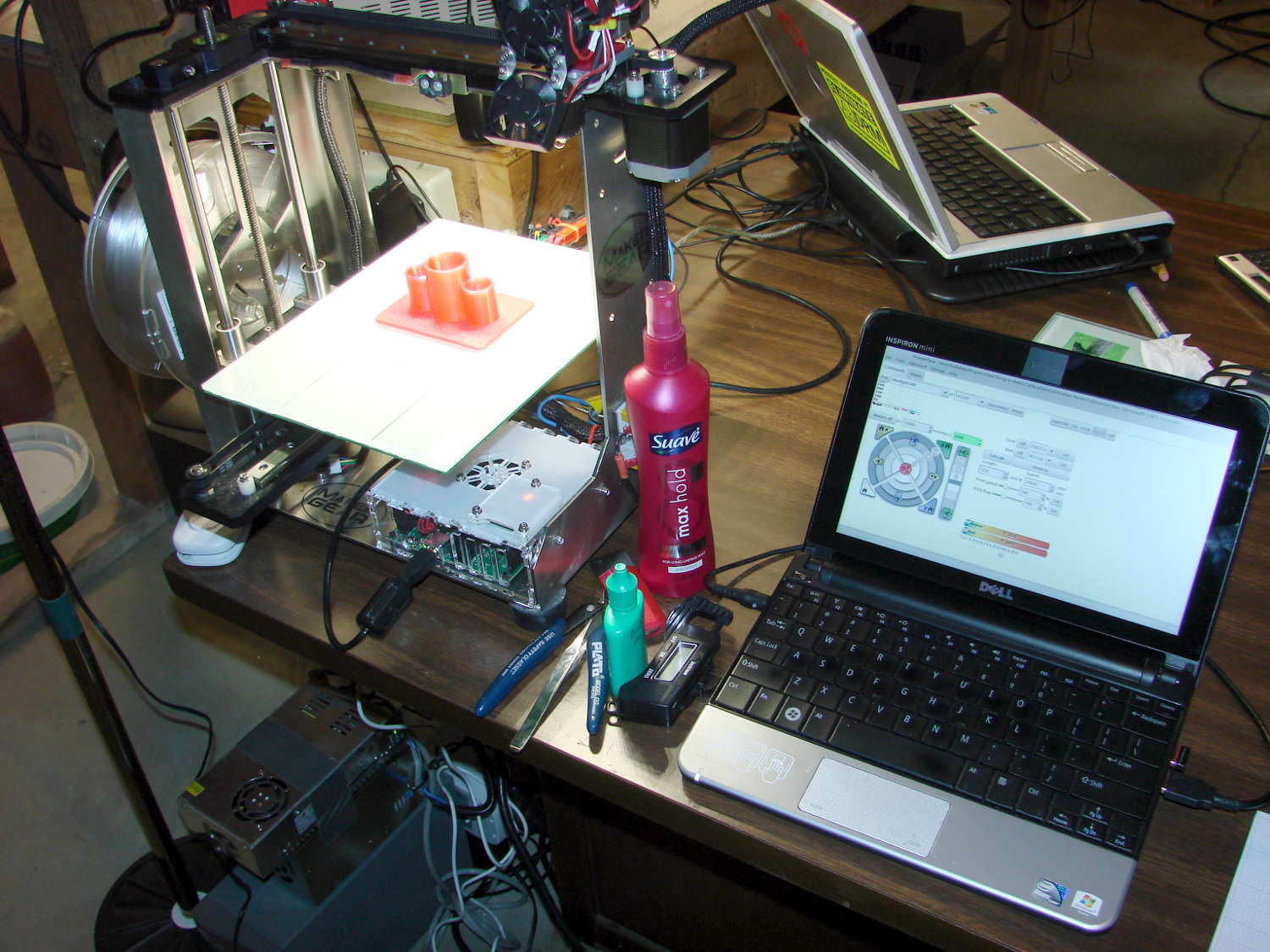
So, equipped with Linux Mint / XFCE, it’s now found a new purpose in life:
SnowWhite back in action
In truth, an Atom isn’t quite up to the demands of modern 3D printing, either, at least in terms of processing a huge G-Code file into a layer-by-layer path preview. Fortunately, Pronterface doesn’t generate the preview until you ask for it: arranging the UI to put the preview on a separate tab eliminates that problem.
The Mini 10 can dribble G-Code into the printer just fine and looks much cuter than the hulking laptop in the background.
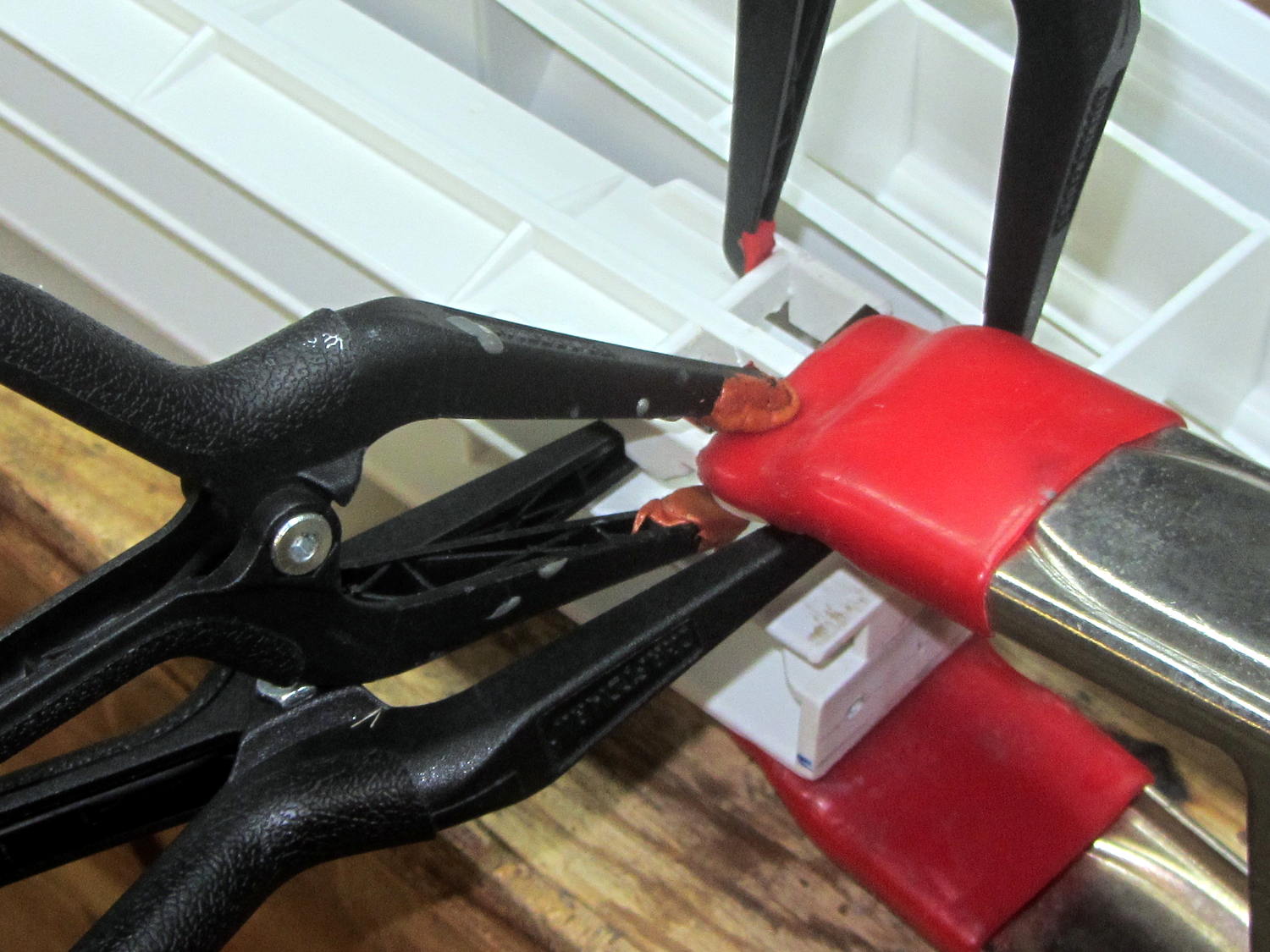
The support holding the two big drawers below the bottom shelf of our long-suffering Whirlpool refrigerator broke off. Having previously repaired and then replaced the tab holding the strut in place, then added metalskid plates to the bearing surfaces, I’m getting pretty good at fighting this particular bit of entropy to a standstill:
Refrigerator strut – clamped glue joint
Adding a few more clamps always make me feel good:
Refrigerator strut – many clamps
Although a good solvent-bond joint should be as strong as the original plastic, that’s not saying much: I expect the end of that strut will break off again. Perhaps the central web is wide enough for a few small screws?
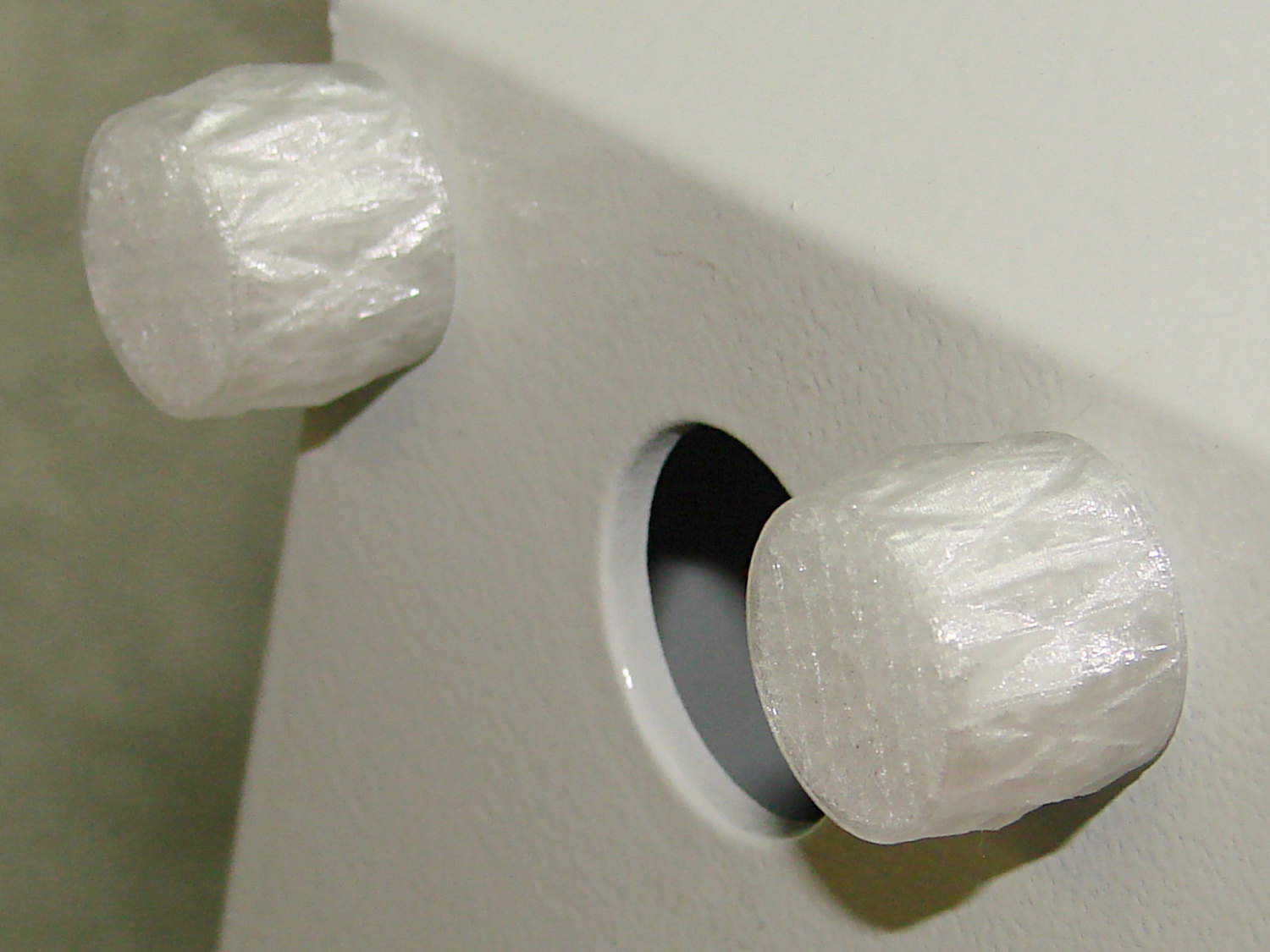
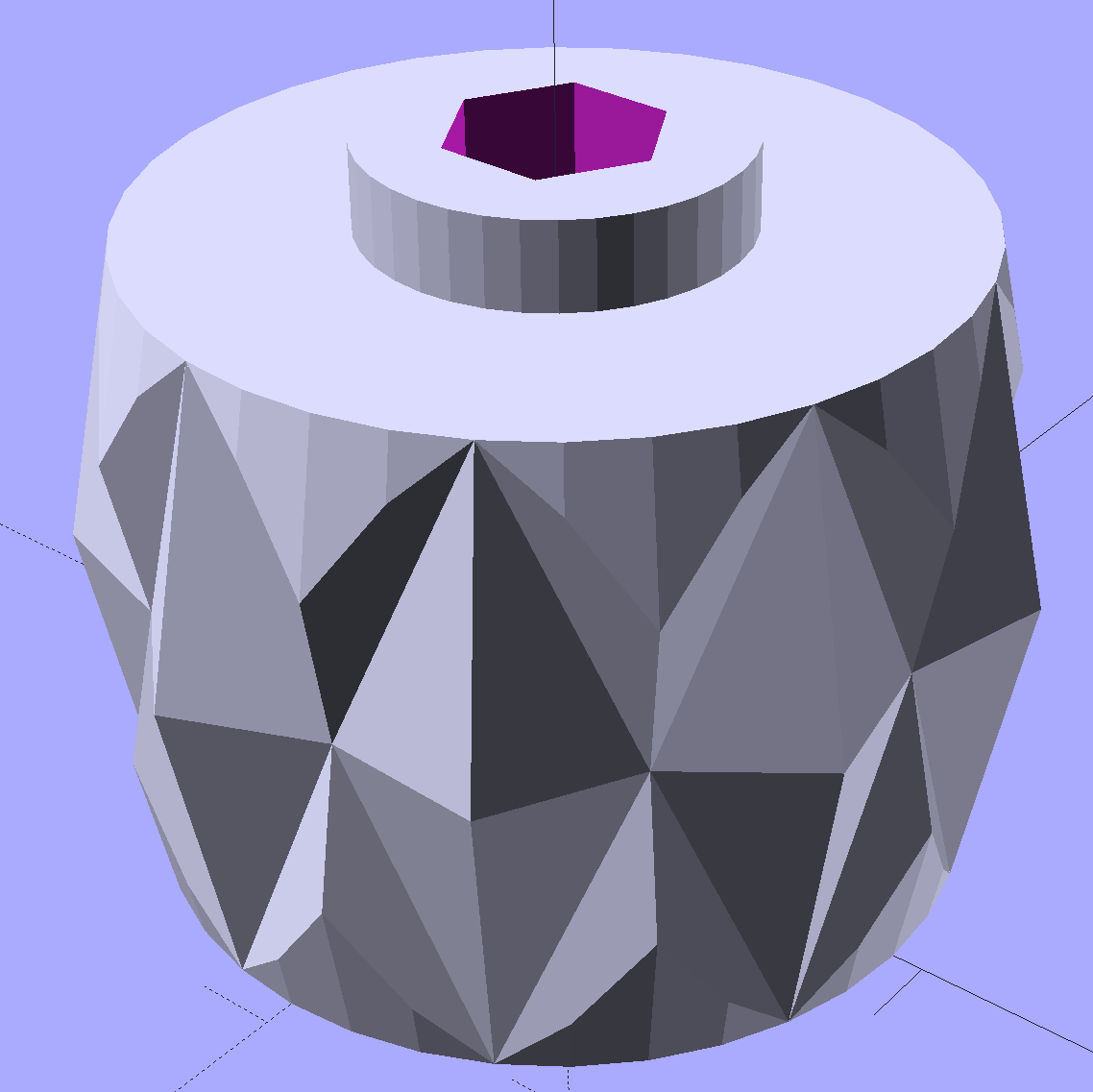
About the third time I removed the mini-lathe’s change gear cover by deploying a 4 mm hex wrench on its pair of looong socket head cap screws, I realized that finger-friendly knobs were in order:
LMS Mini-lathe cover screw knobs – installed
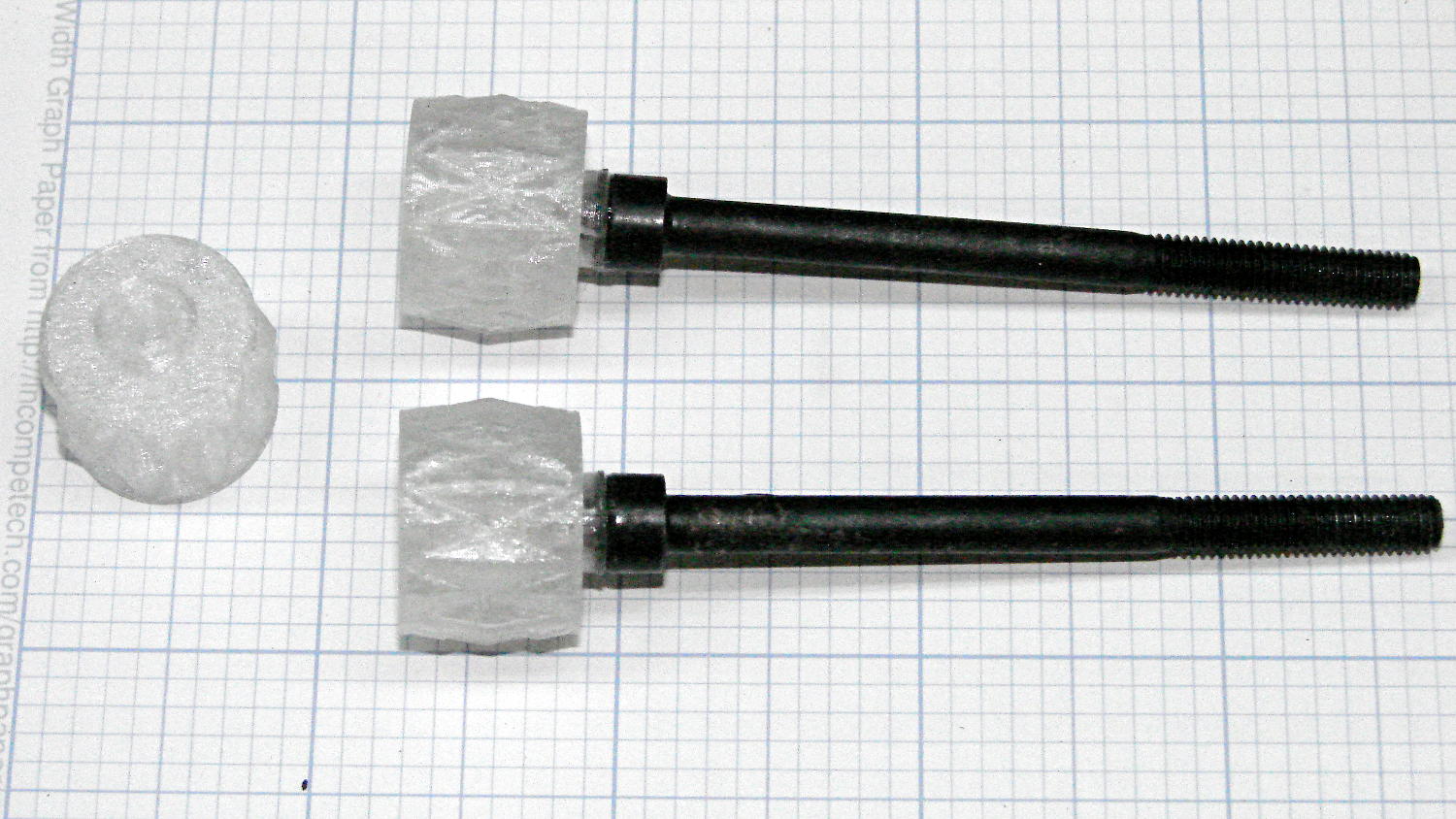
A completely invisible length of 4 mm hex key (sliced off with the new miter saw) runs through the middle of the knob into the screw, with a dollop of clear epoxy holding everything together:
LMS Mini-lathe cover screw knobs – epoxied
The 2 mm cylindrical section matches the screw head, compensates for the 1.5 mm recess, and positions the knobs slightly away from the cover:
I built three of ’em at a time to get a spare to show off and to let each one cool down before the next layer arrives on top:
LMS Mini-lathe cover screw knobs – on platform
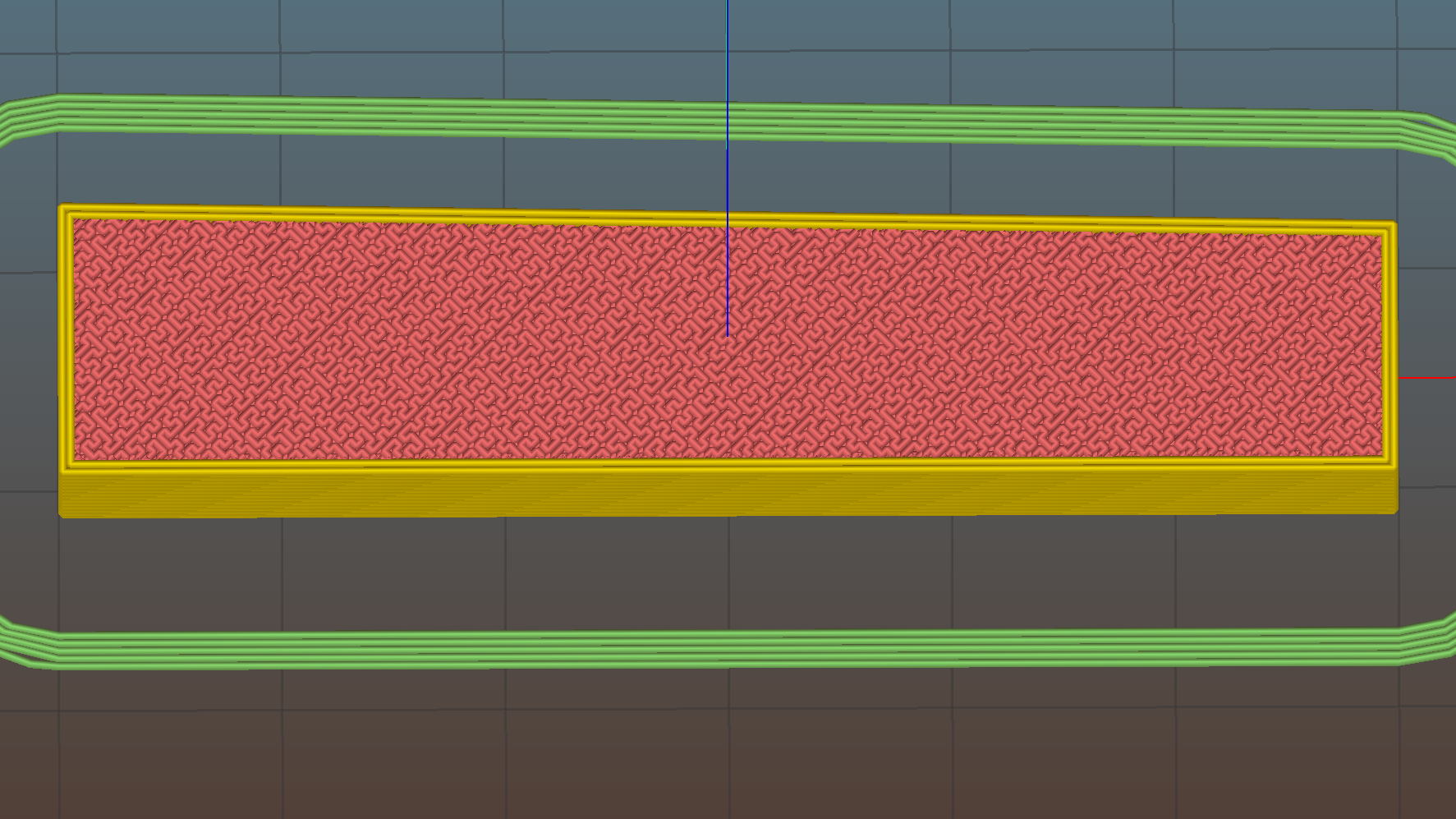
The top and bottom surfaces have Octagram Spiral infill that came out nicely, although it’s pretty much wasted in this application:
LMS Mini-lathe cover screw knob – Slic3r first layer
I have no explanation for that single dent in the perimeter.
The cover hangs from those two screws, which makes it awkward to line up, so I built a shim to support the cover in the proper position:
LMS Mini-lathe cover support shim – Slic3r preview
Nope, it’s not quite rectangular, as the change gear plate isn’t mounted quite square on the headstock:
LMS Mini-lathe – cover alignment block
I decided when if that plate eventually gets moved / adjusted / corrected, I’ll just build a new shim and move on. A length of double-sticky tape holds it onto the headstock.
Mounting the cover now requires only two hands: plunk it atop the shim, press it to the right so the angled side settles in place, insert screws, and it’s done.
A short article by Samuel Will (Home Shop Machinist 35.3 May 2016) pointed out that any chips entering the spindle bore will eventually fall out directly into the plastic change gears and destroy them. He epoxied a length of PVC pipe inside the cover to guide the swarf outside, but I figured a tidier solution would be in order:
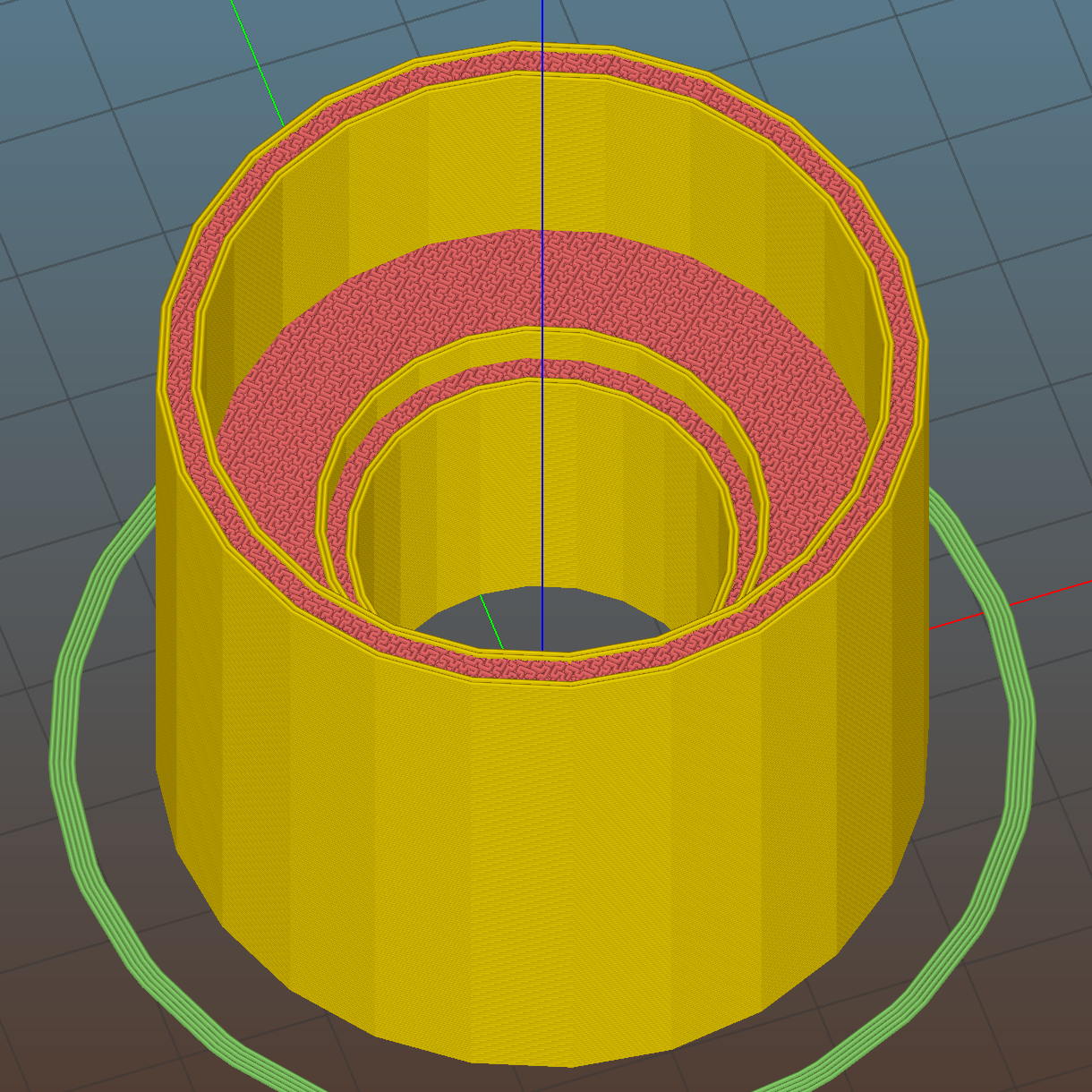
The backside of the shield has three M3 brass inserts pressed in place. I marked the holes on the cover by the simple expedient of bandsawing the base of the prototype shield (which I needed for a trial fit), lining it up with the spindle hole, and tracing the screw holes (which aren’t yet big enough for the inserts):
LMS mini-lathe – cover hole template
Yeah, that’s burned PETG snot around 10 o’clock on the shield. You could print a separate template if you prefer.
The various diameters and lengths come directly from my lathe and probably won’t be quite right for yours; there’s a millimeter or two of clearance in all directions that might not be sufficient.
Don’t expect the cover hole to line up with the spindle bore:
LMS mini-lathe – view through cover and spindle
I should build an offset into the shield that jogs the holes in whatever direction makes the answer come out right, but that’s in the nature of fine tuning; those holes got filed slightly egg-shaped to ease the shield a bit to the right and it’s all good.
Heck, having the spindle line up pretty closely with the tailstock seems like enough of a bonus for one day.
The OpenSCAD source code as a GitHub Gist:
This file contains hidden or bidirectional Unicode text that may be interpreted or compiled differently than what appears below. To review, open the file in an editor that reveals hidden Unicode characters.
Learn more about bidirectional Unicode characters
The mini-lathe carriage rides on its craptastically finished ways, with a pair of steel strips holding it in place. They’re supposed to be flat against the bed, with a nice oil layer providing a slippery surface. Well, apart from lots and lots of oil, that’s not their as-delivered condition:
LMS Mini-lathe – carriage front retainer – as received
The rear retainer:
LMS Mini-lathe – carriage rear retainer – as received
Adjusting both retaining strips works best without the apron in place, which works best without the leadscrew in place, which requires dismantling the change gear quadrant and messing around with the pieces. Instead, disengage the half nuts (which is how they should be, anyway), remove the two big apron screws, then gently maneuver the apron out of the way off to the right. It’ll rest against the chip pan and hang from the half nuts, but won’t get into any trouble unless you do something stupid.
Remove both strips, wipe off the excess oil, then align each strip in turn:
Clamp the strip in place to ensure it’s flat against the underside of the bed way:
LMS Mini-lathe – carriage front retainer – clamped
Twiddle the two setscrews until they’re just barely touching the underside of the carriage (thus ready to hold the strip more-or-less in the proper position), snug the three caps screws, test the fit by sliding the carriage back and forth, and iterate until satisfied. I found the setscrews needed quite a bit more than “barely touching” before the cap screws were tight enough, but your experience may differ.
Maybe 10 minutes of fiddling changed the overall carriage fit from “barely pushable” to “pretty good”, even with the original (lack of) way finishing in full effect:
LMS Mini-lathe – carriage flat way – detail
My lathe has a loose spot a few inches to the right of the chuck, but it’s now reasonably smooth along the entire length.
Adjusting the cross-slide and compound gibs will definitely improve their disposition, too.