The Smell of Molten Projects in the Morning

Ed Nisley's Blog: Shop notes, electronics, firmware, machinery, 3D printing, laser cuttery, and curiosities. Contents: 100% human thinking, 0% AI slop.

Tag: Laser Cutter

  • Acrylic Coasters: Edge Finishing, Round 1

    Acrylic Coasters: Edge Finishing, Round 1

    Assembling acrylic pieces inside an epoxy-filled frame produces nice results:

    Cut Acrylic Coaster - bottom
    Cut Acrylic Coaster – bottom

    The gotcha: epoxy oozes from between the layers to form a slobbery edge.

    I tried introducing a similar coaster to Mr Disk Sander with reasonable results:

    Coaster Epoxy Rim - disk sanded rim
    Coaster Epoxy Rim – disk sanded rim

    The coaster on the bottom has its original generous epoxy slobber around the acrylic disks.

    Assembling the layers inside a mold seems fraught with messiness, particularly if I eventually want to get it out of the mold.

    Using a finer abrasive disk would certainly help, but the whole process requires intense concentration and is utterly unforgiving of mistakes.

    I figured I could attach the coaster to a lathe fixture and turn the rim, so I made a fixture from scrap acrylic:

    Coaster Epoxy Rim - cutting fixture plate
    Coaster Epoxy Rim – cutting fixture plate

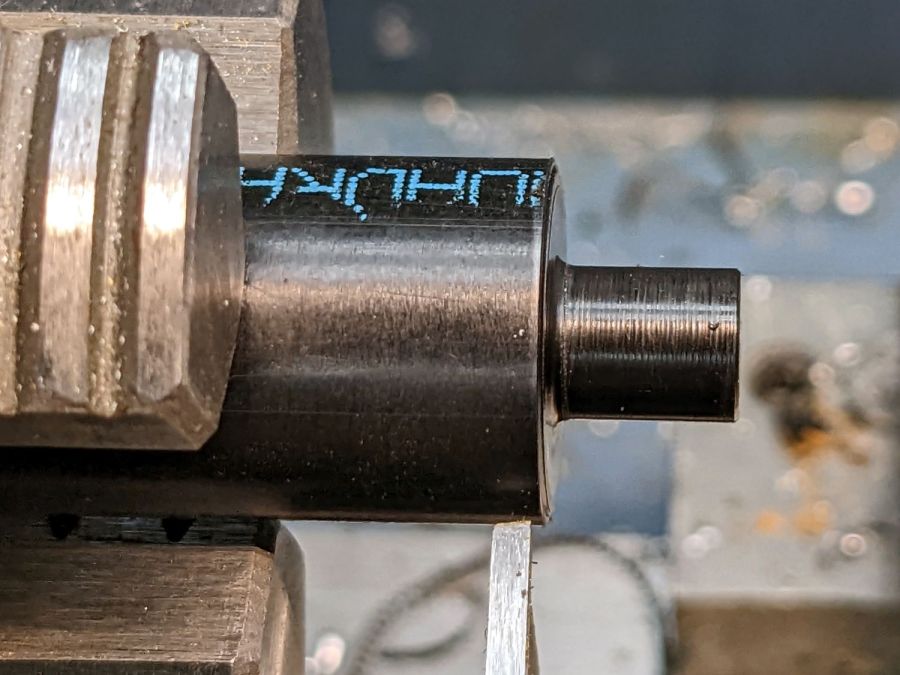
    The lathe chuck inside jaws fit inside the hole and I set up to turn the OD to a nice even diameter:

    Coaster Epoxy Rim - turning fixture rim
    Coaster Epoxy Rim – turning fixture rim

    The fixture sat flush against the middle step of the jaws with plenty of clearance from the outer step, so I could turn the OD without whacking the carbide insert.

    I planned to grab the OD and turn the ID to a (reasonably) concentric finish, but the outer jaws have an absolute diameter limit a few millimeters less than the 4 inch = 101.4 mm coaster OD.

    After some increasingly desperate attempts, I concluded that, lacking a 4-jaw lathe chuck, there was no way to mount the coaster on the fixture and have it sit it even approximately centered on the spindle axis.

    I do, however, have a 4-jaw chuck for the Sherline mill, normally used with the rotary table.

    Next up: Round 2.

  • OMTech 60 W Laser: Mirror Cleaning

    OMTech 60 W Laser: Mirror Cleaning

    While I was puttering around inside the laser cabinet, I figured it was time to check the mirrors for cleanliness. The first two mirrors looked fine, but Mirror 3 needed help:

    OMTech 60W laser mirror 3 cleaning - before
    OMTech 60W laser mirror 3 cleaning – before

    It turns out OMTech used molybdenum rather than gold-plated silicon or copper, trading off some reflectivity to reduce damage from over-enthusiastic cleaning with a vigorous circular motion.

    A first pass with an optical wipe removed most of the crud:

    OMTech 60W laser mirror 3 cleaning - during
    OMTech 60W laser mirror 3 cleaning – during

    Gentle touch-up with a little more isopropyl alcohol cleared the rest:

    OMTech 60W laser mirror 3 cleaning - after
    OMTech 60W laser mirror 3 cleaning – after

    The focus lens required similar attention, but there is no way to get meaningful pictures of a transparent lens.

    Realigning the mirrors went well (top before, middle during, lower after):

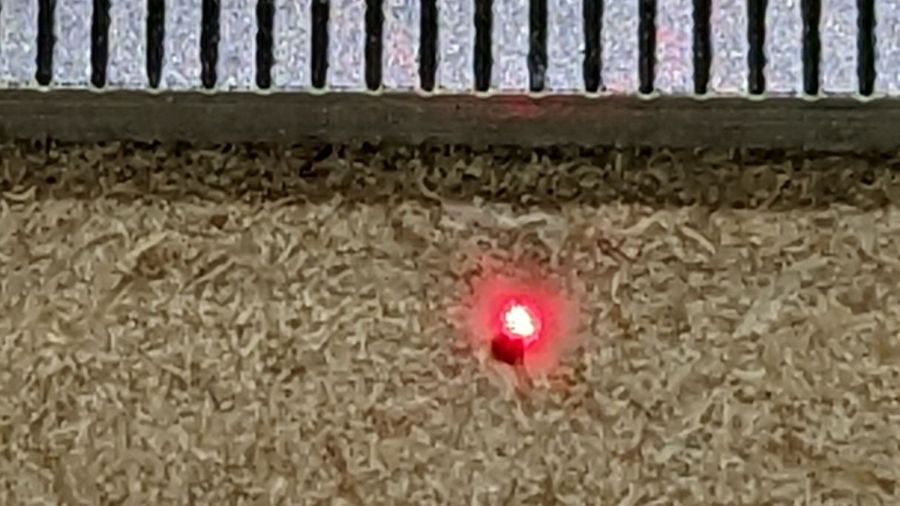
    Beam Alignment Targets- 2022-08-06
    Beam Alignment Targets- 2022-08-06

    The diagonal results at Mirror 3 show the XY axes aren’t quite square, but AFAICT it’s close enough. The rightmost tape shows good beam centering in the nozzle and the Focus target shows excellent Z alignment over about 50 mm of travel.

    Done!

  • Layered Paper Coaster

    Layered Paper Coaster

    A long-forgotten pad of Art Paper in assorted colors came to the surface:

    Layered Coaster - tweaked
    Layered Coaster – tweaked

    An angled view shows off the layering a little better:

    Layered coaster - side view
    Layered coaster – side view

    Done manually with LightBurn’s Offset tool: shrink the frame’s interior openings (which lie outside the frame) by 1 mm per step, then cut each shape into a different color. The black layer is a complete disk, stuck atop a plain chipboard disk for stiffening.

    In the cold light of day, I think I offset the green layer by 2 mm.

    It’s not a particularly useful coaster, because you want a flat surface under your drink, but it does look pretty. Nowhere close to that good, but I like it.

    The next time around, I’ll automate the process by stepping the sash width by 1 mm and saving each SVG image separately.

  • OMTech 60W Laser: Repurposing the HV Power Supply Water Protect Input

    OMTech 60W Laser: Repurposing the HV Power Supply Water Protect Input

    For reference, the input terminals on the OMTech anonymous 60 W HV laser power supply:

    OMTech 60W HV power supply - terminals
    OMTech 60W HV power supply – terminals

    AFAICT, that’s the default layout for all similar power supplies.

    The H and L pins are the High- and Low-active enable inputs that, when it’s working right, control the laser output. The KT332 controller (and, most likely, all RuiDa controllers) produce a low-active output, so you just wire the controller’s output to the L input and you’re done.

    That was the original failure that got me to this point: the power supply ignored its L input and turned the beam on at whatever power the PWM signal on the IN terminal called for. Having that happen was surprising, having it happen with the cabinet lid open was … disturbing.

    The P input is intended for the Water Protect signal from the flow sensor on the laser cooling plumbing. When the water is flowing, the IN terminal will be low and the power supply will pay attention to the L input.

    The power supply arrived with a jumper between the P input and the G ground / common terminal:

    OMTech 60W HV power supply - Water Protect jumper
    OMTech 60W HV power supply – Water Protect jumper

    The jumper holds the P input low = active, meaning the power supply thinks the water is always flowing.

    It turns out that the Water Protect signal goes only to the controller. When it’s inactive = no water flowing, the controller will refuse to fire the laser and also sound an alarm. Running the signal directly to the power supply would result in a puzzling failure-to-fire with no diagnostic from the controller.

    I removed that jumper and added a (green) wire from the Lid Interlock signal at the controller:

    OMTech KT332 controller - Lid Interlock input - added wire
    OMTech KT332 controller – Lid Interlock input – added wire

    To the power supply’s P input:

    OMTech 60W HV power supply - Water Protect as Lid Interlock
    OMTech 60W HV power supply – Water Protect as Lid Interlock

    In principle, if this power supply fails the same way as the previous one (with its L input always active), then at least it won’t fire with the lid up.

    Believing that may display a childish naivety, but at least the thing seems marginally safer than it was before.

  • Laser-Cut Coaster Kerf Compensation

    Laser-Cut Coaster Kerf Compensation

    Having written some parametric coaster generators, I did this for a Digital Machinist article:

    Chipboard Kerfs - as cut - composite
    Chipboard Kerfs – as cut – composite

    That’s the top and bottom of a 40 mm diameter chipboard dollhouse coaster. I made it that small to emphasize the laser kerf: a scant 3 mm across the scorched path on the top and barely 1 mm wide through the bottom, with tabs holding the pieces in place.

    The SVG images include the overall frame, as seen above, and the separate pieces for kerf compensation:

    Miniature Coaster - on platform
    Miniature Coaster – on platform

    Embiggening the pieces by 0.15 mm all around produces a very snug fit:

    Chipboard Kerfs - compensated - composite
    Chipboard Kerfs – compensated – composite

    I must eventually try that trick with wood, but at least I managed to get the process down without wasting entire veneer sheets.

  • Chipboard Thickness

    Chipboard Thickness

    Yes, there really is a difference between 35 mil and 57 mil chipboard:

    Chipboard coaster - 35 mil white vs 57 mil kraft
    Chipboard coaster – 35 mil white vs 57 mil kraft

    The thinner leaves (0.92 mm) have one delicate white surface that presents much better color when scribbled with fat-tip colored markers. The thicker frame (1.45 mm) is ordinary kraft chipboard which seems much more durable and looks terrible when colored.

    The difference is obvious:

    Chipboard coaster - plain vs white
    Chipboard coaster – plain vs white

    Although it may be a case of gilding the dandelion, a durable kraft frame sets off the petal colors and, being slightly thicker, may also protect them from immediate destruction by sweaty drinks.

    We’re talking artsy coasters here, not cheap disposable junk. Right?

    Riiiight!

  • Smashed Glass Coaster #2: Mirror Base FTW

    Smashed Glass Coaster #2: Mirror Base FTW

    Glass fragments bedded on clear epoxy atop a white base looked OK, albeit minus most of their glitter due to epoxy filling their cracks:

    Glass Coaster - fragment edge detail
    Glass Coaster – fragment edge detail

    Filling the cracks with black epoxy makes them stand out:

    Smashed Glass vs epoxy - magnified comparison
    Smashed Glass vs epoxy – magnified comparison

    So I assembled a coaster from shattered glass in a clear surround with black epoxy atop a mirror base:

    Smashed Glass Coaster 2 - mid-layer glass pour
    Smashed Glass Coaster 2 – mid-layer glass pour

    Each fragment sits on a blob of black epoxy that eventually oozed out to fill the gap between the mirror and the transparent layer. You can see the oozing start around the two fragments in the upper left.

    A top layer of black acrylic sits flush with the upper surface of the glass, seen here with the protective paper in place before pouring black epoxy into the gap around the perimeter of each fragment:

    Smashed Glass Coaster 2 - masked top
    Smashed Glass Coaster 2 – masked top

    Peeling the paper away exposes an almost perfect surface, with the epoxy forming a slight curve between the black acrylic and the glass:

    Smashed Glass Coaster 2 - overview
    Smashed Glass Coaster 2 – overview

    The mirror doubles the number of glass cuboids and their glittery gaps:

    Smashed Glass Coaster 2 - fragment detail
    Smashed Glass Coaster 2 – fragment detail

    All in all, it turned out well, but the epoxy pouring and leveling is tedious.

    It might be possible to assemble a coaster upside-down, with the black layer stuck to something like Kapton tape and the fragments carefully aligned in their openings to make the entire top surface a plane. The tape should keep the epoxy from oozing out of the gaps, although a perfect seal may be impossible.

    Then fill the gaps with black epoxy, lay the clear middle layer in place, run a dollop of epoxy on each fragment, lay the mirror in place, and hope there’s enough epoxy to fill all the gaps and not enough to make a mess around the perimeter.

    With a bit of luck, that wouldn’t require so much hand finishing.

    The next coaster must have a perimeter shrinkwrapped around the fragments, if only to break the low-vertex-count polygon tradition.