The Smell of Molten Projects in the Morning

Ed Nisley's Blog: Shop notes, electronics, firmware, machinery, 3D printing, laser cuttery, and curiosities. Contents: 100% human thinking, 0% AI slop.

Tag: CNC

Making parts with mathematics

  • Thing-O-Matic: Extruder Controller MOSFET Supplies

    As I described there, a single +12 V Molex connector pin must supply too much current to the Extruder Controller Board. Fortunately, the stock Thing-O-Matic ATX power supply has a 4-pin connector that, in its normal PC environment, provides +12 V power to a high-end video board. This modification hacks that connector to provide separate +12 V power wires to the Extruder and Heated Build Platform heater MOSFETs, thus removing 11 A of current from the Extruder Controller PCB.

    That current normally passes from the +12 V pin of the Molex-style connector to the screw terminals securing the Red heater wires. The corresponding Black / Blue wires connect to screw terminals that pass the current to power MOSFETs that switch the heaters on and off. Disconnecting the “Red” screw terminals from their PCB traces and connecting them directly to the +12 V from the hacked video connector, then connecting the corresponding return wires to the PCB near the MOSFET Source pins, is what’s needed.

    This is what the change looks like on the PCB layout. The four yellow angles mark pins soldered to the board, the yellow arc is a new jumper wire, and the three purple dashes represent trace cuts. It’s not all that complicated, but it will certainly void whatever warranty you think might otherwise apply to the board.

    Extruder Controller MOSFET modifications
    Extruder Controller MOSFET modifications

    The blue line between the row of screw terminal pins and the edge of the circuit board conducts +12 V power from the Molex connector to the A3949 DC motor driver chip. This modification doesn’t affect that connection: you must not sever that PCB trace.

    Disconnected +12 V screw terminal pin
    Disconnected +12 V screw terminal pin

    Cut the short traces between the screw terminal pins and the adjacent +12 V trace along the edge; I used a scalpel blade while watching through a microscope. You’ll certainly cut into the ground plane on either side of the trace, so you’ll see copper on all sides. Use a multimeter to verify that the terminal pin no longer connects to the +12 V Molex pin (the leftmost one as shown above) and that a stray copper curl hasn’t shorted it to the ground plane (either of the two center Molex pins). The result will look like this at each of the three screw terminal pins.

    You should fill the gouges with an insulator to prevent future heartache and confusion. I used some of my shop assistant’s Citrus Punch nail polish; the glitter is entirely gratuitous. Wrap a narrow strip of Kapton tape along the edge to prevent shorts to the PCB ground planes from the pins you’re about to add.

    Insulated PCB trace cuts
    Insulated PCB trace cuts

    The corresponding ground connections go on the top surface of the board, near the MOSFET Source pins. There’s just enough space between the ICSP connector and the Gate traces to make this happen. Scrape the black solder mask off the PCB to reveal the clean copper ground plane below, leaving a narrow strip along the edge of the ICSP connector. Basically, you’re obliterating the URL that aims you at the board’s documentation.
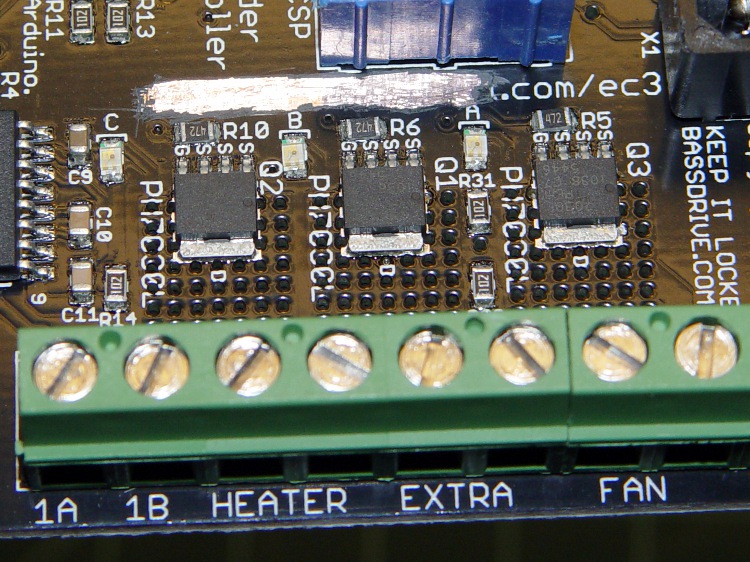
    Extruder Controller with scraped-off solder mask
    Extruder Controller with scraped-off solder mask

    Take care to not gouge through the copper plane and take extreme care to avoid the Gate traces and vias. I ground a flat end on that scalpel blade and used it as a scraper.

    Lay the board aside and work on the ATX supply’s four-pin video power connector, which looks like this.

    ATX power supply video connector
    ATX power supply video connector

    Note that there’s another four-pin connector that you removed from the end of the hulking 20-pin connector that plugs into the Thing-O-Matic Motherboard. That one has four different wire colors (black, red, orange, yellow) and won’t work here!

    Remove the pins from the connector housing. There’s a special tool that does this, but I used a defunct crochet needle. The trick is to poke a very skinny tool between the stamped-metal socket and the plastic housing to push in the spring tab that locks the socket in place. There are two spring tabs on opposite sides of each socket. This operation goes smoothly if you pull gently on the wire while poking the tabs; you can feel the socket move when the tab slides out of position.

    The end result will look like this, with a tab on the top surface.

    Dismantled video power connector
    Dismantled video power connector

    Clip off the two protruding tabs that hold the socket in the plastic housing against the tabs. Apply some heat-shrink tubing around each socket to get four little teeny connectors:
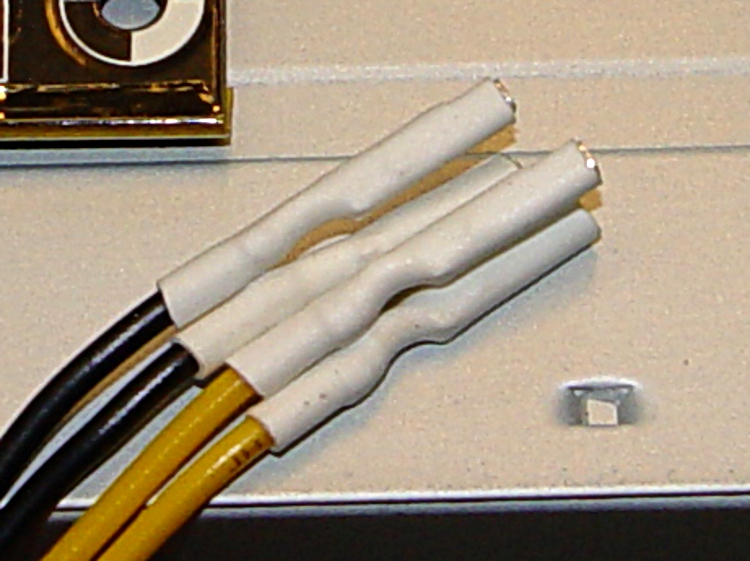
    Insulated video connector sockets
    Insulated video connector sockets

    The sockets mate, albeit with some persuasion, to 45-mil (1.14 mm) square pins that are not the smaller 25-mil pins found on pin header strips. My parts heap disgorged a handful of suitable right-angle pins in plastic strips, something like those; failing that, I’d harvest and gut a connector from dead PC system board. You could probably use some 16 or 18 AWG solid wire in a pinch, but the current is rather high for an impromptu arrangement.

    Solder two pins to the screw terminals on bottom of the PCB, angled slightly so the upright parts pass between the screw terminal openings on the side. The pins are on the Heater (for Extruder head) and Extra (for Heated Platform) terminals, with the jumper wire connecting the latter to the Fan (ABP belt motor) terminal; all are on the +12 V terminal of their respective pairs.

    The ABP belt motor connects to the other terminal of the Fan pair, which leads directly to the MOSFET Drain. You could omit the yellow jumper wire, but that’d be confusing if you ever wanted to use that MOSFET in the same way as the others.

    Extruder Controller with +12 V to screw terminals
    Extruder Controller with +12 V to screw terminals

    Solder the other two right-angle pins to the cleared strip on the top of the board, tinning the ground plane and pins before you solder them together. Don’t block access to the ICSP connector; you never know when you might need it! I put the angled ends of the pins to the right, as viewed from the screw terminal strip, which put the right-most pin exactly at the corner of the connector shell with barely enough room for the wire with socket + heatshrink. The end result should look like this:
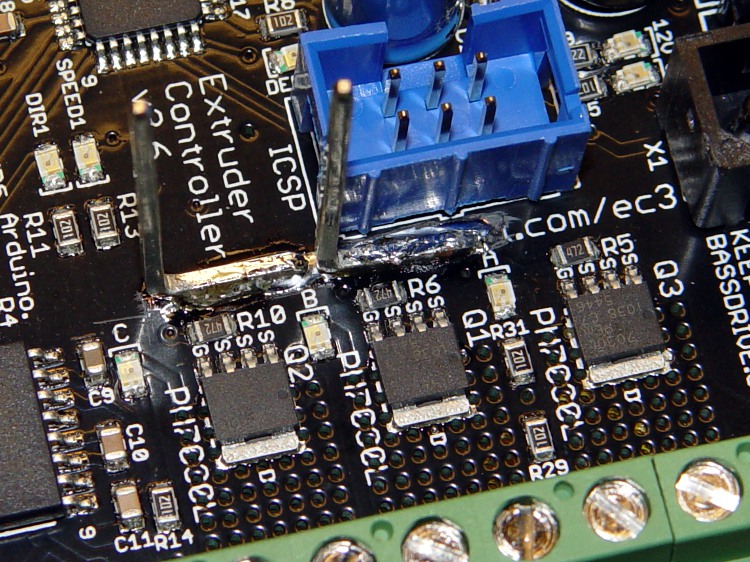
    Extruder Controller with added ground pins
    Extruder Controller with added ground pins

    Do a trial fit: plug in the four wires from the video power cable, noting that the Black wires connect to the top-side pins and the Yellow wires connect to the pins at the screw terminals. I trimmed the pins so they exactly fit into their sockets.

    Extruder Controller with separate +12 V supplies
    Extruder Controller with separate +12 V supplies

    This is certainly not the most robust construction method in the world. In particular, the pins on the top surface depend on structural solder to the ground plane; they have a fairly large area in contact with the board, but if you manage to apply enough force you can probably wreck the Extruder Controller board.

    Put the board back in the Thing-O-Matic, connect the modified video power wires, and plug / screw all the usual connections. Button it up, fire it up, and it should work exactly as before… but with better reliability.

    This modification should reduce the number of glitch-induced transient failures by moving most of the transient energy off the board; the remaining paths are very short. It will not correct excessive heat in the MOSFETS and does not cure the DC motor overcurrent jam / driver failure problems.
  • Thing-O-Matic: Extruder Controller Power Supply Improvement

    The Thing-O-Matic Extruder Controller uses a 7805 linear regulator to produce +5 V logic power from the +12 V input. Unfortunately, the board’s +12 V supply input is grossly overloaded: a single 20 AWG wire and Molex-style connector pin must supply several simultaneously active high-power loads:

    • 5 A → Extruder heater
    • 6 A → Build Platform heater
    • 1-2 A → Extruder motor

    The return current path to the ATX supply uses two pins and wires, so it contributes half as much to the problem. Molex connector pins aren’t rated for that much current (11 A @ 30 °C rise), so the +12 V supply arrives at the board in poor condition.

    Worse, the brushes on the DC Extruder motor introduce large switching transients, even without PWM speed-control chopping. The Extruder and Build Platform heaters also present somewhat inductive loads to their MOSFET switches that create significant switching transients. The 7805 regulator isn’t well-suited to removing high-voltage transients; its bandwidth isn’t high enough.

    This modification gives the Extruder Controller clean +5 V logic power by removing the 7805 regulator chip and connecting the +5 V pin at the power supply Molex-style connector directly to the PCB pad that was the regulator’s output pin.

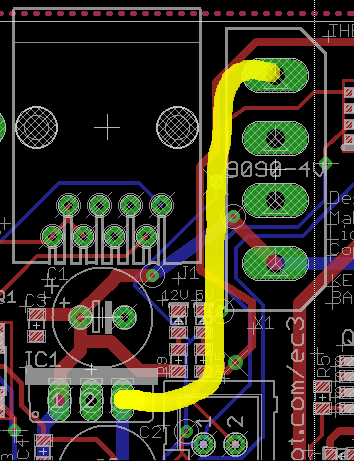
    This is what the modification looks like on the PCB layout.

    Extruder Controller board modification
    Extruder Controller board modification

    Unsolder the regulator and remove it, which will reveal the outline printed on the circuit board. This picture is rotated a quarter-turn counterclockwise from the PCB layout shown above.

    Extruder Controller minus 7805 regulator
    Extruder Controller minus 7805 regulator

    You’ll need a beefy soldering iron or an Old Skool soldering gun to make headway on the 7805′s center pin, because it’s firmly attached to the ground plane on both sides of the circuit board. A solder sucker and desoldering braid will come in handy to remove excess solder before extracting the regulator.

    Then connect a jumper from the Molex connector’s +5 V pin to Pin 3 of the 7805 regulator outline. The wire can be any size, because it carries minimal current to the logic circuitry; I used a strand stripped from a ribbon cable.

    Put the wire on the bottom of the board, because the connector pin isn’t accessible from the top. However, the trace at the regulator output pad is on the bottom where it’ll butt against the wire insulation, so make sure there’s a solder fillet between the wire and the pad.

    Extruder Controller with 5 V jumper
    Extruder Controller with 5 V jumper

    Reinstall the Extruder controller and marvel that nothing seems to have changed.

    The next modification to this board will move the heater power supplies off the board, but it’s a much more aggressive hack. This simple change should eliminate the random resets and crashes that seem to be plaguing the stock Extruder Controller board; it will not prevent burning out the DC motor controller chip.

  • Faking OpenGL 2.0 on Intel i945 Hardware

    OpenSCAD grumps about not finding OpenGL 2.0 whenever it starts up on my ancient laptop, which is tedious: that situation just isn’t going to change. Not a fatal error, although I do wonder what the OpenCSG rendering would look like.

    Anyhow, a bit of rummaging turns up a hack that’ll cause OpenSCAD to STFU and just start up. That doesn’t make OpenCSG work, which is pretty much not a problem for my simple needs.

    On Ubuntu-flavored distros, install driconf, then activate two options (in the Performance and Debugging tabs, respectively):

    • Enable limited ARB_fragment_shader support on 915/945
    • Enable stub ARB_occlusion_query support on 915/945

    And then It Just Works…


  • Cabin Fever Tchotchke: Engraved Dog Tag

    Once again I’m planning to attend the Cabin Fever Expo in York; my shop assistant says this year she won’t barf in the kitchen sink Thursday evening just before bedtime…

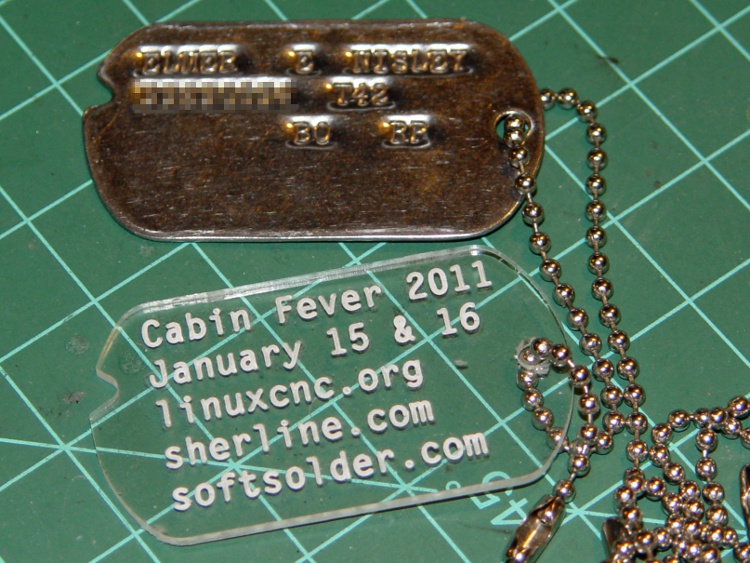
    If I’m going to haul a Sherline CNC setup that far and spend all day talking machining, I must have some tchotchkes / swag to talk about. We figured a small plastic dog tag with relevant URLs would be appropriate.

    Cabin Fever Dog Tag
    Cabin Fever Dog Tag

    I modeled the tag after my father’s WWII tag, including the mysterious notch. The rounded ends actually have three curves: two small fairing arcs blend the sides into the end cap.

    The G-Code routine figures out all the coordinates and suchlike from some basic physical measurements & guesstimates, so tweaking the geometery is pretty straightforward. There was a blizzard going on while I wrote it: a fine day to spend indoors hacking code.

    My assistant fired up Inkscape, laid out the text, figured out how to coerce G-Code out of Inkscape using the cnc-club.ru extension, then aligned it properly with the center of the chain hole as the origin on the right side. My routine calls the text G-Code file as a subroutine.

    The extension’s header and footer files wrap EMC2’s SUB / ENDSUB syntactic sugar around the main file. The default files include an M2 that kills off the program; took a while to track that one down.

    The header file:

    O<dogtagtext> SUB
    

    And the matching footer file:

    O<dogtagtext> ENDSUB
    

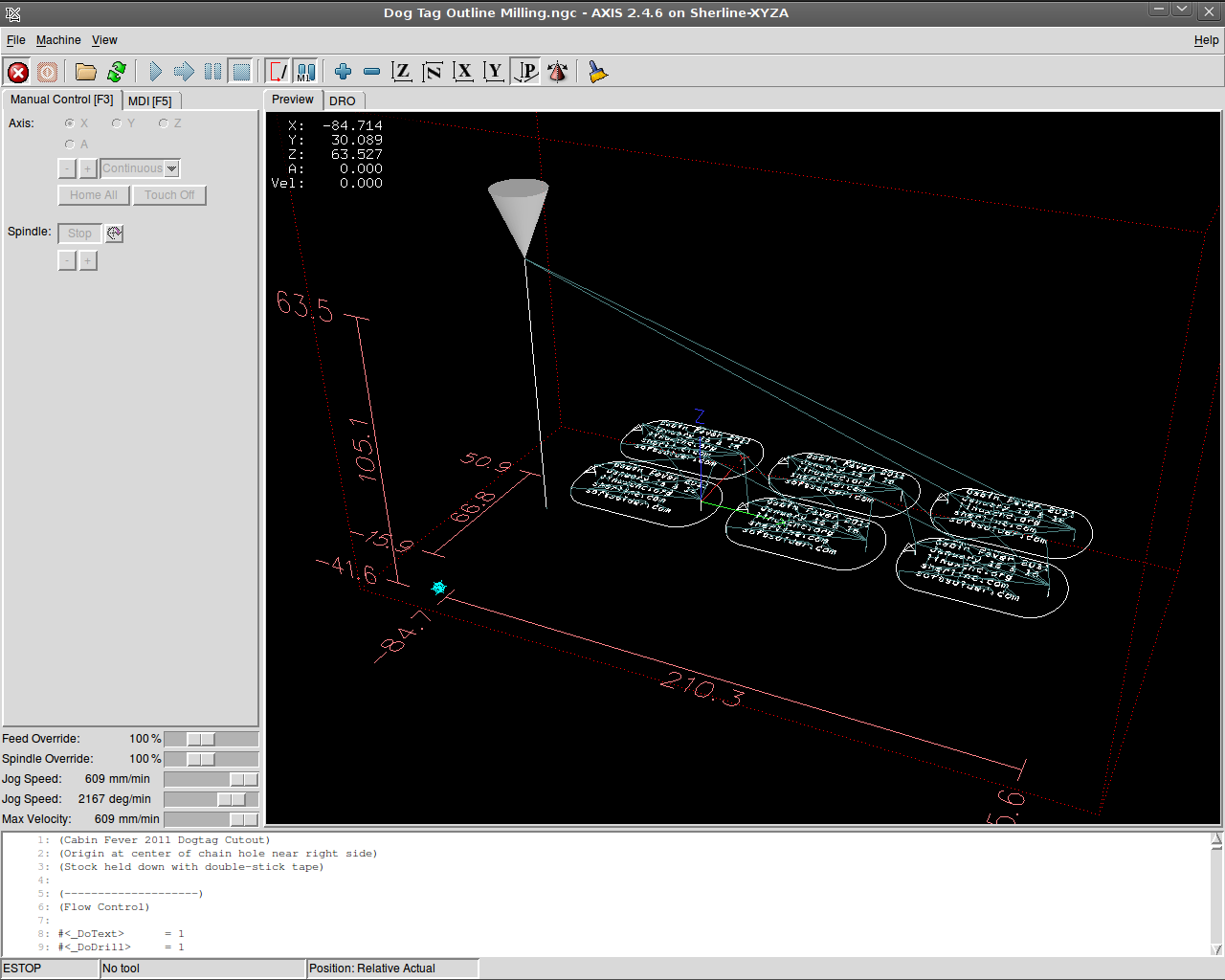
    The Inkscape-to-gcode instructions come out with absolute coordinates relative to the origin you define when you create the layout. The nested loops in my wrapper slap a G55 coordinate offset atop each label in turn, then call the subroutine.

    The result is pretty slick:

    Screenshot: AXIS Dog Tags
    Screenshot: AXIS Dog Tags

    I carved out that proof-of-concept label atop double-sided adhesive tape, but peeling off the goo is a real pain; a 2×3 array will be much worse. I’d rather do that than figure out how to clamp the fool things to the sacrificial plate, though.

    The engraving is 0.2 mm deep with a Dremel 30 degree tool. My shop assistant describes it as “disturbing” the acrylic, not actually engraving a channel. This isn’t entirely a Bad Thing, as the font isn’t quite a stick font and the outline of each character mushes together. We must fiddle with the font a bit more; she favors a boldified OCR-A look.

    Some lessons:

    • The Kate G-Code syntax highlighter isn’t down with EMC2’s dialect
    • Be very sure you touch off the workpiece origin in G54, not G55
    • Xylene doesn’t bother acrylic and works fine on tape adhesive
    • Symlinks aimed across an NFS link work fine in ~/emc2/nc_files/
    • That 2×3 array may be too big for the Sherline’s tooling plate
    • Tool length probing FTW!

    The G-Code:

    (Cabin Fever 2011 Dogtag)
    (Ed Nisley - KE4ZNU - December 2010)
    (Origin at center of chain hole near right side)
    (Stock held down with double-stick tape)
    
    (--------------------)
    (Flow Control)
    
    #<_DoText>      = 1
    #<_DoDrill>     = 1
    #<_DoMill>      = 1
    
    ( Sizes and Shapes)
    
    (-- Tag array layout)
    
    #<_NumTagsX>    = 3                         (number of tags along X axis)
    #<_NumTagsY>    = 2                         ( ... Y axis)
    
    #<_TagSpaceX>   = 60                        (center-to-center along X axis)
    #<_TagSpaceY>   = 35                        ( ... Y axis)
    
    (-- Tag Dimensions)
    
    #<_TagSizeX>    = 50.8                      (2.0 inches in WWII!)
    #<_TagSizeY>    = 28.6                      (1-1/8 inches)
    #<_TagSizeZ>    = 2.0
    
    #<_HoleOffsetX> = 4.0                       (hole center to right-side tag edge)
    
    #<_NotchSizeX>      = 3.5                   (locating notch depth from far left edge)
    #<_NotchCtrY>       = 5.0                   (locating notch from Y=0)
    
    #<_NotchAngleBot>   = 30                    (lower angle in notch)
    #<_NotchAngleTop>   = 45                    (upper angle in notch)
    
    (-- Fairing Curve Dimensions as offsets from end arc center)
    
    #<_EndFairR>    = [0.68 * #<_TagSizeY>]
    #<_CornerFairR> = [0.25 * #<_TagSizeY>]
    
    #<_PCRadius>    = [#<_EndFairR> - #<_CornerFairR>]
    #<_PCY>         = [[#<_TagSizeY> / 2] - #<_CornerFairR>]
    #<_PCTheta>     = ASIN [#<_PCY> / #<_PCRadius>]
    #<_PCX>         = [#<_PCRadius> * COS [#<_PCTheta>]]
    
    #<_P1Y>         = [#<_TagSizeY> / 2]                    (top / bottom endpoint)
    #<_P1X>         = #<_PCX>
    
    #<_P2X>         = [#<_EndFairR> * COS [#<_PCTheta>]]
    #<_P2Y>         = [#<_EndFairR> * SIN [#<_PCTheta>]]
    
    (-- Tooling)
    
    #<_TraverseZ>   = 1.0                       (safe clearance above workpiece)
    
    #<_DrillDia>    = 3.2                       (drill for hole and notch)
    #<_DrillNum>    = 1                         ( ... tool number)
    #<_DrillRadius> = [#<_DrillDia> / 2]
    #<_DrillFeed>   = 200                       (drill feed for holes)
    #<_DrillRPM>    = 3000
    
    #<_MillDia>     = 3.2                       (mill for outline)
    #<_MillNum>     = 1                         ( ... tool number)
    #<_MillRadius> = [#<_MillDia> / 2]
    #<_MillFeed>    = 150                       (tool feed for outlines)
    #<_MillRPM>     = 5000
    
    #<_TextDia>     = 0.1                       (engraving tool)
    #<_TextNum>     = 1
    #<_TextFeed>    = 600                       (tool feed for engraving)
    #<_TextRPM>     = 10000
    
    (-- Useful calculated values)
    
    #<_TagRightX>   = #<_HoleOffsetX>           (extreme limits of tag in X)
    #<_TagLeftX>    = [#<_TagRightX> - #<_TagSizeX>]
    
    #<_EndFairRtX>  = [#<_TagRightX> - #<_EndFairR>]
    #<_EndFairLfX>  = [#<_TagLeftX> + #<_EndFairR>]
    
    #<_NotchCtrX>   = [#<_TagLeftX> + #<_NotchSizeX> - #<_DrillRadius>]
    
    (--------------------)
    (--------------------)
    ( Initialize first tool length at probe switch)
    (    Assumes G59.3 is still in machine units, returns in G54)
    ( ** Must set these constants to match G20 / G21 condition!)
    
    #<_Probe_Speed>     = 400            (set for something sensible in mm or inch)
    #<_Probe_Retract>   =   1            (ditto)
    
    O<Probe_Tool> SUB
    
    G49                     (clear tool length compensation)
    G30                     (move above probe switch)
    G59.3                   (coord system 9)
    
    G38.2 Z0 F#<_Probe_Speed>           (trip switch on the way down)
    
    G0 Z[#5063 + #<_Probe_Retract>]     (back off the switch)
    
    G38.2 Z0 F[#<_Probe_Speed> / 10]    (trip switch slowly)
    
    #<_ToolZ> = #5063                    (save new tool length)
    
    G43.1 Z[#<_ToolZ> - #<_ToolRefZ>]    (set new length)
    
    G54                     (coord system 0)
    G30                     (return to safe level)
    
    O<Probe_Tool> ENDSUB
    
    (-------------------)
    (-- Initialize first tool length at probe switch)
    
    O<Probe_Init> SUB
    
    #<_ToolRefZ> = 0.0      (set up for first call)
    
    O<Probe_Tool> CALL
    
    #<_ToolRefZ> = #5063    (save trip point)
    
    G43.1 Z0                (tool entered at Z=0, so set it there)
    
    O<Probe_Init> ENDSUB
    
    (--------------------)
    (Start machining)
    
    G40 G49 G54 G80 G90 G94 G97 G98     (reset many things)
    
    G21                                 (metric!)
    
    (msg,Verify G30.1 position in G54 above tool change switch)
    M0
    (msg,Verify XYZ=0 touched off at left front tag hole center on surface)
    M0
    
    O<Probe_Init> CALL
    T0 M6                           (clear the probe tool)
    
    (-- Engrave Text)
    
    O<DoText> IF [#<_DoText>]
    
    (msg,Insert engraving tool)
    T#<_TextNum> M6         (load engraving tool)
    O<Probe_Tool> CALL
    
    F#<_TextFeed>
    S#<_TextRPM>
    
    (debug,Set spindle to #<_TextRPM>)
    M0
    
    G0 X0 Y0                (get safely to first tag)
    G0 Z#<_TraverseZ>       (to working level)
    
    G10 L20 P2 X0 Y0 Z#<_TraverseZ>         (set G55 origin to 0,0 at this point)
    G55                                     (activate G55 coordinates)
    
    O3000 REPEAT [#<_NumTagsX>]
    
    O3100 REPEAT [#<_NumTagsY>]
    
    O<dogtagtext> CALL
    
    G0 X0 Y0
    G10 L20 P2 Y[0 - #<_TagSpaceY>]         (set Y orgin relative to next tag in +Y direction)
    
    O3100 ENDREPEAT
    
    G10 L20 P2 X[0 - #<_TagSpaceX>] Y[[#<_NumTagsY> - 1] * #<_TagSpaceY>] (next to +X, Y to front)
    
    O3000 ENDREPEAT
    
    G54                                     (bail out of G55 coordinates)
    
    (-- Drill holes)
    
    O<DoDrill> IF [#<_DoDrill>]
    
    T0 M6
    (msg,Insert drill)
    T#<_DrillNum> M6
    O<Probe_Tool> CALL
    
    F#<_DrillFeed>
    S#<_DrillRPM>
    
    #<_DrillZ> = [0 - #<_TagSizeZ> - #<_DrillRadius>]
    
    (debug,Set spindle to #<_DrillRPM>)
    M0
    
    G0 X0 Y0                (get safely to first tag)
    G0 Z#<_TraverseZ>       (to working level)
    
    #<IndexX> = 0
    O1000 DO
    
    #<IndexY> = 0
    O1100 DO
    
    #<TagOriginX> = [#<IndexX> * #<_TagSpaceX>]
    #<TagOriginY> = [#<IndexY> * #<_TagSpaceY>]
    
    G81 X#<TagOriginX> Y#<TagOriginY> Z#<_DrillZ> R#<_TraverseZ>
    G81 X[#<TagOriginX> + #<_NotchCtrX>] Y[#<TagOriginY> + #<_NotchCtrY>] Z#<_DrillZ> R#<_TraverseZ>
    
    #<IndexY> = [#<IndexY> + 1]
    O1100 WHILE [#<IndexY> LT #<_NumTagsY>]
    
    #<IndexX> = [#<IndexX> + 1]
    O1000 WHILE [#<IndexX> LT #<_NumTagsX>]
    
    G30     (go home)
    
    O<DoDrill> ENDIF
    
    (-- Machine outlines)
    
    O<DoMill> IF [#<_DoMill>]
    
    T0 M6                   (eject drill)
    (msg,Insert end mill)
    T#<_MillNum> M6         (load mill)
    O<Probe_Tool> CALL
    
    F#<_MillFeed>
    S#<_MillRPM>
    
    (debug,Set spindle to #<_MillRPM>)
    M0
    
    G0 X0 Y0                (get safely to first tag)
    G0 Z#<_TraverseZ>       (to working level)
    
    G10 L20 P2 X0 Y0 Z#<_TraverseZ>         (set G55 origin to 0,0 at this point)
    G55                                     (activate G55 coordinates)
    
    O2000 REPEAT [#<_NumTagsX>]
    
    O2100 REPEAT [#<_NumTagsY>]
    
    G0 X[#<_NotchCtrX>] Y[#<_NotchCtrY>]     (get to center of notch hole)
    G0 Z[0 - #<_TagSizeZ>]                      (down to cutting level)
    
    G91                                         (relative coordinate for notch cutting)
    G1 X[0 - #<_NotchSizeX>] Y[0 -  #<_NotchSizeX> * TAN [#<_NotchAngleBot>]]
    G1 X[0 + #<_NotchSizeX>] Y[0 +  #<_NotchSizeX> * TAN [#<_NotchAngleBot>]]
    G1 X[0 - #<_NotchSizeX>] Y[0 +  #<_NotchSizeX> * TAN [#<_NotchAngleTop>]]
    G90                                         (back to abs coords)
    
    G42.1 D#<_MillDia>                          (cutter comp to right)
    G1 X[#<_TagLeftX>] Y0                       (comp entry move to tip of left endcap)
    
    G3 X[#<_EndFairLfX> - #<_P2X>] Y[0 - #<_P2Y>] I[#<_EndFairR>] J0    (left endcap front half)
    
    G3 X[#<_EndFairLfX> - #<_P1X>] Y[0 - #<_P1Y>] I[#<_P2X> - #<_PCX>] J[#<_P2Y> - #<_PCY>]
    
    G1 X[#<_EndFairRtX> + #<_P1X>]                                      (front edge)
    
    G3 X[#<_EndFairRtX> + #<_P2X>] Y[0 - #<_P2Y>] I0 J[#<_CornerFairR>]
    
    G3 X[#<_EndFairRtX> + #<_P2X>] Y[#<_P2Y>] I[0 - #<_P2X>] J[#<_P2Y>]    (right endcap)
    
    G3 X[#<_EndFairRtX> + #<_P1X>] Y[#<_P1Y>] I[#<_PCX> - #<_P2X>] J[#<_PCY> - #<_P2Y>]
    
    G1 X[#<_EndFairLfX> - #<_P1X>]                                      (rear edge)
    
    G3 X[#<_EndFairLfX> - #<_P2X>] Y[#<_P2Y>] I0 J[0 - #<_CornerFairR>]
    
    G3 X[#<_EndFairLfX> - #<_P2X>] Y[0 - #<_P2Y>] I[#<_P2X>] J[0 - #<_P2Y>]    (left endcap complete)
    
    G0 Z#<_TraverseZ>
    
    G40
    
    G0 X0 Y0
    G10 L20 P2 Y[0 - #<_TagSpaceY>]         (set Y orgin relative to next tag in +Y direction)
    
    O2100 ENDREPEAT
    
    G10 L20 P2 X[0 - #<_TagSpaceX>] Y[[#<_NumTagsY> - 1] * #<_TagSpaceY>] (next to +X, Y to front)
    
    O2000 ENDREPEAT
    
    G54                                     (bail out of G55 coordinates)
    
    G30         (go home)
    
    O<DoMill> ENDIF
    
    M2


    The doodles leading to the equations:

    Dog Tag Geometry Doodles
    Dog Tag Geometry Doodles

    We’ll see you there!

  • Makerbot Thing-O-Matic MK5 Extruder: Resistor Abuse!

    Having a Thing-O-Matic on order, I’d been browsing the doc and came upon the MK5 extruder specs, which uses a pair of 25 W resistors (* wrong: see bottom) similar to the 50 W resistors I’ve been building into the Hot Box Disinsector oven.

    Aluminum housed resistors
    Aluminum housed resistors

    However, the head puts the two 5 Ω resistors in parallel, directly across the +12 V supply: each 25 W (* see bottom) resistor dissipates 29 W. To make matters worse, the heater block is wrapped in ceramic cloth tape thermal insulation, bundled up in Kapton, and servo-controlled to something over 200 °C.

    What’s wrong with that picture?

    Here’s the note I put up on the Google MakerBot Operator’s group a few days ago, with slightly cleaned-up formatting:

    ———————–

    MK5 / Thing-O-Matic Heater Problems

    My TOM is on order, halfway through its 7-week leadtime. In the meantime, I’ve been reading the mailing lists and poring over the documentation. One thing stands out: a disturbing number of “my MK5 extruder stopped heating” problems.

    Right up front, I’m not slagging the folks at MakerBot. I attended Botacon Zero, toured their “factory”, and ordered a Thing-O-Matic the next day. This is my contribution to tracking down what looks like a problem, ideally before my TOM runs into it. I *want* to be shown that my analysis is dead wrong!

    What follows is, admittedly, a technical read, but that’s what I *do*.

    Background

    The heater uses two 5-ohm 25-watt panel-mount resistors in parallel across the 12 V supply to raise the thermal core to well over 200 C. Some folks run their extruders at 225 C, which seems to be near the top end of the heater’s range.

    The resistors are standard items from several manufacturers. The datasheets can be downloaded from:

    KAL (Stackpole) http://www.seielect.com/Catalog/SEI-kal.pdf
    Dale (Vishay) http://www.vishay.com/doc?30201 (will download a PDF)
    Ohmite http://www.ohmite.com/catalog/pdf/89_series.pdf

    Possible Problems

    My back-of-the-envelope calculations suggest several problems with the heater, all of which combine to cause early failures.

    1) Too much power

    Putting 12 V across a 5 ohm resistor dissipates 28.8 W. Allowing for 0.5 V drop in the wiring, it’s still 26.5 W.

    That exceeds the resistor’s 25 W rating, not by a whole lot, and might be OK at room temperature, but …

    2) No temperature derating

    The 25 W power rating applies only when mounted to the heatsink specified in the datasheet at 25 C ambient temperature. Above that temperature, the maximum allowed power decreases linearly to 2.5 W at 250 C: 0.1 W/C.

    When the resistor is not mounted to a heatsink, its maximum free-air rating is 12.5 W. That limit declines by 0.044 W/C to the same 2.5 W limit at 250 C.

    What this means: at 200 C *and* mounted on a heatsink, the resistors must not dissipate more than 4.7 W. The MK5 heater runs them at 28 W, six times their 200 C rating, and they’re not on a heatsink.

    3) Excessive heat

    The resistors will always be hotter than the thermal core: they are being used as heaters. The temperature difference depends on the “thermal resistance” of the gap between the resistor body and the core.

    The MK5 resistors are dry mounted without thermal compound, so the gap consists largely of air.

    I recently measured the thermal resistance of the 50 W version of these resistors on an aluminum heatsink using ThermalKote II compound in the gap. In round numbers, the thermal resistance is about 0.2 C/W: at 28 W the resistors will be 6 C hotter than the thermal core.

    The default air-filled gap to the MK5 thermal core will make the resistors *much* hotter than that. With the core at 225 C, the resistors will probably heat beyond their 250 C absolute maximum operating temperature.

    4) Insulation

    The datasheet ratings for the resistors assume mounting on a heatsink in a given ambient temperature, so that the resistors can dump heat to the heatsink (that’s why it’s called a *sink*) and to the surrounding air. The MK5 thermal core and resistors live inside ceramic insulation and Kapton tape, specifically to prevent heat loss.

    Conclusion

    The resistors operate with far too much power at too high a temperature, inside a hostile environment with too much thermal resistance to the core. They will fail at a high rate because they are being operated far beyond their specifications.

    Given that, the failures I’ve read here over the last few weeks aren’t
    surprising. Some links:

    http://groups.google.com/group/makerbot/msg/6a2a49bb02f0702f
    http://groups.google.com/group/makerbot/msg/aaa3ee724177fe15
    http://groups.google.com/group/makerbot/msg/b28f1524e36055eb
    http://groups.google.com/group/makerbot/msg/764f4c7196feb5cb
    http://groups.google.com/group/makerbot/msg/a92cf3e8ab7e235c

    This picture (linked from the first message) shows a severely burned resistor slug:

    http://img.skitch.com/20101108-nhrj8rjx68ffxrdq6p2fgwjcqx.jpg

    I do not know what fraction of the MK5 extruders those messages represent. There are about 1000 members of this group, but not everybody has a MK5 extruder head. Assuming 250 MK5 heads, that’s a 2% failure rate.

    The number of problem reports seem to be increasing in recent weeks, but that can be a fluke.

    Observations

    Depending on the room temperature, a MK5 thermal core can probably reach operating temperature with only one functional resistor, but it will take much longer than normal.

    Indeed, I suspect some of the “my MK5 has difficulty extruding” problems may come from a thermal core that’s nominally at operating temperature, but with one dead resistor: the steel block is cooler on the side with the failed resistor. The thermistor reports the temperature at the block’s surface, not inside where the plastic actually melts.

    It’s entirely possible that a resistor failure can lead to an extruder motor failure: too-cool plastic → difficult extrusion → high motor load → extruder motor failure. That’s a guess, but it seems reasonable.

    Diagnosis

    The symptoms fall into two categories, with what I think are the obvious causes:

    Slow heating = one resistor failed
    No heat at all = both resistors failed

    To discover what’s happened, disconnect the heater power cable from the extruder controller, then measure the resistance across the wires. You should find one of three situations:

    1) 2.5 ohms = both resistors good = normal condition
    2) 5 ohms = one failed resistor
    3) Open circuit = two failed resistors

    The resistance value may vary wildly if you move the wires at the extruder head, because a failed resistor element can make intermittent contact. If you measure the resistance at the extruder controller connector end of the cable, leaving the thermal core alone, you should get more stable results.

    What to do

    Given that the resistors operate under such hostile conditions, I think there’s not much you can do to make them happier. Some untested ideas:

    1) Use the remainder of the anti-seize thread lube as thermal compound between the resistors and the thermal core. It’ll stink something awful until the oil boils off, but ought to keep the resistors significantly cooler by improving heat transfer to the core. Standard PC CPU thermal compound (Arctic Silver, et al) deteriorates well below 225 C, so it probably won’t survive in this environment.

    2) Rearrange the thermal wrap to expose the ends of the resistor leads, which will cool the resistor element end plugs and reduce the deformation causing the slug to work loose inside the aluminum shell.

    3) Use thicker connecting wire, without insulation, outside the thermal wrap, to dump more heat from the resistor leads.

    The last two changes will cause more heat loss from the thermal core which means the controller will turn the resistors on more often. Perhaps reducing the thermal stress on the weakest part of the resistors will delay the failures, but I don’t know.

    When my TOM arrives, I’ll instrument the thermal core with a handful of thermocouples, measure what’s going on inside, try some of those ideas, and report back.

    If you get there first, I’d like to know what you find!

    ———————–

    * From above

    Now, as it turns out, my TOM arrived on Christmas Eve! Given the usual holiday distractions, I’m only now getting down to construction & measurements, but one thing pops right out: contrary to what I’d assumed / read somewhere, those resistors are rated for 10 W at 25 C. Everything I wrote above applies to 25 W resistors: the situation is actually much worse: a 10 W resistor dissipating 30 W while tucked inside an insulating blanket?

    This is not going to have a happy outcome…

    [Update: The story continues there.]

  • Recycled Heatsink: Hole Plugs

    I actually did get around to plugging the holes directly under the power resistors on those heatsinks, even though we all know it makes absolutely no difference whatsoever.

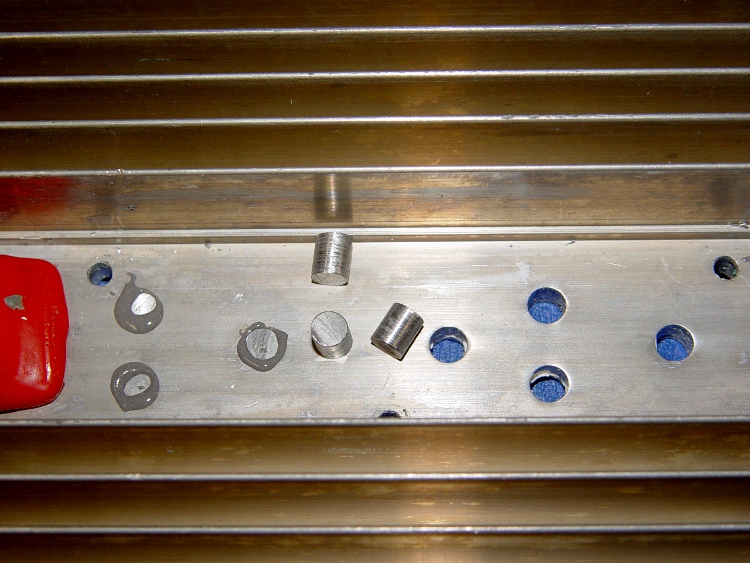
    Heatsink hole plugs
    Heatsink hole plugs

    Start with some 5/16-inch aluminum rod, face and center-drill one end, turn down about two inches to a scant 0.200 inch diameter, saw off a stub on the end.

    Grab the stub in the 3-jaw Sherline chuck clamped to the mill table and slice off 0.240 inch slugs using a teeny slitting saw and manual CNC.

    No pix of the setup, for reasons that made sense at the time, but that project gives you the general idea.

    Repeat three times to get 3 x 6 = 18 slugs, plus a few spares.

    Clean out the heatsink holes, clamp a bar (covered with tape) on the flat side, butter up the holes & slugs with JB Weld epoxy, squish ’em in place, scrape off the excess epoxy after a few hours.

    Actually, this was a thinly veiled excuse to get my shop assistant some Quality Shop Time on the lathe and CNC mill. Wouldn’t you do the same?

  • From Peanuts to Chips: EMC2 on the Atom

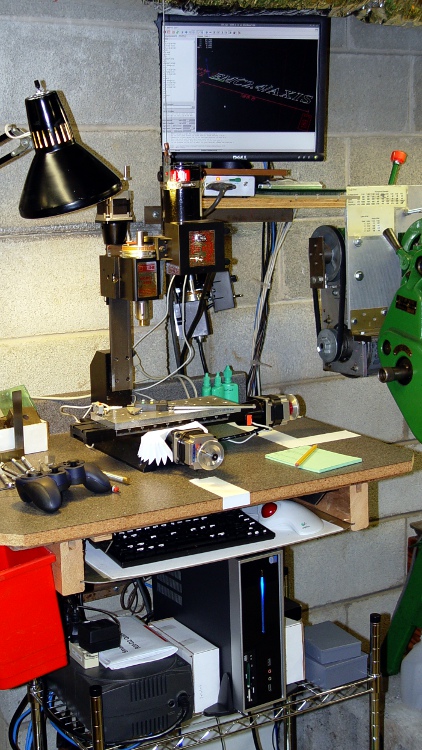
    Sherline CNC with Foxconn D520 Atom
    Sherline CNC with Foxconn D520 Atom

    Before I forget, here’s how one gets from packing peanuts to a running EMC2 installation:

    The hardware:

    The PC won’t need a CD after it’s up and running, but it’s easiest to boot/install from a CD. Get a random SATA CD drive from eBay or, more usefully, a USB-to-SATA/IDE converter, harvest an IDE CD drive from a old donor box, plug it into the Foxconn box, and tweak the BIOS to boot from that USB device.

    Install Ubuntu 10.04 (not the current 10.10) from CD. I use the mini-iso CD (link to Overview), which has the advantage of fetching the current version of everything from the Ubuntu site. You can putz around making a bootable USB image, which is cute, but the USB-to-IDE drive adapter will come in handy for other things.

    Toward the end of the installation you get a list of configurations and packages to install. Pick Ubuntu desktop, down near the bottom of the list. Include SSH server if you want to do remote maintenance.

    Install / tweak / twiddle to set up some comfort items:

    • NFS shares to the file server holding my CNC files
    • Desktop sharing so I can dry-run from a warmer chair
    • Screen backdrop on file server to show network is running
    • Browser plugins & so forth

    When that’s done, aim Firefox at the EMC2 wiki, and follow the instructions to download & run the script that installs EMC2.

    Then devote one of the CPU cores to the real-time kernel, although the new GRUB2 bootloader is less tweak-friendly. Reboot, select that kernel, and away you go.

    Run the EMC2 Latency Test to be sure everything is OK.

    Run the StepConf Wizard to generate a config file suitable for the new machinery.

    This set of hints & tips may be helpful for new-to-Ubuntu machinists.

    Lest all this seem like a lot of hocus pocus, remember that you’re
    becoming a system integrator with your fingers on all the knobs and
    buttons normally hidden behind the “Do Not Open: No User Serviceable Parts Inside” covers.

    You could, of course, pay somebody to do this for you… [grin]