The Smell of Molten Projects in the Morning

Ed Nisley's Blog: Shop notes, electronics, firmware, machinery, 3D printing, laser cuttery, and curiosities. Contents: 100% human thinking, 0% AI slop.

Category: Software

General-purpose computers doing something specific

  • Juki TL-2010Q: COB LED Light Bar

    Mary needed more light under the arm of her Juki TL-2010Q sewing machine, so I proposed a 12 V 6 W COB LED module instead of the high-density LED strips I used on her Kenmore 158s:

    Kenmore 158 Sewing Machine - Cool white LEDs - rear no flash
    Kenmore 158 Sewing Machine – Cool white LEDs – rear no flash

    Because the COB LEDs dissipate 6W, far more power than I’m comfortable dumping into a 3D printed structure, I redefined a length of aluminum shelf bracket extrusion to be a heatsink and epoxied the module’s aluminum back plate thereto:

    Juki TL-2010Q COB LED - test lighting
    Juki TL-2010Q COB LED – test lighting

    Unlike the flexible LED strips, the COB LED modules have no internal ballast resistors and expect to run from a constant-current supply. Some preliminary testing showed we’d want less than the maximum possible light output, so a constant-voltage supply and a few ohms of ballast would suffice:

    Juki TL-2010Q COB LED - ballast resistor test
    Juki TL-2010Q COB LED – ballast resistor test

    With all that in hand, the heatsink extrusion cried out for smooth endcaps to control the wires and prevent snagging:

    TL-2010Q COB LED Light Bars - end caps - Show layout
    TL-2010Q COB LED Light Bars – end caps – Show layout

    The central hole in the left cap passes 24 AWG silicone wires from the power supply, with 28 AWG silicone wires snaking down through the L-shaped rectangular cutouts along the extrusion to the LED module’s solder pads.

    The model includes built-in support:

    TL-2010Q COB LED Light Bars - end caps - Build layout
    TL-2010Q COB LED Light Bars – end caps – Build layout

    Assuming the curved ends didn’t need support / anchors holding them down turned out to be completely incorrect:

    Juki TL-2010Q COB LED - curled endcaps
    Juki TL-2010Q COB LED – curled endcaps

    Fortunately, those delicate potato chips lived to tell the tale and, after a few design iterations, everything came out right:

    Juki TL-2010Q COB LED - heatsink endcap - internal connections
    Juki TL-2010Q COB LED – heatsink endcap – internal connections

    The “connector”, such as it is, serves to make the light bar testable / removable and the ballast resistor tweakable, without going nuts over the details. The left side is an ordinary pin header strip held in place with hot melt glue atop the obligatory Kapton tape, because the heatsink doesn’t get hot enough to bother the glue. The right side is a pair of two-pin header sockets, also intended for PCB use. The incoming power connects to one set and the ballast resistor to the other, thusly:

    Juki TL-2010Q COB LED - light bar connector diagram
    Juki TL-2010Q COB LED – light bar connector diagram

    The diagram is flipped top-to-bottom from the picture, but you get the idea. Quick, easy, durable, and butt-ugly, I’d say.

    The next step was to mount it on the sewing machine and steal some power, but that’s a story for another day.

    The relevant dimensions for the aluminum extrusion:

    Aluminum shelf bracket extrusion - dimensions
    Aluminum shelf bracket extrusion – dimensions

    The OpenSCAD source code as a GitHub Gist:

    // Juki TL-2010Q Sewing Machine – COB LED Light Bars
    // Ed Nisley – KE4ZNU
    // 2019-01
    /* [Layout Options] */
    Layout = "Build"; // [Bracket,Endcap,Show,Build]
    Wiring = [1,0]; // left and right wire holes
    BuildSupport = true;
    /* [Extrusion Parameters] */
    ThreadWidth = 0.40;
    ThreadThick = 0.20;
    HoleWindage = 0.2;
    Protrusion = 0.1;
    //—–
    // Shelf bracket used as LED heatsink
    /* [Hidden] */
    LEDPlate = [15.0,2.4]; // 2D coords from end of LED
    BktOuter = [15.9,12.6 + LEDPlate.y]; // 2D coords as seen from end of extrusion
    BktWalls = [1.3,2.2 + LEDPlate.y]; // … extend base to cover LED
    BktCap = [2.5,3.0];
    BracketPoints = [
    [0,0],
    [BktOuter.x,0],
    [BktOuter.x,BktOuter.y],
    [(BktOuter.x – BktCap.x),BktOuter.y],
    [(BktOuter.x – BktCap.x),(BktOuter.y – BktCap.y)],
    [(BktOuter.x – BktWalls.x),(BktOuter.y – BktCap.y)],
    [(BktOuter.x – BktWalls.x),BktWalls.y],
    [BktWalls.x,BktWalls.y],
    [BktWalls.x,(BktOuter.y – BktCap.y)],
    [BktCap.x,(BktOuter.y – BktCap.y)],
    [BktCap.x,BktOuter.y],
    [0,BktOuter.y],
    [0,0]
    ];
    BracketPlugInsert = 10.0; // distance into bracket end
    WireOD = 1.6; // COB LED jumpers – 24 AWG silicone
    WireOC = BktOuter.x – 2*BktWalls.x – WireOD;
    echo(str("Wire OC: ",WireOC));
    CableOD = 4.0; // power entry cable
    CapSides = 2*3*4;
    //—–
    // Useful routines
    module PolyCyl(Dia,Height,ForceSides=0) { // based on nophead's polyholes
    Sides = (ForceSides != 0) ? ForceSides : (ceil(Dia) + 2);
    FixDia = Dia / cos(180/Sides);
    cylinder(r=(FixDia + HoleWindage)/2,
    h=Height,
    $fn=Sides);
    }
    //—–
    // Endcap with smooth rounding
    // Wires = true to punch holes for LED wires
    module Endcap(Wires = true) {
    // arc length to flatten inside of cap
    // not needed to build in normal orientation
    m = BktOuter.x/2 – sqrt(pow(BktOuter.x/2,2) – pow(BktOuter.x – 2*BktCap.x,2)/4);
    difference() {
    translate([0,0,BktOuter.y/2]) // basic endcap shape
    intersection() {
    cylinder(d=BktOuter.x,h=BktOuter.y,$fn=CapSides,center=true);
    rotate([90,0,0])
    rotate(180/CapSides)
    cylinder(d=BktOuter.y,h=BktOuter.x,$fn=CapSides,center=true);
    }
    translate([-BracketPlugInsert,0,0]) // extrusion + LED plate
    Bracket(BracketPlugInsert);
    if (false) // flatten inner end
    translate([-BktOuter.y + m,0,BktOuter.y/2])
    cube([BktOuter.y,BktOuter.x,BktOuter.y],center=true);
    if (Wires) {
    for (j=[-1,1]) // COB LED connections
    translate([WireOD – BktOuter.x/2,j*WireOC/2,(BktWalls.y + WireOD – Protrusion)/2])
    rotate([0,00,0])
    cube([BktOuter.x,WireOD + Protrusion,BktWalls.y + WireOD + Protrusion],center=true);
    translate([0,0,BktOuter.y/2]) // power entry / exit
    rotate([0,90,0])
    translate([0,0,-BktOuter.x])
    rotate(180/6)
    PolyCyl(CableOD,2*BktOuter.x,6);
    }
    }
    }
    // Totally ad-hoc support structures
    module Support(Wiring = false) {
    Spacing = 4*ThreadWidth;
    NumBars = floor((BktOuter.y/2) / Spacing);
    echo(str("Support bars: ",NumBars));
    color("Yellow") {
    render() difference() {
    union() {
    for (i=[1:NumBars]) // inside extrusion
    translate([-i*Spacing,0,(BktWalls.y + WireOD)/2])
    cube([2*ThreadWidth,BktOuter.x – 0*BktWalls.x,BktWalls.y + WireOD],center=true);
    if (true)
    for (j=[-1:1]) // reduce outside curve uplift
    translate([0.3*BktOuter.y,j*BktOuter.x/3,BktOuter.y/10])
    cube([BktOuter.y/3,2*ThreadWidth,BktOuter.y/5],center=true);
    }
    minkowski() { // all-around clearance
    Endcap(Wiring);
    cube(2.0*ThreadThick,center=true);
    }
    if (Wiring) {
    translate([0,0,BktOuter.y/2]) // remove rubble from wire bore
    rotate([0,90,0])
    translate([0,0,-BktOuter.x])
    rotate(180/6)
    PolyCyl(CableOD,2*BktOuter.x,6);
    }
    }
    if (false)
    translate([-(BktOuter.x/4 + ThreadWidth),0,ThreadThick/2]) // adhesion pad
    cube([BktOuter.x/2,BktOuter.x – BktWalls.x,ThreadThick],center=true);
    // translate([BktOuter.x/3,0,ThreadThick/2]) // adhesion pad
    // cube([0.3*BktOuter.x,0.7*BktOuter.x,ThreadThick],center=true);
    if (false)
    for (j = [-1:1]) // tie pad to bottom of cap
    translate([-(4*ThreadWidth)/2,j*(BktOuter.x – 2*ThreadWidth)/2,ThreadThick/2])
    cube([4*ThreadWidth,2*ThreadWidth,ThreadThick],center=true);
    }
    }
    //—–
    // Heatsink extrusion + LED plate
    // Centered on Y with Length extending in +X
    module Bracket(Length = 10)
    translate([0,-BktOuter.x/2,0])
    rotate([90,0,90])
    linear_extrude(height = Length,convexity=3)
    polygon(points=BracketPoints);
    //—–
    // Build things
    if (Layout == "Bracket")
    Bracket();
    if (Layout == "Endcap")
    Endcap();
    if (Layout == "Show") {
    translate([BktOuter.x,0,0])
    Endcap(Wiring[1]);
    translate([-BktOuter.x,0,0])
    rotate(180)
    Endcap(Wiring[0]);
    color("Yellow",0.35)
    translate([-BktOuter.x/2,0,0])
    Bracket(BktOuter.x);
    }
    if (Layout == "Build") {
    translate([BktOuter.y,0,0]) {
    Endcap(Wiring[0]);
    if (BuildSupport)
    Support(Wiring[0]);
    }
    translate([-BktOuter.y,0,0]) {
    Endcap(Wiring[1]);
    if (BuildSupport)
    Support(Wiring[1]);
    }
    }

  • Vacuum Tube LEDs: Radome Prototype

    Definitely not a vacuum tube:

    Arduino Pro Mini - NP-BX1 cell - SK6812 - blue phase
    Arduino Pro Mini – NP-BX1 cell – SK6812 – blue phase

    It’s running the same firmware, though, with the Arduino Pro Mini and the LEDs drawing power from the (mostly) defunct lithium battery.

    The LED holder is identical to the Pirhana holder, with a 10 mm diameter recess punched into it for the SK6812 PCB:

    Astable Multivibrator Battery Holder - Neopixel PCB - Slic3r
    Astable Multivibrator Battery Holder – Neopixel PCB – Slic3r

    Those embossed legends sit in debossed rectangles for improved legibility. If I repeat it often enough, I’m sure I’ll remember which is which.

    The 3.6 V (and declining) power supply may not produce as much light from the SK6812 LEDs, but it’s entirely adequate for anything other than a well-lit room. The 28 AWG silicone wires require a bit of careful dressing to emerge from the holes in the radome holder:

    SK6812 LED PCB - Pirhana holder wiring
    SK6812 LED PCB – Pirhana holder wiring

    The firmware cycles through all the usual colors:

    Arduino Pro Mini - NP-BX1 cell - SK6812 - orange phase
    Arduino Pro Mini – NP-BX1 cell – SK6812 – orange phase

    A pair of tensilized 22 AWG copper wires support the Pro Mini between the rear struts. The whole affair looks a bit heavier than I expected, though, so I should reduce the spider to a single pair of legs with a third hole in the bottom of the LED recess for the data wire.

    The OpenSCAD source code needs some refactoring and tweaking, but the Pirhana LED solid model version of the battery holder should give you the general idea.

  • Vacuum Tube LEDs: Arduino Pro Mini vs. NP-BX1 Battery

    A year or so ago, a certain Young Engineer suggested my Vacuum Tube Lights really needed battery power and rebuffed my feeble objections concerning low LED intensity (3.6-ish V, not plug-in 5 V USB) and short run time (because three constantly lit LEDs draw too much current). Having a spare NP-BX1 holder lying about, here’s a feasibility study:

    Arduino Pro Mini - Neopixel - NP-BX1 battery
    Arduino Pro Mini – Neopixel – NP-BX1 battery

    Not much to it, eh?

    Hitching the DSO150 to a Tek current probe (which needs a 50 Ω load, thus the terminator on the BNC tee) seems a clear-cut case of a sow’s ear joining forces with a silk purse:

    DSO150 - Arduino Pro Mini - Neopixel current
    DSO150 – Arduino Pro Mini – Neopixel current

    It was just sitting there, so why not?

    Seen with a bit more detail on a better scope:

    Ard Mini - NP-BX1 - SK6812 - 10 mA-div
    Ard Mini – NP-BX1 – SK6812 – 10 mA-div

    Each vertical increment represents the current into a single LED (at 10 mA/div), with the PWM cycles ticking along at 1.3 kHz.

    The current steps aren’t the same height, because the LEDs have different forward voltages. The taller step (at the top) probably comes from the red LED, with the other two being blue and green. The maximum current is only 40 mA, not the 60 mA you’d expect with a 5 V supply.

    The PWM width, of course, determines the brightness of each LED. Eyeballometrically, the average current will be half of 40 mA for (just less than) half of each PWM cycle, so figuring each SK6812 module (there’s only one here) will draw 10 mA seems reasonable.

    The “base load” from the Arduino looks like 2 mA, so there’s not much point in removing its power and status LEDs.

    The NP-BX1 lithium cell has lost enough capacity to no longer power my Sony HDR-AS30V helmet camera for at least half of a typical ride. The camera draws around 1 A, so you can clearly see the defunct batteries:

    Sony NP-BX1 - 2018-04-24
    Sony NP-BX1 – 2018-04-24

    If the average voltage during discharge is 3.3. V, then a 10 mA load would be 33 mW and a defunct NP-BX1 battery with 2 W·h capacity (at 1 A) might provide 60 hours of continuous use. I’d expect more capacity at lower current, although it’s not clear the cells actually behave that way.

    So a battery-powered Vacuum Tube Light might make sense, perhaps as romantic illumination for techie snuggling:

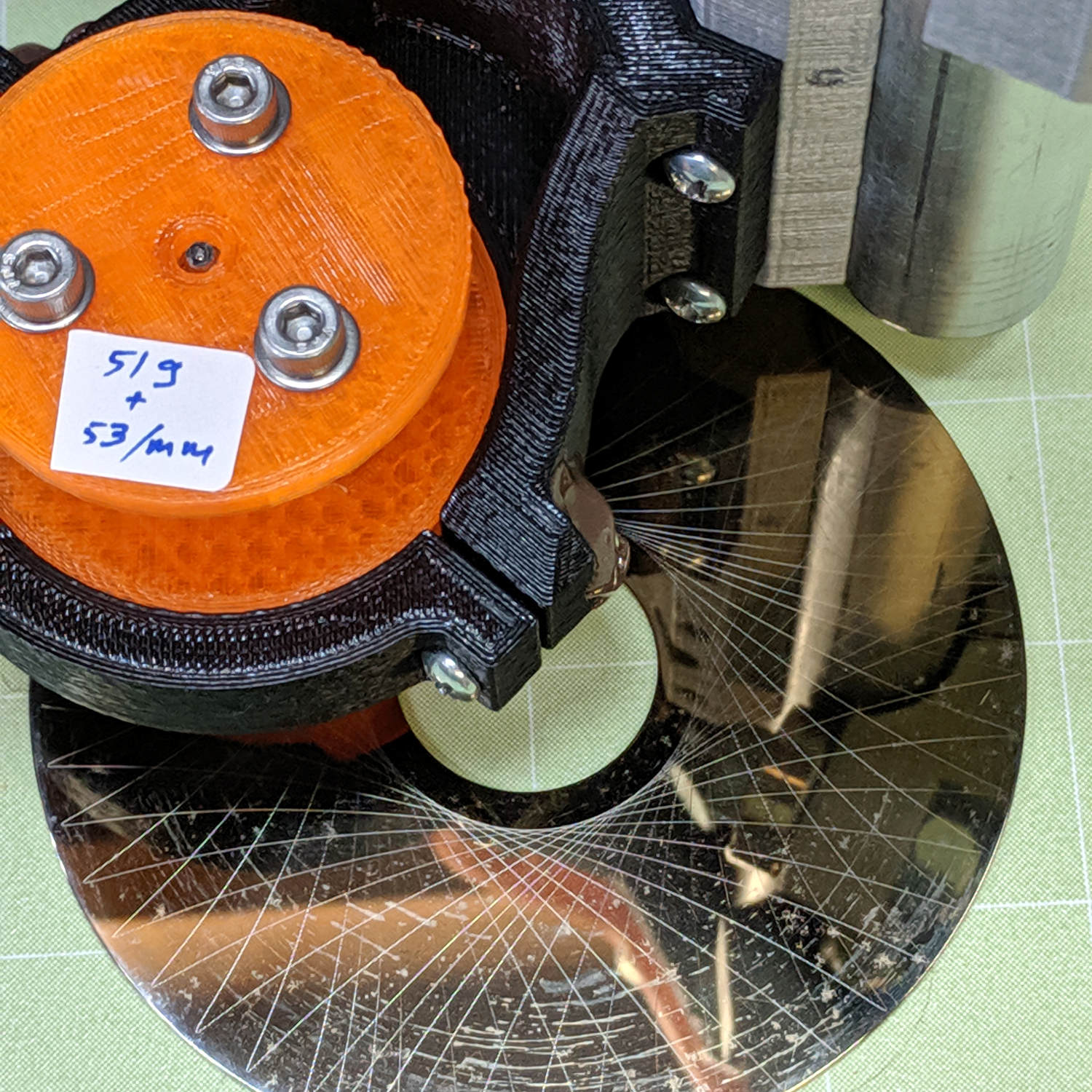
    21HB5A - Guilloche platter
    21HB5A – Guilloche platter

    Ya never know …

  • Encrypted Email: What Could Possibly Go Wrong?

    So this arrived from an email address similar to, yet not quite the same as, the URL of a physician’s office where I had an appointment a few days hence:

    Encrypted Email Message
    Encrypted Email Message

    My email client is set to prefer plain text, disallow remote content, and not open attachments, so that’s as far as it got. Donning asbestos work gloves and face mask, I pried open the message and its attached HTML file with the appropriate tools and found, as expected, scripts doing who-know-what.

    Called the office and, also as expected, was told my appointment time had been changed.

    Showed up, mentioned it to the doctor, and was told the office must check off many boxes to demonstrate its HIPAA compliance.

    Bottom line: HIPAA now requires patients (a.k.a., us) to open random attachments from random senders, all in the name of privacy.

    Banks do that, too.

  • Astable Multivibrator: Monochrome Pirhana LED

    The LED parts box disgorged some single-color Pirhana-style LEDs:

    Astable - 2N7000 - Mono Pirhana LED
    Astable – 2N7000 – Mono Pirhana LED

    Didn’t quite catch the blink, but the Ping-Pong ball radome lights up just as you’d expect.

    The radome sits on a stripped-down RGB LED spider:

    Astable Multivibrator Battery Holder - mono LED Spider - fit view
    Astable Multivibrator Battery Holder – mono LED Spider – fit view

    The circuitry is the same as the First Light version, with a 1 MΩ resistor stabilizing the LED ballast resistor:

    Astable - 2N7000 - Mono Pirhana LED - detail
    Astable – 2N7000 – Mono Pirhana LED – detail

    Those are 1 µF ceramic caps in the astable section, so I’m no longer abusing electrolytics, and a stylin’ 100 nF film cap metering out the LED pulse up above.

    Just for pretty, I’ve been using yellow / black wires for the battery connections and matching the LED color with its cathode lead.

    The OpenSCAD source code as a GitHub Gist:

    // Holder for Li-Ion battery packs
    // Ed Nisley KE4ZNU January 2013
    // 2018-11-15 Adapted for 1.5 mm pogo pins, battery data table
    // 2018-12 RGB LED spider, general cleanups
    /* [Layout options] */
    BatteryName = "NP-BX1"; // [NP-BX1,NB-5L,NB-6L]
    RGBCircuit = false; // false = 1 strut pair, true = 2 pairs
    Layout = "Spider"; // [Build,Show,Fit,Case,Lid,Pins,RGBSpider,Spider]
    /* [Extrusion parameters] – must match reality! */
    // Print with +2 shells and 3 solid layers
    ThreadThick = 0.25;
    ThreadWidth = 0.40;
    HoleWindage = 0.2;
    function IntegerMultiple(Size,Unit) = Unit * ceil(Size / Unit);
    function IntegerLessMultiple(Size,Unit) = Unit * floor(Size / Unit);
    Protrusion = 0.1; // make holes end cleanly
    /* [Hidden] */
    inch = 25.4;
    BuildOffset = 3.0; // clearance for build layout
    Gap = 2.0; // separation for Fit parts
    //- Basic dimensions
    WallThick = 4*ThreadWidth; // holder sidewalls
    BaseThick = 6*ThreadThick; // bottom of holder to bottom of battery
    TopThick = 6*ThreadThick; // top of battery to top of holder
    //- Battery dimensions – rationalized from several samples
    // Coordinate origin at battery corner with contacts, key openings downward
    T_NAME = 0; // Name must fit recess, so don't get loquacious
    T_SIZE = 1;
    T_CONTACTS = 2;
    T_KEYS = 3;
    BatteryData = [
    ["NP-BX1",[43.0,30.0,9.5],[[-0.75,6.0,6.2,"+"],[-0.75,16.0,6.2,"-"]],[[1.70,3.70,2.90],[1.70,3.60,2.90]]],
    ["NB-5L", [45.0,32.0,8.0],[[-0.82,4.5,3.5,"-"],[-0.82,11.0,3.5,"+"]],[[2.2,0.75,2.0],[2.2,2.8,2.0]]],
    ["NB-6L",[42.5,35.5,7.0],[[-0.85,5.50,3.05,"-"],[-0.85,11.90,3.05,"+"]],[[2.0,0.70,2.8],[2.0,2.00,2.8]]],
    ];
    echo(str("Battery: ",BatteryName));
    BatteryIndex = search([BatteryName],BatteryData,1,0)[0];
    echo(str(" Index: ",BatteryIndex));
    BatterySize = BatteryData[BatteryIndex][T_SIZE]; // X = length, Y = width, Z = thickness
    echo(str(" Size: ",BatterySize));
    Contacts = BatteryData[BatteryIndex][T_CONTACTS]; // relative to battery edge, front, and bottom
    echo(str(" Contacts: ",Contacts));
    ContactOC = Contacts[1].y – Contacts[0].y; // + and – terminals for pogo pin contacts
    ContactCenter = Contacts[0].y + ContactOC/2;
    KeyBlocks = BatteryData[BatteryIndex][T_KEYS]; // recesses in battery face set X position
    echo(str(" Keys: ",KeyBlocks));
    //- Pin dimensions
    ID = 0;
    OD = 1;
    LENGTH = 2;
    PinShank = [1.5,2.0,6.5]; // shank, flange, compressed length
    PinFlange = [1.5,2.0,0.5]; // flange, length included in PinShank
    PinTip = [0.9,0.9,2.5]; // extended spring-loaded tip
    WireOD = 1.7; // wiring from pins to circuitry
    PinChannel = WireOD; // cut behind flange for solder overflow
    PinRecess = 3.0; // recess behind pin flange end for epoxy fill
    echo(str("Contact tip dia: ",PinTip[OD]));
    echo(str(" .. shank dia: ",PinShank[ID]));
    OverTravel = 0.5; // space beyond battery face at X origin
    //- Holder dimensions
    GuideRadius = ThreadWidth; // friction fit ridges
    GuideOffset = 7; // from compartment corners
    LidOverhang = 2.0; // atop of battery for retention
    LidClearance = LidOverhang * (BatterySize.z/BatterySize.x); // … clearance above battery for tilting
    echo(str("Lid clearance: ",LidClearance));
    CaseSize = [BatterySize.x + PinShank[LENGTH] + OverTravel + PinRecess + GuideRadius + WallThick,
    BatterySize.y + 2*WallThick + 2*GuideRadius,
    BatterySize.z + BaseThick + TopThick + LidClearance];
    echo(str("Case size: ",CaseSize));
    CaseOffset = [-(PinShank[LENGTH] + OverTravel + PinRecess),-(WallThick + GuideRadius),0]; // position around battery
    ThumbRadius = 10.0; // thumb opening at end of battery
    CornerRadius = 3*ThreadThick; // nice corner rounding
    LidSize = [-CaseOffset.x + LidOverhang,CaseSize.y,TopThick];
    LidOffset = [0.0,CaseOffset.y,0];
    //- Wire struts
    StrutDia = 1.6; // AWG 14 = 1.6 mm
    StrutSides = 3*4;
    StrutBase = [StrutDia,StrutDia + 4*WallThick,CaseSize.z – TopThick]; // ID = wire, OD = buildable
    //StrutOC = [IntegerLessMultiple(BatterySize.x – StrutBase[OD],5.0), // set easy OC wire spacing
    // IntegerMultiple(CaseSize.y + StrutBase[OD],5.0)];
    StrutOC = [IntegerLessMultiple(CaseSize.x – 2*CornerRadius -2*StrutBase[OD],5.0),
    IntegerMultiple(CaseSize.y + StrutBase[OD],5.0)];
    StrutOffset = [CaseSize.x/2 + CaseOffset.x,BatterySize.y/2]; // from case centerlines
    StrutAngle = atan(StrutOC.y/StrutOC.x);
    echo(str("Strut OC: ",StrutOC));
    //- RGB / Pirhana / Neopixel-ish LEDs
    RGBBody = [8.0,8.0,5.0]; // Z = body height
    PixelPCB = [4.0,10.0,3.0]; // Neopixel-ish PCBs, ID = chip window
    RGBPin = 5.0; // pin length
    RGBPinsOC = [5.0,5.0]; // pin layout
    RGBRecess = RGBBody.z + RGBPin/2; // maximum LED recess depth
    BallOD = 40.0; // radome sphere
    BallSides = 4*StrutSides; // nice number of sides
    BallPillar = [norm([RGBBody.x,RGBBody.y]),
    norm([RGBBody.x,RGBBody.y]) + 4*WallThick,
    StrutBase[OD] + RGBBody.z];
    BallChordM = BallOD/2 – sqrt(pow(BallOD/2,2) – (pow(BallPillar[OD],2))/4);
    echo(str("Ball chord depth: ",BallChordM));
    //———————-
    // Useful routines
    module PolyCyl(Dia,Height,ForceSides=0) { // based on nophead's polyholes
    Sides = (ForceSides != 0) ? ForceSides : (ceil(Dia) + 2);
    FixDia = Dia / cos(180/Sides);
    cylinder(r=(FixDia + HoleWindage)/2,h=Height,$fn=Sides);
    }
    //——————-
    //– Guides for tighter friction fit
    module Guides() {
    translate([GuideOffset,-GuideRadius,0])
    PolyCyl(2*GuideRadius,(BatterySize.z – Protrusion),4);
    translate([GuideOffset,(BatterySize.y + GuideRadius),0])
    PolyCyl(2*GuideRadius,(BatterySize.z – Protrusion),4);
    translate([(BatterySize.x – GuideOffset),-GuideRadius,0])
    PolyCyl(2*GuideRadius,(BatterySize.z – Protrusion),4);
    translate([(BatterySize.x – GuideOffset),(BatterySize.y + GuideRadius),0])
    PolyCyl(2*GuideRadius,(BatterySize.z – Protrusion),4);
    translate([(BatterySize.x + GuideRadius),GuideOffset/2,0])
    PolyCyl(2*GuideRadius,(BatterySize.z – Protrusion),4);
    translate([(BatterySize.x + GuideRadius),(BatterySize.y – GuideOffset/2),0])
    PolyCyl(2*GuideRadius,(BatterySize.z – Protrusion),4);
    }
    //– Contact pins
    // Rotated to put them in their natural oriention
    // Aligned to put tip base / end of shank at Overtravel limit
    module PinShape() {
    translate([-(PinShank[LENGTH] + OverTravel),0,0])
    rotate([0,90,0])
    rotate(180/6)
    union() {
    PolyCyl(PinTip[OD],PinShank[LENGTH] + PinTip[LENGTH],6);
    PolyCyl(PinShank[ID],PinShank[LENGTH] + Protrusion,6); // slight extension for clean cuts
    PolyCyl(PinFlange[OD],PinFlange[LENGTH],6);
    }
    }
    // Position pins to put end of shank at battery face
    // Does not include recess access into case
    module PinAssembly() {
    union() {
    for (p = Contacts)
    translate([0,p.y,p.z])
    PinShape();
    translate([-(PinShank[LENGTH] + OverTravel) + PinChannel/2, // solder space
    ContactCenter,
    Contacts[0].z])
    cube([PinChannel,
    (Contacts[1].y – Contacts[0].y + PinFlange[OD]),
    PinFlange[OD]],center=true);
    for (j=[-1,1]) // wire channels
    translate([-(PinShank[LENGTH] + OverTravel – PinChannel/2),
    j*ContactOC/4 + ContactCenter,
    Contacts[0].z – PinFlange[OD]/2])
    rotate(180/6)
    PolyCyl(WireOD,CaseSize.z,6);
    }
    }
    //– Case with origin at battery corner
    module Case() {
    difference() {
    union() {
    difference() {
    union() {
    translate([(CaseSize.x/2 + CaseOffset.x), // basic case shape
    (CaseSize.y/2 + CaseOffset.y),
    (CaseSize.z/2 – BaseThick)])
    hull()
    for (i=[-1,1], j=[-1,1], k=[-1,1])
    translate([i*(CaseSize.x/2 – CornerRadius),
    j*(CaseSize.y/2 – CornerRadius),
    k*(CaseSize.z/2 – CornerRadius)])
    sphere(r=CornerRadius/cos(180/8),$fn=8); // cos() fixes undersize spheres!
    for (i= RGBCircuit ? [-1,1] : -1) { // strut bases
    hull()
    for (j=[-1,1])
    translate([i*StrutOC.x/2 + StrutOffset.x,j*StrutOC.y/2 + StrutOffset.y,-BaseThick])
    rotate(180/StrutSides)
    cylinder(d=StrutBase[OD],h=StrutBase[LENGTH],$fn=StrutSides);
    translate([i*StrutOC.x/2 + StrutOffset.x,StrutOffset.y,StrutBase[LENGTH]/2 – BaseThick])
    cube([2*StrutBase[OD],StrutOC.y,StrutBase[LENGTH]],center=true); // blocks for fairing
    for (j=[-1,1]) // hemisphere caps
    translate([i*StrutOC.x/2 + StrutOffset.x,
    j*StrutOC.y/2 + StrutOffset.y,
    StrutBase[LENGTH] – BaseThick])
    rotate(180/StrutSides)
    sphere(d=StrutBase[OD]/cos(180/StrutSides),$fn=StrutSides);
    }
    }
    translate([-OverTravel,-GuideRadius,0])
    cube([(BatterySize.x + GuideRadius + OverTravel),
    (BatterySize.y + 2*GuideRadius),
    (BatterySize.z + LidClearance + Protrusion)]); // battery space
    translate([BatterySize.x/2,BatterySize.y/2,0]) // recess around battery name
    cube([0.8*BatterySize.x,8,2*ThreadThick],center=true);
    translate([CaseOffset.x + CaseSize.x/2,BatterySize.y/2,-BaseThick + ThreadThick – Protrusion]) // recess around battery name
    cube([0.75*CaseSize.x,8,2*ThreadThick],center=true);
    }
    Guides(); // improve friction fit
    translate([-OverTravel,-GuideRadius,0]) // battery keying blocks
    cube(KeyBlocks[0] + [OverTravel,GuideRadius,0],center=false);
    translate([-OverTravel,(BatterySize.y – KeyBlocks[1].y),0])
    cube(KeyBlocks[1] + [OverTravel,GuideRadius,0],center=false);
    translate([BatterySize.x/2,BatterySize.y/2,-ThreadThick])
    linear_extrude(height=2*ThreadThick,convexity=10)
    text(text=BatteryName,size=5,spacing=1.20,font="Arial:style:Bold",halign="center",valign="center");
    translate([CaseOffset.x + CaseSize.x/2,BatterySize.y/2,-BaseThick])
    linear_extrude(height=2*ThreadThick + Protrusion,convexity=10)
    mirror([0,1,0])
    text(text="KE4ZNU",size=6,spacing=1.20,font="Arial:style:Bold",halign="center",valign="center");
    }
    translate([2*CaseOffset.x, // battery top access
    (CaseOffset.y – Protrusion),
    BatterySize.z + LidClearance])
    cube([2*CaseSize.x,(CaseSize.y + 2*Protrusion),2*TopThick]);
    for (i2 = RGBCircuit ? [-1,1] : -1) { // strut wire holes and fairing
    for (j=[-1,1])
    translate([i2*StrutOC.x/2 + StrutOffset.x,j*StrutOC.y/2 + StrutOffset.y,0])
    rotate(180/StrutSides)
    PolyCyl(StrutBase[ID],2*StrutBase[LENGTH],StrutSides);
    for (i=[-1,1], j=[-1,1])
    translate([i*StrutBase[OD] + (i2*StrutOC.x/2 + StrutOffset.x),
    j*StrutOC.y/2 + StrutOffset.y,
    -(BaseThick + Protrusion)])
    rotate(180/StrutSides)
    PolyCyl(StrutBase[OD],StrutBase[LENGTH] + 2*Protrusion,StrutSides);
    }
    translate([(BatterySize.x – Protrusion), // remove thumb notch
    (CaseSize.y/2 + CaseOffset.y),
    (ThumbRadius)])
    rotate([90,0,0])
    rotate([0,90,0])
    cylinder(r=ThumbRadius,
    h=(WallThick + GuideRadius + 2*Protrusion),
    $fn=22);
    PinAssembly(); // pins and wiring
    translate([CaseOffset.x + PinRecess + Protrusion,(Contacts[1].y + Contacts[0].y)/2,Contacts[0].z])
    translate([-PinRecess,0,0])
    cube([2*PinRecess,
    (Contacts[1].y – Contacts[0].y + PinFlange[OD]/cos(180/6) + 2*HoleWindage),
    2*PinFlange[OD]],center=true); // pin insertion hole
    }
    }
    // Lid position offset to match case
    // The polarity indicator recesses are pure bodges
    module Lid() {
    union() {
    difference() {
    translate([-LidSize.x/2 + LidOffset.x + LidOverhang,LidSize.y/2 + LidOffset.y,0])
    difference() {
    hull()
    for (i=[-1,1], j=[-1,1], k=[-1,1])
    translate([i*(LidSize.x/2 – CornerRadius),
    j*(LidSize.y/2 – CornerRadius),
    k*(LidSize.z – CornerRadius)]) // double thickness for flat bottom
    sphere(r=CornerRadius,$fn=8);
    translate([0,0,-LidSize.z/2]) // remove bottom
    cube([(LidSize.x + 2*Protrusion),(LidSize.y + 2*Protrusion),LidSize.z],center=true);
    translate([LidSize.x/8,0,0])
    cube([LidSize.x/4,0.75*LidSize.y,4*ThreadThick],center=true); // epoxy recess
    }
    translate([0,0,-(Contacts[0].z + PinFlange[OD])]) // punch wire holes
    PinAssembly();
    for (n=[0,1]) // polarity recesses
    translate([-LidOverhang/2 – 0.40,Contacts[n].y,LidSize.z – ThreadThick/2])
    cube([4,4.5,ThreadThick + Protrusion],center=true);
    }
    for (n=[0,1]) // polarity indicators
    translate([-LidOverhang/2,Contacts[n].y,LidSize.z – 1*ThreadThick]) // … proud of surface
    rotate(90)
    linear_extrude(height=2*ThreadThick,convexity=10)
    text(text=Contacts[n][3],size=5,font="Arial:style:Bold",halign="center",valign="center");
    }
    }
    // Spider for RGB LED + radome atop vertical struts
    module RGBSpider() {
    difference() {
    union() {
    for (i=[-1,1], j=[-1,1]) {
    translate([i*StrutOC.x/2,j*StrutOC.y/2,StrutBase[OD]/2])
    rotate(180/StrutSides) // doesn't quite match crosspieces; close enough
    sphere(d=StrutBase[OD]/cos(180/StrutSides),$fn=StrutSides);
    translate([i*StrutOC.x/2,j*StrutOC.y/2,0])
    rotate(180/StrutSides)
    cylinder(d=StrutBase[OD],h=StrutBase[OD]/2,$fn=StrutSides);
    }
    for (m=[-1,1]) // connecting bars
    rotate(m*StrutAngle)
    translate([0,0,StrutBase[OD]/4])
    cube([norm(StrutOC),StrutBase[OD],StrutBase[OD]/2],center=true);
    translate([0,0,0]) // pillar for RGB LED and ball
    cylinder(d=BallPillar[OD],h=BallPillar[LENGTH],$fn=BallSides);
    }
    for (i=[-1,1], j=[-1,1]) // strut wires
    translate([i*StrutOC.x/2,j*StrutOC.y/2,-Protrusion])
    rotate(0)
    PolyCyl(StrutBase[ID],StrutBase[OD]/2,6);
    for (m=[-1,1], n=[0,1]) // RGBA wires through bars
    rotate(m*StrutAngle + n*180)
    translate([StrutOC.x/3,0,-Protrusion])
    PolyCyl(StrutBase[ID],StrutBase[OD],6);
    translate([0,0,BallOD/2 + BallPillar[LENGTH] – BallChordM]) // ball inset
    sphere(d=BallOD);
    translate([0,0,2*RGBBody.z + (BallPillar[LENGTH] – BallChordM) – RGBRecess]) // LED inset
    cube(RGBBody + [HoleWindage,HoleWindage,3*RGBBody.z],center=true); // XY clearance + huge height for E-Z cut
    translate([0,0,StrutBase[OD]/2]) // Neopixel recess
    PolyCyl(PixelPCB[OD],3*RGBBody.z,BallSides/2);
    for (m=[-1,1]) // RGBA wires through pillar
    rotate(m*StrutAngle)
    translate([0,0,StrutBase[OD]/2 + WireOD/2 + 0*Protrusion])
    cube([norm(StrutOC)/2,WireOD,WireOD],center=true);
    }
    }
    // Spider for single LED atop struts, with the ball
    // Aligned to struts at terminal end of battery on Y axis
    module Spider() {
    difference() {
    union() {
    for (j=[-1,1]) {
    translate([-StrutOC.x/2,j*StrutOC.y/2,StrutBase[OD]/2])
    rotate(180/StrutSides)
    sphere(d=StrutBase[OD]/cos(180/StrutSides),$fn=StrutSides);
    translate([-StrutOC.x/2,j*StrutOC.y/2,0])
    rotate(180/StrutSides)
    cylinder(d=StrutBase[OD],h=StrutBase[OD]/2,$fn=StrutSides);
    }
    translate([-StrutOC.x/2,0,StrutBase[OD]/4]) // connecting bars
    cube([StrutBase[OD]*cos(180/StrutSides),StrutOC.y,StrutBase[OD]/2],center=true);
    translate([-StrutOC.x/2,0,0]) // pillar for RGB LED and ball
    cylinder(d=BallPillar[OD],h=BallPillar[LENGTH],$fn=BallSides);
    }
    for (j=[-1,1]) // strut wires
    translate([-StrutOC.x/2,j*StrutOC.y/2,-Protrusion])
    rotate(0)
    PolyCyl(StrutBase[ID],StrutBase[OD]/2,6);
    translate([-StrutOC.x/2,0,0]) // wires through bars
    for (n=[-1,1])
    rotate(n*90)
    translate([StrutOC.x/3,0,-Protrusion])
    PolyCyl(StrutBase[ID],StrutBase[OD],6);
    translate([-StrutOC.x/2,0,-Protrusion]) // center hole for Neopixel
    rotate(180/6)
    PolyCyl(StrutBase[ID],StrutBase[OD],6);
    translate([-StrutOC.x/2,0,BallOD/2 + BallPillar[LENGTH] – BallChordM]) // ball inset
    sphere(d=BallOD);
    translate([-StrutOC.x/2,0,2*RGBBody.z + (BallPillar[LENGTH] – BallChordM) – RGBRecess]) // LED inset
    cube(RGBBody + [HoleWindage,HoleWindage,3*RGBBody.z],center=true); // XY clearance + huge height for E-Z cut
    translate([-StrutOC.x/2,0,StrutBase[OD]/2]) // Neopixel recess
    PolyCyl(PixelPCB[OD],3*RGBBody.z,BallSides/2);
    translate([-StrutOC.x/2,0,StrutBase[OD]/2 + WireOD/2 + 0*Protrusion]) // wire channels
    cube([WireOD,StrutOC.y/2,WireOD],center=true);
    }
    }
    //——————-
    // Build it!
    if (Layout == "Case")
    Case();
    if (Layout == "Lid")
    Lid();
    if (Layout == "RGBSpider") {
    RGBSpider();
    }
    if (Layout == "Spider") {
    Spider();
    }
    if (Layout == "Pins") {
    color("Silver",0.5)
    PinShape();
    PinAssembly();
    }
    if (Layout == "Fit") { // reveal pin assembly
    difference() {
    Case();
    translate([(CaseOffset.x – Protrusion),
    Contacts[1].y,
    Contacts[1].z])
    cube([(-CaseOffset.x + Protrusion),CaseSize.y,CaseSize.z]);
    translate([(CaseOffset.x – Protrusion),
    (CaseOffset.y – Protrusion),
    0])
    cube([(-CaseOffset.x + Protrusion),
    Contacts[0].y + Protrusion – CaseOffset.y,
    CaseSize.z]);
    }
    translate([0,0,BatterySize.z + Gap])
    Lid();
    color("Silver",0.15)
    PinAssembly();
    if (RGBCircuit) {
    translate([StrutOC.x/2,BatterySize.y/2,2*BatterySize.z])
    difference() {
    RGBSpider();
    rotate(180-StrutAngle)
    translate([0,0,-Protrusion])
    cube([norm(StrutOC),StrutBase[OD],2*BallPillar.z],center=false);
    }
    color("Green",0.35)
    translate([StrutOC.x/2,BatterySize.y/2,2*BatterySize.z + BallOD/2 + BallPillar[LENGTH] – BallChordM])
    sphere(d=BallOD);
    }
    else {
    difference() {
    translate([StrutOC.x/2,BatterySize.y/2,2*BatterySize.z])
    Spider();
    translate([-BallPillar[OD],BatterySize.y/2,2*BatterySize.z – Protrusion])
    cube([BallPillar[OD],StrutOC.y,2*BallPillar.z],center=false);
    }
    color("Green",0.35)
    translate([0,BatterySize.y/2,2*BatterySize.z + BallOD/2 + BallPillar[LENGTH] – BallChordM])
    sphere(d=BallOD);
    }
    }
    if (Layout == "Build") {
    rotate(90) {
    translate([-BatterySize.x/2,-BatterySize.y/2,BaseThick])
    Case();
    translate([-CaseSize.x + LidSize.x,-(LidSize.y/2 + LidOffset.y),0])
    Lid();
    if (RGBCircuit)
    translate([StrutOC.x + BatterySize.x/2,0,0])
    RGBSpider();
    else
    translate([StrutOC.x + BatterySize.x/2,0,0])
    Spider();
    }
    }
    if (Layout == "Show") {
    Case();
    translate([0,0,(BatterySize.z + Gap)])
    Lid();
    color("Silver",0.25)
    PinAssembly();
    if (RGBCircuit) {
    translate([StrutOC.x/2,BatterySize.y/2,2*BatterySize.z])
    RGBSpider();
    color("Green",0.35)
    translate([StrutOC.x/2,BatterySize.y/2,2*BatterySize.z + BallOD/2 + BallPillar[LENGTH] – BallChordM])
    sphere(d=BallOD);
    }
    else {
    translate([StrutOC.x/2,BatterySize.y/2,2*BatterySize.z])
    Spider();
    color("Green",0.35)
    translate([0,BatterySize.y/2,2*BatterySize.z + BallOD/2 + BallPillar[LENGTH] – BallChordM])
    sphere(d=BallOD);
    }
    }

  • Debossed Printed Legends

    [Update: It seems I interchanged “em” and “de” throughout this post.  ]

    Up to this point, I’ve been labeling printed parts with emdebossed legends that look OK on the solid model:

    Astable Multivibrator Battery Holder
    Astable Multivibrator Battery Holder

    Alas, the recessed letters become lost in their perimeter threads:

    3D Printed Legend - Embossed
    3D Printed Legend – Embossed

    Raising the legend above the surface (“deembossing”) works reasonably well, but raised letters would interfere with sliding the battery into the holder and tend to get lost amid the surface infill pattern.

    The blindingly obvious solution, after far too long, raises the letters above a frame embossed into the surface:

    Astable Multivibrator Battery Holder - Legend Debossed
    Astable Multivibrator Battery Holder – Legend Debossed

    Which looks OK in the real world, too:

    3D Printed Legend - Debossed
    3D Printed Legend – Debossed

    The frame is one thread deep and the legend is one thread tall, putting the letters flush with the surrounding surface and allowing the battery to slide smoothly.

    The legend on the bottom surface shows even more improvement:

    NP-BX1 battery holder - Raised vs Recessed Legend
    NP-BX1 battery holder – Raised vs Recessed Legend

    An OpenSCAD program can’t get the size of a rendered text string, so the fixed-size frame must surround the largest possible text, which isn’t much of a problem for my simple needs.

  • Siglent SDM3045X Screen Shot File

    As with the Siglent SDS2304X oscilloscope, the SDM3045M multimeter delivers broken screen shot files over the network: the actual file size doesn’t match the BMP file size field, causing kvetching in subsequent use:

    [ed@shiitake tmp]$ lxi screenshot -a 192.168.1.41 -p siglent-sdm3000 test.bmp
    Saved screenshot image to test.bmp
    [ed@shiitake tmp]$ convert test.bmp test.png
    convert-im6.q16: length and filesize do not match `test.bmp' @ warning/bmp.c/ReadBMPImage/831.
    

    Files stored on a USB stick jammed into the meter’s front panel have the correct size, so it’s not clear where the fault lies.

    Because the files contain extra data following the (intact) image, it will display correctly:

    Astable - 2N7000 - IDSS cal
    Astable – 2N7000 – IDSS cal

    The BMP header contains the correct size at offset +0x02:

    lxi screenshot -a 192.168.1.41 -p siglent-sdm3000 test.bmp
    hexdump -C test.bmp | head
    00000000  42 4d 36 fa 05 00 00 00  00 00 36 00 00 00 28 00  |BM6.......6...(.|
    00000010  00 00 e0 01 00 00 10 01  00 00 01 00 18 00 00 00  |................|
    00000020  00 00 00 fa 05 00 00 00  00 00 00 00 00 00 00 00  |................|
    00000030  00 00 00 00 00 00 00 00  00 00 00 00 00 00 00 00  |................|
    

    The horizontal image size at +0x12 and vertical size at +0x6 are correct: the screen is 480×272 pixels. Each pixel has three bytes = 24 bits, as specified at +0x1C.

    So the file should contain 0x0005fa36 = 391734 bytes, but, as delivered, it’s much, much larger:

    ll --block-size=1 test.bmp
    -rw-rw-r-- 1 ed ed 1152054 Dec 26 08:45 test.bmp
    

    Oddly, 1552054 bytes is exactly the size the oscilloscope files should be. I have no explanation, although it looks like a copypasta error.

    As before, the simplest solution is to truncate the file and be done with it:

    #!/bin/bash
    lxi screenshot -a 192.168.1.41 -p siglent-sdm3000 /tmp/"$1".bmp
    truncate --size=391734 /tmp/"$1".bmp
    convert /tmp/"$1".bmp "$1".png
    echo Screenshot: "$1".png
    

    And then It Just Works:

    ~/bin/getsdm3045x.sh testfix
    Saved screenshot image to /tmp/testfix.bmp
    Screenshot: testfix.png
    

    Sheesh & similar remarks.