The Smell of Molten Projects in the Morning

Ed Nisley's Blog: Shop notes, electronics, firmware, machinery, 3D printing, laser cuttery, and curiosities. Contents: 100% human thinking, 0% AI slop.

Category: PC Tweakage

Remembering which tweaks worked

  • Epson R380 Printhead Clog: Teardown Failure

    So the Epson R380’s magenta printhead has clogged and cleaning it doesn’t have any effect. I figured I’d pop the printhead out, rinse off the crud, and see if that improved the situation. Turns out, you can’t get there from here…

    The first step is removing the printer side panels, which involves sliding a steel strip into the not-really-vent slots along the side to release the catches as described there. This picture shows what’s going on inside:

    R380 side panel locking tab release
    R380 side panel locking tab release

    You must hit that slot in the catch with the strip, so the strip must be no wider than 15 mm = 5/8 inch and tapering the end would certainly help. After I removed the panels, I broke those latch tabs off; the panel has locating tabs that align the edges, so the latch tabs just keep you out.

    In any rational printer, accessing the printhead for cleaning would be trivially easy. Epson has a different attitude: KEEP OUT!

    My original idea was to release the rod upon which the ink tank carrier slides, then pull the whole thing out, but it turns out the rod is also a shaft that transmits rotary motion from one side of the printer to the other, plus a mechanism to raise and lower the printhead over the cleaning station (and, perhaps, the DVD carrier that I’ve never used). A vast assortment of gears, clips, encoder wheels, and doodads affixed to each end convinced me not to go that route right now.

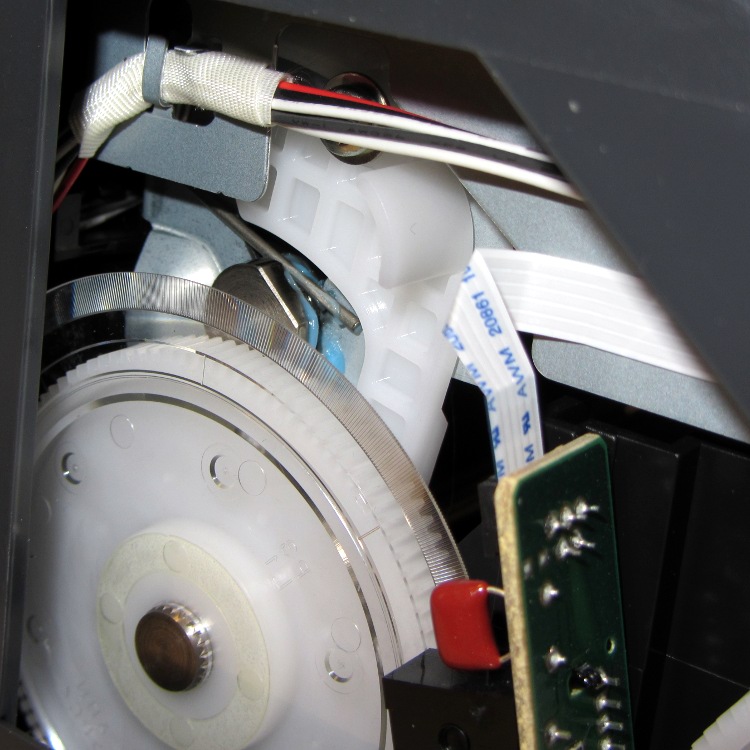
    The left side includes an impossibly delicate rotary encoder disk blocking the end of the shaft:

    R380 left side mechanism
    R380 left side mechanism

    Prying the spring out of the shaft notch allows it to slide to the right until another spring clip slams up against the inside of the frame on the right side. That clip may be pry-able, but it’s carefully arranged so as to be maximally inconvenient to reach.

    R380 right side interior
    R380 right side interior

    The ring holding the gear in place must be removable, somehow or another, even without an obvious hole or tab:

    R380 right side mechanism
    R380 right side mechanism

    With that encoder wheel blocking the left end of the rod, I gave up.

    Then I tried to dismantle enough of the ink tank carrier to release the printhead. The first step removed the tank carrier’s two side panels, both of which use pull-out clips to prevent them from sliding. A view of the removed panels shows the tabs:

    R380 Ink Tank Carrier side panels latches
    R380 Ink Tank Carrier side panels latches

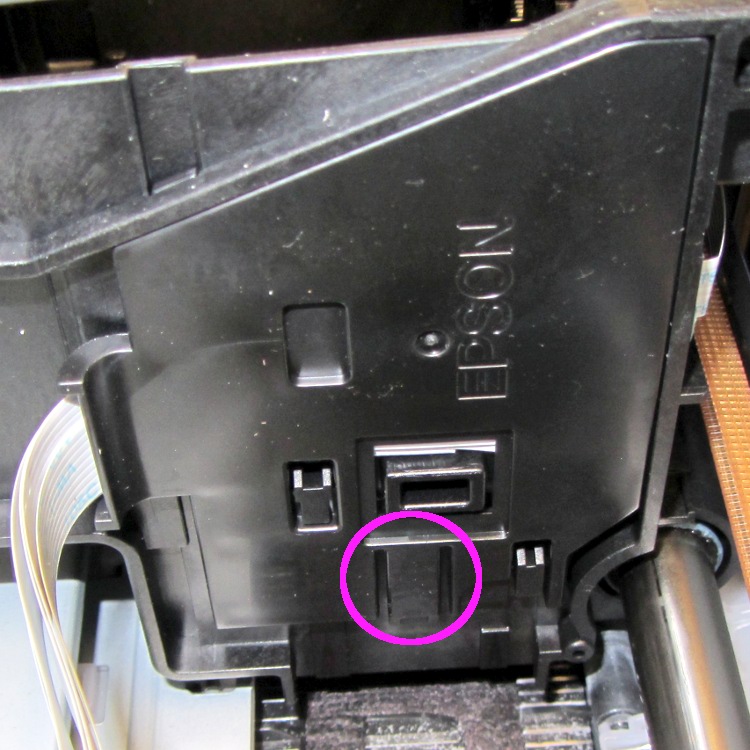
    The outside panel requires jamming a small screwdriver behind that tab at an awkward angle, then the panel slides downward:

    R380 Ink Tank Carrier - right side cover
    R380 Ink Tank Carrier – right side cover

    You can release the inside panel with a fingernail near the top of the (unmarked, but obvious) tab outlined in white on the far right side, then slide upward:

    R380 Ink Tank carrier - interior
    R380 Ink Tank carrier – interior

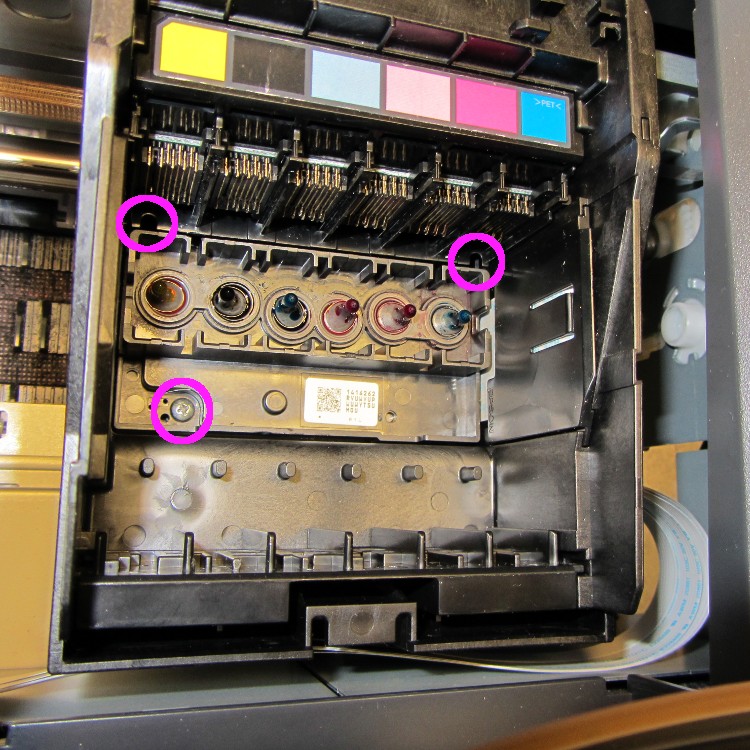
    The magenta circles mark three screws that secure the printhead plate to the carrier, but it won’t do you any good. The two rear screws require a narrow-shaft Philips #1 driver and you cannot get the screws out through the holes; I managed to get them back in place, but don’t loosen them until you figure out how to remove the assembly holding the electrical contacts for the ink tanks.

    That assembly, marked by the six color panels, slides vertically into the rear wall of the carrier and seems to have a latch on the rear wall of the tank carrier. Of course, you can’t access the latch without dismantling the damn printer.

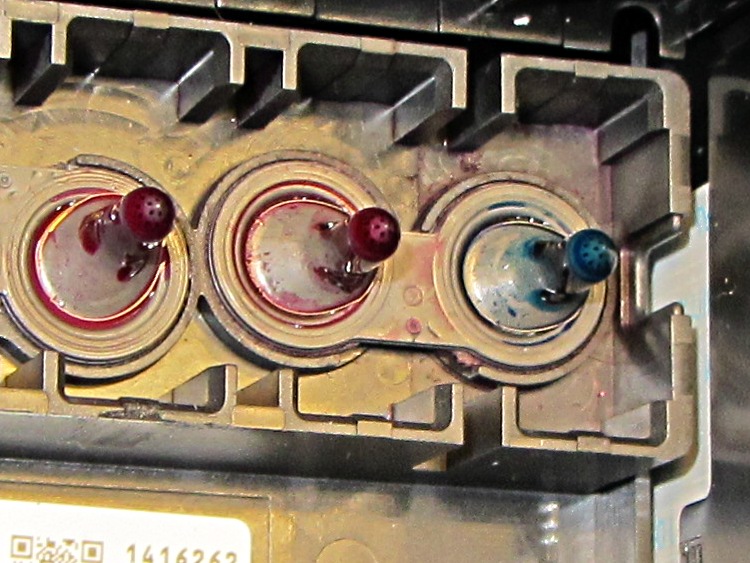
    So I put everything back together again and the printer works no worse than it did before. I’m considering connecting a syringe with length of tubing to the magenta inlet port, then forcing a toxic mix of water, alcohol, and detergent through the printhead:

    R380 printhead ink inlets
    R380 printhead ink inlets

    Given that the printer cost something like $15 after rebate, it’s pretty much fully depreciated by now…

  • Computer Amusements

    A friend asked me to scrub and rebuild an ancient IBM Thinkpad 760XD (there were good reasons for this task that aren’t relevant here), which led to a blast from the past:

    Windows 98 Welcome
    Windows 98 Welcome

    After Windows settled down from its obligatory reboots, installing the exceedingly complex MWave DSP drivers from three diskettes (!) produced this classic result:

    Windows 98 - BSOD
    Windows 98 – BSOD

    Ordinarily, I’d suggest installing some flavor of Linux, but the 760XD’s BIOS can’t boot from either CD or USB, so you’d be forced to sneak the install files onto the hard drive, hand-craft a suitable boot diskette (!), and then perpetrate some serious fiddling around. That made even less sense than (re-)installing Windows 98.

    However, given that exposing a fresh Windows 98 installation to the 2012 Internet would resemble tossing a duckling into a brush chipper, we agreed that this laptop’s next experience should be at an upcoming e-waste recycling event.

    The next morning confronted me with this delightful reminder that nobody knows how to handle boot-time errors, not even on a 2011 PC:

    Lenovo - USB Keyboard not found
    Lenovo – USB Keyboard not found

    The keyboard cable had gotten dislodged when the USB hub fell from its perch along the back edge of the desk. It’s fine now…

  • Windows XP Restoration

    Although Thanksgiving is Update Your Parents’ Browser Day, I ended up rebuilding their old Dell Dimension 2350 PC over their New Year visit: it had succumbed to a nasty case of bit rot. It may have had the odd malware infestation, although booting with the invaluable System Rescue CD and unleashing a ClamAV scan didn’t turn up anything exciting.

    I had full partition backups from August 2010, so I set up a new hard drive (well, an old drive from my heap, but new to them) with the restored partitions before they arrived, swapped it into the PC, then attempted to boot the Windows Recovery Console from their Windows CD to restore the MBR. Alas, I didn’t set the Dell Utility partition to type DE, thus throwing off the drive letter sequence, and the subsequent thrashing (including a steel-cage death match with fixboot and chkdsk) wrecked the Windows partition.

    Figuring that situation out from a simple NTLDR missing boot message took a while.

    But after restoring the partition again and doing the WRC dance, we had a perfectly serviceable Windows XP installation that inhaled a year’s worth of Windows updates in a surprisingly short process that required only a single (!) reboot. I tossed a bunch of obsolete & unused software over the side, emptied the Recycle bin, manually deleted a bunch of files in the various temporary directories, updated Firefox, installed LibreOffice, imported the Outlook Express address book from the rotted drive, did not import the email messages, and away they drove.

    I had suggested it was time for a new PC, but … maybe next time.

    Notes:

    • My USB-to-SATA adapter cable injected occasional read errors (which partimage caught), but a klunky drop-in-the-slot vertical desktop adapter worked OK.
    • A CHKDSK fixed one or more files message doesn’t really prepare you for the discovery that it obliterated the entire directory structure and left a vacant drive behind.
    • The PC had 512 MB of DDR RAM in two 256 MB sticks. I swapped in a 512 MB stick (harvested from an old PC on its way to the recycler) and, as you’d expect, 768 MB of RAM dramatically improved the poor thing’s attitude.
    • System Rescue CD is invaluable for this sort of thing.
    • What is it with Firefox being stuck at V3 forever, then ratcheting instantly to V9? Version envy?
  • Skeinforge: Simplified Plugin Selection Page

    The Skeinforge Craft window presents a formidable array of buttons, one for each possible plugin:

    Skeinforge standard
    Skeinforge standard

    I’ve disabled many of those plugins because, for example, limiting Z-axis speed isn’t relevant on my printer. If you’re sure you won’t use some of the plugins, remove them by editing /where-it's-installed/skeinforge_application/skeinforge_plugins/profile_plugins/extrusion.py thusly…

    In getCraftSequence(), located at about the midpoint of that file, duplicate the line that lists the plugins and add an octothorpe (OK, a hash) to make one line a Python comment, then remove the plugins you don’t care about from the other line:

    def getCraftSequence():
    	'Get the extrusion craft sequence.'
    #	return 'carve scale bottom preface widen inset fill multiply speed temperature raft skirt chamber tower jitter clip smooth stretch skin comb cool hop wipe oozebane splodge home lash fillet limit unpause dimension alteration export'.split()
    	return 'carve scale preface inset fill multiply speed temperature raft skirt jitter clip smooth skin cool dimension alteration export'.split()
    

    This being Python, do not change the indentation. If you get overenthusiastic and toss something useful overboard or just pine for the Good Old Days, swap the octothorpe to your modified line to restore the original plugin assortment.

    Save the result and you’ll see only the useful buttons:

    Skeinforge simplified
    Skeinforge simplified

    There, now, wasn’t that easy?

  • Enabling Remote Desktop Sharing in Xubuntu

    I set up Xubuntu 11.10 on the Dell 531S driving the Thing-O-Matic, as the Unity UI seems surprisingly like crippleware: every feature that isn’t mandatory is prohibited. However, Xubuntu’s XFCE UI also has a long list of things that should be easy and aren’t, such as enabling remote desktop sharing. Gotta have that so I can fire up the printer and monitor progress from upstairs.

    It turns out that the Vino server is installed, but not enabled, so you must start by firing up vino-preferences in a terminal to set some preferences:

    This is a local machine behind a firewall, so a moderately secure password with no confirmation will suffice. Your paranoia may vary.

    Then drill down through the menu from Settings Settings ManagerSession and Startup to the Application Autostart tab, then Add the Vino VNC Server to the list: /usr/lib/vino/vino-server. You can start it manually if you have the hots for immediate sharing.

    This seems to be impossible in Unity, trivially easy in GNOME, and unduly mysterious in XFCE.

  • VLC Startup Settings: Audio Sync

    While thrashing around with that DVD player, I finally figured out that VLC stores its configuration settings in ~/.config/vlc/vlcrc. I don’t know if it’s supposed to update that file automagically after twiddling the GUI config settings, but it doesn’t; I must manually edit the file to get a sticky change.

    Anyhow, the vital setting for that particular drive turns out to be audio synchronization, as set by the audio-desync parameter. The audio must lag the video by 400 ms, thusly:

    # Audio desynchronization compensation (integer)
    audio-desync=-400
    

    And then it Just Works…

  • External USB Case: DVD Overcurrent

    Well, it turns out that the DVD drive I stuffed into that case really does require a whole bunch of current. I tried playing a DVD and got erratic results, including weird keyboard (!) failures. Finally, I hitched a bench supply to the coaxial power jack on the case and caught it in the act:

    Laptop DVD - current display
    Laptop DVD – current display

    That jack normally connects to the power-only USB cable, which implies an upper limit of 100 mA. A bit of poking around inside shows that the coaxial power jack simply parallels the USB jack’s VCC line, so there’s no fancy negotiation or current sharing going on.

    When the keyboard went nuts it was sharing an unpowered USB hub with this thing, which means that the overcurrent dragged down the hub’s supply. I was permuting all the choices to see if the failures suggested anything; eventually it did.

    A bit of rummaging in the Basement Laboratory Warehouse Wing uncovered a 5.0 V 3.7 A wall wart switching power supply that is grossly in excess of the drive’s 1.5 A rating. Amazingly, it even had the correct coaxial power plug on the end of the cable, which never happens.

    Alas, because the external supply back-powers the USB data cable, it lights up the Q150’s power button when the PC is turned off. I think I can insert an isolation diode into the USB power trace to isolate it from the jack, somewhat along the lines of that hack. However, that seems to require removing the USB connector to uncover a very well protected top trace. For now, I’ll just unplug the drive.