The Smell of Molten Projects in the Morning

Ed Nisley's Blog: Shop notes, electronics, firmware, machinery, 3D printing, laser cuttery, and curiosities. Contents: 100% human thinking, 0% AI slop.

Category: PC Tweakage

Remembering which tweaks worked

  • Monthly Aphorism: On Improvements

    • You can rub and you can rub, but you can’t shine shit.

    Eks tells me that was one of his grandmother’s favorite sayings.

    He introduced me to the concept of a “used-car polish”: high shine over deep scratches. Sometimes, that’s exactly what the job requires.

    There’s also the notion of making a silk purse from a sow’s ear (attributed variously to Jonathan Swift and Anon), which someone actually did: render the ear down to a gel, extrude thread, loom cloth, and sew up a purse. Yes, it can be done, but there’s a practical limit in there somewhere.

    Contrary to what you might think, this has nothing to do with a certain Thing-O-Matic. A bit of laparoscopic surgery on our front yard just revealed that our septic leach field has filled with gunk; it’s 56 years old and hadn’t been pumped for two decades before we bought the place. The next week or two should be interesting: I can do the diagnosis, but I can’t handle this repair.

  • Setting KDE Menu Font Size in XFCE

    Just set up an Xubuntu system with a few KDE apps, all of which had minuscule menu fonts. The simple solution is described there and my version of ~/.kde/share/config/kdeglobals looks like this:

    [General]
    desktopFont=Bitstream Vera Sans,12,-1,5,50,0,0,0,0,0
    fixed=Bitstream Vera Sans Mono,10,-1,5,50,0,0,0,0,0
    font=Bitstream Vera Sans,12,-1,5,50,0,0,0,0,0
    menuFont=Bitstream Vera Sans,12,-1,5,50,0,0,0,0,0
    shadeSortColumn=true
    smallestReadableFont=Bitstream Vera Sans,8,-1,5,50,0,0,0,0,0
    taskbarFont=Bitstream Vera Sans,10,-1,5,50,0,0,0,0,0
    toolBarFont=Bitstream Vera Sans,10,-1,5,50,0,0,0,0,0
    widgetStyle=qtcurve
    

    And then It Just Works… the alternative being to drag in the whole KDE configuration tweakage infrastructure, which I’m trying to avoid.

  • Adobe Reader Print Colors

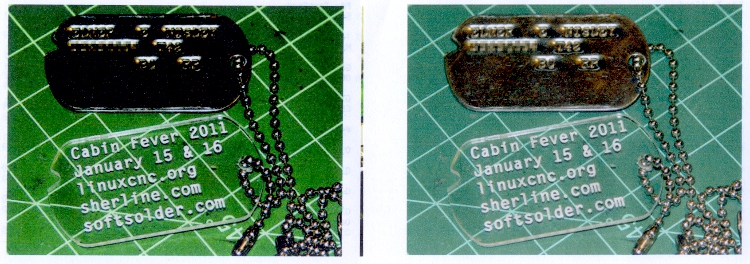
    While printing up handouts for my talk at Cabin Fever, I finally tracked down why Adobe Reader was producing such crappy colors.

    The left is before and the right is after the fix, scanned at the same time with the same image adjustments:

    Oversaturated vs normal printing
    Oversaturated vs normal printing

    All of the print settings appeared correct (plain paper, 720 dpi, normal contrast, etc, etc), but Adobe Reader (and only Adobe Reader) looked like it was trying to print on vastly higher quality paper than I was using. Too much ink, too much contrast, generally useless results.

    The solution was, as always, trivial, after far too much fiddling around.

    In Reader’s Print dialog, there’s a button in the lower-left corner labeled Advanced. Clicky, then put a checkmark in the box that says Let printer determine colors.

    And then It Just Works.

    Equally puzzling: ask for 25 copies of a two-page document, check the Collate box, and you get 25 page 1, 25 page 2, then more page 1 starts coming out. I bet I’d get 25 x 25 sheets of paper by the time it gave up.

    I have no idea what’s going on, either.

    Memo to Self: verify that the box stays checked after updates.

  • Installing OpenSCAD on Arch Linux

    This was more tedious than it ought to be, but OpenSCAD now runs on my desktop box and uses OpenGL 2.2, courtesy of a not too obsolete nVidia GeForce 9400 dual-head card.

    OpenSCAD has a slew of pre-reqs, most of which were already installed. However, the openscad and cgal non-packages live in the Arch AUR collection, so they required manual twiddling to install.

    The pre-reqs:

    • cgal, which in turn requires cmake via pacman
    • opencsg

    The recommended PKGBUILD patch is easy enough to do by hand.

    The final build step takes ten minutes using both cores, but the final result uses OpenCSG the way it should.

    Oddly, the OpenSCAD rendering process for the few objects I’ve checked takes longer than on the laptop. Weird.

    This does not get the most recent build from the developers, but it’s close enough for my simple needs right now. The mailing list archive is invaluable.

    Then there was the laptop saga. Maybe the reason the laptop is faster is that it’s not actually using OpenCSG at all.

  • ATX Power Supply Dual +12 V Outputs: Fakery Thereof

    I wondered if the Thing-O-Matic would benefit from having its two high-current heaters on a separate +12 V supply than the DC Extruder, after finding that the heaters dragged the +12 V output down by nearly half a volt.

    A bit of rummaging turned up a suitable ATX supply with a data plate that might justifiably lead one to believe that the supply provides separate +12 V outputs:

    Turbolink ATX-CW420W power supply data plate
    Turbolink ATX-CW420W power supply data plate

    There’s no indication which of the four connectors might use +12V1 and +12V2, but, being that sort of guy, I applied an ohmmeter to the various yellow wires and found they were all exactly 0.0 Ω apart.

    Huh.

    So I opened the Warranty Void If Seal Removed top cover and found this situation:

    ATX with fake dual 12 V supplies
    ATX with fake dual 12 V supplies

    Nota bene:

    • All the yellow wires terminate in the same solder blob below the PCB
    • Two incoming wires got neatly spliced together in mid-air, despite having free holes in the PCB

    This may not come as much of a shock: they lie…

    Perhaps if you spend more money on your supply, it’ll actually live up to the data plate specs. Then, again, perhaps you’ll just be spending more money.

    And, if you swap in a fancy supply for the MBI-stock one, it might not make much difference at all. I suspect the various power levels and current capacities have pretty much the same degree of integrity…

  • Faking OpenGL 2.0 on Intel i945 Hardware

    OpenSCAD grumps about not finding OpenGL 2.0 whenever it starts up on my ancient laptop, which is tedious: that situation just isn’t going to change. Not a fatal error, although I do wonder what the OpenCSG rendering would look like.

    Anyhow, a bit of rummaging turns up a hack that’ll cause OpenSCAD to STFU and just start up. That doesn’t make OpenCSG work, which is pretty much not a problem for my simple needs.

    On Ubuntu-flavored distros, install driconf, then activate two options (in the Performance and Debugging tabs, respectively):

    • Enable limited ARB_fragment_shader support on 915/945
    • Enable stub ARB_occlusion_query support on 915/945

    And then It Just Works…


  • From Peanuts to Chips: EMC2 on the Atom

    Sherline CNC with Foxconn D520 Atom
    Sherline CNC with Foxconn D520 Atom

    Before I forget, here’s how one gets from packing peanuts to a running EMC2 installation:

    The hardware:

    The PC won’t need a CD after it’s up and running, but it’s easiest to boot/install from a CD. Get a random SATA CD drive from eBay or, more usefully, a USB-to-SATA/IDE converter, harvest an IDE CD drive from a old donor box, plug it into the Foxconn box, and tweak the BIOS to boot from that USB device.

    Install Ubuntu 10.04 (not the current 10.10) from CD. I use the mini-iso CD (link to Overview), which has the advantage of fetching the current version of everything from the Ubuntu site. You can putz around making a bootable USB image, which is cute, but the USB-to-IDE drive adapter will come in handy for other things.

    Toward the end of the installation you get a list of configurations and packages to install. Pick Ubuntu desktop, down near the bottom of the list. Include SSH server if you want to do remote maintenance.

    Install / tweak / twiddle to set up some comfort items:

    • NFS shares to the file server holding my CNC files
    • Desktop sharing so I can dry-run from a warmer chair
    • Screen backdrop on file server to show network is running
    • Browser plugins & so forth

    When that’s done, aim Firefox at the EMC2 wiki, and follow the instructions to download & run the script that installs EMC2.

    Then devote one of the CPU cores to the real-time kernel, although the new GRUB2 bootloader is less tweak-friendly. Reboot, select that kernel, and away you go.

    Run the EMC2 Latency Test to be sure everything is OK.

    Run the StepConf Wizard to generate a config file suitable for the new machinery.

    This set of hints & tips may be helpful for new-to-Ubuntu machinists.

    Lest all this seem like a lot of hocus pocus, remember that you’re
    becoming a system integrator with your fingers on all the knobs and
    buttons normally hidden behind the “Do Not Open: No User Serviceable Parts Inside” covers.

    You could, of course, pay somebody to do this for you… [grin]