Found this interesting SSID on a drive up Albany way:

I wonder how long it’s been like that? If the router’s owner doesn’t use WiFi, then it could last forever.
Rule of Thumb: Disabling admin access from the router’s WiFi port is just good practice…
The Smell of Molten Projects in the Morning
Ed Nisley's Blog: Shop notes, electronics, firmware, machinery, 3D printing, laser cuttery, and curiosities. Contents: 100% human thinking, 0% AI slop.
Remembering which tweaks worked
Found this interesting SSID on a drive up Albany way:
I wonder how long it’s been like that? If the router’s owner doesn’t use WiFi, then it could last forever.
Rule of Thumb: Disabling admin access from the router’s WiFi port is just good practice…
Reassembling the mill provided an opportunity to move the Y axis Home switch from the rear of the axis to the front. The key discovery happened during the teardown: I can get the saddle off the Y axis dovetail by removing the gib, without sliding it off the front, which means a front switch can remain firmly glued in place.
A few random hunks of steel and a wire nut held the switch in position while the epoxy cured:
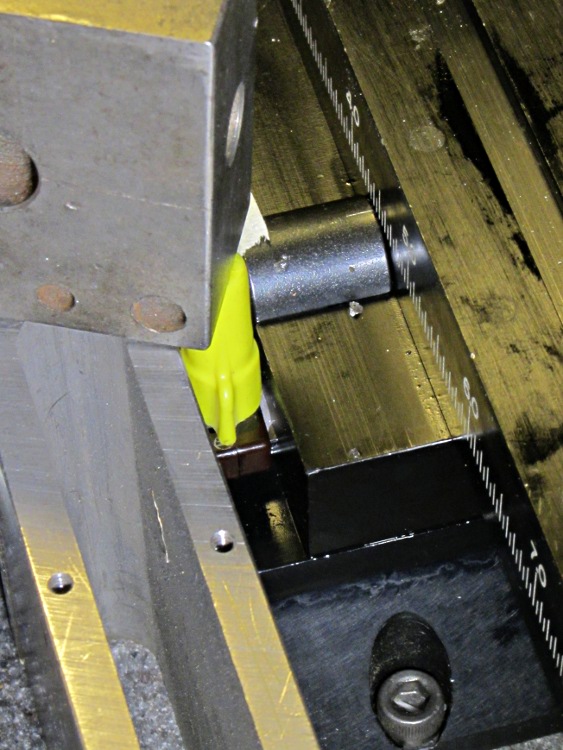
The switch actuator bottoms out with the saddle just touching the preload nut, so the saddle can’t dislodge the switch: the switch trips just before the saddle hits the nut, at which point all motion stops and the motor stalls.
Moving the switch means I can remove all the gimcrackery that poked the rear switch with the tooling plate in place; I was never happy with that setup. I also removed the small block that trapped the rear end of the Y leadscrew, under the assumption that, as I haven’t yet dropped anything on the leadscrew, I probably won’t. That adds about 1/4 inch to the maximum travel and allows the tooling plate to whack into the column.
The switch wire runs along the stepper cable, a tidy technique that hasn’t introduced any glitches into the shared Home signal from the X axis drivers:

The Y axis now seeks the Home switch in the positive Y direction, so that stanza in Sherline.ini looks like this:
[AXIS_1]
TYPE = LINEAR
MAX_VELOCITY = 0.400
MAX_ACCELERATION = 5.0
STEPGEN_MAXACCEL = 10.0
SCALE = 16000.0
FERROR = 0.05
MIN_FERROR = 0.01
MIN_LIMIT = -0.5
MAX_LIMIT = 4.90
BACKLASH = 0.003
HOME_IS_SHARED = 1
HOME_SEQUENCE = 2
HOME_SEARCH_VEL = 0.3
HOME_LATCH_VEL = 0.016
HOME_FINAL_VEL = -0.4
HOME_OFFSET = 5.125
HOME = 5.0
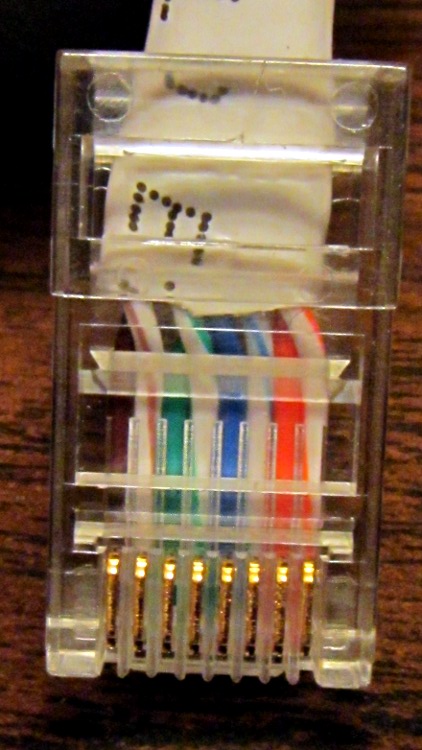
What’s wrong with this picture?
Yeah, the blue-stripe and green-stripe wires should be interchanged. Turns out the Link indicators on both ends lit up just fine, but no bits made it across the wire. Took quite a while to figure that one out, alas.
Turns out I was moving that router upstairs to get a better signal for folks out in the driveway and snaking the cable through the only suitable (i.e., existing) hole in the floor required cutting the molded-in-place connector off, then crimping a new one on. Both you and I know those wires must cross, but in the excitement of pushing all those wires into the connector, well … so it goes.
A useful explanation, including crossover and POE cable arrangements, lives there.
I did wrap silicone tape around the cable and connector butt for strain relief.
Memo to Self: just verifying the colors on the existing cable sometimes isn’t good enough!
Actually, that NIC didn’t slip right into place, because its backpanel plate was sized for a full-height PC case. Unlike the cheap stamped steel you find these days, NetGear used much thicker metal that required an attack with the bandsaw, a hammer, and some files to clean up the raw edges.
But it fit pretty well after all that:

You can just barely see the NetGear logo wrapped around the right-angle bend…
In the process of figuring out how to set up the isolated WiFi Internet link on the file server, I discovered that the /etc/rc.local file runs before the eth0 interface that connects to the outside world comes up. As a result, my DynDNS host address hadn’t been updated in quite some time.
Worse, trying to set up eth1 failed, apparently because there’s a bunch of other network infrastructure that doesn’t start until eth0 comes online. Part of that infrastructure involves iptables; the added rules simply vanished.
The solution seems to require writing an upstart script that waits for whatever events it needs, does what needs to be done, and then goes away. The whole upstart mechanism and its event list seems, um, lightly documented, as I discovered there, but the custom setup formerly in /etc/rc.local now lives in /etc/init/local.conf:
description "Stuff that used to be in /etc/rc.local"
author "Ed Nisley - KE4ZNU"

start on (local-filesystems and net-device-up IFACE=eth0)
stop on shutdown

script

logger Starting local init...

logger Updating dyndns
ddclient -force

logger Bringing up eth1
ifconfig eth1 192.168.3.1 netmask 255.255.255.0 up

logger Setting iptables
iptables -A FORWARD -i eth1 --destination 192.168.0.0/16 -j REJECT
iptables -A INPUT -i eth1 --destination 192.168.0.0/16 -j REJECT
iptables -A POSTROUTING -t nat -j MASQUERADE

logger Ending local init

end script
That code assumes the outbound network interface will be eth0, which won’t work on a system using a pure wireless connection on, say, wlan0 or anything more exotic. I haven’t a clue how to parameterize that selection. Most likely, one would write another upstart script that would emit a custom signal based on the usual suspect …
It also assumes the networking infrastructure triggered by eth0 lighting up has hauled itself to its feet and is ready to roll. That seems to be true, although I’ll admit the script is, at best, lightly tested.
With the eth1 NIC up and iptables rules added, I think this script will restart eth1 when it goes down, but it’s not clear where the requisite network-device-down event comes from (certainly not from any script in /etc/init/*conf):
description "Restart eth1 when it dies"
author "Ed Nisley - KE4ZNU"

start on net-device-down IFACE=eth1
stop on net-device-up IFACE=eth1

script

logger Restarting eth1...
ifconfig eth1 192.168.3.1 netmask 255.255.255.0 up

logger Ending eth1 setup

end script
But, eh, at least the isolated interface comes up and packets go where they should (and not where they shouldn’t). Early results are encouraging…
We provide a camping spot for touring bicyclists riding through the Hudson Valley and, as you’d expect, most of them arrive toting netbooks, tablets, and other net-enabled doodads. While I’m a nice guy and they’re uniformly nice folks, I’d rather not hand them the keys to our house network, so I recently set up a WiFi Internet-only access point that’s firewalled from the LAN.
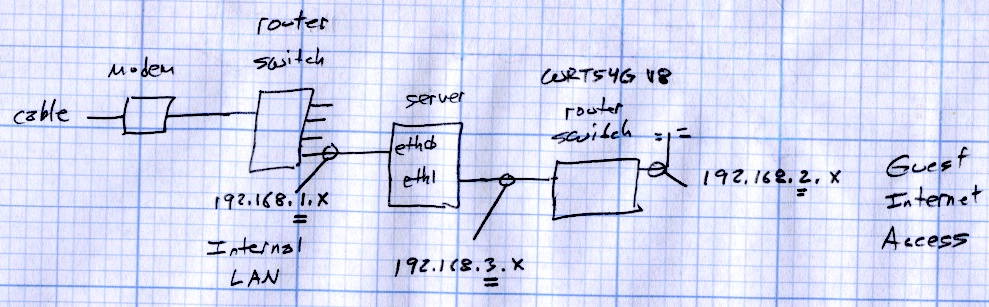
The general idea:
eth1 (192.168.3.1), connected to the router’s WAN port (192.168.3.2)eth0 (house network 192.168.1.x) and eth1, except …iptables to prevent router clients from seeing the house networkThe network layout:
The parts came from the Big Box o’ Network Stuff:
The router setup:
The NIC Just Worked: the drivers come along with the kernel. Because it’s not a general-purpose network interface from the server side, eth1 setup doesn’t require much effort:
ifconfig eth1 192.168.3.1 netmask 255.255.255.0
I discovered the hard way that trying to define the eth1 interface with Network Manager caused no end of heartache & confusion, not least of which is that having two NICs somehow activates Ubuntu’s internal firewalling & port forwarding. Suffice it to say, just set the NM’s GUI to Ignore the eth1 NIC and do what needs to be done manually.
With one NIC, Ubuntu runs iptables in “let it be” mode: everything’s allowed, nothing’s blocked, and all packets get forwarded. The tables are empty and the default ACCEPT policy passes everything.
Adding a rule to the FORWARD chain prevents the router from sending packets to the house network:
iptables -A FORWARD -i eth1 --destination 192.168.0.0/16 -j REJECT
That still allows a ping response from the file server’s eth0 NIC at 192.168.1.2 back to the WiFi clients, because packets addressed to the server pass through the INPUT chain. This rule squelches those packets:
iptables -A INPUT -i eth1 --destination 192.168.0.0/16 -j REJECT
Although packet forwarding is enabled by default, another rule turns on the NAT machinery required to shuttle packets between the 192.168.3.x network and the outside world:
iptables -A POSTROUTING -t nat -j MASQUERADE
While fiddling with iptables rules that involve packet state tracking (which these do, at least implicitly, I think), you must reset the packet state memories to ensure new packets aren’t regarded as part of an established connection. Install the conntrack utilities, then reset the state as needed:
sudo conntrack -F
And then it Just Worked.
Now, back in the day, you’d just put those configuration lines in /etc/rc.local and be done with it. Unfortunately, nowadays the upstart process kicks off rc.local well before the system is in a usable state: somewhat before eth0 is active, which means any automagic network-related activity falls flat on its face.
So an upstart configuration script is in order… more on that later.
Some useful, albeit occasionally befuddling references:
One could, of course, buy dedicated hardware to do all that and more, but it’s nothing you couldn’t accomplish with a bit more configuration on a stock Linux box. Heck, you could even serve an Upside-Down-Ternet to anyone who deserves it; the original has some other suggestions that made the big time.
A tip o’ the cycling helmet to Dragorn of Kismet for getting me started…
The Android version of the Dropbox interface (on the Kindle, anyway) lets you create a password like this:
ab&CDef{gHi
Come to find out that, although the web-based Dropbox interface doesn’t reject that password, it kvetches that your userid and password don’t match. Yes, even if you cut-and-paste from a text file copied through the USB link.
Fortunately, the web interface has a password reset mechanism that’s missing from the Kindle app.
Little Bobby Tables rides again!

