The Smell of Molten Projects in the Morning

Ed Nisley's Blog: Shop notes, electronics, firmware, machinery, 3D printing, laser cuttery, and curiosities. Contents: 100% human thinking, 0% AI slop.

Category: PC Tweakage

Remembering which tweaks worked

  • Fixing Ubuntu’s nVidia Driver Update Glitch

    So there’s been a conflict between Ubuntu’s kernel update procedure (which has trouble with non-GPL kernel modules) and the nVidia proprietary drivers (which you must use in order to Make Things Work). Ever since 14.04LTS came out, some-but-not-all kernel updates have produced anything from no problem at all to a totally broken system requiring esoteric manual tweakage that shouldn’t be expected of mere mortals.

    You know it’s a problem when one of the many bug reports starts out thusly:

    This bug affects 2593 people

    Bug Description

    **WARNING:** This bug has been widely reported and has *many* automatic subscribers. Please be considerate.

    The most recent update to my desktop box clobbered it hard enough that the landscape display didn’t start up properly and the portrait display wasn’t rotated. The same update to other boxes seems to have worked, but that may be a set of unwarranted assumptions; the boxes simply haven’t displayed any obvious symptoms.

    After having to fix this mess every now and again over the last year, this worked:

    sudo apt-get install --reinstall nvidia-331-uvm
    

    As nearly as I can tell, reinstalling any nVidia package that’s already installed simply retriggers the failing step, resulting in a clean and workable installation. There’s apparently something wrong with the Dynamic Kernel Module Support structure that works the second time around, but I have no idea (and little interest) about the details.

    However, that “fix” required this sequence:

    • Boot the rescue session from the Grub menu
    • Activate networking
    • Clean out any broken packages
    • Drop to a root shell prompt
    • Do the apt-get dance
    • Power off
    • Unplug the portrait montitor’s Displayport cable
    • Boot to the BIOS settings to force-start the landscape monitor
    • Power off
    • Reconnect the portrait monitor
    • Reboot into Xubuntu as usual
    • Reset the monitor positions
    • Reload the desktop backgrounds

    Now, at least, all that’s written down where I can refer to it the next time this happens… on a separate laptop, of course.

    This has been happening for nigh onto a year in what Ubuntu charmingly calls a “long term support” release.

  • Xubuntu vs. Gnome Keyring Redux

    Once again, another Xubuntu desktop box started having troubles with the Gnome keyring manager, with baffling symptoms including a request for a password you don’t know and forgetting passwords you’ve entered correctly.

    The solution, much as before, requires at least some of:

    • Auto-start Gnome services: Session & Startup -> Advanced -> ×
    • Find and delete the keyrings directory: this time it was ~/.gnome2/keyrings
    • Tweak the contents of /etc/xdg/autostart/gnome-keyring-pkcs11.desktop
    • Reboot that sucker
    • Enter passwords as needed, which should be The Last Time you must do that

    This keyring problem remains a problem after all these years, because … I haven’t a clue.

    At least now I have a list of things to try, which should might reduce the hassle next time around.

  • Wider Borders in XFCE / Xubuntu

    A longstanding Xubuntu / XFCE UI problem has been single-pixel window borders that make click-and-drag resizing essentially impossible. The reason it’s a longstanding problem has been the developers’ unflinching response to any and all issues raised on the bug tracker:

    That discussion may be illuminating.

    I had never looked for the XFCE theme-building documentation (and, thus, never found any), because building a whole new theme would be a lot of work just to resize the damn borders. It should be feasible to tweak only the borders of an existing theme, but … I stalled.

    Repeatedly. On every single version of Xubuntu that’s come along.

    Fortunately, someone recently did the legwork and summarized the method, which I slightly adapted:

    cd /usr/share/themes/
    sudo cp -a Greybird-compact/ Greybird-wide
    cd Greybird-wide/xfwm4
    for f in bottom left right ; do sudo cp ../../Daloa/xfwm4/${f}* . ; done
    sudo sed -i -e 's/C0C0C0/CECECE/' *xpm
    sudo sed -i -e 's/A0A0FF/7C7C7C/' *xpm
    sudo sed -i -e 's/E0E0FF/E0E0E0/' *xpm
    

    The exact color mapping depends on which two themes you’re using. You can also specify GTK element colors, which seems like a better way to do it. Maybe next time.

    Apparently, the corresponding PNG files contain transparency information for the XPM files, but I haven’t bothered to investigate how that works or what might happen if I tweaked them.

    Then you select the new Graybird-wide theme and It Just Works.

    Sheesh & similar remarks…

  • Dual Monitors Redux

    My trusty 1050×1680 portrait monitor began resetting itself, which probably indicates failing capacitors in the power supply or logic board; eBay has capacitor kits, but it may not be worthwhile fixing the poor thing. I snagged a new 2560×1440 Dell U2713HM monitor, added a dual-Displayport PNY NVS310 video card, told Xubuntu 14.04LTS to use nVidia’s binary driver, and, somewhat to my astonishment, It Just Worked.

    The xrandr report:

    Screen 0: minimum 8 x 8, current 4000 x 2560, maximum 16384 x 16384
    DP-0 disconnected primary (normal left inverted right x axis y axis)
    DP-1 disconnected (normal left inverted right x axis y axis)
    DP-2 connected 2560x1440+0+0 (normal left inverted right x axis y axis) 597mm x 336mm
       2560x1440      60.0*+
       1920x1200      59.9
       1920x1080      60.0     59.9     50.0     24.0     60.1     60.0     50.0
       1680x1050      60.0
       1600x1200      60.0
       1280x1024      75.0     60.0
       1280x800       59.8
       1280x720       60.0     59.9     50.0
       1152x864       75.0
       1024x768       75.0     60.0
       800x600        75.0     60.3
       720x576        50.0     50.1
       720x480        59.9     60.1
       640x480        75.0     59.9     59.9
    DP-3 connected 1440x2560+2560+0 left (normal left inverted right x axis y axis) 597mm x 336mm
       2560x1440      60.0*+
       1920x1200      59.9
       1920x1080      60.0     59.9     50.0     24.0     60.1     60.0     50.0
       1680x1050      60.0
       1600x1200      60.0
       1280x1024      75.0     60.0
       1280x800       59.8
       1280x720       60.0     59.9     50.0
       1152x864       75.0
       1024x768       75.0     60.0
       800x600        75.0     60.3
       720x576        50.0     50.1
       720x480        59.9     60.1
       640x480        75.0     59.9     59.9
    

    Inexplicably, xsetwacom once again expects the "HEAD-0" parameter that was "DP1" the last time around:

    xsetwacom --verbose set "Wacom Graphire3 6x8 stylus" MapToOutput "HEAD-0"
    xsetwacom --verbose set "Wacom Graphire3 6x8 eraser" MapToOutput "HEAD-0"
    

    The new display presents crisp characters; seeing 140 source code lines at once is wonderful.

  • Thunderbird UI Tweakage

    If you want to change the font in all of Thunderbird’s UI, you must perform this magic ritual:

    • Create the file chrome/userChrome.css in wherever they’ve hidden your profile folder (for Ubuntu 14.04, it’s ~/.thunderbird)
    • Then put this incantation inside:
    /* Global UI font */
    /* may need !important on each entry */
    * { font-size: 14pt ;
      font-family: Arial Narrow ;
    }
    

    As nearly as I can tell, you don’t need the !important tag on the top-level entry, but I don’t profess to grok Mozilla-flavored CSS.

    Useful properties:

    • font-weight: normal | bold | light
    • font-style: normal | italic | oblique

    Maybe you can do the whole font thing in one shot, but I haven’t tried.

    The changes take effect the next time you fire up Thunderbird: dinking with this stuff gets tedious.

    This is way too intricate for mere mortals…

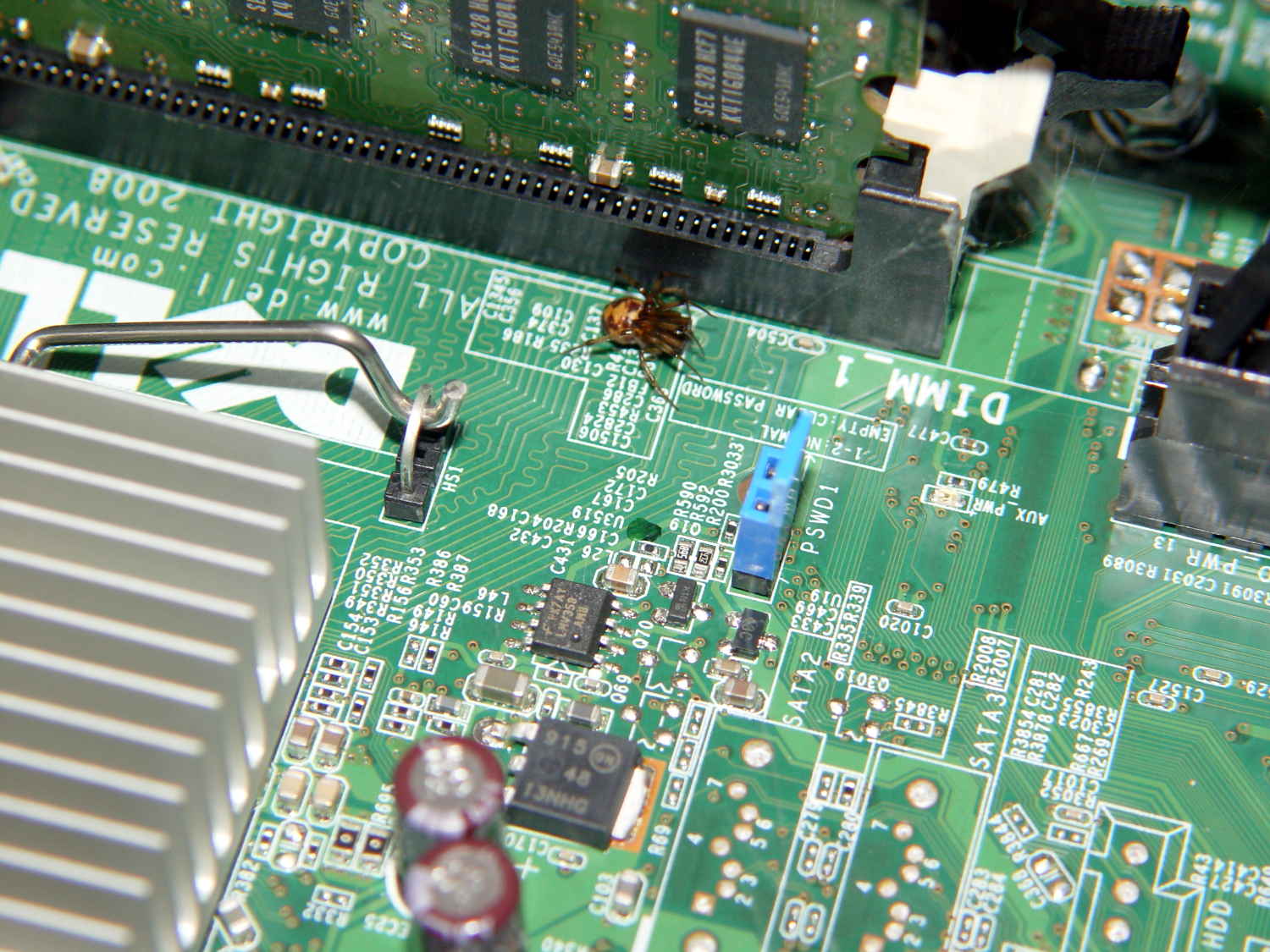
  • Computer Bug: Arachnid Division

    They’re everywhere:

    Spider in Optiplex 760
    Spider in Optiplex 760

    Found it while shuffling video cards…

  • Kenmore 158: Useful Unicode Glyphs

    It turns out, for some reasons that aren’t relevant here, that I’ll be using the Adafruit Arduino LCD panel for the sewing machine control panel, at least to get started. In mulling that over, the notion of putting text on the buttons suggests using getting simple pictures with Unicode characters.

    Herewith, some that may prove useful:

    • Needle stop up: ↥ = U+21A5
    • Needle stop up: ⤒=U+2912
    • Needle stop down: ⤓ = U+2913
    • Needle stop any: ↕ = U+2195
    • Needle stop any: ⟳ = U+27F3
    • Needle stop any: ⇅ = U+21C5
    • Rapid speed: ⛷ = U+26F7 (skier)
    • Rapid speed: 🐇  = U+1F407 (rabbit)
    • Slow speed: 🐢 = U+1F422 (turtle)
    • Dead slow: 🐌 = U+1F40C (snail)
    • Maximum speed: 🏃 = U+1F3C3 (runner)
    • Bobbin: ⛀ = U+26C0 (white draughts man)
    • Bobbin: ⛂ = U+26C2 (black draughts man)
    • Bobbin winding: 🍥 = U+1F365 (fish cake with swirl)

    Of course, displaying those characters require a font with deep Unicode support, which may explain why your browser renders them as gibberish / open blocks / whatever. The speed glyphs look great on the Unicode table, but none of the fonts around here support them; I’m using the Droid font family to no avail.

    Blocks of interest:

    The links in the fileformat.info table of Unicode blocks lead to font coverage reports, but I don’t know how fonts get into those reports. The report for the Miscellaneous Symbols block suggested the Symbola font would work and a test with LibreOffice show it does:

    Symbola font test
    Symbola font test

    An all-in-one-page Unicode symbol display can lock up your browser hard while rendering a new page.

    Unicode is weird…