Ed Nisley's Blog: Shop notes, electronics, firmware, machinery, 3D printing, laser cuttery, and curiosities. Contents: 100% human thinking, 0% AI slop.
Perhaps this is not nearly as motivational as it’s supposed to be:
Win 10 Upgrade Popup
A friend sent that along after reading my efforts to squelch the Windows 10 nagware on an off-lease Dell Optiplex that will never, ever be updated.
She just turned off automatic updates, which means she must examine all the updates and manually install ones that don’t download Win 10 (which she doesn’t want), forevermore. Unfortunately, that means she won’t automatically get all the security updates that help make current versions of Windows much less hazardous then in The Bad Old Days.
Talk about a Hobson’s Choice: in practical terms, you must decide between automatic updates or not getting regular updates. OK, that’s actually a false dilemma, but you get the idea.
If you’re running Windows, then you have more experience than I do, but it seems Microsoft, for reasons best known to it, really really really wants you to upgrade to Windows 10, has been forcing nagware onto every Windows box in existence, and actively working to defeat efforts to remove said nagware.
Our Token Windows Box, an off-lease Dell Optiplex 780 that arrived bearing Windows 7 Professional, will never, ever get upgraded, because it’s running a bunch of ancient Windows programs that interface with specific bits of hardware, none of which (most likely) will work with Windows 10. In any event, I see no reason to go through the hassle of “upgrading” an old machine, (maybe) resolving all the inevitable compatibility problems, and (maybe) having no way to roll back the upgrade, all for a few programs run, at most, monthly.
Continually declining Windows 10 upgrade prompts isn’t my idea of a Good User Experience, but I’m also tired of manually inspecting and killing updates that re-re-re-install the nagware.
The GWX Control Panel (“GWX” = “Get Windows 10” in MS-speak) seems to be the least awful way of dealing with this mess. It’s not offered by Microsoft, for obvious reasons, but is offered free-of-charge.
The discussion about scrubbing hard drives suggested I really should be using larger block sizes to wring better performance from the hardware.
So I ran variations on this theme:
time sudo dd if=/dev/urandom of=/dev/sdc bs=4K count=32K
For the BS (“block size”) parameter, 1K = 1024 and 1KB = 1000. Similarly for 1M vs. 1MB.
The results, viewed as a picture because WordPress seems unable to import a formatted spreadsheet from LibreOffice like it used to:
USB-SATA Adapter – Barracuda 7200.10 drive
Each operation transfers 128 MB (128 x 220 = 131 x 106) bytes. The variations probably come from other stuff going on, most notably the USB-to-serial adapter driving the plotter while I’m testing a tweak to the Superformula demo code.
Reads ever so much faster than writes, so the USB adapter definitely isn’t getting in the way; I assume the drive accepts the commands & data as fast as its little heads can carry them away. The data, being relentlessly pseudo-random, won’t get compressed along the way.
So, in round numbers, the block size just absolutely does not make any difference.
dd if=/dev/urandom of=/dev/zero bs=4K count=32K
32768+0 records in
32768+0 records out
134217728 bytes (134 MB) copied, 9.63064 s, 13.9 MB/s
dd if=/dev/urandom of=test.bin bs=4K count=32K
32768+0 records in
32768+0 records out
134217728 bytes (134 MB) copied, 10.018 s, 13.4 MB/s
dd if=test.bin of=/dev/zero bs=4K count=32K
32768+0 records in
32768+0 records out
134217728 bytes (134 MB) copied, 0.0385358 s, 3.5 GB/s
dd if=test.bin of=test2.bin bs=4K count=32K
32768+0 records in
32768+0 records out
134217728 bytes (134 MB) copied, 0.45044 s, 298 MB/s
I installed an SSD on this box a while ago, so the 3.5 GB/s disk-to-discard speed represents the SSD’s read rate. The 298 MB/s disk-to-disk speed would be its write speed, probably with some clever buffering going on.
So the real bandwidth limitation in wiping a disk comes from the pseudo-random generator behind /dev/urandom, not the disk or USB interface. It would probably be faster to fill a 1 GB (or more) file with noise at 14 MB/s, then copy it enough times to fill the drive at whatever speed the drive can handle it.
The stack of drives-to-be-scrubbed disgorged a pair of SATA drives, so I plugged one of them into an internal SATA port and unleashed dd on it:
time sudo dd if=/dev/urandom of=/dev/sdb bs=4096 count=10000
10000+0 records in
10000+0 records out
40960000 bytes (41 MB) copied, 4.19793 s, 9.8 MB/s

real	0m4.208s
user	0m0.004s
sys	0m2.880s

time sudo dd if=/dev/urandom of=/dev/sdb bs=1024 count=40000
40000+0 records in
40000+0 records out
40960000 bytes (41 MB) copied, 7.38392 s, 5.5 MB/s

real	0m7.394s
user	0m0.004s
sys	0m3.505s

time sudo dd if=/dev/urandom of=/dev/sdb bs=16384 count=2500
2500+0 records in
2500+0 records out
40960000 bytes (41 MB) copied, 4.2042 s, 9.7 MB/s

real	0m4.214s
user	0m0.000s
sys	0m2.880s
The timing for a few (tens of) thousand blocks comes out somewhat below the long-term average, which was the same 12 to 14 MB/s produced by the USB 2.0 adapter. It just doesn’t get any better than that, mostly due to rotational delays.
In round numbers, that’s 40 to 50 GB/h, so it’s best to start scrubbing those terabyte drives early in the day…
The shelf that collects old hard drives filled up, so I’ve been wiping the data before recycling them. This takes a while, but we know what happens when your hardware falls into unexpected hands. The routine goes a little something like this…
Set the drive’s jumper to Master, plug the drive into the USB adapter, plug the adapter directly into a USB port on the PC (because outboard hubs tend to be flaky), make sure there’s no valuable data, unmount.
time sudo dd if=/dev/urandom of=/dev/sdc bs=4096
[sudo] password for ed:
dd: error writing ‘/dev/sdc’: No space left on device
73259047+0 records in
73259046+0 records out
300069052416 bytes (300 GB) copied, 22276.7 s, 13.5 MB/s

real	371m19.003s
user	0m22.884s
sys		370m34.906s
Good old dd works for me; the only trick is not obliterating the system’s main hard drive with a simple finger fumble. Numbers from /dev/urandom suffice for this purpose; that’s where most of the packaged programs get their data, too. I do hardcore style, just because.
Ordinary desktop drives, at least those from long ago, can write at a bit over 12 MB/s → 40 GB/h on the average, with the higher peak rates that generally appear in the drive descriptions remaining an occasional sight. They won’t go much faster, even when plugged directly into the system board, but it’s not as if I sit there waiting until it’s done. USB 2.0 “high speed” transfers can hit 60 MB/s, including all the overhead, so that’s not the limiting factor; I’d expect the adapter’s firmware to throttle the data long before the bus strangles.
Use gparted to write a fresh partition table with a single NTFS (because the next user will probably run Windows) partition labeled Scrubbed spanning the entire drive.
Then stack the drive neatly on the outbound heap:
Scrubbed hard drives
That cardboard box isn’t quite as full of unscrubbed drives as it was a few weeks ago.
The stack in the back contains all those worthless 30 to 80 GB 5400 RPM drives from old Dells, plus a few 1.5 and 2.0 (!) GB drives from who knows where. I have a plan for those platters…
Compiling it from source required installing two dependencies, which I discovered by the simple expedient of iteratively smashing into “fatal error: parted/parted.h: No such file or directory” messages:
libudev-dev
libparted0-dev
With those in place, unleashing f3probe on the most recent replacement Sony 64 GB MicroSD card went swimmingly:
sudo ./f3probe --time-ops /dev/sdb
F3 probe 5.0
Copyright (C) 2010 Digirati Internet LTDA.
This is free software; see the source for copying conditions.
Please unplug and plug back the USB drive. Waiting... Thanks
Please unplug and plug back the USB drive. Waiting... Thanks
Please unplug and plug back the USB drive. Waiting... Thanks
Please unplug and plug back the USB drive. Waiting... Thanks
Please unplug and plug back the USB drive. Waiting... Thanks
Please unplug and plug back the USB drive. Waiting... Thanks
CAUTION		CAUTION		CAUTION
No more resets are needed, so do not unplug the drive
Probe finished, recovering blocks... Done

Good news: The device `/dev/sdb' is the real thing

Device geometry:
	        *Real* size: 60.37 GB (126613504 blocks)
	     Announced size: 60.37 GB (126613504 blocks)
	             Module: 64.00 GB (2^36 Bytes)
	Physical block size: 512.00 Byte (2^9 Bytes)

Probe time: 61.19 seconds
Probe read op: count=775, total time=4.00s, avg op time=5.16ms
Probe write op: count=753, total time=3.77s, avg op time=5.00ms
Probe reset op: count=6, total time=53.42s, avg op time=8903.21ms
As predicted, most of the time passed while I fiddled with the SD Card adapter in the slot on the side of the U2711 monitor: push to release, push to insert, repeat as prompted.
Despite the f3fix program’s ability to “repair” counterfeit USB memory by resetting the partition to the actual capacity, I think that’s a Bad Idea. Based on my admittedly limited experience, counterfeit junk generally doesn’t come from the middle of the quality-control bell curve, so expecting that crap to actually work over the long term seems, shall we say, overconfident.
The f3 doc also told me about lsblk, which may come in handy every now & again:
lsblk
NAME   MAJ:MIN RM   SIZE RO TYPE MOUNTPOINT
sda      8:0    0 111.8G  0 disk
├─sda1   8:1    0  56.8G  0 part /
└─sda2   8:2    0   9.3G  0 part [SWAP]
sdb      8:16   1  60.4G  0 disk
└─sdb1   8:17   1  60.4G  0 part /media/ed/9C33-6BBD
sr0     11:0    1  1024M  0 rom
Now I have a reminder of how to do this for The Next Time…
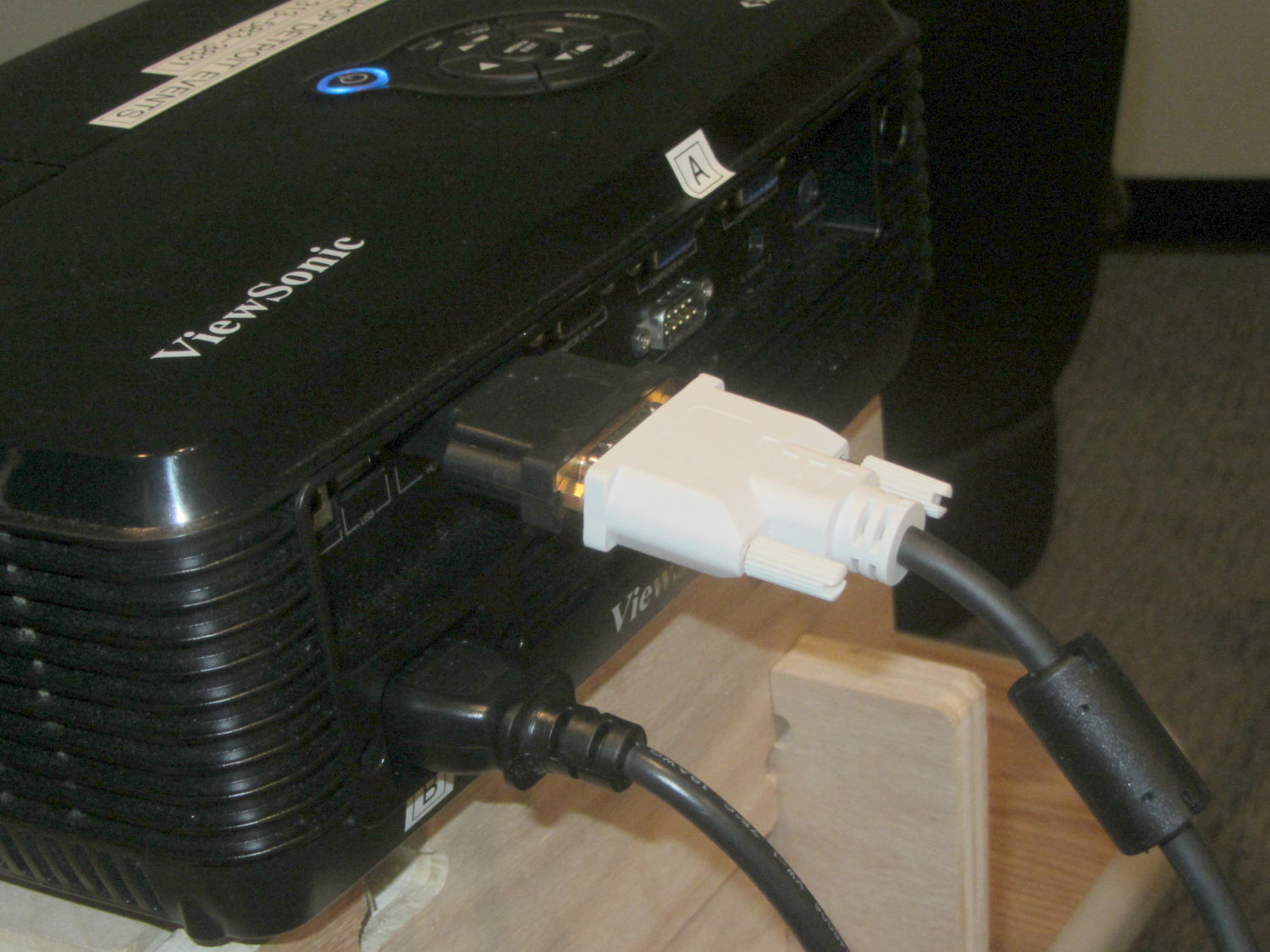
I plugged my trusty Dell Latitude E6410 into the VGA cable connected to a Viewsonic projector at TechShop Detroit to give the OpenSCAD Modeling presentation, but the display showed a surprising amount of ghosting; whether that was due to a bad cable or the usual presentation gremlins, I cannot say. Fortunately, although I didn’t have a VGA cable, I did have a fair assortment of adapters for the laptop’s DisplayPort output…
On the laptop end, DisplayPort to a DVI-D cable:
Latitude vs Viewsonic – DisplayPort to DVI-D
On the Viewsonic end, DVI-D to HDMI:
Latitude vs Viewsonic – DVI-D to HDMI
Worked like a champ!
The projector in the room for the Arduino Survival Guide presentation had a VGA cable, but had been losing sync and turning itself off, so I unplugged that, rebuilt the DisplayPort adapter string, and continued the mission.
I must add a known-good VGA cable and corresponding adapters to the assortment…