Ed Nisley's Blog: Shop notes, electronics, firmware, machinery, 3D printing, laser cuttery, and curiosities. Contents: 100% human thinking, 0% AI slop.
According to its description, the Anker USB 3.0 card reader can handle both a MicroSD and a standard SD card at once:
Simultaneously read and write on two cards to save yourself the effort of constant unplugging and re-plugging.
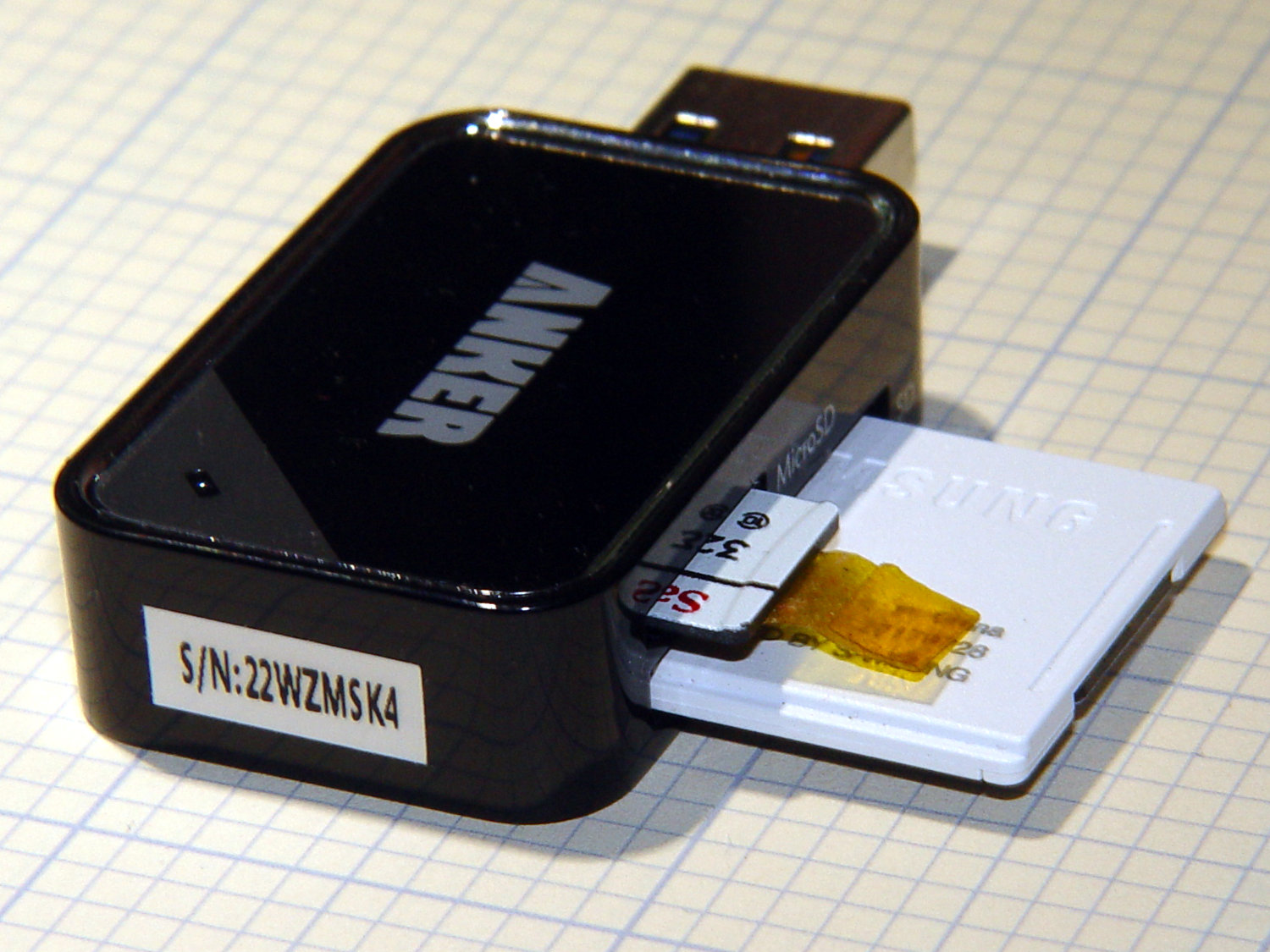
Which looks like this:
Anker USB Reader – dual card
After you get used to inserting the SD card downside-up, it fits perfectly. The Kapton tape on the MicroSD card eases extraction from the still finger-dent-less M20 camera mount on the back of my Tour Easy ‘bent.
Plugged into a USB 3.0 port, my file extractor script chugs along at 25.9 MB/s, taking about 18 minutes to transfer 28 GB of video data.
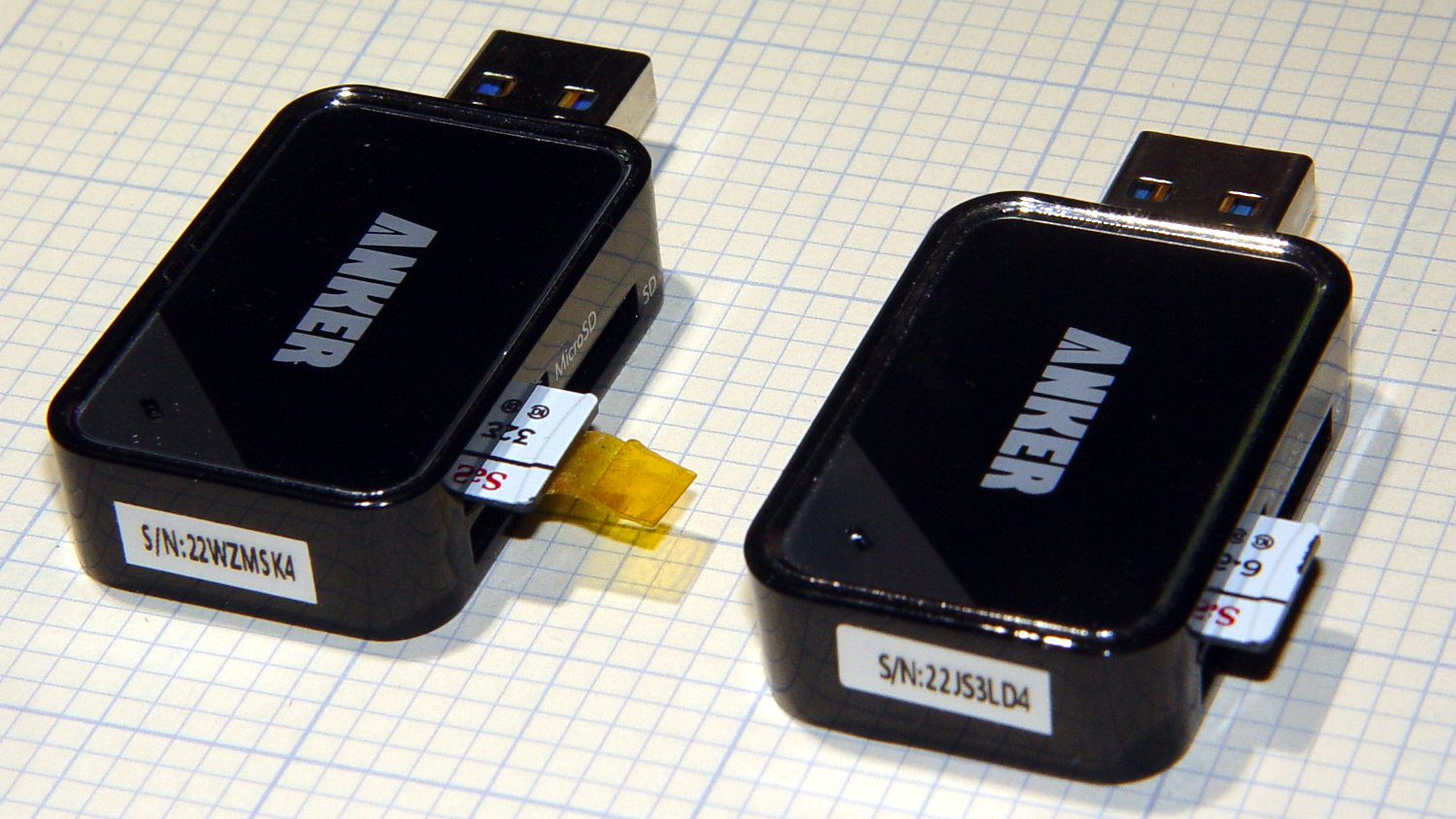
Splurging another eleven bucks for a second reader produces this setup:
Anker USB Reader – single card
After plugging both readers into adjacent USB 3.0 ports, the script transfers files at 46.6 MB/s and copies 28 GB in 10 minutes.
So, yes, the reader can handle two cards at once, but at half the speed.
Not life-changing, but it shows why I like measurements so much …
One of my Wyze V2 cameras either arrived with dead IR hardware or failed early on in its tenure here, but it simply didn’t work in night-vision mode: the IR LEDs didn’t turn on and the IR-cut filter didn’t move. Neither the Official Wyze App nor the Xiaomi-Dafang Hacks firmware had any effect, so I expected a (possibly simple) hardware problem.
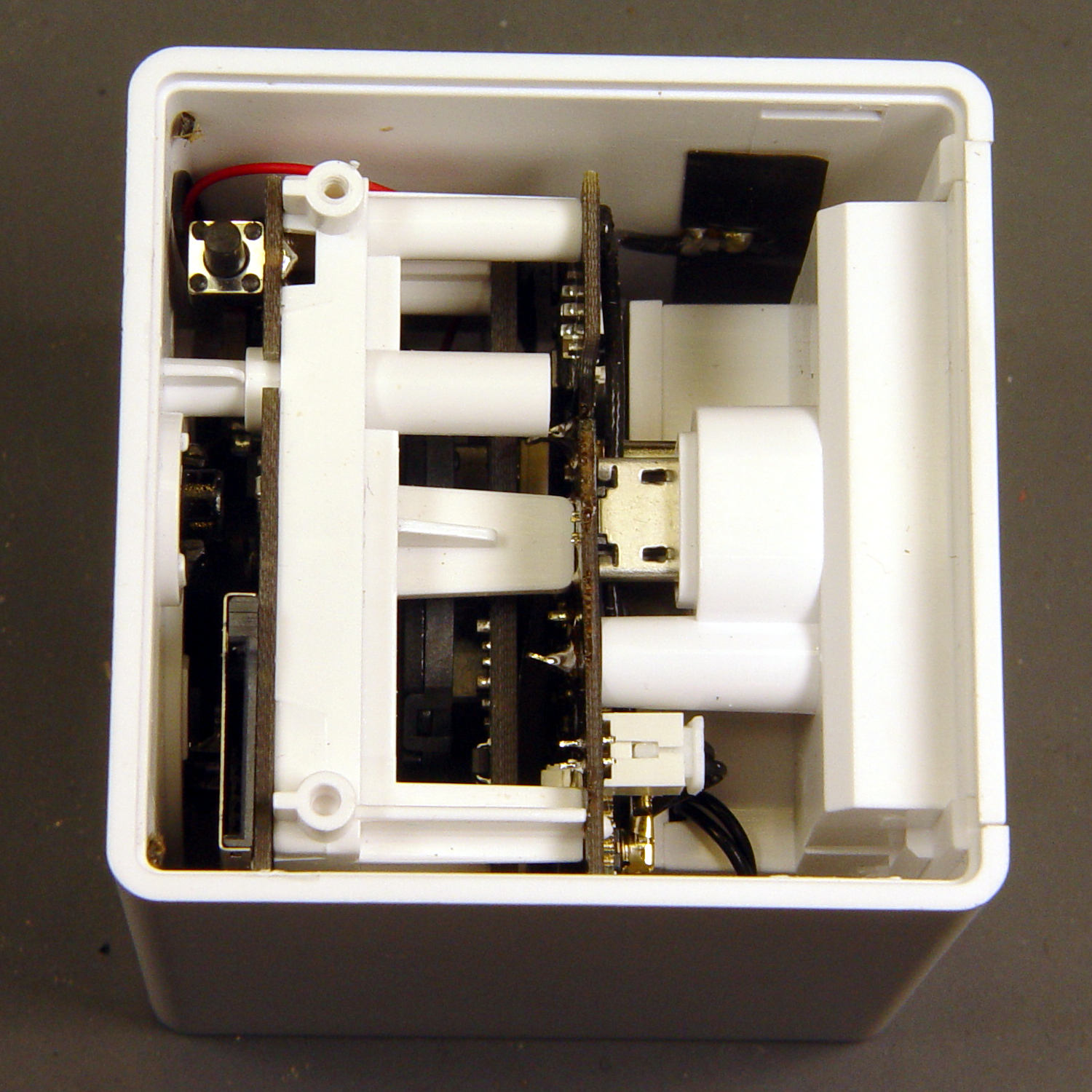
The first hint of trouble was finding the case had only one of the two screws securing its bottom lid, with the missing screw having never been installed. Removing the single screw and prying a bit popped the lid, revealing the innards:
Wyze V2 – interior bottom view
The rear panel (on the right) comes off after abusing the snaps holding it to the main case:
Wyze V2 – rear panel snaps
That’s best done with a small, designated Prydriver, rather than a screwdriver to which you have a deep emotional attachment.
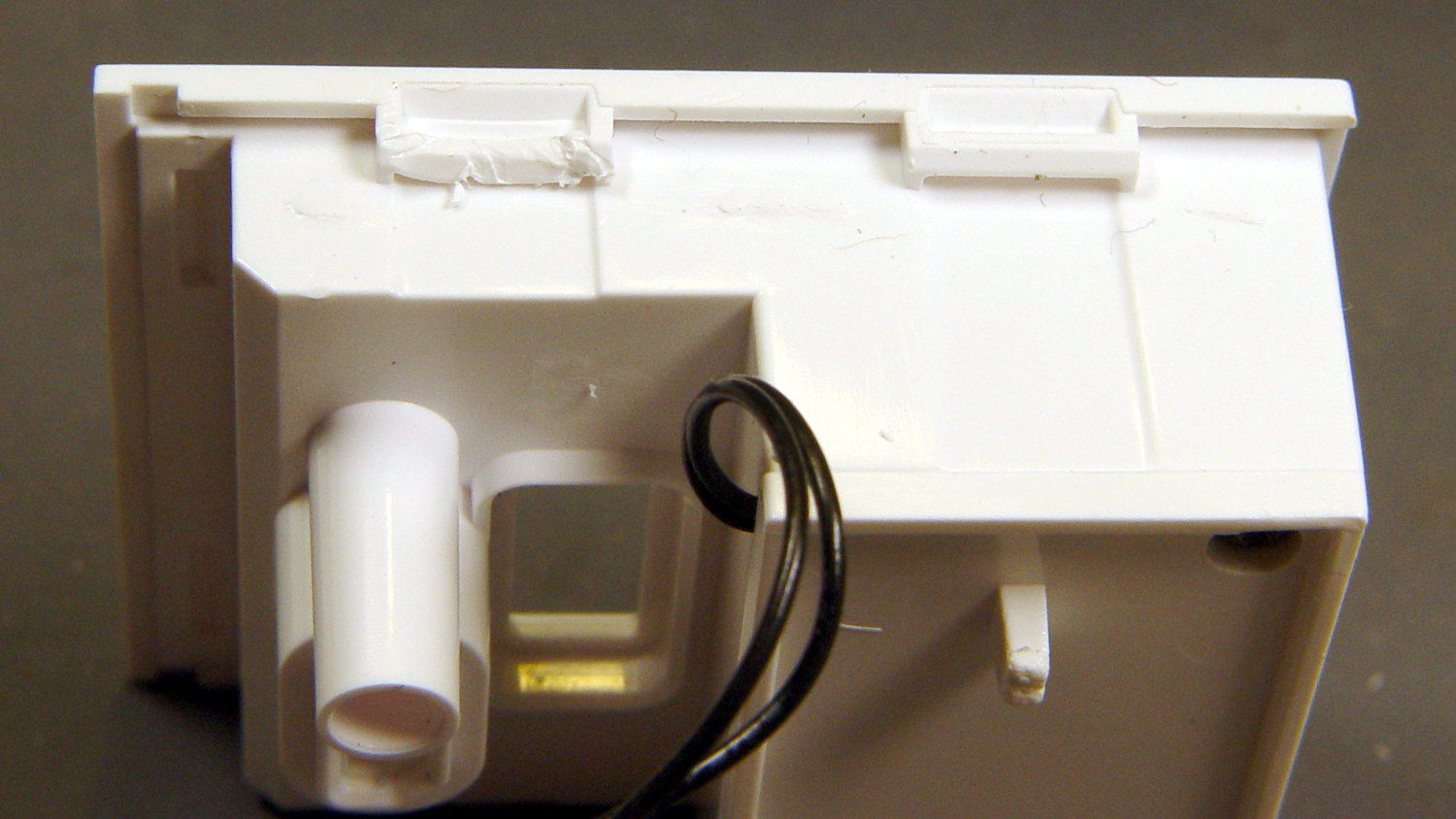
The corresponding part of the main body shows less abuse:
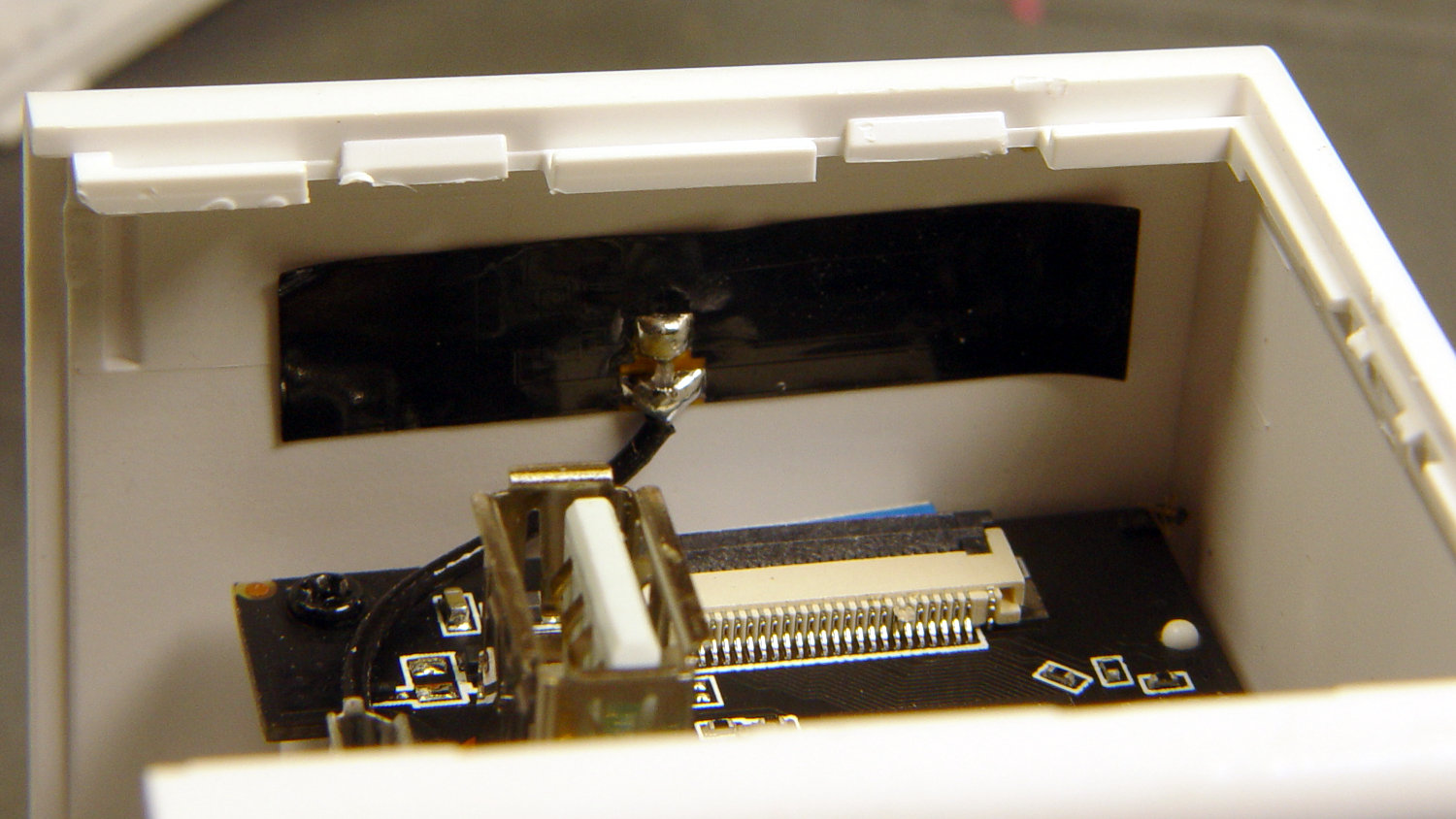
Wyze V2 – case snaps – WiFi antenna
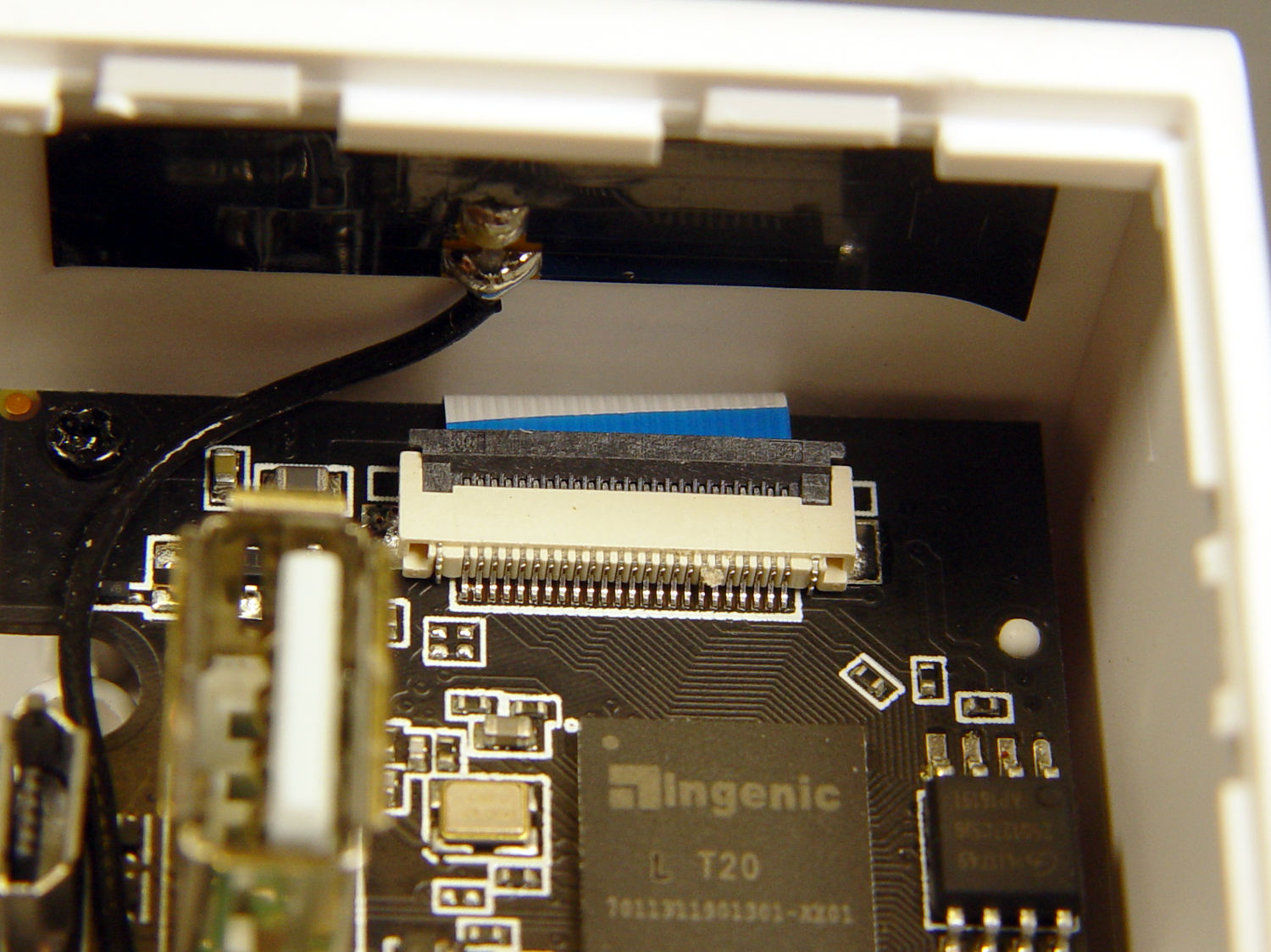
The black patch is the WiFi antenna, which you must unplug from the top board before going much further.
The small blue wedge below the antenna gave me hope I’d found the root of the IR problem:
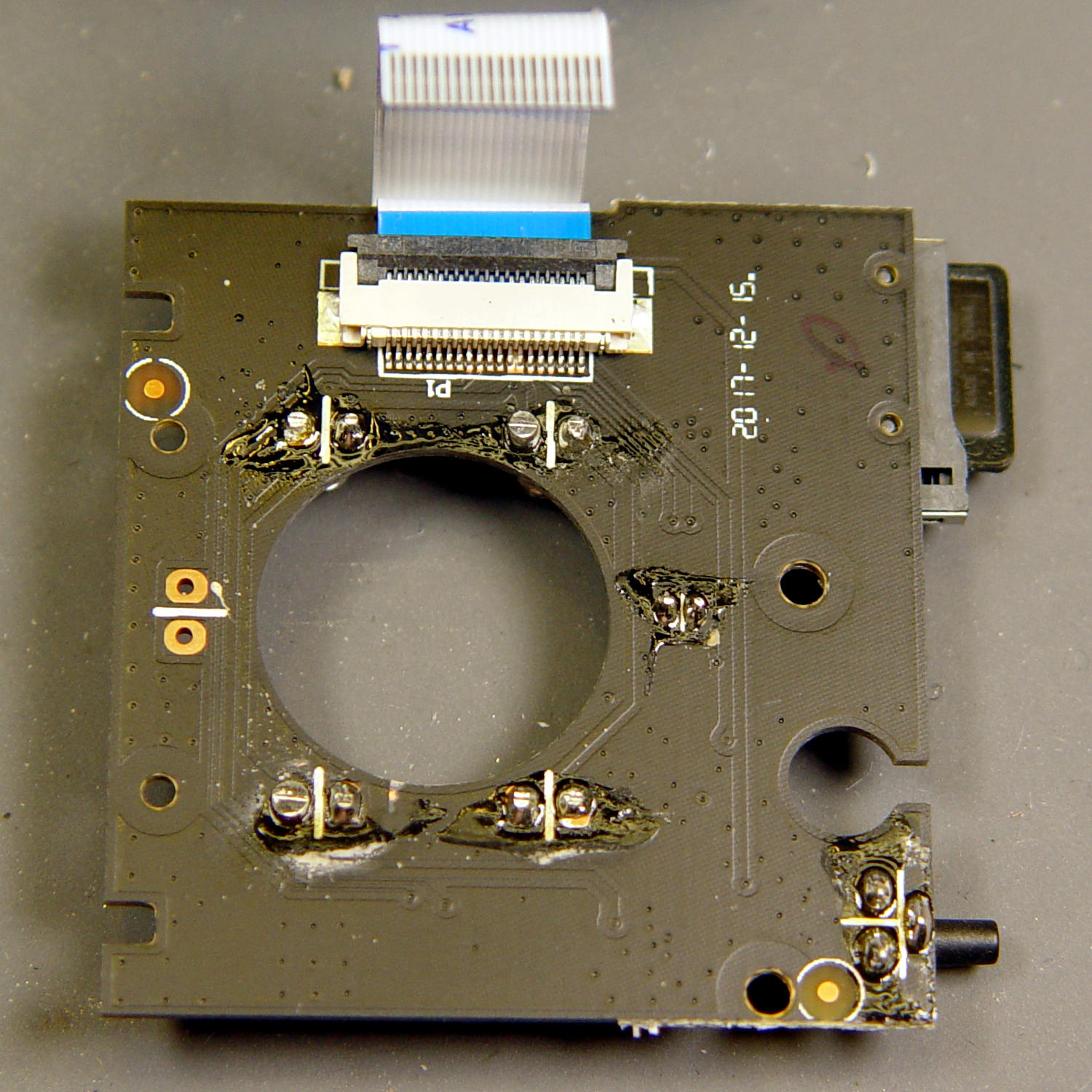
While I had the case open, I extracted everything and looked it over:
Wyze V2 – front PCB – LED pin soldering
The IR LED soldering left a bit to be desired, so I touched up those joints and washed off most of the flux.
Alas, the IR hardware still didn’t work with everything stuffed back in the case. There are worse things than having a small daylight-only IP camera, though.
A bit of rummaging produced a desk lamp arm, minus whatever lamp it originally held, ready to hold the second photo lamp, after a bit of epoxy on one locking knob:
Lamp arm clamp screw rework
The flanged nut will seat on the wrecked part of the knob, with the epoxy holding it in place and somewhat reinforcing the perimeter. I’m not sure this will last forever, but it’ll be a start.
Printing a second cold shoe, though, worked perfectly, and everything fit:
Another attempt at replacing the Wyze camera firmware went much more smoothly, producing a pair of small cameras with better network manners:
Wyze Camera hacks – Cam 1 overhead workbench
That’s a VLC screen capture from the RTSP stream; obviously, I must up my clutter control game.
I formatted a 32 GB MicroSD card with a 512 MB partition, which may not be strictly necessary, copied the MicroSD CFW bootloader (as demo.bin, sheesh), and it installed without drama.
I resized the partition to 32 GB, installed the firmware (per the FAQ) into the root directory, tweaked the configuration files to match my situation, popped it in the camera, plugged the power cable, and It Just Worked™.
Herewith, a checklist of config directory files requiring tweakage:
wpa_supplicant – WiFi SSID and password
timezone.conf – America/New_York for us
osd.conf – can be tweaked through the Web interface
The router isn’t bright enough to route different port numbers on its Internet side to different LAN IP addresses with the same port address, so each camera must stream from a different port number. I don’t plan many world-available video streams, but a friend does enjoy watching the birds during feeder season.
With the RTSP stream up & running, I flashed the U-Boot bootloader (again, minus drama) and tweaked its uEnv.txt configuration file:
Change the memory layout to allow 1920×1080 video
ethaddr – set to match hardware MAC address
gateway – router IP
ipaddr – match the staticip.conf value
serverip – router IP (unclear what this does)
The cameras now produce no objectionable network activity, dramatically down from the Wyze firmware’s desperate attempts to contact various servers, every five minutes, around the clock. I have no way of tracking connections made with direct dotted-quad IP addresses, rather than through the pihole, but … this is a distinct improvement.
Having won an eBay action for a known-dead Sony DSC-F717 at $0.99 (plus $15 shipping, the seller being no fool), I now have a possibly salvageable camera, a Genuine Sony AC supply, and two more NP-FM50 batteries for about the price of any one of the components.
One battery arrived stone-cold dead, suggesting the camera had been put away with the battery installed for a very long time and they died companionably. The camera still charges a (good) battery, even though it doesn’t turn on, and perusing the schematics suggests checking the power switch, because it’s always the switch contacts. That’s for another day, though.
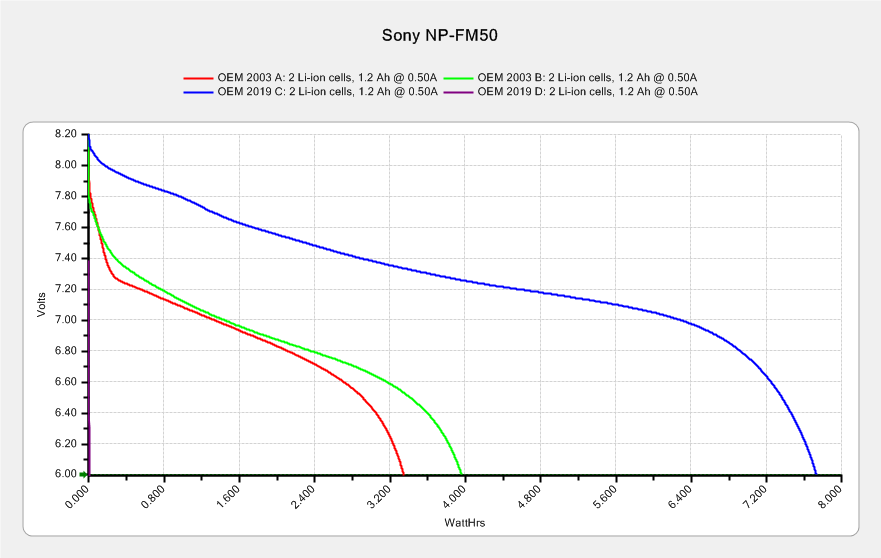
For the record, the battery status:
NP-FM50 – 2019-03-30
The red and green traces come from the two batteries I’ve been cycling through the camera since, um, 2003, so they’re getting on in years and correspondingly low in capacity.
The fourth battery (2019 D, the date showing when it arrived, not its manufacturing date) went from “fully charged” to “dead” in about three seconds with a 500 mA load, producing the nearly invisible purple trace dropping straight down along the Y axis.
The lower cell is lifeless, the upper cell may still have some capacity. Three pairs of 18500 lithium cells are on their way, in the expectation of rebuilding the weakest packs.
After desoldering the battery tab on the right from the PCB, it occurred to me I needed pictures:
Sony NP-FM50 battery – PCB exposed
Yeah, that’s a nasty melted spot on the case, due to inept solder-wickage.
Unsoldering the three tabs closest to the case releases the cells + PCB from confinement:
Sony NP-FM50 battery – PCB overview
I’m still bemused by battery packs with a microcontroller, even though all lithium packs require serious charge controllers. At least this is an Atmel 8-bitter, rather than 32-bit ARM hotness with, yo, WiFi.
The cells have shaped tabs which will require some gimmicking to reproduce:
Having an ancient flip phone in need of a battery, I ordered a Kyocera TXBAT10133 battery from eBay. Described as “new” (which, according to the Ebay listing, means “New: A brand-new, unused, unopened, undamaged item in its original packaging”), I was somewhat surprised to see this emerging from the box:
Kyocera TXBAT10133 – not really new
It obviously led a rather hard life before being harvested from somebody else’s obsolete flip phone and is definitely not “new”.
Not yet having a deep emotional attachment to the thing, I set it up for a capacity test:
Kyocera TXBAT10133 – contact clamp
Given a very light 100 mA load, it shows about the same capacity as the original battery in our phone:
Kyocera TXBAT10133 – 2019-03-29
Given the precarious contact arrangement, the glitches near the right end aren’t surprising.
The battery label claims a 900 mA·h rating, so both have nearly their nominal capacity at such a reduced load. In actual use, the phone has a low battery after a few hours of power-on time, far less than when it was new.
The seller promises a replacement. For all I know, there are no genuinely “new” batteries available for these phones.
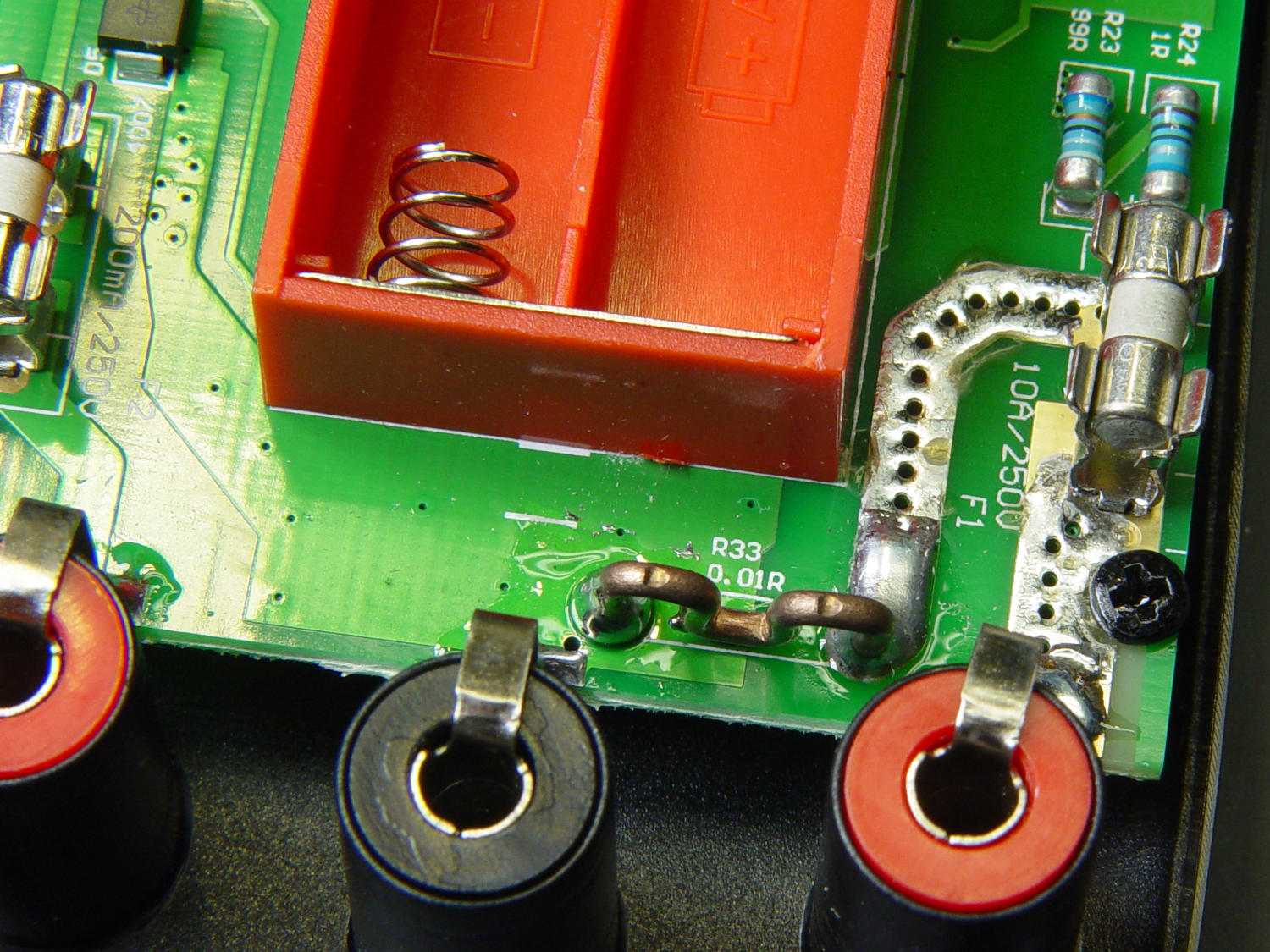
Somewhat to my surprise, Aneng AN8008/AN8009 multimeter PCBS sport what looks like a reasonably accurate current sense resistor on the 10 A input:
AN8009 10 A current shunt – top view
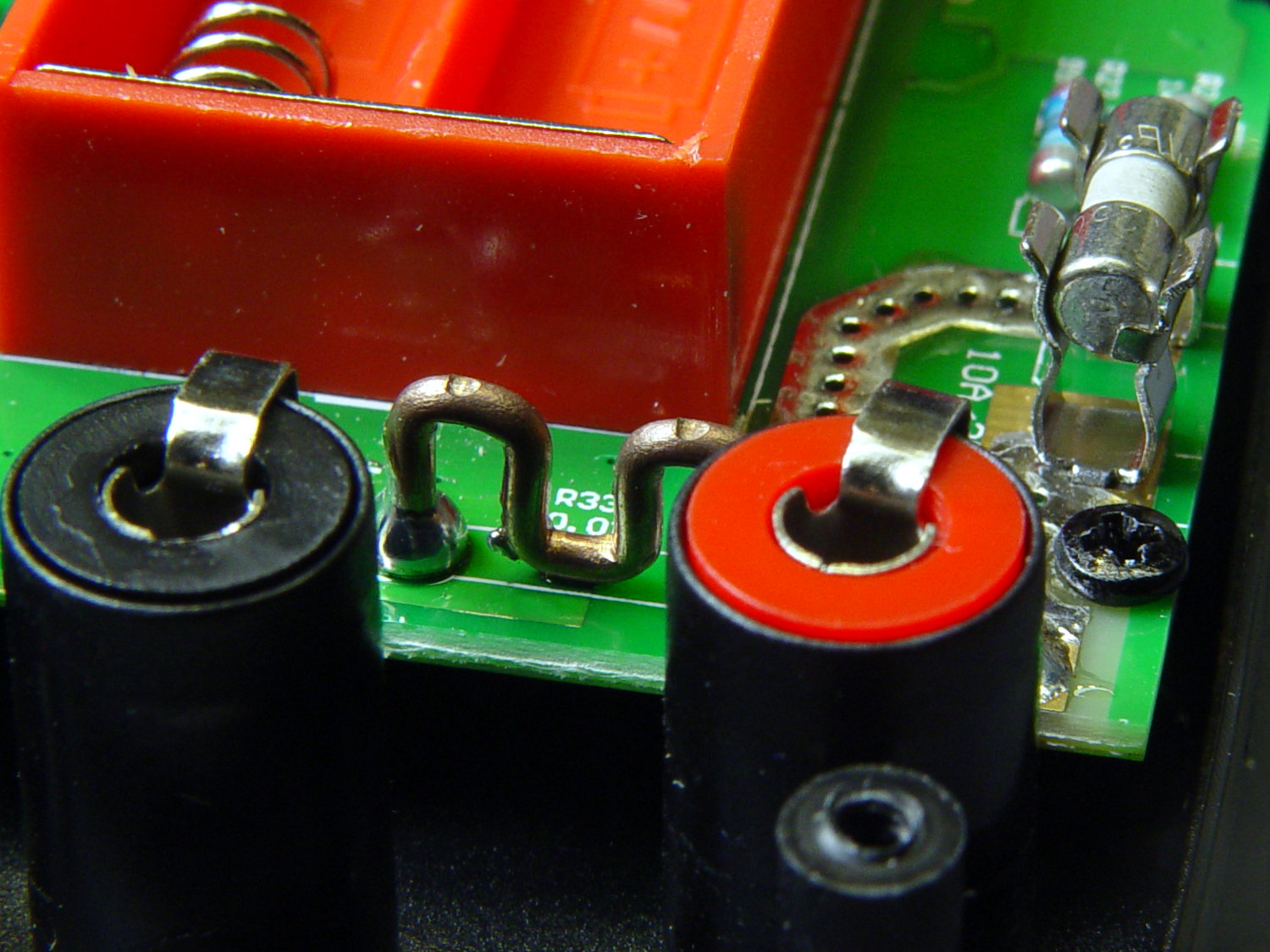
The legend says 0.01R and the conductor doesn’t look quite like pure copper:
AN8009 10 A current shunt – side view
The indentations look like clamp marks from the bending jig, rather than “calibration” notches made while squeezing the wire with diagonal cutters and watching the resistance on another meter.
One might quibble about the overall soldering quality, but one would also be splitting hairs. I doubt the meter leads could withstand 10 A for more than a few seconds, anyhow.
If you buy enough of something, you can buy pretty nearly anything you want, even cheap precision resistors!




 The Smell of Molten Projects in the Morning