The Smell of Molten Projects in the Morning

Ed Nisley's Blog: Shop notes, electronics, firmware, machinery, 3D printing, laser cuttery, and curiosities. Contents: 100% human thinking, 0% AI slop.

Author: Ed

  • Car vs. Pole: That Ain’t Gonna Buff Right Out

    Spotted at the corner gas station, where they collect wrecks before harvesting their organs:

    Car vs Pole
    Car vs Pole

    As far as we can tell, the car clipped the pole off at the base, whereupon it smashed down across the roof, leaving the trunk unscathed. The lack of blood on the airbag suggests the driver lived to tell the tale, although we’ll never know the rest of the story.

    A collection of random stuff tossed on the back seat included a license plate bent into a surprisingly gentle curve.

    Obligatory: And Sudden Death reference.

  • CNC 3018XL: Adding Run-Hold Switches

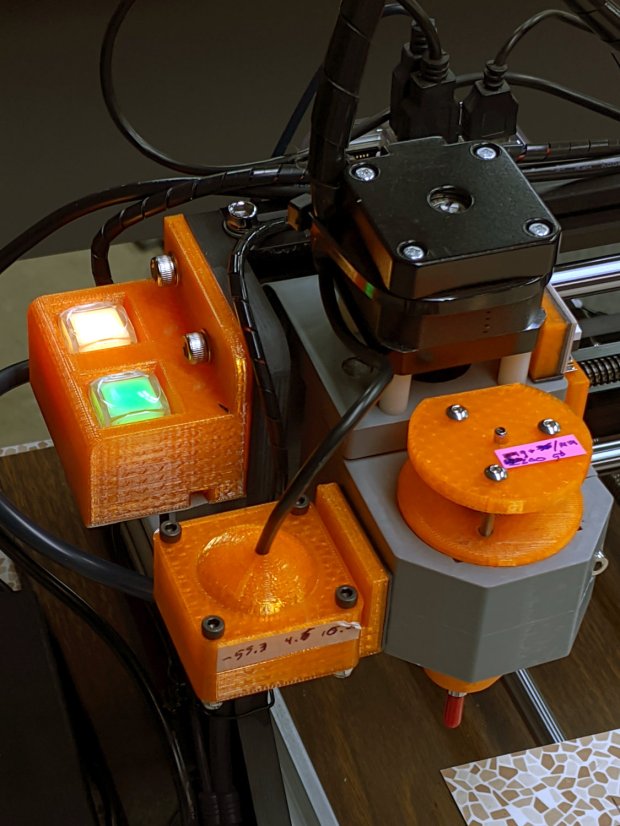
    Although the bCNC GUI has conspicuous Run / Hold buttons, it’s easier to poke a physical switch when you really really need a pause in the action or have finished a (manual) tool change. Rather than the separate button box I built for the frameless MPCNC, I designed a chunky switch holder for the CNC 3018XL’s gantry plate:

    CNC 3018-Pro - Run Hold Switches - installed
    CNC 3018-Pro – Run Hold Switches – installed

    The original 15 mm screws were just slightly too short, so those are 20 mm stainless SHCS with washers.

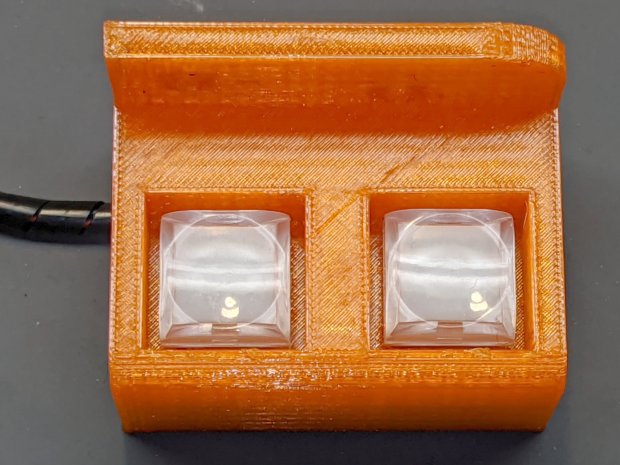
    The switches come from a long-ago surplus deal and have internal green and red LEDs. Their transparent cap shows what might be white plastic underneath:

    CNC 3018-Pro - Run Hold Switches - top unlit
    CNC 3018-Pro – Run Hold Switches – top unlit

    I think you could pry the cap off and tuck a printed legend inside, but appropriate coloration should suffice:

    CNC 3018-Pro - Run Hold Switches - lit
    CNC 3018-Pro – Run Hold Switches – lit

    Making yellow from red and green LEDs always seems like magic; in these buttons, red + green produces a creamy white. Separately, the light looks like what you get from red & green LEDs.

    The solid model shows off the recesses around the LED caps, making their tops flush with the surface to prevent inadvertent pokery:

    Run Hold Switch Mount - Slic3r
    Run Hold Switch Mount – Slic3r

    The smaller square holes through the block may require a bit of filing, particularly in the slightly rounded corners common to 3D printing, to get a firm press fit on the switch body. The model now has slightly larger holes which may require a dab of epoxy.

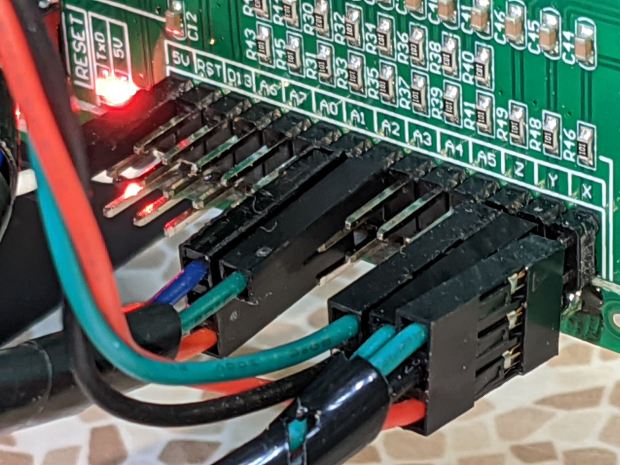
    A multi-pack of RepRap-style printer wiring produced the cable, intended for a stepper motor and complete with a 4-pin Dupont socket housing installed on one end. I chopped the housing down to three pins, tucked the fourth wire into a single-pin housing, and plugged them into the CAMtool V3.3 board:

    CNC 3018-Pro - Run Hold Switches - CAMtool V3.3 header
    CNC 3018-Pro – Run Hold Switches – CAMtool V3.3 header

    The CAMtool schematic matches the default GRBL pinout, which comes as no surprise:

    CAMtool schematic - Start Hold pinout
    CAMtool schematic – Start Hold pinout

    The color code, such as it is:

    • Black = common
    • Red = +5 V
    • Green = Run / Start (to match the LED)
    • Blue = Hold (because it’s the only color left)

    The cable goes into 4 mm spiral wrap for protection & neatness, with the end hot-melt glued into the block:

    CNC 3018-Pro - Run Hold Switches - bottom
    CNC 3018-Pro – Run Hold Switches – bottom

    The model now includes the wiring channel between the two switches, which is so obviously necessary I can’t imagine why I didn’t include it. The recess on the top edge clears the leadscrew sticking slightly out of the gantry plate.

    The LEDs require ballast resistors: 120 Ω for red and 100 Ω for green, producing about 15 mA in each LED. Those are 1/8 W film resistors; I briefly considered SMD resistors, but came to my senses just in time.

    A layer of black duct tape finishes the bottom sufficiently for my simple needs.

    Note: the CAMtool board doesn’t have enough +5 V pins, so add a row of +5 V pins just below the standard header. If you’ve been following along, you needed them when you installed the home switches:

    3018 CNC CAMTool - Endstop power mod
    3018 CNC CAMTool – Endstop power mod

    A doodle giving relevant dimensions and layouts:

    Run Hold Switch Mount - Layout Doodles
    Run Hold Switch Mount – Layout Doodles

    I originally planned to mount the switches on the other gantry plate and sketched them accordingly, but (fortunately) realized the stepper motor was in the way before actually printing anything.

    The OpenSCAD source code as a GitHub Gist:

    // CNC 3018-Pro Run-Hold Switches
    // Ed Nisley – KE4ZNU – 2020-01
    Layout = "Build"; // [Show,Build,ProjectionX,ProjectionY,ProjectionZ,Block]
    /* [Hidden] */
    ThreadThick = 0.25;
    ThreadWidth = 0.40;
    HoleWindage = 0.2;
    Protrusion = 0.1; // make holes end cleanly
    function IntegerMultiple(Size,Unit) = Unit * ceil(Size / Unit);
    ID = 0;
    OD = 1;
    LENGTH = 2;
    inch = 25.4;
    //———————-
    // Dimensions
    RodScrewOffset = [22,0,-14.5]; // X=left edge, Y=dummy, Z=from top edge
    BeamScrewOffset = [50,0,-10];
    LeadScrewOffset = [RodScrewOffset.x,0,-45]; // may be off the bottom; include anyway
    LeadScrew = [8.0,10.0,5.0]; // ID=actual, OD=clearance, LENGTH=stick-out
    Screw = [5.0,10.0,6.0]; // M5 SHCS, OD=washer, LENGTH=washer+head
    ScrewSides = 8; // hole shape
    WallThick = 3.0; // minimum wall thickness
    FlangeThick = 5.0; // flange thickness
    Switch = [15.0 + 2*HoleWindage,15.0 + 2*HoleWindage,12.5]; // switch body
    SwitchCap = [17.5,17.5,12.0]; // … pushbutton
    SwitchClear = SwitchCap + [2*2.0,2*2.0,Screw[OD]/(2*cos(180/ScrewSides))];
    SwitchContacts = 5.0; // contacts below switch
    SwitchBase = SwitchContacts + Switch.z; // bottom to base of switch
    MountOffset = abs(RodScrewOffset.z) + SwitchClear.z; // top of switch mounting plate
    FrameWidth = 60.0; // CNC 3018-Pro upright
    FrameRadius = 10.0; // … front corner rounding
    CornerRadius = 5.0; // pretty part rounding
    CornerSquare = 10; // dummy for square corner
    MountOAL = [FrameWidth, // covers machine frame
    2*FlangeThick + 2*Screw[LENGTH] + SwitchClear.y, // clear screw heads
    MountOffset + Switch.z + SwitchContacts
    ];
    echo(str("MountOAL: ",MountOAL));
    SwitchOC = [MountOAL.x/2,FlangeThick + 2*Screw[LENGTH] + SwitchClear.y/2,0];
    CableOD = 5.0;
    NumSides = 2*3*4;
    Gap = 2.0; // between build layout parts
    //———————-
    // Useful routines
    module PolyCyl(Dia,Height,ForceSides=0) { // based on nophead's polyholes
    Sides = (ForceSides != 0) ? ForceSides : (ceil(Dia) + 2);
    FixDia = Dia / cos(180/Sides);
    cylinder(r=(FixDia + HoleWindage)/2,
    h=Height,
    $fn=Sides);
    }
    // Projections for intersections
    module ProjectionX() {
    sr = CornerSquare/2;
    rotate([0,90,0]) rotate([0,0,90])
    linear_extrude(height=FrameWidth,convexity=3)
    // mirror([1,0]) // mount on motor side of gantry
    union() {
    translate([0,-MountOAL.z])
    square([FlangeThick,MountOAL.z]);
    hull() {
    translate([MountOAL.y – CornerRadius,-MountOffset + SwitchCap.z – CornerRadius])
    circle(r=CornerRadius,$fn=NumSides);
    translate([sr,-MountOffset + SwitchCap.z – sr])
    square(CornerSquare,center=true);
    translate([sr,-MountOAL.z + sr])
    square(CornerSquare,center=true);
    translate([MountOAL.y – sr,-MountOAL.z + sr])
    square(CornerSquare,center=true);
    }
    }
    }
    module ProjectionY() {
    sr = CornerSquare/2;
    rotate([90,0,0])
    translate([0,0,-FrameWidth])
    difference() {
    linear_extrude(height=2*FrameWidth,convexity=3)
    hull() {
    translate([FrameRadius,-FrameRadius])
    circle(r=FrameRadius,$fn=NumSides);
    translate([FrameWidth – sr,-sr])
    square(CornerSquare,center=true);
    translate([sr,-MountOAL.z + sr])
    square(CornerSquare,center=true);
    translate([MountOAL.x – sr,-MountOAL.z + sr])
    square(CornerSquare,center=true);
    }
    translate([RodScrewOffset.x,RodScrewOffset.z,-Protrusion])
    rotate(180/ScrewSides) PolyCyl(Screw[ID],2*(FrameWidth + Protrusion),ScrewSides);
    for (j=[-FlangeThick,FrameWidth + FlangeThick])
    translate([RodScrewOffset.x,RodScrewOffset.z,j])
    rotate(180/ScrewSides) PolyCyl(Screw[OD],FrameWidth,ScrewSides);
    translate([BeamScrewOffset.x,BeamScrewOffset.z,-Protrusion])
    rotate(180/ScrewSides) PolyCyl(Screw[ID],2*(FrameWidth + Protrusion),ScrewSides);
    for (j=[-FlangeThick,FrameWidth + FlangeThick])
    translate([BeamScrewOffset.x,BeamScrewOffset.z,j])
    rotate(180/ScrewSides) PolyCyl(Screw[OD],FrameWidth,ScrewSides);
    translate([LeadScrewOffset.x,LeadScrewOffset.z,FrameWidth – LeadScrew[LENGTH]])
    rotate(180/ScrewSides) PolyCyl(LeadScrew[OD],2*LeadScrew[LENGTH],ScrewSides);
    }
    }
    module ProjectionZ() {
    translate([0,0,-MountOAL.z])
    // mirror([0,1]) // mount on motor side of gantry
    difference() {
    linear_extrude(height=MountOAL.z,convexity=3)
    difference() {
    square([MountOAL.x,MountOAL.y]);
    translate([SwitchOC.x/2,SwitchOC.y])
    square([Switch.x,Switch.y],center=true);
    translate([3*SwitchOC.x/2,SwitchOC.y])
    square([Switch.x,Switch.y],center=true);
    }
    for (i=[-1,1])
    translate([i*SwitchOC.x/2 + MountOAL.x/2,SwitchOC.y,SwitchBase + MountOAL.z/2])
    cube([SwitchClear.x,SwitchClear.y,MountOAL.z],center=true);
    translate([-Protrusion,SwitchOC.y – 2*CableOD – Switch.y/2,-Protrusion])
    cube([MountOAL.x + 2*Protrusion,CableOD,CableOD + Protrusion],center=false);
    for (i=[-1,1])
    translate([i*SwitchOC.x/2 + MountOAL.x/2,SwitchOC.y – SwitchCap.y/2,CableOD/2 – Protrusion])
    cube([CableOD,SwitchClear.y/2,CableOD + Protrusion],center=true);
    translate([SwitchOC.x/2,SwitchOC.y – CableOD/2,-Protrusion])
    cube([SwitchOC.x,CableOD,CableOD + Protrusion],center=false);
    }
    }
    module Block() {
    intersection() {
    ProjectionX();
    ProjectionY();
    ProjectionZ();
    }
    }
    //- Build things
    if (Layout == "ProjectionX")
    ProjectionX();
    if (Layout == "ProjectionY")
    ProjectionY();
    if (Layout == "ProjectionZ")
    ProjectionZ();
    if (Layout == "Block")
    Block();
    if (Layout == "Show") {
    translate([-MountOAL.x/2,-MountOAL.y/2,MountOAL.z]) {
    Block();
    translate([MountOAL.x/2 + SwitchOC.x/2,SwitchOC.y,SwitchCap.z/2 – MountOAL.z + SwitchBase + 0*Switch.z])
    color("Yellow",0.75)
    cube(SwitchCap,center=true);
    translate([MountOAL.x/2 – SwitchOC.x/2,SwitchOC.y,SwitchCap.z/2 – MountOAL.z + SwitchBase + 0*Switch.z])
    color("Green",0.75)
    cube(SwitchCap,center=true);
    }
    }
    if (Layout == "Build")
    translate([-MountOAL.x/2,-MountOAL.y/2,MountOAL.z])
    Block();

    It seems bCNC doesn’t update its “Restart Spindle” message after a tool change when you poke the green button (instead of the GUI button), but that’s definitely in the nature of fine tuning.

  • CNC 3018XL: Rotating the Axes

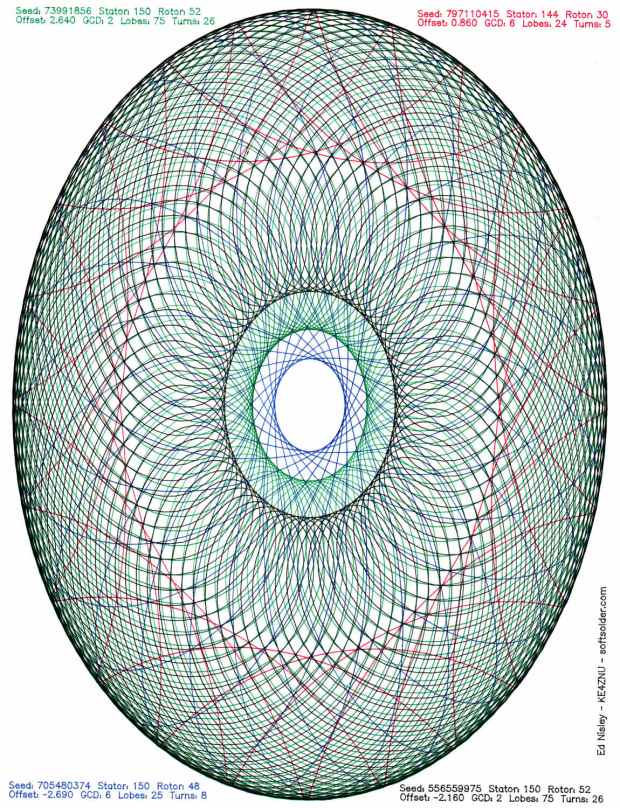
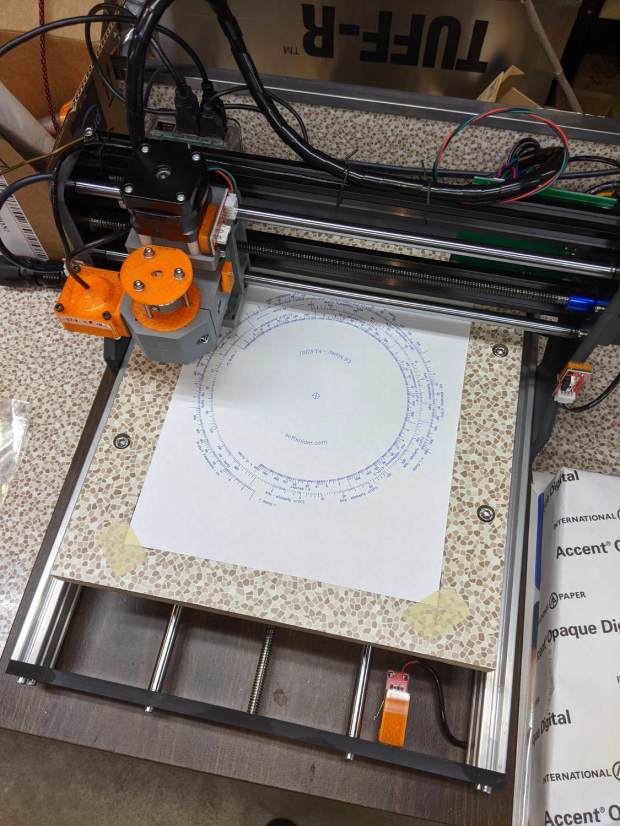
    After extending the CNC 3018-Pro platform to 340 mm along the Y axis, I tweaked the Spirograph demo to work with 8-1/2×11 paper:

    Spirograph - 3018XL Platform - Portrait Mode
    Spirograph – 3018XL Platform – Portrait Mode

    Yeah, a Portrait mode plot kinda squinches the annotations into the corners.

    Rotating the coordinates to put the X axis along the length of the new platform is, of course, a simple matter of mathematics, but it’s just a whole lot easier to rearrange the hardware to make the answer come out right without fancy reprogramming.

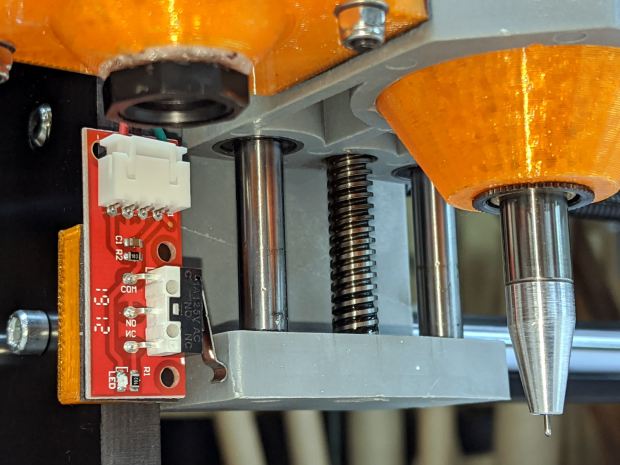
    The first step is to affix an MBI-style endstop switch to the left end of the gantry upright:

    3018XL - endstop - left gantry
    3018XL – endstop – left gantry

    The gantry carriage sits at the 1 mm pulloff position, with the switch lever just kissing the (fixed) lower carriage plate. As before, good double-sticky foam tape holds everything in place.

    The probe camera hovers just over the switch and the Pilot V5RT pen holder is ready for action.

    Shut down the Raspberry Pi and turn off the power!

    At the CAMtool V3.3 board:

    • Swap the X and Y motor cables
    • Move the former Y endstop switch to the X axis input
    • Plug the new endstop switch into the Y axis input, routing its cable across the top of the gantry
    • Abandon the former X axis switch and its cable in place

    Modify the GRBL configuration:

    • $3=4 – +Y home @ gantry left, +X home @ frame front
    • $130=338 – X axis travel along new frame
    • $131=299 – Y axis travel across gantry

    Tweak the bCNC config similarly, if that’s what you’re into.

    Verify the new home position!

    I reset the G54 coordinate system to put XY = 0 at the (new!) center of the platform, redefined G28 as the “park” position at the (new!) home pulloff position, and set G30 as the “tool change” position at the -X -Y (front right) corner of the platform, with bCNC icons to simplify moving to those points.

    And then It Just Worked™:

    3018XL - rotated axes
    3018XL – rotated axes

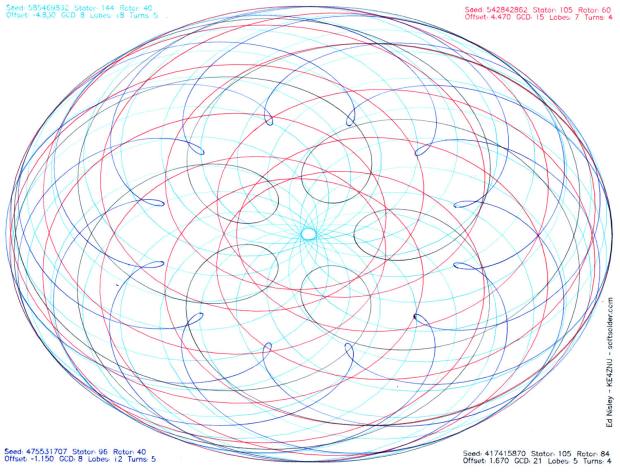
    The Spirograph patterns definitely look better in landscape mode:

    Spirograph - 3018XL Platform - Landscape Mode
    Spirograph – 3018XL Platform – Landscape Mode

    I eventually turned the whole machine 90° clockwise to align the axes with the monitor, because I couldn’t handle having the X axis move front-to-back on the table and left-to-right on the screen.

  • Blog Summary: 2019

    Another year of being the Domain Expert of scam-by-mail gadgets, obsolete ABS codes, and water heater anode rods:

    Blog Page View Summary - 2019
    Blog Page View Summary – 2019

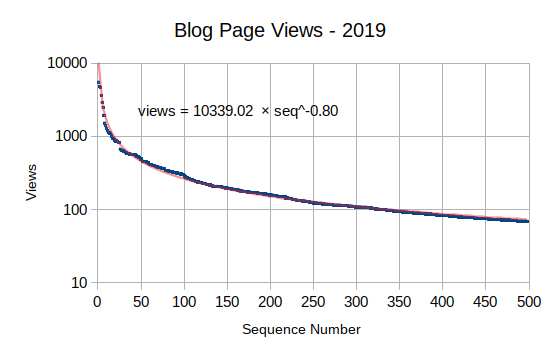
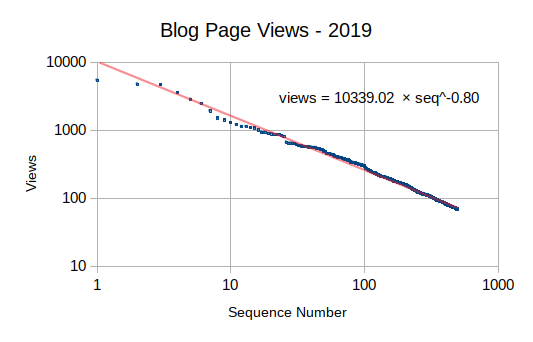
    Plotting the log of page views against posts in descending order of popularity gives a power-law relationship of some sort:

    Blog Page View Graph - 2019
    Blog Page View Graph – 2019

    The log-log view has odd discontinuities:

    Blog Page View Graph - 2019 - log-log
    Blog Page View Graph – 2019 – log-log

    Overall page views are down 30% from last year: 205k vs 290k.

    WordPress served 1 million ads (vs 1.2 million in 2018) on those 205k page views, nearly five ads per page view, which seems horrifying. If you’re not using an ad blocker, you surely have difficulty finding the blog post amid all the crap.

    The implosion of on-line advertising continues apace, however, as WordPress paid only 63% as much per ad: $0.40 (vs $0.70 in 2018) per thousand views. Obviously, ads on WordPress blogs aren’t worth much these days.

    Recommendations:

    While I could pay WordPress their upgrade ransom to eliminate the ads, it’s better if you defend yourself by eliminating all ads, wherever they may be.

  • Raspberry Pi: Adding a PIXEL Desktop Launcher

    The Raspberry Pi’s Raspbian PIXEL Desktop UI (not to be confused with the Google Pixel phone) descends from LXDE, with all the advantages & disadvantages that entails. One nuisance seems to be the inability to create a launcher for a non-standard program.

    The stock task bar (or whatever it’s called) has a few useful launchers and you can add a launcher for a program installed through the usual Add/Remove Software function, as shown by the VLC icon:

    LXDE launcher icons
    LXDE launcher icons

    Adding a bCNC launcher requires a bit of legerdemain, because it’s not found in the RPi repositories. Instead, install bCNC according to its directions:

    … install various pre-requisites as needed …
    pip2 install --upgrade git+https://github.com/vlachoudis/bCNC 

    Which is also how you upgrade to the latest & greatest version, as needed.

    You then launch bCNC from inside a terminal:

    python2 -m bCNC

    The installation includes all the bits & pieces required to create a launcher; they’re just not in the right places.

    So put them there:

    sudo cp ./.local/lib/python2.7/site-packages/bCNC/bCNC.png /usr/share/icons/
    sudo cp .local/lib/python2.7/site-packages/bCNC/bCNC.desktop /usr/share/applications/bCNC.desktop

    The bCNC.desktop file looks like this:

    [Desktop Entry]
    Version=1.0
    Type=Application
    Name=bCNC
    Comment=bCNC Controller
    Exec=bCNC
    Icon=bCNC.png
    Path=
    Terminal=true
    StartupNotify=false
    Name[en_US]=bCNC

    Set Terminal=false if you don’t want a separate terminal window and don’t care about any of the messages bCNC writes to the console during its execution. However, those messages may provide the only hint about happened as bCNC falls off the rails.

    With all that in place, it turns out LXDE creates a user-specific panel configuration file only when you change the default system panel configuration. Add a VLC launcher to create the local ~/.config/lxpanel/LXDE-pi/panels/panel file.

    With that ball rolled, then add the bCNC launcher:

    nano .config/lxpanel/LXDE-pi/panels/panel
    … add this stanza …
    Plugin {
      type=launchbar
      Config {
        Button {
          id=bCNC.desktop
        }
      }
    }

    Log out, log back in again, and the bCNC icon should appear:

    LXDE launcher icons - additions
    LXDE launcher icons – additions

    Click it and away you go:

    bCNC - Running from LXDE Launcher
    bCNC – Running from LXDE Launcher

    At least you (and I) will start closer to the goal when something else changes …

  • Drag Knife Cuttery: Entry & Exit Moves

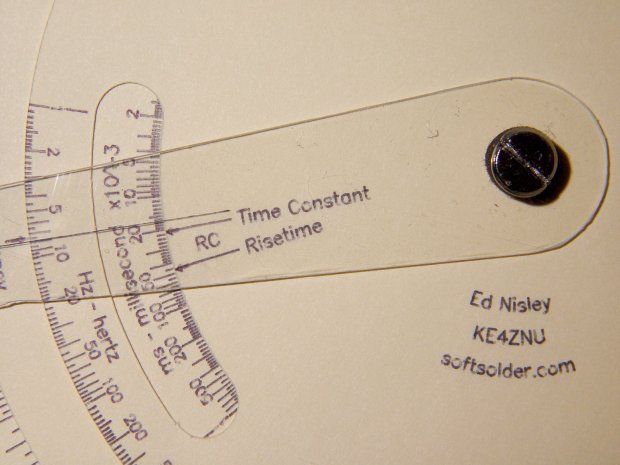
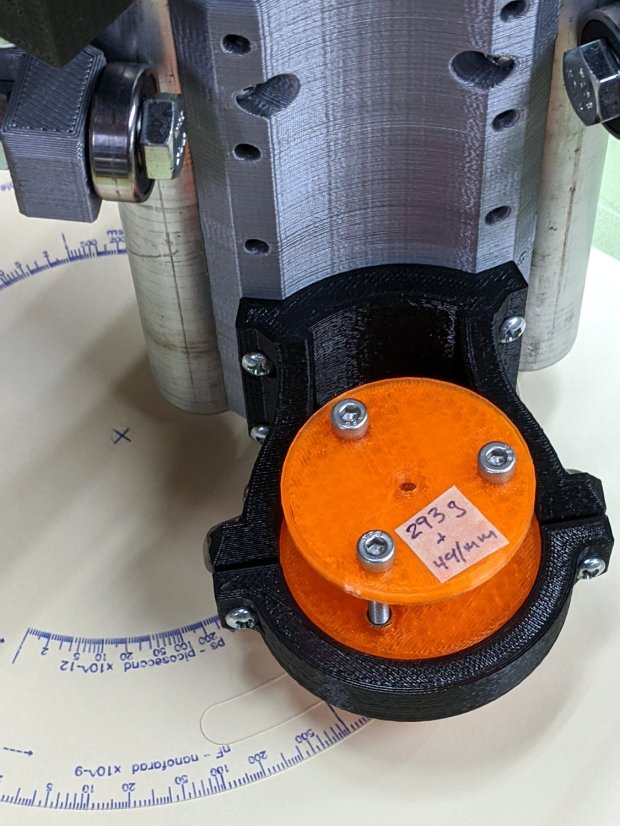
    The first pass at cutting laminated decks for the Homage Tektronix Circuit Computer left little uncut snippets at the starting point of the cut. The point of the drag knife blade trundles along behind the cutting edge and, when the ending point equals the starting point, leaves an un-cut sliver as it’s retracted vertically:

    Drag Knife - LM12UU - knife blade detail
    Drag Knife – LM12UU – knife blade detail

    The knife blade isn’t aligned in any particular direction, so it can leave a nick on either side as it enters the deck vertically at the start of the cut.

    Gradually entering the deck along the cut line gives the blade enough time to swivel around to the proper alignment before it gets down to serious cutting. Continuing the final cut past the starting point then allows the blade to recut anything remaining from the entry move.

    The middle and top decks have windows exposing the scales:

    Tek CC - radial text example
    Tek CC – radial text example

    The paths are basically two arcs connected by semicircular cuts, but with ramps on each end recutting the entry and exit paths:

    Top Deck - Window Cut Path
    Top Deck – Window Cut Path

    The entry path in the upper left slants downward from the TravelZ level of 1.5 (-ish) mm to Z=0, with the nose of the blade holder flush against the surface and the blade sunk to its full length. The vertical path to Z=-2 (-ish) increases the cutting pressure from roughly the preload value to preload + 2*(spring rate), so the blade won’t ride up under the cutting forces.

    The path then goes completely around the window at Z=-2, then ramps up to the TravelZ level again.

    All of which produces a neat cutout that sticks to the Cricut mat when I peel the rest of the deck off:

    Tek CC - MPCNC drag knife
    Tek CC – MPCNC drag knife

    That’s a middle deck before I started laminating them, but you get the general idea.

    The GCMC code (extracted from the complete lump) looks like this:

      local WindowArc = 54deg;
    
      local ac = -17 * ScaleArc + ScaleRT/2;   // center of window arc
      local r0 = DeckRad - ScaleHeight;        // outer
      local r1 = DeckRad - 2 * ScaleHeight;    // inner
    
      local aw = WindowArc - to_deg(atan(ScaleHeight,(r0 + r1)/2));    // window arc minus endcaps
    
      p0 = r0 * [cos(ac + aw/2),sin(ac + aw/2),-];
      p1 = r0 * [cos(ac - aw/2),sin(ac - aw/2),-];
      local p2 = r1 * [cos(ac - aw/2),sin(ac - aw/2),-];
      local p3 = r1 * [cos(ac + aw/2),sin(ac + aw/2),-];
    
      goto(p3);
      arc_cw(p0 +| [-,-,0],ScaleHeight/2);    // blade enters surface
      move([-,-,KnifeZ]);                     // apply pressure
    
      arc_cw(p1,r0);                          // smallest arc
      arc_cw(p2,ScaleHeight/2);               // half a circle
      arc_ccw(p3,r1);
      arc_cw(p0,ScaleHeight/2);
    
      arc_cw(p1 +| [-,-,TravelZ],r0);         // exit from cut
    
      goto([0,0,-]);
      goto([-,-,SafeZ]);

    Having measured the angular position of the window and its size on the original Tek CC, I compute the coordinates of the four points where the semicircular “end caps” meet the longer arcs, then connect the dots with arc_xx() functions to generate the G-Code commands. As always, using the proper radius signs requires trial & error.

    While I was at it, I added entry & exit moves for the deck’s central pivot hole and outer perimeter.

    I’m pretty sure the right CAM package would take care of that, but GCMC operates well below the CAM level.

  • Bird Feeder Icing

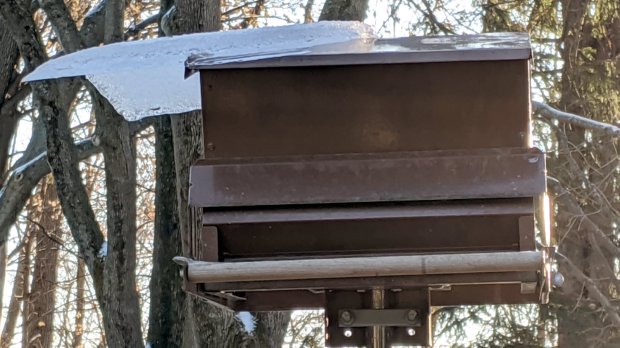
    After a day of snow + sleet + ice, followed by overnight cooling, the bird feeder looked like this:

    2019-12-19 - Ice on bird feeder - Day 0
    2019-12-19 – Ice on bird feeder – Day 0

    The ice generally doesn’t bond across the top, so the sheets slide off separately to the front and back. This time, they stayed together and began sliding off to the side.

    The next two days were unusually cold and the glacier stopped sliding:

    2019-12-21 - Ice on bird feeder - Day 2
    2019-12-21 – Ice on bird feeder – Day 2

    The temperature warmed enough during the day to let the glacier resume sliding, whereupon it fell and shattered on the patio.

    No birds or squirrels were injured during this incident.