The Smell of Molten Projects in the Morning

Ed Nisley's Blog: Shop notes, electronics, firmware, machinery, 3D printing, laser cuttery, and curiosities. Contents: 100% human thinking, 0% AI slop.

Author: Ed

  • Photo Backdrop Clamp Pad Embiggening

    Photo Backdrop Clamp Pad Embiggening

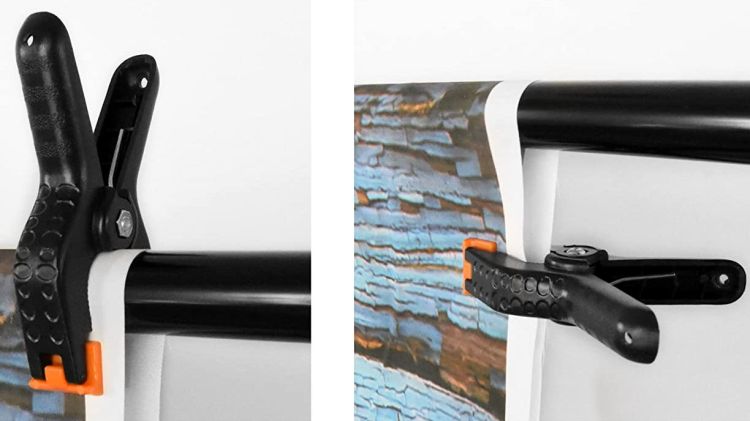
    We got a photo backdrop stand to hold Mary’s show-n-tell quilts during her quilting club meetings, but the clamps intended to hold the backdrop from the top bar don’t work quite the way one might expect. These photos snagged from the listing shows their intended use:

    Emart Photo Backdrop - clamp examples
    Emart Photo Backdrop – clamp examples

    The clamp closes on the top bar with the jaws about 15 mm apart, so you must wrap the backdrop around the bar, thereby concealing the top few inches of whatever you intended to show. This doesn’t matter for a preprinted generic backdrop or a green screen, but quilt borders have interesting detail.

    The clamps need thicker jaws, which I promptly conjured from the vasty digital deep:

    Spring Clamp Pads - PS preview
    Spring Clamp Pads – PS preview

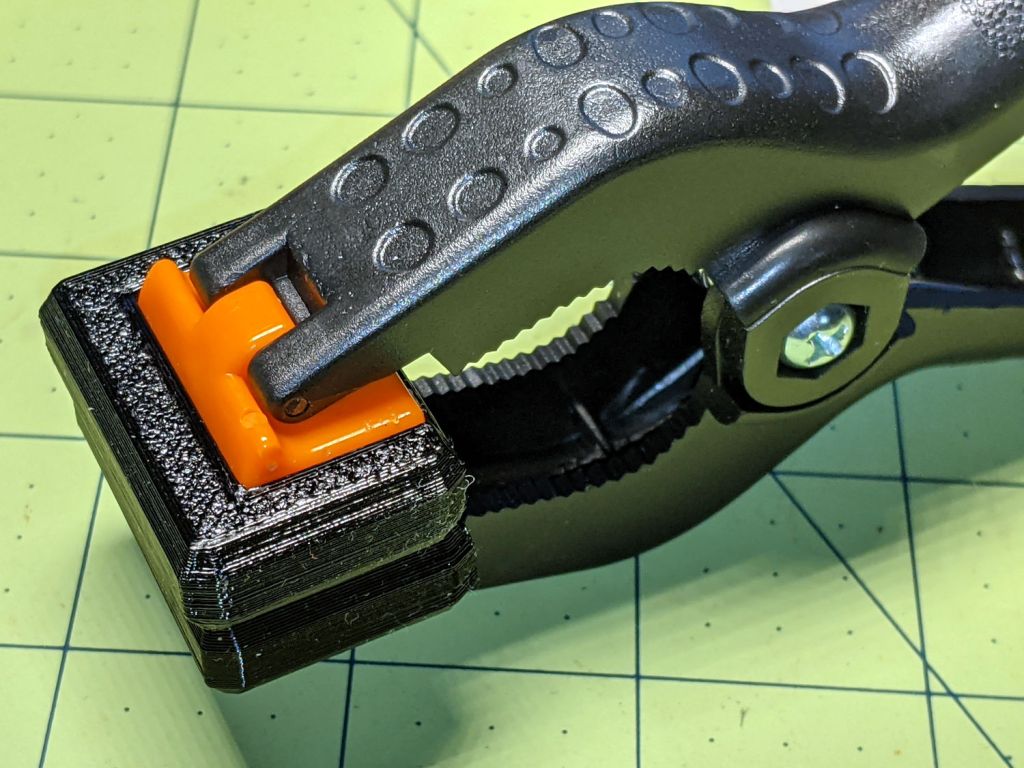
    The original jaws fit neatly into those recesses, atop a snippet of carpet tape to prevent them from wandering off:

    Spring Clamp pads - detail
    Spring Clamp pads – detail

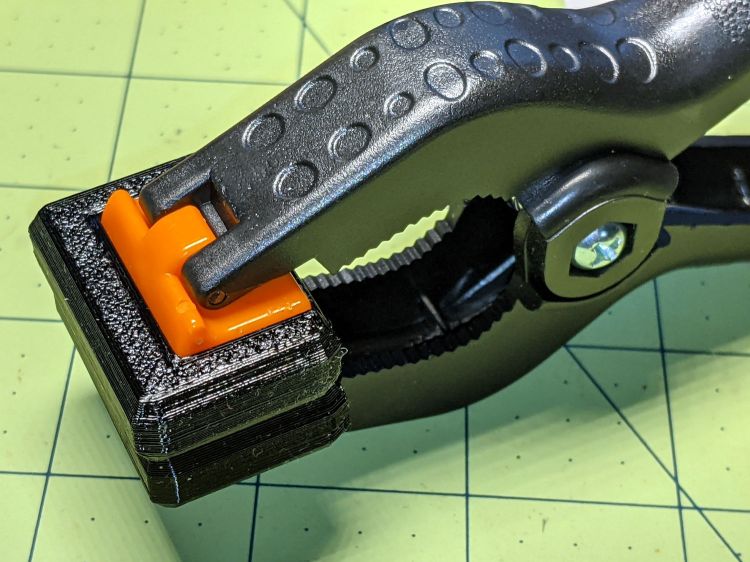
    They’re thick enough to meet in the middle and make the clamp’s serrated round-ish opening fit around the bar:

    Spring Clamp pads - compared
    Spring Clamp pads – compared

    With a quilt in place, the clamps slide freely along the bar:

    Spring Clamp pads - fit test
    Spring Clamp pads – fit test

    That’s a recreation based on actual events, mostly because erecting the stand wasn’t going to happen for one photo.

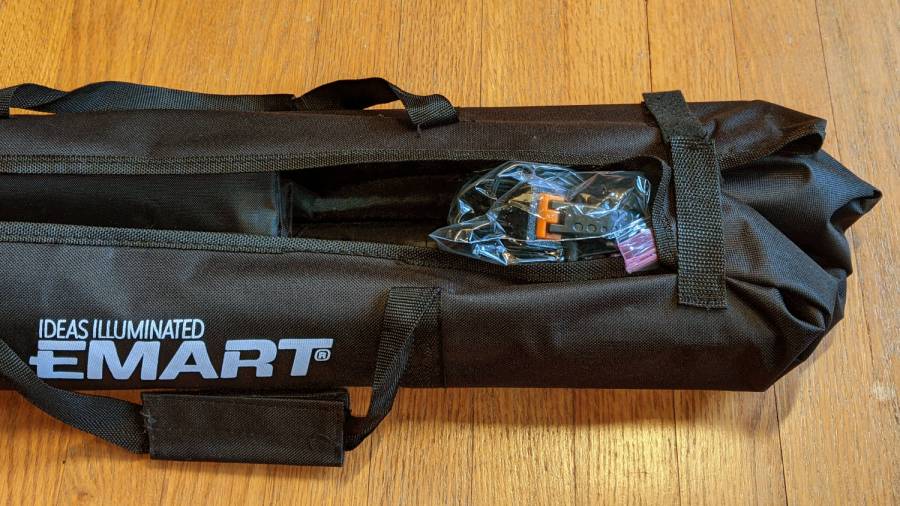
    To level set your expectations, the “Convenient Carry Bag” is more of a wrap than a bag, without enough fabric to completely surround its contents:

    Emart photo backdrop bag
    Emart photo backdrop bag

    I put all the clamps / hooks / doodads in a quart Ziploc baggie, which seemed like a better idea than letting them rattle around loose inside the wrap. The flimsy pair (!) of hook-n-loop straps don’t reach across the gap and, even extended with a few inches of double-sided Velcro, lack enough mojo to hold it closed against all the contents.

    It’ll suffice for our simple needs, but …

    The OpenSCAD source code as a GitHub Gist:

    // Clamp pads for Emart photo backdrop clamps
    // Ed Nisley KE4ZNU Jan 2021
    /* [Hidden] */
    ThreadThick = 0.25;
    ThreadWidth = 0.40;
    HoleWindage = 0.2;
    Protrusion = 0.1; // make holes end cleanly
    inch = 25.4;
    function IntegerMultiple(Size,Unit) = Unit * ceil(Size / Unit);
    module PolyCyl(Dia,Height,ForceSides=0) { // based on nophead's polyholes
    Sides = (ForceSides != 0) ? ForceSides : (ceil(Dia) + 2);
    FixDia = Dia / cos(180/Sides);
    cylinder(d=(FixDia + HoleWindage),h=Height,$fn=Sides);
    }
    //———————-
    // Dimensions
    OEMpad = [24.0,16.0,3.0]; // original pad
    Pad = [35.0,25.0,8.0 + OEMpad.z]; // pad extension
    PadOffset = [0,-3.0,0];
    CornerRad = 3.0; // corner rounding
    Gap = 3.0;
    //———————-
    // Shape the pad
    module BigPad() {
    difference() {
    hull()
    for (i=[-1,1],j=[-1,1],k=[-1,1])
    translate([i*(Pad.x/2 – CornerRad),j*(Pad.y/2 – CornerRad),k*(Pad.z/2 – CornerRad) + Pad.z/2])
    sphere(r=CornerRad,$fn=6);
    translate(PadOffset + [0,0,Pad.z – (OEMpad.z + Protrusion)/2])
    cube(OEMpad + [HoleWindage,HoleWindage,Protrusion],center=true);
    }
    }
    //———————-
    // Build a pair
    translate([0,(Pad.y + Gap)/2,0])
    BigPad();
    translate([0,-(Pad.y + Gap)/2,0])
    rotate(180)
    BigPad();

  • Removing Sentry FireSafe Door Trim

    Removing Sentry FireSafe Door Trim

    After turning the key and dialing the correct combination, the unlocking handle on the basement safe refused to move. Applying the dictum “If brute force isn’t working, you’re not using enough of it”, we eventually persuaded the handle downward and the door swung open. Before applying the dictum “If it doesn’t move and should, use WD-40 [*]”, I had to remove the trim cover from the interior side of the door to gain access to the lockwork.

    Start by pressing the two latches inside the small circular holes in the hinge side of the trim cover:

    Sentry FireSafe Door - first latches
    Sentry FireSafe Door – first latches

    Pull the trim over the slightly chamfered bolts, taking advantage of the fact the bottom pulls out more easily than the top, then pry it upward off the latch in the middle of the top:

    Sentry FireSafe Door - top latch
    Sentry FireSafe Door – top latch

    The latches along the other side yield when you bend the trim sufficiently far from the door while applying the Designated Prydriver near the faint mold markings visible around the edge:

    Sentry FireSafe Door - last latches
    Sentry FireSafe Door – last latches

    With the trim removed, you can see fancier safes in this line have two additional bolts engaging the top and bottom of the door frame. The rectangular block on the bottom of the hinge side might be for the batteries required by the spendy electronic lock version.

    The problem turned out to be a lack of lubrication in the door-closed interlock that prevents you from relocking the bolts and wrecking the mechanism when you try to close the door with the bolts extended:

    Sentry FireSafe Door - bolt interlock
    Sentry FireSafe Door – bolt interlock

    A dab of silicone lube on all those sliding interfaces restored the interlock’s good humor.

    The bolts had always rubbed just a bit on the trim cover, so I ovalized the offending side of the holes with an Xacto knife.

    Slamming the trim firmly back on the door reset the latches, cycling the lockwork resynchronized the interlock, and the safe once again works just like it should.

    [*] WD-40 is not the appropriate lube for the lockwork inside a safe, but the dictum aims you in the right direction.

  • Tek Circuit Computer: Cursor Hairline

    Tek Circuit Computer: Cursor Hairline

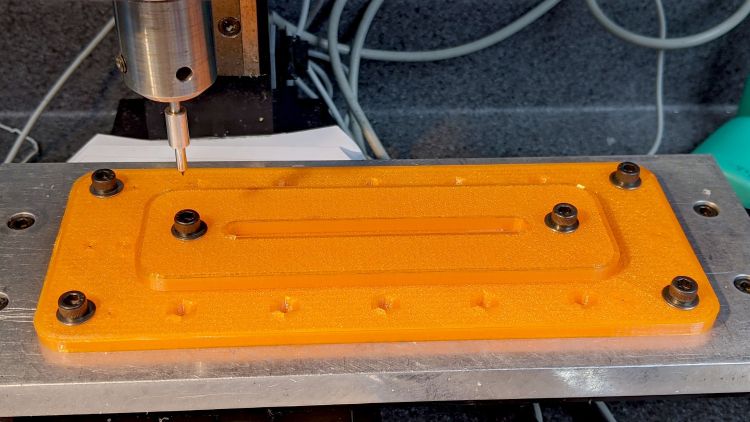
    Given a machined cursor blank, clamp it into position:

    Tek CC Cursor - cursor hairline fixture
    Tek CC Cursor – cursor hairline fixture

    You don’t want to clamp the cursor directly to the Sherline tooling plate, because the diamond drag bit would pass over two or three of those 10-32 screw holes which would, by the conservation of perversity, leave visible defects. In hindsight, I should have put a recess for an aluminum plate in there.

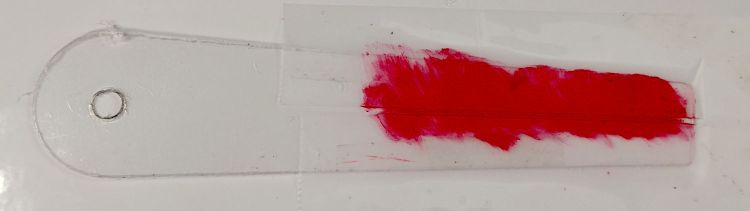
    After a single pass at Z=-4.0 mm, add two strips of tape to protect the adjoining surface and scribble it with red lacquer crayon:

    Tek CC Cursor - tape color fill
    Tek CC Cursor – tape color fill

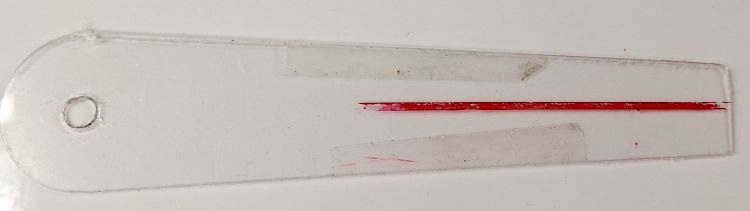
    Peel the tape off:

    Tek CC Cursor - tape removed
    Tek CC Cursor – tape removed

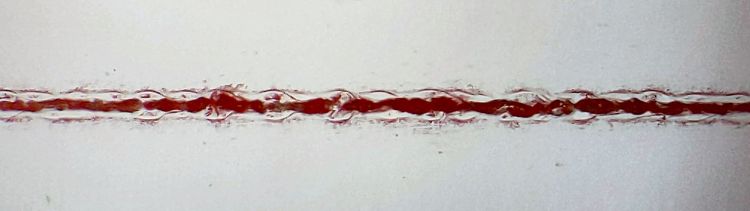
    Then wipe off the residue using a soft cloth wetted with denatured alcohol:

    Tek CC Cursor - red cursor detail
    Tek CC Cursor – red cursor detail

    That looks much like the previous efforts. I’d like a more uniform trench, but I don’t know how to get there from here.

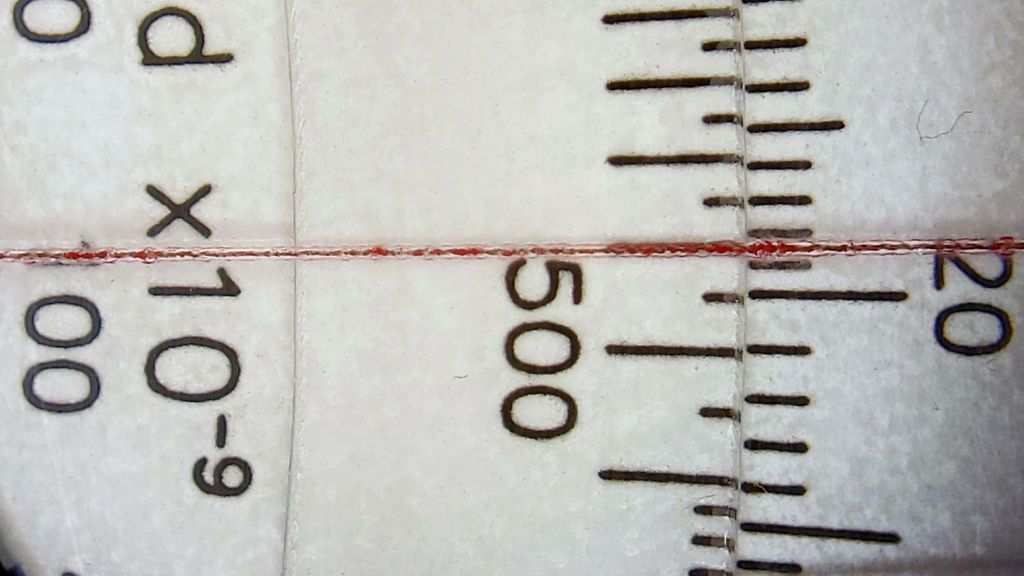
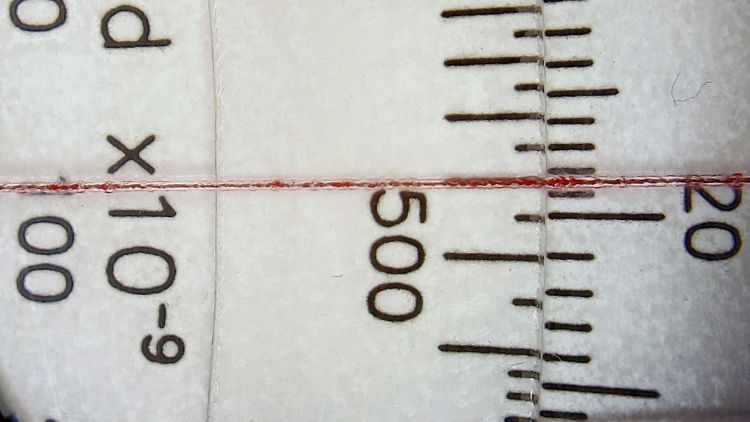
    In any event, the hairline looks pretty good against laser-printed scales:

    Tek CC Cursor - red cursor white laser decks - magnified
    Tek CC Cursor – red cursor white laser decks – magnified

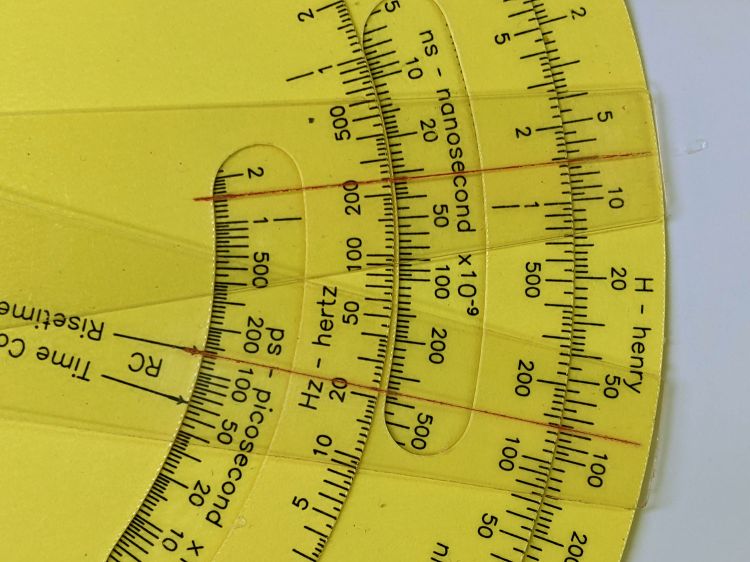
    The new cursor is the lower one lying atop a laser-printed Pickett-style Circuit Computer:

    Tek CC Cursor - red cursor yellow laser decks - overview
    Tek CC Cursor – red cursor yellow laser decks – overview

    Looks good enough to eat, as the saying goes …

  • Tek Circuit Computer: Cursor Milling Toolpath

    Tek Circuit Computer: Cursor Milling Toolpath

    Unlike the adhesive fixture, this setup requires a pause while milling the cursor outline to reclamp it from the front:

    Tek CC Cursor Fixture - outline rear clamp
    Tek CC Cursor Fixture – outline rear clamp

    The trick is applying the front clamp before releasing the rear clamp:

    Tek CC Cursor Fixture - outline both clamp
    Tek CC Cursor Fixture – outline both clamp

    Then continue the mission:

    Tek CC Cursor Fixture - outline front clamp
    Tek CC Cursor Fixture – outline front clamp

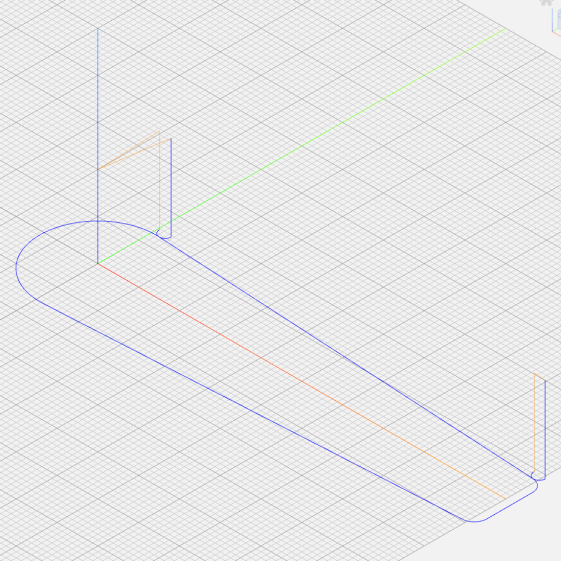
    Because the tool path includes cutter compensation, GCMC adds entry and exit arcs to ensure a smooth transition:

    Tek CC Cursor - Milling path
    Tek CC Cursor – Milling path

    The pix show a single cursor in the fixture while verifying the setup worked the way it should. Obviously, milling a stack of cursors eliminates a whole bunch of fiddling.

    The tweaked MillCursor function from the mostly otherwise unchanged GCMC code:

        comment("Clamp on rear half of cursor!");
    
        local cp = {p0};                                             // enter at hub tangent point
        cp += varc_ccw([0mm,-2*p0.y,-],-hr,0,0.2mm,5deg) + p0;       // arc to tangent at hub bottom
    
        cp += {[p1.x,-p1.y,-]};                                      // lower tip entry point
        cp += varc_ccw([p2.x-p1.x,-(p2.y-p1.y),-],CursorTipRadius,0,0.2mm,5deg) + [p1.x,-p1.y,-];  // arc to tip exit at p2
    
        cp += varc_ccw([p1.x-p2.x,p1.y-p2.y,-],CursorTipRadius,0,0.2mm,5deg) + p2;  // arc to tip exit at p1
    
        goto([-,-,CursorSafeZ]);
        goto([0,0,-]);
        feedrate(MillSpeed);
        tracepath_comp(cp,CutterOD/2,TPC_OLDZ + TPC_RIGHT + TPC_ARCIN + TPC_ARCOUT);
    
        comment("Clamp on front half of cursor!");
        pause();                                      // wait for reclamping
    
        p1.z = MillZ;                                //  ... set milling depth
        cp = {p1};
        cp += {p0};
                                                     // exit at hub tangent
        tracepath_comp(cp,CutterOD/2,TPC_OLDZ + TPC_RIGHT + TPC_ARCIN + TPC_ARCOUT);
    
    <<< snippage >>>
    
      goto([-,-,CursorSafeZ]);
      goto([0,0,-]);
    

    Next, scribing a nice hairline with the new fixture.

  • Tek Circuit Computer: 3D Printed Cursor Milling Fixture

    Tek Circuit Computer: 3D Printed Cursor Milling Fixture

    The original Tektronix Circuit Computer cursor was probably die-cut from a larger sheet carrying pre-printed hairlines:

    Tek CC - genuine - detail
    Tek CC – genuine – detail

    Machining a punch-and-die setup lies well beyond my capabilities, particularly given the ahem anticipated volume, so milling seems the only practical way to produce a few cursors.

    Attaching a cursor blank to a fixture with sticky tape showed that the general idea worked reasonably well:

    Tek CC - Cursor blank on fixture
    Tek CC – Cursor blank on fixture

    However, the tape didn’t have quite enough griptivity to hold the edges completely flat against milling forces (a downcut bit might have worked better) and I found myself chasing the cutter with a screwdriver to hold the cursor in place. Worse, the tape’s powerful attraction to swarf made it a single-use item.

    Some tinkering showed a single screw in the (pre-drilled) pivot hole, without adhesive underneath, lacked enough oomph to keep the far end of the cursor in place, which meant I had to think about how to hold it down with real clamps.

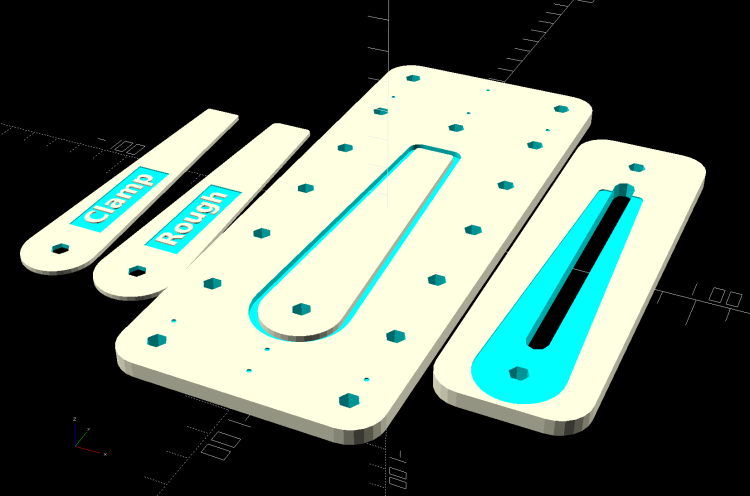
    Which, of course, meant conjuring a fixture from the vasty digital deep. The solid model includes the baseplate, two cutting templates, and a clamping fixture for engraving the cursor hairline:

    Cursor Fixture - build layout
    Cursor Fixture – build layout

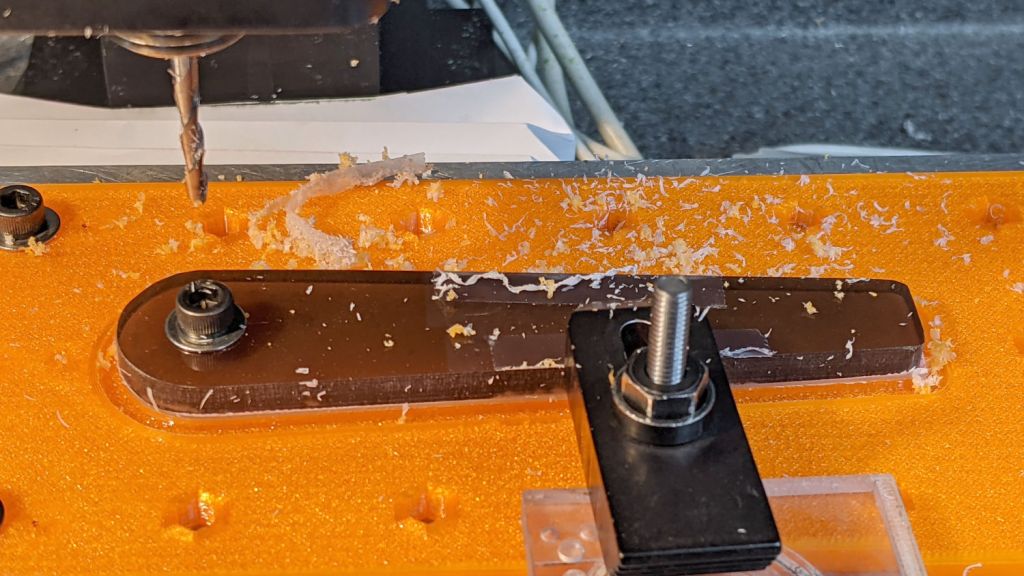
    The perimeter of the Clamp template on the far left is 0.5 mm inside the cursor perimeter. Needing only one Clamp, I could trace it on a piece of acrylic, bandsaw it pretty close, introduce it to Mr Belt Sander for final shaping, and finally drill the hole:

    Tek CC Cursor Fixture - clamp drilling
    Tek CC Cursor Fixture – clamp drilling

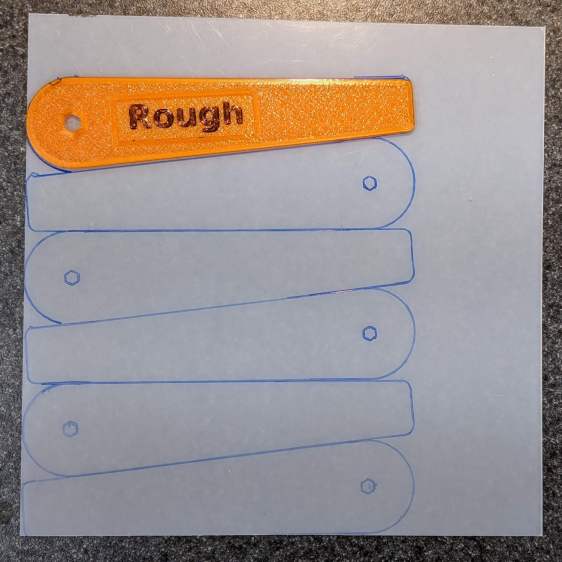
    The Rough template is 1.0 mm outside the cursor perimeter, so I can trace those outlines on a PET sheet:

    Tek CC Cursor Fixture - Rough template layout
    Tek CC Cursor Fixture – Rough template layout

    Then cut the patterns with a scissors, stack ’em up, and tape the edges to keep them aligned:

    TekCC Cursor Fixture - Rough template
    TekCC Cursor Fixture – Rough template

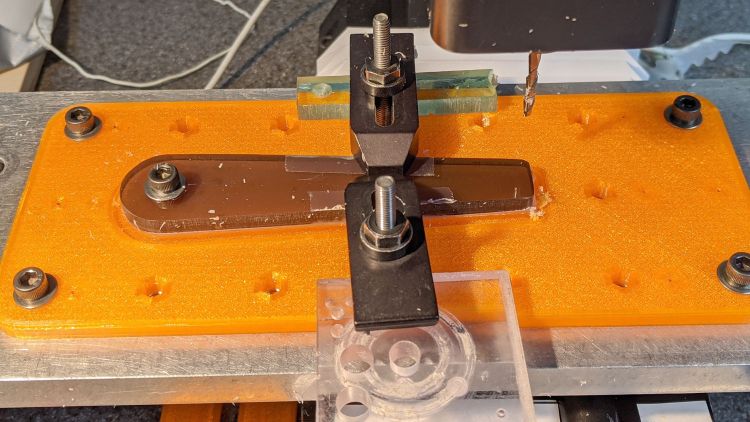
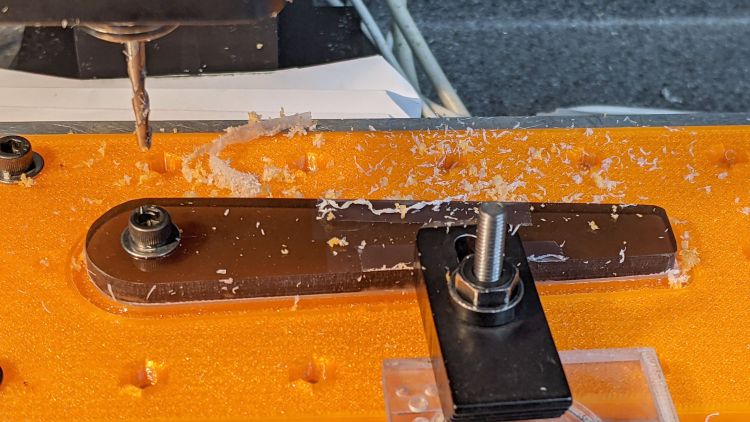
    Align the stack by feel, apply the Clamp to hold them in place, and secure the stack with a Sherline clamp:

    Tek CC Cursor Fixture - outline rear clamp
    Tek CC Cursor Fixture – outline rear clamp

    The alert reader will note it’s no longer possible to machine the entire perimeter in one pass; more on that in a while.

    The baseplate pretty much fills the entire Sherline tooling plate. It sports several alignment pips at known offsets from the origin at the center of the pivot hole:

    Tek CC Cursor Fixture - touch-off point
    Tek CC Cursor Fixture – touch-off point

    Dropping the laser alignment dot into a convenient pip, then touching off X and Y to the known offset sets the origin without measuring anything. Four screws in the corners align the plate well enough to not worry about angular tweakage.

    The OpenSCAD source code as a GitHub Gist:

    // Machining fixtures for Tek Circuit Computer cursor
    // Ed Nisley KE4ZNU Jan 2021
    Layout = "Show"; // [Show, Build, Cursor, Clamp, Rough, Engrave]
    /* [Hidden] */
    ThreadThick = 0.25;
    ThreadWidth = 0.40;
    HoleWindage = 0.2;
    Protrusion = 0.1; // make holes end cleanly
    inch = 25.4;
    function IntegerMultiple(Size,Unit) = Unit * ceil(Size / Unit);
    module PolyCyl(Dia,Height,ForceSides=0) { // based on nophead's polyholes
    Sides = (ForceSides != 0) ? ForceSides : (ceil(Dia) + 2);
    FixDia = Dia / cos(180/Sides);
    cylinder(d=(FixDia + HoleWindage),h=Height,$fn=Sides);
    }
    //———————-
    // Dimensions
    CursorHubOD = 1.0*inch; // original Tek CC was hard inch!
    CursorTipWidth = (9.0/16.0)*inch;
    CursorTipRadius = (1.0/16.0)*inch;
    CursorThick = 0.5; // plastic sheet thickness
    CutterOD = 3.175; // milling cutter dia
    CutterDepth = 2.0; // … depth of cut
    CutterLip = 0.5; // … clearance under edge
    ScribeOD = 3.0; // diamond scribe shank
    StudOC = [1.16*inch,1.16*inch]; // Sherline tooling plate grid
    StudClear = 5.0; // … screw clearance
    StudWasher = 11.0; // … washer OD
    CursorOffset = [-2*StudOC.x,0,0]; // hub center relative to fixture center
    // must have even multiples of stud spacing to put studs along centerlines
    BasePlateStuds = [6*StudOC.x,2*StudOC.y]; // fixture screws
    echo(str("Stud spacing: ",StudOC));
    CornerRad = 10.0; // corner radius
    BasePlate = [2*StudWasher + BasePlateStuds.x,2*StudWasher + BasePlateStuds.y,5.0];
    echo(str("Base Plate: ",BasePlate));
    EngravePlate = [5*StudOC.x,1.5*StudOC.y,BasePlate.z];
    echo(str("Engrave Plate: ",EngravePlate));
    TemplateThick = 6*ThreadThick;
    LegendThick = 2*ThreadThick;
    Gap = 3.0;
    //———————-
    // Import SVG of cursor outline
    // Requires our hub OD to match reality
    // Hub center at origin
    module CursorSVG(t=CursorThick,od=0) {
    hr = CursorHubOD/2;
    translate([-hr,-hr,0])
    linear_extrude(height=t,convexity=3)
    offset(r=od/2)
    import(file="/mnt/bulkdata/Project Files/Tektronix Circuit Computer/Firmware/TekCC-Cursor-Mark.svg",center=false);
    }
    //———————-
    // Milling fixture for cursor blanks
    module Fixture() {
    difference() {
    hull() // basic plate shape
    for (i=[-1,1], j=[-1,1])
    translate([i*(BasePlate.x/2 – CornerRad),j*(BasePlate.y/2 – CornerRad),0])
    cylinder(r=CornerRad,h=BasePlate.z,$fn=24);
    translate(CursorOffset + [0,0,BasePlate.z – CutterDepth])
    difference() {
    CursorSVG(CutterDepth + Protrusion,1.5*CutterOD);
    CursorSVG(CutterDepth + Protrusion,-CutterLip);
    }
    translate(CursorOffset + [0,0,BasePlate.z – 2*ThreadThick]) { // alignment pips
    for (x=[-20.0,130.0], y=[-30.0,0.0,30.0])
    translate([x,y,0])
    cylinder(d=4*ThreadWidth,h=1,$fn=6);
    for (x=[-30.0,130.0,150.0])
    translate([x,0,0])
    cylinder(d=4*ThreadWidth,h=1,$fn=6);
    }
    for (i=[-1,1], j=[-1,1]) // mounting stud holes
    translate([i*BasePlateStuds.x/2,j*BasePlateStuds.y/2,-Protrusion])
    rotate(180/6)
    PolyCyl(StudClear,BasePlate.z + 2*Protrusion,6);
    translate(CursorOffset + [0,0,-Protrusion]) // hub clamp hole
    rotate(180/6)
    PolyCyl(StudClear,BasePlate.z + 2*Protrusion,6);
    translate([2*StudOC.x,0,-Protrusion]) // tip clamp hole
    rotate(180/6)
    PolyCyl(StudClear,BasePlate.z + 2*Protrusion,6);
    for (i=[-2:2], j=[-1,1]) // side clamp holes
    translate([i*StudOC.x,j*StudOC.y,-Protrusion])
    rotate(180/6)
    PolyCyl(StudClear,BasePlate.z + 2*Protrusion,6);
    }
    }
    //———————-
    // Show-n-Tell cursor
    module Cursor() {
    difference() {
    CursorSVG(CursorThick,0.0);
    translate([0,0,-Protrusion])
    rotate(180/6)
    PolyCyl(StudClear,TemplateThick + 2*Protrusion,6);
    }
    }
    //———————-
    // Template for rough-cutting blanks
    module Rough() {
    bb = [40,12,LegendThick];
    difference() {
    CursorSVG(TemplateThick,1.0);
    translate([0,0,-Protrusion])
    rotate(180/6)
    PolyCyl(StudClear,TemplateThick + 2*Protrusion,6);
    difference() {
    translate([bb.x/2 + CursorHubOD/2,0,TemplateThick – bb.z/2 + Protrusion])
    cube(bb + [0,0,Protrusion],center=true);
    translate([bb.x/2 + CursorHubOD/2,0,TemplateThick – bb.z])
    linear_extrude(height=bb.z,convexity=10)
    text(text="Rough",size=7,spacing=1.00,font="DejaVu Sans:style:Bold",halign="center",valign="center");
    }
    }
    }
    //———————-
    // Template for aluminium clamping plate
    module Clamp() {
    bb = [40,12,LegendThick];
    difference() {
    CursorSVG(TemplateThick,-1.0);
    translate([0,0,-Protrusion])
    rotate(180/6)
    PolyCyl(StudClear,TemplateThick + 2*Protrusion,6);
    difference() {
    translate([bb.x/2 + CursorHubOD/2,0,TemplateThick – bb.z/2 + Protrusion])
    cube(bb + [0,0,Protrusion],center=true);
    translate([bb.x/2 + CursorHubOD/2,0,TemplateThick – bb.z])
    linear_extrude(height=bb.z,convexity=10)
    text(text="Clamp",size=7,spacing=1.00,font="DejaVu Sans:style:Bold",halign="center",valign="center");
    }
    }
    }
    //———————-
    // Engraving clamp
    module Engrave() {
    difference() {
    hull() // clamp outline
    for (i=[-1,1], j=[-1,1])
    translate([i*(EngravePlate.x/2 – CornerRad),j*(EngravePlate.y/2 – CornerRad),0])
    cylinder(r=CornerRad,h=EngravePlate.z,$fn=24);
    translate(CursorOffset + [0,0,-Protrusion])
    CursorSVG(CursorThick + Protrusion,0.5); // pocket for blank cursor
    translate(CursorOffset + [0,0,-Protrusion])
    rotate(180/6)
    PolyCyl(StudClear,EngravePlate.z + 2*Protrusion,6);
    translate([2*StudOC.x,0,-Protrusion])
    rotate(180/6)
    PolyCyl(StudClear,EngravePlate.z + 2*Protrusion,6);
    hull() {
    for (i=[-1,1])
    translate([i*1.5*StudOC.x,0,-Protrusion])
    PolyCyl(2*ScribeOD,EngravePlate.z + 2*Protrusion,8);
    }
    }
    }
    //———————-
    // Build it
    if (Layout == "Cursor") {
    Cursor();
    }
    if (Layout == "Clamp") {
    Clamp();
    }
    if (Layout == "Rough") {
    Rough();
    }
    if (Layout == "Engrave") {
    Engrave();
    }
    if (Layout == "Show") {
    Fixture();
    color("Green",0.3)
    translate(CursorOffset + [0,0,BasePlate.z + Protrusion])
    Cursor();
    color("Orange")
    translate(CursorOffset + [0,0,BasePlate.z + 10])
    Rough();
    color("Brown")
    translate(CursorOffset + [0,0,BasePlate.z + 20])
    Clamp();
    color("Gold")
    translate(0*CursorOffset + [0,0,BasePlate.z + 40])
    Engrave();
    }
    if (Layout == "Build"){
    rotate(90) {
    Fixture();
    translate([0,-((BasePlate.y + EngravePlate.y)/2 + Gap),EngravePlate.z])
    rotate([180,0,0])
    Engrave();
    translate(CursorOffset + [0,(BasePlate.y + CursorHubOD)/2 + Gap,0])
    Rough();
    translate(CursorOffset + [0,(BasePlate.y + 3*CursorHubOD)/2 + 2*Gap,0])
    Clamp();
    }
    }

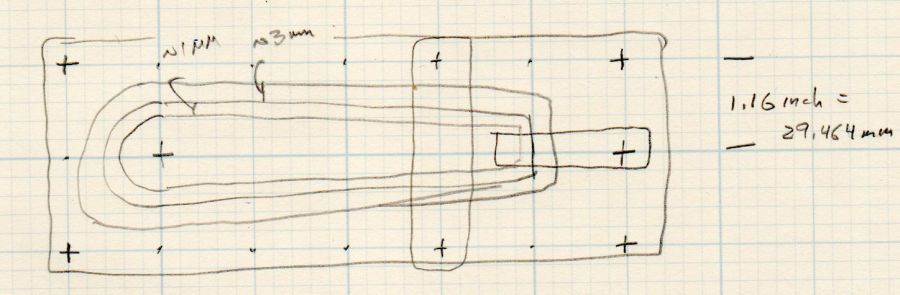
    The original doodle with some notions and dimensions that didn’t survive contact with reality:

    Cursor Fixture doodle
    Cursor Fixture doodle

    I have no idea why the Sherline tooling plate has a 10-32 screw grid on 1.16 inch = 29.46 mm centers, but there they are.

  • Astable Multivibrator: Red RGB Piranha

    Astable Multivibrator: Red RGB Piranha

    A red LED has a sufficiently low forward voltage to run with a MOSFET astable multivibrator and a pair of run-down AA alkaline cells:

    Astable AA Alkaline - red
    Astable AA Alkaline – red

    The red LED is actually part of an RGB Piranha, just to see how it compares to an as-yet-unbuilt version with a single red LED in the same package.

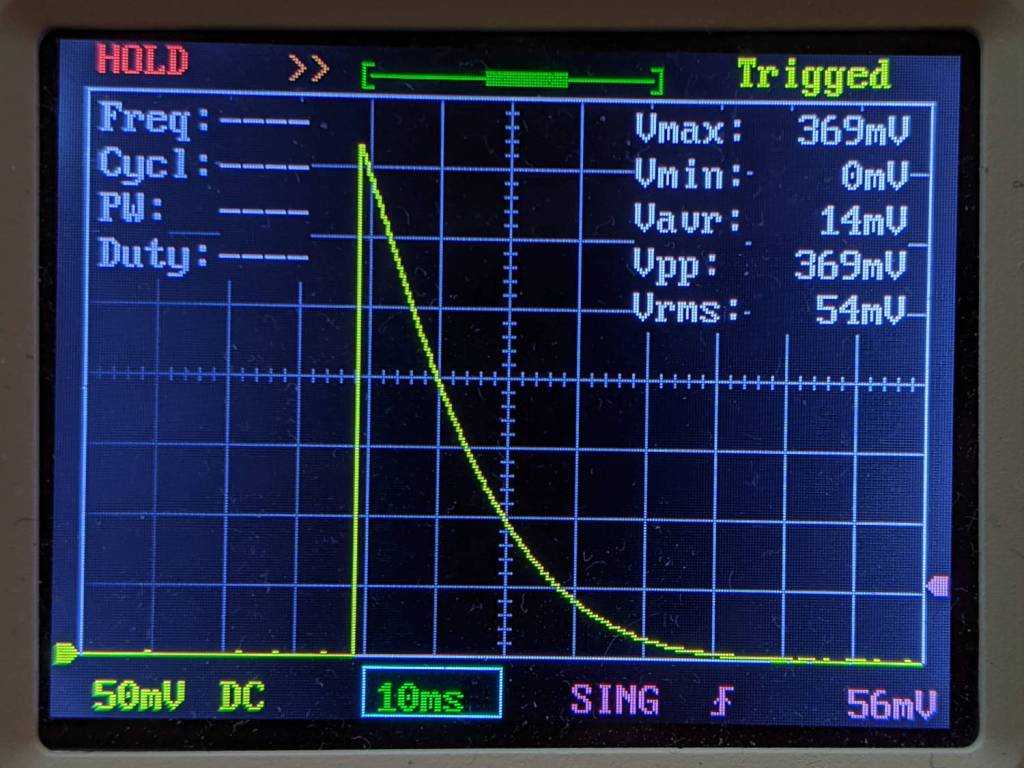
    The LED drops 1.9 V of the 2.75 V from the mostly used-up AA cells:

    Astable Piranha Red - 2.75 alkaline - V LED
    Astable Piranha Red – 2.75 alkaline – V LED

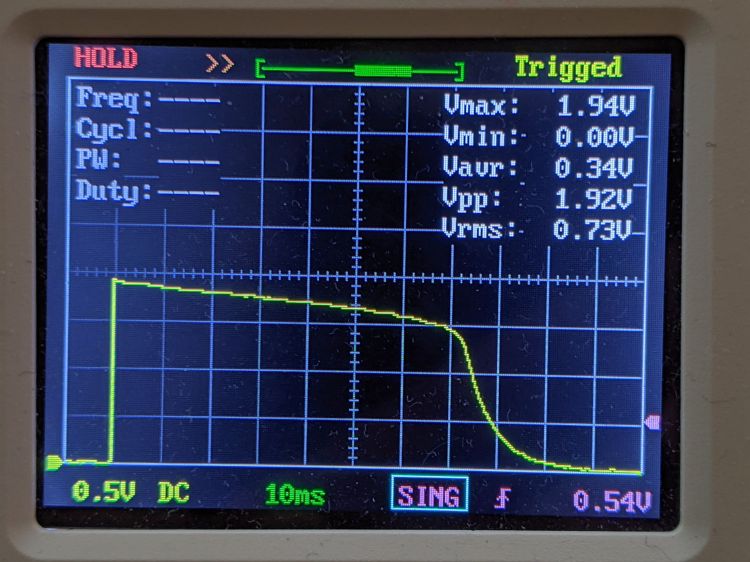
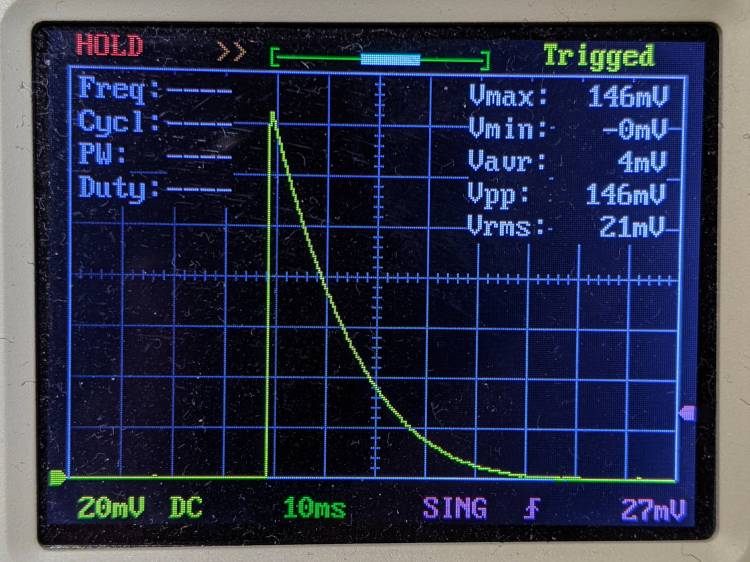
    The original 33 Ω ballast resistor showed a peak current of 11 mA in a 30 ms pulse:

    Astable Piranha Red - 2.75 alkaline - V 33 ohm
    Astable Piranha Red – 2.75 alkaline – V 33 ohm

    Replacing it with a 12 Ω resistor boosts the current all the way to 12 mA:

    Astable Piranha Red - 2.75 alkaline - V 12 ohm
    Astable Piranha Red – 2.75 alkaline – V 12 ohm

    The 2N7000 gate sees a just bit more than 2 V, barely enough to get the poor thing conducting, which makes the ballast resistor mostly decorative. The MOSFET datasheet puts its 1 mA threshold somewhere between 0.8 and 3 V, so it could be worse.

    Keep in mind the DSO150’s 1 MΩ input impedance sat in parallel with the 1 MΩ gate pulldown resistor forming the RC differentiator when I measured the gate voltage; I’ll leave the simulation as an exercise for the interested reader. The blinks were noticeably dimmer and perhaps a bit shorter, although eyeballometric calibration is notoriously hard.

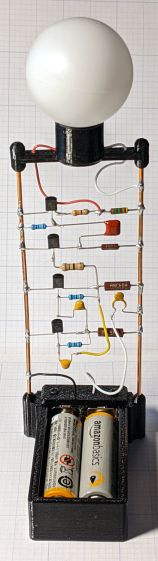
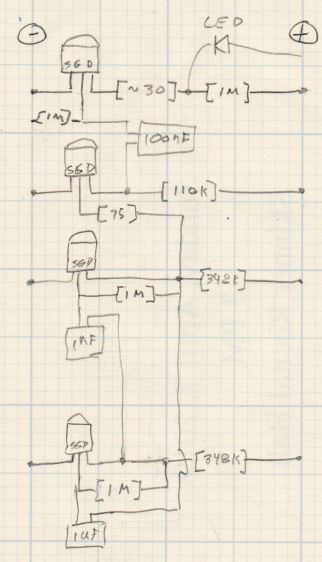
    The slightly revised schematic-layout doodle stacks the transistors along the negative bus bar:

    Astable wiring layout - stacked 2N7000
    Astable wiring layout – stacked 2N7000

    Flipping the bottom transistor over to snuggle the two timing caps next to each other would eliminate the long jumper wire and probably look better.

  • Homage Tektronix Circuit Computer: Laser Printed Scales

    Homage Tektronix Circuit Computer: Laser Printed Scales

    Given the proper command-line options, GCMC can produce an SVG image and, after some Bash fiddling and a bank shot off Inkscape, the same GCMC program I’ve been using to plot Homage Tektronix Circuit Computer decks can produce laser-printed decks:

    Tek CC - laser - detail
    Tek CC – laser – detail

    Pen-plotting on yellow Astrobrights paper showed how much ink bleeds on slightly porous paper, but laser-printing the same paper produces crisp lines:

    Tek CC - laser - yellow detail
    Tek CC – laser – yellow detail

    Laser printing definitely feels like cheating, but, for comparison, here’s a Genuine Tektronix Circuit Computer:

    Tek CC - genuine - detail
    Tek CC – genuine – detail

    Plotting the decks on hard mode was definitely a learning experience!

    Obviously, my cursor engraving hand remains weak.