The Smell of Molten Projects in the Morning

Ed Nisley's Blog: Shop notes, electronics, firmware, machinery, 3D printing, laser cuttery, and curiosities. Contents: 100% human thinking, 0% AI slop.

Tag: Thing-O-Matic

Using and tweaking a Makerbot Thing-O-Matic 3D printer

  • Automated Cookie Cutters: Height Map Image File Preparation

    Having established the OpenSCAD can produce a height map from an input array, a bit more doodling showed how to produce such an array from a grayscale image. I certainly didn’t originate all of this, but an hour or two of searching with the usual keywords produced snippets that, with a bit of programming-as-an-experimental-science tinkering, combine into a useful whole.

    Not being much of an artist, I picked a suitable SVG image from the Open ClipArt Library:

    Jellyfish - color
    Jellyfish – color

    That’s pretty, but we need a grayscale image. Some Inkscape fiddling eliminated all the nice gradients, changed the outline to a dark gray, made all the interior fills a lighter gray, and tweaked the features:

    Jellyfish - gray
    Jellyfish – gray

    Admittedly, it looks rather dour without the big smile, but so it goes. This is still an SVG file, so you have vector-mode lines & areas.

    A bit more work changed the grays to produce different heights, duplicated one of the spots for obvious asymmetry, and exported it as a gritty 160×169 pixel PNG image:

    Jellyfish - height map image
    Jellyfish – height map image

    The low resolution corresponds to a 2 pixel/mm scale factor: 169 pixel = 84.5 mm tall. The cutter wrapped around this image will have a lip that adds about 12 mm, a 1 or 2 mm gap separates the press from the cutter, and there’s a skirt around the whole affair. My Thing-O-Matic build platform measures a scant 120 mm in the Y direction, which puts a real crimp on the proceedings.

    That’s assuming the usual 1 unit = 1 mm conversion factor. If your toolchain regards units as inches, then you need a different scale factor.

    Low resolution also speeds up the OpenSCAD processing; you can use as many pixel/mm as you wish, but remember that the extruded filament is maybe 0.5 mm wide, so anything beyond 4 pixel/mm might not matter, even if the motion control could benefit from the smoother sides. Features down near the resolution limit of the model may produce unusual effects for thin walls near the thread width, due to interpolation & suchlike (which is why I got rid of the smile). The processing time varies roughly with the number of pixels, so twice the resolution means four times more thumb-twiddling.

    Caveats:

    • You’re looking at a cookie lying on a table: this is the top view
    • Background surrounding the image should be full white = 255
    • Highest points should be very light gray, not full white, to avoid creating islands
    • Lowest points may be black; I use a very dark gray
    • No need for an outline
    • Smooth gradients are OK, although they’ll become harshly quantized by the layer thickness
    • You can probably use JPG instead of PNG, but these aren’t big files
    • Remember this is a cookie press, not a work of art

    With a suitable PNG image file in hand, use ImageMagick to prepare the image:

    • Crop to just the interesting part: -trim (depends on the four corners having background color)
    • Convert the image to grayscale: -type Grayscale (in case it’s a color image)
    • Make it 8 bit/pixel: -depth 8 (more won’t be helpful)
    • Stretch the contrast: -auto-level (to normalize the grayscale to the full range = full height)
    • Reverse left-to-right to make a cookie press: -flop (think about it)
    • Invert the grayscale to make the cookie press surface: -negate (again, think about it)
    • Reverse top-to-bottom to correct for upcoming OpenSCAD surface() reversal: -flip

    Thusly:

    convert filename.png -trim -type Grayscale -depth 8 -auto-level -flop -negate -flip filename_prep.png
    

    Which produces this image:

    Jellyfish - prepared image
    Jellyfish – prepared image

    Combining -flop and -flip just rotates the image 180° around its center, but I can’t help but believe transposing the bits works out better & faster than actually rotating the array & interpolating the result back to a grid. On the other paw, if there isn’t a special case for (multiples of) right-angle rotation(s), there should be. [grin]

    The prepared image is 149×159, because the -trim operation removed the surrounding whitespace. You can do that manually, of course, keeping in mind that the corners must be full white to identify the background.

    Next: convert that image to a data array suitable for OpenSCAD’s surface() function…

  • Automated Cookie Cutters: OpenSCAD surface() Function

    While pondering the notion of making cookie cutters, it occurred to me that the process could be automated: a grayscale height map image of the cookie should be enough to define the geometry. The existing height map solutions (like William Adams’s fine work) seem entirely too heavyweight, what with custom Windows or Java programs and suchlike. Some doodling indicates that a simpler solution may suffice for my simple needs, although the devil always hides in the details.

    The overall problem with a cookie press involves producing a non-rectangular solid with a bumpy upper surface corresponding to the grayscale values of an image: dark pixels = low points of the surface, light pixels = peaks. The image size controls the XY extent of the solid and the pixel values control the Z, with some known value (likely either black or white) acting as a mask around the perimeter. Given such a solid, you can then wrap a cutter blade and handle around the outline, much as I did for the Tux cutter.

    OpenSCAD has a lightly documented surface() function that reads an ASCII text file consisting of an array of numeric values. Each array element defines a 1 × 1 unit square of the resulting 3D object; the example in the doc shows a 10 x 10 array producing a 10 x 10 unit object. Each numeric value sets the height of the surface at the center of the square.

    This array, slightly modified from the one in the doc, shows how that works:

    9 9 8 7 6 5 5 5 5 1
    9 9 7 6 6 4 3 2 1 0
    8 7 6 6 4 3 2 1 0 0
    7 6 6 4 3 2 1 0 0 0
    6 6 4 3 2 1 1 0 0 0
    6 6 3 2 1 1 1 0 0 0
    6 6 2 1 1 1 9 9 9 0
    6 6 1 0 0 0 9 8 9 0
    3 1 0 0 0 0 9 9 9 0
    9 8 7 6 5 4 3 2 1 0
    

    Feeding that into this OpenSCAD program:

    module ShowPegGrid(Space = 10.0,Size = 1.0) {
    
      Range = floor(50 / Space);
    
    	for (x=[-Range:Range])
    	  for (y=[-Range:Range])
    		translate([x*Space,y*Space,Size/2])
    		  %cube(Size,center=true);
    
    }
    
    ShowPegGrid();
    surface("/tmp/test.dat",center=true,convexity=10);
    

    Produces this object, surrounded by a few non-printing 1 unit alignment cubes on the Z=0 plane for scale:

    Example Object
    Example Object

    Some things to note:

    • The text array looks like it builds downward from the upper left, but the solid model builds from the origin toward the +X and +Y directions, with the first line of the array appearing along Y=0. This reverses the object along the Y axis: the first line of the array is the front side of the object.
    • The “center=true” option centers the object in XY around the Z axis, with a 1 unit thick slab below the entire array; the top surface of that slab (at Z=0) represents the level corresponding to 0 elements in the array.
    • Each array element becomes a square one unit on a side; the RepRap software chain regards units as millimeters
    • The center point of each element’s square is at the nominal height
    • The Z coordinate of the edges of those squares linearly interpolate between adjacent centers
    • Vertical edges become slanted triangular facets

    Remember that STL files contain a triangular tessellation (or whatever you call it in 3D) of the object surface, which means rectangles aren’t natural. The edge interpolation make the whole thing work, because an array of pure square pillars probably won’t be a 2-manifold object: some pillars would share only a common vertical edge. The interpolation does, however, produce a bazillion facets atop the object.

    So the problem reduces to generating such an array from a grayscale image, for which some ImageMagick and Bash-fu should suffice, and then manipulating it into a model that will produce a cookie press and cutter. More on that tomorrow…

    [Update: image file, height map file, solid modeling, printing]

  • Whirlpool Refrigerator: Replacement Freezer Shelf Bracket

    Somehow, one of the brackets that supports the small shelf inside the freezer of our Whirlpool refrigerator went missing over the many intervening years and repairs; we never used that shelf and stashed it in a closet almost immediately after getting the refrigerator, so not having the bracket didn’t matter. We recently set up a chest freezer in the basement for all the garden veggies that used to fill all the space available and decided to (re-)install the shelf, which meant we needed a bracket.

    It’s impossible to figure out exactly which “shelf stud” in that list would solve the problem, but one of the upper-left pair in that set seems to be about right. On the other paw, I don’t need all the other brackets and doodads and screws, sooo… I can probably make one.

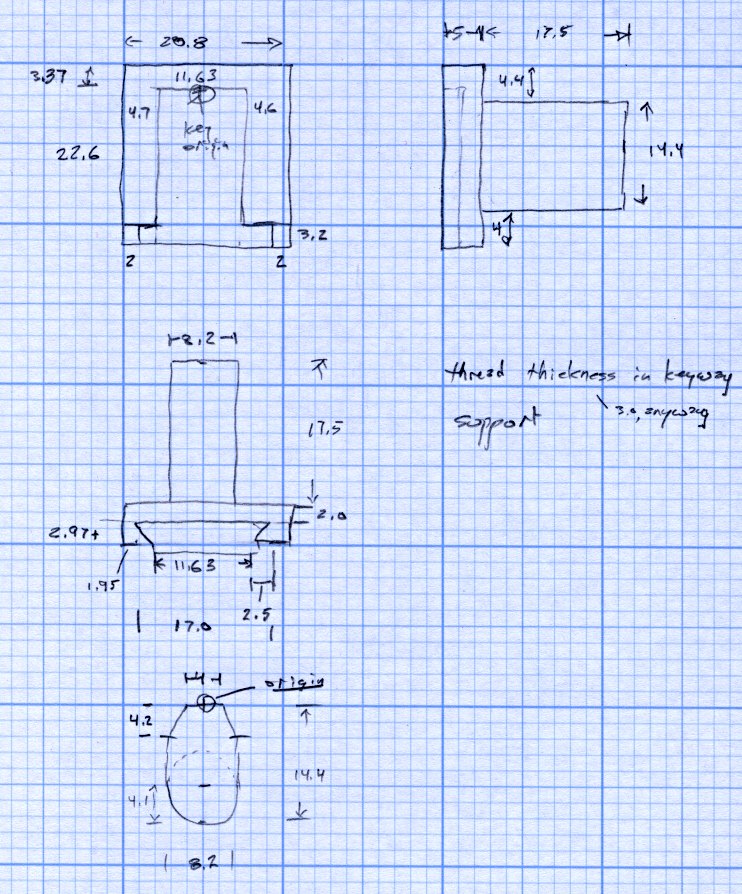
    Start with a few measurements, then doodle up the general idea:

    Refrigerator Bracket - dimension doodle
    Refrigerator Bracket – dimension doodlet’s time to conjure up a solid model:

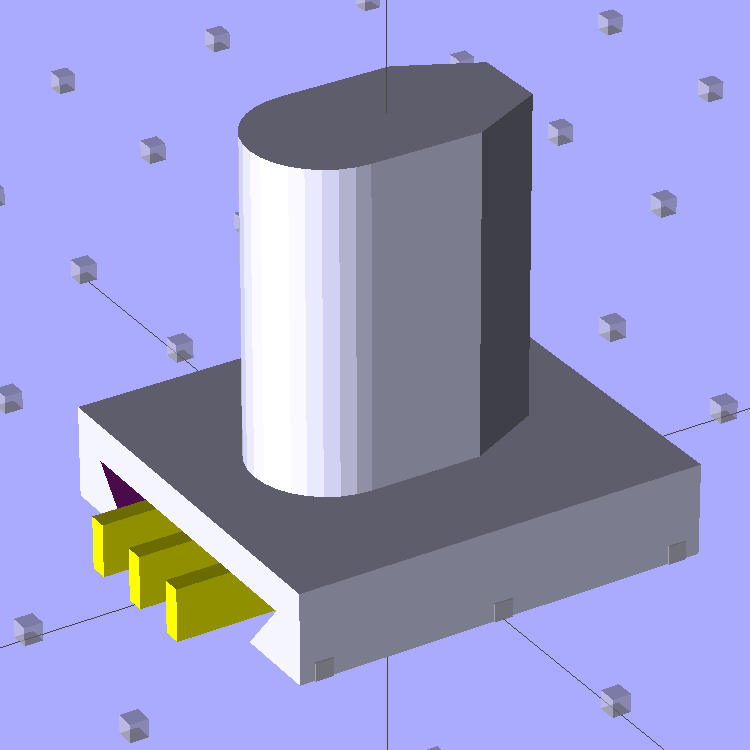
    A bit of OpenSCAD solid modeling:

    Refrigerator Bracket Pin - solid model
    Refrigerator Bracket Pin – solid model

    The yellow bars support the ceiling of that big dovetail, which would otherwise sag badly. The OEM bracket has nicely rounded corners on the base and a bit of an overall radius at the end of the post; this was pretty close and easier to do.

    Now it’s time to Fire the Thing-O-Matic…

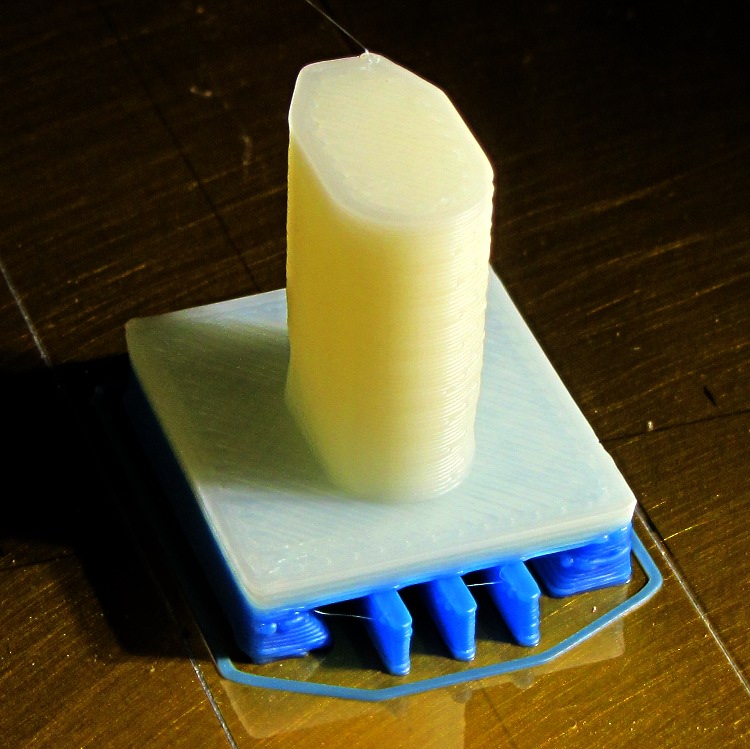
    I switched from blue to white filament during the print, because I figured I’d print another one after I got the sizes right, so it emerged with an attractive blue base:

    Bracket on build platform
    Bracket on build platform

    A better view of the support structure:

    Bracket - dovetail support structure
    Bracket – dovetail support structure

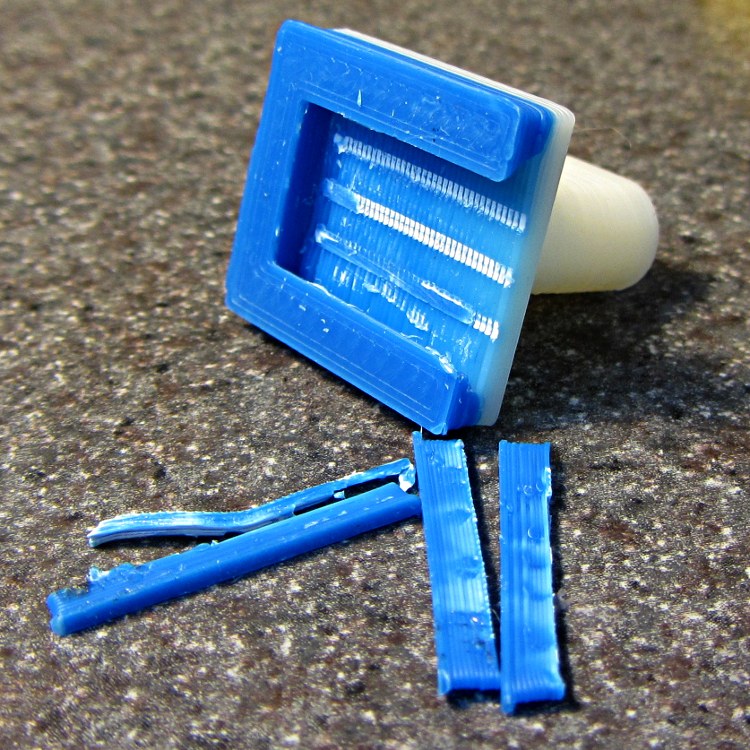
    Two of the bars snapped off cleanly, but the third required a bit of scraping:

    Bracket - support scars
    Bracket – support scars

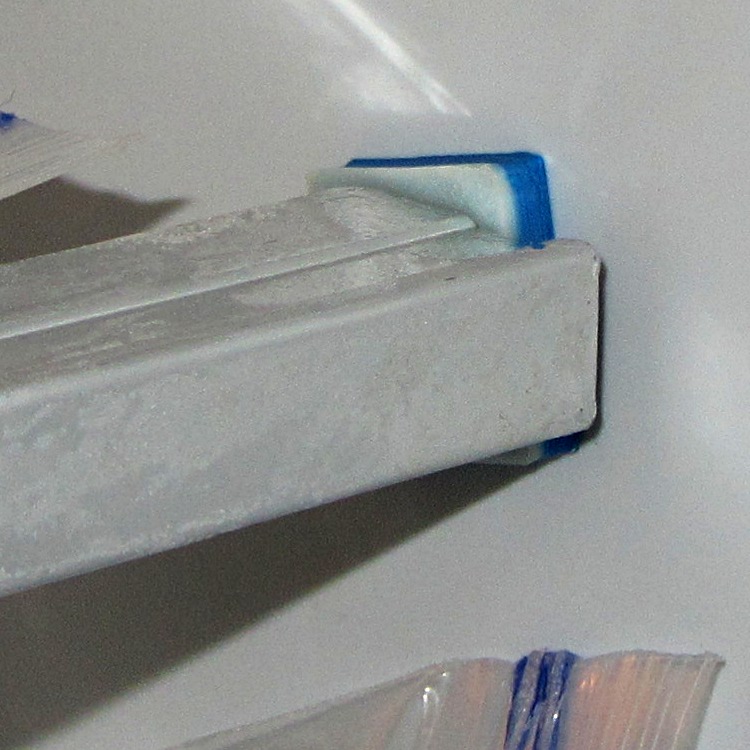
    Somewhat to my surprise, Prototype 001 slipped snugly over the matching dovetail on the freezer wall, with about the same firm fit as the OEM brackets:

    Refrigerator bracket - installed
    Refrigerator bracket – installed

    And it works perfectly, apart from that attractive blue base that I suppose we’ll get used to after a while:

    Refrigerator bracket - in use
    Refrigerator bracket – in use

    I have no idea whether ABS is freezer-rated. It seems strong enough and hasn’t broken yet, so we’ll declare victory and keep the source code on tap.

    The whole project represents about an hour of hammering out OpenSCAD code for the solid model and another hour of printing, which means I’d be better off to just buy the parts kit and throw away the unused bits. Right?

    I loves me my Thing-O-Matic…

    The OpenSCAD source code:

    // Shelf support bracket
    // for Whirlpool freezer
    // Ed Nisley KE4ZNU Octoboer 2012
    
    //include </mnt/bulkdata/Project Files/Thing-O-Matic/MCAD/units.scad>
    //include </mnt/bulkdata/Project Files/Thing-O-Matic/Useful Sizes.scad>
    
    // Layout options
    
    Layout = "Build";
     // Overall layout: Show Build
     // Printing plates: Build
     // Parts: Post Base Keystone Support
    
    ShowGap = 10; // spacing between parts in Show layout
    
    //- Extrusion parameters must match reality!
    // Print with +1 shells and 3 solid layers
    
    ThreadThick = 0.25;
    ThreadWidth = 2.0 * ThreadThick;
    
    HoleWindage = 0.2;
    
    function IntegerMultiple(Size,Unit) = Unit * ceil(Size / Unit);
    
    Protrusion = 0.1; // make holes end cleanly
    
    //----------------------
    // Dimensions
    
    PostLength = 17.5;
    PostWidth = 8.2;
    PostHeight = 14.4;
    PostOffset = 4.4;
    
    PostTopWidth = 4.0;
    PostTopHeight = 4.2;
    
    BaseLength = 22.6;
    BaseWidth = 20.8;
    BaseThick = 5.0;
    
    KeystoneOffset = 3.4;
    KeyThick = IntegerMultiple(3.0,ThreadThick);
    KeyBase = 2.5;
    SlotOpening = 11.63;
    //----------------------
    // Useful routines
    
    module PolyCyl(Dia,Height,ForceSides=0) { // based on nophead's polyholes
    
    Sides = (ForceSides != 0) ? ForceSides : (ceil(Dia) + 2);
    
    FixDia = Dia / cos(180/Sides);
    
    cylinder(r=(FixDia + HoleWindage)/2,
     h=Height,
     $fn=Sides);
    }
    
    module ShowPegGrid(Space = 10.0,Size = 1.0) {
    
     Range = floor(50 / Space);
    
     for (x=[-Range:Range])
     for (y=[-Range:Range])
     translate([x*Space,y*Space,Size/2])
     %cube(Size,center=true);
    
    }
    
    //-------------------
    // Component parts
    
    //--- Post
    
    module Post(h=PostLength) {
    
    PostTopAngle = atan((PostWidth - PostTopWidth)/(2*PostTopHeight));
    PostBottomRadius = PostWidth/2;
    
    PostPolyTop = [PostTopWidth/2,0];
    PostPolyBottom = [PostWidth/2,-PostTopHeight];
    
    hull() {
     linear_extrude(height=h) {
     polygon(points=[
     [-PostPolyTop[0],PostPolyTop[1]],
     PostPolyTop,
     PostPolyBottom,
     [-PostPolyBottom[0],PostPolyBottom[1]]
     ]);
     translate([0,-PostHeight + PostBottomRadius])
     circle(r=PostBottomRadius,$fn=4*8);
     }
     }
    }
    
    //--- Base block
    
    module Base() {
    
     linear_extrude(height=BaseThick)
     square([BaseWidth,BaseLength],center=true);
    
    }
    
    //-- Keystone slot
    
    module Keystone() {
    
    Tx = SlotOpening/2 + KeyBase;
    
     rotate([90,0,0])
     linear_extrude(height=BaseLength)
     polygon(points=[
     [-Tx,KeyThick],
     [ Tx,KeyThick],
     [ SlotOpening/2,0],
     [ SlotOpening/2,-Protrusion],
     [-SlotOpening/2,-Protrusion],
     [-SlotOpening/2,0]
     ]);
    }
    
    //--- Support structure
    
    module Support() {
    
    SupportLength = BaseLength - 2*ThreadWidth;
    SupportWidth = 2*ThreadWidth;
    SupportHeight = KeyThick - Protrusion;
    
    SupportPeriod = 7.0*ThreadWidth;
    
    SupportBeams = 3; // must be odd -- choose to fit
    SIndex = floor((SupportBeams - 1)/2);
    
    for (i=[-SIndex:SIndex])
     translate([(i*SupportPeriod - SupportWidth/2),-(SupportLength + ThreadWidth),0])
     color("Yellow") cube([SupportWidth,SupportLength,SupportHeight]);
    }
    
    //--- The whole thing!
    
    module Bracket(ShowSupp) {
    
     union() {
     difference() {
     Base();
     translate([0,(BaseLength/2 - KeystoneOffset),0])
     Keystone();
     }
     translate([0,(BaseLength/2 - PostOffset),BaseThick - Protrusion])
     Post(h=(PostLength + Protrusion));
     }
    
     if (ShowSupp)
     translate([0,(BaseLength/2 - KeystoneOffset),0])
     Support();
    
    }
    
    //----------------------
    // Build it!
    
    ShowPegGrid();
    
    if (Layout == "Show")
     Bracket(false);
    
    if (Layout == "Build")
     Bracket(true);
    
    if (Layout == "Post")
     Post();
    
    if (Layout == "Base")
     Base();
    
    if (Layout == "Keystone")
     Keystone();
    
    if (Layout == "Support") {
     Support();
    % Keystone();
    }
    
  • Longboard Electronics Case: Now With Mouse Ears

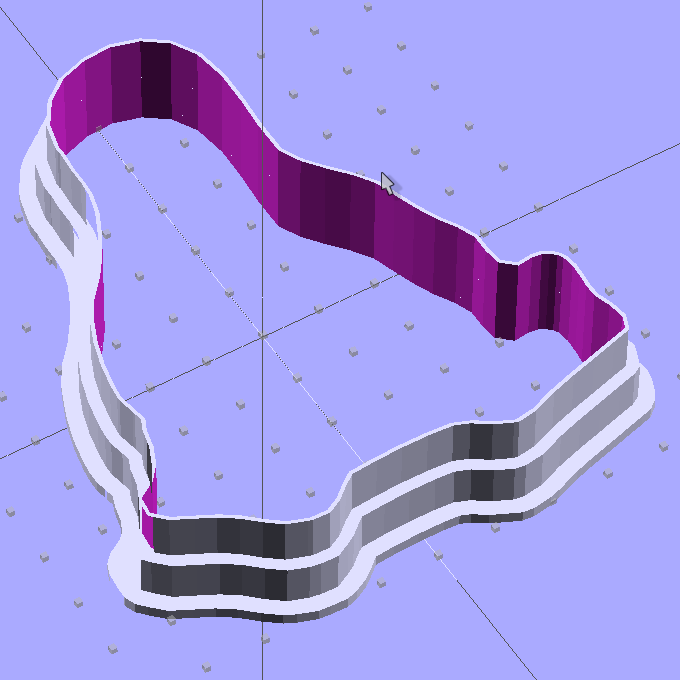
    Our Larval Engineer may have a commission to fit her Speed-Sensing Ground Effect Lighting controller to another longboard. To that end, the case now sports mouse ears to spread the force from the cooling ABS over more of the Kapton tape, in the hope the plastic won’t pull the tape off the aluminum build platform:

    Longboard Case Solid Model - mouse ears
    Longboard Case Solid Model – mouse ears

    That view shows the bottom slice that will hold the battery, but the ears appear on all three layers.

    The OpenSCAD source code is now up on Github, which should make it easier to update & share.

  • On Making Cookie Cutters

    Tux Cookie Cutter - solid model
    Tux Cookie Cutter – solid model

    Someone asked about how to convert a PNG file to a cookie cutter; she was stymied by some of the terminology and didn’t have a good overview of the process. I thought my reply might be useful to someone else.

    trying to understand how to create an STL file

    The key to understanding 3D printing is to realize that an STL file is just an intermediate step along the way from an idea to a plastic object. The real challenge is to create a 3D (aka “solid”) model of the object you want; after that, the rest follows more or less automatically.

    The overall process goes like this:

    1. Create a solid model (more on this below)
    2. Export the model as an STL file, usually by a menu selection
    3. Convert the STL file to G-Code using the printer control program
    4. Extrude plastic!

    Now, each step has many sub-steps, but that’s the Big Picture.

    You really don’t care about the STL or G-Code files, because they’re generated from the 3D model.

    take a png clipart image

    Because a PNG image represents a 2D (flat) drawing, it can contain grayscale (or color!) information that you may not want. Let’s start with just a simple black-and-white outline drawing that shows the outline of the cutter.

    The CAD program then “extrudes” that flat image into a 3D shape with a known height; I use OpenSCAD, but any 3D program should be able to do that trick. If you started with a PNG file of a circle, the extrusion will produce a 3D ring. If you start with an outline of Tux, you end up with an oddly shaped 3D ring.

    (Note that the term “extrusion” has two meanings. The CAD program extrudes the flat 2D image into a 3D model and the printer extrudes molten plastic to form the object. Gotta love the language!)

    Now that you have a basic 3D shape, you can fancy it up with thicker areas and handles and whatnot, but you could just print the shape and have a simple cookie cutter.

    Dr Who Cookie Cutters
    Dr Who Cookie Cutters

    If you’re making a cookie press, similar to those in the Dr Who cutters, then you start with a grayscale PNG (or JPG) and create a “height map” where the grayscale intensity determines the extrusion height: black = high and white = low (or the other way around). Again, any CAD program should be able to create a height map from a grayscale image.

    In fact, a black-and-white outline is just a simple version of a height map: it’s either tall (black) or short (white), with no levels in between.

    The height map becomes a 3D rectangle with one wavy side corresponding to the image. You join it with another rectangle to set the minimum thickness (you don’t want holes where the image was white), then add handles and suchlike.

    That’s how the Dr Who cutters work: a height map generated the flat press part and an outline generated the hollow cutter surrounding the press. The settings I used to print my copy may be helpful.

    You may have already seen my blow-by-blow description of converting an EPS drawing to the Tux cutter that starred in the movie.

    The process had far more complexity than it should, mostly because that old version of OpenSCAD had a few bugs that prevented me from using 2D-to-3D extrusion as I described above. The overall process was similar, though: start with a 2D shape, convert it into a long 3D rod, slice off a suitable length, then punch a hole in the middle.

    So, by and large, in order to make cookie cutters, you must master the “extrusion” part of 3D modeling. After you get a suitable 3D model of the cutter, then the rest will be easy! [grin]

    Hope that helps get you started…

  • KG-UV3D GPS+Voice Interface: APRS Bicycle Mobile

    Wouxun KG-UV3D with GPS-audio interface
    Wouxun KG-UV3D with GPS-audio interface

    Both of the GPS+voice interfaces for the Wouxun KG-UV3D radios have been working fine for a while, so I should show the whole installation in all its gory detail.

    If you haven’t been following the story, the Big Idea boils down to an amateur radio HT wearing a backpack that replaces its battery, combines the audio output of a Byonics TinyTrak3+ GPS encoder with our voice audio for transmission, and routes received audio to an earbud. Setting the radios to the APRS standard frequency (144.39 MHz) routes our GPS position points to the global packet database and, with 100 Hz tone squelch, we can use the radios as tactical intercoms without listening to all much of the data traffic.

    The local APRS network wizards approved our use of voice on the data channel, seeing as how we’re transmitting brief voice messages using low power through bad antennas from generally terrible locations. This wouldn’t work well in a dense urban environment with more APRS traffic; you’d need one of the newfangled radios that can switch frequencies for packet and voice transmissions.

    So, with that in mind, making it work required a lot of parts…

    Tour Easy - KG-UV3D GPS interface
    Tour Easy – KG-UV3D GPS interface

    A water bottle holder attaches to the seat base rail with a machined circumferential clamp. Inside the holder, a bike seat wedge pack contains the radio with its GPS+voice interface box and provides a bit of cushioning; a chunk of closed-cell foam on the bottom mostly makes me feel good.

    The flat 5 A·h Li-ion battery pack on the rack provides power for the radio; it’s intended for a DVD player and has a 9 V output that’s a trifle hot for the Wouxun radios. Some Genuine Velcro self-adhesive strips hold the packs to the racks and have survived surprisingly well.

    Just out of the picture to the left of the battery pack sits a Byonics GPS2 receiver puck atop a fender washer glued to the rack, with a black serial cable passing across the rack and down to the radio bag.

    A dual-band mobile antenna screws into the homebrew mount attached to the upper seat rail with another circumferential clamp. It’s on the left side of the rail, just barely out of the way of our helmets, and, yes, the radiating section of the antenna sits too close to our heads. The overly long coax cable has its excess coiled and strapped to the front of the rack; I pretend that’s an inductor to choke RF off the shield braid. The cable terminates in a PL-259 UHF plug, with an adapter to the radio’s reverse-polarity SMA socket.

    The push-to-talk button on the left handgrip isn’t quite visible in the picture. That cable runs down the handlebar, along the upper frame tube, under the seat, and emerges just in front of the radio bag, where it terminates in a 3.5 mm audio plug.

    The white USB cable from the helmet carries the boom mic and earbud audio over the top of the seat, knots around the top frame bar, and continues down to the radio. USB cables aren’t intended for this service and fail every few years, but they’re cheap and work well enough. The USB connector separates easily, which prevents us from being firmly secured to a dropped bike during a crash. I’d like much more supple cables, a trait that’s simply not in the USB cable repertoire. This is not a digital USB connection: I’m just using a cheap & readily available cable.

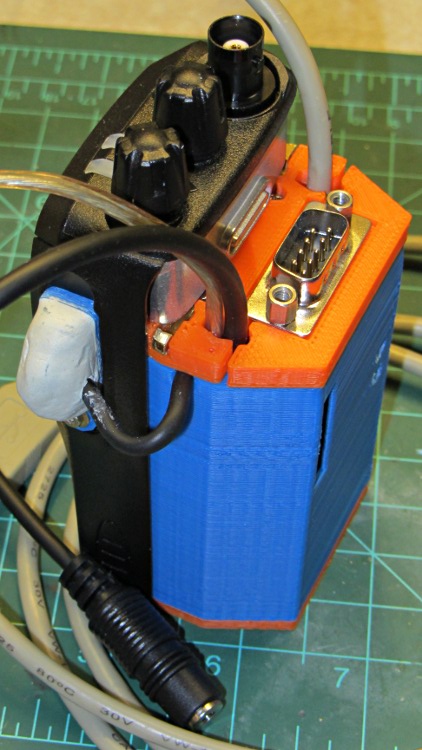
    All cables converge on the bag holding the radio:

    Tour Easy - KG-UV3D + GPS interface - detail
    Tour Easy – KG-UV3D + GPS interface – detail

    Now you can see why I put that dab of white on the top of the knob!

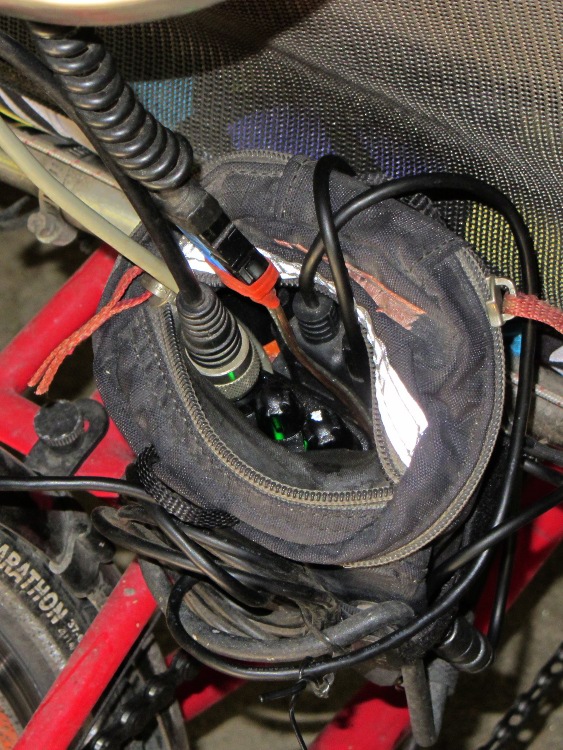
    The bag on my bike hasn’t accumulated quite so much crud, because it’s only a few months old, but it’s just as crowded:

    KG-UV3D + GPS interface on Tour Easy - top view
    KG-UV3D + GPS interface on Tour Easy – top view

    This whole “bicycle mobile APRS system”, to abuse a term, slowly grew from a voice-only interface for our ICOM IC-Z1A radios. Improving (and replacing!) one piece at a time occasionally produced horrible compatibility problems, while showing why commercial solutions justify owning metalworking tools, PCB design software, and a 3D printer.

    I long ago lost track of the number of Quality Shop Time hours devoted to all this, which may be the whole point…

    In other news, the 3D-printed fairing mountsblinky light mounts, and helmet mirror mounts continue to work fine; I’m absurdly proud of the mirrors. Mary likes her colorful homebrew seat cover that replaced a worn-out black OEM cover for a minute fraction of the price.

  • Longboard Speed-Sensing Ground Effect Lighting

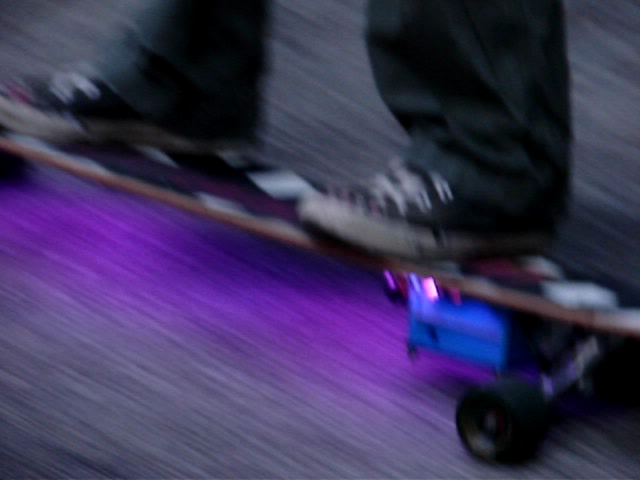
    After our Larval Engineer tweaked the code to track the maximum speed for the current run, so that the color always hits pure blue at top speed and red near standstill, we can prove it happened: we have a video! It’s much less awful than the First Light video, but with plenty of cinéma-vérité camera shake, lousy focus, and bloopers:

    Longboard In Action
    Longboard In Action

    That’s a frame extracted from one of the raw videos files using ffmpegthumbnailer:

    for t in `seq 0 10 100` ; do ffmpegthumbnailer -i mov07117.mpg -o Longboard-$t.jpg -t $t% -q 10 -s 640 ; done
    

    This view of the 3D printed case shows the power switch and the Hall effect sensor cable snaking out of the truck just below the near axle:

    Longboard RGB LED Electronics - right front view
    Longboard RGB LED Electronics – right front view

    She filled the case corners that pulled up from the build platform with a thin layer of epoxy, getting a plane surface by curing it atop waxed paper on the shop’s surface plate, to keep the polycarbonate sheet flat. I didn’t have any acorn nuts to top those nylon lock nuts, alas.

    The 4-cell Li-ion battery lives in the slice between the white aluminum plates, where it takes about four hours to charge from 3.0 V/cell. The Arduino Pro Mini lives behind the smoked polycarb sheet, where its red LED adds a mysterious touch. Maybe, some day, she’ll show the 1/rev pulse on the standard Arduino LED for debugging.

    A view from the other side shows the hole for the charger above the circuit board, with the Hall sensor out of sight below the far axle:

    Longboard RGB LED Electronics - left front view
    Longboard RGB LED Electronics – left front view

    Yes, the cable to the LEDs deserves better care. She learned that you must provide strain relief at cable-to-component junctions, which we achieved by pasting the wires to the board beside the LED strip with double-stick tape. The rest of the LED strip interconnections live atop similar tape strips. There’s nothing much protecting the LEDs or their delicate SMD resistors, but it works!

    Actually, one red LED in an RGB package went toes-up and wasn’t revived by resoldering its leads. So we jumpered around the package, subjecting the remaining two red LEDs in that string to a bit more current than they’d prefer, and that’s that.

    There’s a whole bunch not to like one could improve in both the mechanics and electronics, but it works! If you’ll grant it alpha prototype status, then I’d say it’s Good Enough; this is her project and she’ll learn a lot from how it works and how it fails, just like we all do.

    Not shown: crazy-proud father…