The Smell of Molten Projects in the Morning

Ed Nisley's Blog: Shop notes, electronics, firmware, machinery, 3D printing, laser cuttery, and curiosities. Contents: 100% human thinking, 0% AI slop.

Tag: Laser Cutter

  • Tour Easy Running Light: Heatsink Machining

    Tour Easy Running Light: Heatsink Machining

    Having acquired some thick-wall (1 inch OD, ¾ inch ID) aluminum tube, making the LED heatsink and lens holder for a running light generates a lot less scrap. A new doodle gives the dimensions in a rather Picasso-ish layout:

    Running Light - dimension doodles
    Running Light – dimension doodles

    The back end of the tube gets turned down to 23 mm OD and cleaned up to 19 mm ID, then scored to give the epoxy something to grip:

    Front Running Light - Heatsink shell scoring
    Front Running Light – Heatsink shell scoring

    The front end gets bored to 22.5 mm for the lens holder and has its OD cleaned up to 25 mm:

    Front Running Light - finished shell
    Front Running Light – finished shell

    Clean up the end of a ¾ inch rod to 19 mm OD, knurl it a little to increase the OD ever so slightly and improve its griptivity, slice off a bit more than 10 mm, butter it up with JB Weld epoxy, and shove it into the shell with its front end aligned and its back end sticking out:

    Front Running Light - epoxied plug in shell - rear
    Front Running Light – epoxied plug in shell – rear

    Face off the back end and the front end looks fine as assembled:

    Front Running Light - epoxied plug in shell - front
    Front Running Light – epoxied plug in shell – front

    Grab it in the Sherline mill’s three jaw chuck to:

    • Drill & tap the M3 central hole for the stud holding the circuit plate to the back end
    • Drill 1.6 mm blind holes for the circuit plate pins
    • Drill 2 mm through holes for the LED wires, 60° apart

    Which looks like this from the front:

    Front Running Light - drilled heatsink - front
    Front Running Light – drilled heatsink – front

    And like this with the circuit plate screwed & glued to the rear:

    Front Running Light - circuit plate mounted
    Front Running Light – circuit plate mounted

    Clean up the OD of some ¾ inch PVC pipe to 25 mm, bore it out to 23 mm.

    While the Sherline is set up, drill a pair of 2 mm holes in the lens holder for the wires, aligned so they’ll match the heatsink holes.

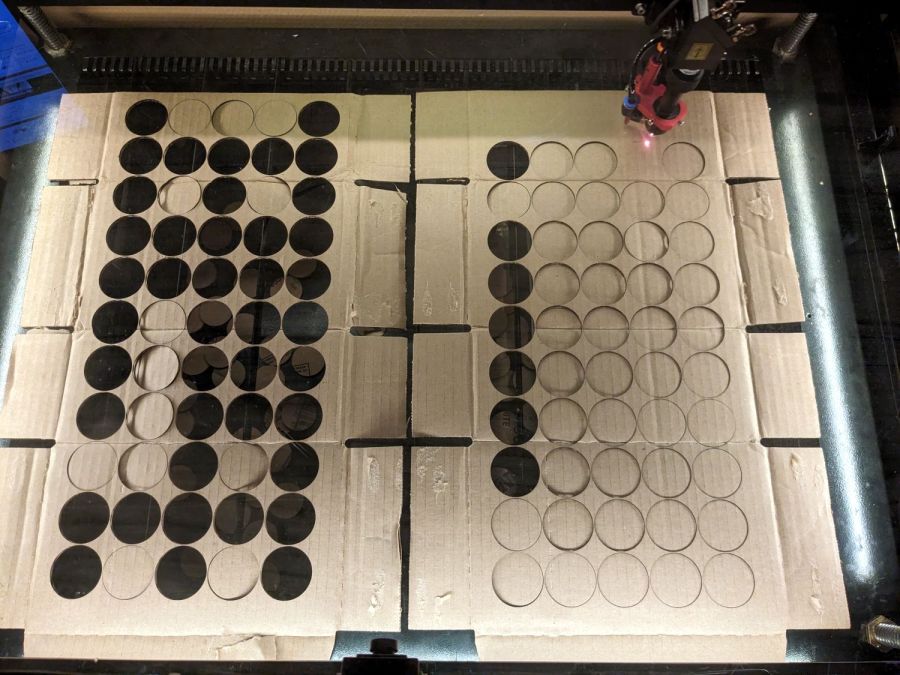
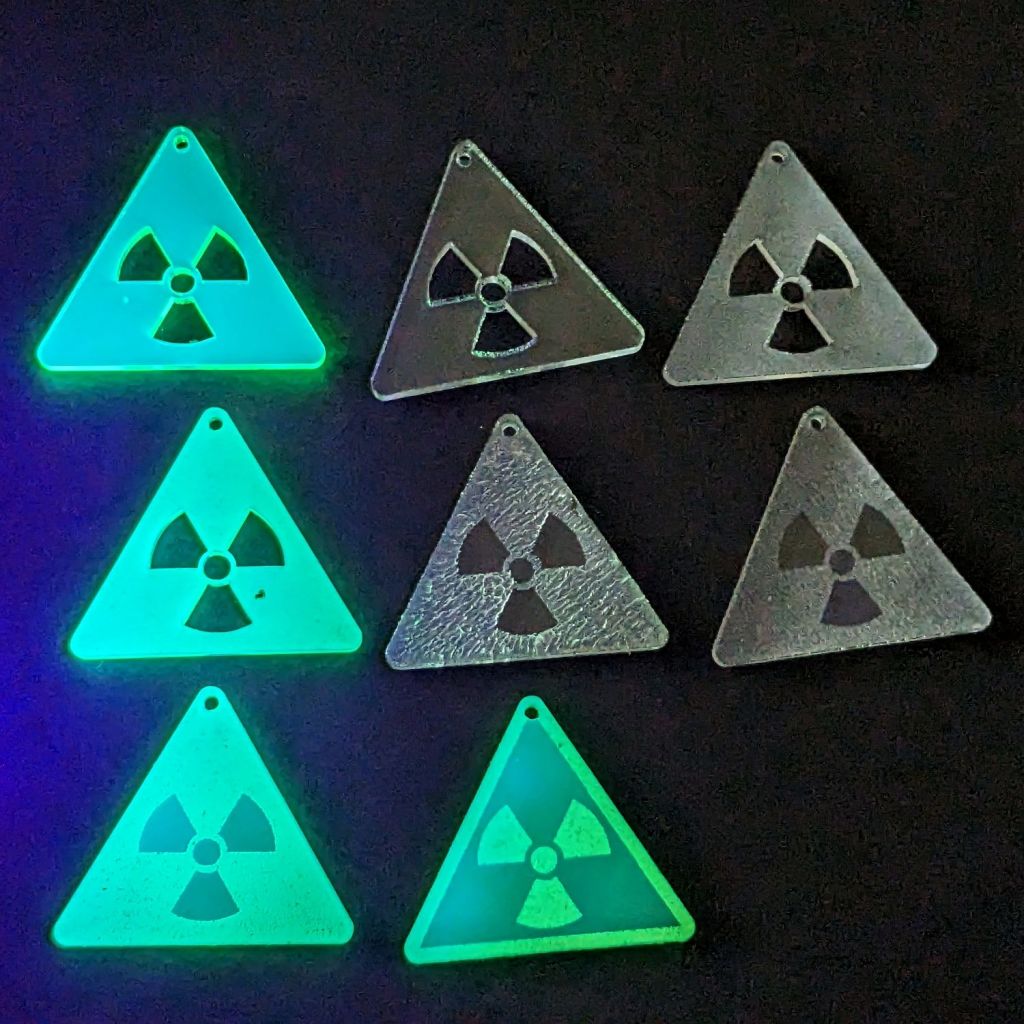
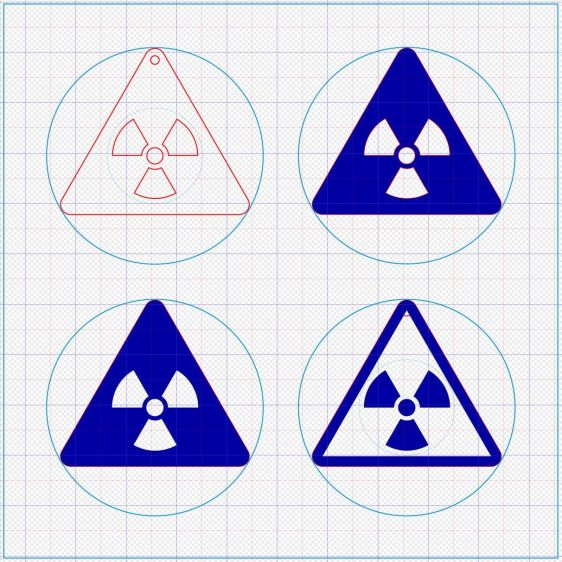
    Because we live in the future, laser-cut the rear cap from some edge-lit acrylic with a black inner disk:

    Front Running Light - PVC tube - end cap
    Front Running Light – PVC tube – end cap

    Cutting that cap with the notch included is now trivially easy, compared to the previous machining.

    Now for some circuitry …

  • Laser-engraved Polycarbonate: Color!

    Laser-engraved Polycarbonate: Color!

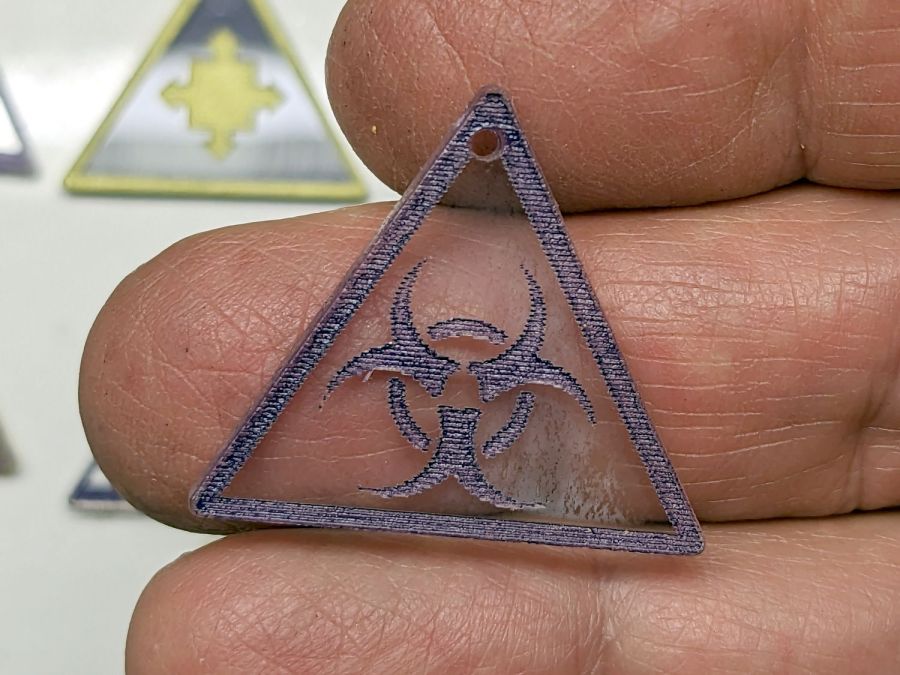
    Prompted by a LightBurn forum discussion, this was completely unexpected:

    Polycarbonate engrave - 400mm-s 20pct 0.1mm - brushed
    Polycarbonate engrave – 400mm-s 20pct 0.1mm – brushed

    The color is apparently a side effect of the CO₂ laser vaporizing the plastic, because it emerged during the engraving process.

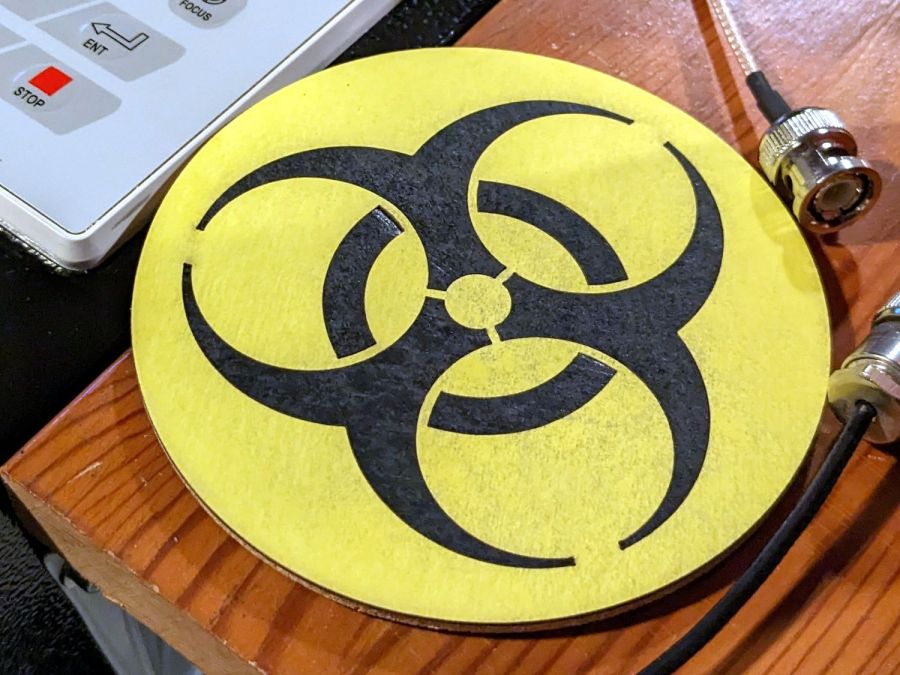
    Polycarb tends to get all melty when cut, so it’s not particularly good for laser machining. Indeed, the engraving produced filaments of (presumably) melted / condensed plastic that I brushed off after taking this picture:

    Polycarbonate engrave - 400mm-s 20pct 0.1mm - as cut
    Polycarbonate engrave – 400mm-s 20pct 0.1mm – as cut

    If you could put up with the filaments and the poor cut edges, it might be useful for front panel legends and suchlike.

  • Laser Air Assist Pump Snorkel

    Laser Air Assist Pump Snorkel

    Having verified that putting an assist air pump inside the laser cabinet is a Bad Idea™, I set about building a fitting to attach to the air pump’s inlet connection:

    OMTech 60 W Laser Air Assist - pump inlet
    OMTech 60 W Laser Air Assist – pump inlet

    Note that it’s possible to see the inlet, but not do much with it. I think the bottom plate could be pried off those squishy rubber pillars supporting / isolating the pump, but I didn’t see any need to do so.

    The doodle I made at the time gives the dimensions:

    OMTech 60 W Laser Air Assist - pump inlet fitting measurements
    OMTech 60 W Laser Air Assist – pump inlet fitting measurements

    Back then, I thought of 3D printing the fitting, but the fact that the parts had to be 1.5 mm thick suggested laser cutting the parts from acrylic sheet:

    Laser cutter air pump - keyed fitting A - parts
    Laser cutter air pump – keyed fitting A – parts

    The three top disks come from a 3M LSE adhesive sheet and hold the three layers together, with one spare because I know better than to cut exactly as many as I think I’ll need:

    Laser cutter air pump - keyed fitting - assembled
    Laser cutter air pump – keyed fitting – assembled

    The alert reader will note the middle layer in that picture isn’t a simple round disk. After putting the first version together, I realized the keyed bottom layer could continue turning until it fell out, so I added stops to the middle disk:

    Laser cutter air pump - keyed fitting B - parts
    Laser cutter air pump – keyed fitting B – parts

    Those stops came from the bottom layer layout by welding together three copies of the key opening:

    Laser Cutter Air Assist Pump Fitting - LB design layout
    Laser Cutter Air Assist Pump Fitting – LB design layout

    Space three of those shapes around the ring, subtract them from the outer disk (the same size as the keyed layer), weld them to the middle disk (the same size as the previous middle), and the stops appear as if by magic. Gotta love this geometry stuff.

    The same design produced matching adhesive disks that I applied with tweezers, but if you were doing it in production you’d definitely want to apply a sheet of adhesive to a sheet of acrylic and cut them in the same operation.

    Soften the slightly curved PVC tubing with a heat gun, persuade it to become straight, jam a drill bit inside and grab it in the lathe chuck to keep the fitting perpendicular, glob hot-melt glue around the tubing to hold it in place, and let it cool:

    Laser cutter air pump - fitting hose glue
    Laser cutter air pump – fitting hose glue

    Hot melt glue doesn’t adhere well to acrylic, so cut & apply a disk of LSE adhesive between them, because it sticks like … glue … to both substances.

    Mark and step-drill a hole in the bottom of the laser cabinet, install the fitting on the pump, line things up, and it’s ready to screw down:

    Laser cutter air pump - first trial fitting
    Laser cutter air pump – first trial fitting

    Whereupon I discovered the four silicone rubber feet I added to support the pump base plate and keep it from vibrating against the cabinet let the flexy rubber posts supporting the pump extend too far, thus causing the whole pump to rest on the glue around the fitting.

    Well, I can fix that and, while I’m at it, a snippet of fibrous stuff will keep the tube from rattling around:

    Laser cutter air pump - bottom view - assembled
    Laser cutter air pump – bottom view – assembled

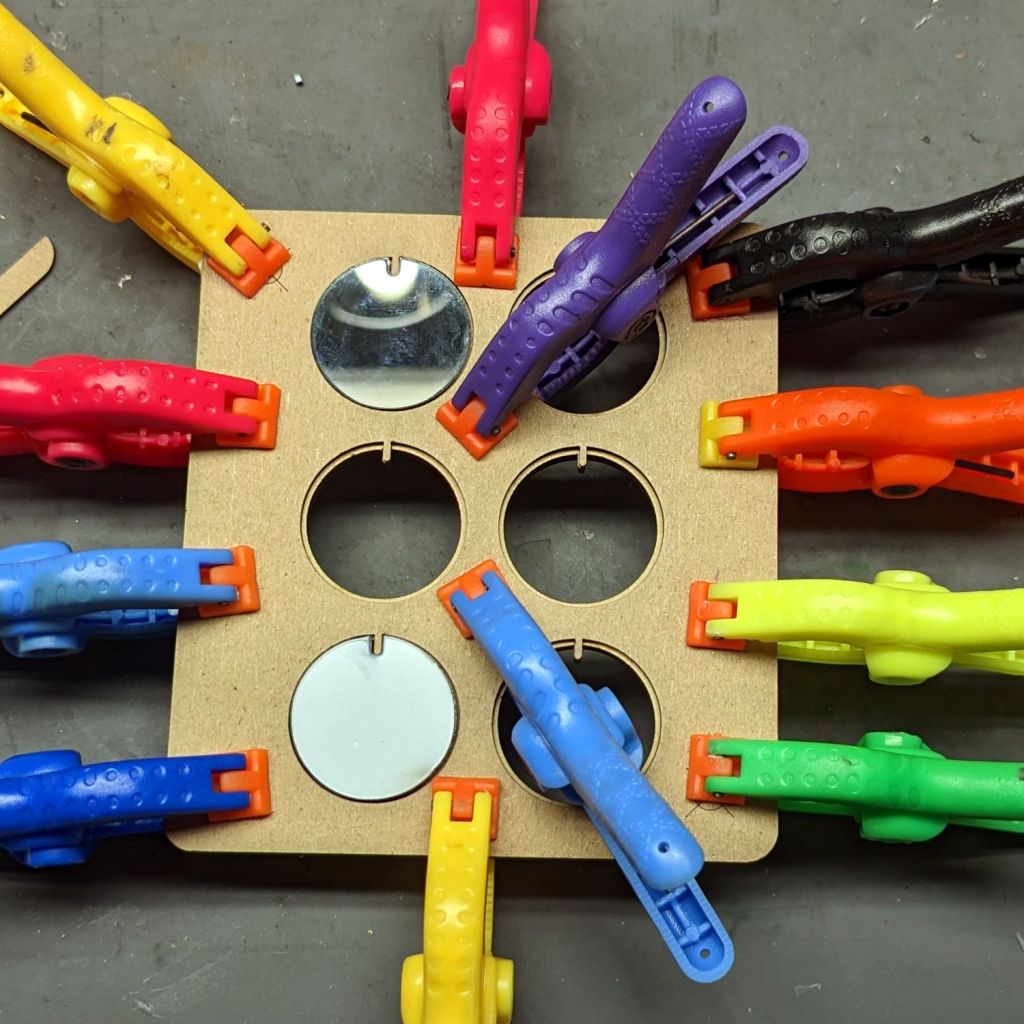
    The four clear disks are 3 mm acrylic stuck to the rubbery feet with more LSE adhesive, with rings around the top to keep everything aligned. It may be possible to line up all four of those things while lowering the pump in place, but not for me.

    With all that once again ready to screw down, the blue tube and its fuzzy felt bumper fell right off, taking the pump’s air inlet connector along. Much to my surprise, the pump draws air through a simple 6 mm hole in its bottom plate:

    Laser cutter air pump - without fitting socket
    Laser cutter air pump – without fitting socket

    Now, the reason I went through all these gyrations was because I had examined that connector, decided it was an integral part of the pump, and there was no way for me to get it off without tearing the pump apart or applying brute force.

    Apparently, all the twisting & turning I did while getting the fittings assembled worked the connector’s unthreaded stem loose in its hole, ready to come out with the slightest pull.

    Verily: Hell hath no fury like that of an unjustified assumption.

    So I cut out a simple disk of 4.5 mm acrylic, hot-melt blobbed a 6 mm ID silicone tube into it, stuck it onto the pump with a (punch-cut!) disk of 3M double-sided foam tape, and declared victory:

    Laser cutter air pump - simple disk fitting
    Laser cutter air pump – simple disk fitting

    Fortunately, the step drill I used on the cabinet left a 9.5 mm hole easily passing the silicone tube’s 9 mm OD, so it all fit together just like I knew what I was doing.

    The silicone tubing has a much larger ID than the original plastic fitting, but the assist air flow remains around 10 l/min. That’s down from the 14 l/m when I installed the flowmeter and 12 l/min with the dual-path assist air control plumbing, but didn’t change with all this fiddling, so the real restriction is in all the blue tubing and myriad fittings on the way to the nozzle.

    On the upside, I now know a bit more about small-scale laser cutting and am well-satisfied with the results.

  • Laser Air Assist Pump Filter: Ewww!

    Laser Air Assist Pump Filter: Ewww!

    Nine months ago I packed cheesecloth around the laser’s air assist pump inlet to filter the smog:

    OMTech 60 W Laser Air Assist - cheesecloth filter installed
    OMTech 60 W Laser Air Assist – cheesecloth filter installed

    Which worked better than I expected.

    I think the track on the right side of the lower / outer filter faced the interior of the cabinet and collected some incoming smog:

    Laser cutter assist air filter - 9 months - outer
    Laser cutter assist air filter – 9 months – outer

    The wad packed around the inlet fitting accumulated even more, due to the concentrated air flow through the round opening:

    Laser cutter assist air filter - 9 months - inner
    Laser cutter assist air filter – 9 months – inner

    Thus we can confirm putting the air pump inside the cutting chamber is not a particularly good idea:

    OMTech 60W laser - Z motor - air pump
    OMTech 60W laser – Z motor – air pump

    My initial notion of drilling a hole through the bottom of the cabinet so the pump can breathe relatively clean basement air takes on new urgency …

  • Tour Easy: SJCAM C100+ Mount

    Tour Easy: SJCAM C100+ Mount

    The batteries (which are no longer available) and the control buttons have worn out on the SJCAM M20 camera on the back of my Tour Easy, so a replacement is in order:

    Tour Easy - SJCAM C100 mount - installed
    Tour Easy – SJCAM C100 mount – installed

    It’s an SJCAM C100+ in its waterproof housing, screwed to a block descended from the M20 mount:

    SJCAM C100 Mount - solid model
    SJCAM C100 Mount – solid model

    The C100+ has a non-replaceable lithium pouch battery that may not last for the hour or so we generally ride, but at least this is a starting point for seeing how the thing works.

    The PrusaSlicer preview shows the support structure inside the seat rail arches:

    SJCAM C100 Mount - slicer
    SJCAM C100 Mount – slicer

    That appears under the four central facets of each arch, where I “painted” the support enforcers, because the automagic supports fill the entire arch and are basically impossible to pry off.

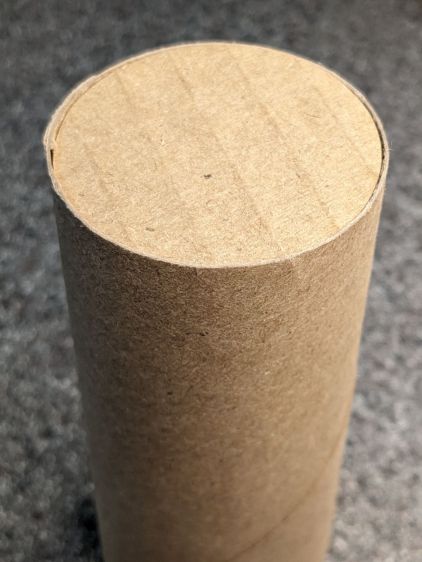
    The hole between the ears on the top holds an aluminum tab intended to diffuse the wobble from that tall camera. A laser-cut chipboard template simplified drilling & cutting the tab from an aluminum sheet:

    Tour Easy - SJCAM C100 mount - test fit
    Tour Easy – SJCAM C100 mount – test fit

    The tab and the brass inserts are held in place with JB Weld Plastic Bonder, my new go-to adhesive for such things.

    The camera includes WiFi and the inevitable app lets you download images without opening the case. Because I’ll be charging the camera after each ride, I may as well just haul the whole thing inside, plug it into a USB port, and proceed as before.

    For future reference, the manual details the operating modes:

    SJCAM C100 Manual - Modes
    SJCAM C100 Manual – Modes

    Because the camera powers up with WiFi enabled and I have no plans to communicate with it while riding, the startup sequence will be:

    • Long-press to power on
    • Double-click to disable WiFi
    • Single-click to start recording

    The OpenSCAD source code as a GitHub Gist:

    // SJCAM C100+ Camera Mount for Tour Easy seat back rail
    // Ed Nisley – KE4ZNU
    // 2023-04
    /* [Layout Options] */
    LookAngle = -20; // camera angle, looking backwards = 0°
    Layout = "Show"; // [Show,Build]
    /* [Hidden] */
    ThreadWidth = 0.40;
    ThreadThick = 0.25;
    HoleWindage = 0.2;
    Protrusion = 0.1;
    ID = 0;
    OD = 1;
    LENGTH = 2;
    //—–
    // Dimensions
    ClampScrew = [5.0,10.0,40.0]; // ID=thread OD=washer LENGTH=total
    ClampInsert = [5.0,7.5,10.5]; // brass insert
    MountScrew = [5.0,10.0,23.0]; // ID=thread OD=washer LENGTH=under nut
    MountInsert = [5.0,7.5,10.5]; // ID=screw OD, OD=knurl dia
    EmbossDepth = 2*ThreadThick + Protrusion; // recess depth + Protrusion beyond surface
    DebossHeight = EmbossDepth; // text height + Protrusion into part
    RailOD = 20.0; // slightly elliptical in bent section
    RailSides = 2*3*4;
    ClampOA = [60.0,40.0,ClampScrew[LENGTH]]; // set clamp size to avoid weird screw spacing
    echo(ClampOA = ClampOA);
    ClampScrewOC = IntegerMultiple(ClampOA.x – ClampScrew[OD] – 10*ThreadWidth,1.0);
    echo(ClampScrewOC = ClampScrewOC);
    ClampOffset = 5.0; // in case we need more room on top
    ClampRadius = 3.0;
    ClampSides = 8;
    Kerf = 1.0; // slice through the middle
    // center mount blade, Z = depth into block
    MountBlade = [15.0 + 2*HoleWindage,
    3.0 + 2*HoleWindage,
    (ClampOA.z – RailOD + ClampOffset)/2 – 4*ThreadThick + Protrusion];
    echo(MountBlade = MountBlade);
    MountRadius = MountBlade.x / 2;
    MountGap = 9.5; // camera mount gap around center blade
    MountOffset = [0,0,7.0]; // mount hole offset from block surface
    FadeColor = "Green";
    FadeAlpha = 0.25;
    //—–
    // Useful routines
    function IntegerMultiple(Size,Unit) = Unit * ceil(Size / Unit);
    module PolyCyl(Dia,Height,ForceSides=0) { // based on nophead's polyholes
    Sides = (ForceSides != 0) ? ForceSides : (ceil(Dia) + 2);
    FixDia = Dia / cos(180/Sides);
    cylinder(r=(FixDia + HoleWindage)/2,
    h=Height,
    $fn=Sides);
    }
    //—–
    // Clamp
    // Grips seat frame rail
    // Origin at middle of seat rail, X rearward, Y parallel to seat frame rail
    // Block offset raises whole thing
    module Clamp() {
    difference() {
    translate([0,0,ClampOffset]) {
    difference() {
    union() {
    hull() // the main block
    for (i=[-1,1], j=[-1,1], k=[-1,1])
    translate([i*(ClampOA.x – 2*ClampRadius)/2,
    j*(ClampOA.y – 2*ClampRadius)/2,
    k*(ClampOA.z – 2*ClampRadius)/2])
    sphere(r=ClampRadius/cos(180/ClampSides),$fn=ClampSides);
    hull() // camera mount boss
    for (k=[0,1])
    translate([0,0,k*(MountOffset.z) + ClampOA.z/2])
    rotate([0,90,LookAngle + 90]) rotate(180/12)
    cylinder(r=MountRadius,h=MountScrew[LENGTH],center=true,$fn=12);
    }
    for (i=[-1,1]) // clamp inserts
    translate([i*ClampScrewOC/2,0,-(ClampOA.z/2 + Protrusion)])
    rotate(180/6)
    PolyCyl(ClampInsert[OD],ClampInsert[LENGTH],6);
    for (i=[-1,1]) // clamp screw holes
    translate([i*ClampScrewOC/2,0,-ClampOA.z])
    rotate(180/6)
    PolyCyl(ClampScrew[ID],2*ClampOA.z,6);
    translate([0,0,ClampOA.z/2 – (MountBlade.z/2 – Protrusion/2)]) // camera center blade
    rotate(LookAngle)
    cube(MountBlade,center=true);
    rotate(LookAngle + 90) // camera mount boss slot
    translate([0,0,ClampOA.z/2 + 2*MountRadius])
    cube([MountGap,4*MountRadius,4*MountRadius],center=true);
    translate([0,0,ClampOA.z/2 + MountOffset.z]) // camera mount boss hole
    rotate([90,0,LookAngle])
    cylinder(d=MountScrew[ID],h=4*MountGap,center=true,$fn=6);
    translate([0.3*ClampOA.x, // recess for LookAngle legend
    -(ClampOA.y/2 – (EmbossDepth – Protrusion)/2),
    ClampOA.z/4])
    cube([15,EmbossDepth,8],center=true);
    translate([0,0,-ClampOA.z/2 + (EmbossDepth – Protrusion)/2]) // recess for ID legend
    cube([35,10,EmbossDepth],center=true);
    }
    translate([0.3*ClampOA.x, // LookAngle legend
    -ClampOA.y/2 + DebossHeight + Protrusion/2,
    ClampOA.z/4])
    rotate([90,0,00])
    linear_extrude(height=DebossHeight,convexity=20)
    text(text=str(LookAngle),size=6,spacing=1.20,
    font="Arial:style:Bold",halign="center",valign="center");
    translate([0,0,-ClampOA.z/2]) // ID legend
    linear_extrude(height=DebossHeight,convexity=20)
    mirror([0,1,0])
    text(text="KE4ZNU",size=5,spacing=1.20,
    font="Arial:style:Bold",halign="center",valign="center");
    }
    cube([2*ClampOA.x,2*ClampOA.y,Kerf],center=true); // split across rail
    rotate([90,0,0]) // seat rail
    cylinder(d=RailOD,h=2*ClampOA.y,$fn=RailSides,center=true);
    }
    }
    //—–
    // Build things
    // Layouts for design & tweaking
    if (Layout == "Show") {
    Clamp();
    color(FadeColor,FadeAlpha)
    rotate([90,0,0])
    cylinder(d=RailOD,h=2*ClampOA.y,$fn=RailSides,center=true);
    }
    // Build layout
    if (Layout == "Build") {
    translate([0,0.7*ClampOA.y,0])
    difference() {
    translate([0,0,-Kerf/2])
    Clamp();
    translate([0,0,-ClampOA.z])
    cube(2*ClampOA,center=true);
    }
    translate([0,-0.7*ClampOA.y,-0])
    difference() {
    translate([0,0,-Kerf/2])
    rotate([0,180,0])
    Clamp();
    translate([0,0,-ClampOA.z])
    cube(2*ClampOA,center=true);
    }
    }
  • Aperiodic Monotile Puzzle

    Aperiodic Monotile Puzzle

    The aperiodic monotile discovery prompted some reverse engineering, snapping a path to regular hexagons for the proper lengths and angles without mathing too hard:

    Aperiodic tile - hexagon overlay
    Aperiodic tile – hexagon overlay

    The resulting red path is the “hat” monotile, here shown as a PNG for neatness:

    Aperiodic monotile
    Aperiodic monotile

    With SVG hat in hand, I laid and cut a trial puzzle based on the sample shown in the paper:

    Aperiodic tile layout
    Aperiodic tile layout

    Which looked promising enough to add a few rings around that layout and turn it into an actual, albeit low budget, puzzle:

    Aperiodic tile puzzle - starting
    Aperiodic tile puzzle – starting

    The paper notes that one can build mutually incompatible patches, which is the state I immediately blundered into:

    Aperiodic tile puzzle - progress
    Aperiodic tile puzzle – progress

    The upper and lower left halves cannot be combined to extend rightward, as the middle section is incompatible with both. I began growing patches from the upper and lower right corners, hoping to use them to rectify the left half, but producing a small un-fillable situation in the middle:

    Aperiodic tile puzzle - incorrect layout
    Aperiodic tile puzzle – incorrect layout

    Obviously, I need a cheat code. I’m resolutely not looking at the source layout for a while.

    This would surely look good in fluorescent edge-lit acrylic!

    The LightBurn SVG layout as a GitHub Gist:

    Loading
    Sorry, something went wrong. Reload?
    Sorry, we cannot display this file.
    Sorry, this file is invalid so it cannot be displayed.
  • Another CatEye Cadence Sensor Magnet Mount

    Another CatEye Cadence Sensor Magnet Mount

    The stock Bafang pedal cranks measure 170 mm on centers between the bottom bracket shaft and the pedal spindle. Having grown accustomed to the 165 mm cranks from Mary’s bike, I got a set of cheap 160 mm cranks to feel if there was any difference:

    Bafang vs ProWheel crank forging
    Bafang vs ProWheel crank forging

    The bottom crank has a quick-and-dirty adaptation of the magnet mount for the Lekkie Buzz Bar offset cranks, but, of course, the 160 mm cranks have an entirely different profile. They are also heavier and more crudely forged, which is about what you’d (well, I’d) expect.

    Also unlike the Lekkie cranks, neither the Bafang nor the Prowheel cranks correct the Bafang motor’s offset, so I’m using the left-side Kneesaver from the old cranks, which turns out to be close enough.

    Modeling the profile started with an infrequently used contour gauge:

    CatEye Magnet holder - ProWheel crank profile tests
    CatEye Magnet holder – ProWheel crank profile tests

    The black 3D printed mount in the upper right fit the Bafang crank and appears in the top photo.

    Transferring the new contour to paper and applying the Chord Equation got the radius of the not-quite circle:

    CatEye magnet crank adapter - chord radius
    CatEye magnet crank adapter – chord radius

    Knowing the size of the magnet and the radius of the circle, drawing the profile in LightBurn was straightforward:

    CatEye magnet crank adapter - framed
    CatEye magnet crank adapter – framed

    Applying the laser cutter to MDF produced the two successive test-fit pieces in the picture while figuring out how much stickout the magnet needed beyond the inner crank face to reach the sensor. LightBurn’s Node Editor simplified adjusting the size: drag-select a group of nodes, then move them in precise increments with the arrow keys.

    Export the profile from LightBurn as an SVG file, import it into OpenSCAD, and extrude it to the proper length:

    module CatEyeMagnet() {
    
    Magnet = [19.0,14.0,8.5];
    
    translate([0,75,0])
        linear_extrude(height=Magnet.y)
            import("CatEye magnet crank adapter.svg");
    
    }
    

    The translate puts the profile approximately at the XY origin. The center = true option moves the profile elsewhere on the XY plane, but does not center it, which may have something to do with the viewport used by LightBurn, the OpenSCAD version I’m using, or something else entirely.

    In any event, the 3D printed mount fits the crank and puts the magnet where it will do the most good:

    CatEye Magnet holder - ProWheel crank - installed
    CatEye Magnet holder – ProWheel crank – installed

    What looks like an obvious curvature mismatch comes from having the tape edge not quite squashed against the crank.

    I should poke a channel through it for a cable tie around the crank, but that 3M foam tape is really good stuff and hasn’t failed me yet.