The Smell of Molten Projects in the Morning

Ed Nisley's Blog: Shop notes, electronics, firmware, machinery, 3D printing, laser cuttery, and curiosities. Contents: 100% human thinking, 0% AI slop.

Tag: Improvements

Making the world a better place, one piece at a time

  • Raspberry Pi: Adding a PIXEL Desktop Launcher

    The Raspberry Pi’s Raspbian PIXEL Desktop UI (not to be confused with the Google Pixel phone) descends from LXDE, with all the advantages & disadvantages that entails. One nuisance seems to be the inability to create a launcher for a non-standard program.

    The stock task bar (or whatever it’s called) has a few useful launchers and you can add a launcher for a program installed through the usual Add/Remove Software function, as shown by the VLC icon:

    LXDE launcher icons
    LXDE launcher icons

    Adding a bCNC launcher requires a bit of legerdemain, because it’s not found in the RPi repositories. Instead, install bCNC according to its directions:

    … install various pre-requisites as needed …
    pip2 install --upgrade git+https://github.com/vlachoudis/bCNC 

    Which is also how you upgrade to the latest & greatest version, as needed.

    You then launch bCNC from inside a terminal:

    python2 -m bCNC

    The installation includes all the bits & pieces required to create a launcher; they’re just not in the right places.

    So put them there:

    sudo cp ./.local/lib/python2.7/site-packages/bCNC/bCNC.png /usr/share/icons/
    sudo cp .local/lib/python2.7/site-packages/bCNC/bCNC.desktop /usr/share/applications/bCNC.desktop

    The bCNC.desktop file looks like this:

    [Desktop Entry]
    Version=1.0
    Type=Application
    Name=bCNC
    Comment=bCNC Controller
    Exec=bCNC
    Icon=bCNC.png
    Path=
    Terminal=true
    StartupNotify=false
    Name[en_US]=bCNC

    Set Terminal=false if you don’t want a separate terminal window and don’t care about any of the messages bCNC writes to the console during its execution. However, those messages may provide the only hint about happened as bCNC falls off the rails.

    With all that in place, it turns out LXDE creates a user-specific panel configuration file only when you change the default system panel configuration. Add a VLC launcher to create the local ~/.config/lxpanel/LXDE-pi/panels/panel file.

    With that ball rolled, then add the bCNC launcher:

    nano .config/lxpanel/LXDE-pi/panels/panel
    … add this stanza …
    Plugin {
      type=launchbar
      Config {
        Button {
          id=bCNC.desktop
        }
      }
    }

    Log out, log back in again, and the bCNC icon should appear:

    LXDE launcher icons - additions
    LXDE launcher icons – additions

    Click it and away you go:

    bCNC - Running from LXDE Launcher
    bCNC – Running from LXDE Launcher

    At least you (and I) will start closer to the goal when something else changes …

  • Drag Knife Cuttery: Entry & Exit Moves

    The first pass at cutting laminated decks for the Homage Tektronix Circuit Computer left little uncut snippets at the starting point of the cut. The point of the drag knife blade trundles along behind the cutting edge and, when the ending point equals the starting point, leaves an un-cut sliver as it’s retracted vertically:

    Drag Knife - LM12UU - knife blade detail
    Drag Knife – LM12UU – knife blade detail

    The knife blade isn’t aligned in any particular direction, so it can leave a nick on either side as it enters the deck vertically at the start of the cut.

    Gradually entering the deck along the cut line gives the blade enough time to swivel around to the proper alignment before it gets down to serious cutting. Continuing the final cut past the starting point then allows the blade to recut anything remaining from the entry move.

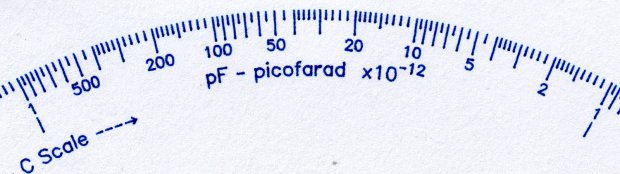
    The middle and top decks have windows exposing the scales:

    Tek CC - radial text example
    Tek CC – radial text example

    The paths are basically two arcs connected by semicircular cuts, but with ramps on each end recutting the entry and exit paths:

    Top Deck - Window Cut Path
    Top Deck – Window Cut Path

    The entry path in the upper left slants downward from the TravelZ level of 1.5 (-ish) mm to Z=0, with the nose of the blade holder flush against the surface and the blade sunk to its full length. The vertical path to Z=-2 (-ish) increases the cutting pressure from roughly the preload value to preload + 2*(spring rate), so the blade won’t ride up under the cutting forces.

    The path then goes completely around the window at Z=-2, then ramps up to the TravelZ level again.

    All of which produces a neat cutout that sticks to the Cricut mat when I peel the rest of the deck off:

    Tek CC - MPCNC drag knife
    Tek CC – MPCNC drag knife

    That’s a middle deck before I started laminating them, but you get the general idea.

    The GCMC code (extracted from the complete lump) looks like this:

      local WindowArc = 54deg;
    
      local ac = -17 * ScaleArc + ScaleRT/2;   // center of window arc
      local r0 = DeckRad - ScaleHeight;        // outer
      local r1 = DeckRad - 2 * ScaleHeight;    // inner
    
      local aw = WindowArc - to_deg(atan(ScaleHeight,(r0 + r1)/2));    // window arc minus endcaps
    
      p0 = r0 * [cos(ac + aw/2),sin(ac + aw/2),-];
      p1 = r0 * [cos(ac - aw/2),sin(ac - aw/2),-];
      local p2 = r1 * [cos(ac - aw/2),sin(ac - aw/2),-];
      local p3 = r1 * [cos(ac + aw/2),sin(ac + aw/2),-];
    
      goto(p3);
      arc_cw(p0 +| [-,-,0],ScaleHeight/2);    // blade enters surface
      move([-,-,KnifeZ]);                     // apply pressure
    
      arc_cw(p1,r0);                          // smallest arc
      arc_cw(p2,ScaleHeight/2);               // half a circle
      arc_ccw(p3,r1);
      arc_cw(p0,ScaleHeight/2);
    
      arc_cw(p1 +| [-,-,TravelZ],r0);         // exit from cut
    
      goto([0,0,-]);
      goto([-,-,SafeZ]);

    Having measured the angular position of the window and its size on the original Tek CC, I compute the coordinates of the four points where the semicircular “end caps” meet the longer arcs, then connect the dots with arc_xx() functions to generate the G-Code commands. As always, using the proper radius signs requires trial & error.

    While I was at it, I added entry & exit moves for the deck’s central pivot hole and outer perimeter.

    I’m pretty sure the right CAM package would take care of that, but GCMC operates well below the CAM level.

  • Homage Tektronix Circuit Computer: Paper Matters

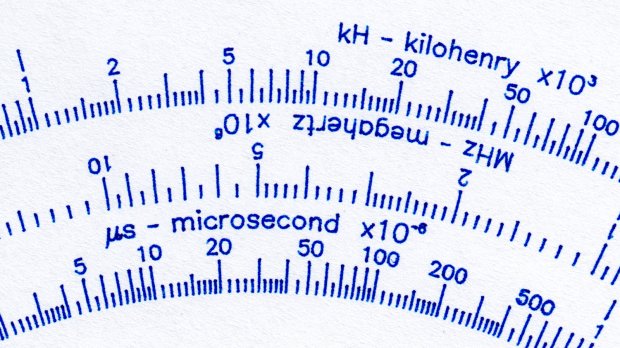
    To judge from the dislodged pigment grains, the original Tektronix Circuit Computer probably used then-new laser printing on good-quality paper, laminated between plastic sheets:

    Tek CC - OEM
    Tek CC – OEM

    A Pilot Precise V5RT cartridge on plain paper (20 lb 98 white), also laminated, looks pretty good:

    Tek CC - V5RT green - 20 lb plain paper
    Tek CC – V5RT green – 20 lb plain paper

    But a black V5RT pen on HP Glossy Presentation Paper (44 lb, 160 g/m²), also laminated, is spectacular:

    Tek CC - V5RT black - glossy presentation paper
    Tek CC – V5RT black – glossy presentation paper

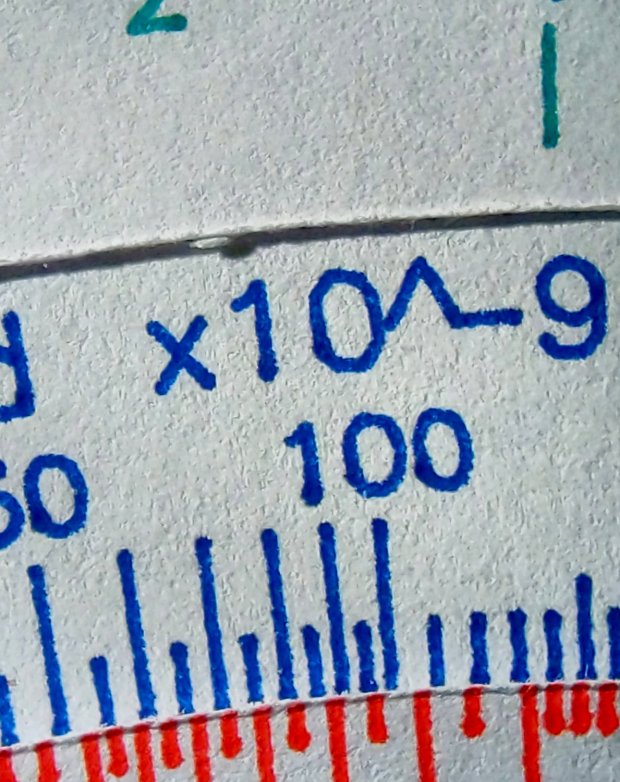
    The glossy Presentation paper is hard enough to keep the pen ball from sinking in, producing much finer lines. In round numbers:

    • 0.2 mm – Tek laser-printed (?) original
    • 0.3 mm – green V5RT on plain paper
    • 0.2 mm – black V5RT on glossy Presentation paper

    The CNC 3018XL plotted / drew everything at 2400 mm/min = 40 mm/s, with minimal wobbulation in the lines and none worth mentioning in the characters.

    The pen ball sometimes pulls a dot of ink off the glossy paper as it rises at the end of a stroke; perhaps matte paper would produce more traction on the ink.

    You can see small blobs at the end of some strokes, but the fancy paper prevents most of the bleeding visible in the previous tests. Pilot V5 pens definitely dislike card stock.

    The results looks great in person without magnification, so maybe none of that matters.

    The pix come from the Pixel 3a camera in its microscope adapter.

  • Kenmore 158 Sewing Machine: Glare Reduction

    The additional LEDs around the needle on (one of) Mary’s Kenmore Model 158 sewing machines provide plenty of light for normal sewing, but produced too much glare on the polished steel “hand hole cover plate” (their nomenclature) for small-scale work. A matte surface seemed in order, which came from some translucent mailing labels left over from our Christmas card effort:

    Kenmore 158 - non-glare cover plate
    Kenmore 158 – non-glare cover plate

    Mailing labels probably aren’t a permanent solution, but they certainly solved the problem without delay. We’re loathe to etch the steel, as increasing the surface roughness definitely isn’t what you want, nor blacken it, for obvious reasons.

    Too much light is definitely better than too little, though.

  • Merry Christmas

    Moonrise, as seen through the pines in our yard:

    Pixel 3a Night Vision - moonrise
    Pixel 3a Night Vision – moonrise

    The Pixel 3a produces exceedingly useful low-light images, mostly by having Google’s software compensate for its tiny lens and minimal light-capture area, with the downside of turning a peaceful night scene into harsh daylight.

    Take the rest of the day off, OK?

  • Google Pixel 3a Microscope Adapter

    Hand-holding my Google Pixel 3a phone over the microscope eyepiece worked well enough to justify building Yet Another Camera Adapter:

    Pixel 3a Microscope Adapter - in action
    Pixel 3a Microscope Adapter – in action

    The solid model looks about like you’d expect:

    Google Pixel 3a Zoom Microscope Mount - solid model - top
    Google Pixel 3a Zoom Microscope Mount – solid model – top

    The “camera” actually has the outside dimensions of a Spigen case, rather than the bare phone, because dropping a bare phone is never a good idea.

    The base plate pretty much fills the M2’s platform:

    Pixel 3a Microscope Adapter - M2 platform
    Pixel 3a Microscope Adapter – M2 platform

    I originally arranged the four corners around the plate to print everything in one go, but an estimated six hours of print time suggested doing the corners separately would maximize local happiness. Which it did, whew, even if the plate ran for a bit over 4-1/2 hours.

    The snout is a loose fit around the 5× widefield microscope eyepiece, with the difference made up in a wrap of black tape; it’s much easier to adjust the fit upward than to bore out the snout. An overwrap of tape secures the snout to the eyepiece, which I’ve dedicated to the cause; the scope normally rocks 10× widefield glass.

    The tapered hole exposes the phone’s fingerprint reader to simplify unlocking, should it shut down while I’m fiddling with something else.

    The microscope doesn’t fully illuminate the camera’s entrance pupil at minimum zoom, with 4.5× filling the screen and (mostly) eliminating the vignette. The corner blocks have oversize holes to allow aligning the camera lens axis over the microscope optical axis. The solid model incorporates Lessons Learned from the version you see here, because you (well, I) can’t measure the camera axis with respect to the outside dimensions accurately enough:

    Pixel 3a Microscope Adapter - installed - front
    Pixel 3a Microscope Adapter – installed – front

    Although it’s less unsteady than it looks, microscopy requires a gentle touch at the best of times. The adapter doesn’t add much wobble to the outcome:

    Pixel 3a Microscope Adapter - installed - side
    Pixel 3a Microscope Adapter – installed – side

    The field is about 14×19 mm with the camera at 4.5× and the microscope at minimum zoom:

    Pixel 3a Microscope Adapter - test image - min mag
    Pixel 3a Microscope Adapter – test image – min mag

    You can see a little darkening on the upper and lower right corners, so the phone’s still minutely leftward.

    The field is about 1.5×2 mm at full throttle:

    Pixel 3a Microscope Adapter - test image - max mag
    Pixel 3a Microscope Adapter – test image – max mag

    Color balance with the cold white LED ring isn’t the best, but it’s survivable. Mad props to OpenCamera for exposing All. The. Controls. you might possibly need.

    The OpenSCAD source code as a GitHub Gist:

    // Google Pixel 3a mount for stereo zoom microscope
    // Ed Nisley – KE4ZNU – 2019-12
    Layout = "Show"; // [Show,BuildAll,BuildBumpers,BuildPlate,DrillGuide,Phone,Plate,Bumper]
    /* [Hidden] */
    ThreadThick = 0.25;
    ThreadWidth = 0.40;
    HoleWindage = 0.2;
    Protrusion = 0.1; // make holes end cleanly
    function IntegerMultiple(Size,Unit) = Unit * ceil(Size / Unit);
    ID = 0;
    OD = 1;
    LENGTH = 2;
    inch = 25.4;
    //———————-
    // Dimensions
    Phone = [74.5,156.0,12.0]; // inside Spigen case
    PhoneRadii = [10.0,10.0,3.0]; // corner rounding, likewise
    LensOffset = [-17.0,-18.5,0]; // looking at phone screen, (-) sign = from right/top edge
    PrintReader = [0,Phone.y/2 – 44.0,0]; // fingerprint reader from center
    PrintReaderDia = [20.0,30.0,0]; // … hole for access
    Eyepiece = [11.5,28.0 + 0.50,27.0]; // ID = lens, OD includes clearance
    Insert = [3.0,4.5,4.0]; // M3 threaded brass insert
    Screw = [3.0,7.0,3.5]; // OD = washer, LENGTH = washer + head height
    WallThick = 3.0; // minimum wall thickness
    Bumper = [2*Screw[OD],20.0,Phone.z]; // bumper edge piece
    BumperOAL = Bumper.y + Bumper.x; // outside length for corner piece
    BumperRadius = 2.0;
    MinMargin = 1.2*Bumper.x; // at least this much extra plate for bumpers
    echo(str("MinMargin: ",MinMargin));
    Plate = [IntegerMultiple(Phone.x + 2*MinMargin,5.0),
    IntegerMultiple(Phone.y + 2*MinMargin,5.0),
    false ? 3*ThreadThick : max(Insert[LENGTH] + 2*ThreadThick,WallThick)];
    PlateRadius = 5.0;
    echo(str("Plate: ",Plate," radius: ",PlateRadius));
    EmbossDepth = 2*ThreadThick + Protrusion;
    DebossHeight = EmbossDepth;
    ScrewOffset = Bumper.x/2;
    ScrewAdjust = 1.5*Screw[ID];
    NumSides = 2*3*4;
    Gap = 2.0; // between build layout parts
    //———————-
    // Useful routines
    module PolyCyl(Dia,Height,ForceSides=0) { // based on nophead's polyholes
    Sides = (ForceSides != 0) ? ForceSides : (ceil(Dia) + 2);
    FixDia = Dia / cos(180/Sides);
    cylinder(r=(FixDia + HoleWindage)/2,
    h=Height,
    $fn=Sides);
    }
    // Basic shapes
    // Overall phone outline
    module Phone() {
    hull()
    for (i=[-1,1], j=[-1,1], k=[-1,1])
    translate([i*(Phone.x/2 – PhoneRadii.x),j*(Phone.y/2 – PhoneRadii.y),k*(Phone.z/2 – PhoneRadii.z)])
    resize(2*PhoneRadii)
    sphere(r=1,$fn=NumSides);
    }
    module Plate() {
    union() {
    difference() {
    union() {
    hull()
    for (i=[-1,1], j=[-1,1])
    translate([i*(Plate.x/2 – PlateRadius),j*(Plate.y/2 – PlateRadius),0])
    cylinder(r=PlateRadius,h=Plate.z,center=true,$fn=NumSides);
    translate([Phone.x/2,Phone.y/2,-Eyepiece[LENGTH]/3 + Plate.z/2] + LensOffset)
    cylinder(d=Eyepiece[OD] + 2*WallThick,h=Eyepiece[LENGTH]/3,
    center=false,$fn=NumSides);
    translate([Phone.x/2,Phone.y/2,-2*Eyepiece[LENGTH]/3 + Plate.z/2 + Protrusion] + LensOffset)
    cylinder(d1=Eyepiece[OD] + 10*ThreadThick,
    d2=Eyepiece[OD] + 2*WallThick,
    h=Eyepiece[LENGTH]/3,
    center=false,$fn=NumSides);
    }
    translate([Phone.x/2,Phone.y/2,-2*Eyepiece[LENGTH] + Plate.z/2 + Protrusion] + LensOffset)
    PolyCyl(Eyepiece[OD],2*Eyepiece[LENGTH],NumSides);
    translate(PrintReader + [0,0,-Plate.z/2 – Protrusion])
    cylinder(d1=PrintReaderDia[OD],d2=PrintReaderDia[ID],h=Plate.z + 2*Protrusion,$fn=NumSides);
    for (i=[-1,1], j=[-1,1])
    translate([i*(Phone.x/2 + Bumper.x/2),j*(Phone.y/2 – Bumper.y/2),-Plate.z])
    PolyCyl(Insert[OD],2*Plate.z,8);
    for (i=[-1,1], j=[-1,1])
    translate([i*(Phone.x/2 – Bumper.y/2),j*(Phone.y/2 + Bumper.x/2),-Plate.z])
    PolyCyl(Insert[OD],2*Plate.z,8);
    translate([0,-12,Plate.z/2]) // recess for legend
    cube([55,40,EmbossDepth],center=true);
    }
    translate([0,0,Plate.z/2 – EmbossDepth])
    linear_extrude(height=DebossHeight,convexity=20)
    text(text="Pixel 3a",size=6,spacing=1.20,
    font="Arial:style:Bold",halign="center",valign="center");
    translate([0,-15,Plate.z/2 – EmbossDepth])
    linear_extrude(height=DebossHeight,convexity=20)
    text(text="Ed Nisley",size=6,spacing=1.20,
    font="Arial:style:Bold",halign="center",valign="center");
    translate([0,-25,Plate.z/2 – EmbossDepth])
    linear_extrude(height=DebossHeight,convexity=20)
    text(text="softsolder.com",size=4,spacing=1.20,
    font="Arial:style:Bold",halign="center",valign="center");
    }
    }
    module BumperPiece() {
    difference() {
    translate([0,-BumperOAL/2 + Bumper.x,0])
    hull()
    for (i=[-1,1], j=[-1,1])
    translate([i*(Bumper.x/2 – BumperRadius),j*(BumperOAL/2 – BumperRadius),0])
    cylinder(r=BumperRadius,h=Bumper.z,center=true,$fn=NumSides);
    translate([0,-Bumper.y/2,-Bumper.z])
    PolyCyl(ScrewAdjust,2*Bumper.z,8);
    }
    }
    // Side bumpers, XY origin at inner corner
    module BumperCorner() {
    union() {
    translate([Bumper.x/2,0,0])
    BumperPiece();
    translate([0,Bumper.x/2,0])
    rotate(-90)
    BumperPiece();
    }
    }
    //- Build things
    if (Layout == "Phone")
    Phone();
    if (Layout == "Plate")
    Plate();
    if (Layout == "Bumper")
    BumperCorner();
    if (Layout == "Show") {
    color("LightBlue") Plate();
    for (i=[-1,1], j=[-1,1]) {
    a =
    i > 0 && j > 0 ? 0 :
    i < 0 && j > 0 ? 90 :
    i > 0 && j < 0 ? -90 :
    180
    ;
    translate([i*Phone.x/2,j*Phone.y/2,Plate.z/2 + Bumper.z/2])
    rotate(a)
    color("LightGreen") BumperCorner();
    translate([0,0,Phone.z/2 + Plate.z/2 + Protrusion])
    color("DarkGray",0.5) Phone();
    }
    }
    if (Layout == "BuildAll") {
    translate([0,0,Plate.z/2])
    rotate([0,180,0])
    Plate();
    for (i=[-1,1], j=[-1,1]) {
    a =
    i > 0 && j > 0 ? 0 :
    i < 0 && j > 0 ? 90 :
    i > 0 && j < 0 ? -90 :
    180
    ;
    translate([i*(Plate.x/2 + Gap),j*(Plate.y/2 + Gap),Bumper.z/2])
    rotate(a)
    BumperCorner();
    }
    }
    if (Layout == "BuildPlate") {
    translate([0,0,Plate.z/2])
    rotate([0,180,0])
    Plate();
    }
    if (Layout == "BuildBumpers") {
    for (i=[-1,1], j=[-1,1]) {
    a =
    i > 0 && j > 0 ? 180 :
    i < 0 && j > 0 ? -90 :
    i > 0 && j < 0 ? 90 :
    0
    ;
    translate([i*(Bumper.x + Gap),j*(Bumper.x + Gap),Bumper.z/2])
    rotate(a)
    BumperCorner();
    }
    }
    if (Layout == "DrillGuide") {
    projection(cut=true)
    Plate();
    }
  • Tour Easy: Fairing Strut Mounts, Redux

    Our Young Engineer’s Tour Easy followed us home, due to a non-survivable cycling commute and inadequate apartment storage space. What with its Zzipper fairing being off and having easy access to the strut, I conjured & installed another set of fairing mounting blocks:

    Tour Easy - Fairing Strut Mount Blocks
    Tour Easy – Fairing Strut Mount Blocks

    Should you be in need of a Tour Easy recumbent in good shape, well, have I got a deal for you. I’ll even conjure a Daytime Running Light mount, if that’s what it takes …