The Smell of Molten Projects in the Morning

Ed Nisley's Blog: Shop notes, electronics, firmware, machinery, 3D printing, laser cuttery, and curiosities. Contents: 100% human thinking, 0% AI slop.

Tag: CNC

Making parts with mathematics

  • GCMC: Circular Slide Rule Scales

    The Tektronix Circuit Computer, being a specialized circular slide rule, requires logarithmic scales bent around arcs:
    Scale Tick Layout - Bottom Deck
    Scale Tick Layout – Bottom Deck

    Each decade spans 18°, except for the FL scale’s 36° span to extract the square root of the LC product:

    FL = 1 / (2π · sqrt(LC))

    The tick marks can point inward or outward from their baseline radius, with corresponding scale labels reading either inward or outward.

    There being no (easy) way to algorithmically set the tick lengths, I used a (pair of) tables (a.k.a. vector lists):

    TickScaleNarrow = {
      [1.0,TickMajor],
      [1.1,TickMinor],[1.2,TickMinor],[1.3,TickMinor],[1.4,TickMinor],
      [1.5,TickMid],
      [1.6,TickMinor],[1.7,TickMinor],[1.8,TickMinor],[1.9,TickMinor],
      [2.0,TickMajor],
      [2.2,TickMinor],[2.4,TickMinor],[2.6,TickMinor],[2.8,TickMinor],
      [3.0,TickMajor],
    … and so on …

    The first number in each vector is the tick value in the decade, the log of which corresponds to its angular position. The second gives its length, with three constants matching up to the actual lengths on the Tek scales.

    The Circuit Computer labels only three ticks within each decade in the familiar (to EE bears, anyhow) 1, 2, 5 sequence. Their logs are 0.0, 0.3, and 0.7, spacing them neatly at the 1/3 decade points.

    Pop quiz: If you wanted to label two evenly spaced ticks per decade, you’d mark 1 and …

    Generating the L (inductance) scale on the bottom deck goes like this:

      Radius = DeckRad - ScaleSpace;
    
      MinLog = -9;
      MaxLog = 6;
      Arc = -ScaleArc;
    
      dec = 1;
      offset = 0deg;
      for (logval = MinLog; logval < MaxLog; logval++) {
        a = offset + logval * Arc;
        DrawTicks(Radius,TickScaleNarrow,OUTWARD,a,Arc,dec,INWARD,FALSE);
        dec = (dec == 100) ? 1 : 10 * dec;
      }
    
      a = offset + MaxLog * Arc;
      DrawTicks(Radius,TickScaleNarrow,OUTWARD,a,Arc,100,INWARD,TRUE);

    The L scale covers 1 nH to 1 MH (!), as set by the MinLog and MaxLog values. Arc sets the angular size of each decade from ScaleArc, with the negative sign indicating the values increase in the clockwise direction.

    The first decade starts with a tick labeled 1, so dec = 1. The next decade has dec = 10 and the third has dec = 100. Maybe I should have used the log values 0, 1, and 2, but that seemed too intricate.

    The angular offset is zero because this is the outermost scale, so 1.0 H will be at 0° (the picture is rotated about half a turns, so you’ll find it off to the left). All other scales on the deck have a nonzero offset to put their unit tick at the proper angle with respect to this one.

    The scales have legends for each group of three decades, positioned in the middle of the group:

      logval = MinLog + 1.5;
      a = offset + logval * Arc;
      ArcLegend("nH - nanohenry  x10^-9",r,a,INWARD);
    
      logval += 3;
      a = offset + logval * Arc;
      ArcLegend("μH - microhenry  x10^-6",r,a,INWARD);

    I wish there were a clean way to draw exponents, as the GCMC Hershey font does not include superscripts, but the characters already live at the small end of what’s do-able with a ballpoint pen cartridge. Engraving will surely work better, but stylin’ exponents are definitely in the nature of fine tuning.

    With all that in hand, the scales look just like they should:
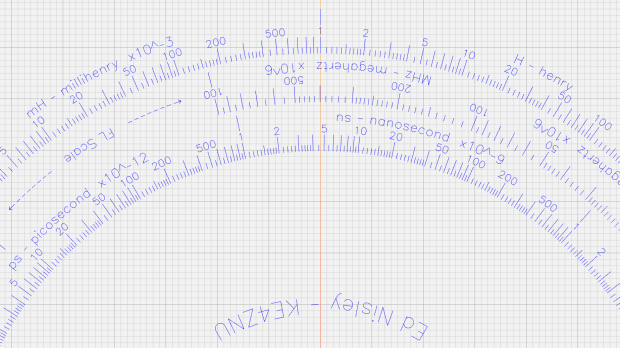
    Tektronix Circuit Computer - Bottom Deck - scale detail
    Tektronix Circuit Computer – Bottom Deck – scale detail

    The GCMC source code as a GitHub Gist:

    //—-
    // Define tick layout for scales
    // Numeric value for scale, corresponding tick length
    TickScaleNarrow = {
    [1.0,TickMajor],
    [1.1,TickMinor],[1.2,TickMinor],[1.3,TickMinor],[1.4,TickMinor],
    [1.5,TickMid],
    [1.6,TickMinor],[1.7,TickMinor],[1.8,TickMinor],[1.9,TickMinor],
    [2.0,TickMajor],
    [2.2,TickMinor],[2.4,TickMinor],[2.6,TickMinor],[2.8,TickMinor],
    [3.0,TickMajor],
    [3.2,TickMinor],[3.4,TickMinor],[3.6,TickMinor],[3.8,TickMinor],
    [4.0,TickMajor],
    [4.5,TickMinor],
    [5.0,TickMajor],
    [5.5,TickMinor],
    [6.0,TickMajor],
    [6.5,TickMinor],
    [7.0,TickMajor],
    [7.5,TickMinor],
    [8.0,TickMajor],
    [8.5,TickMinor],
    [9.0,TickMajor],
    [9.5,TickMinor]
    };
    TickScaleWide = {
    [1.0,TickMajor],
    [1.1,TickMinor],[1.2,TickMinor],[1.3,TickMinor],[1.4,TickMinor],
    [1.5,TickMid],
    [1.6,TickMinor],[1.7,TickMinor],[1.8,TickMinor],[1.9,TickMinor],
    [2.0,TickMajor],
    [2.1,TickMinor],[2.2,TickMinor],[2.3,TickMinor],[2.4,TickMinor],
    [2.5,TickMid],
    [2.6,TickMinor],[2.7,TickMinor],[2.8,TickMinor],[2.9,TickMinor],
    [3.0,TickMajor],
    [3.2,TickMinor],[3.4,TickMinor],[3.6,TickMinor],[3.8,TickMinor],
    [4.0,TickMajor],
    [4.2,TickMinor],[4.4,TickMinor],[4.6,TickMinor],[4.8,TickMinor],
    [5.0,TickMajor],
    [5.5,TickMinor],
    [6.0,TickMajor],
    [6.5,TickMinor],
    [7.0,TickMajor],
    [7.5,TickMinor],
    [8.0,TickMajor],
    [8.5,TickMinor],
    [9.0,TickMajor],
    [9.5,TickMinor]
    };
    TickLabels = [1,2,5]; // labels only these ticks, must be integers
    /—–
    // Draw a decade of ticks & labels
    // ArcLength > 0 = CCW, < 0 = CW
    // UnitOnly forces just the unit tick, so as to allow creating the last tick of the scale
    function DrawTicks(Radius,TickMarks,TickOrient,UnitAngle,ArcLength,Decade,LabelOrient,UnitOnly) {
    feedrate(ScaleSpeed);
    local a,r0,r1,p0,p1;
    if (Decade == 1 || UnitOnly) { // draw unit marker
    a = UnitAngle;
    r0 = Radius + TickOrient * (TickMajor + 2*TickGap + ScaleTextSize.y);
    p0 = r0 * [cos(a),sin(a)];
    r1 = Radius + TickOrient * (ScaleSpace – 2*TickGap);
    p1 = r1 * [cos(a),sin(a)];
    goto(p0);
    move([-,-,EngraveZ]);
    move(p1);
    goto([-,-,TravelZ]);
    }
    local ticklist = UnitOnly ? {TickMarks[0]} : TickMarks;
    local tick;
    foreach(ticklist; tick) {
    a = UnitAngle + ArcLength * log10(tick[0]);
    p0 = Radius * [cos(a), sin(a)];
    p1 = (Radius + TickOrient*tick[1]) * [cos(a), sin(a)];
    goto(p0);
    move([-,-,EngraveZ]);
    move(p1);
    goto([-,-,TravelZ]);
    }
    feedrate(TextSpeed); // draw scale values
    local lrad = Radius + TickOrient * (TickMajor + TickGap);
    if (TickOrient == INWARD) {
    if (LabelOrient == INWARD) {
    lrad -= ScaleTextSize.y; // inward ticks + inward labels = offset inward
    }
    }
    else {
    if (LabelOrient == OUTWARD) {
    lrad += ScaleTextSize.y; // outward ticks + outward labels = offset outward
    }
    }
    ticklist = UnitOnly ? [TickLabels[0]] : TickLabels;
    local ltext,lpath,tpa;
    foreach(ticklist; tick) {
    ltext = to_string(Decade * to_int(tick));
    lpath = scale(typeset(ltext,TextFont),ScaleTextSize);
    a = UnitAngle + ArcLength * log10(tick);
    tpa = ArcText(lpath,[0mm,0mm],lrad,a,TEXT_CENTERED,LabelOrient);
    engrave(tpa,TravelZ,EngraveZ);
    }
    }
  • GCMC Radial Text

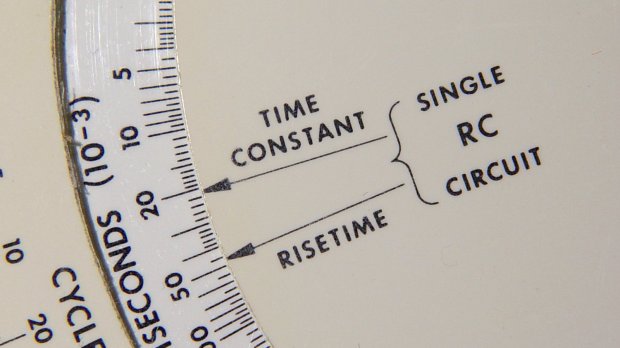
    The Tektronix Circuit Computer needs text along radial lines:

    Tek CC - original RC arrow layout
    Tek CC – original RC arrow layout

    Fortunately, this doesn’t require nearly as much effort as the text-on-arcs code, because GCMC includes functions to rotate paths around the origin:

    return rotate_xy(TextPath,Angle) + CenterPt;

    The only trick is figuring out how to handle the justification, given the overall path length:

      local pl = TextPath[-1].x;
    
      local ji = (Justify == TEXT_LEFT)     ? 0mm :
                 (Justify == TEXT_CENTERED) ? -pl/2 :
                 (Justify == TEXT_RIGHT)    ? -pl :
                 0mm;

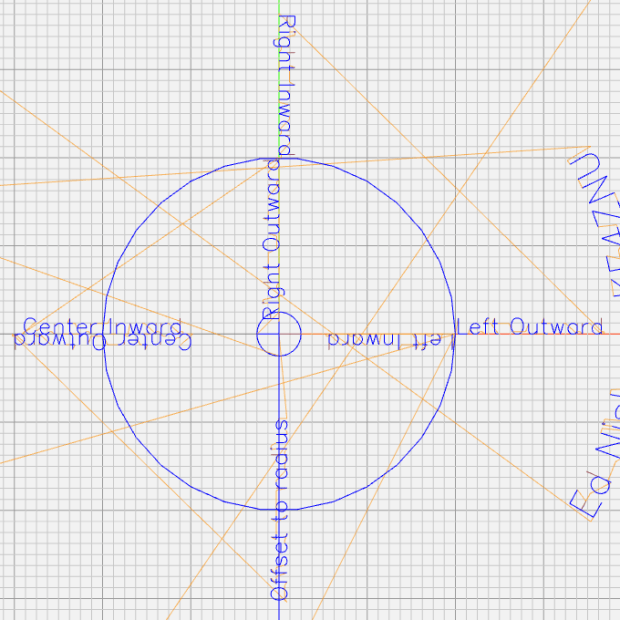
    A testcase showed it worked:

    Radial text testcase
    Radial text testcase

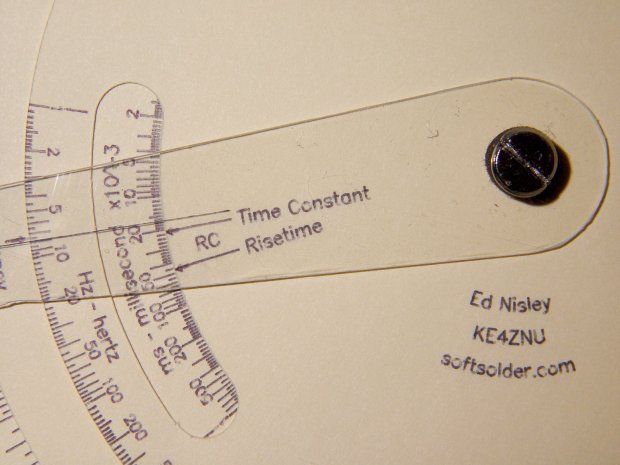
    With that in hand, I took the liberty of slightly simplifying the original Tek layout:

    Tek CC - radial text example
    Tek CC – radial text example

    If lives depended on it, one could duplicate the Tek layout, but they don’t and I didn’t. Fancy typography isn’t a GCMC thing.

    And, yeah, laser printing is way crisper than a pen drawing.

    The GCMC source code as a GitHub Gist:

    comment("RadialText test");
    ctr = [0mm,0mm];
    r = 20mm;
    a = 0deg;
    tp = scale(typeset("Left Inward",TextFont),LegendTextSize);
    tpr = RadialText(tp,ctr,r,a,TEXT_LEFT,INWARD);
    feedrate(TextSpeed);
    engrave(tpr,TravelZ,EngraveZ);
    tp = scale(typeset("Left Outward",TextFont),LegendTextSize);
    tpr = RadialText(tp,ctr,r,a,TEXT_LEFT,OUTWARD);
    feedrate(TextSpeed);
    engrave(tpr,TravelZ,EngraveZ);
    a = 90deg;
    tp = scale(typeset("Right Inward",TextFont),LegendTextSize);
    tpr = RadialText(tp,ctr,r,a,TEXT_RIGHT,INWARD);
    feedrate(TextSpeed);
    engrave(tpr,TravelZ,EngraveZ);
    tp = scale(typeset("Right Outward",TextFont),LegendTextSize);
    tpr = RadialText(tp,ctr,r,a,TEXT_RIGHT,OUTWARD);
    feedrate(TextSpeed);
    engrave(tpr,TravelZ,EngraveZ);
    a = 180deg;
    tp = scale(typeset("Center Inward",TextFont),LegendTextSize);
    tpr = RadialText(tp,ctr,r,a,TEXT_CENTERED,INWARD);
    feedrate(TextSpeed);
    engrave(tpr,TravelZ,EngraveZ);
    tp = scale(typeset("Center Outward",TextFont),LegendTextSize);
    tpr = RadialText(tp,ctr,r,a,TEXT_CENTERED,OUTWARD);
    feedrate(TextSpeed);
    engrave(tpr,TravelZ,EngraveZ);
    a = 270deg;
    RadialLegend("Offset to radius",ctr,r,a,TEXT_CENTERED,INWARD,-0.5);
    goto(ctr);
    move([0,-2*r,EngraveZ]);
    goto([r,0mm,-]);
    circle_cw(ctr);
    //—–
    // Write text on a radial line
    function RadialText(TextPath,CenterPt,Radius,Angle,Justify,Orient) {
    local pl = TextPath[-1].x; // path length
    local ji = (Justify == TEXT_LEFT) ? 0mm : // justification indent
    (Justify == TEXT_CENTERED) ? -pl/2 :
    (Justify == TEXT_RIGHT) ? -pl :
    0mm;
    if (Orient == INWARD) {
    TextPath = rotate_xy(TextPath,180deg);
    ji = -ji;
    }
    TextPath += [Radius + ji,0mm];
    return rotate_xy(TextPath,Angle) + CenterPt;
    }
    //—–
    // Draw a radial legend
    // Offset in units of char height: 0 = baseline on radius, +/- = above/below
    function RadialLegend(Text,Center,Radius,Angle,Justify,Orient,Offset) {
    local tp = scale(typeset(Text,TextFont),LegendTextSize) + [0mm,Offset * LegendTextSize.y];
    local tpr = RadialText(tp,Center,Radius,Angle,Justify,Orient);
    feedrate(TextSpeed);
    engrave(tpr,TravelZ,EngraveZ);
    }
  • GCMC Text on Arcs: Improved Version

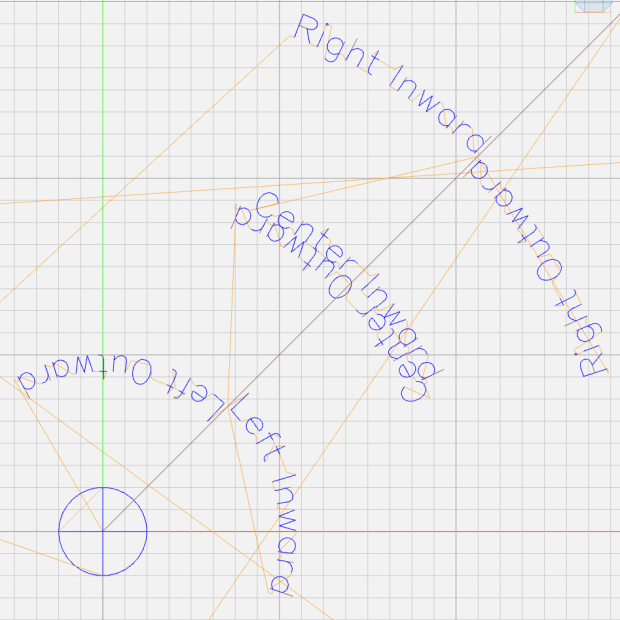
    The Tektronix Circuit Computer scale annotations read both inward (from the center) and outward (from the rim):

    Text on Arcs - orientation
    Text on Arcs – orientation

    It’s surprisingly difficult (for me, anyhow) to see the middle FL Scale as reading upside-down, rather than mirror-image backwards.

    This turned into a rewrite of the the read-outward annotation code I used for the vacuum tube reflectors. Eventually the justification and orientation options came out right:

    Text-on-arcs example
    Text-on-arcs example

    The text baseline sits at the specified radius from the center point, regardless of its orientation, so you must offset the text path by half its height in the proper direction before handing it to the ArcText function.

    The testcase shows the invocation ritual:

        ctr = [0mm,0mm];
    
        tp = scale(typeset("Right Inward",TextFont),ScaleTextSize);
        tpa = ArcText(tp,ctr,30mm,45deg,TEXT_RIGHT,INWARD);
        engrave(tpa,TravelZ,EngraveZ);
        tp = scale(typeset("Right Outward",TextFont),ScaleTextSize);
        tpa = ArcText(tp,ctr,30mm,45deg,TEXT_RIGHT,OUTWARD);
        engrave(tpa,TravelZ,EngraveZ);
    
        tp = scale(typeset("Center Inward",TextFont),ScaleTextSize);
        tpa = ArcText(tp,ctr,20mm,45deg,TEXT_CENTERED,INWARD);
        engrave(tpa,TravelZ,EngraveZ);
        tp = scale(typeset("Center Outward",TextFont),ScaleTextSize);
        tpa = ArcText(tp,ctr,20mm,45deg,TEXT_CENTERED,OUTWARD);
        engrave(tpa,TravelZ,EngraveZ);
    
        tp = scale(typeset("Left Inward",TextFont),ScaleTextSize);
        tpa = ArcText(tp,ctr,10mm,45deg,TEXT_LEFT,INWARD);
        engrave(tpa,TravelZ,EngraveZ);
        tp = scale(typeset("Left Outward",TextFont),ScaleTextSize);
        tpa = ArcText(tp,ctr,10mm,45deg,TEXT_LEFT,OUTWARD);
        engrave(tpa,TravelZ,EngraveZ);
    
        goto([0mm,0mm,-]);
        move([40mm,40mm,-]);

    A utility function to draw scale legends stuffs some of that complexity into a bottle:

    function ArcLegend(Text,Radius,Angle,Orient) {
    
      local tp = scale(typeset(Text,TextFont),LegendTextSize);
      local tpa = ArcText(tp,[0mm,0mm],Radius,Angle,TEXT_CENTERED,Orient);
    
      feedrate(TextSpeed);
      engrave(tpa,TravelZ,EngraveZ);
    }

    Which means most of the text uses a simpler invocation:

      r = Radius + TickMajor + 2*TickGap + LegendTextSize.y;
    
      logval = MinLog + 1.5;
      a = offset + logval * Arc;
      ArcLegend("nH - nanohenry  x10^-9",r,a,INWARD);
    
      logval += 3;
      a = offset + logval * Arc;
      ArcLegend("μH - microhenry  x10^-6",r,a,INWARD);
    

    Arc determines the angular span of each decade, with positive values going counterclockwise. MinLog is the logarithm of the scale endpoint, so adding 1.5 puts the text angle one-and-a-half decades from MinLog and multiplying by Arc moves it in the right direction. The offset angle rotates the entire scale with respect to the 0° reference sticking out the X axis over on the right. The top picture has its 0° reference pointing north-northeast.

    The GCMC source code as a GitHub Gist:

    INWARD = -1; // text and tick alignment (used as integers)
    OUTWARD = 1;
    TEXT_LEFT = -1; // text justification
    TEXT_CENTERED = 0;
    TEXT_RIGHT = 1;
    //—–
    // Bend text around an arc
    function ArcText(TextPath,CenterPt,Radius,BaseAngle,Justify,Orient) {
    local pl = TextPath[-1].x; // path length
    local c = 2*pi()*Radius;
    local ta = to_deg(360 * pl / c); // subtended angle
    local ja = (Justify == TEXT_LEFT ? 0deg : // assume OUTWARD
    (Justify == TEXT_CENTERED) ? -ta / 2 :
    (Justify == TEXT_RIGHT) ? -ta :
    0deg);
    ja = BaseAngle + Orient*ja;
    local ArcPath = {};
    local pt,r,a;
    foreach(TextPath; pt) {
    if (!isundef(pt.x) && !isundef(pt.y) && isundef(pt.z)) { // XY motion, no Z
    r = (Orient == OUTWARD) ? Radius – pt.y : Radius + pt.y;
    a = Orient * 360deg * (pt.x / c) + ja;
    ArcPath += {[r*cos(a) + CenterPt.x, r*sin(a) + CenterPt.y,-]};
    }
    elif (isundef(pt.x) && isundef(pt.y) && !isundef(pt.z)) { // no XY, Z up/down
    ArcPath += {pt};
    }
    else {
    error("ArcText – Point is not pure XY or pure Z: " + to_string(pt));
    }
    }
    return ArcPath;
    }

    GCMC treats variables defined inside a function as local, unless they’re already defined in an enclosing scope, whereupon you overwrite the outer variables. This wasn’t a problem in my earlier programs, but I fired the footgun with nested functions using the same local / temporary variables. Now, I ruthlessly declare truly local variables as local, except when I don’t, for what seem good reasons at the time.

  • Tektronix Circuit Computer: Layout Analysis

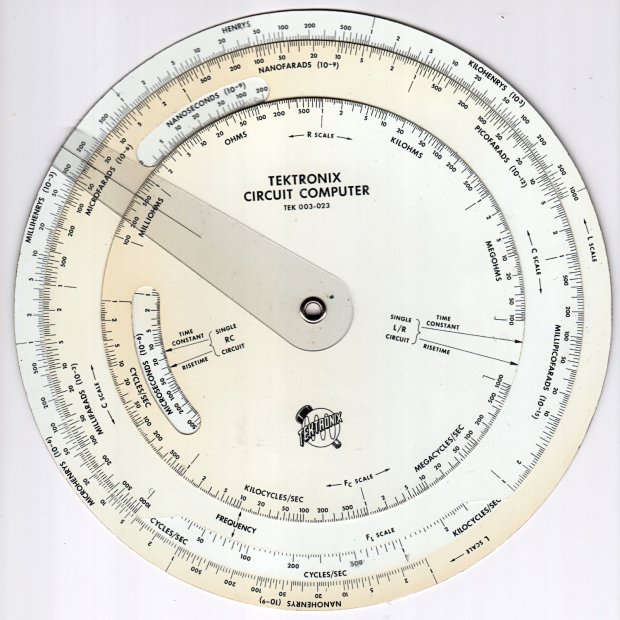
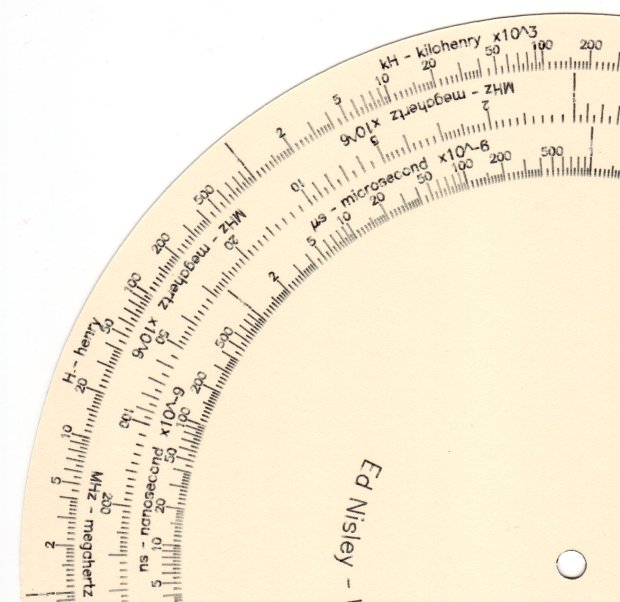
    Following a linkie I can no longer find led me to retrieve the Tektronix Circuit Computer in my Box o’ Slide Rules:

    Tektronix Circuit Computer - front
    Tektronix Circuit Computer – front

    I’m pretty sure it came from Mad Phil’s collection. One can line up the discolored parts of the decks under their cutout windows to restore it to its previous alignment; most likely it sat at the end of a row of books (remember books?) on his reference shelf.

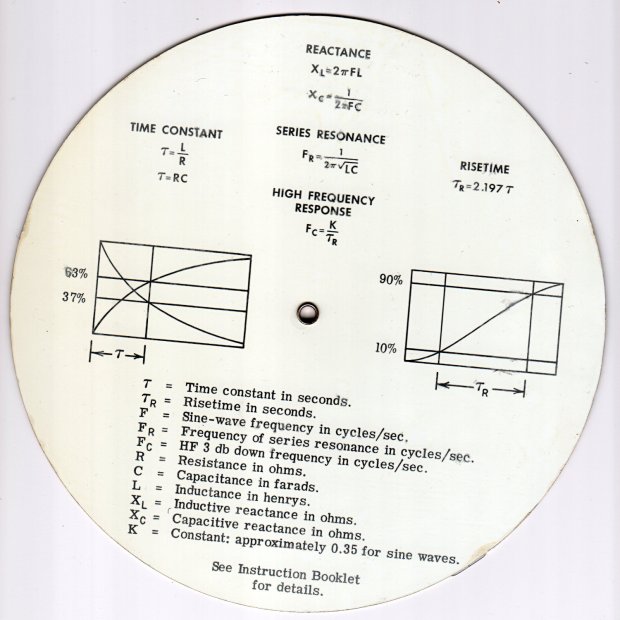
    The reverse side lists the equations it can solve, plus pictorial help for the puzzled:

    Tektronix Circuit Computer - rear
    Tektronix Circuit Computer – rear

    Some searching reveals the original version had three aluminum disks, shaped and milled and photo-printed, with a honkin’ hex nut holding the cursor in place. The one I have seems like laser-printed card stock between plastic laminating film; they don’t make ’em like that any more, either.

    TEK PN 003-023 (the paper edition) runs about thirty bucks (modulo the occasional outlier) on eBay, so we’re not dealing in priceless antiquity here. The manual is readily available as a PDF, with photos in the back.

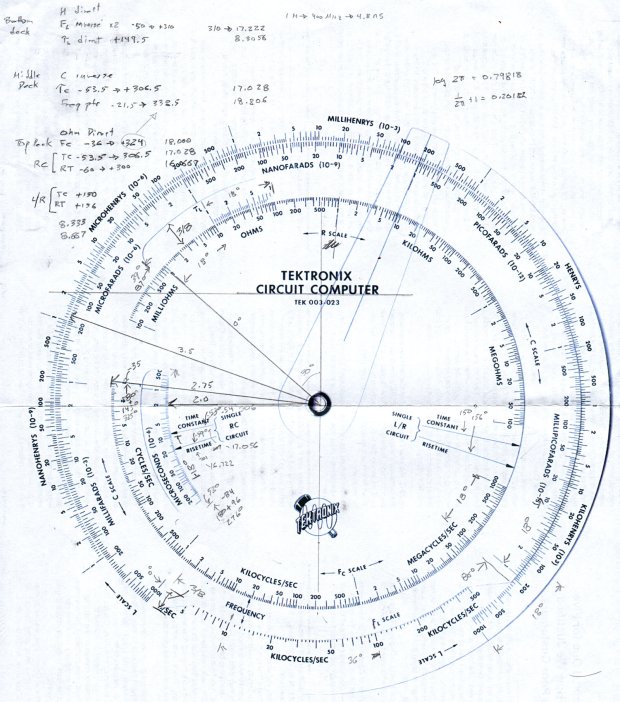
    Some doodling produced key measurements:

    Tektronix Circuit Computer - angle layout
    Tektronix Circuit Computer – angle layout

    All the dimensions are hard inches, of course.

    Each log decade spans 18°, with the Inductive Frequency scale at 36° for the square root required to calculate circuit resonance.

    Generating the log scales requires handling all possible combinations of:

    • Scales increase clockwise
    • Scales increase counterclockwise
    • Ticks point outward
    • Ticks point inward
    • Text reads from center
    • Text reads from rim

    I used the 1×100 tick on the outer scale of each deck as the 0° reference for the other scales on that deck. The 0° tick appears at the far right of plots & engravings & suchlike.

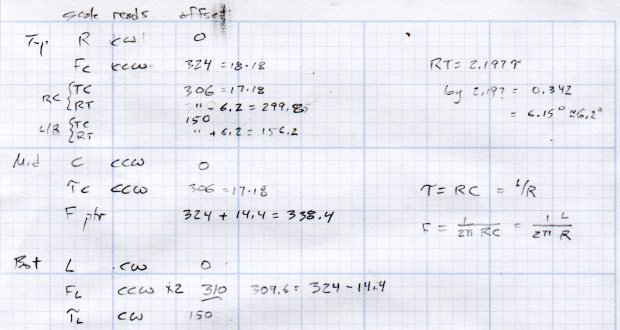
    The L/R Time Constant (tau = τ) pointer on the top deck and the corresponding τL scale on the bottom deck has (what seems like) an arbitrary -150° offset from the 0° reference.

    The Inductive Frequency scale has an offset of 2π, the log of which is 0.79818 = 14.37°.

    The risetime calculations have a factor of 2.197, offsetting those pointers from their corresponding τ pointer by 0.342 = log(2.197) = 6.15°.

    A fair bit of effort produced a GCMC program creating a full-size check plot of the bottom deck on the MPCNC:

    Tektronix Circuit Computer - Bottom Deck - scale check plot
    Tektronix Circuit Computer – Bottom Deck – scale check plot

    By the conservation of perversity, the image is rotated 90° to put the 1 H tick straight up.

    The 3018 can’t handle a 7.75 inch = 196 mm disk, but a CD-size (120 mm OD) engraving came out OK on white plastic filled with black crayon:

    Tek CC bottom - ABS 160g 2400mm-min
    Tek CC bottom – ABS 160g 2400mm-min

    The millimeter scale over on the right shows the letters stand a bit under 1 mm tall. And, yes, the middle scale should read upside-down.

    Properly filling the engraved lines remains an ongoing experiment. More downforce on the diamond or more passes through the G-Code should produce deeper trenches, perhaps with correspondingly higher ridges along the sides. Sanding & polishing the plastic without removing the ink seems tedious.

    The Great Dragorn of Kismet observes I have a gift for picking projects at the cutting edge of consumer demand.

    More doodles while figuring the GCMC code produced a summary of the scale offsets:

    Tektronix Circuit Computer - scale angle tabulation
    Tektronix Circuit Computer – scale angle tabulation

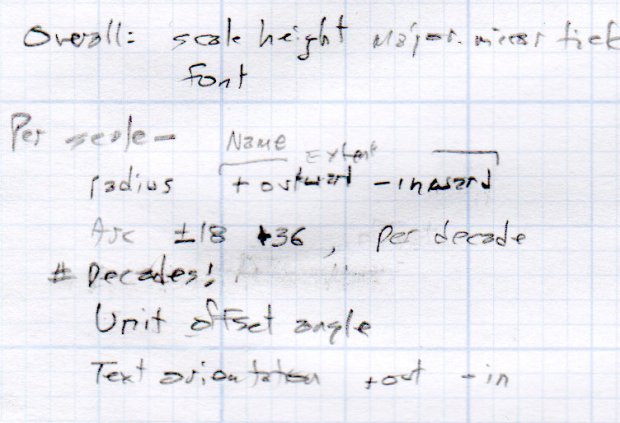
    Musings on the parameters of each scale:

    Tektronix Circuit Computer - scale parameters
    Tektronix Circuit Computer – scale parameters

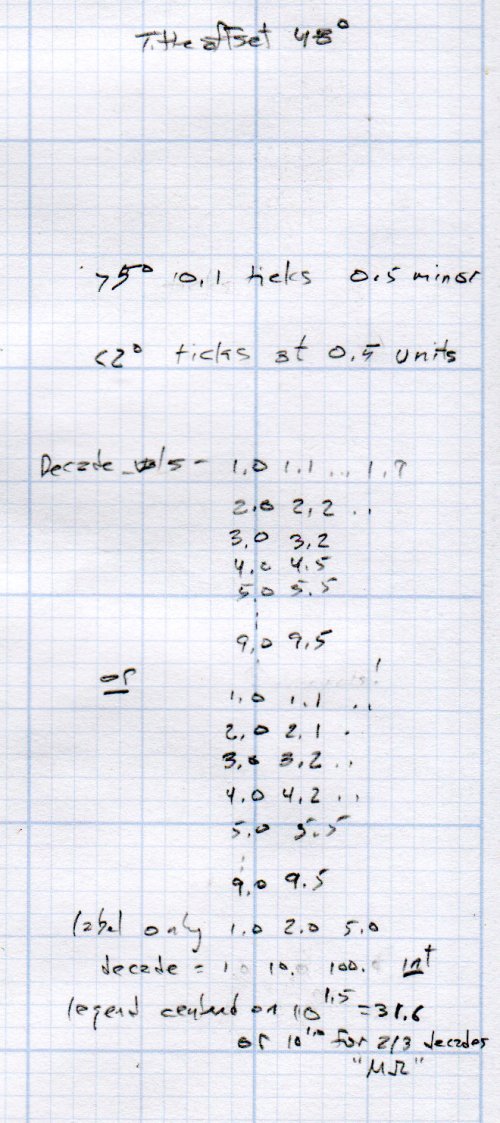
    How to draw decades of tick marks:

    Tektronix Circuit Computer - decade tick doodles
    Tektronix Circuit Computer – decade tick doodles

    It turned out easier to build vectors of tick mark values and their corresponding lengths, with another list of ticks to be labeled, than to figure out how to automate those values.

    More on all this to come …

  • MPCNC: Z-Axis Probed Height Map to Solid Model

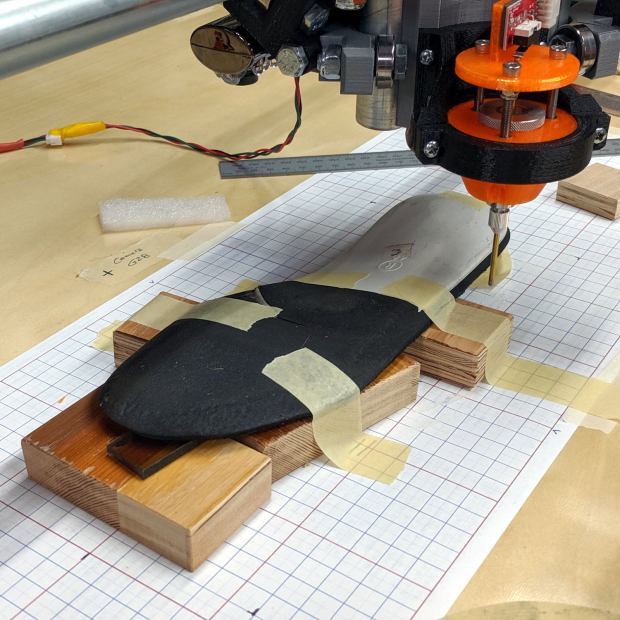
    I set up an orthotic shoe insert on the MPCNC and unleashed the Z-Axis height probe on it:

    Orthotic - bottom probing
    Orthotic – bottom probing

    In principle, the grid keeps the object aligned with the machine axes and the blocks put the upper surface more-or-less parallel with the platform. The XY origin, at the G28 location I’ve been using for tool changes, is on the midline of the sole, with Z touched off by probing the platform beside the sole.

    The only interesting part of the orthotic is the rigid white plastic plate, which extends about 20 mm into a pocket in the black foam, so the probe area excludes the bendy part.

    I’m abusing the bCNC Auto-level probe routine to get the height map, because it produces a tidy file of XYZ coordinates with three header lines describing the overall probe area:

    -50 140 39
    -50 50 21
    -2 35 500
    
    -50 -50 0.11
    -45 -50 0.06
    -40 -50 0.005

    The first two lines give the X and Y coordinate ranges and number of samples. The third line is the Z axis range and probe speed (?). After that, it’s just probed XYZ coordinates, all the way down.

    Meshlab can import ASC files consisting of XYZ coordinates, with the ability to skip a specific number of header lines:

    Meshlab ASC file import - header lines
    Meshlab ASC file import – header lines

    If you don’t skip those three lines, then you get three additional points, far off in XYZ space, that will confuse the next step.

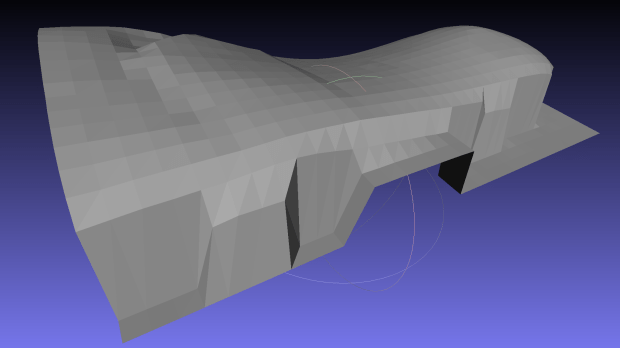
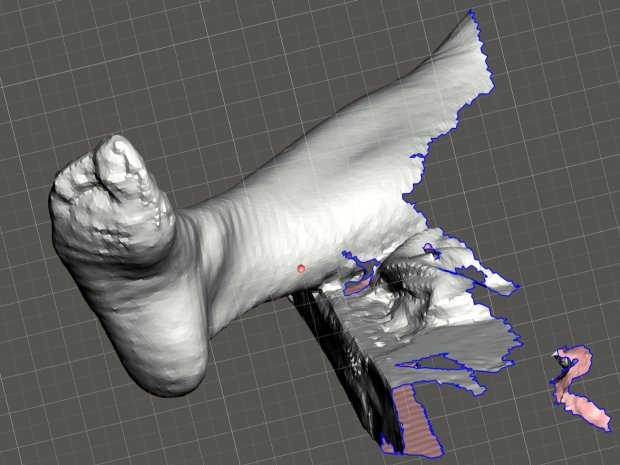
    Checking the Grid Triangulation box (the default) produces a nicely lofted sheet:

    Orthotic - R bottom triangulated
    Orthotic – R bottom triangulated

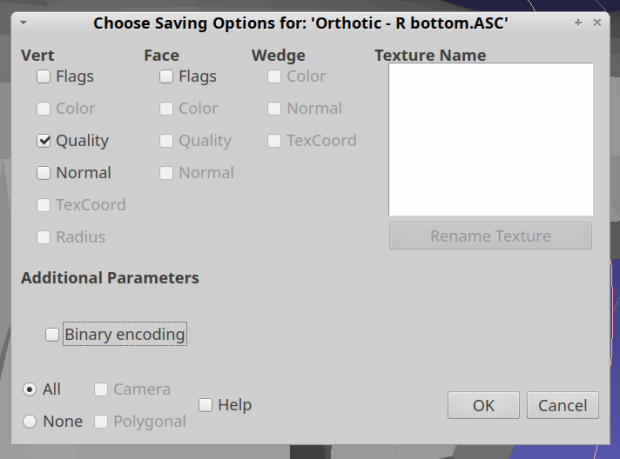
    It is, however, a single-sided sheet, not a manifold 3D object. After a few days of screwing around, I’m unable to find any (automatic, reliable, non-manual) way to solidify the thing in Meshlab, so just save it as a PLY file in ASCII format:

    Meshlab PLY file export - unchecked Binary Encoding
    Meshlab PLY file export – unchecked Binary Encoding

    Import it into Meshmixer, Ctrl-A to select the whole thing, click (Select →) Edit → Extrude, pick Y-Axis and Flat EndType, then extrude a convenient base in the negative direction:

    Meshmixer - Y-Axis extrusion
    Meshmixer – Y-Axis extrusion

    For whatever reason, some 3D programs show machine-tool coordinates with Z pointing upward and others aim the Z axis at your face. Both must have made sense at the time, because Meshmixer defaults to swapping the Y and Z coordinates on import / export.

    The Density slider controls the number of generated faces in the extruded section, so tune for best results.

    I have no idea what Harden does.

    Accept the result and you have a solid object suitable for further modeling.

  • 3D Foot Scanning

    The Poughkeepsie Library makes a 3DSystems Sense scanner (V1) available to patrons and, after a bit of to-and-fro, I managed to get a not-awful scan of Mary’s right leg:

    Mary - R foot - complete
    Mary – R foot – complete

    This was accomplished under field conditions in a cramped room hosting a Spanish-language “introduction to computers” class. We propped her leg across the edge of a table with her sock as a cushion.

    The depth image resolution seems to be 1 mm and the software attempts to stitch multiple views from different angles into a consistent 3D model. The scanner requires a steady hand and a steady model to successfully glue new data onto the existing model; what seem small misalignments derail the matching.

    The software has several presets, of which “Head” produces the best results. I have no idea what the algorithm thinks of her foot; maybe it’s been trained on some truly ugly faces.

    Exporting the solid model as either STL or PLY allows import into (Windows-only) Meshmixer, wherein I sawed off the pieces we won’t need:

    Mary R foot trimmed
    Mary R foot trimmed

    If only I had a foot fetish …

    The 3DSystems software requires a fairly specific Windows 8 (or 10, which is so not happening) + Intel hardware configuration, which recently arrived as a $250 off-lease Dell Latitude 7250 laptop. It works fine through VNC, so I can use it from the Comfy Desk.

    However, using a 3D scanner in your own home isn’t actually private:

    3DSystems Sense Scanner - EULA
    3DSystems Sense Scanner – EULA

    All your data are belong to them:

    3D Systems may also automatically collect and report back to 3D Systems information about the Software and Licensee’s usage along with limited information about the Device, 3D Printer, and/or other third-party applications. If 3D Systems implements automated data collection practices then Licensee may opt out of providing such data if Licensee has a license that authorizes Commercial Use.

    Oh, and then you must activate the software before using it. The library IT folks tell me I can install & activate the scanner on my system without derailing their setup. I have my doubts, but we’ll see how it goes.

    I must get into photogrammetry, ideally from the sofware libre branch as described there. The openMVG repo seems promising.

  • CNC 3018-Pro: HD and CD Fixtures

    I actually had this in mind when I laid out the hard drive and CD engraving fixtures:

    CNC 3018-Pro - HD and CD fixtures
    CNC 3018-Pro – HD and CD fixtures

    The fixtures are centered at X±70.0 mm / Y=0.0 from the G54 workspace coordinate origin dead-center in the middle of the platform, with G55 centered on the HD fixture to the left and G56 on the CD fixture to the right.

    So the engraving workflow amounts to homing the CNC 3018 when I turn it on, taping a platter in a fixture, selecting the corresponding WCS, loading a suitable G-Code file, and firing it off. It seems bCNC returns to G54 after completing the file, so verifying the WCS selection every time is Very Good Practice.

    The friable lacquer coating on some CDs fills my world with glitter whenever I engrave a pattern on their label side. I didn’t plan on a dust shoe for this thing!