Ed Nisley's Blog: Shop notes, electronics, firmware, machinery, 3D printing, laser cuttery, and curiosities. Contents: 100% human thinking, 0% AI slop.
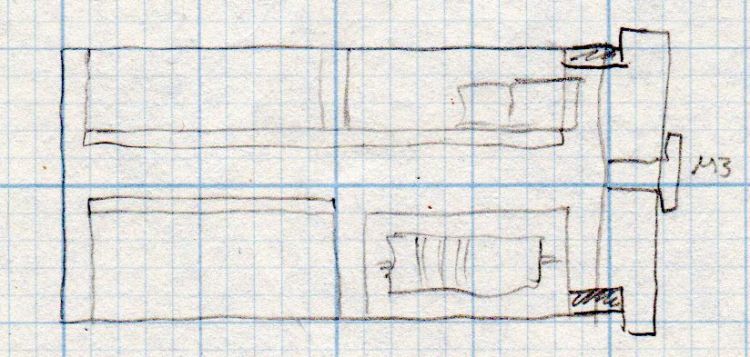
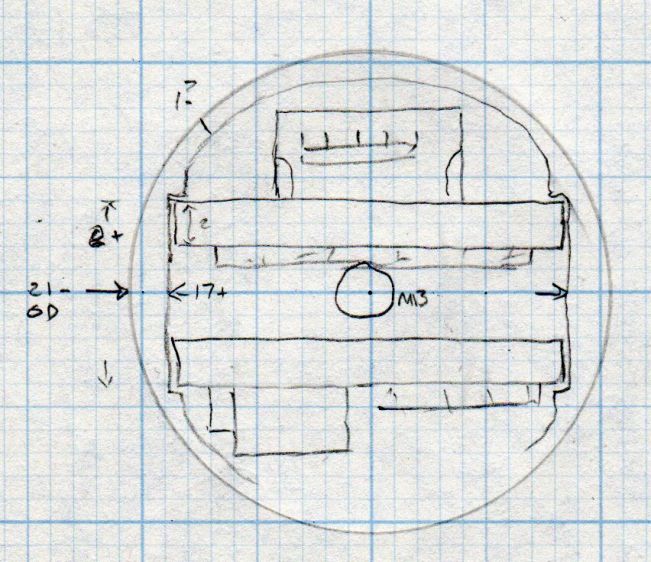
A somewhat more detailed doodle of the end view prompted me to bore the PVC pipe out to 23 mm:
Amber running light – board layout doodle – end
The prospect of designing a 3D printed holder for the boards suggested Quality Shop Time combined with double-stick foam tape would ensure a better outcome.
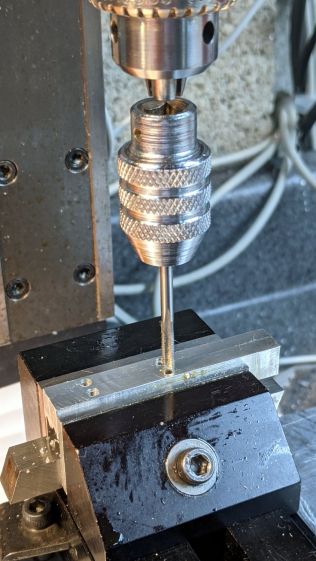
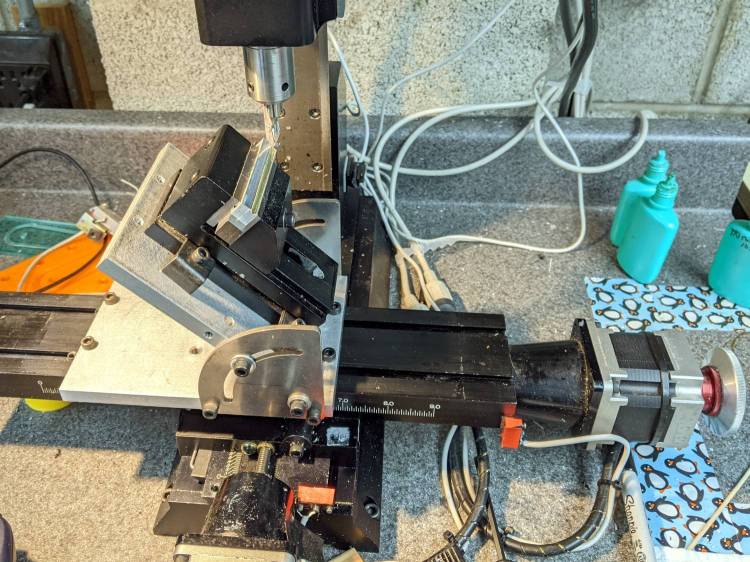
So I bandsawed the remains of a chunky angle bracket into a pair of rectangles, flycut All The Sides to square them up, and tapped a pair of M3 holes along one edge of each:
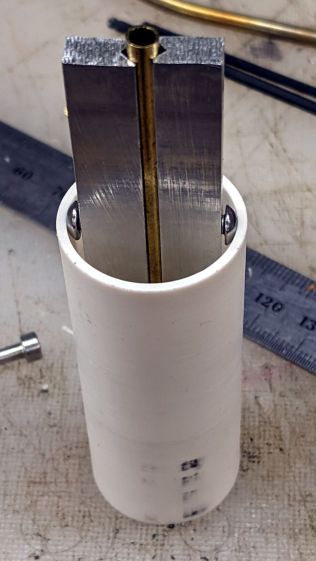
The groove holds a length of 4 mm OD (actually 5/32 inch, but don’t tell anybody) brass tubing:
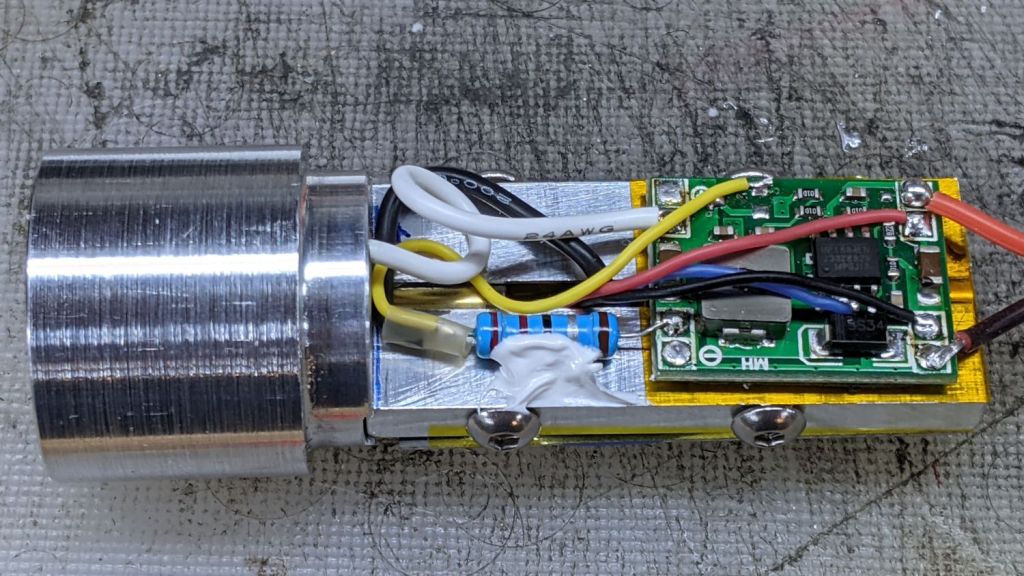
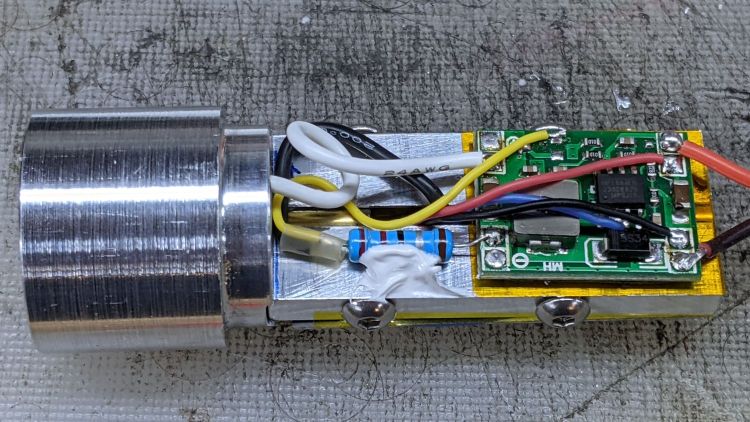
1 W LED Running Light – baseplate trial fit
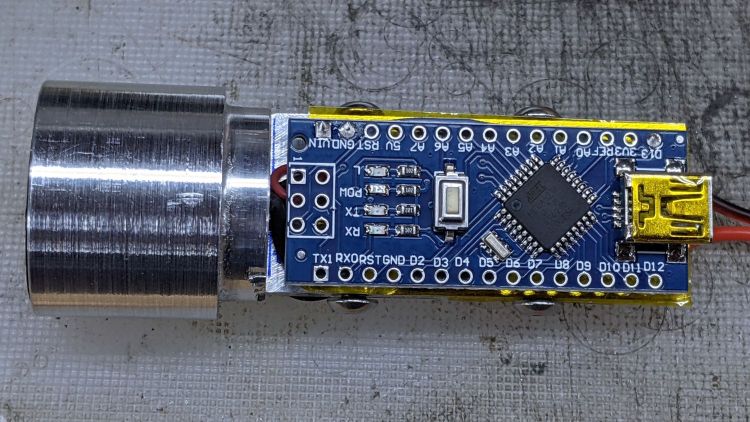
The M3 button head screws are an admission of defeat, as I could see no way of controlling the width + thickness of the aluminum slabs to get a firm push fit in the PVC tube. The screws let me tune for best picture after everything else settled out.
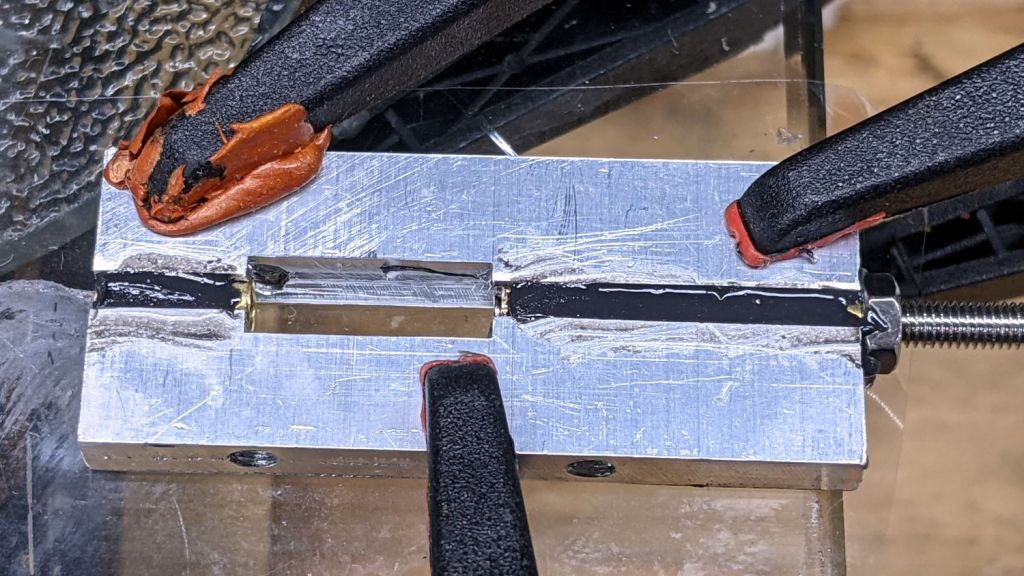
A little more machining opened up the top of the groove:
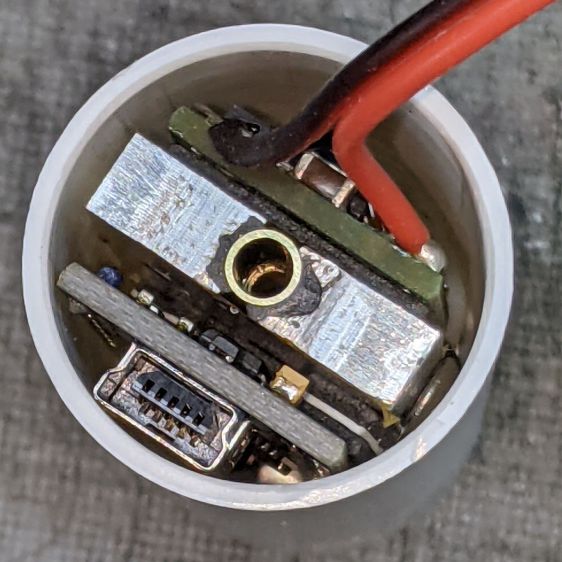
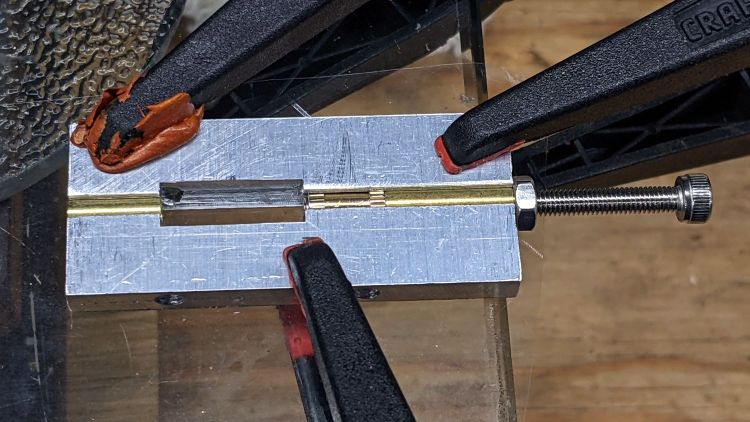
1 W LED Running Light – baseplate dry assembly
A short M3 button head screw (with its head turned down to 4 mm) drops into the slot and holds the slab to the threaded hole in the LED heatsink. The long screw is holding the threaded insert in place for this dry fit.
I doodled a single long screw through the whole thing, but having it fall off the heatsink when taking the rear cover off seemed like a Bad Idea™. An M3 button head screw uses a 2 mm hex key that fits neatly through the threaded insert, thereby making it work.
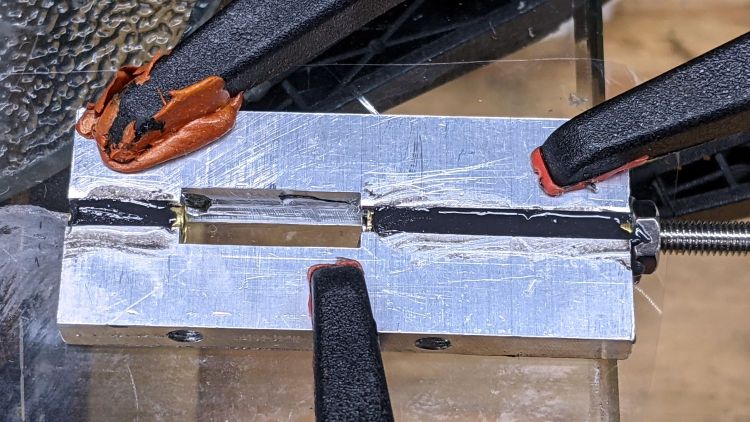
Butter it up with epoxy, scrape off the excess, and let things cure:
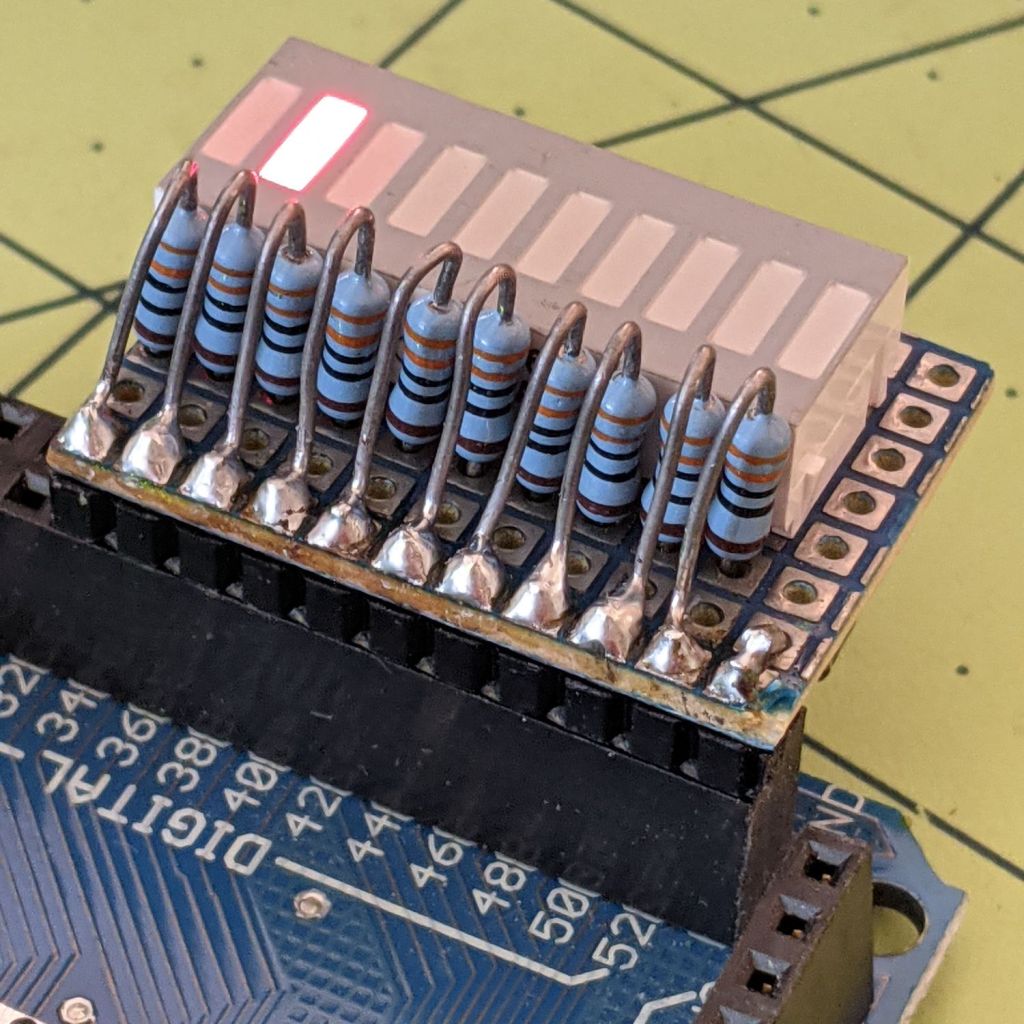
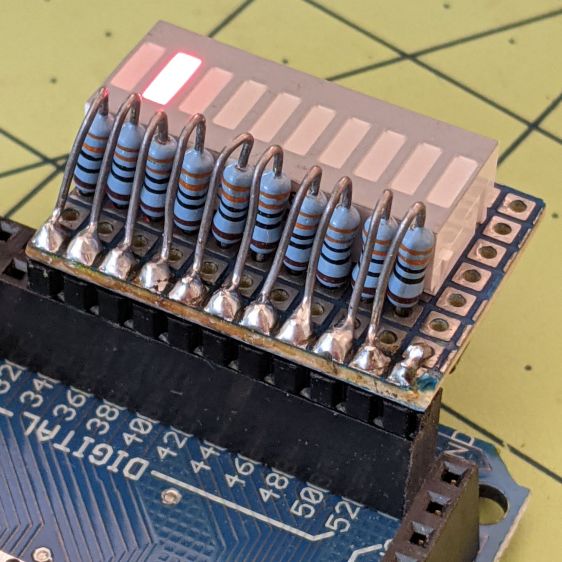
Kibitzing on a project involving an Arduino Mega (properly MEGA, but who cares?) with plenty of spare I/O pins led me to slap together a block of LEDs:
Arduino Mega Debugging LEDs
The excessive lead length on the 330 Ω resistors will eventually anchor scope probes syncing on / timing interesting program events.
Not that you have any, but they’re antique HP HDSP-4836 tuning indicators: RRYYGGYYRR. If you were being fussy, you might use 270 Ω resistors on the yellow LEDs to brighten them up.
A simple test program exercises the LEDs:
/*
  Debugging LED outputs for Mega board
  Ed Nisley - KE4ZNU
  Plug the board into the Digital Header pins 34-52 and GND
*/

byte LowLED = 34;
byte HighLED = 52;
byte ThisLED = LowLED;

//-----
void setup() {
  pinMode(LED_BUILTIN,OUTPUT);

  for (byte p = LowLED; p <= HighLED; p+=2)
    pinMode(p, OUTPUT);

//  Serial.begin(9600);
}

// -----
void loop() {
  digitalWrite(LED_BUILTIN,HIGH);

  digitalWrite(ThisLED, HIGH);
  delay(100);
  digitalWrite(ThisLED, LOW);
 // delay(500);

  ThisLED = (ThisLED < HighLED) ? (ThisLED + 2) : LowLED;

//  Serial.println(ThisLED);

  digitalWrite(LED_BUILTIN,LOW);
}
Nothing fancy, but it ought to come in handy at some point.
Obviously, you’ll pick a different keymap name than I did. All the files mentioned below will reside in the new subdirectory, which starts out with only a keymap.c file copied from the default layout.
If you had different hardware, you could specify the driver with a WS2812_DRIVER option.
QMK can also control single-color LEDs with PWM (a.k.a. backlighting), and per-key RGB LEDs (a.k.a. RGB Matrix). These functions, their configuration / controls / data, and their documentation overlap and intermingle to the extent that I spent most of my time figuring out what not to include.
The first two lines describe a single WS2812 RGB LED wired to pin B2 (a.k.a. MOSI) of the Atmel 32U4 microcontroller. The default Reset duration and Byte Order values work for the LED I used
Protip: swapping the order from GRB to RGB is a quick way to discover if the firmware actually writes to the LED, even before you get anything else working: it’ll be red with the proper setting and green with the wrong one.
Dialing the maximum intensity down works well with a bright LED shining directly at your face from a foot away.
Turning on RGBLIGHT_LAYERS is what makes this whole thing happen. The RGBLIGHT_EFFECT_RGB_TEST option enables a simple test animation at the cost of a few hundred bytes of code space; remove that line after everything works.
The last two lines remove the debugging facilities; as always with microcontroller projects, there’s enough room for either your code or the debugger required to get it running, but not both.
With those files set up, the keymap.c file does the heavy lifting:
Undefine LED_LL to enable the test mode, compile, flash, and the LED should cycle red / green / blue forever; you also need the RGB_TEST option in the config.h file.
Define LED_LL and layer lighting should then Just Work™, with the LED glowing:
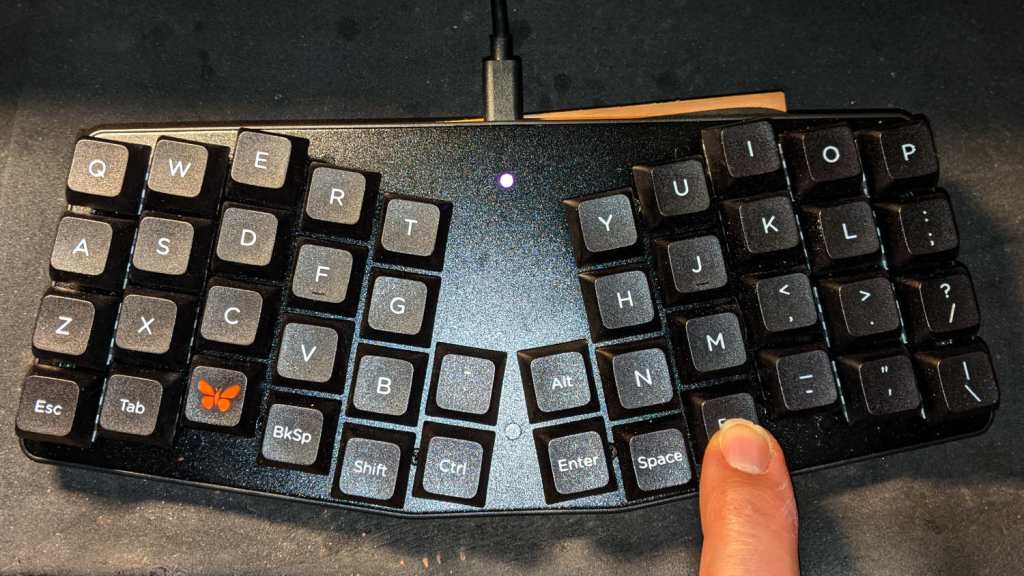
White for the basic layer with all the letters
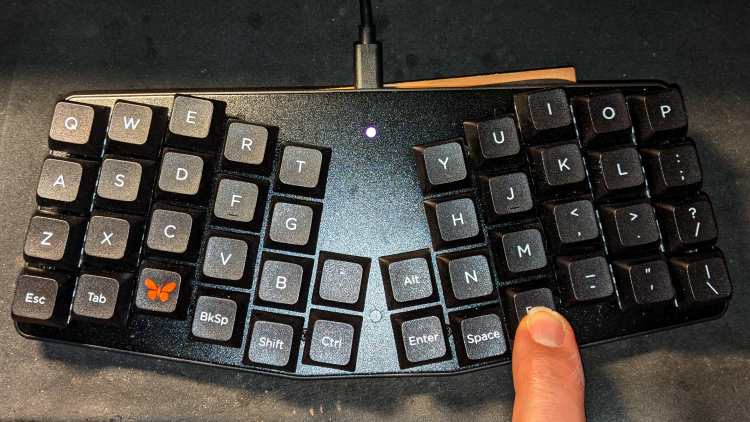
Magenta with the Fun key pressed
Cyan with the Esc key pressed
The key map code defines colors for layers that don’t yet exist, but it should get you started.
For convenience, I wadded all three QMK files into a GitHub Gist.
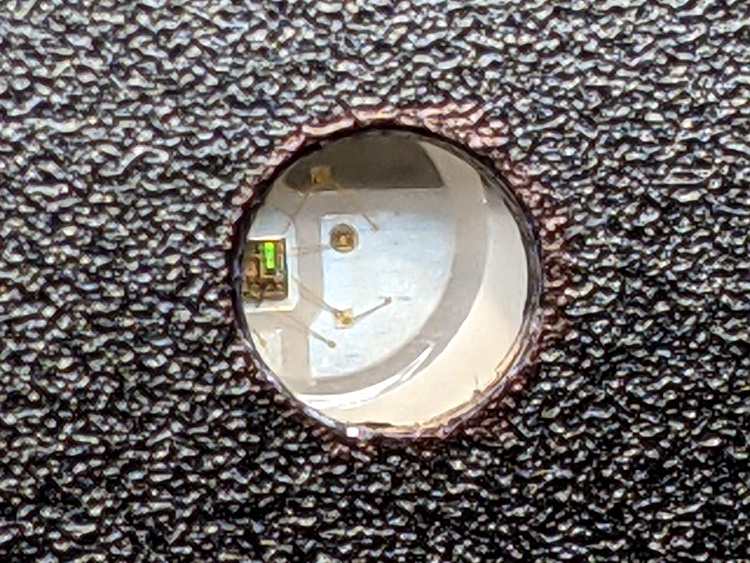
The LED is kinda subtle:
Atreus keyboard – LED installed
As you might expect, figuring all that out took much longer than for you to read about it, but now I have a chance of remembering what I did.
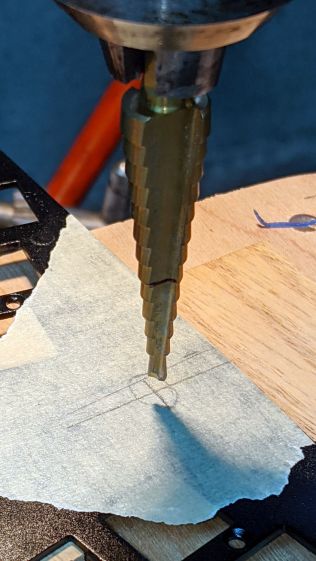
Reattaching the plate to the PCB with only three screws allows marking the hole position on the PCB, which is much easier than pretending to derive the position from first principles:
Atreus keyboard – LED marking
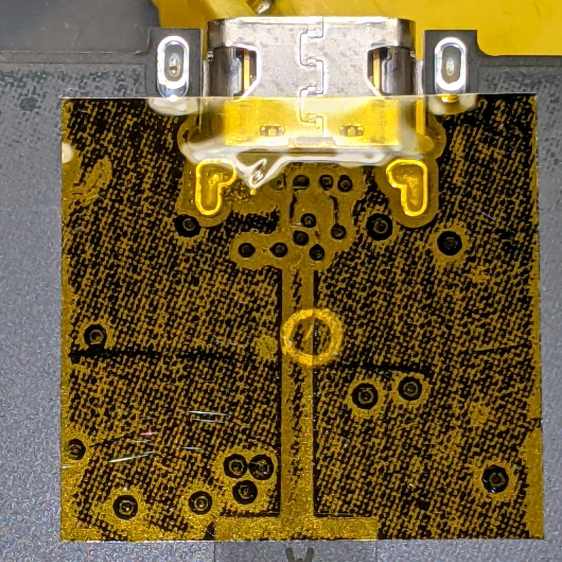
Despite appearances, I traced the hole with a mechanical pencil: black graphite turns shiny silvery gray against matte black soldermask. Also, the PCB trace is off-center, not the hole.
Overlay the neighborhood with Kapton tape to protect the PCB from what comes next:
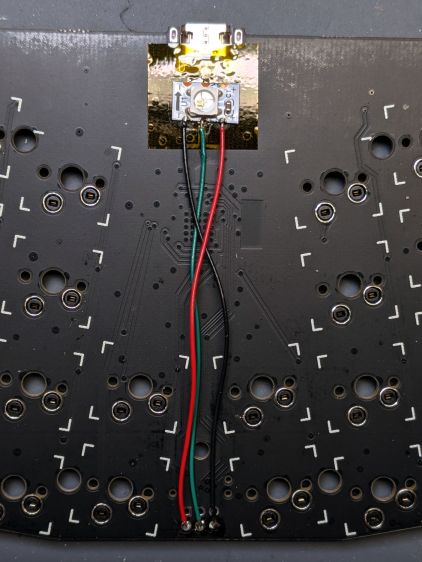
Snip a WS2812 RGB LED from a strip, stick it in place with eyeballometric alignment over the target, and wire it up:
Having helped grossly over-fund the Atreus Kickstarter earlier this year, a small box arrived pretty much on-time:
Atreus keyboard – overview
I did get the blank keycap set, but have yet to screw up sufficient courage to install them. The caps sit atop the stock Kailh (pronounced, I think, kale) BOX Brown soft tactile switches; they’re clicky, yet not offensively loud.
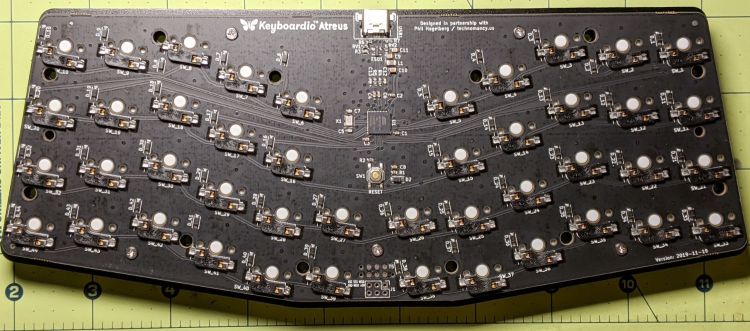
Removing a dozen screws lets you take it apart, revealing all the electronics on the underside of the PCB:
Atreus keyboard – PCB overview
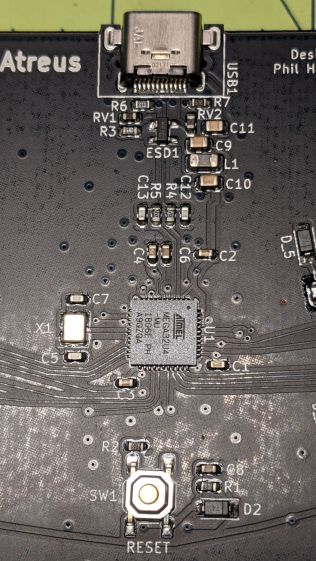
The central section holds most of the active ingredients:
Of interest is the JTAG header at the front center of the PCB:
Atreus keyboard – JTAG header
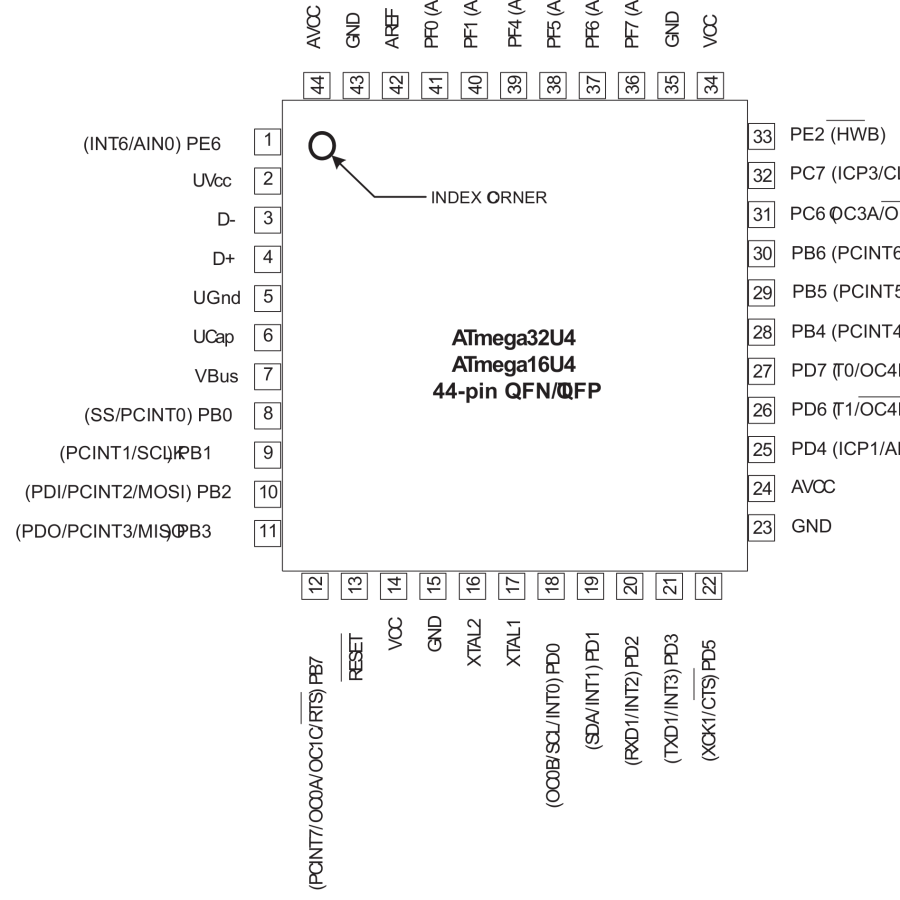
I have yet to delve into the code, but I think those signals aren’t involved with the key matrix and one might be available to drive an addressable RGB LED.
For future reference, they’re tucked into the lower left corner of the chip (the mauled format comes from the original PDF):
Atmel 32U4 – JTAG pins
The alternate functions:
SCK = PB1
MOSI = PB2
MISO = PB3
I don’t need exotic lighting, but indicating which key layer is active would be helpful.
Love the key feel, even though I still haven’t hit the B key more than 25% of the time.
There’s not much to it, because the RPi can enable pullup resistors on its digital inputs, whereupon the encoder switches its code bits to common. The third oscilloscope probe to the rear syncs on a trigger output from my knob driver.
I started with the Encoder library from PyPi, but the setup code doesn’t enable the pullup resistors and the interrupt (well, it’s a callback) handler discards the previous encoder state before using it, so the thing can’t work. I kept the overall structure, gutted the code, and rebuilt it around a state table. The code appears at the bottom, but you won’t need it.
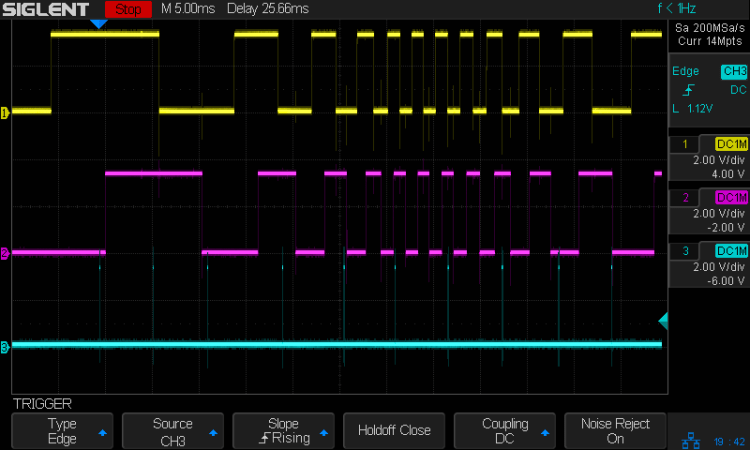
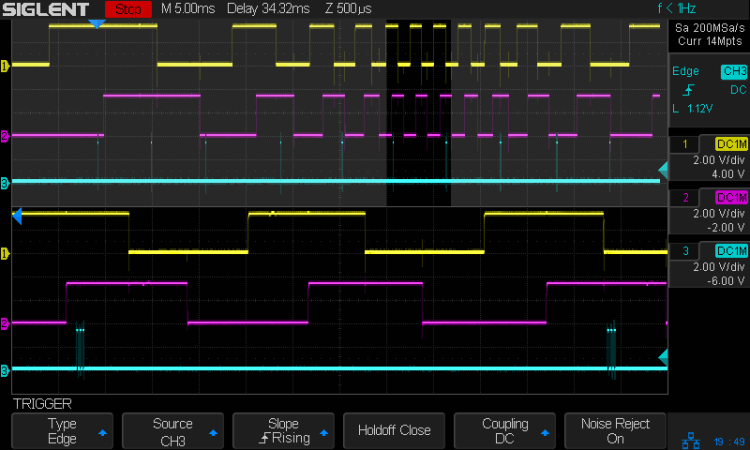
Here’s the problem, all in one image:
Knob Encoder – ABT – fast – overview
The top two traces are the A and B encoder bits. The bottom trace is the trigger output from the interrupt handler, which goes high at the start of the handler and low at the end, with a negative blip in the middle when it detects a “no motion” situation: the encoder output hasn’t changed from the last time it was invoked.
Over on the left, where the knob is turning relatively slowly, the first two edges have an interrupt apiece. A detailed view shows them in action (the bottom half enlarge the non-shaded part of the top half):
Knob Encoder – ABT – fast – first IRQs
Notice that each interrupt occurs about 5 ms after the edge causing it!
When the edges occur less than 5 ms apart, the driver can’t keep up. The next four edges produce only three interrupts:
Knob Encoder – ABT – fast – 4 edges 3 IRQ
A closer look at the three interrupts shows all of them produced the “no motion” pulse, because they all sampled the same (incorrect) input bits:
In fact, no matter how many edges occur, you only get three interrupts:
Knob Encoder – ABT – fast – 9 edges 3 IRQ
The groups of interrupts never occur less than 5 ms apart, no matter how many edges they’ve missed. Casual searching suggests the Linux Completely Fair Scheduler has a minimum timeslice / thread runtime around 5 ms, so the encoder may be running at the fastest possible response for a non-real-time Raspberry Pi kernel, at least with a Python handler.
If. I. Turn. The. Knob. Slowly. Then. It. Works. Fine. But. That. Is. Not. Practical. For. My. Purposes.
Nor anybody else’s purposes, really, which leads me to think very few people have ever tried lashing a rotary encoder to a Raspberry Pi.
So, OK, I’ll go with Nearer and Farther focusing buttons.
The same casual searching suggested tweaking the Python thread’s priority / niceness could lock it to a different CPU core and, obviously, writing the knob handler in C / C++ / any other language would improve the situation, but IMO the result doesn’t justify the effort.
My attempt at a Python encoder driver + simple test program as a GitHub Gist:
This file contains hidden or bidirectional Unicode text that may be interpreted or compiled differently than what appears below. To review, open the file in an editor that reveals hidden Unicode characters.
Learn more about bidirectional Unicode characters









 The Smell of Molten Projects in the Morning