The Smell of Molten Projects in the Morning

Ed Nisley's Blog: Shop notes, electronics, firmware, machinery, 3D printing, laser cuttery, and curiosities. Contents: 100% human thinking, 0% AI slop.

Category: Software

General-purpose computers doing something specific

  • Nissan Fog Lamp: Arduino Firmware

    Nissan Fog Lamp: Arduino Firmware

    The upcycled Nissan fog lamp now has a desk stand:

    Nissan Fog Lamp - table mount
    Nissan Fog Lamp – table mount

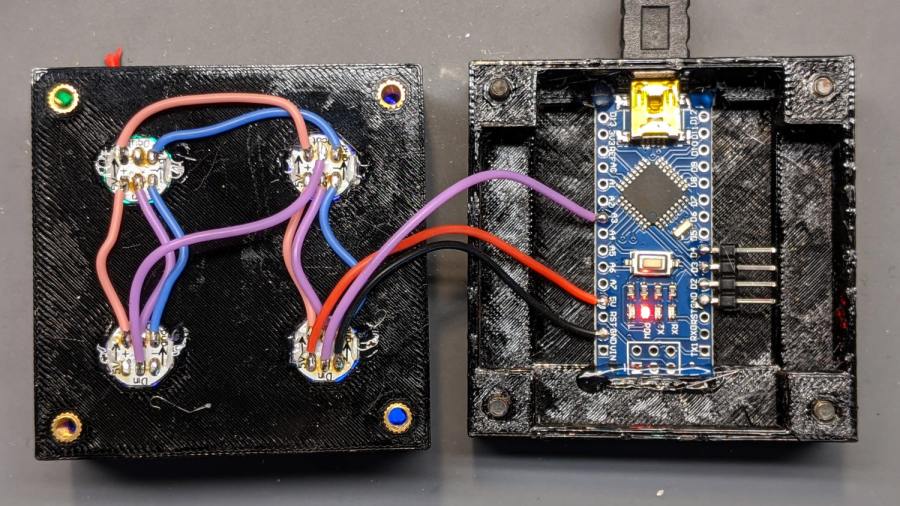
    A knockoff Arduino Pro Mini atop a strip of foam tape drives the WS2812 RGB LEDs:

    Nissan Fog Lamp - table mount interior
    Nissan Fog Lamp – table mount interior

    Next time, I’ll cut the wires another inch longer.

    The firmware is a tidied-up version of the vacuum tube code, minus cruft, plus fixes, and generally better at doing what it does. The Pro Mini lacks a USB output, so this came from the same code running on a Nano:

    14:44:04.169 -> Algorithmic Art
    14:44:04.169 ->  RGB WS2812
    14:44:04.169 -> Ed Nisley - KE4ZNU - April 2020
    14:44:04.169 -> Lamp test: flash full-on colors
    14:44:04.169 ->  color: 00ff0000
    14:44:05.165 ->  color: 0000ff00
    14:44:06.160 ->  color: 000000ff
    14:44:07.155 ->  color: 00ffffff
    14:44:08.151 ->  color: 00000000
    14:44:09.180 -> Random seed: da98f7f6
    14:44:09.180 -> Primes: 7 19 3
    14:44:09.180 ->  Super cycle length: 199500 steps
    14:44:09.180 -> Inter-pixel phase: 1 deg = 26 steps
    14:44:09.180 ->  c: 0 Steps:  3500 Init:  1538 Phase:   2 deg PWM: 255
    14:44:09.180 ->  c: 1 Steps:  9500 Init:  7623 Phase:   0 deg PWM: 255
    14:44:09.213 ->  c: 2 Steps:  1500 Init:  1299 Phase:   6 deg PWM: 255
    14:44:19.265 -> Color 2     steps 1500  at 15101    ms 50       TS 201     
    14:45:34.293 -> Color 2     steps 1500  at 90136    ms 50       TS 1701    
    14:45:43.085 -> Color 1     steps 9500  at 98940    ms 50       TS 1877    
    14:45:47.332 -> Color 0     steps 3500  at 103192   ms 50       TS 1962    
    14:46:49.324 -> Color 2     steps 1500  at 165170   ms 50       TS 3201  
    … much snippage …
    17:26:52.896 -> Color 2     steps 1500  at 9769584  ms 50       TS 195201  
    17:28:07.926 -> Color 2     steps 1500  at 9844618  ms 50       TS 196701  
    17:29:11.000 -> Color 0     steps 3500  at 9907697  ms 50       TS 197962  
    17:29:22.974 -> Color 2     steps 1500  at 9919653  ms 50       TS 198201  
    17:30:27.941 -> Supercycle end, setting new color values
    17:30:27.941 -> Primes: 17 7 3
    17:30:27.941 ->  Super cycle length: 178500 steps
    17:30:27.941 -> Inter-pixel phase: 1 deg = 23 steps
    17:30:27.941 ->  c: 0 Steps:  8500 Init:  5415 Phase:   0 deg PWM: 255
    17:30:27.974 ->  c: 1 Steps:  3500 Init:  3131 Phase:   2 deg PWM: 255
    17:30:27.974 ->  c: 2 Steps:  1500 Init:   420 Phase:   5 deg PWM: 255
    17:30:46.394 -> Color 1     steps 3500  at 10003091 ms 50       TS 369     
    17:31:21.964 -> Color 2     steps 1500  at 10038658 ms 50       TS 1080  

    The “Super cycle length” is the number of 50 ms steps until the colors start repeating, something over an hour in that sample. When the code reaches the end of the supercycle, it picks another set of three prime numbers, reinitializes the color settings, and away it goes.

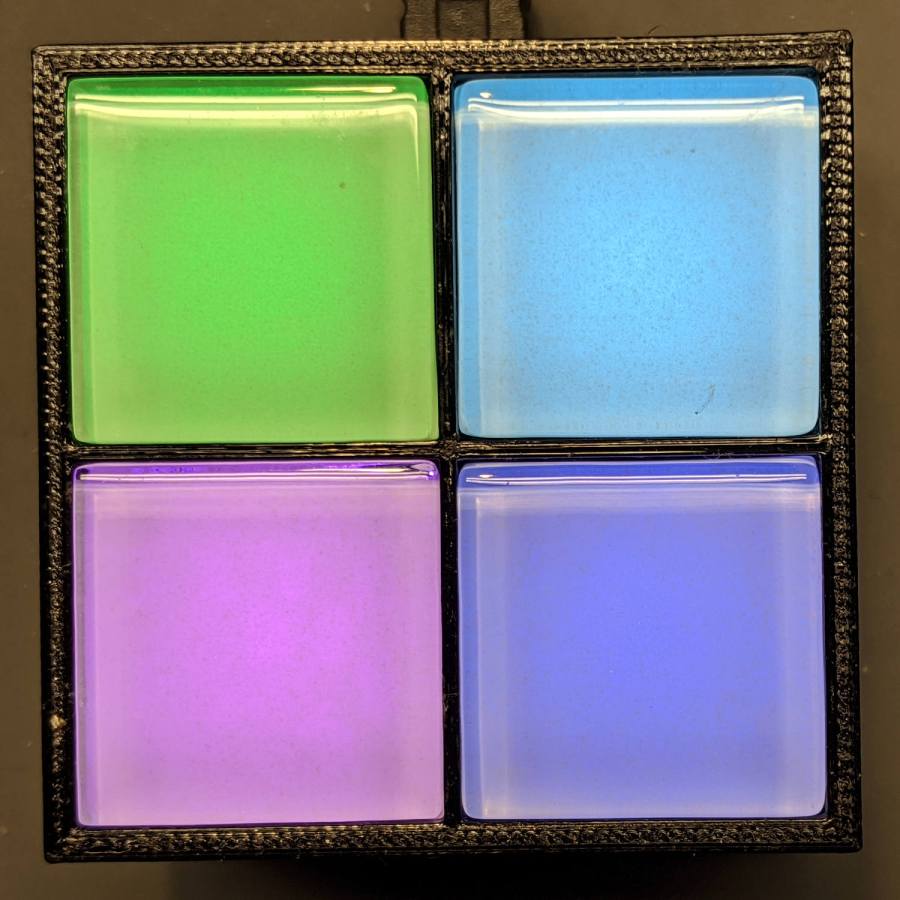
    The fog light looks pretty in action:

    Nissan Fog Lamp - blue phase
    Nissan Fog Lamp – blue phase

    The four LEDs don’t produce the same light pattern as the halogen filament and they’re distinctly visible when you squint against the glare:

    Nissan Fog Lamp - reflector LED detail
    Nissan Fog Lamp – reflector LED detail

    The shadow on the right comes from the larger hood support strut, the shadow on the left is the narrower strut, and the two other gaps show the beam angle gaps between the LEDs.

    You’ll see plenty of residual sandpaper scratches on the lens: my surface (re)finishing hand is weak.

    The LED beamwidth is so broad the “bulb” position inside the reflector doesn’t make much difference, particularly as it must, at most, wash a wall and ceiling at close range:

    Nissan Fog Lamp - wall wash light
    Nissan Fog Lamp – wall wash light

    All in all, a much-needed dose of Quality Shop Time.

    The Arduino source code as a GitHub Gist:

    // Neopixel Algorithmic Art
    // W2812 RGB Neopixel version
    // Ed Nisley – KE4ZNU
    #include <Adafruit_NeoPixel.h>
    #include <Entropy.h>
    //———-
    // Pin assignments
    const byte PIN_NEO = A3; // DO – data out to first Neopixel
    const byte PIN_HEARTBEAT = 13; // DO – Arduino LED
    #define PIN_MORSE 12
    //———-
    // Constants
    // number of pixels
    #define PIXELS 4
    // lag between adjacent pixels in degrees of slowest period
    #define PIXELPHASE 1
    // update LEDs only this many ms apart (minus loop() overhead)
    #define UPDATEINTERVAL 50ul
    #define UPDATEMS (UPDATEINTERVAL – 0ul)
    // number of steps per cycle, before applying prime factors
    #define RESOLUTION 500
    //———-
    // Globals
    Adafruit_NeoPixel strip = Adafruit_NeoPixel(PIXELS, PIN_NEO, NEO_GRB + NEO_KHZ800);
    uint32_t FullWhite = strip.Color(255,255,255);
    uint32_t FullOff = strip.Color(0,0,0);
    uint32_t MorseColor;
    struct pixcolor_t {
    unsigned int Prime;
    unsigned int NumSteps;
    unsigned int Step;
    float StepSize;
    float Phase;
    byte MaxPWM;
    };
    unsigned long int TotalSteps;
    unsigned long int SuperCycleSteps;
    byte PrimeList[] = {3,5,7,11,13,17,19,29}; // small primes = faster changes
    // colors in each LED and their count
    enum pixcolors {RED, GREEN, BLUE, PIXELSIZE};
    struct pixcolor_t Pixel[PIXELSIZE]; // all the data for each pixel color intensity
    uint32_t UniColor;
    unsigned long int MillisNow;
    unsigned long int MillisThen;
    //– Select three unique primes for the color generator function
    // Then compute all the step parameters based on those values
    void SetColorGenerators(void) {
    Pixel[RED].Prime = PrimeList[random(sizeof(PrimeList))];
    do {
    Pixel[GREEN].Prime = PrimeList[random(sizeof(PrimeList))];
    } while (Pixel[RED].Prime == Pixel[GREEN].Prime);
    do {
    Pixel[BLUE].Prime = PrimeList[random(sizeof(PrimeList))];
    } while (Pixel[BLUE].Prime == Pixel[RED].Prime ||
    Pixel[BLUE].Prime == Pixel[GREEN].Prime);
    if (false) {
    Pixel[RED].Prime = 1;
    Pixel[GREEN].Prime = 3;
    Pixel[BLUE].Prime = 5;
    }
    printf("Primes: %d %d %d\r\n",Pixel[RED].Prime,Pixel[GREEN].Prime,Pixel[BLUE].Prime);
    TotalSteps = 0;
    SuperCycleSteps = RESOLUTION;
    for (byte c = 0; c < PIXELSIZE; c++) {
    SuperCycleSteps *= Pixel[c].Prime;
    }
    printf(" Super cycle length: %lu steps\r\n",SuperCycleSteps);
    Pixel[RED].MaxPWM = 255;
    Pixel[GREEN].MaxPWM = 255;
    Pixel[BLUE].MaxPWM = 255;
    unsigned int PhaseSteps = (unsigned int) ((PIXELPHASE / 360.0) *
    RESOLUTION * (unsigned int) max(max(Pixel[RED].Prime,Pixel[GREEN].Prime),Pixel[BLUE].Prime));
    printf("Inter-pixel phase: %d deg = %d steps\r\n",(int)PIXELPHASE,PhaseSteps);
    for (byte c = 0; c < PIXELSIZE; c++) {
    Pixel[c].NumSteps = RESOLUTION * Pixel[c].Prime; // steps per cycle
    Pixel[c].StepSize = TWO_PI / Pixel[c].NumSteps; // radians per step
    Pixel[c].Step = random(Pixel[c].NumSteps); // current step
    Pixel[c].Phase = PhaseSteps * Pixel[c].StepSize; // phase in radians for this color
    printf(" c: %d Steps: %5d Init: %5d Phase: %3d deg",c,Pixel[c].NumSteps,Pixel[c].Step,(int)(Pixel[c].Phase * 360.0 / TWO_PI));
    printf(" PWM: %d\r\n",Pixel[c].MaxPWM);
    }
    }
    //– Helper routine for printf()
    int s_putc(char c, FILE *t) {
    Serial.write(c);
    }
    //——————
    // Set the mood
    void setup() {
    pinMode(PIN_HEARTBEAT,OUTPUT);
    digitalWrite(PIN_HEARTBEAT,LOW); // show we arrived
    Serial.begin(57600);
    fdevopen(&s_putc,0); // set up serial output for printf()
    printf("Algorithmic Art\r\n RGB WS2812\r\nEd Nisley – KE4ZNU – April 2020\r\n");
    Entropy.initialize(); // start up entropy collector
    // set up pixels
    strip.begin();
    strip.show();
    // lamp test: a brilliant white flash
    printf("Lamp test: flash full-on colors\r\n");
    uint32_t FullRGB = strip.Color(255,255,255);
    uint32_t FullR = strip.Color(255,0,0);
    uint32_t FullG = strip.Color(0,255,0);
    uint32_t FullB = strip.Color(0,0,255);
    uint32_t FullOff = strip.Color(0,0,0);
    uint32_t TestColors[] = {FullR,FullG,FullB,FullRGB,FullOff};
    for (byte i = 0; i < sizeof(TestColors)/sizeof(uint32_t) ; i++) {
    printf(" color: %08lx\r\n",TestColors[i]);
    for (int p=0; p < strip.numPixels(); p++) {
    strip.setPixelColor(p,TestColors[i]);
    }
    strip.show();
    delay(1000);
    }
    // get an actual random number
    uint32_t rn = Entropy.random();
    printf("Random seed: %08lx\r\n",rn);
    randomSeed(rn);
    // set up the color generators
    SetColorGenerators();
    MillisNow = MillisThen = millis();
    }
    //——————
    // Run the mood
    void loop() {
    MillisNow = millis();
    if ((MillisNow – MillisThen) >= UPDATEMS) { // time for another step?
    digitalWrite(PIN_HEARTBEAT,HIGH);
    TotalSteps++;
    strip.show(); // send out precomputed colors
    for (byte c = 0; c < PIXELSIZE; c++) { // compute next increment for each color
    if (++Pixel[c].Step >= Pixel[c].NumSteps) {
    Pixel[c].Step = 0;
    printf("Color %-5d steps %-5d at %-8ld ms %-8ld TS %-8lu\r\n",
    c,Pixel[c].NumSteps,MillisNow,(MillisNow – MillisThen),TotalSteps);
    }
    }
    // If all cycles have completed, reset the color generators
    if (TotalSteps >= SuperCycleSteps) {
    printf("Supercycle end, setting new color values\r\n");
    SetColorGenerators();
    }
    for (int p = 0; p < strip.numPixels(); p++) { // for each pixel
    byte Value[PIXELSIZE];
    for (byte c=0; c < PIXELSIZE; c++) { // compute new colors
    Value[c] = (Pixel[c].MaxPWM / 2.0) * (1.0 + sin(Pixel[c].Step * Pixel[c].StepSize – p*Pixel[c].Phase));
    }
    UniColor = strip.Color(Value[RED],Value[GREEN],Value[BLUE]);
    strip.setPixelColor(p,UniColor);
    }
    MillisThen = MillisNow;
    digitalWrite(PIN_HEARTBEAT,LOW);
    }
    }
    view raw AlgoArt-RGB.ino hosted with ❤ by GitHub

  • Nissan Fog Lamp: Desk Stand

    Nissan Fog Lamp: Desk Stand

    The Nissan fog lamp looks pretty good pointing at the ceiling:

    Nissan Fog Lamp - table mount
    Nissan Fog Lamp – table mount

    I briefly considered sandblasting the shell to knock back the corrosion, but came to my senses: this is art!

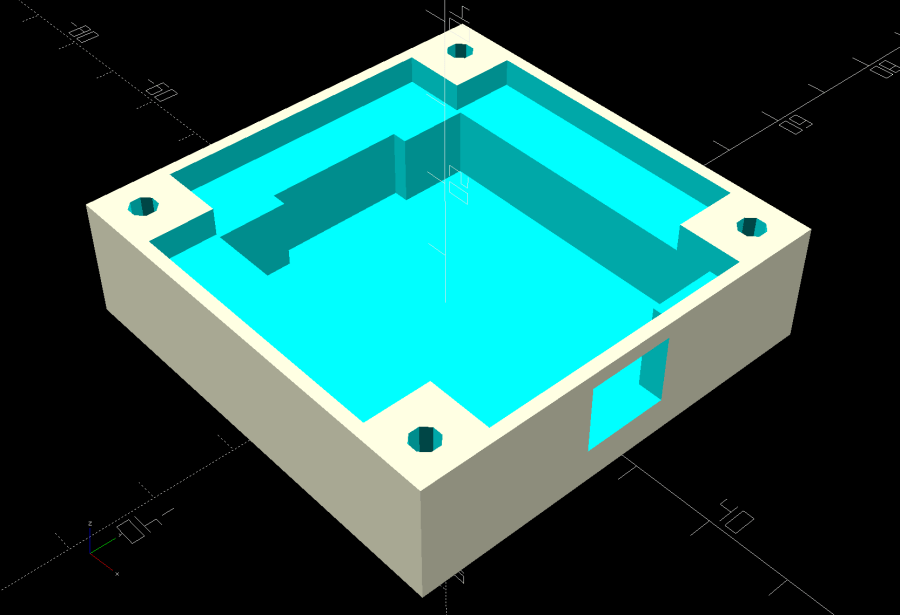
    The shell has a bayonet mount intended for the cable connector, but a bout of solid modeling produced a matching twist-lock desk stand:

    Nissan Fog Light Base - Slic3r preview
    Nissan Fog Light Base – Slic3r preview

    The locking dogs overhang little enough, relative to their diameter, to let the thing build without internal supports. Took about three hours without any intervention at all.

    The little hole matches up with the slot on the bottom holding a USB cable bringing power from a wall charger:

    Nissan Fog Lamp - table mount interior
    Nissan Fog Lamp – table mount interior

    It’s a knockoff Arduino Pro Mini without the USB interface found on a Nano, so the USB data wires don’t connect to anything.

    The base might look better under a layer of (black?) epoxy, although I’m definitely a fan of those brutalist 3D printed striations.

    The OpenSCAD source code as a GitHub Gist:

    // Nissan Fog Light Base
    // Ed Nisley KE4ZNU 2020-04-20
    /* [Hidden] */
    ThreadThick = 0.25;
    ThreadWidth = 0.40;
    HoleWindage = 0.2;
    function IntegerMultiple(Size,Unit) = Unit * ceil(Size / Unit);
    Protrusion = 0.1; // make holes end cleanly
    //———————-
    // Dimensions
    ID = 0;
    OD = 1;
    LENGTH = 2;
    /* [Fog Light] */
    ShellBase = [49.0,55.0,10.0];
    Dog = [55.0,60.0,7.0];
    DogWidth = 21.0;
    DogAngle = atan(DogWidth / ShellBase[ID]);
    echo(str("Dog angle: ",DogAngle));
    ReflectorOD = 90.0;
    LensOD = 110.0;
    LensAngle = -90; // peak relative to dogs
    WallThick = 4.0;
    BaseThick = 2*WallThick;
    CableOD = 3.5;
    $fn = 3*4*5;
    //——————-
    // Useful shapes
    module Dogs(h=Dog[LENGTH]) {
    translate([0,0,h/2])
    intersection() {
    cube([Dog[OD],DogWidth,h],center=true);
    cylinder(d=Dog[OD],h=h,center=true);
    }
    }
    //——————-
    // Build it
    difference() {
    union() {
    cylinder(d=(Dog[OD] + 2*WallThick),h=(BaseThick + ShellBase[LENGTH]));
    intersection() {
    resize([0,0,2*BaseThick])
    sphere(d=LensOD);
    translate([0,0,BaseThick/2])
    cube([2*LensOD,2*ReflectorOD,BaseThick],center=true);
    }
    }
    translate([0,0,BaseThick])
    cylinder(d=ShellBase[OD],h=ShellBase[LENGTH] + Protrusion);
    translate([0,0,BaseThick]) {
    Dogs();
    rotate(1.5*DogAngle)
    Dogs();
    rotate(2*DogAngle)
    Dogs(2*ShellBase[LENGTH]);
    }
    rotate(LensAngle)
    translate([0.75*ShellBase[ID]/2,0,-Protrusion]) {
    cylinder(d=CableOD,h=2*BaseThick,$fn=8);
    translate([LensOD/2,0,CableOD/2])
    cube([LensOD,CableOD,CableOD + Protrusion],center=true);
    }
    translate([31,0,ThreadThick-Protrusion])
    cube([23.0,55.0,2*ThreadThick],center=true);
    }
    linear_extrude(height=2*ThreadWidth + Protrusion) {
    translate([32,0,-Protrusion])
    rotate(-90) mirror([1,0,0])
    text(text="Ed Nisley",size=6,font="Arial:style:Bold",halign="center");
    translate([23,0,-Protrusion])
    rotate(-90) mirror([1,0,0])
    text(text="softsolder.com",size=5,font="Arial:style:Bold",halign="center");
    }

  • Pickett 110-ES Circular Slide Rule Manual: Scanning Thereof

    Pickett 110-ES Circular Slide Rule Manual: Scanning Thereof

    Having mostly finished futzing with the Homage Tektronix Circuit Computer, my Pickett 110-ES Circular Slide Rule once again came to mind:

    Homage Tek CC vs Pickett 110ES colors
    Homage Tek CC vs Pickett 110ES colors

    Casual searching didn’t reveal an online copy of its manual, so here ya go:

    After a cluestick whack, here’s a better-looking version made with ScanTailor, as installed from the normal Ubuntu repo:

    There’s some backstory, of course …

    I gimmicked a scanner fixture to align a pair of pages:

    Pickett 110-ES Scanning Fixture
    Pickett 110-ES Scanning Fixture

    Yes, I destroyed the collectible value of my manual by removing two slightly rusted staples.

    The black paper taped to the scanner lid prevents the type on the upper surface of the paper from producing dark blurs.

    Set up XSane for batch scanning (one selection over each two-page spread), get a pipeline going (disassembly → face up → face down → reassembly), and eventually create 34 images named Scan-??.jpg. They’re in color, although it matters only for the rust stains around the staple holes, with the contrast stretched enough to make them mostly B&W.

    Somehow, Pickett printed / cut half the sheets slightly off-kilter, so I rotated them -1° rotation to re-align the text. To simplify plucking the rotated pages out of the image, composite the spread atop a blank white background:

    for i in $(seq -w 3 2 33) ; do composite -compose atop Scan-$i.jpg -size 2200x1400 -geometry +100+100 canvas:white -rotate -1 Comp-$i.jpg ; done

    Rather than thinking too hard, do exactly the same thing to the other pages without rotation:

    for i in $(seq -w 2 2 34) ; do composite -compose atop Scan-$i.jpg -size 2200x1400 -geometry +100+100 canvas:white -rotate 0 Comp-$i.jpg ; done

    Each scanned image has two pages, so crop it into two files with names corresponding to the actual page numbers:

    for i in $(seq 2 2 34) ; do convert -crop 960x1240+1050+110 Comp-$i.jpg Crop-$(( $i - 1 )).jpg ; done
    for i in $(seq 3 2 34) ; do convert -crop 960x1240+130+110 Comp-$i.jpg Crop-$(( $i - 1 )).jpg ; done
    for i in $(seq 3 2 33) ; do convert -crop 960x1240+1050+110 Comp-$i.jpg Crop-$(( 66 - $i )).jpg ; done
    for i in $(seq 2 2 32) ; do convert -crop 960x1240+110+110 Comp-$i.jpg Crop-$(( 66 - $i )).jpg ; done

    Fix the single-digit pages to simplify globbing later on:

    rename 's/-/-0/' Crop-[1-9].jpg

    A bit of tedious fixup for some truly misaligned sheets produced images with slightly different sizes, so composite all of them onto slightly larger backgrounds to avoid screwing up the PDF conversion:

    mkdir Final
    for f in Crop* ; do composite -compose atop $f -size 1000x1300 -geometry +10+10 canvas:white -Final/$f ; done

    Then jam them into a PDF for convenience:

    cd Final
    convert Crop-C[12].jpg Crop-[0-6]*.jpg Crop-C[34].jpg "Pickett 110-ES Circular Slide Rule Manual.pdf"

    You can print it six-up to a sheet to produce text just about the same size as the original manual. If you omit (blank) cover pages 2, 67, and 68, the whole thing fits neatly on 11 sheets of paper.

    Someone with better facilities and more attention to detail can surely produce a better-looking result, but this will be better than nothing.

  • Vectorized Classic Tektronix Logo

    Vectorized Classic Tektronix Logo

    The Tektronix Circuit Computer sports the most ancient of many Tektronix logos:

    Tek CC Logo - scanned
    Tek CC Logo – scanned

    It’s a bitty thing, with the CRT about 0.7 inch long, scanned directly from my original Tek CC.

    Import the PNG image into FreeCAD at 0.2 mm below the XY plane, resize it upward a smidge so the CRT is maybe 0.8 inch long, then trace “wires” all over it:

    Tek Logo - FreeCAD tracing - overlay
    Tek Logo – FreeCAD tracing – overlay

    Given FreeCAD’s default gradient background, the wires definitely don’t stand out by themselves:

    Tek Logo - FreeCAD tracing - vectors
    Tek Logo – FreeCAD tracing – vectors

    Several iterations later, the vectorized logo sits at the correct angle and distance from the origin at the center:

    Tek Logo - FreeCAD tracing - rotated
    Tek Logo – FreeCAD tracing – rotated

    The cheerful colors correspond to various “groups” and make it easier to find errant vectors.

    Rather than figure out how to coerce FreeCAD into converting wires into proper G-Code, export the vectors into a DXF file and slam it into DXF2GCODE:

    Tek Logo - DXF2GCODE vectors
    Tek Logo – DXF2GCODE vectors

    Export as G-Code, iterate around the whole loop a few times to wring out the obvious mistakes, indulge in vigorous yak shaving, eventually decide it’s Good Enough™ for the moment.

    Protip: set DFX2GCODE to put “0” digits before the decimal point to eliminate spaces between the coordinate axes and the numeric values which should not matter in the least, but which confuse NCViewer into ignoring the entire file.

    Tinker the script running the GCMC source code to prepend the logo G-Code to the main file and it all comes out in one run:

    Tek CC - with vectorized logo - cutting
    Tek CC – with vectorized logo – cutting

    That’s the top deck, laminated in plastic, affixed to a Cricut sticky mat on the MPCNC platform, ready for drag-knife cutting.

    Assembled with a snappy red hairline:

    Tek CC - Classic Tek Logo vectorized - red hairline
    Tek CC – Classic Tek Logo vectorized – red hairline

    Isn’t it just the cutest thing you’ve seen in a while?

    It needs more work, but it’s pretty close to right.

  • Fu Mask Cutting Templates

    Fu Mask Cutting Templates

    A local hospital contacted Mary’s quilting group to sew up cloth covers to prolong the life of their medical-grade N95 masks. Their recommended pattern, the Fu Face Mask from the FreeSewing group, comes in three sizes:

    Freesewing - Fu Mask
    Freesewing – Fu Mask

    N.B.: Use their original PDF, because a JPG picture probably won’t come out at the right size.

    Also N.B.: Used by itself, this is not a medical-grade filter mask.

    The patterns do not include the usual 1/4 inch seam allowance around the outside, so I cranked out 3D printed plastic cutting templates.

    If you’re not interested in 3D printing, 2D print the PDF file on cardboard, sketch a seam allowance, and cut it out, as quilters have been doing since slightly after home printers happened.

    The plan of attack:

    • Convert mask outlines into a bitmap image (GIMP)
    • Create Bezier curves by tracing outlines (Inkscape)
    • Save curves as SVG files
    • Convert SVG into solid model (OpenSCAD)
    • Add stiffening ribs &c
    • Save as STL solid model
    • Slice into G-Code file (Slic3r)
    • Fire the M2!

    So, we begin …

    Import the PDF into The GIMP, delete the text & suchlike, convert to monochrome, and save the pattern outlines as a PNG file:

    Fu Facemask - outlines
    Fu Facemask – outlines

    It turns out Inkscape can directly import the PDF, but it valiantly tries to convert all the text and the incidental graphic elements, none of which will be useful in this situation. It’s easier to delete them in The GIMP and make a bank shot off a PNG file.

    Update: Scruss’s comment provides a much simpler workflow!

    Import the PNG into Inkscape and trace one outline with the Bezier curve tool:

    Fu Mask - Inkscape Bezier trace
    Fu Mask – Inkscape Bezier trace

    If you squint really carefully, you’ll see Bezier control handles sticking out of the nodes. I laid three nodes along the top arc and four along the right side, but do what’cha like; the Insert key or Shift+I inserts and Delete removes nodes. It’s easier to center a node in the middle of the PNG line with snapping turned off: Shift+drag while mousing or globally with #.

    You could unleash the bitmap auto-tracer, but it generates a bazillion uselessly tiny Bezier curves.

    When you’re happy, select and copy the path with Ctrl+C, paste it into a shiny new Inkscape document (Ctrl+N) with Ctrl-V, save it with a catchy file name like Fu Mask - Small - nominal.svg, and close that document to return to the document with the PNG outlines and the original path.

    Select the original path again, create a dynamic offset with Ctrl+J, open the XML editor with Ctrl+Shift+X (which automagically selects the proper SVG element), and change the inkscape:radius value from 0 to 6.35 (mm, which everyone should use) to get a 1/4 inch seam allowance:

    Fu Mask - Inkscape XML Editor - Offset radius
    Fu Mask – Inkscape XML Editor – Offset radius

    The path will puff out with curved corners:

    Fu Mask - Inkscape offset
    Fu Mask – Inkscape offset

    Copy into a new document, save as Fu Mask - Small - seam allowance.svg, and close.

    Repeat that process for each of the three mask sizes to create three pairs of SVG files: the nominal mask outline and the corresponding seam allowance outline for each size.

    The OpenSCAD program imports the SVG files, removes the nominal outline from within the seam allowance to leave the outline, adds stiffening ribs, and stamps an ID letter on both sides of the central button:

    Fu Mask Cutting Template - Small - solid model
    Fu Mask Cutting Template – Small – solid model

    Choose one of the three sizes with the OpenSCAD customizer, save the resulting model as an STL file, repeat for the three sizes, and you’re done.

    This process can convert any outline paths in SVG files into cutting templates, so, should the Fu Mask not suit your fancy, Use The Source.

    For convenience, the STL files are on Thingiverse.

    From the comments, a Washington hospital uses a similar pattern: their PDF with assembly instructions.

    The OpenSCAD source code as a GitHub Gist:

    // Fu Mask cutting templates
    // Ed Nisley – KE4ZNU – 2020-03
    // Mask patterns from:
    // https://freesewing.org/blog/facemask-frenzy/
    // More info on my blog:
    // https://softsolder.com/2020/03/29/fu-mask-cutting-templates/
    /* [Mask Size] */
    Name = "Small"; // [Small, Medium, Large, Test]
    /* [Hidden] */
    Templates = [ // center ID letter and file name
    ["S","Small"],
    ["M","Medium"],
    ["L","Large"],
    ["T","Test"], // for whatever you like
    ];
    T_ID = 0; // Template indexes
    T_NAME = 1;
    BarThick = 4.0; // template thickness
    HubOD = 20.0; // center button diameter
    // These should match slicer values
    ThreadThick = 0.25;
    ThreadWidth = 0.40;
    Protrusion = 0.1; // make clean holes
    //— Build it
    t = Templates[search([Name],Templates,1,1)[0]]; // find template index
    Dir = "./";
    FnOuter = str(Dir,"Fu Facemask – ",t[T_NAME]," – seam allowance.svg");
    FnInner = str(Dir,"Fu Facemask – ",t[T_NAME]," – nominal.svg");
    difference() {
    linear_extrude(BarThick,convexity=5) {
    intersection() {
    import(FnOuter,center=true);
    union() {
    square([200.0,5.0],center=true); // horizontal bar
    square([5.0,200.0],center=true); // vertical bar
    }
    }
    circle(d=HubOD); // central button
    difference() { // cutting template!
    import(FnOuter,center=true);
    import(FnInner,center=true);
    }
    }
    translate([0,0,BarThick – ThreadThick]) // top ID recess
    cylinder(d=HubOD – 6*ThreadWidth,h=ThreadThick + Protrusion);
    translate([0,0,-Protrusion]) // bottom ID recess
    cylinder(d=HubOD – 6*ThreadWidth,h=ThreadThick + Protrusion);
    }
    translate([0,0,2*BarThick/3]) // top ID
    linear_extrude(height=BarThick/3,convexity=2)
    text(text=t[T_ID],size=10,
    font="Arial:style:Bold",halign="center",valign="center");
    mirror([1,0,0]) // bottom ID
    linear_extrude(height=BarThick/3,convexity=2)
    text(text=t[T_ID],size=10,
    font="Arial:style:Bold",halign="center",valign="center");

    Verily, there’s nothing like a good new problem to take your mind off all your old problems …

  • Drag Knife Calibration: Downforce and Speed

    Drag Knife Calibration: Downforce and Speed

    The drag knife faceplant suggested I must pay a bit more attention to fundamentals, so, with a 60° drag knife blade sticking out a reasonable amount, the next step is to see what effect the cutting “depth” (a.k.a. downforce) and speed have on the outcome.

    A smidge of GCMC code later:

    Drag Knife Cal - depth - overview - Camotics sim
    Drag Knife Cal – depth – overview – Camotics sim

    It’s not obvious, but each pattern steps downward by 0.5 mm from left to right. With the spring force equal to 375 g + 57 g/mm, the downforce ranges from 400 to 520 g over the five patterns.

    Laminated scrap, meet drag knife:

    Drag Knife Cal - Depth - as cut
    Drag Knife Cal – Depth – as cut

    Pulling up on the surrounding scrap left the patterns on the sticky mat:

    Drag Knife Cal - Depth - extracted
    Drag Knife Cal – Depth – extracted

    Which suggested any cutting force would work just fine.

    Flushed with success, I cut some speed variations at the minimum depth of Z=-0.5 mm = 400 g:

    Drag Knife Cal - Speed - 0.5 mm - as cut
    Drag Knife Cal – Speed – 0.5 mm – as cut

    The blade cut through the top laminating film, the paper, and some sections of the bottom film, but mostly just scored the latter.

    Repeating at Z=-1.5 mm = 460 g didn’t look much different:

    Drag Knife Cal - Speed - 1.5 mm - as cut
    Drag Knife Cal – Speed – 1.5 mm – as cut

    However, the knife completely cut all the patterns:

    Drag Knife Cal - Speed - 1.5 mm - extracted
    Drag Knife Cal – Speed – 1.5 mm – extracted

    As far as I can tell, the cutting speed doesn’t make much difference, although the test pattern is (deliberately) smooth & flowy like the Tek CC deck outlines. I’d been using 1000 mm/min and 2000 mm/min seems scary-fast, so 1500 mm/min may be a good compromise.

    The GCMC source code as a GitHub Gist:

    // Calibrate Drag Knife – speed & feed
    // Ed Nisley – KE4ZNU
    // 2020-03 values for MPCNC
    //—–
    // Dimensions
    CutIncr = -0.5mm;
    BottomCutZ = -2.5mm;
    SpeedRatio = 2.0;
    MaxSpeed = 2000mm;
    MinSpeed = MaxSpeed / 8;
    StripWidth = 10mm;
    CornerRadius = StripWidth/2;
    PatternSize = StripWidth * [3,3];
    PatternSpace = 1.25;
    SafeZ = 10.0mm; // above all obstructions
    TravelZ = 2.0mm; // within engraving / milling area
    FALSE = 0;
    TRUE = !FALSE;
    if (!isdefined("TestSelect")) {
    TestSelect = "Depth";
    }
    comment("Test Selection: ",TestSelect);
    //—–
    // One complete pattern
    // Centered at ctr, ctr.z=cut depth
    function Pattern(ctr) {
    local d1 = CornerRadius; // useful relative distances
    local d2 = 2*d1;
    local d3 = 3*d1;
    local d4 = 4*d1;
    goto([-,-,TravelZ]); // set up for entry move
    goto(head(ctr,2) + [-d2,d3]);
    move([ctr.x + d2,-,ctr.z]); // enter to cut depth
    arc_cw_r([d1,-d1],d1);
    move_r([0,-d4]);
    arc_cw_r([-d1,-d1],d1);
    move_r([-d4,0]);
    arc_cw_r([0,d2],d1);
    move_r([d2,0]);
    arc_ccw_r([0,d2],d1);
    move_r([-d2,0]);
    arc_cw_r([0,d2],d1);
    move_r([d4,0]); // re-cut entire entry path
    goto([-,-,TravelZ]); // exit to surface
    // goto(head(ctr,2));
    }
    //—–
    // Start cutting!
    goto([-,-,SafeZ]);
    goto([0,0,-]);
    goto([-,-,TravelZ]);
    if (TestSelect == "Depth") {
    comment("Depth variations");
    s = MaxSpeed / 2;
    feedrate(s);
    c = [0,0,-]; // initial center at origin
    for (c.z = CutIncr; c.z >= BottomCutZ; c.z += CutIncr) {
    comment("At: ",c," speed:",s);
    Pattern(c);
    c.x += PatternSpace * PatternSize.x;
    }
    }
    if (TestSelect == "Speed") {
    comment("Speed variations");
    c = [0,0,-2mm]; // initial center at origin
    for (s = MinSpeed; s <= MaxSpeed; s *= SpeedRatio) {
    comment("At: ",c," speed: ",s);
    feedrate(s);
    Pattern(c);
    c.x += PatternSpace * PatternSize.x;
    }
    }
    goto([-,-,SafeZ]);
    goto([0,0,-]);

  • Round Soaker Hose Splint

    Round Soaker Hose Splint

    One of two new round rubber soaker hoses arrived with a slight crimp, enough to suggest it would crumble at an inopportune moment. Rather than return the hose for something that’s not an obvious failure, I clamped the crimp:

    Round Soaker Hose Splice - top
    Round Soaker Hose Splice – top

    Unlike the clamps for the punctured flat soaker hoses, this one doesn’t need to withstand much pressure and hold back a major leak, so I made the pieces a bit thicker and dispensed with the aluminum backing plates:

    Round Soaker Hose Splice - bottom
    Round Soaker Hose Splice – bottom

    The solid model is basically the same as for the flat hoses, with a slightly oval cylinder replacing the three channels:

    Round Soaker Hose Splice - OpenSCAD model
    Round Soaker Hose Splice – OpenSCAD model

    The OpenSCAD source code as a GitHub Gist:

    // Rubber Soaker Hose Splice
    // Ed Nisley KE4ZNU 2020-03
    Layout = "Build"; // [Hose,Block,Show,Build]
    TestFit = false; // true to build test fit slice from center
    //- Extrusion parameters must match reality!
    /* [Hidden] */
    ThreadThick = 0.25;
    ThreadWidth = 0.40;
    HoleWindage = 0.2;
    Protrusion = 0.1; // make holes end cleanly
    inch = 25.4;
    function IntegerMultiple(Size,Unit) = Unit * ceil(Size / Unit);
    ID = 0;
    OD = 1;
    LENGTH = 2;
    //———-
    // Dimensions
    // Hose lies along X axis
    Hose = [200,14.5,13.6]; // X = longer than anything else
    // 8-32 stainless screws
    Screw = [4.1,8.0,3.0]; // OD = head LENGTH = head thickness
    Washer = [4.4,9.5,1.0];
    Nut = [4.1,9.7,6.0];
    Block = [50.0,Hose.y + 2*Washer[OD],4.0 + 1.5*Hose.z]; // overall splice block size
    echo(str("Block: ",Block));
    Kerf = 1.0; // cut through middle to apply compression
    CornerRadius = Washer[OD]/2;
    NumScrews = 3; // screws along each side of cable
    ScrewOC = [(Block.x – 2*CornerRadius) / (NumScrews – 1),
    Block.y – 2*CornerRadius,
    2*Block.z // ensure complete holes
    ];
    echo(str("Screw OC: x=",ScrewOC.x," y=",ScrewOC.y));
    //———————-
    // Useful routines
    module PolyCyl(Dia,Height,ForceSides=0) { // based on nophead's polyholes
    Sides = (ForceSides != 0) ? ForceSides : (ceil(Dia) + 2);
    FixDia = Dia / cos(180/Sides);
    cylinder(d=(FixDia + HoleWindage),h=Height,$fn=Sides);
    }
    // Hose shape
    // This includes magic numbers measured from reality
    module HoseProfile() {
    NumSides = 12*4;
    rotate([0,-90,0])
    translate([0,0,-Hose.x/2])
    resize([Hose.z,Hose.y,0])
    cylinder(d=Hose.z,h=Hose.x,$fn=NumSides);
    }
    // Outside shape of splice Block
    // Z centered on hose rim circles, not overall thickness through center ridge
    module SpliceBlock() {
    difference() {
    hull()
    for (i=[-1,1], j=[-1,1]) // rounded block
    translate([i*(Block.x/2 – CornerRadius),j*(Block.y/2 – CornerRadius),-Block.z/2])
    cylinder(r=CornerRadius,h=Block.z,$fn=4*8);
    for (i = [0:NumScrews – 1], j=[-1,1]) // screw holes
    translate([-(Block.x/2 – CornerRadius) + i*ScrewOC.x,
    j*ScrewOC.y/2,
    -(Block.z/2 + Protrusion)])
    PolyCyl(Screw[ID],Block.z + 2*Protrusion,6);
    cube([2*Block.x,2*Block.y,Kerf],center=true); // slice through center
    }
    }
    // Splice block less hose
    module ShapedBlock() {
    difference() {
    SpliceBlock();
    HoseProfile();
    }
    }
    //———-
    // Build them
    if (Layout == "Hose")
    HoseProfile();
    if (Layout == "Block")
    SpliceBlock();
    if (Layout == "Show") {
    difference() {
    SpliceBlock();
    HoseProfile();
    }
    color("Green",0.25)
    HoseProfile();
    }
    if (Layout == "Build") {
    SliceOffset = TestFit && !NumScrews%2 ? ScrewOC.x/2 : 0;
    intersection() {
    translate([SliceOffset,0,Block.z/4])
    if (TestFit)
    cube([ScrewOC.x/2,4*Block.y,Block.z/2],center=true);
    else
    cube([4*Block.x,4*Block.y,Block.z/2],center=true);
    union() {
    translate([0,0.6*Block.y,Block.z/2])
    ShapedBlock();
    translate([0,-0.6*Block.y,Block.z/2])
    rotate([0,180,0])
    ShapedBlock();
    }
    }
    }