The Smell of Molten Projects in the Morning

Ed Nisley's Blog: Shop notes, electronics, firmware, machinery, 3D printing, laser cuttery, and curiosities. Contents: 100% human thinking, 0% AI slop.

Category: Software

General-purpose computers doing something specific

  • 3D Printed Smashed Glass Coasters: Fragment Path Offsets, Complicated Version

    3D Printed Smashed Glass Coasters: Fragment Path Offsets, Complicated Version

    This should have been trivially easy and turned into a nightmare.

    The problem to be solved is generating paths around fragments for the various recesses / reflectors / lips / rims / whatever. This clutter collector was a test piece:

    Smashed Glass Clutter Collector - overview
    Smashed Glass Clutter Collector – overview

    The corresponding paths:

    Printed Clutter Collector - Inkscape layers
    Printed Clutter Collector – Inkscape layers

    Which was how I convinced myself I didn’t need all those paths to make the thing, but that’s why it’s a test piece.

    Anyhow, Inkscape has a remarkably complex and fiddly way of generating precise offsets:

    • Select a path
    • Hit Ctrl-J to create a Dynamic Offset path
    • Drag the offset path away from the original in any direction for any distance
    • Hit Ctrl-Shift-x to fire up the XML editor (!)
    • Change the offset path’s inkscape:radius property to the desired offset

    During the course of working that out, I discovered Inkscape 1.4.2 is incredibly crashy when creating and dealing with offsets, to the point that I simply gave up trying to do that.

    LightBurn has no trouble creating a path at a specific offset from another path and can export the result as an SVG file. You then use Inkscape to set the path IDs so that OpenSCAD can import them by name for a specific use. Although Inkscape isn’t entirely stable doing even that seemingly trivial task, it’s usable.

    For reasons I do not profess to understand, setting the name of a path sometimes does not set its ID property, which is required by OpenSCAD to extract it from the SVG file. Instead, you must verify / set the ID using the path’s Object Properties window:

    Printed Clutter Collector - Inkscape path properties
    Printed Clutter Collector – Inkscape path properties

    I also set the Label property, because … why not?

    A top view shows how the various paths look in real life:

    Smashed Glass Clutter Collector - top view
    Smashed Glass Clutter Collector – top view

    The OpenSCAD program generating the solid model from those paths:

    include <BOSL2/std.scad>
    
    fn = "Printed Clutter Collector - Inkscape layers.svg";
    
    FragmentThick = 5.0;
    
    BaseThick = 1.0;
    RimHeight = 7.0;
    
    union() {
      linear_extrude(h=BaseThick)
        import(fn,id="Perimeter");
        
      linear_extrude(h=BaseThick + FragmentThick + RimHeight)
        difference() {
          import(fn,id="Perimeter");
          import(fn,id="Rim");
        }
    
      up(BaseThick - 0.05)
        linear_extrude(h=FragmentThick)
          difference() {
            import(fn,id="Perimeter");
            import(fn,id="Recess");
          }
    
    }
    

    Which becomes this:

    Printed Clutter Collector - solid model
    Printed Clutter Collector – solid model

    Save that, import it into PrusaSlicer, pick the filament, and print it out.

    While the printer buzzes away, use LightBurn to cut a shiny blue metallized paper reflector and a cork base using the appropriate paths; presumably you set those paths to LightBurn layers corresponding to the various materials. The Inkscape file has those paths with their names, because … why not?

    To assemble:

    • Cover the bottom of the recess with epoxy
    • Squish the reflector in place with epoxy oozing around it on all sides
    • Cover the reflector with epoxy
    • Squish the fragment atop the reflector with epoxy oozing around it on all sides
    • Fill the recess level with the lip inside the perimeter wall
    • Pop bubbles as needed
    • When it’s cured, stick the cork sheet on the bottom

    Note that the OpenSCAD program uses the path geometry without question, so it’s your responsibility to create them with the proper offsets and names.

    While all of that to-ing and fro-ing works, in the sense that I did make a rather nice clutter collector, it’s entirely too complicated and fiddly to be useful. Instead, I can now generate a coaster from just the fragment outlines and the coaster’s outer perimeter, a straightforward process which requires a bit more explanation.

  • 3D Printed Smashed Glass Coasters: Fragment Layout

    3D Printed Smashed Glass Coasters: Fragment Layout

    I selected and laid out the smashed glass fragments for the first few coasters by hand:

    Smashed Glass - 4in - group A - tweaked
    Smashed Glass – 4in – group A – tweaked

    Which worked reasonably well for coasters with a rim around the perimeter to hold in the epoxy covering the entire top surface:

    Printed Coaster Layout - solid model
    Printed Coaster Layout – solid model

    The problem with smooth-top coasters is this:

    Printed Coasters - epoxy fill
    Printed Coasters – epoxy fill

    A slightly sweaty or wet mug can get a firm suction lock on that smooth top, lift the coaster off the table, then drop it into a plate of food.

    So I put a rim around each fragment to separate the epoxy surfaces and break the suction lock:

    Printed Coaster Layout - 5 inch Set B
    Printed Coaster Layout – 5 inch Set B

    Each recess has a narrow inner lip as a border inside the raised perimeter, which may not be strictly necessary, but IMO nicely sets off the fragments:

    Smashed Glass 3D Printed Coaster - Set B
    Smashed Glass 3D Printed Coaster – Set B

    Each fragment must be spaced far enough from its three neighbors to allow for those lips and perimeter walls, which requires more fussing than I’m willing to apply on a regular basis.

    So fetch & install Deepnest to fuss automagically. The program hasn’t been updated in years and the Linux version segfaults on my Manjaro boxen, but the Windows version runs fine on the Mini-PC I use for LightBurn:

    Deepnest Fragment Set E - in progress
    Deepnest Fragment Set E – in progress

    The Mini-PC runs maxi-hot, though, so at some point I must install Deepnest on the Token Windows Laptop for more grunt.

    Deepnest requires a large shape representing the “sheet” in which to arrange the other pieces, so:

    • Import the fragments outlines into LightBurn
    • Create a suitable circle
    • Export circle + fragments as an SVG file
    • Import into Deepnest
    • Set 5 mm spacing & other suitable parameters
    • Let it grind until a nice arrangement pops out
    • Save as Yet Another SVG file

    The output SVG has the fragment outlines arranged to fit within the circle, but does not include the circle. That’s fine, because the next step involves creating a conformal perimeter around the entire group of fragments and preparing it for input to OpenSCAD to create a solid model:

    Printed Coaster Layout - 5 inch Set C - solid model
    Printed Coaster Layout – 5 inch Set C – solid model

    So. Many. Smashed. Glass.

  • 3D Printed Smashed Glass Coasters: Optimization

    3D Printed Smashed Glass Coasters: Optimization

    A pair of 3D printed smashed glass coasters for a friend:

    Printed Coasters - in use
    Printed Coasters – in use

    The black PETG coaster under the French Press:

    Printed Coasters - black PETG finished
    Printed Coasters – black PETG finished

    The white PETG coaster under the mug:

    Printed Coasters - white PETG finished
    Printed Coasters – white PETG finished

    They’re considerably improved from the first attempt:

    Smashed glass printed coaster - front view
    Smashed glass printed coaster – front view

    More details to follow …

  • Baseboard Radiator Sleds

    Baseboard Radiator Sleds

    Cleaning the baseboard radiator fins before moving the houseplants back to their winter abode by the living room window made sense, so I took the trim covers off and vacuumed a remarkable accumulation of fuzz off the top and out from between the fins. The covers had an equally remarkable accumulation of sawdust along their bottom edge, apparently deposited when the previous owners had the floor sanded before they moved in a decade ago.

    If you happen to live in a house with baseboard radiators, I’m guessing you never looked inside, because nobody (else) does.

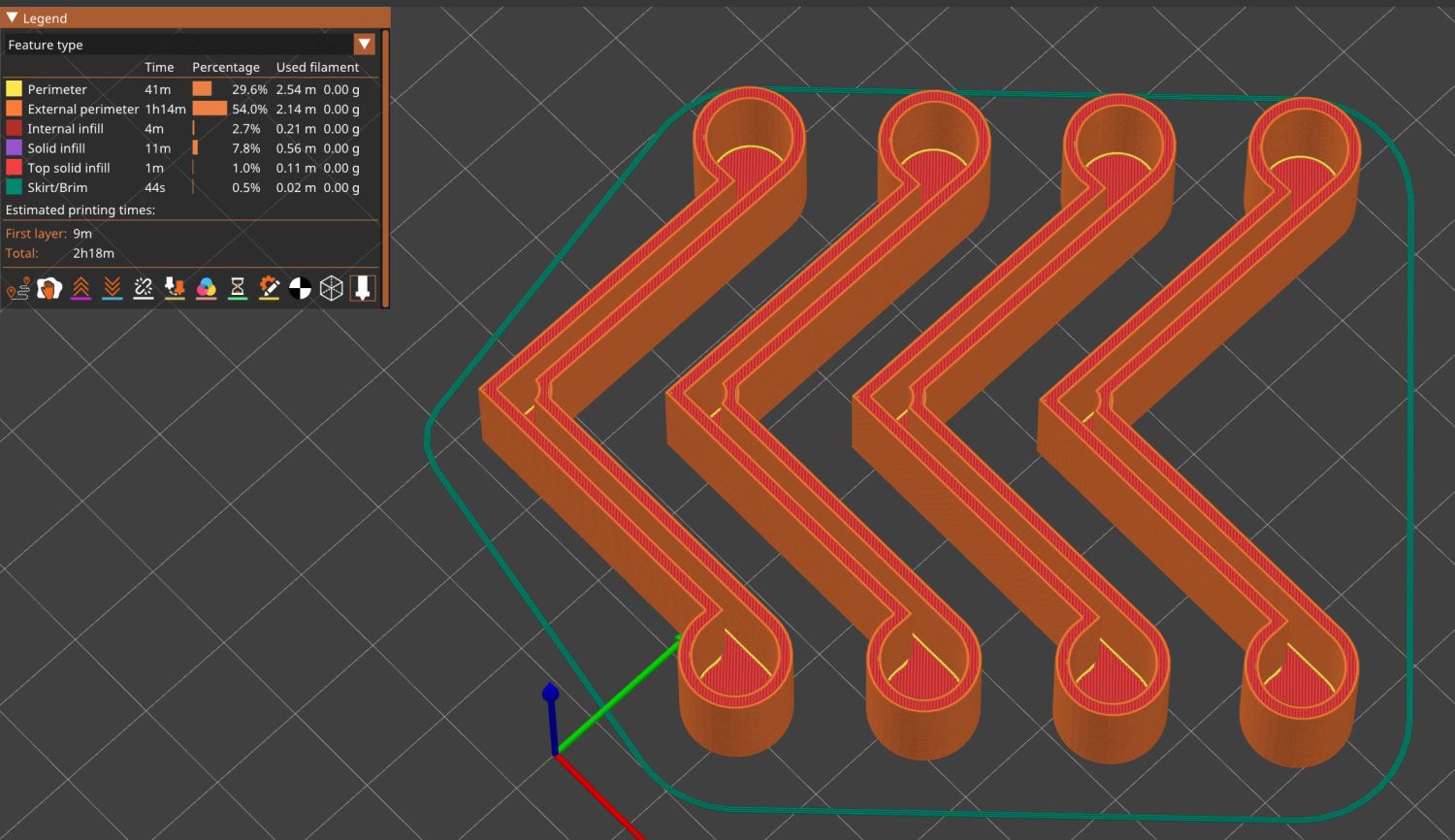
    Anyhow, the radiator fins should rest on plastic carriers atop the bent-metal struts also supporting the trim covers, so that they slide noiselessly when the copper pipe expands & contracts during the heating cycle. Over the last six decades, however, the plastic deteriorated and most of the carriers were either missing or broken to the point of uselessness:

    Baseboard Radiator Sled - old vs new
    Baseboard Radiator Sled – old vs new

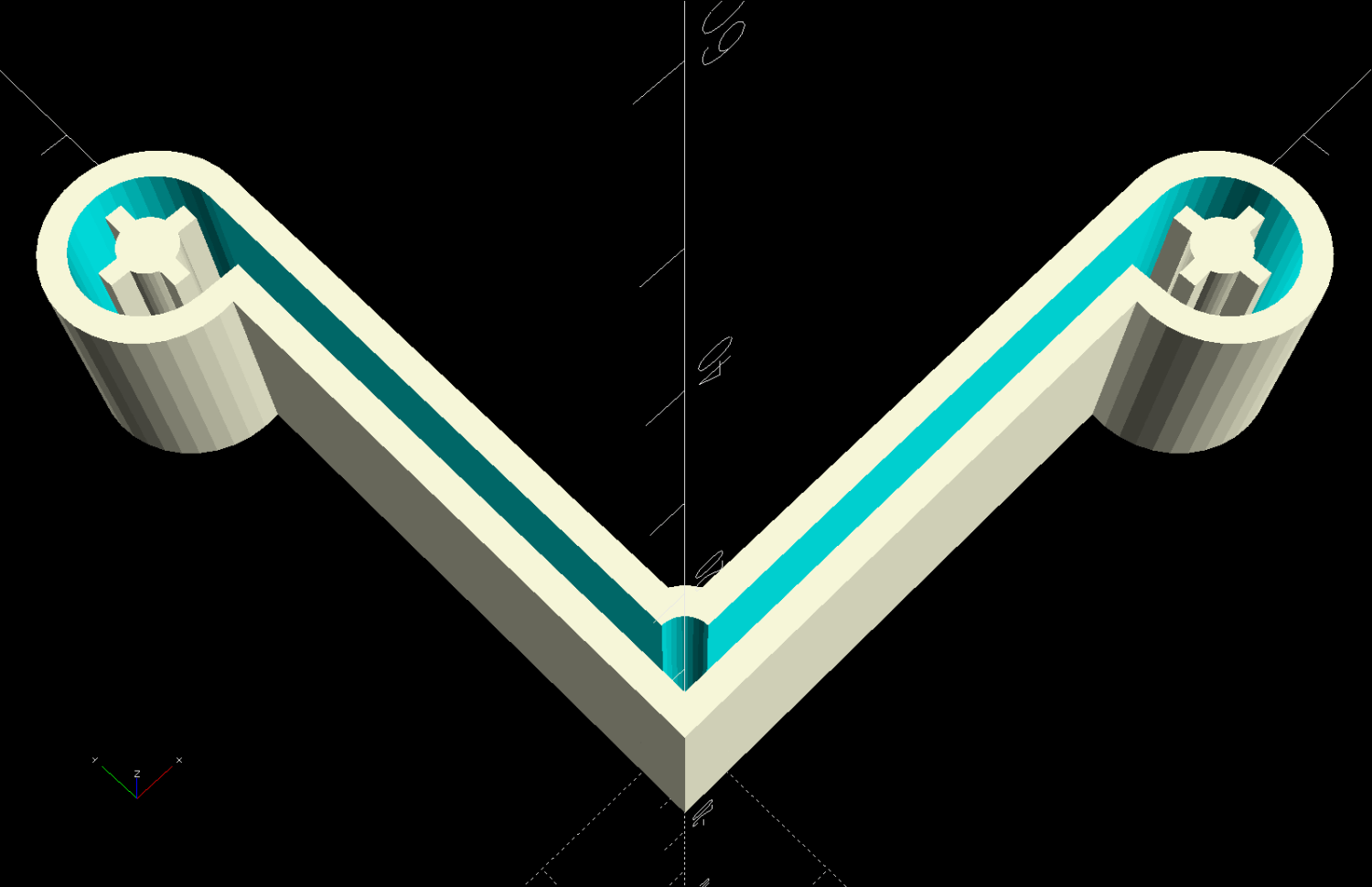
    The shapes on the bottom are replacements made with a 3D printed base (“sled”) and a chipboard wrap around the radiator preventing the fins from contacting the strut:

    Baseboard Radiator Sled - OpenSCAD show
    Baseboard Radiator Sled – OpenSCAD show

    Although it was tempting to 3D print the whole thing, because plastic, I figured there was little point in finesse: chipboard would work just as well, was much faster to produce, and I need not orient the shapes to keep the printed threads in the right direction.

    The Prusa MK4 platform was just big enough for the number of sleds I needed:

    Baseboard Radiator Sled - printed
    Baseboard Radiator Sled – printed

    The sleds along the left and right edges lost traction as the printing progressed, but everything came out all right.

    The OpenSCAD program also produces 2D SVG shapes for the chipboard wraps and adhesive rectangles sticking them to the sleds:

    Baseboard Radiator Sled - OpenSCAD SVGs
    Baseboard Radiator Sled – OpenSCAD SVGs

    Import those into LightBurn, duplicate using the Grid Array, Fire The Laser, then assemble:

    Baseboard Radiator Sled - assembly
    Baseboard Radiator Sled – assembly

    The slits encourage the chipboard to bend in the right direction at the right place, so I didn’t need any fancy tooling to get a decent result.

    A few rather unpleasant hours crawling around on the floor got the struts bent back into shape and the sleds installed under the fins:

    Baseboard Radiator Sled - installed
    Baseboard Radiator Sled – installed

    Protip: Gloves aren’t just a good idea, they’re essential.

    The trim cover presses the angled chipboard where it should go against the fins. The covers carry shadows of the plastic carriers, suggesting the clearance was tighter than it should have been and thermal cycling put more stress on the plastic than expected. We’ll never know.

    Although I’ll make more for the other baseboards as the occasion arises, I hope to never see these again …

    The OpenSCAD source code as a GitHub Gist:

    // Baseboard radiator sled
    // Ed Nisley – KE4ZNU
    // 2025-10-11
    include <BOSL2/std.scad>
    Layout = "Sled"; // [Show,Build3D,Build2D,Sled,Wrap,Glue]
    /* [Hidden] */
    HoleWindage = 0.2;
    Protrusion = 0.1;
    Gap = 5.0;
    Radiator = [25.0,62.0,50.0]; // X = support base, YZ = radiator element
    SledBase = [Radiator.x + 10.0,Radiator.y,1.0]; // support under wrap
    Runner = [SledBase.x – 2.0,3.0,1.6]; // bars contacting radiator support
    GlueOA = [SledBase.x,SledBase.y] – [2.0,2.0]; // glue sheet
    Wrap = [SledBase.x,Radiator.y + 1.0,Radiator.z + 1.0]; // chipboard wrap around radiator
    WrapFlat = [Wrap.x,Wrap.y + 2*Wrap.z];
    WrapThick = 1.2;
    WrapSlit = 0.4;
    //—–
    // Sled base
    module Sled() {
    cuboid(SledBase,rounding=2.0,edges="Z",anchor=BOTTOM)
    position(TOP)
    for (j=[-1,1])
    fwd(j*SledBase.y/3)
    cuboid(Runner,rounding=Runner.z/2,edges="Z",anchor=BOTTOM);
    }
    //—–
    // Glue sheet
    // Export as SVG for laser cutting
    module Glue() {
    rect(GlueOA,rounding=2.0);
    }
    //—–
    // Radiator wrap
    // Export as SVG for laser cutting
    module Wrap() {
    difference() {
    rect(WrapFlat,rounding=2.0);
    for (j=[-1,1])
    fwd(j*Wrap.y/2)
    rect([Wrap.x/2,WrapSlit]);
    }
    }
    //—–
    // Build things
    if (Layout == "Sled")
    Sled();
    if (Layout == "Glue")
    Glue();
    if (Layout == "Wrap")
    Wrap();
    if (Layout == "Show") {
    xrot(180)
    Sled();
    color("Yellow",0.6)
    Glue();
    up(1)
    color("Brown") {
    cuboid([Wrap.x,Wrap.y,WrapThick],anchor=BOTTOM);
    for (j=[-1,1])
    fwd(j*Wrap.y/2)
    cuboid([Wrap.x,WrapThick,Wrap.z],anchor=BOTTOM);
    }
    }
    if (Layout == "Build3D") {
    Sled();
    }
    if (Layout == "Build2D") {
    left(GlueOA.x/2 + Gap/2)
    Glue();
    right(Wrap.x/2 + Gap/2)
    Wrap();
    }
  • Dryer Vent Filter Snout

    Dryer Vent Filter Snout

    The first step in adding a filter bag to the dryer vent requires a convenient way to attach it. Because we live in the future, a couple of hours of 3D printing produced something that might work:

    Clothes Dryer Vent Filter Snout - installed
    Clothes Dryer Vent Filter Snout – installed

    It’s made of TPU, which is bendy enough to ease two tabs into the two outermost slots you can see and a corresponding pair of tabs into slots on the wall side.

    The solid model shows the part snapped inside the vent:

    Clothes Dryer Vent Filter Snout - OpenSCAD show
    Clothes Dryer Vent Filter Snout – OpenSCAD show

    The flared bottom takes something like three hours to print (TPU likes slooow extrusion), so I did the top ring first to verify the tab fit:

    Clothes Dryer Vent Filter Snout - OpenSCAD build
    Clothes Dryer Vent Filter Snout – OpenSCAD build

    Both parts come from hull() surfaces wrapped around quartets of thin circles at the proper positions; the difference() of two slightly different hulls produces thin shells.

    A thin layer of JB PlasticBonder urethane adhesive, which bonds TPU like glue, holds the two parts together. I used the tan variant and, while it’s not a perfect match, it definitely looks better than black. Not that it matters in this case.

    Mary will sew up a bag with a drawstring holding it to the snout. If everything survives the performance tests, printing the whole snout in one four-hour job will both make sense and eliminate an uneven joint that’s sure to be a lint-catcher.

    The OpenSCAD source code as a GitHub Gist:

    // Clothes dryer vent filter snout
    // Ed Nisley – KE4ZNU
    // 2025-10-07
    include <BOSL2/std.scad>
    Layout = "Ring"; // [Show,Build,Ring,Taper]
    /* [Hidden] */
    ID = 0;
    OD = 1;
    LENGTH = 2;
    HoleWindage = 0.2;
    Protrusion = 0.1;
    NumSides = 4*3*2*4;
    $fn=NumSides;
    Gap = 5.0;
    // Centers of corner rounding circles
    InnerWidth = 3.0; // wall inside snout
    InnerRadius = 6.0; // inner corner rounding
    RR = [130.0/2 InnerRadius,91.0/2 InnerRadius]; // right rear corner
    RF = [112.0/2 InnerRadius,(91.0/2 InnerRadius)]; // right front corner
    CornerCtrs = [[RR.x,RR.y],[RF.x,RF.y],[RF.x,RF.y],[RR.x,RR.y]]; // clockwise from RR
    InsertHeight = 7.0; // overall height inside the snout
    TabOC = [73.0,91.0]; // tabs locking into snout
    TabCtrs = [[TabOC.x/2,TabOC.y/2],[TabOC.x/2,TabOC.y/2],[TabOC.x/2,TabOC.y/2],[TabOC.x/2,TabOC.y/2]];
    TabRadius = 5.0;
    TabHeight = 3.0;
    TaperHeight = 20.0; // Taper holding filter bag
    TaperRadius = 10.0; // outward to capture bag string
    TaperWidth = 2.0; // wall width
    TaperCtrs = CornerCtrs + [[0,(TaperRadius InnerWidth)],[0,0],[0,0],[0,(TaperRadius InnerWidth)]];
    //—–
    // Clear inside vent opening as 2D shape
    module Opening() {
    hull()
    for (p = CornerCtrs)
    translate(p)
    circle(r=InnerRadius);
    }
    //—–
    // Insert ring locking into vent snout
    module Ring() {
    difference() {
    union() {
    linear_extrude(h=InsertHeight)
    offset(delta=InnerWidth)
    hull()
    for (p = CornerCtrs)
    translate(p)
    circle(r=InnerRadius);
    up(InsertHeight TabHeight)
    linear_extrude(h=TabHeight)
    for (p = TabCtrs)
    translate(p)
    circle(r=TabRadius);
    }
    down(Protrusion)
    linear_extrude(h=2*InsertHeight)
    Opening();
    }
    }
    //—–
    // Taper glued to ring
    module Taper() {
    difference() {
    hull() {
    up(TaperHeight)
    linear_extrude(h=Protrusion)
    offset(delta=InnerWidth)
    hull()
    for (p = CornerCtrs)
    translate(p)
    circle(r=InnerRadius);
    linear_extrude(h=Protrusion)
    offset(delta=TaperRadius)
    hull()
    for (p = TaperCtrs)
    translate(p)
    circle(r=TaperRadius);
    }
    hull() {
    up(TaperHeight)
    linear_extrude(h=2*Protrusion)
    offset(delta=InnerWidth)
    hull()
    for (p = CornerCtrs)
    translate(p)
    circle(r=InnerRadius InnerWidth);
    down(Protrusion)
    linear_extrude(h=2*Protrusion)
    offset(delta=TaperRadius TaperWidth)
    hull()
    for (p = TaperCtrs)
    translate(p)
    circle(r=TaperRadius);
    }
    }
    }
    //—–
    // Build things
    if (Layout == "Ring")
    Ring();
    if (Layout == "Taper")
    Taper();
    if (Layout == "Show") {
    up(TaperHeight)
    Ring();
    Taper();
    }
    if (Layout == "Build") {
    back(55)
    up(InsertHeight)
    yrot(180)
    Ring();
    fwd(55)
    up(TaperHeight)
    yrot(180)
    Taper();
    }
  • Fitbit Charge 5 Charging Stand

    Fitbit Charge 5 Charging Stand

    My Fitbit Charge 5 has become fussy about its exact position while snapped to its magnetic charger, so I thought elevating it above the usual clutter might improve its disposition:

    FitBit Charge 5 stand - installed
    FitBit Charge 5 stand – installed

    The Charge 5 now snaps firmly onto its charger, the two power pins make solid contact, and it charges just like it used to.

    The solid model comes from Printables, modified to have a neodymium ring magnet screwed into its base:

    Fitbit Charge 5 stand - solid model section
    Fitbit Charge 5 stand – solid model section

    Which looks about like you’d expect;

    FitBit Charge 5 stand - added magnet
    FitBit Charge 5 stand – added magnet

    A layer of cork covers the bottom and it sits neatly atop the USB charger.

    The OpenSCAD source code punches the recesses and produces the bottom outline so LightBurn can cut the cork:

    // FitBit Charge 5 Stand - base magnet
    // Ed Nisley - KE4ZNU
    // 2025-09-05
    
    include <BOSL2/std.scad>
    
    Layout = "Build";       // [Build, Base, Section]
    
    module Stand() {
      difference() {
        left(38/2) back(65/2)
          import("Fitbit Charge 5 Stand.stl",convexity=10);
    
          down(0.05)
            cylinder(d=12.5,h=5.05,$fn=12);
          up(5.2)
            cylinder(d=3.0,h=10.0,$fn=6);
      }
    }
    
    //-----
    // Build things
    
    if (Layout == "Build")
      Stand();
    
    if (Layout == "Base")
      projection(cut = false)
        Stand();
    
    if (Layout == "Section")
      difference() {
        Stand();
        down(0.05) fwd(50)
          cube(100,center=false);
    }


  • Terracycle Chain Idler: 3D Printed Tire

    Terracycle Chain Idler: 3D Printed Tire

    The Terracycle (now T-cycle, for reasons presumably involving the transfer of money) chain return idlers on our Tour Easy bikes developed hardening of their urethane tires:

    Terracycle Idler tire - printed vs OEM
    Terracycle Idler tire – printed vs OEM

    Urethane shouldn’t crack like that, but after more than fifteen years, stuff wears out.

    The white ring is 95A TPU printed on the Makergear M2, which is definitely more flexy than the original tire, but has the redeeming feature of being both Good Enough and trivially easy to model:

    include <BOSL2/std.scad>
    
    NumSides = 4*3*2*4;
    $fn=NumSides;
    
    Thick = 3.5;
    ID = 46.4;
    OD = ID + 2*Thick;
    Length = 11.2;
    
    tube(Length,id=ID,od=OD,anchor=BOTTOM);


    It printed with 5 mm brims on both the ID and OD, because TPU has the barest adhesion to the M2’s glass plate + hair glue. There’s a long-unopened box now on the bench with a BuildTak PEI surface (thank you: you know who you are!) that should improve the situation.

    In any event, the tires fit well:

    Terracycle Idler tire - installed
    Terracycle Idler tire – installed

    The layer-to-layer adhesion isn’t as good as I think it should be, so I’ll likely use those tires as testcases for tweaking the new build plate & settings.