The Smell of Molten Projects in the Morning

Ed Nisley's Blog: Shop notes, electronics, firmware, machinery, 3D printing, laser cuttery, and curiosities. Contents: 100% human thinking, 0% AI slop.

Category: Software

General-purpose computers doing something specific

  • Sticky Trap Screen Frames

    Sticky Trap Screen Frames

    The objective being to reduce the number of onion maggots in Mary’s Vassar Farm plot without chemical agents, I conjured sticky trap screen frames from the vasty digital deep:

    Sticky Trap - first production run
    Sticky Trap – first production run

    Each one contains half a sheet of yellow sticky plastic, which is easy enough to cut before peeling off the protective covering sheets. The cage is half-inch galvanized hardware cloth snipped with hardened diagonal cutters. A bead of acrylic adhesive around the base holds the cage in place

    Although you can deploy sticky sheets without cages, they tend to attract and affix beneficial critters: butterflies, small birds, furry critters, toads, gardeners, and the like. We don’t know how effective the cages will be, but they seemed better than nothing.

    They mount on ski poles cut in half:

    Sticky Trap - ski pole installed
    Sticky Trap – ski pole installed

    And on fence posts around the perimeter:

    Sticky Trap - angle bracket installed
    Sticky Trap – angle bracket installed

    To my untrained eye, some of those doomed critters are, indeed, onion maggot flies. The rest seem to be gnats and other nuisances, so IMO we’re applying population pressure in the right direction.

    Each base-and-cap frame takes about three hours to print, so I did them one at a time over the course of a few days while applying continuous product improvement.

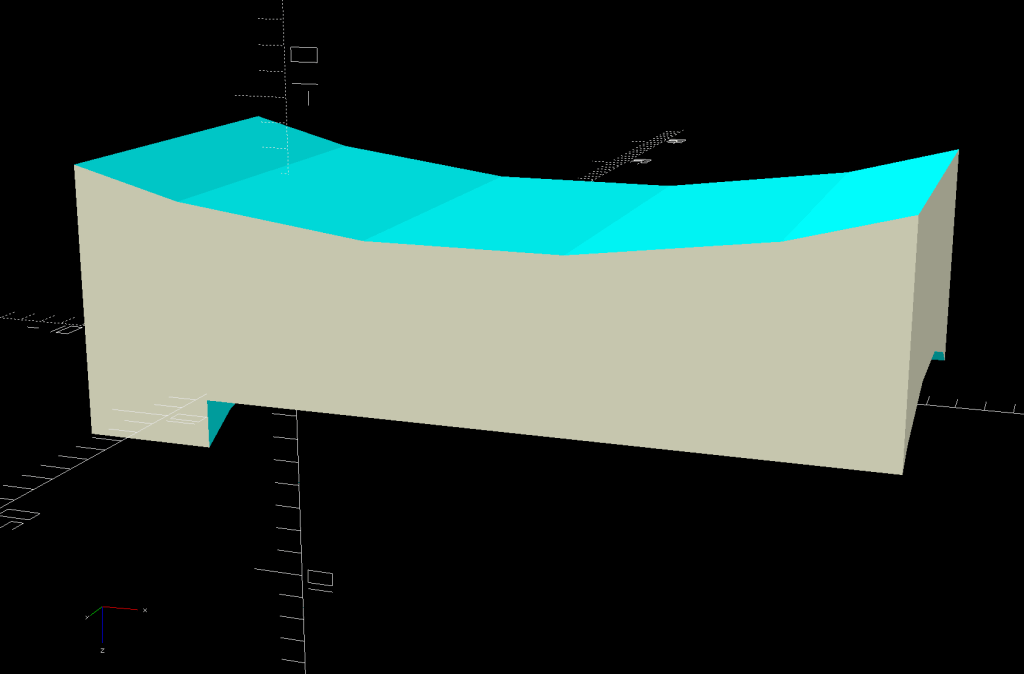
    The sheets rest on small V blocks intended to keep them centered within the cage:

    Sticky Sheet Cage - angle bracket - solid model
    Sticky Sheet Cage – angle bracket – solid model

    The ski pole attachment must build with the cap on top, but it bridges well enough for the purpose:

    Sticky Sheet Cage - ski pole - solid model
    Sticky Sheet Cage – ski pole – solid model

    The overhanging hooks on the blocks (just barely) engage the grid to keep the lid in place, while remaining short enough to not droop too badly. You could probably delete the hooks from the bottom plate, but they align the cage while the adhesive cures.

    The sheets tend to bend in the middle, so I’ll stick a thin slat or two vertically to keep them straight.

    The OpenSCAD source code as a GitHub Gist:

    // Sticky Sheet Cage
    // Ed Nisley KE4ZNU May 2021
    Layout = "Build"; // [Build, Show, Cap, Attachment]
    Bracket = "Ski"; // [Angle, Ski, Post]
    //- Extrusion parameters must match reality!
    /* [Hidden] */
    ThreadThick = 0.25;
    ThreadWidth = 0.40;
    HoleWindage = 0.2;
    Protrusion = 0.1; // make holes end cleanly
    inch = 25.4;
    ID = 0;
    OD = 1;
    LENGTH = 2;
    function IntegerMultiple(Size,Unit) = Unit * ceil(Size / Unit);
    //———————-
    // Dimensions
    Sheet = [1,100,150]; // sticky sheet
    Grid = 0.5*inch;
    Cage = [2*Grid + 5.0, 8*Grid + 5.0, 12*Grid + 2.0]; // grid wire cage bent around sheet
    CageRad = 2.5; // wire bending radius
    CageThick = 2.0; // grid thickness
    WallThick = 3.0; // min wall and bottom thickness
    Recess = 5.0; // inset to capture cage edge
    Plate = [Cage.x,Cage.y,Recess] + [2*WallThick,2*WallThick,WallThick];
    PlateRad = 5.0;
    SkiPole = [20.0,20.0 + 2*WallThick,50];
    AnglePlate = [30,30,50];
    ScrewClear = 5.0;
    BuildGap = 5.0;
    //———————-
    // Useful routines
    module PolyCyl(Dia,Height,ForceSides=0) { // based on nophead's polyholes
    Sides = (ForceSides != 0) ? ForceSides : (ceil(Dia) + 2);
    FixDia = Dia / cos(180/Sides);
    cylinder(r=(FixDia + HoleWindage)/2,
    h=Height,
    $fn=Sides);
    }
    //———————-
    // Pieces
    module Cap() {
    union() {
    difference() {
    hull()
    for (i=[-1,1], j=[-1,1])
    translate([i*(Plate.x/2 – PlateRad),j*(Plate.y/2 – PlateRad),0])
    cylinder(r=PlateRad,h=Plate.z,$fn=12);
    translate([0,0,Plate.z – Recess])
    hull()
    for (i=[-1,1], j=[-1,1])
    translate([i*(Cage.x/2 – CageRad),j*(Cage.y/2 – CageRad),0])
    cylinder(r=CageRad,h=Plate.z,$fn=12);
    }
    difference() {
    Strut = Cage.x – 2*CageThick;
    Latch = [Cage.x,WallThick,0.75*Plate.z];
    union() {
    for (j=[-1,1])
    translate([0,j*2.5*Grid,Plate.z])
    cube([Strut,WallThick,2*Plate.z],center=true);
    for (j=[-1,1])
    translate([0,j*2.5*Grid,2*Plate.z – Latch.z/2])
    cube(Latch,center=true);
    }
    translate([0,0,2*Plate.z + (Cage.z – Sheet.z)/4])
    rotate([0,45,0])
    cube([Strut/sqrt(2),Plate.y,Strut/sqrt(2)],center=true);
    }
    }
    }
    module Attachment() {
    if (Bracket == "Angle") {
    translate([0,Plate.y/2,0])
    rotate(45)
    difference() {
    union() {
    cube(AnglePlate,center=false);
    rotate(-45)
    translate([0,WallThick,Plate.z/2])
    cube([Plate.x – 2*PlateRad,4*WallThick,Plate.z],center=true);
    }
    translate([WallThick,WallThick,-Protrusion])
    cube(AnglePlate + [0,0,2*Protrusion],center=false);
    translate([AnglePlate.x/2,-Protrusion,2*AnglePlate.z/3])
    rotate([-90,0,0])
    PolyCyl(ScrewClear,2*AnglePlate.x,6);
    translate([-Protrusion,AnglePlate.x/2,1*AnglePlate.z/3])
    rotate([90,0,90])
    PolyCyl(ScrewClear,2*AnglePlate.x,6);
    }
    }
    else if (Bracket == "Ski") {
    translate([0,Plate.y/2 + SkiPole[OD]/2,0])
    difference() {
    union() {
    PolyCyl(SkiPole[OD],SkiPole[LENGTH],24);
    translate([0,-3*WallThick,Plate.z/2])
    cube([Plate.x – 2*PlateRad,4*WallThick,Plate.z],center=true);
    }
    translate([0,0,-2*WallThick])
    PolyCyl(SkiPole[ID],SkiPole[LENGTH],24);
    }
    }
    }
    //———————-
    // Build it
    if (Layout == "Cap")
    Cap();
    if (Layout == "Attachment") {
    Attachment();
    }
    if (Layout == "Show") {
    translate([0,0,Sheet.z/2 + Plate.z])
    color("Yellow")
    cube(Sheet,center=true);
    Cap();
    Attachment();
    translate([0,0,Sheet.z + 2*Plate.z])
    rotate([180,0,0])
    Cap();
    }
    if (Layout == "Build") {
    translate([-(Plate.x/2 + BuildGap),0,0]) {
    Cap();
    Attachment();
    }
    translate([(Plate.x/2 + BuildGap),0,0])
    Cap();
    }

  • Deer Fence Hangers

    Deer Fence Hangers

    For what should be obvious reasons, we armored Mary’s “kitchen garden” with buried concrete blocks and deer fence. I secured the fence to 7 foot plastic-coated steel-core posts strapped to shorter stakes supporting the lower wire fence, using cable ties we both knew wouldn’t survive exposure to the sun.

    As part of the spring garden prep, I summoned proper supports from the vasty digital deep:

    Deer Fence Hanger - Build view
    Deer Fence Hanger – Build view

    The general idea is to plunk one atop each post and tangle wrap the netting through the hooks, thusly:

    Deer Fence Hanger - installed
    Deer Fence Hanger – installed

    The garden looks like we killed an entire chess set and impaled their carcasses as a warning to others of their kind, but the fence now hangs neatly from the top of the posts rather than drooping sadly.

    Each one of those things takes nigh onto two hours to emerge from the M2, so I printed them one by one over the course of a few days while making continuous product improvements.

    The “natural” PETG isn’t UV stabilized, either, but it ought to last longer than those little bitty nylon cable ties. We shall see.

    The OpenSCAD source code as a GitHub Gist:

    // Deer Fence Hangers
    // Ed Nisley KE4ZNU May 2021
    Layout = "Show"; // [Build, Show, Cap, Hook]
    // net grid spacing
    NetOC = 55.0; // [40.0:5.0:70.0]
    // stake OD
    PoleDia = 23.0; // [20.0:30.0]
    //- Extrusion parameters must match reality!
    /* [Hidden] */
    ThreadThick = 0.25;
    ThreadWidth = 0.40;
    HoleWindage = 0.2;
    Protrusion = 0.1; // make holes end cleanly
    inch = 25.4;
    ID = 0;
    OD = 1;
    LENGTH = 2;
    function IntegerMultiple(Size,Unit) = Unit * ceil(Size / Unit);
    //———————-
    // Dimensions
    Notch = 5.0; // hook engagement
    WallThick = 3.0; // min wall and end thickness
    Shell = [PoleDia,PoleDia + 2*WallThick,NetOC + 2*Notch];
    HookBlock = [10.0,Shell.y/4,2*Notch]; // hanger inside length
    LegendBlock = [0.7*Shell.z,Shell.y/2,2*ThreadThick]; // legend size
    //———————-
    // Useful routines
    module PolyCyl(Dia,Height,ForceSides=0) { // based on nophead's polyholes
    Sides = (ForceSides != 0) ? ForceSides : (ceil(Dia) + 2);
    FixDia = Dia / cos(180/Sides);
    cylinder(r=(FixDia + HoleWindage)/2,
    h=Height,
    $fn=Sides);
    }
    //———————-
    // Pieces
    module Hook() {
    //%Cap();
    translate([Shell[OD]/2 – Protrusion,HookBlock.y/2,0])
    rotate([90,0,0])
    linear_extrude(height=HookBlock.y)
    difference() {
    scale([1,2])
    intersection() {
    circle(r=HookBlock.x);
    square(HookBlock.x,center=false);
    }
    square(Notch,center=false);
    }
    }
    module Cap() {
    difference() {
    rotate(180/6)
    PolyCyl(Shell[OD],Shell[LENGTH],6);
    translate([0,0,-WallThick])
    rotate(180/24)
    PolyCyl(Shell[ID],Shell[LENGTH],24);
    translate([-Shell[OD]/2,0,Shell[LENGTH]/2])
    rotate([0,90,0])
    cube(LegendBlock,center=true);
    }
    translate([-(Shell[OD]/2 – LegendBlock.z/2),0,Shell[LENGTH]/2])
    rotate([0,-90,0])
    resize(0.8*LegendBlock,auto=[true,true,false])
    linear_extrude(height=LegendBlock.z)
    text(text=str(NetOC," ",PoleDia),
    size=6,spacing=1.00,font="Bitstream Vera Sans:style=Bold",
    halign="center",valign="center");
    }
    module Hanger() {
    Cap();
    for (k=[0,1])
    translate([0,0,k*Shell.z])
    for (a=[-1:1])
    rotate([k*180,0,a*60])
    Hook();
    }
    //———————-
    // Build it
    if (Layout == "Cap")
    Cap();
    if (Layout == "Hook")
    Hook();
    if (Layout == "Show")
    Hanger();
    if (Layout == "Build")
    translate([0,0,Shell[LENGTH]])
    rotate([180,0,0])
    Hanger();

  • Tour Easy: Bafang Mid-drive vs. Cateye Cadence Sensor

    Tour Easy: Bafang Mid-drive vs. Cateye Cadence Sensor

    For inscrutable reasons, the Bafang 500C display includes all stopped time in its average trip speed. While that is, in fact, the average speed over the entire trip, the Cateye cyclocomputers we’ve been using forever stop averaging after a few seconds at 0 mph.

    Bonus: Although the Bafang BBS02 motor knows the pedal cadence, it’s not part of the display.

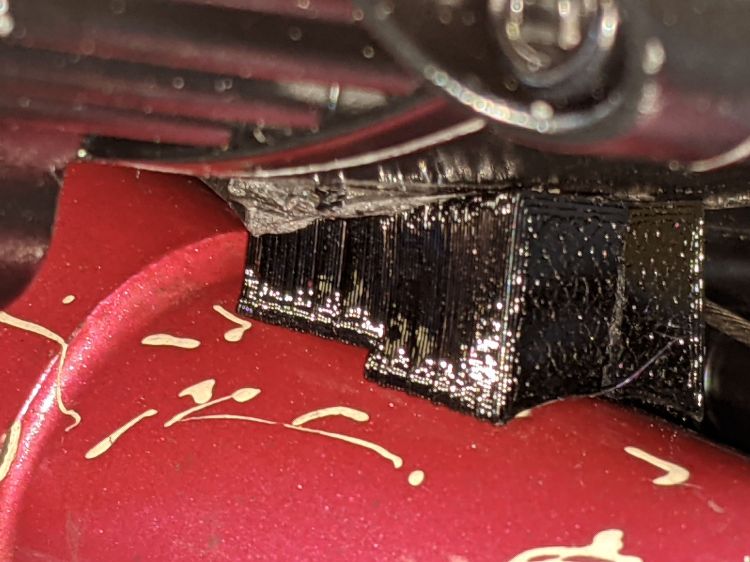
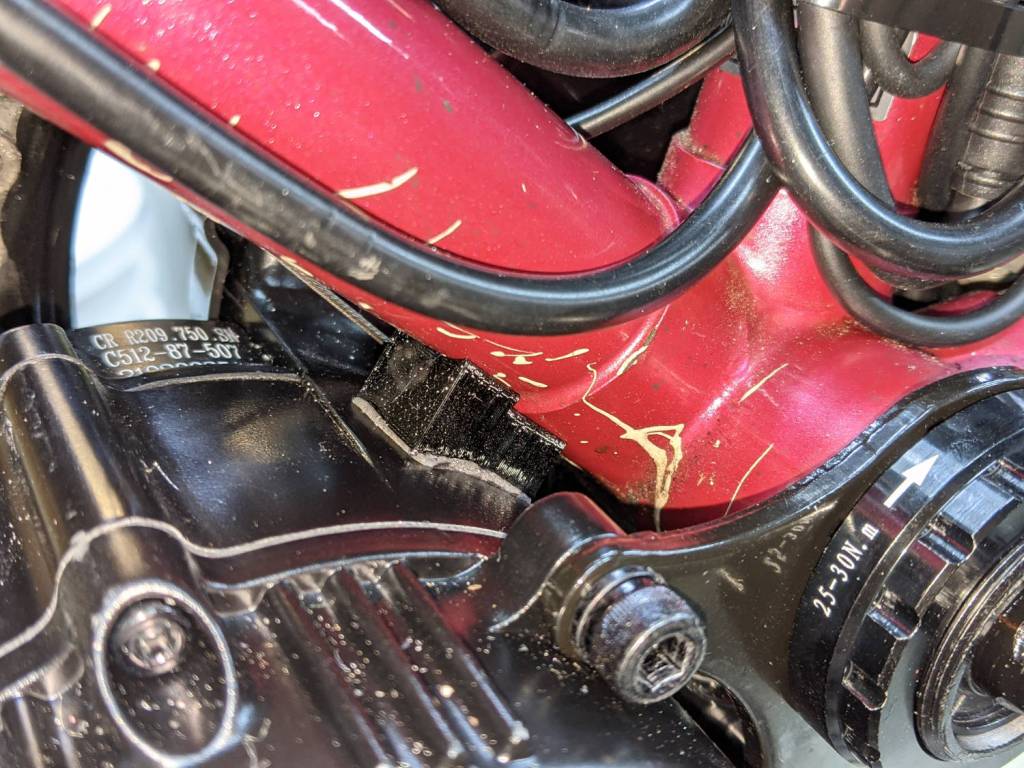
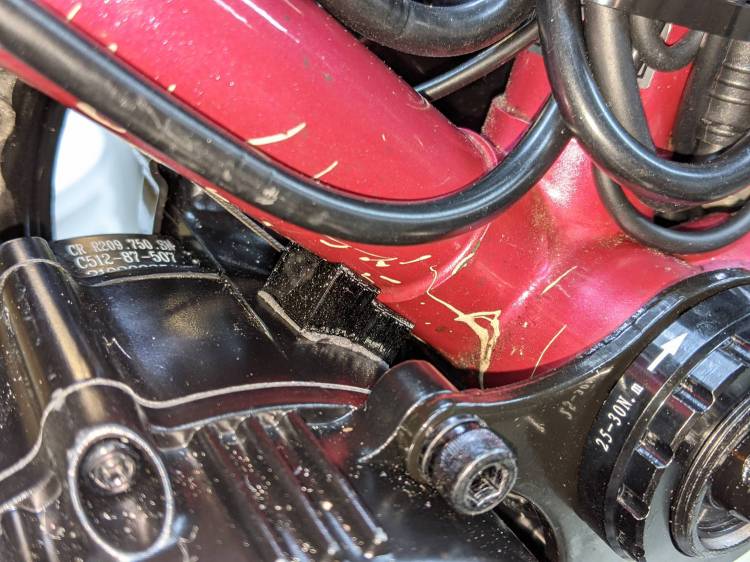
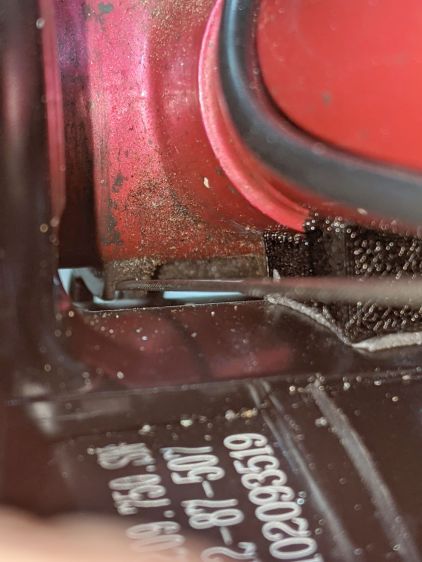
    The Bafang BBS02 bottom bracket shaft put its pedal cranks much farther from the Tour Easy’s frame than the Shimano cranks, to the extent that the existing Cateye cadence sensor position just wasn’t going to work, so I printed a simple clip to fit over the motor’s “fixing plate”:

    Tour Easy Bafang BBS02 motor
    Tour Easy Bafang BBS02 motor

    It turns out putting a magnetic sensor immediately next to the winding end of a high-current three-phase motor isn’t the brightest idea I’ve ever had. The Cateye cadence display spent most of its time maxed out at 199 rpm, far faster than Mary can spin for, well, a single revolution.

    A somewhat more complex mount put the sensor roughly where it used to be:

    Cateye Cadence Sensor mount - installed
    Cateye Cadence Sensor mount – installed

    It looks precarious, but it spent nigh onto two decades there without incident, so we have precedent.

    Those are the original 165 mm Shimano cranks, because the 170 mm Bafung cranks threatened to lock out her knees. More on this in a while, as it’s a more complex issue than it may appear.

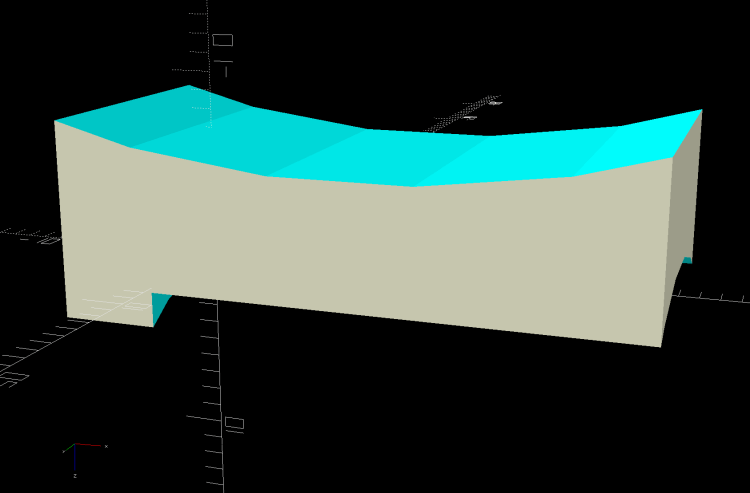
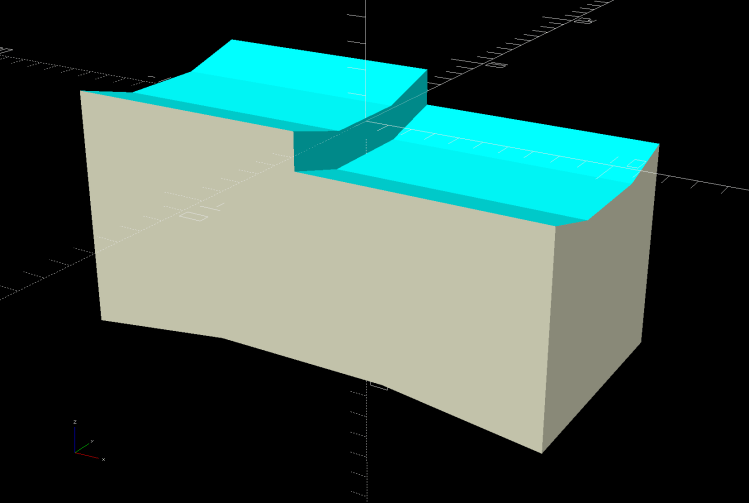
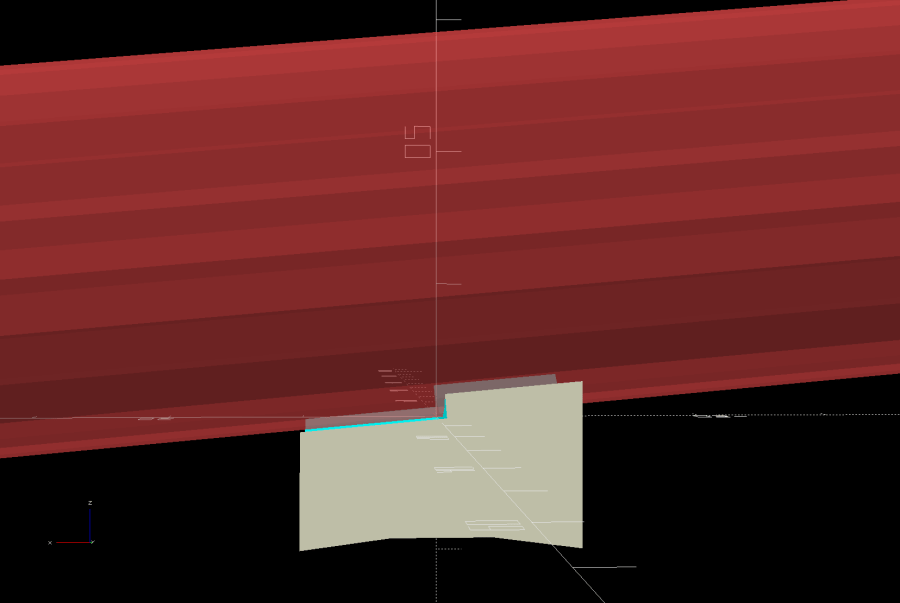
    The solid model looks about like you’d expect:

    Cateye Cadence Sensor mount - solid model
    Cateye Cadence Sensor mount – solid model

    The OpenSCAD code replaces the simple clip in the original GitHub Gist:

    // Cateye cadence sensor bracket
    
    LockRingDia = [44.0,46.0];
    LockRingLen = [4.0,6.5];
    LockRingOAD = LockRingDia[1] + 2*WallThick;
    LockRingOAL = LockRingLen[0] + LockRingLen[1];
    
    Notches = 16;
    SensorAngle = 3*360/Notches;
    SensorBase = 10.0;
    
    module Cateye() {
    
        difference() {
            union() {
                cylinder(d=LockRingOAD,h=LockRingOAL,$fn=Notches);
                translate([LockRingOAD/2 + LockRingOAL/2 - WallThick/2,0,LockRingOAL/2])
                    cube([LockRingOAL + WallThick,2*WallThick + Kerf,LockRingOAL],center=true);
          rotate(SensorAngle)
                    translate([LockRingOAD/2 + SensorBase - WallThick/2,0,LockRingOAL/2])
                        cube([2*SensorBase + WallThick,2*WallThick,LockRingOAL],center=true);
            }
            translate([0,0,LockRingLen[0]])
                PolyCyl(LockRingDia[1],LockRingOAL,Notches);
            translate([0,0,-Protrusion])
                PolyCyl(LockRingDia[0],2*LockRingOAL,Notches);
    
            translate([LockRingDia[0],0,0])
                cube([2*LockRingDia[0],Kerf,4*LockRingOAL],center=true);
            translate([LockRingOAD/2 + LockRingOAL/2,2*WallThick,LockRingOAL/2])
                rotate([90,0,0])
                    PolyCyl(3.0,4*WallThick,6);
    
            rotate(SensorAngle)
                translate([LockRingOAD/2 + 2*SensorBase - SensorBase/2,2*WallThick,LockRingOAL/2])
                    rotate([90,0,0])
                        PolyCyl(3.0,4*WallThick,6);
        }
    
    }
    
  • Bafang USB Programming Adapter

    Bafang USB Programming Adapter

    Changing (“programming”) the Bafang BBS02 motor controller parameters requires a USB-to-serial adapter with a connector matching the end of the cable from the motor to the display. While you can buy such things directly from the usual randomly named Amazon sellers, I happen to have a wide variety of bare adapter boards, so I just bought a display extender cable and cut it in half to get the connector; you can apparently buy pigtailed connectors (for more than the price of an extender) if you dislike cutting cables in half.

    Various documents provide versions of the canonical illustration of the motor end of the display cable, as ripped from Penoff’s original documentation:

    Bafang BBS02 display cable pinout
    Bafang BBS02 display cable pinout

    The pin colors correspond to the wiring inside the motor cable, but the extender uses different colors, because nobody will ever know:

    Bafang programmer - wire colors
    Bafang programmer – wire colors

    A bit of work with a continuity meter gave the pinout:

    Bafang BBS02 display extender - wire colors
    Bafang BBS02 display extender – wire colors

    Don’t trust stuff you read on the Intertubes: make your own measurements and draw your own diagrams!

    You want the cable end carrying the sockets to mate with the pins on the motor cable (coming in from the left):

    Bafang programmer - cable ends
    Bafang programmer – cable ends

    Soldering the cable to a known-counterfeit FTDI USB adapter went swimmingly:

    Bafang programmer - USB adapter wiring
    Bafang programmer – USB adapter wiring

    Note that the yellow-blue connection carries the full 48 V from the battery and may or may not have any current limiting / fusing / protection, so be a little more careful than usual in your wiring layout.

    The red jumper from DTR to CTS, shown in all the Amazon and eBay listIngs, turns out to be unnecessary.

    A quick and dirty case (eventually held together with generous hot-melt glue blobs) protects the PCB and armors the cables:

    Bafang USB-serial adapter interior
    Bafang USB-serial adapter interior

    The solid model over on the right looks about like you’d expect:

    Bafang Battery Mount - complete build view
    Bafang Battery Mount – complete build view

    Most of the instructions will tell you to hot-plug the cable to the motor with the battery connected, which strikes me as foolhardy; not all of those pins make contact in the right order, which means you will slap 50-odd volts across the wrong parts of the circuitry.

    Instead:

    • Disconnect the battery
    • Unplug the display
    • Plug the adapter cable into the motor connector
    • Plug the USB cable into the Token Windows Laptop
    • Reconnect the battery
    • Fire up the “programming” routine
    • Send the new configuration to the motor controller
    • Disconnect the battery
    • Unplug the adapter cable
    • Reconnect the display cable
    • Reconnect the battery

    Makes more sense to me, even if it’s more tedious.

    Tuck this OpenSCAD source code for the case into the original program that produces the battery mounts:

    Layout = "Build";               // [Frame,Block,Show,Build,Bushing,Cateye,Case]
    
    … snippage …
    
    // Programming cable case
    
    ProgCavity = [70.0,19.0,10.0];
    ProgBlock = [85.0,25.0,15.0];
    ProgCableOD = 4.0;
    
    module ProgrammerCase() {
    
        difference() {
            hull() {
                for (i=[-1,1], j=[-1,1])
                    translate([i*(ProgBlock.x/2 - CornerRadius),j*i*(ProgBlock.y/2 - CornerRadius),-ProgBlock.z/2])
                        cylinder(r=CornerRadius,h=ProgBlock.z,$fn=12);
                }
            translate([-ProgBlock.x,0,0])
                rotate([0,90,0])
                    PolyCyl(ProgCableOD,3*ProgBlock.x,6);
            cube(ProgCavity,center=true);
        }
    }
    
    // Half case sections for printing
    
    module HalfCase(Section = "Upper") {
    
        intersection() {
           translate([0,0,ProgBlock.z/4])
                cube([2*ProgBlock.x,2*ProgBlock.y,ProgBlock.z/2],center=true);
            if (Section == "Upper")
                translate([0,0,-Kerf/2])
                    ProgrammerCase();
            else
                translate([0,0,ProgBlock.z/2])
                    ProgrammerCase();
        }
    }
    
    … snippage …
    
    // tuck this into the Build conditional
    
        translate([0,3*Block.x,0]) {
    
            translate([gap*ProgBlock.x/2,0,ProgBlock.z/2])
                rotate([180,0,0])
                    HalfCase("Upper");
            translate([-gap*ProgBlock.x/2,0,0])
                HalfCase("Lower");
    

  • Pixel 3a Boot Failure

    Pixel 3a Boot Failure

    Attempting to rub a smudge off the phone’s screen while it was booting causes problems:

    Pixel 3a boot fail
    Pixel 3a boot fail

    Rebooting that sucker cleared the problem, so it wasn’t permanently fatal.

    Whew!

  • Sherline CNC Driver Step Pulse Width Puzzle

    Sherline CNC Driver Step Pulse Width Puzzle

    Long long ago, as part of tidying up the power distribution inside the Sherline CNC controller PCB, I wrote a cleanroom reimplementation of its PIC firmware and settled on a 25 µs Step pulse width with a minimum 50 µs period:

    [PARPORT]
    ADDRESS = 0x378
    RESET_TIME = 10000
    STEPLEN = 25000
    STEPSPACE = 25000
    DIRSETUP = 50000
    DIRHOLD = 50000
    

    Even shorter values for the Direction signal worked with the initial pncconf setup for the Mesa 5I25 FPGA card:

    DIRSETUP   = 25000
    DIRHOLD    = 25000
    STEPLEN    = 25000
    STEPSPACE  = 25000


    After thrashing through enough of the Kicad-to-HAL converter to get a HAL file sufficiently tasty to prevent LinuxCNC from spitting it out, the X and A axes moved with a gritty sound and the two other axes were pretty much inert.

    After eliminating everything else, including having Tiny Scope™ confirm the pulses were exactly the right duration, I increased them by 10 µs:

    DIRSETUP   = 35000
    DIRHOLD    = 35000
    STEPLEN    = 35000
    STEPSPACE  = 35000
    

    After which, all the axes suddenly worked perfectly.

    At some point along the way, I (re)discovered that Sherline Step pulses are active-low, although in practical terms getting the pulse upside-down just delays the active edge by its width. Given that the Sherline’s top speed is 24 inch/min = 0.4 inch/s, the minimum step period is 156 µs and even a wrong-polarity step should work fine.

    For the record, here’s a perfectly good Step pulse:

    Mesa 5I25 35us active-low Step pulse
    Mesa 5I25 35us active-low Step pulse

    Gotta wipe off that screen more often …

  • Logitech Gamepad: HAL Startup Holdoff

    Logitech Gamepad: HAL Startup Holdoff

    The HAL configuration for the Logitech gamepad has only a few changes from the decade-ago (!) version.

    The HAL driver will reverse the direction of the Y and Z axes by feeding -127.5 to the scale inputs:

    Sherline HAL schematic - Logitech YZ invert
    Sherline HAL schematic – Logitech YZ invert

    The flat inputs make sure the joystick knob has a dead zone around the rest position; otherwise, the axes tend to crawl off without a hand on the controls.

    The gamepad doesn’t emit any values until you poke a button or move a joystick, the driver starts up with all zeros in its counts registers, so the HAL axis position pins emit XYZA = -1 +1 +1 -1 just as if you had the joysticks jammed hard at their upper-left corners. The only way out is to squelch the joystick until a button gets pressed and the machine is turned on:

    Sherline HAL schematic - gamepad valid - parameters
    Sherline HAL schematic – gamepad valid – parameters

    The Gamepad-Valid signal forcibly disables all four axes:

    Gamepad Axis Priority - schematic sample
    Gamepad Axis Priority – schematic sample

    That’s from an earlier iteration of the axis priority logic, before I got the Kicad annotate-starting-at-100 code working.

    I somewhat finessed the startup issue by dedicating two of the gamepad’s back-panel buttons to clearing the initial E-Stop and turning the machine on:

    Sherline HAL schematic - gamepad EStop logic
    Sherline HAL schematic – gamepad EStop logic

    However, if you flip those two conditions with the LinuxCNC GUI, the joysticks will remain zeroed until you do poke a button or move a knob. So, without the Gamepad-Valid logic, the Sherline will take off for the far upper left corner at a pretty good clip, which is not what you want.

    The gamepad outputs remain valid for the rest of the session, so there’s no need to reset the Gamepad-Valid flipflop. HAL does not take kindly to hotplugging USB devices, so (AFAICT) you can’t hard-reset the gamepad + driver to the initial no-data-yet condition.

    Earlier versions of the top two schematics used CONSTANT symbols, but it turns out PARAMETER symbols work just as well and the resulting setp commands eliminate the need for nets and real time functions.