The Smell of Molten Projects in the Morning

Ed Nisley's Blog: Shop notes, electronics, firmware, machinery, 3D printing, laser cuttery, and curiosities. Contents: 100% human thinking, 0% AI slop.

Category: Software

General-purpose computers doing something specific

  • CD / DVD Data Destruction: Fixturing

    CD / DVD Data Destruction: Fixturing

    Cutting an array of 120 mm holes in chipboard produces a fixture for wrecking CDs:

    Laser-engraved CD fixture - loaded
    Laser-engraved CD fixture – loaded

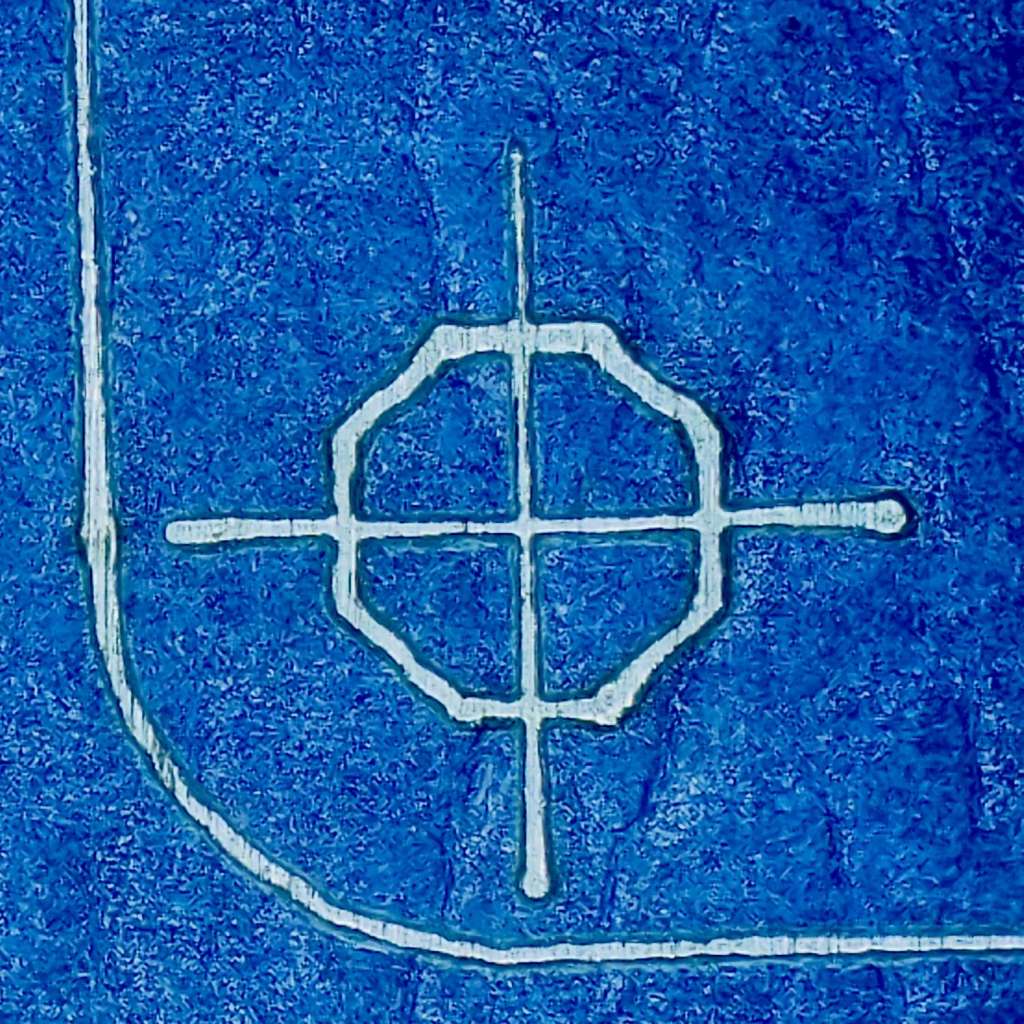
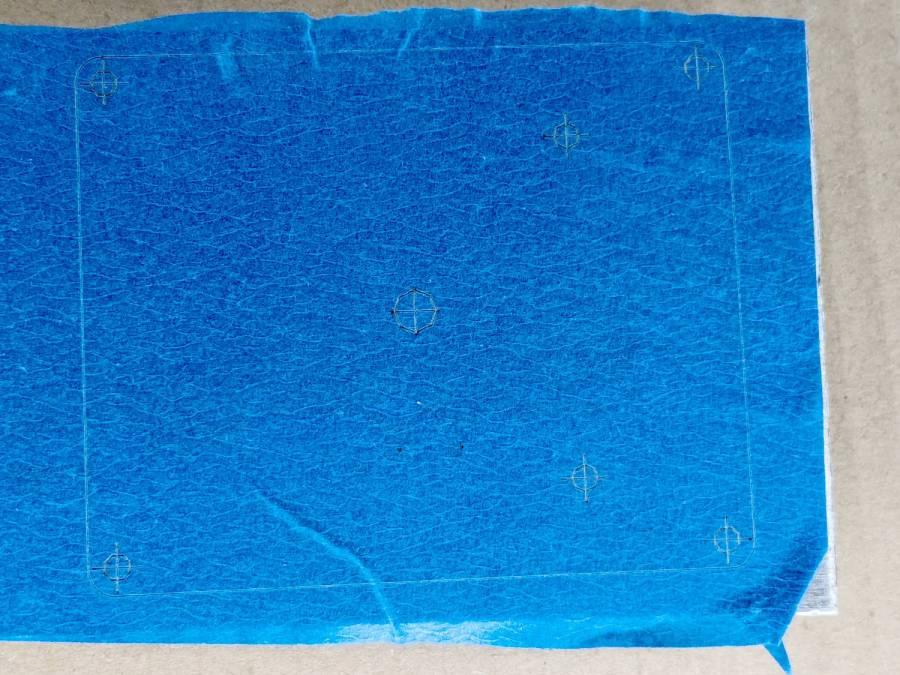
    In addition to the obvious cutouts, the fixture has four corner targets:

    CD 5×3 Fixture
    CD 5×3 Fixture

    Which you use with LightBurn’s Print-and-Cut alignment:

    Laser-engraved CD fixture - alignment
    Laser-engraved CD fixture – alignment

    With fifteen Guilloche swirly patterns imported and snapped into the template and the template aligned to the fixture, Fire The Laser:

    Laser-engraved CD fixture - legend
    Laser-engraved CD fixture – legend

    The whole process takes a bit under 25 minutes:

    Laser-engraved CD fixture - complete
    Laser-engraved CD fixture – complete

    Which produces a stack of glittery proto-coasters:

    Laser-engraved CD fixture - results
    Laser-engraved CD fixture – results

    Although they’re all pretty-like, turning them into Real Coasters requires a cork base, MDF in the middle, wood glue, and adhesive sheets, all of which seems entirely too much like work.

    There ought to be an easier way …

  • Guilloche Generator: Now With Layers & Colors

    Guilloche Generator: Now With Layers & Colors

    Tweaking the GCMC Guilloche generator to define colors for the SVG layers produces a pattern ready for LightBurn:

    Guilloche - SVG layer colors
    Guilloche – SVG layer colors

    The blue layer runs at 300 mm/s at 10% PWM to carve trenches all over the CD / DVD surface, which should render it unreadable:

    Laser cut CDs - Guilloche patterns
    Laser cut CDs – Guilloche patterns

    The laser runs much faster than a drag knife or a diamond engraving tool!

    The reddish layer uses Dot mode to draw the legend around the hub:

    Laser-engraved CD - legend detail
    Laser-engraved CD – legend detail

    The characters are 1.5 mm top-to-bottom, with dots just under 0.2 mm diameter on 0.2 mm centers.

    Stipulated: there’s no real point to annotating a CD that you’re wrecking, but the code was already there, so why not?

    So the overall workflow involves generating an SVG image, importing it into LightBurn with those layers set up with the appropriate cut parameters, using the Three-Point Circle Center Finder tool to align the pattern with the CD, then Fire The Laser. Alignment stops on the laser platform eliminate the need to realign every pattern, so it boils down to running the generator script enough times, importing a batch of patterns, then snapping each one into place and cutting it.

    They’re kinda pretty, in the usual techie way:

    Laser cut CDs - Guilloche patterns
    Laser cut CDs – Guilloche patterns

    I have a lot of scrap discs, some ideas of optimizing the process, and a general notion what to do with the prettier results.

    The GCMC source code and Bash driver script as a GitHub Gist:

  • CD/DVD Data Destruction: Mariner’s Compass Coasters

    CD/DVD Data Destruction: Mariner’s Compass Coasters

    Snap all the Mariner’s Compass inset layers together into a single LightBurn layout:

    Mariners Compass - stacked insets - LB layout
    Mariners Compass – stacked insets – LB layout

    Scale it to 120 mm OD, delete the innermost circles under 15 mm diameter, then go wreck yourself some CDs and DVDs:

    Mariners Compass Coaster - CD DVD tests
    Mariners Compass Coaster – CD DVD tests

    Those were test pieces to figure out speeds and powers starting from the polycarbonate settings used for the Guilloché DVD now serving as a coaster atop the laser.

    When you’re looking to destroy the surface, then pretty doesn’t matter, but they come out surprisingly nice in a techie sort of way:

    Mariners Compass Coaster - CD clear side test
    Mariners Compass Coaster – CD clear side test

    That’s burned into the clear side of the CD before I figured out how to control the power at the starting points.

    This CD-R came out a nice silver, with the tracks burned into the data / label side:

    Mariners Compass Coaster - CD-R test
    Mariners Compass Coaster – CD-R test

    The polycarb tends to scorch & discolor at the starting point of each polygon, where the laser dwells momentarily after lighting up. Avoiding that requires setting the minimum layer power 1% below the Ruida controller’s minimum firing power. In this case, running the layer at 7% minimum with the controller set to fire at 8% completely eliminates the scorches.

    The maximum power is about 10% for the clear side. The data side requires only 10% for lightly coated CD-R / CD-RW and maybe 25% for the heavily inked labels of pressed CDs (like the Dell reinstallation CD in the first picture). It helps to start with a vast supply of unwanted discs.

    Suiting action to words:

    Mariners Compass Coaster - CD data side finished
    Mariners Compass Coaster – CD data side finished

    That’s a CD-R wrecked on the data side, stuck to an MDF disk with a cheap craft adhesive sheet and a cork disk wood-glued to the bottom. Carefully hidden here, the central hole sports a 15 mm chipboard disk contrasting horribly with the CD; it cannot be more than 1 mm thick to avoid having it stick up beyond the plastic surface and chipboard is what I have in that thickness.

    The advantages of wrecking the data side:

    • Leaving the clear side smooth, so crud won’t accumulate / grow in the grooves
    • Absolutely, positively, utterly destroying the data track

    The advantages of wrecking the clear side:

    • Maybe breaking the seal formed by condensation under the mug / glass / cup
    • Leaving the data side intact, so the coating won’t disintegrate and peel off the adhesive

    In either case, however, I’m sure the data is gone.

  • Under-shelf Kitchen Light Bracket

    Under-shelf Kitchen Light Bracket

    Quite a while ago I’d added another LED strip to the under-cabinet light array, because the little cutting boards & suchlike on a wire shelf blocked the light, but fastened it in place with ugly wire ties.

    Finally I found a Round Tuit on the desk for brackets mounting the strip directly to the shelf:

    Kitchen Light Bracket - shelf blocks - solid model
    Kitchen Light Bracket – shelf blocks – solid model

    Ram a pair of brass inserts in the holes, screw the strip in place, snap the brackets between the wires, and it’s much better:

    Kitchen Light Bracket - installed
    Kitchen Light Bracket – installed

    Stipulated: those wire ends look awful. Fortunately, they’re normally hidden by the cutting boards and suchlike on the shelf.

    Although it looks precarious, the rounded sides (seem to) have enough grip on the wires to hold the LED strip in place. We’ll see how well that works in practice, but the idea was to avoid anything sticking up above the wires to collide with the stuff on the shelf.

    The blocks emerge from a chunk of code glommed onto the original OpenSCAD program:

    ShelfWireDia = 3.2;
    ShelfWireOC = 1*inch;
    StrutWireDia = 6.3;
    
    ShelfBlock = [ShelfWireOC,LEDEndBlock.y,(0.8*ShelfWireDia + StrutWireDia/2)/cos(180/8)];
    echo(ShelfBlock=ShelfBlock);
    
    LEDHoleOffset = [ShelfBlock.x/2 - (6.0 + ShelfWireDia/2),6.0];  // from Y+ and X±
    LEDHoleDia = 3.0;
    
    ID = 0;
    OD = 1;
    
    M3Insert = [3.0,4.0,4.2];   // short M3 knurled insert
    
    <<< snippage >>>
    
    module ShelfBlocks(Side=1) {
    
      difference() {
        translate([0,ShelfBlock.y/2,ShelfBlock.z/2])
          cube(ShelfBlock,center=true);
       translate([Side*LEDHoleOffset.x,ShelfBlock.y - LEDHoleOffset.y,-Protrusion])
          rotate(180/8)
            PolyCyl(M3Insert[OD],M3Insert[LENGTH] + 2*ThreadThick,8);
        translate([-2*ShelfBlock.x,-StrutWireDia/4,0])
          rotate([0,90,0]) rotate(180/8)
            PolyCyl(StrutWireDia,4*ShelfBlock.x,8);
        for (i=[-1,1])
          translate([i*ShelfWireOC/2,-ShelfBlock.y,(StrutWireDia/2 + ShelfWireDia/2)/cos(180/8)])
            rotate([-90,0,0]) // rotate(180/8)
              PolyCyl(ShelfWireDia,3*ShelfBlock.y,8);
      }
    }
    
    <<< snippage >>>
    
    if (Layout == "ShelfBlocks")
      for (i=[-1,1])
        translate([i*(ShelfBlock.x/2 + 3.0),0,0])
          ShelfBlocks(i);


    Should’a done that years ago …

  • Layered Paper: Einsteins

    Layered Paper: Einsteins

    Go to the source and bring back a suitable number of tiled einsteins:

    Einstein tiling
    Einstein tiling

    Import the bitmap into LightBurn, fiddle with the tracing until it lays down two lines along each border, apply a 1 mm inset to all the tiles, then scale & crop & delete to fit a 170 mm square:

    Einsteins - LB paper - top layer
    Einsteins – LB paper – top layer

    Cut one of those sheets, tape it to a sheet of white paper, fire up a calculator, generate a random number, write the first digit in the upper-left tile, and iterate to fill in all the tiles.

    Duplicate that layout and delete all the tiles marked with a zero to get the next layer.

    Iterate for all ten layers:

    Einsteins - LB paper cuts
    Einsteins – LB paper cuts

    Set up the fixture, do the Print-and-Cut alignment, then cut all the layers with different colors:

    Layered Paper cutting fixture - in use
    Layered Paper cutting fixture – in use

    Assemble the layers with some stick adhesive:

    Layered Paper - Einsteins
    Layered Paper – Einsteins

    Frame it and admire:

    Layered Paper - Einsteins
    Layered Paper – Einsteins

    It’s way busier than the quilt blocks, but I like it.

  • Layered Paper: Chimney Swallows Block

    Layered Paper: Chimney Swallows Block

    The Chimney Swallows block from page 128 of Beyer’s book:

    Chimney Swallows - Beyer 128
    Chimney Swallows – Beyer 128

    The tool (blue & orange) and top cut (red) layers:

    Chimney Swallows - LB layout
    Chimney Swallows – LB layout

    The long radial blue tool lines simplified selecting them when mirroring / duplicating the cut polygons around their symmetries. The orange tool circles aligned various midpoints / vertices / features during construction.

    The inward curve along the outer edge started as a triangle with a node at about the middle of the curve. Deleting that node left the remaining two sides overlapped, but dragging one of them to match the curve worked OK. There’s probably a better way.

    That curve defines the outer edges of the shapes along it, so I drew polygons from the corner intersections and dragged the outer edge to match the curve at high zoom.

    The shape remains selected after dragging the side, which meant I could immediately apply a 1 mm inset to create the cut lines.

    To my surprise, the swallow bodies are straight-sided polygons!

    After taking advantage of all the symmetries, knock out the shapes defining each layer:

    Chimney Swallows - LB paper cuts
    Chimney Swallows – LB paper cuts

    The swallows look like F-117 Nighthawks to me:

    Layered Paper - Chimney Swallows - Beyer 128
    Layered Paper – Chimney Swallows – Beyer 128

    Maybe I have the colors wrong:

    Layered Paper - Chimney Swallows - Beyer 128
    Layered Paper – Chimney Swallows – Beyer 128

    Fly away!

  • Layered Paper: Pyrotechnics Block

    Layered Paper: Pyrotechnics Block

    Starting from the Pyrotechnics quilt block on page 132 of Beyer’s book:

    Pyrotechnics - Beyer 132
    Pyrotechnics – Beyer 132

    It looks more like flowers than fireworks to me, but there’s no accounting for taste.

    Deploy enough 2 mm circles to catch the flower’s radial symmetry:

    Pyrotechnics - LB layout
    Pyrotechnics – LB layout

    During the process of building the layout, a big circle positioned the cups at the base of the flowers, another delineated the joint between the cups and the petals, and more little circles caught the intersection of those circles with the petals. All that was for visualization and positioning, as you only draw one flower shape, then duplicate it around the pattern.

    Although the cups and petals are surely circular arcs, it’s easier to draw a closed line triangle around the intersections, then pull the midpoint of a line into an arc (Bezier curve!) matching the pattern Closely Enough™ at high zoom. Because the arcs end at the intersection points based on circular arrays of points, they’ll all match up when they’re duplicated around the pattern; in fact, you need only one side of one petal, mirror it around the midline, and away you go.

    Then the magic happens:

    Pyrotechnics - LB tool insets
    Pyrotechnics – LB tool insets

    Which is easier to see without the original shapes:

    Pyrotechnics - LB insets
    Pyrotechnics – LB insets

    Pick one of the closed shapes, apply the Offset tool to shrink it by 1 mm, duplicate as needed, and you get the outlines of the regions to cut with 2 mm between them. Plunk those shapes on a cutting layer, add the outer frame with locating holes for the fixture, and it’s ready to cut the top layer from black paper:

    Pyrotechnics - LB cuts
    Pyrotechnics – LB cuts

    Knock out the cuts for each sheet of paper in the stack:

    Pyrotechnics - LB paper cuts
    Pyrotechnics – LB paper cuts

    Then Fire The Laser™:

    Layered Paper - Pyrotechnics - Beyer 132
    Layered Paper – Pyrotechnics – Beyer 132

    That was a nearly random selection of colors, but it’s hard to go wrong.

    IMO, a frame makes it look even better:

    Layered Paper - Pyrotechnics - Beyer 132
    Layered Paper – Pyrotechnics – Beyer 132

    This could be Art.