The Smell of Molten Projects in the Morning

Ed Nisley's Blog: Shop notes, electronics, firmware, machinery, 3D printing, laser cuttery, and curiosities. Contents: 100% human thinking, 0% AI slop.

Category: Software

General-purpose computers doing something specific

  • Garden Hose Fitting Grip: MVP

    Garden Hose Fitting Grip: MVP

    The garden hose leading from the standpipe / hose bibs outside Mary’s garden to her drip irrigation plumbing has an octagonal fitting requiring more torque than her hand can easily produce. I offered to make a larger grip for the fitting, which amounts to a disk with a grippy rim sized to her hand and an interior opening suitable for gluing to the fitting.

    A couple of laser-cut MDF sizing prototypes accompanied me to the garden:

    Hose Fitting Grip - MDF prototype
    Hose Fitting Grip – MDF prototype

    The springy fingers around the fitting soak up the inevitable distortions found in a battered hose and will eventually be filled with adhesive to lock the grip in place.

    MDF being obviously the wrong material for a permanent installation, the final grip will be 3D printed, with the LightBurn layout modified to produce the internal structure:

    Hose Fitting Grip - LightBurn layers
    Hose Fitting Grip – LightBurn layers

    From left to right:

    • The stacked pieces in order of printing
    • Main grip with springy fingers
    • Spacer keeping the fingers away from the narrower opening
    • Support layer
    • Narrow opening to align the grip with the end of the fitting

    Exporting the SVG images and making a bank shot off Inkscape to create layer names:

    Hose Fitting Grip - Inkscape layers
    Hose Fitting Grip – Inkscape layers

    The ascending layer name + numbers allow a simple OpenSCAD program to extract the SVG shapes by name, extrude them to the proper thickness, put them at the proper height, then combine the result:

    Recenter = [-140,-108,0];
    
    Thick = [0,8.0,1.0,0.2,1.0];
    Level = [0,
             Thick[1],
             Thick[1]+Thick[2],
             Thick[1]+Thick[2]+Thick[3],
             Thick[1]+Thick[2]+Thick[3]+Thick[4]];
    Colors = ["Black","Red","Gray","Yellow","Green"];
    
    union()
        for (i = [1:len(Thick)-1]) {
            color(Colors[i])
                translate(Recenter + [0,0,Level[i-1]])
                    linear_extrude(height=Thick[i],convexity=10)
                        import("/mnt/bulkdata/Project Files/Laser Cutter/Gardening/Hose Fitting Grip/Hose Fitting Grip - Inkscape layout.svg",
                               layer=str("Layer ",i));
        }
    

    The hideous mess generating the Level vector happens because OpenSCAD does not have mutable variables and I hate retyping numbers. One can use a recursive function to add the values, but copypasta makes more sense in this case.

    Which produces this solid model, with garish colors for pedagogic purposes:

    Hose Fitting Grip - top - solid model
    Hose Fitting Grip – top – solid model

    The thin yellow band will be one thread thick to provide support for the green layer with a smaller ID than the springs below it. The gray layer below the yellow is the air gap above the springs.

    Peering inside the bottom shows the (gray) layer providing clearance between the springs and the (yellow) support layer:

    Hose Fitting Grip - bottom interior - solid model
    Hose Fitting Grip – bottom interior – solid model

    Exporting the model as a 3mf file, importing it into PrusaSlicer, and slicing it with suitable parameters (Extrusion Multipler = 0.8) does what you’d expect. This top view shows the internal structure just below the support bridge across the middle:

    Hose Fitting Grip - spring detail - PrusaSlicer
    Hose Fitting Grip – spring detail – PrusaSlicer

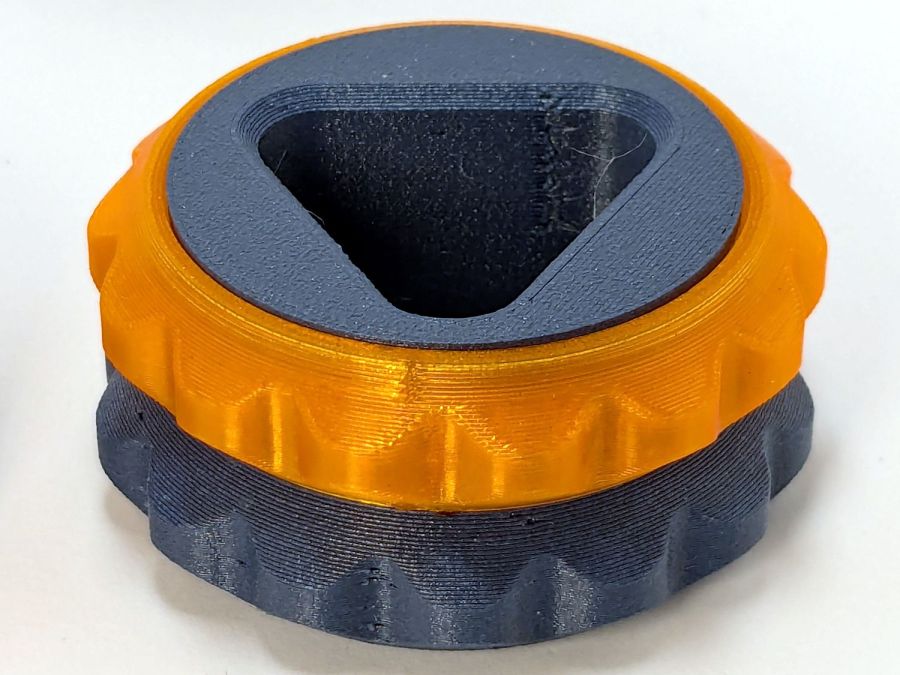
    Printing it in gray PETG-CF was uneventful, with the bridging layer coming out surprisingly well:

    Hose Fitting Grip - as printed
    Hose Fitting Grip – as printed

    The springs definitely have an air gap in there:

    Hose Fitting Grip - printed interior
    Hose Fitting Grip – printed interior

    And the support layer cuts out neatly with an Xacto knife:

    Hose Fitting Grip - support removed
    Hose Fitting Grip – support removed

    We’ve had enough rain over the last few days (something to do with a continental-scale storm) to keep me and my adhesives out of the garden, but it hasn’t needed any watering, either.

  • Bathtub Soap Tray V2

    Bathtub Soap Tray V2

    As expected, the adhesive foam strips I used on the bathtub soap tray didn’t survive continued exposure to hot soapy water, so Version 2 includes hooks securing it to the ceramic soap tray and a few other tweaks:

    Bathtub Soap Tray - V2 - LightBurn layout
    Bathtub Soap Tray – V2 – LightBurn layout

    The view from the top:

    Soap Tray V2 - top
    Soap Tray V2 – top

    The hooks are more visible from the bottom, as is the 10 AWG copper wire preventing the whole affair from rotating around the ceramic handle from the weight of the soap bar:

    Soap Tray V2 - bottom
    Soap Tray V2 – bottom

    Ignore the usual crud you’ll find on your ceramic soap tray, too.

    This time I glued things together with Weld-On IPS #3 acrylic solvent.

    The LightBurn layout as a GitHub Gist:

    Loading
    Sorry, something went wrong. Reload?
    Sorry, we cannot display this file.
    Sorry, this file is invalid so it cannot be displayed.
  • Converted OttLite Rebasing

    Converted OttLite Rebasing

    The OttLite I converted into a NisLite fell over again and, now having a way to make the long-promised base, this happened:

    Converted Ottlite - cardboard base
    Converted Ottlite – cardboard base

    It’s not particularly elegant, what with being cardboard, but it’s a proof of concept that will determine the final size.

    The top layer is a ring around the lamp pedestal for a bit of stabilization protecting the four M3 screws holding the base to the lamp. Those screws sit on a 60 mm square, offset 1 mm to the front of the lamp:

    NisLite Baseplate - LightBurn layout
    NisLite Baseplate – LightBurn layout

    Which explains why I typically make the first few versions of anything out of cardboard.

    For the record, those inserts look like this:

    Converted Ottlite - brass inserts
    Converted Ottlite – brass inserts

    A pair of very flat-head M3 screws hold the front inserts in place through holes match-drilled in the remains of the bosses I’d long ago epoxied in place. I pressed the rear inserts in place by misusing the drill press, as the lamp is much too tall for the heat setter.

    Then comes the iron base weight:

    Converted Ottlite - iron weight
    Converted Ottlite – iron weight

    And then the steel outer plate:

    Converted Ottlite - steel cover plate
    Converted Ottlite – steel cover plate

    The new base plate gets a ring around its perimeter for clearance under the four pan head M3 screws into the inserts.

    If the cardboard base is stable enough, we’ll do an acrylic version in cheerful primary colors.

    The LightBurn layout in SVG format as a GitHub Gist:

    Loading
    Sorry, something went wrong. Reload?
    Sorry, we cannot display this file.
    Sorry, this file is invalid so it cannot be displayed.
  • Ceiling Lamp Nuts

    Ceiling Lamp Nuts

    While cleaning dead bugs out of the ceiling lamps, we discovered the kitchen light was missing one of the three nuts holding its cover in place. While spare nuts might be available, this seemed like a quicker & easier solution:

    Ceiling Lamp Nut - bottom view - solid model
    Ceiling Lamp Nut – bottom view – solid model

    The stepped interior fits a brass insert with 8-32 threads (not metric, to my utter astonishment) rammed in place with a heat-set tool:

    Ceiling Lamp Nut - insert staking
    Ceiling Lamp Nut – insert staking

    Using the nominal diameters seems to work fine, although I’m sure some finesse will be needed with smaller inserts.

    Printed four just to be sure, rammed three inserts, and they’re ready:

    Ceiling Lamp Nuts - as-built
    Ceiling Lamp Nuts – as-built

    The curved cap matches the original nut through the use of the Chord Equation to get the cap radius as a function of its height (sagitta) & base diameter. Admittedly, it looks kinda grotty with only a dozen layers, but it’s the thought that counts.

    The original nuts are heavy knurled steel and the new ones are cheap plastic, but nobody will ever know:

    Ceiling Lamp Nut - installed
    Ceiling Lamp Nut – installed

    Bonus: now I have two spare steel nuts for the next time …

    The OpenSCAD source code:

    // Nuts for LED ceiling light fixture
    // Ed Nisley KE4ZNU
    // 2024-09-27
    
    KnurlLength = 7.4;
    KnurlOD = 9.0;
    
    CapOD = 9.0;
    CapHeight = 2.0;
    CapRadius = (pow(CapHeight,2) + pow(CapOD,2)/4)/(2*CapHeight);
    echo(CapRadius=CapRadius);
    
    NumSides = 1*(2*3*4);
    $fn = NumSides;
    
    Protrusion = 0.1;
    
    difference() {
        union() {
            intersection() {
                translate([0,0,KnurlLength + CapHeight - CapRadius])
                    sphere(r=CapRadius);
                translate([0,0,KnurlLength])
                    cylinder(d=2*KnurlOD,h=KnurlLength);
            }
    
            cylinder(d=KnurlOD,h=KnurlLength);
    
        }
    
    // Ad-hoc 8-32 brass insert sizes
    
        cylinder(d=5.5,h=8.0);
        cylinder(d=5.9,h=5.7);
        cylinder(d=6.2,h=2.2);
        translate([0,0,-Protrusion])
            cylinder(d=6.2,h=2.2);
    
    }
    
  • Prusa MK4: Cart Coins vs. Extrusion Multiplier

    Prusa MK4: Cart Coins vs. Extrusion Multiplier

    A special request came in for cart coins with a handle:

    Overstuffed cart key - 1.0EM
    Overstuffed cart key – 1.0EM

    That’s in gray PETG-CF (carbon fiber) with Extrusion Multiplier = 1.0 based on the Pill Tube tests and and slightly lower temperatures based on the temperature tower. It definitely looks overstuffed and so does the Wipe Tower for that set of six coins:

    Overstuffed cart key - wipe tower
    Overstuffed cart key – wipe tower

    The orange threads off to the right suggest something went terribly wrong with the top layer, which corresponds to the somewhat recessed cart image in the coin, but there were no other symptoms.

    All six of the next set failed completely:

    Failed cart key - 1.0EM
    Failed cart key – 1.0EM

    Apparently the nozzle hit the clotted gray filament in the Wipe Tower and stalled the X axis motor:

    Failed cart key - wipe tower
    Failed cart key – wipe tower

    That suggests the same thing happened to the first set during the last pass over the Wipe Tower, causing a less obvious failure.

    Setting the Extrusion Multiplier = 0.65 produced a better result:

    Cart key print - blue - 0.65EM
    Cart key print – blue – 0.65EM

    Albeit with a slightly understuffed top layer:

    Cart key print - 0.65EM
    Cart key print – 0.65EM

    But not by much:

    Cart key print - black - 0.65EM
    Cart key print – black – 0.65EM

    So the answer depends slightly on the PETG-CF filament color, but not by enough to justify defining three different filament types.

    Cart coins are essentially solid plastic layers with no empty infill, so they have nowhere for excess filament to hide. The Wipe Tower should have plenty of room, but even at EM=0.65 the tower looks overstuffed on the side with the carbon fiber purge lines:

    Cart key print 0.65EM - wipe towers
    Cart key print 0.65EM – wipe towers

    The default 110% line spacing in the tower seems too small for PETG-CF, so I’ll increase it to 150% to see if that reduces the clumping.

    Judged by the surface finish, a 0.65 Extrusion Multiplier is too low, so I’ll try a set of coins at 0.80.

  • Scanning Offset Adjustment: LightBurn vs. RDWorks

    Scanning Offset Adjustment: LightBurn vs. RDWorks

    A protracted debugging session on the LightBurn forum produced an interest result, which I must yoink over here so I can recall my thoughts:

    The test patterns will require power / speed tweakage to properly mark cardboard on other machines. The vector boxes are about 1.5 mm wide: these are small differences in small patterns.

    The setup for both LightBurn 1.7 RC-13 and RDWorks 8.01.65:

    • The engraved patterns run at 500 mm/s & 20% power
    • The lines & letters run at 100 mm/s & 8% Min – 9% Max power
    • All on white cardboard, with image contrast blown out

    Scanning offset = 0.2 mm = the usual setting for my machine

    In LightBurn:

    Scanning Offset 0.2 - LightBurn
    Scanning Offset 0.2 – LightBurn

    In RDWorks:

    Scanning Offset 0.2 - RDWorks
    Scanning Offset 0.2 – RDWorks

    The slight shift to the left in the LightBurn results shows LB does not shift the uni-directional pattern to line up with the vector shape as RDWorks does, which is what started the forum thread.

    Scanning offset = 1.0 mm to accentuate the difference, while shredding the bi-direction pattern as expected.

    LightBurn’s uni-directional engraved pattern is still in the same slightly leftward-shifted position relative to the vectors, showing the offset value has not been applied:

    Scanning Offset 1.0 - LightBurn
    Scanning Offset 1.0 – LightBurn

    RDWorks definitely applies the offset in both modes:

    Scanning Offset 1.0 - RDWorks
    Scanning Offset 1.0 – RDWorks

    I do not know why RDWorks did not output the final “l” over there on the right, but it did so on some (not all) of the patterns while setting things up. The jank is strong with it.

    So having LightBurn apply the same offset value for both uni- and bi-directional engravings would fix the (slight) offset in my machine. I think it will also fix the much larger misalignment in [the other] machine in that forum discussion.

    The whole problem seems to arise from the response time of the HV power supply / laser tube: the position of the left & right edges of the scanned output line depend critically on the rising and falling edges of the current applied to the tube and its power output.

    Being me, of course, makes me want a different offset value applied to the uni-directional case, just for fine tuning. Which would require a duplicate offset-per-speed table and that looks like a UX disaster comin’ on strong.

  • MMU3 vs. Cart Coin Calibrators

    MMU3 vs. Cart Coin Calibrators

    The last time around, I used Cart Coins to verify platform alignment (a.k.a. “leveling”) on the Makergear M2. The Prusa MK4 does mesh probing to ensure accurate alignment, so these new Cart Coins exercised the MMU3 and gave me some giveaways for a recent dinner:

    Cart Coin - assortment
    Cart Coin – assortment

    The design, such as it is, mashes a PNG found on the InterWebs with a few go-fast stripes added in LightBurn to balance the layout inside a circle:

    Cart Coin layout
    Cart Coin layout

    The motivations for LightBurn:

    • It’s convenient
    • TroCraft Eco is within 0.1 mm of the proper thickness
    • Laser-cut coins proceed with great speed

    Normally you’d export the finished layout as an SVG, but OpenSCAD ignores “holes” within shapes, so I exported it as a PNG to serve as a binary height map:

    • Import the PNG into OpenSCAD using surface()
    • Resize it to 20 mm wide and 1.7 mm tall
    • Knock it out of a 24 mm OD × 1.6 mm tall cylinder (which is why the extra 0.1 mm)
    • Add the PNG again as a separate 1.6 mm object to refill the hole

    Whereupon out pops a solid model:

    Cart Coin - solid model
    Cart Coin – solid model

    Export that as a 3mf file to keep the two objects aligned, import it into PrusaSlicer, then get multi-material on it:

    Cart Coin - PrusaSlicer layout
    Cart Coin – PrusaSlicer layout

    There’s a fourth group with different colors in hiding. I printed 12 identical coins at a time, mostly so I could keep track of what was happening, and it ended well enough.

    The black coins with the translucent retina-burn orange cart look surprisingly good.

    But this is way faster:

    They’re the size of a US quarter, because that’s what unlocks shopping carts around here. Feel free to tweak the parameters for your locale.

    The OpenSCAD source code is almost a one-liner:

    difference() {
        cylinder(d=24.0,h=1.6);
    
        resize([20.0,0,1.7],auto=true)
            linear_extrude(height=1,convexity=10)
               projection(cut=true)
                surface("/mnt/bulkdata/Project Files/Prusa Mk4/Models/Cart Coin/Cart Coin layout.png",
                        center=true,invert=true);
    }
    
        color("Black")
            resize([20.0,0,1.6],auto=true)
                linear_extrude(height=1,convexity=10)
                   projection(cut=true)
                    surface("/mnt/bulkdata/Project Files/Prusa Mk4/Models/Cart Coin/Cart Coin layout.png",
                            center=true,invert=true);
    

    Use them responsibly, OK?