Ed Nisley's Blog: Shop notes, electronics, firmware, machinery, 3D printing, laser cuttery, and curiosities. Contents: 100% human thinking, 0% AI slop.
Category: Software
General-purpose computers doing something specific
The humidifier that Came With The House™ had a lid with two broken plastic hinges that I figured I could never replace, but while cleaning out the fuzz for the upcoming season I found one missing piece stuck inside the lid. Given a hint, I glued it back in place:
Humidifier Hinge – outlined
There’s a strip of duct tape around the outside holding the fragment in place while the adhesive cured.
A manual curve fit to the image in Inkscape produced the red outline, which gets saved as a plain SVG and fed into OpenSCAD to create a solid model:
Humidifier Hinge – solid model
The cylinder doesn’t exactly fit the end of the hinge, but it’s close enough. The straightforward OpenSCAD code making that happen:
The pin has a hole for a M2 screw, but contemplation of the broken pieces suggested the pin wasn’t the weakest link, which later experience confirmed.
Figuring I’d need only one hinge, I made a spare for fitting:
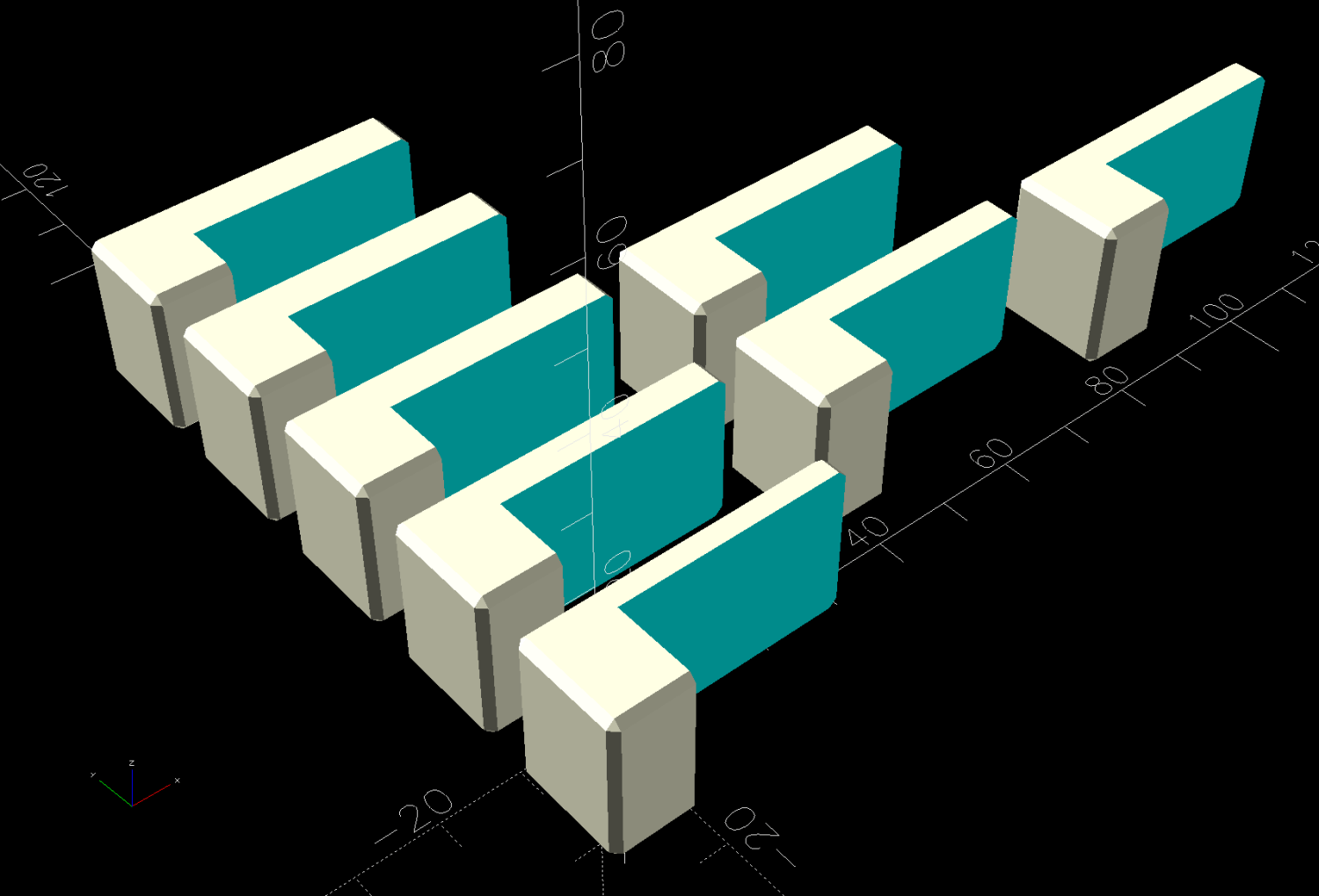
Humidifier hinge – on platform
The unmodified part fit just about perfectly, whereupon a completely ad-hoc fixture involving a pair of laser-cut MDF slabs, a craft stick epoxy mixer, and more duct tape held it in place while the adhesive cured:
Humidifier hinge – fixturing
The hinge pin turned out to be half a millimeter too long, which is easily fixed, and it worked fine:
Humidifier hinge – installed
That’s more duct tape wrapped around the perimeter to hold the pieces in place, should it break again.
Which, I regret to report, occurred on the way up the stairs from the Basement Shop™ when the lid slipped from my grasp, fell away from the rest of the humidifer’s top panel, and jammed open:
Humidifier hinge – break
The PETG-CF part held together, the adhesive remained bonded to both pieces, but the original plastic fractured just below the joint. A closer look from the other side shows the break:
Humidifier hinge – break detail
The other hinge broke about where it did before.
So the humidifier remains in service with the lid in status quo ante and a small bag inside holding the fragments for the next return to the shop.
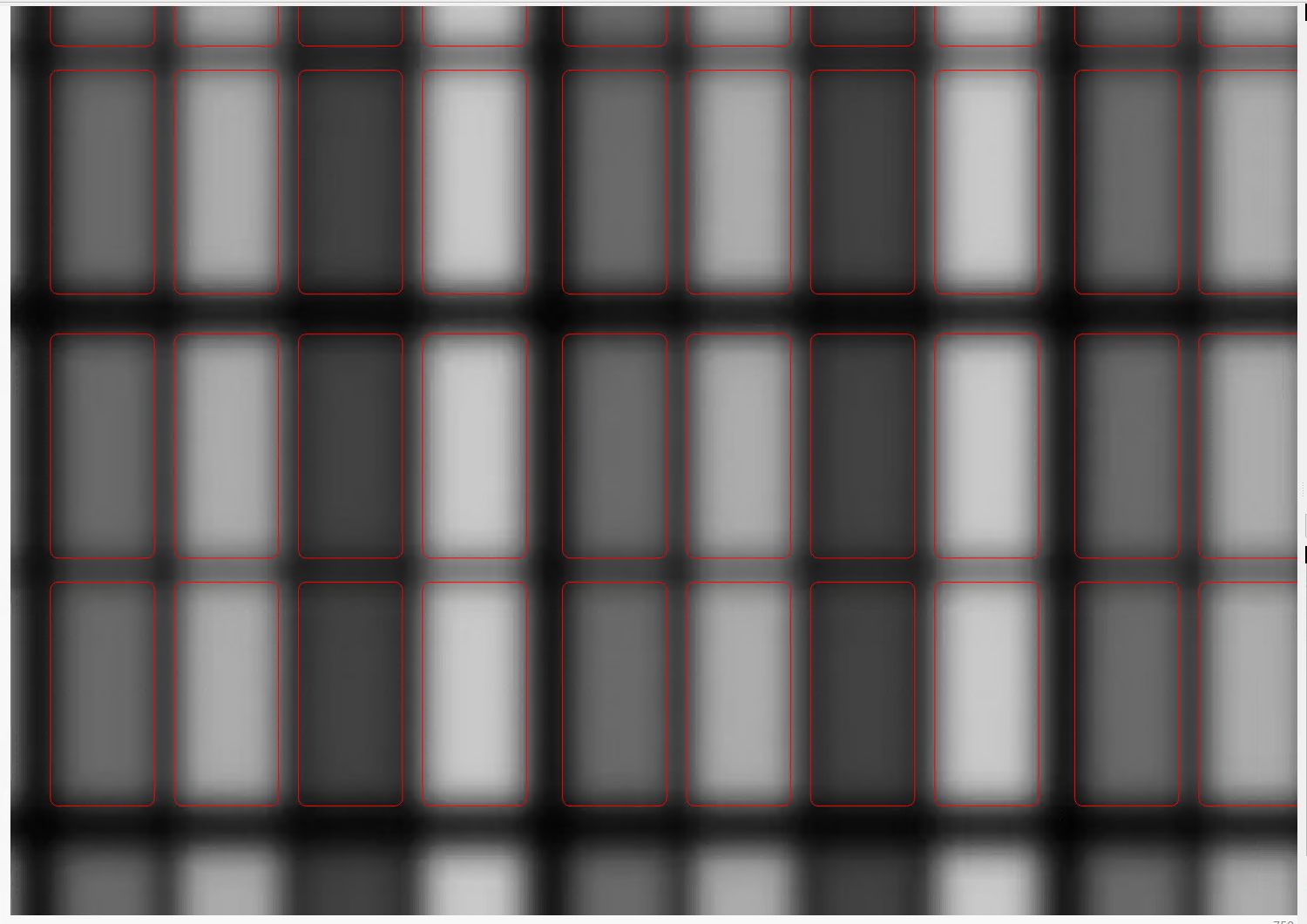
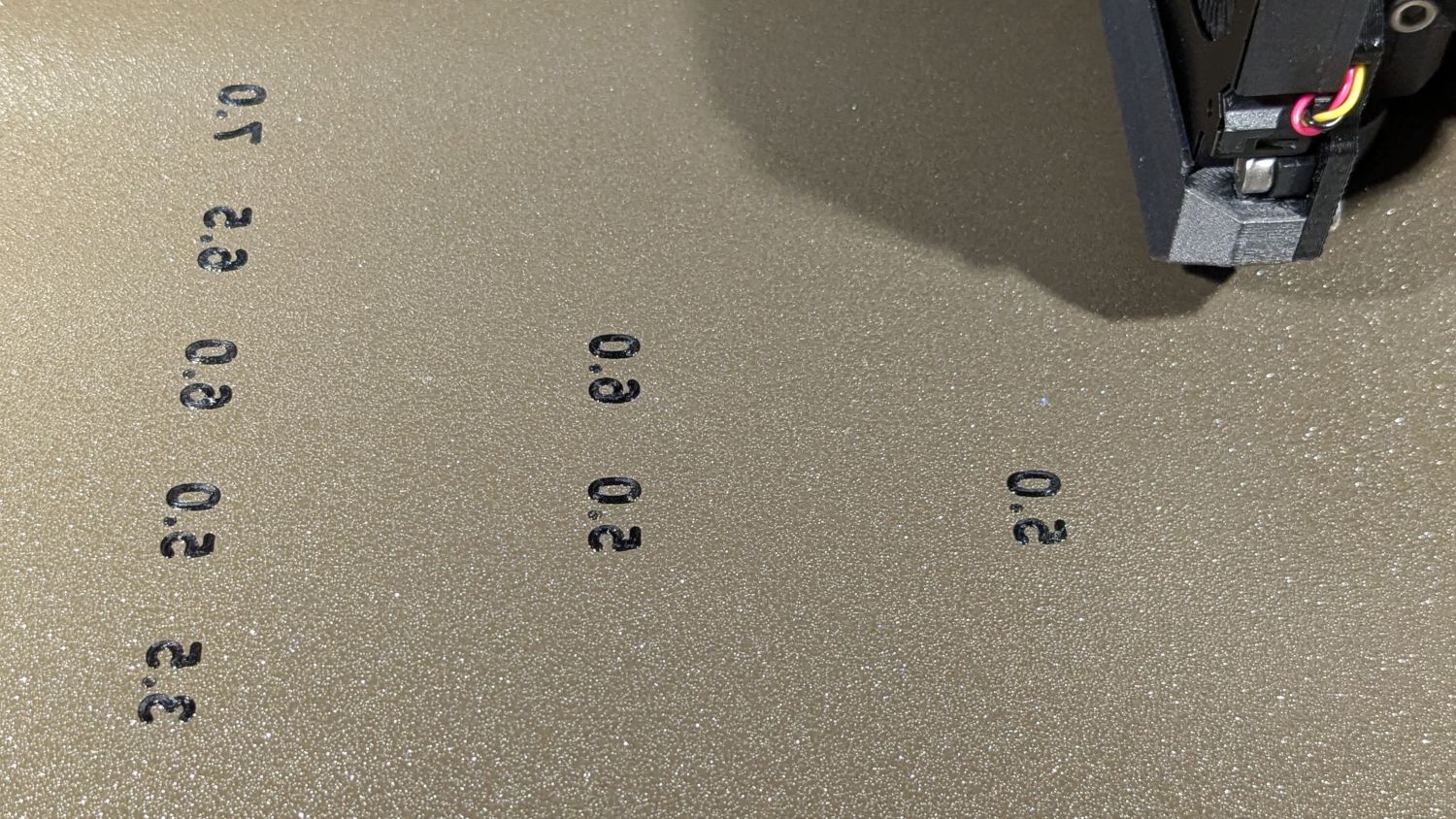
A few ramp tests with various Focus Distance + Home Offset settings as noted:
Ramp Test Targets – 14-17 mm
The bottom test was at 15 mm, which (contrary to previous estimates) seems to center the narrow band round 0.0 mm. Given the depth of field, a millimeter one way or the other likely doesn’t matter, particularly given the mmm lack of flatness in many materials.
The controller settings making it happen:
KT332N Autofocus settings
What they mean:
Home Offset = distance to retract after the autofocus “pen” = switch activates so the tip of the pen clears the material
Focus Distance = distance beyond Home Offset to put the focal point at the surface of the material (or wherever you want)
Enable Homing = makes autofocus work at the push of a button
Homing Speed = how fast the platform moves while focusing
Getting the focus right really makes the laser cut like it should!
Centering the autofocus “pen” = switch on the peg in the back puts the beam dead-center in the fixture, with the notches as comfort marks. The top of the peg is flush with the center notch, so the machine should be properly focused at that level after a focus operation.
Obviously, your laser has a different pen location, as will this one the next time I fiddle with anything around the nozzle.
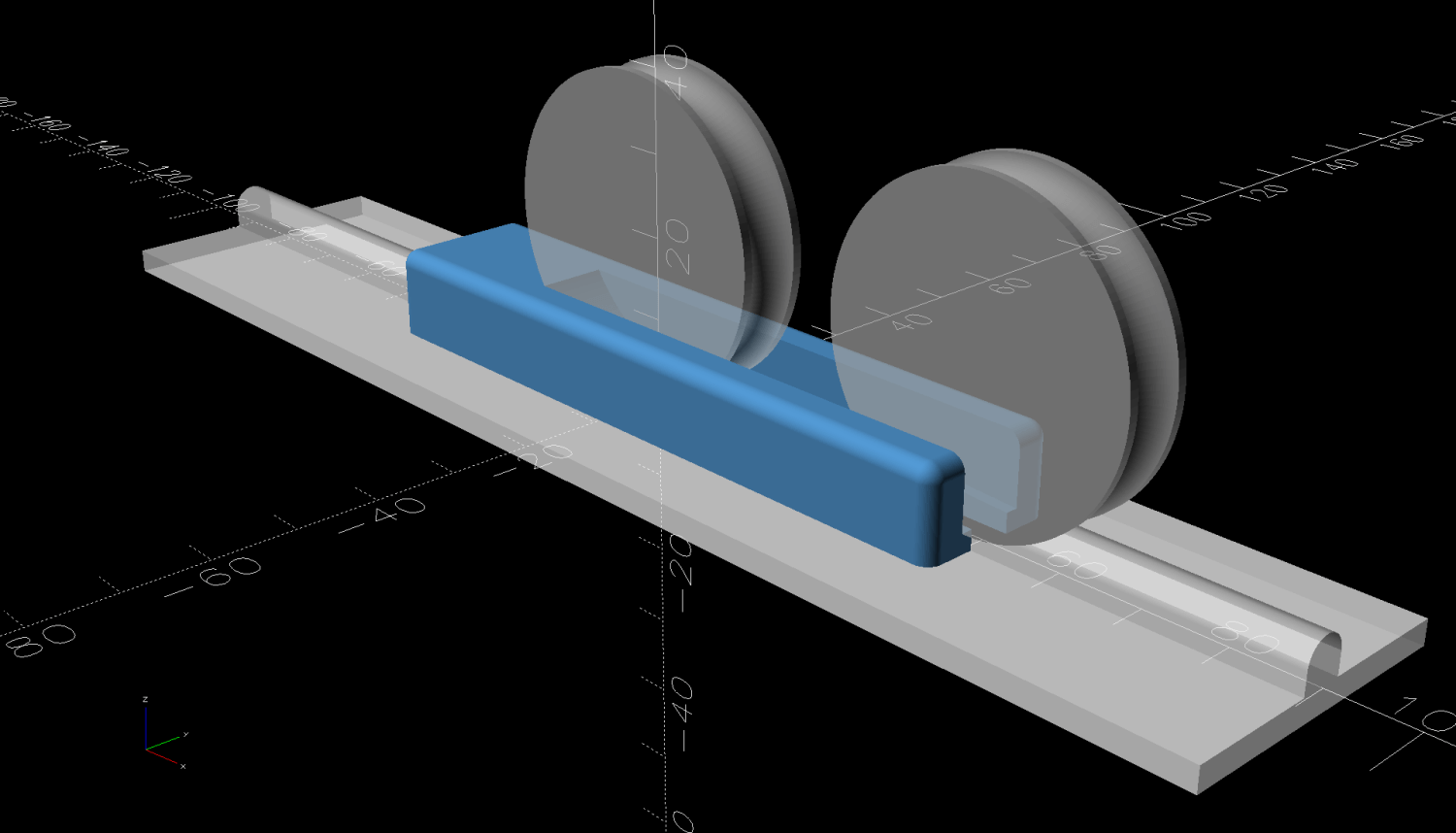
The general idea is to tape a target to the ramp, with some attention to flattening the paper (tape the edges in critical spots as needed) & putting its zero at the center marks, align the fixture to the laser path along the X axis & secure it with a few magnets, then burn a single line at low power along the length of the scale:
Ramp Test Fixture – laser line
The mark will be thinnest in the region with the best focus, which should be centered around the 0.0 mark in the middle. In that photo, the thinnest section runs from about -2.0 to +1.0, although (at least for me) it does take some squinting to be sure.
The ramp has a 1:10 = 5.71° slope to spread 1 mm of vertical focus across 10 mm of horizontal distance. If you’re being finicky, you should rescale the targets to correct the 0.5% cosine error, but IMO it’s irrelevant for this purpose.
A few more tests varying the focus distance by a millimeter:
Ramp Test Targets – 15 16 mm
AFAICT, setting the controller’s Focus Distance to 16 mm is about right. That puts the focal point 18 mm below the nozzle, as shown in the earlier post, and is pretty much what I’ve been using all along.
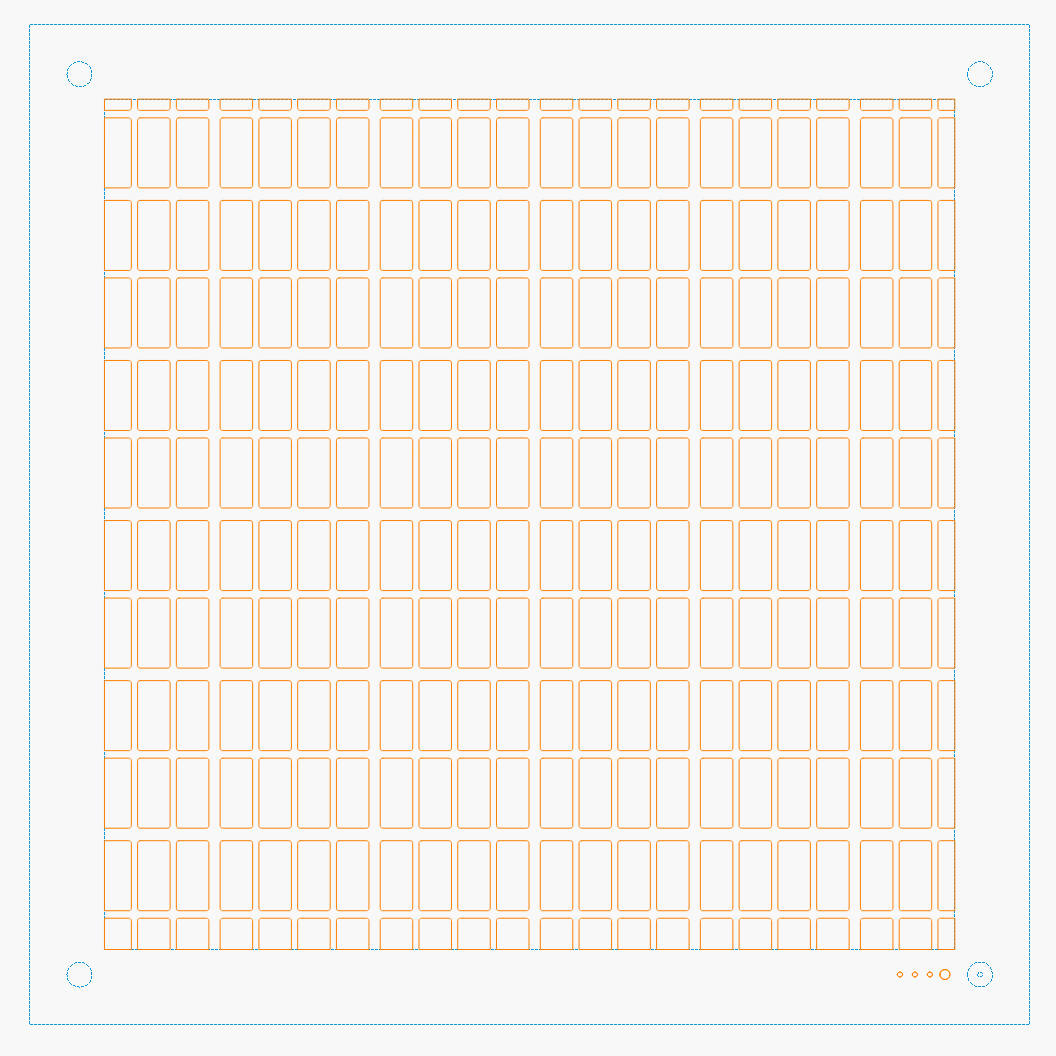
The OpenSCAD code as a GitHub Gist, along with a simplified target layout in SVG format:
This file contains hidden or bidirectional Unicode text that may be interpreted or compiled differently than what appears below. To review, open the file in an editor that reveals hidden Unicode characters.
Learn more about bidirectional Unicode characters
Long years ago, the Bakelite (or some such) lid on our rarely used teapot disintegrated, whereupon I replaced it with an aluminum sheet and metal knob. Admittedly, a metal knob was not the brightest idea I ever had, but it sufficed for a few uses over the intervening decades.
Mary hosted this month’s quilting bee and, after having someone else bring a larger teapot for the occasion, suggested I Make. A. Better. Knob. After a bit of searching, this statue seemed appropriate for the season:
Skull teapot knob
It’s printed with PETG filament that should easily withstand the no-more-than-boiling-water temperatures found atop a teapot.
I imported the original model into PrusaSlicer, shrank it to 50 mm tall and simplified the mesh, exported it as an OBJ file, imported it into OpenSCAD, mashed it together with a 1/4-20 threaded_nut from BOSL2, added the finger protector, and got a suitable model:
Teapot Knob – solid model bottom view
The as-printed threads were a bit snug with $slop=0, but running the screw in with a dot of silicone grease to ease the way worked fine.
I should rebuild the whole lid in PETG-CF sometime.
The Ruida KT332N controller on my OMTech laser cutter has two settings affecting the final position of the U axis (which controls the platform’s position) after pushing the Focus button on the machine console:
KT332N Laser Controller display
After turning the machine on or pressing the Reset button, the U axis does not automatically home and reports its position as 1000 mm. This allows manual control in either direction with the U↑ and U↓ buttons.
Pushing the Focus button (then confirming the action by pressing the Ent⏎ button) causes the controller to raise the platform until the focus “pen” (which is really a switch) trips, presumably on the material you intend to cut / engrave. This picture shows the pen and its attachment to the laser nozzle:
OMTech laser focus pen-switch
The pen’s position in its clamp has no relation to the laser beam focal point below the nozzle: loosening either of the clamp screws lets you move the pen vertically. You must tell the controller how much to move the platform after the switch trips to properly set the focus, which means you must measure that distance. More on that later.
The vertical position of the platform when the “pen” switch trips is its Home position. The controller then lowers the platform by the distance in the Home Offset setting and defines that position as U = 0.0 mm.
The Home Offset can be zero:
KT332N Home Offset Setting
In which case the platform does not move after the switch trips:
Focus step gauge – 3 mm
The step gauge shows the nozzle is 3.0 mm above the material (the first step is 2 mm, because a 1 mm acrylic tab is crazy talk) when the switch trips. Although you can’t quite see the switch plunger through the gauge, it has about 5 mm of travel before tripping, which means it’s firmly pressed against the material and you must not move the nozzle in X or Y to avoid scraping the plunger across the material.
Setting Home Offset to 15.0 mm lowers the platform by 15 mm after the switch trips, putting the nozzle 18 mm above the material:
Focus step gauge – 18 mm
You can (and I have) set the Home Offset so the platform lowers by exactly enough to put the focused beam at the top of the material: push the Focus button and the machine automatically focuses on the material and sets U=0.0 mm at that level.
Unfortunately, the controller will subsequently not move the platform above that position, corresponding to U axis coordinates below zero. That means you (well, I) cannot move the platform upward to put the focus point into the material, as is sometimes required for a good cut through thicker material.
The Focus Distance setting defines an additional distance from wherever the Home Offset leaves the platform:
KT332N Focus Distance Setting
It’s not 15 mm, because I was fiddling with the focus.
That value will position the platform 16 mm below the switch trip point. Because Home Offset = 0.0 sets the U axis coordinate to zero at the trip point, the U axis will be at 16 mm when the platform stops moving.
The key difference is that the controller will now allow the platform to move upward, with decreasing U axis coordinates, until it reaches the switch trip position at U=0. The last 5 mm of travel will occur with the switch actuator pressing against the material, so it’s pretty much useless for actual cutting or engraving.
So I think the way to go involves setting:
Home Offset to the 5-ish mm required for full switch release
Focus Distance to the remaining 10-ish mm with the focal point on the material surface
I hadn’t done that before, because I hadn’t thought this through.
The Home Offset depends only on the switch travel before it actuates and won’t change when (not if) the pen position changes with respect to the nozzle.
The Focus Distance defines the additional travel for proper focus at the material surface, so that’s where all the variations due to pen position will go. Unfortunately, that distance cannot be directly measured, because it corresponds to the difference between two positions.
Being an Old Guy, I lift dumbbell weights after bike rides for load-bearing upper-body exercise, but need a few more dumbbell nuts (a.k.a. “collars”) to simplify adjusting the weights for each set. Such things are commercially available, but the reviews suggest abysmally bad thread QC and a high return rate.
Given that I treat my toys carefully, this should suffice:
Dumbbell Nut – finished
Start with a scan of a steel nut in GIMP:
Dumbbell Nut – scan
Blow out the contrast, trace it, smooth out some irregularities, get a mask:
Dumbbell Nut – mask
Select by color, convert the selection to a path, save as SVG, import into OpenSCAD, add a nut with threads from the incomparably useful BOSL2 library, extrude a few features, and this pops out:
Dumbbell Nut – solid model
Run it through PrusaSlicer, print on the MK4, and iterate a few times to get everything right:
Dumbbell Nut – test pieces
I naively thought the threads were something standard like Acme, but they’re full-frontal custom trapezoidal. I knew the first pass would be wrong, so the small hex nut on the left started the whole process. Upper left is a revised Acme thread with all the other features, lower middle is the custom trapezoidal thread, and the nut on the upper right worked. Make three more, just like the first one, enjoying the magic of 3D printing.
Draw the bumper washer in LightBurn based on the dimensions in the OpenSCAD code, cut a set from stamp-pad rubber & adhesive sheet, then assemble:
Dumbbell Nut – assembly
As the saying goes, we got nuts:
Dumbbell Nut – installed
The gray PETG-CF looks black against a white background and gray against black iron.
With a set of precisely fitting nuts in hand, I discovered one of the four bars in my weight sets is slightly larger than the others, so the code now produces an embiggened root diameter and I have two spares.