The Smell of Molten Projects in the Morning

Ed Nisley's Blog: Shop notes, electronics, firmware, machinery, 3D printing, laser cuttery, and curiosities. Contents: 100% human thinking, 0% AI slop.

Category: Photography & Images

Taking & making images.

  • Tour Easy: Another SJCAM C100+ Mount

    Tour Easy: Another SJCAM C100+ Mount

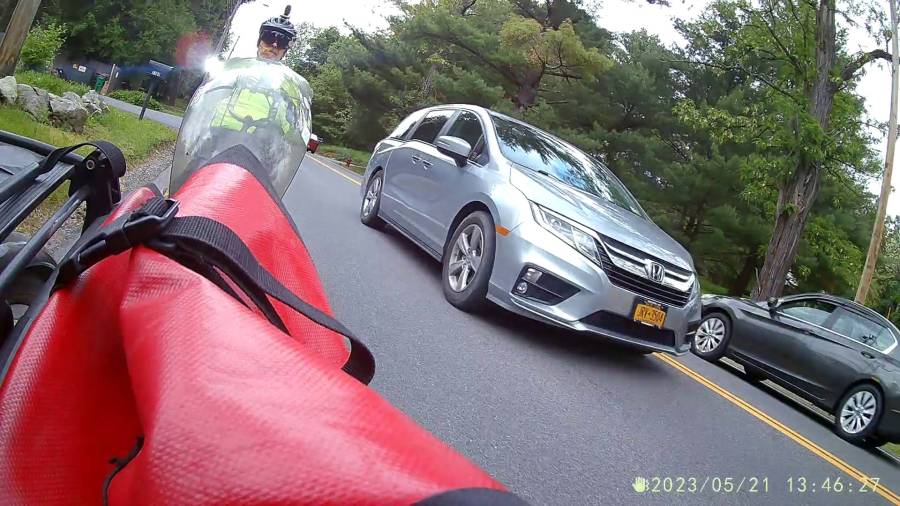
    Eight years of progress in the action camera world gets you from a rather expensive Cycliq Fly6:

    Tour Easy - Fly6 image
    Tour Easy – Fly6 image

    To an SJCAM C100+ camera costing the better part of fifty bucks on closeout:

    Tour Easy - C100 image
    Tour Easy – C100 image

    The camera is mounted on the side of the seat frame on Mary’s Tour Easy:

    Tour Easy C100 mount - side rail
    Tour Easy C100 mount – side rail

    The slightly tilted picture comes from the frame rail’s incline. My C100+ camera mounts on the horizontal part of the rail:

    Tour Easy C100 mount - rear rail
    Tour Easy C100 mount – rear rail

    As expected, the internal battery does not last for our usual hour-long rides, so the cameras now operate in “car mode”: recording starts when we plug in the USB battery pack and stops shortly after unplugging.

    I started with the waterproof case on my bike:

    Tour Easy - SJCAM C100 mount - installed
    Tour Easy – SJCAM C100 mount – installed

    Which (obviously) does not allow for an external battery, so they’re now in the “frame” mount. The hatch covering the MicroSD card and USB Micro-B connector (and a Reset button!) is on the bottom of the camera, but (fortunately) the whole affair mounts up-side-down and the settings include an image flip mode.

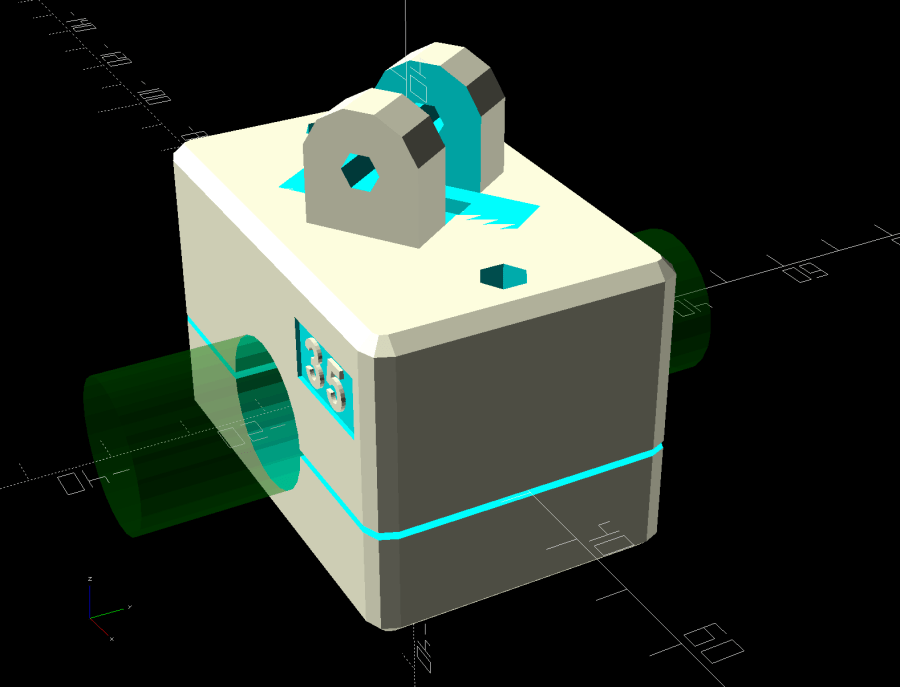
    Putting the camera on the side required changing the mount angle from -20° to +35°:

    SJCAM C100 Mount - 35 degree solid model
    SJCAM C100 Mount – 35 degree solid model

    The ergonomics / user interface of this whole setup is terrible:

    • The camera’s flexible hatch is recessed inside the frame far enough that it cannot be opened without using a small & sharp screwdriver
    • The USB jack is slightly off-center, so lining the plug up with the camera body doesn’t align it with the jack
    • The MicroSD card is in a push-to-release socket, but its raised ridge faces the hatch flap and cannot be reached by a fingernail. I added a small tab that helps, but it’s difficult to grasp.

    Extracting the video files from the camera through the app is an exercise in frustration. Having already figured out how to do this for the other cameras in the fleet, it’s easier to fumble with the MicroSD card.

    I devoutly hope we never really need any of the videos.

  • HW Bucked Lithium AA Cells

    HW Bucked Lithium AA Cells

    The trail camera uses two parallel banks of four series AA cells to get enough oomph for its IR floodlight. I’m not convinced using bucked lithium AA cells in that configuration is a Good Idea, but it’s worth investigating.

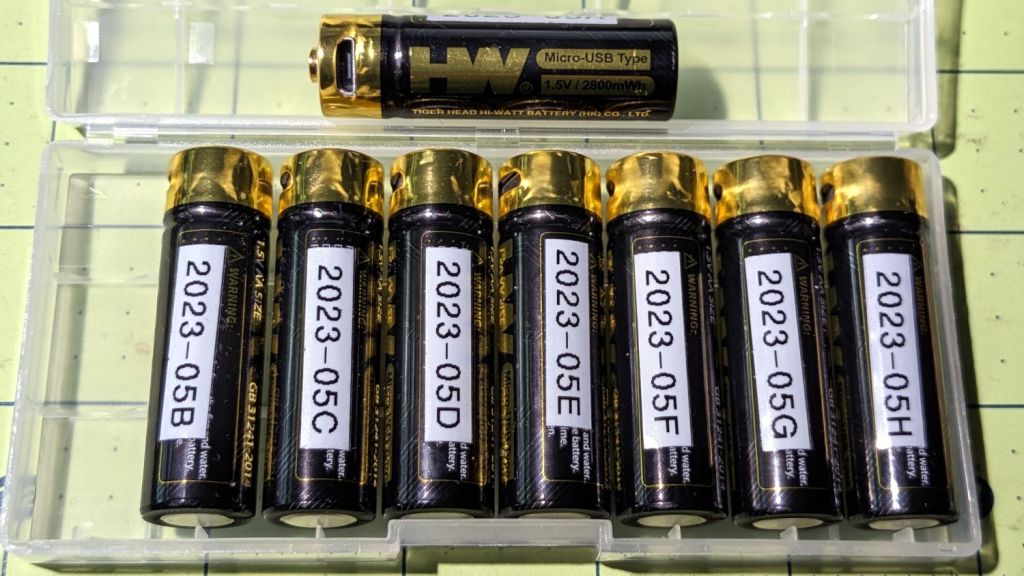
    These are labeled HW, rather than Fuvaly, because it seems one cannot swim twice in the same river:

    HW bucked Li AA cells
    HW bucked Li AA cells

    In any event, they come close to their claimed 2.8 W·hr capacity:

    HW bucked Li AA - 2023-05
    HW bucked Li AA – 2023-05

    The lower pair of traces (red & black) are single cells at 2.7-ish W·hr, the blue trace is a pair at 5.4 W·hr, and the green trace is a quartet at 9.8 W·hr. Surprisingly close, given some previous results in this field.

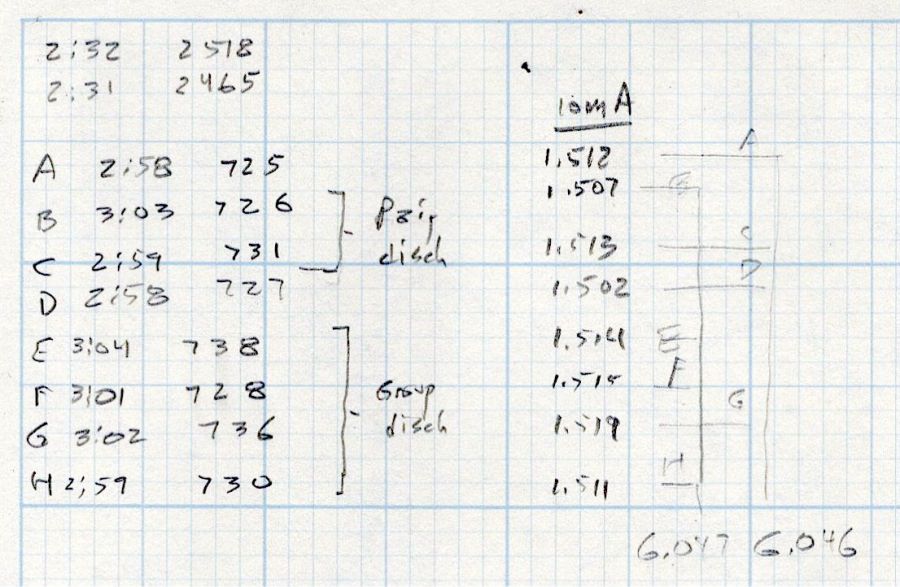
    Recharging the cells after those tests shows they all take 3 hours ± a few minutes to soak up 730 mA·hr ± a few mA·hr, so they’re decently matched.

    Measuring the terminal voltage with a 10 mA load after that charge lets me match a pair of quartets to 1 mV, which is obviously absurd:

    HW bucked Li cells - initial charge 2023-05-05
    HW bucked Li cells – initial charge 2023-05-05

    The numbers in the upper left corner show the initial charge of four cells at a time required the same time within a minute and the same energy within 4%.

    Sticking them in the trail camera must await using up the current set of alkaline AA cells.

    Bonus: a lithium fire in a trail camera won’t burn down the house.

    After all, pictures like this are definitely worth the hassle:

    Young Buck in velvet - 2023-05-03
    Young Buck in velvet – 2023-05-03

    Looks like a pair of WiFi antennas …

  • Trail Camera: Skunk

    Trail Camera: Skunk

    We’ve never seen a skunk by day, so this was a bit of a surprise:

    Skunk by night
    Skunk by night

    We occasionally smell a skunk by night, but this critter seems peaceable enough:

    Skunk by night - detail
    Skunk by night – detail

    Skunks usually have a striped back, so this one’s pure white fur will be easy to identify should we meet again, ideally at a mutually respectful distance.

  • SJCAM M50 Trail Camera: Dead Remote

    SJCAM M50 Trail Camera: Dead Remote

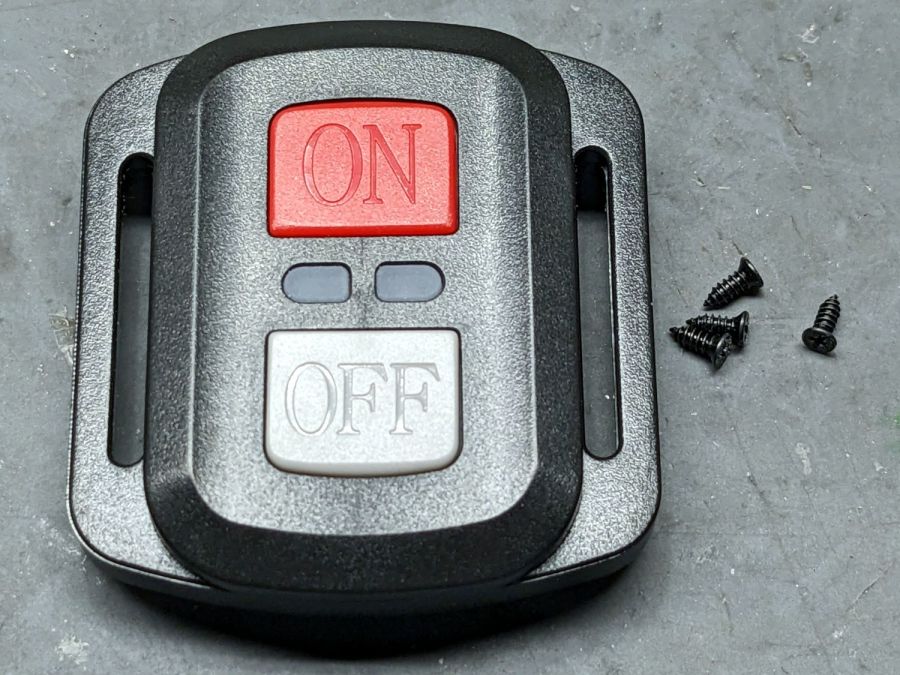
    The remote control included with the SJCAM M50 trail camera did absolutely nothing. Not only did it not turn on the camera’s WiFi, the two indicator LEDs between the buttons didn’t blink:

    SJCAM M50 remote - front view
    SJCAM M50 remote – front view

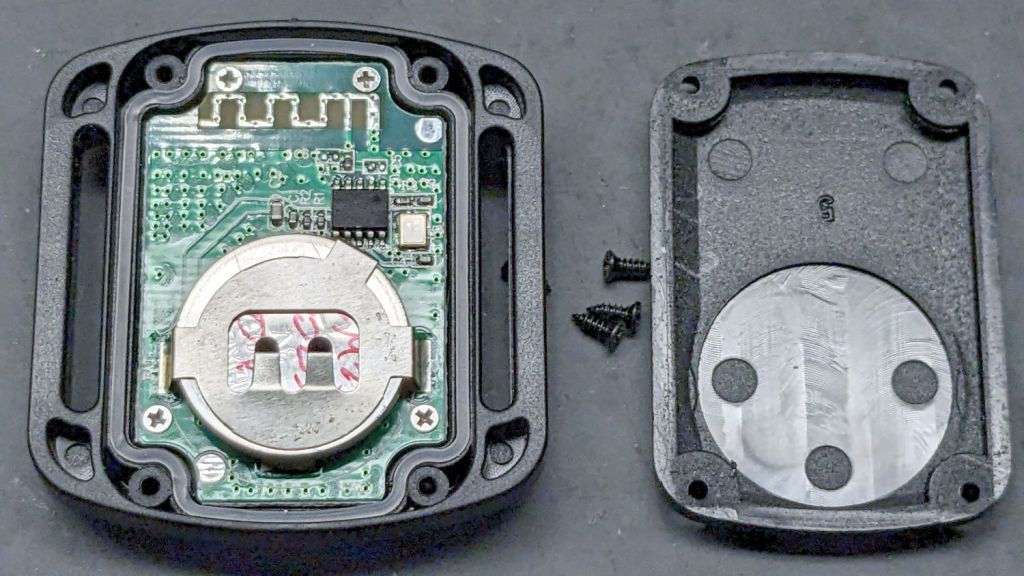
    With not much to lose, I removed those four screws and popped the back cover:

    SJCAM M50 remote - interior
    SJCAM M50 remote – interior

    Yup, the OEM no-name CR2032 lithium cell was dead flat discharged. A new one perked it right up, with blinky LEDs and all.

    Now I can check the camera for interesting pix without hauling it into the house:

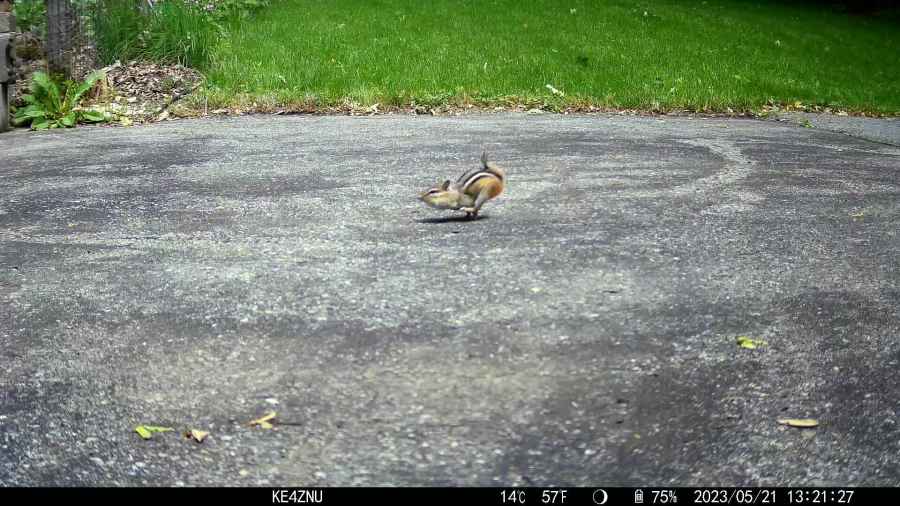
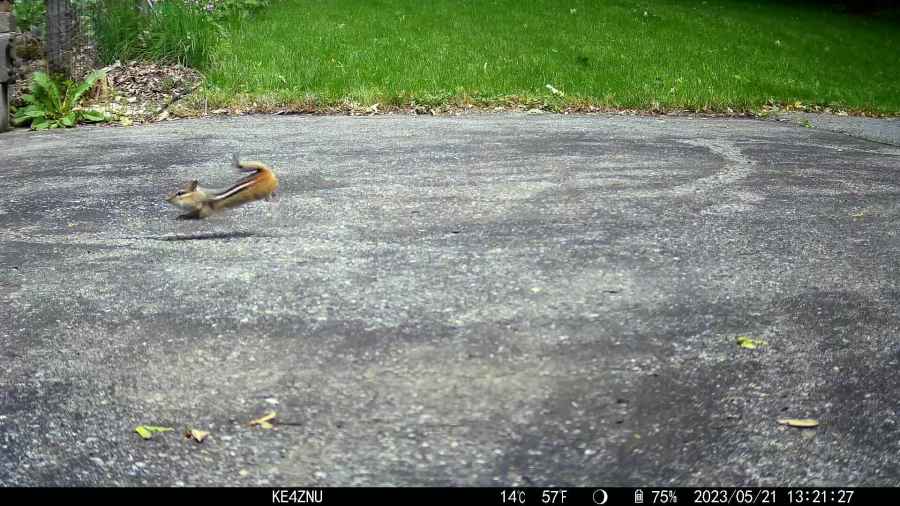
    The Early Raccoon
    The Early Raccoon

    Plenty of critters making the rounds out there …

  • Tour Easy: SJCAM C100+ Mount

    Tour Easy: SJCAM C100+ Mount

    The batteries (which are no longer available) and the control buttons have worn out on the SJCAM M20 camera on the back of my Tour Easy, so a replacement is in order:

    Tour Easy - SJCAM C100 mount - installed
    Tour Easy – SJCAM C100 mount – installed

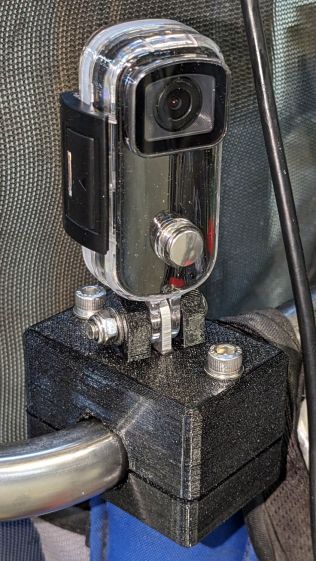
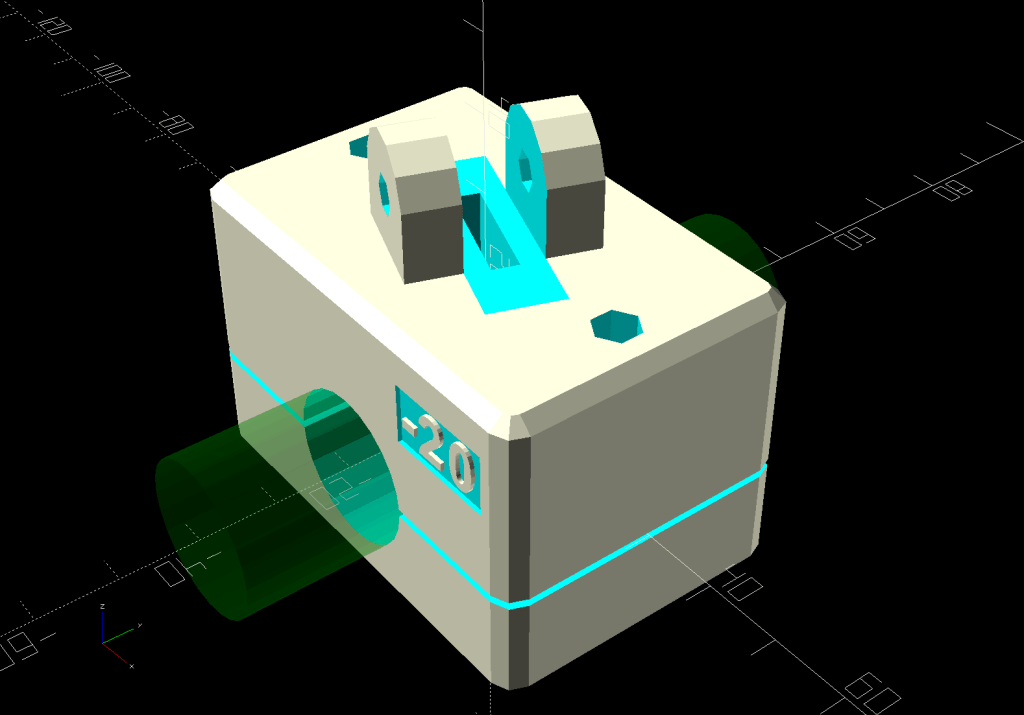
    It’s an SJCAM C100+ in its waterproof housing, screwed to a block descended from the M20 mount:

    SJCAM C100 Mount - solid model
    SJCAM C100 Mount – solid model

    The C100+ has a non-replaceable lithium pouch battery that may not last for the hour or so we generally ride, but at least this is a starting point for seeing how the thing works.

    The PrusaSlicer preview shows the support structure inside the seat rail arches:

    SJCAM C100 Mount - slicer
    SJCAM C100 Mount – slicer

    That appears under the four central facets of each arch, where I “painted” the support enforcers, because the automagic supports fill the entire arch and are basically impossible to pry off.

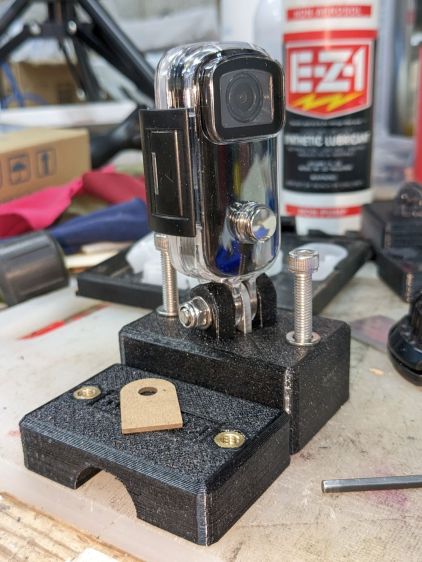
    The hole between the ears on the top holds an aluminum tab intended to diffuse the wobble from that tall camera. A laser-cut chipboard template simplified drilling & cutting the tab from an aluminum sheet:

    Tour Easy - SJCAM C100 mount - test fit
    Tour Easy – SJCAM C100 mount – test fit

    The tab and the brass inserts are held in place with JB Weld Plastic Bonder, my new go-to adhesive for such things.

    The camera includes WiFi and the inevitable app lets you download images without opening the case. Because I’ll be charging the camera after each ride, I may as well just haul the whole thing inside, plug it into a USB port, and proceed as before.

    For future reference, the manual details the operating modes:

    SJCAM C100 Manual - Modes
    SJCAM C100 Manual – Modes

    Because the camera powers up with WiFi enabled and I have no plans to communicate with it while riding, the startup sequence will be:

    • Long-press to power on
    • Double-click to disable WiFi
    • Single-click to start recording

    The OpenSCAD source code as a GitHub Gist:

    // SJCAM C100+ Camera Mount for Tour Easy seat back rail
    // Ed Nisley – KE4ZNU
    // 2023-04
    /* [Layout Options] */
    LookAngle = -20; // camera angle, looking backwards = 0°
    Layout = "Show"; // [Show,Build]
    /* [Hidden] */
    ThreadWidth = 0.40;
    ThreadThick = 0.25;
    HoleWindage = 0.2;
    Protrusion = 0.1;
    ID = 0;
    OD = 1;
    LENGTH = 2;
    //—–
    // Dimensions
    ClampScrew = [5.0,10.0,40.0]; // ID=thread OD=washer LENGTH=total
    ClampInsert = [5.0,7.5,10.5]; // brass insert
    MountScrew = [5.0,10.0,23.0]; // ID=thread OD=washer LENGTH=under nut
    MountInsert = [5.0,7.5,10.5]; // ID=screw OD, OD=knurl dia
    EmbossDepth = 2*ThreadThick + Protrusion; // recess depth + Protrusion beyond surface
    DebossHeight = EmbossDepth; // text height + Protrusion into part
    RailOD = 20.0; // slightly elliptical in bent section
    RailSides = 2*3*4;
    ClampOA = [60.0,40.0,ClampScrew[LENGTH]]; // set clamp size to avoid weird screw spacing
    echo(ClampOA = ClampOA);
    ClampScrewOC = IntegerMultiple(ClampOA.x – ClampScrew[OD] – 10*ThreadWidth,1.0);
    echo(ClampScrewOC = ClampScrewOC);
    ClampOffset = 5.0; // in case we need more room on top
    ClampRadius = 3.0;
    ClampSides = 8;
    Kerf = 1.0; // slice through the middle
    // center mount blade, Z = depth into block
    MountBlade = [15.0 + 2*HoleWindage,
    3.0 + 2*HoleWindage,
    (ClampOA.z – RailOD + ClampOffset)/2 – 4*ThreadThick + Protrusion];
    echo(MountBlade = MountBlade);
    MountRadius = MountBlade.x / 2;
    MountGap = 9.5; // camera mount gap around center blade
    MountOffset = [0,0,7.0]; // mount hole offset from block surface
    FadeColor = "Green";
    FadeAlpha = 0.25;
    //—–
    // Useful routines
    function IntegerMultiple(Size,Unit) = Unit * ceil(Size / Unit);
    module PolyCyl(Dia,Height,ForceSides=0) { // based on nophead's polyholes
    Sides = (ForceSides != 0) ? ForceSides : (ceil(Dia) + 2);
    FixDia = Dia / cos(180/Sides);
    cylinder(r=(FixDia + HoleWindage)/2,
    h=Height,
    $fn=Sides);
    }
    //—–
    // Clamp
    // Grips seat frame rail
    // Origin at middle of seat rail, X rearward, Y parallel to seat frame rail
    // Block offset raises whole thing
    module Clamp() {
    difference() {
    translate([0,0,ClampOffset]) {
    difference() {
    union() {
    hull() // the main block
    for (i=[-1,1], j=[-1,1], k=[-1,1])
    translate([i*(ClampOA.x – 2*ClampRadius)/2,
    j*(ClampOA.y – 2*ClampRadius)/2,
    k*(ClampOA.z – 2*ClampRadius)/2])
    sphere(r=ClampRadius/cos(180/ClampSides),$fn=ClampSides);
    hull() // camera mount boss
    for (k=[0,1])
    translate([0,0,k*(MountOffset.z) + ClampOA.z/2])
    rotate([0,90,LookAngle + 90]) rotate(180/12)
    cylinder(r=MountRadius,h=MountScrew[LENGTH],center=true,$fn=12);
    }
    for (i=[-1,1]) // clamp inserts
    translate([i*ClampScrewOC/2,0,-(ClampOA.z/2 + Protrusion)])
    rotate(180/6)
    PolyCyl(ClampInsert[OD],ClampInsert[LENGTH],6);
    for (i=[-1,1]) // clamp screw holes
    translate([i*ClampScrewOC/2,0,-ClampOA.z])
    rotate(180/6)
    PolyCyl(ClampScrew[ID],2*ClampOA.z,6);
    translate([0,0,ClampOA.z/2 – (MountBlade.z/2 – Protrusion/2)]) // camera center blade
    rotate(LookAngle)
    cube(MountBlade,center=true);
    rotate(LookAngle + 90) // camera mount boss slot
    translate([0,0,ClampOA.z/2 + 2*MountRadius])
    cube([MountGap,4*MountRadius,4*MountRadius],center=true);
    translate([0,0,ClampOA.z/2 + MountOffset.z]) // camera mount boss hole
    rotate([90,0,LookAngle])
    cylinder(d=MountScrew[ID],h=4*MountGap,center=true,$fn=6);
    translate([0.3*ClampOA.x, // recess for LookAngle legend
    -(ClampOA.y/2 – (EmbossDepth – Protrusion)/2),
    ClampOA.z/4])
    cube([15,EmbossDepth,8],center=true);
    translate([0,0,-ClampOA.z/2 + (EmbossDepth – Protrusion)/2]) // recess for ID legend
    cube([35,10,EmbossDepth],center=true);
    }
    translate([0.3*ClampOA.x, // LookAngle legend
    -ClampOA.y/2 + DebossHeight + Protrusion/2,
    ClampOA.z/4])
    rotate([90,0,00])
    linear_extrude(height=DebossHeight,convexity=20)
    text(text=str(LookAngle),size=6,spacing=1.20,
    font="Arial:style:Bold",halign="center",valign="center");
    translate([0,0,-ClampOA.z/2]) // ID legend
    linear_extrude(height=DebossHeight,convexity=20)
    mirror([0,1,0])
    text(text="KE4ZNU",size=5,spacing=1.20,
    font="Arial:style:Bold",halign="center",valign="center");
    }
    cube([2*ClampOA.x,2*ClampOA.y,Kerf],center=true); // split across rail
    rotate([90,0,0]) // seat rail
    cylinder(d=RailOD,h=2*ClampOA.y,$fn=RailSides,center=true);
    }
    }
    //—–
    // Build things
    // Layouts for design & tweaking
    if (Layout == "Show") {
    Clamp();
    color(FadeColor,FadeAlpha)
    rotate([90,0,0])
    cylinder(d=RailOD,h=2*ClampOA.y,$fn=RailSides,center=true);
    }
    // Build layout
    if (Layout == "Build") {
    translate([0,0.7*ClampOA.y,0])
    difference() {
    translate([0,0,-Kerf/2])
    Clamp();
    translate([0,0,-ClampOA.z])
    cube(2*ClampOA,center=true);
    }
    translate([0,-0.7*ClampOA.y,-0])
    difference() {
    translate([0,0,-Kerf/2])
    rotate([0,180,0])
    Clamp();
    translate([0,0,-ClampOA.z])
    cube(2*ClampOA,center=true);
    }
    }

  • The Early Opossum

    The Early Opossum

    Having just deployed a trail camera to see what might be skulking about in the middle of the night, this appeared just before the (not fresh) batteries died:

    The Early Opossum
    The Early Opossum

    It’s hard to tell with possums, but I’d say that critter is on a mission!

    I’m still figuring out proper distances; the possum is about two feet away, which is obviously much too close. Great focus on the water barrels standing by the garage, though.

  • Medium Ricotta Lid Box: QR Code vs. Chipboard

    Medium Ricotta Lid Box: QR Code vs. Chipboard

    Another box from the festi.info box configurator to collect more lids in a kitchen drawer:

    Medium Ricotta Lids box
    Medium Ricotta Lids box

    This was really a thinly veiled excuse for a deeper look at the QR code generator encoding the myriad parameters required to create the box and see what happens when you try to burn such a complex thing into chipboard.

    Spoiler: chipboard has very low contrast and really does not work well with high-density QR codes.

    Although the festi.info box generator can produce QR codes, I used qrencode (available in your Linux distro) on the command line to generate QR code image files with specific settings:

    qrencode --level=M --size=6 --dpi=254 --output='Ricotta Lids 2 lb - chipboard.png' 'http://festi.info/boxes.py/ABox?FingerJoint_angle=90.0&FingerJoint_style=rectangular&FingerJoint_surroundingspaces=2.0&FingerJoint_bottom_lip=0.0&FingerJoint_edge_width=2.0&FingerJoint_extra_length=0.0&FingerJoint_finger=2.0&FingerJoint_play=0.0&FingerJoint_space=3.0&FingerJoint_width=1.0&x=200.0&y=120.0&h=60.0&outside=0&bottom_edge=h&thickness=1.4&format=lbrn2&tabs=0.0&qr_code=0&debug=0&labels=0&reference=0&inner_corners=corner&burn=0.04&language=en&render=0'


    The key parameters:

    • --level → error correction level
    • --size → size of the smallest square (“module”) in pixels
    • --dpi → DPI of the output image file

    The default file type is PNG. The unusual 254 DPI makes each pixel exactly 0.1 mm wide and a peculiar 169.33 DPI = 0.15 mm came in handy for the first pattern.

    The final parameter is the character string to encode, which you should definitely quote to prevent the shell from wrecking things while trying to help you.

    A pattern with 4×4 pixel modules didn’t scan at all:

    Chipboard QR code - 15pct 0.15mm 4x4 - overview
    Chipboard QR code – 15pct 0.15mm 4×4 – overview

    A closer look shows the modules have ragged edges due to laser timing variations during the engraving scans and gaps between successive scans because the spot size is less than the 0.15 mm scan interval:

    Chipboard QR code - 15pct 0.15mm 4x4 - detail
    Chipboard QR code – 15pct 0.15mm 4×4 – detail

    Increasing the module to 6×6 pixels at a 0.1 mm scan interval :

    Chipboard QR code - 15pct 0.10mm 6x6 - overview
    Chipboard QR code – 15pct 0.10mm 6×6 – overview

    A closer look shows the larger module reduces the relative size of the timing errors, while the decreased line spacing tidies up the blocks:

    Chipboard QR code - 15pct 0.10mm 6x6 - detail
    Chipboard QR code – 15pct 0.10mm 6×6 – detail

    Reducing the power from 15% to 10% reduced the contrast to the point of illegibility:

    Chipboard QR code - 10pct 0.10mm 6x6 - overview
    Chipboard QR code – 10pct 0.10mm 6×6 – overview

    A closer look shows the engraving barely punches through the surface and has somewhat more ragged edges due to the tube’s pulsating startup current at very low power:

    Chipboard QR code - 10pct 0.10mm 6x6 - detail
    Chipboard QR code – 10pct 0.10mm 6×6 – detail

    I also tried 5×5 modules with similar results.

    The laser spot size sets the engraving scan interval, which then determines the DPI value for the QR code image. With all that matched up, you can send the images directly to the laser in Passthrough mode, without having LightBurn resample the pixels and change the module’s shape.

    Looked at from a different angle: given the laser spot size and the module size, the QR code image size is not under your control.

    From another angle: given a QR code image size in, say, millimeters, and the engraving scan interval, the module size is not under your control.

    All this is moot if you print QR codes on a high-resolution / high-contrast printer. It’s just the gritty nature of laser cuttery that limits what you can accomplish.

    And, of course, using a material less awful than chipboard will definitely improve the results.

    If you want a similar box of your own, here ya go:

    Medium Ricotta Lids - chipboard QR code - default
    Medium Ricotta Lids – chipboard QR code – default

    The URL is too ugly to print, but you can copy it from this link.