The Smell of Molten Projects in the Morning

Ed Nisley's Blog: Shop notes, electronics, firmware, machinery, 3D printing, laser cuttery, and curiosities. Contents: 100% human thinking, 0% AI slop.

Category: PC Tweakage

Remembering which tweaks worked

  • Raspberry Pi Setup Tweaks

    Things to remember during Raspberry Pi setups…

    You can do some of this through raspi-config.

    The NOOBS setup configures the HDMI video parameters to work with the worst possible display, so edit the /boot/config.txt (per the Official Doc):

    • Comment out all the NOOBS auto-configuration entires at the bottom
    • Set disable_overscan=1

    The highest mutually compatible setting for the U2711 monitor was 1920×1080@60Hz, which turned out to be CEA Mode 16 and was automagically selected as the monitor’s “native” mode. Disabling overscan lets the X session use the entire monitor screen, rather than being confined within the (huge) black overscan borders.

    That requires a power off-on cycle to take effect. Shut down properly with sudo shutdown -H now or just sudo halt.

    To set the default size of the lxterminal window so that it’s big enough to be useful, edit the Exec entry (down near the bottom) in /usr/share/raspi-ui-overrides/applications/lxterminal.desktop to read:

    Exec=lxterminal --geometry=80x60
    

    The Droid font family seems more readable than the default selection.

    Create a user for yourself, just so SSH will eventually work the way it does for all the other boxes. The group list comes from the default pi user:

    sudo adduser ed
    sudo usermod -a -G pi,adm,dialout,cdrom,sudo,audio,video,plugdev,games,users,netdev,input,spi,gpio ed
    

    Regrettably, the default pi user has the same numeric ID as the one I use on all the other boxes, which leads to problems with file sharing permissions. I may need to swap numeric IDs to make this work out correctly.

    To set a static IP, edit /etc/network/interfaces thusly:

    #iface eth0 inet dhcp     <-- comment this out to stop DHCP
    
    auto eth0
    iface eth0 inet static
     address 192.168.1.9      <-- obviously, pick your own
     gateway 192.168.1.1
     netmask 255.255.255.0
     network 192.168.1.0
     broadcast 192.168.1.255
    

    Change the hostname in /etc/hostname and /etc/hosts.

    Set up SSH for public-key access on an unusual port by editing /etc/ssh/sshd_config:

    1. Port 12345 <— choose your own
    2. PermitRootLogin no
    3. PasswordAuthentication no

    Create the ~/.ssh directory and put your own public key in it, which you can do from the remote system:

    scp ~/.ssh/id_rsa.pub octopi-1:.ssh/authorized_keys
    # a dummy line to reveal underscores in the previous line
    

    Twiddle ~/.ssh/config on the remote box to include the Pi and specify the unusual port:

    Host octopi-1 thisone thatone anotherone
    	ForwardX11	yes
    	Port	12345   <--- pick your own
    	User	ed
    

    Using ssh-agent -t 4h helps relieve the tedium of typing your passphrase all the time. Then sudo service ssh restart on the pi will require you to use your key passphrase; it’s a Good Idea to remain signed in through Port 22 with the original authorization while you fiddle with this stuff, then sign out when it all works.

    Update with the usual routine:

    sudo apt-get update
    sudo apt-get upgrade
    sudo apt-get dist-upgrade    <-- for system-level update
    sudo apt-get clean           <-- flushes /var/cache/apt/archives to save space
    
  • CD Ripping: Fractional Tracks

    Mary gets books-on-CD at the annual library book sale, but she’s found they’re easier to use in MP3 format. We regard format transformation for our own use as covered by the First Sale Doctrine and Fair Use, but, obviously, various legal opinions differ.

    I use Asunder to rip audio CDs, although it doesn’t handle non-recoverable errors very well at all. Wiping the offending disc with nose oil or ripping from a different drive will resolve most of the issues, but a recent acquisition had a nasty circumferential scratch in the middle of Track 7 that just didn’t respond to Black Magic.

    CDparanoia can rip portions of a track, so a little binary search action extracts the usable data from Track 7:

    cdparanoia "7-7[4:35]" Track7a.wav
    cdparanoia III release 10.2 (September 11, 2008)
    
    Ripping from sector  177155 (track  7 [0:00.00])
    	  to sector  197780 (track  7 [4:35.00])
    
    outputting to Track7a.wav
    
     (== PROGRESS == [                              | 197780 00 ] == :^D * ==)   
    
    Done.
    
    cdparanoia "7[5:30]-7" Track7b.wav
    cdparanoia III release 10.2 (September 11, 2008)
    
    Ripping from sector  201905 (track  7 [5:30.00])
    	  to sector  208894 (track  7 [7:03.14])
    
    outputting to Track7b.wav
    
     (== PROGRESS == [                              | 208894 00 ] == :^D * ==)   
    
    Done.
    

    With that in hand, you import the two WAV files into Audacity with a five second gap between them, drop two seconds of A-440 sine wave in the gap, and export to MP3.

    The M3U playlist entry has the track time in seconds, so I hand-carved that entry to match the abbreviated length:

    #EXTINF:376,Disc 14 Track 7
    14-07 - Track 7.mp3
    

    Done!

  • Thunderbird: Disabling an ISP Email Account

    For reasons that probably make sense to them, Optimum Online (the ISP part of Cablevision) uses totally insecure password-in-the-clear user authentication to the POP3 and SMTP servers. That’s marginally OK for access through their own cable network, but, should you access those servers through a different ISP, you’ve just exposed some sensitive bits to the Internet at large.

    Disabling an account in Evolution requires removing one checkmark:

    Edit → Preferences → Mail Accounts tab → uncheck the account → done!

    Doing the same in Thunderbird, however, requires arcane knowledge and deft surgery, documented in the usual obscure forum post containing most of the information required to pull it off:

    Edit → Preferences → Advanced tab → Config Editor button

    Search for server.server and find the .name entry corresponding to the ISP account. Note the digit identifying the server, which in my case was 1: server1.

    Search for server1 and find the number of the mail.account.* entry with that string in the value field. In my case, that was account1.

    Search for accountmanager to find the mail.accountmanager.accounts entry and remove the account you found from the Value string.

    Done!

    Make a note of all that information, because you must un-futz the accountmanager string to re-enable the account. Of course, if you add or remove any accounts before that, all bets are off.

    There, now, wasn’t that fun?

  • Samba Setup Woes

    As with all Windows boxes, the old Lenovo Q150 (dual booted with Win 7 Home Premium) became slow and cranky, despite not being used for anything other than monthly science and annual taxes. Various fixes and tweaks being unavailing, I swapped in an Optiplex 780 (dual booted with Win 7 Pro), replaced the IBM L191p monitor with the recapped Dell 2005FPW, reinstalled all the programs, and discovered that Samba was intermittent.

    For future reference…

    Win 7 Pro includes the Remote Desktop Protocol server that’s missing from Win 7 Home Premium. Oddly, RDP works better than UltraVNC, using Remmina as a client.

    The file server in the basement runs Xubuntu 14.04 with Samba 4.1.6 and works perfectly with smbclient, showing no glitches at all. Even when the Win 7 box doesn’t show the server shares at all, it’s rock solid to my desktop Xubuntu box.

    The familiar sudo service samba restart doesn’t actually do that any more, so get used to the two-step dance:

    sudo service nmbd restart
    sudo service smbd restart
    

    However, that sometimes seems to start a spurious third copy of smbd (there should be two, for unknown reasons), so it’s better to use a four-step dance:

    sudo service nmbd stop
    sudo service nmbd start
    sudo service smbd stop
    sudo service smbd start
    

    The old SysV init system wasn’t good enough, so they invented the run-all-the-things upstart, then systemd Borged upstart, all while Samba, one of the most critical Windows interfaces, still hasn’t emerged from the original init scripts. They call this progress, but I’m not sure.

    Telling the Samba server to not be the domain controller, which should resolve intermittent pissing matches over who’s on first, had no effect.

    When the Win 7 box does show the shared files, everything works fine: files read & write with the proper permissions, the owners & groups are fine, all is right with the world. In between those moments, however, nothing works, because the share simply doesn’t appear.

    Then, seconds or minutes or tens of minutes later, it’s back!

    Setting map to guest = bad password, as found in the usual random blog comment, had no effect.

    The most recent Samba update replaced the /etc/samba/smb.conf file, so we’ll restart from scratch and see what happens next.

    My general approach to Samba has been to futz around until it mysteriously starts working. That seems not to be of any avail this time around; we may put the tax data on a USB stick and move on.

  • Dell Inspiron E1405 vs. Ubuntu 14.04LTS vs. Broadcom Drivers

    So the ancient Dell E1405 laptop on the Electronics Bench, connected to this-and-that, woke up without network connections. As in, right after booting, the link and activity lights jammed on solid, the usual eth0 device wasn’t there, WiFi was defunct, and nothing made any difference.

    After a bit of searching, the best summary of what to do appears on the Ubuntu forums. The gist of the story, so I need not search quite so much the next time, goes like this:

    The laptop uses the Broadcom BCM4401 Ethernet and BCM4311 WiFi chips, which require the non-free Broadcom firmware found in the linux-nonfree-firmware package. There’s a proprietary alternative in bcmwl-kernel-source that apparently works well for most Broadcom chips, but not this particular set.

    Guess which driver installed itself as part of the previous update?

    The key steps:

    sudo apt-get purge bcmwl-kernel-source
    egrep 'blacklist (b43|ssb)' /etc/modprobe.d/*
    ... then manually kill any files that appear ...
    

    Apparently that problem has been tripping people for at least the last four years. That this is the 14.04 Long Term Support version evidently has little to do with anything at all.

    While I was at it, I deleted all the nVidia packages that somehow installed themselves without my noticing; the laptop has Intel 945 integrated graphics hardware.

    I vaguely recall what I intended to do before this happened…

  • IBM L191p Monitor Stand Disassembly

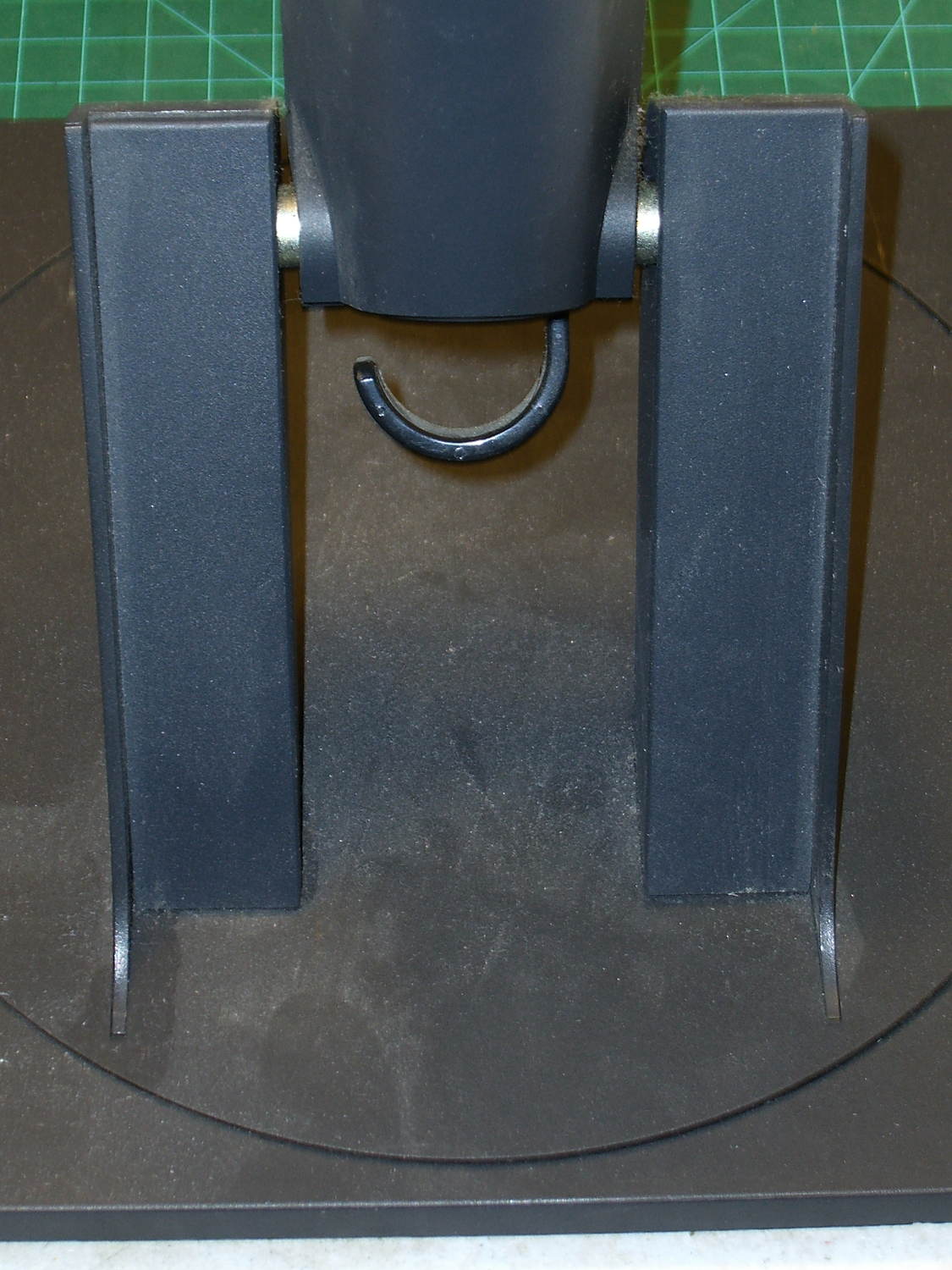
    Our Larval Engineer expressed a need for some monitors, so I dispatched a pair of IBM L191p panels from the heap. Despite reusing a gargantuan box from the Dell U2713HM monitor, I had to disassemble the struts from their swiveling base to fit everything inside.

    The intact base has no obvious affordance to remove the covers:

    L191p Monitor Stand - struts intact
    L191p Monitor Stand – struts intact

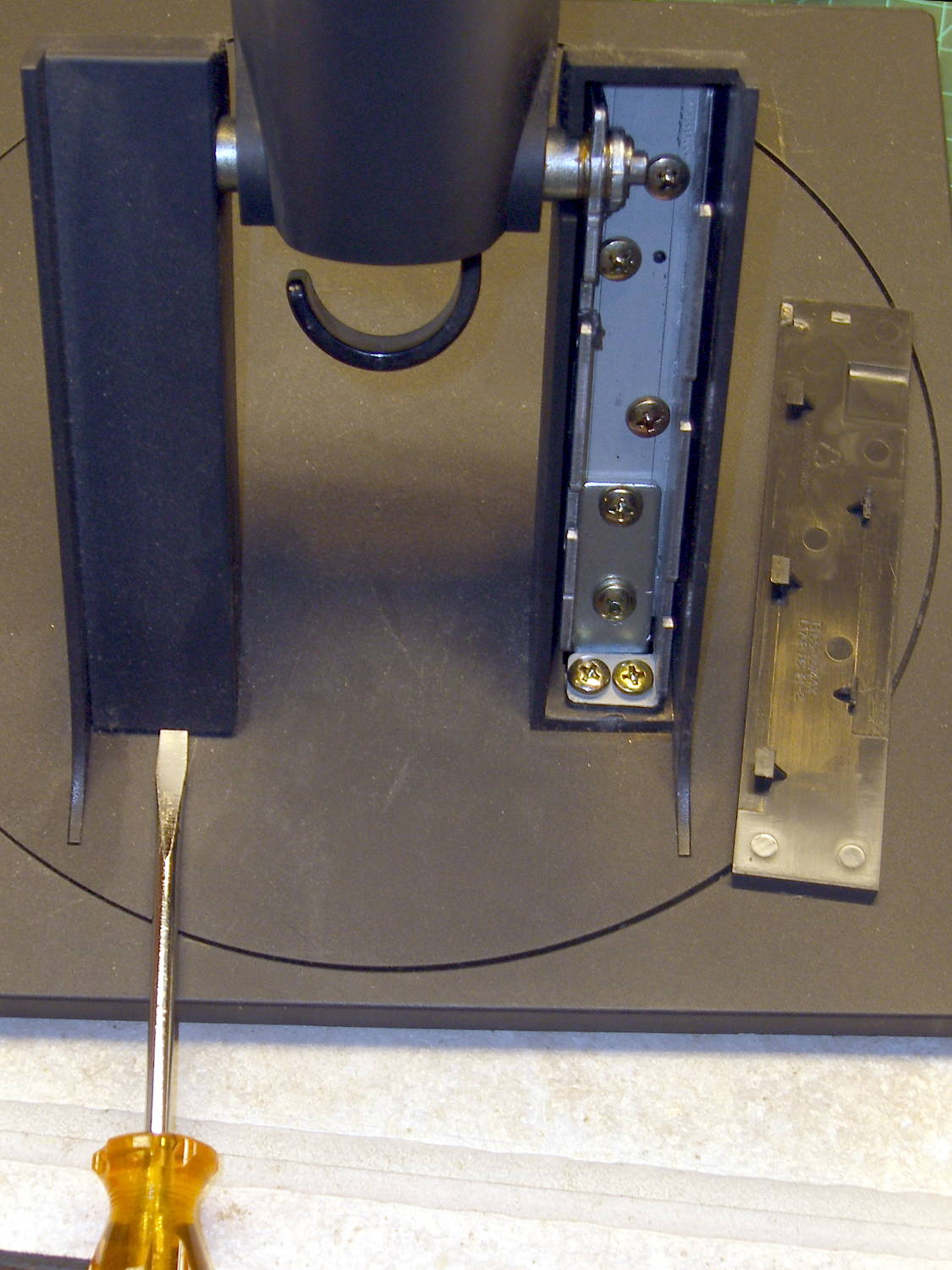
    After taking the bottom apart, I discovered that you just poke a screwdriver under each cover and it slides upward and off:

    L191p Monitor Stand - struts cover removal
    L191p Monitor Stand – struts cover removal

    Duh & similar remarks.

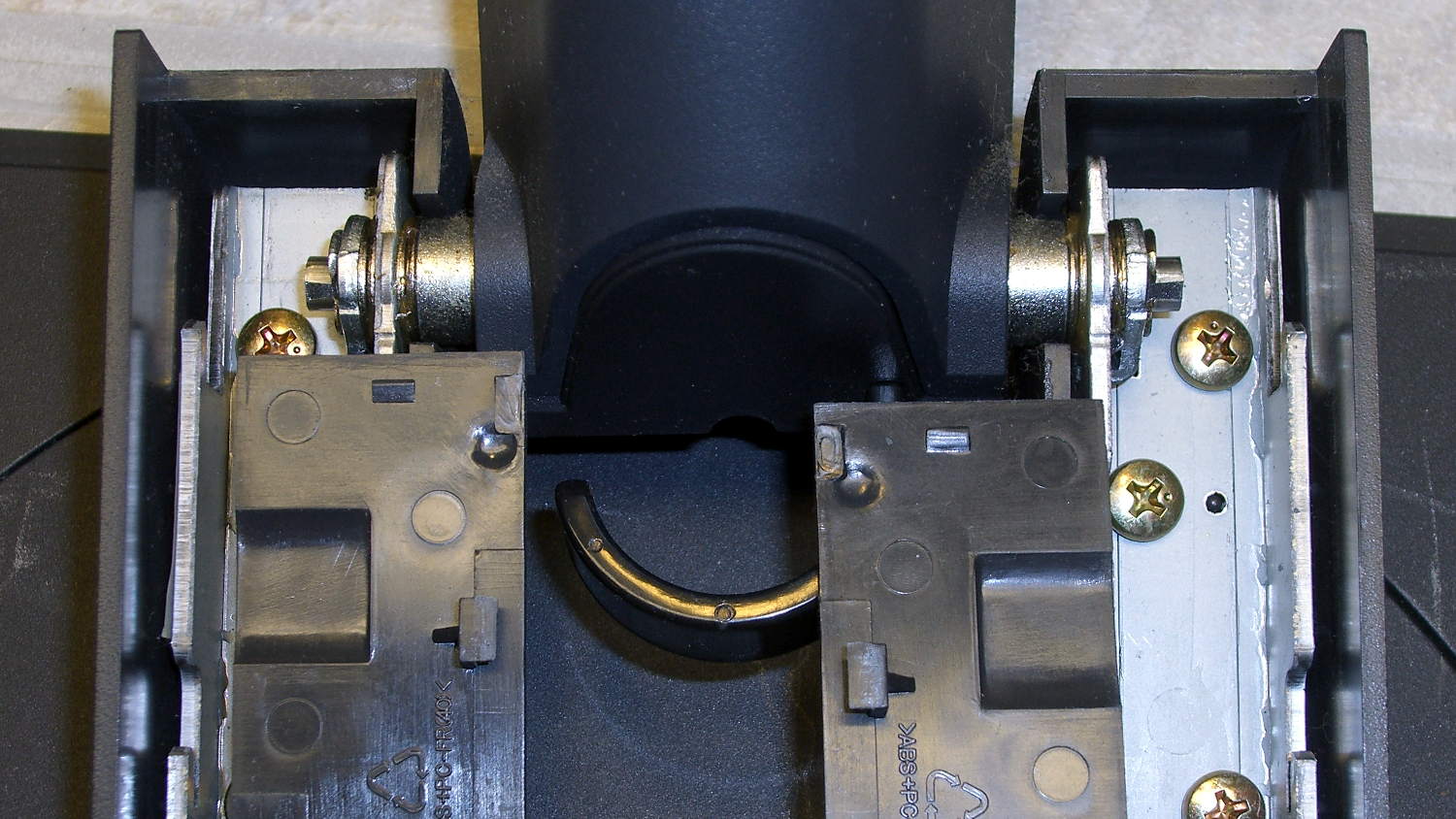
    The two covers are not interchangeable:

    L191p Monitor Stand - struts cover handedness detail
    L191p Monitor Stand – struts cover handedness detail

    Removing two pairs of screws from each strut releases them from the base:

    L191p Monitor Stand - struts disassembled
    L191p Monitor Stand – struts disassembled

    The projecting horns on the outboard side of those struts are exactly as delicate as you think.

    I put a piece of thick cardboard sheathed in closed-cell foam between the LCD screens that separated their bezels (minus cutouts for the buttons), then taped them together face-to-face. Add foam peanuts, drop in the monitors, nestle struts beside monitors, add rigid foam blocks all around and between, put flat bases atop monitors with a foam slab protecting those strut brackets, over-stuff the box with more peanuts, forcibly tape the thing closed, and it survived the trip in good order.

    A pair of 1280×1024 monitors isn’t worth insuring these days, though.

  • Dell 2005FPW Monitor Disassembly & Recapping

    The Dell 2005FPW monitor that I’d been using in portrait mode suffered the common failure of rebooting itself, which suggested failing capacitors. Despite my reservations, I dropped eleven bucks on a repair kit containing exactly the right caps (from sunny California via eBay), hauled the carcass to a couple of Squidwrench sessions, replaced the offending caps, and it’s all good again.

    No pix of the recapping, but a few notes that may prove useful next time.

    The standard advice from the usual Internet Sages recommends prying the bezel apart along the nearly invisible outside joint. I did that, then found the user manuals and the Fine Repair Manual and discovered that you jam your fingernails under the inside of the bezel against the LCD screen, pry upward, rotate / bend the bezel around its outer edge, and it Just Pops Off. I doubt it’s that easy, but …

    You should start from the top of the bezel, because the PCB behind the buttons & LEDs along the bottom doesn’t have a whole lot of slack in its cable. This shows the PCB and disconnected cable:

    Dell 2005FPW monitor - button PCB cable
    Dell 2005FPW monitor – button PCB cable

    Just pull the small brown latch away from the cable and the cable will slide out. That would be significantly easier if the socket were on the backside of the PCB, but you must pop the PCB out of its own latches before you get access to the socket latch. Rotate the bezel carefully around the PCB and maybe it’ll survive.

    The pushbutton that releases the stand’s not-quite-a-VESA-mount bracket remains in place when you remove the rear cover, held in place by a wedge:

    Dell 2005FPW monitor - mount release button detail
    Dell 2005FPW monitor – mount release button detail

    It is, however, the only thing sticking that far out of the back surface and, if you leave it alone, it will eventually release itself from captivity, whereupon its spring will fire it across the room. You have been warned.

    Reassembly is in reverse order, although I didn’t snap the button-and-LED PCB firmly into place. Fixing that will require dismounting the bezel again, which I’m so not doing for a 1 mm gap along the bottom edge.