The Smell of Molten Projects in the Morning

Ed Nisley's Blog: Shop notes, electronics, firmware, machinery, 3D printing, laser cuttery, and curiosities. Contents: 100% human thinking, 0% AI slop.

Category: Electronics Workbench

Electrical & Electronic gadgets

  • Kenmore 158: Motor RPM Sensor Deglitching

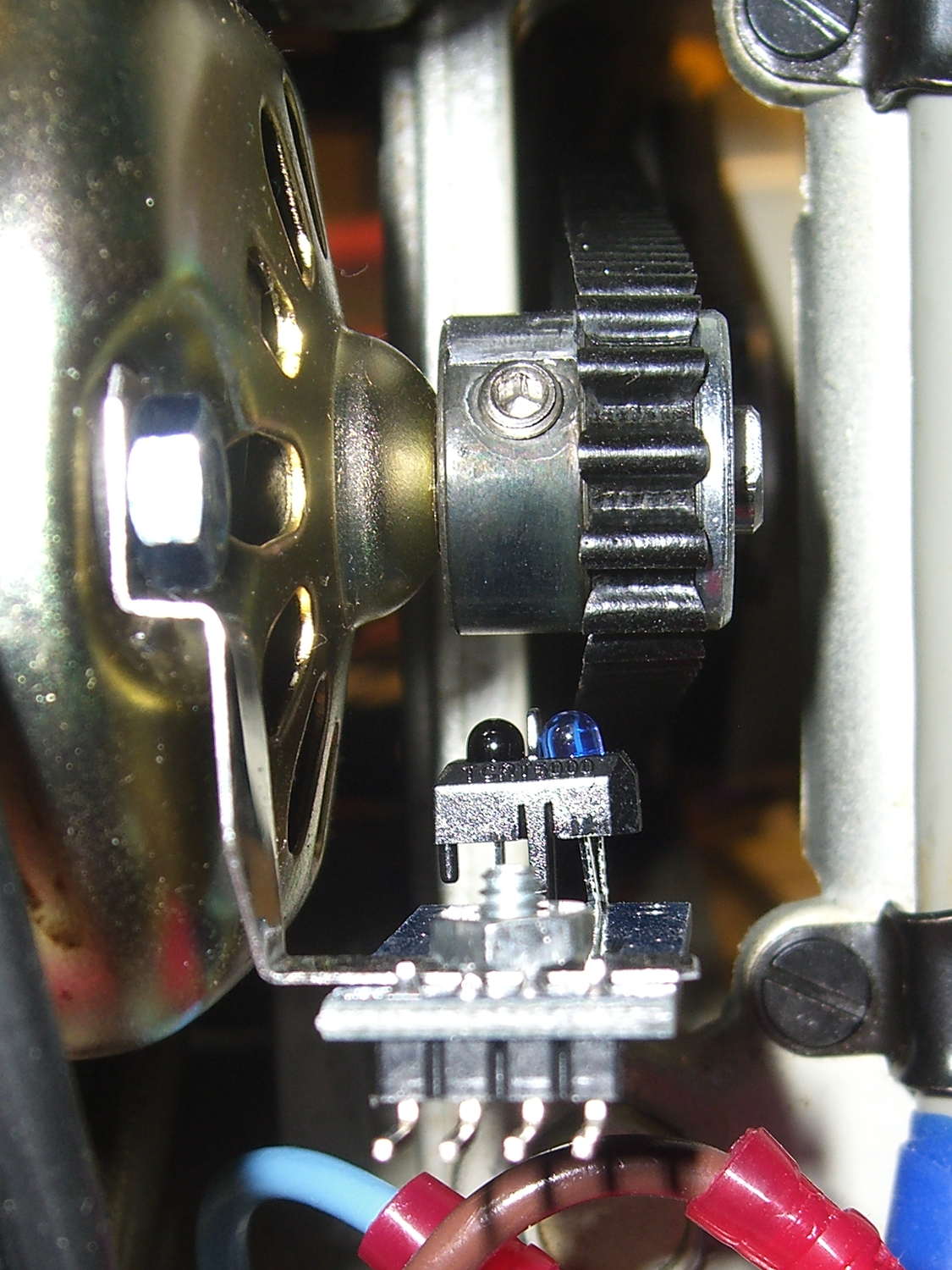
    The setscrew in the motor pulley lies directly in the path of the photosensor:

    TCTR5000 Motor RPM Sensor - side view
    TCTR5000 Motor RPM Sensor – side view

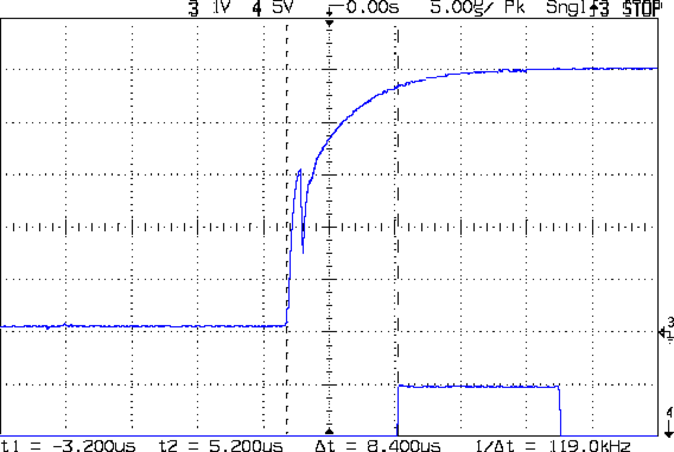
    Which produces a glitch in the rising edge of the digital output as the pulley rotates from the dark to the light section:

    Motor Sensor - Rising Edge Glitch
    Motor Sensor – Rising Edge Glitch

    The RPM signal goes to Arduino pin D2, where each falling edge triggers an interrupt handler:

    const byte PIN_MOTOR_REV = 2;		// DI - IRQ 0 (must be D2)
    
    ... snippage...
    
    void setup() {
    ... snippage ...
    
        pinMode(PIN_MOTOR_REV,INPUT_PULLUP);
        attachInterrupt((PIN_MOTOR_REV - 2),ISR_Motor,FALLING);			// one IRQ / motor revolution
    
     ... snippage ...
    }
    

    The maximum motor speed is about 11 kRPM, so interrupts should be at least 5.5 ms apart and the digital input should be low. If that’s true, then the code updates a bunch of useful information:

    struct pulse_t {
     byte Counter;
     unsigned long TimeThen;
     unsigned long Period;
     word RPM;
     byte State;
    };
    
    struct pulse_t Motor;
    
    ... snippage ...
    
    //------------------
    // ISR to sample motor RPM sensor timing
    
    void ISR_Motor(void) {
    
    static unsigned long Now;
    
    	digitalWrite(PIN_SYNC,HIGH);
    
    	Now = micros();
    
    	if ((5000ul < (Now - Motor.TimeThen)) && !digitalRead(PIN_MOTOR_REV) ) {	// discard glitches
    		Motor.Counter++;
    		Motor.Period = Now - Motor.TimeThen;
    		Motor.TimeThen = Now;
    		Motor.State = digitalRead(PIN_MOTOR_REV);		// always zero in a Physics 1 world
    	}
    
    	digitalWrite(PIN_SYNC,LOW);
    	return;
    }
    

    The scope trace shows that the handler takes about 7 µs to get control after the glitch (the left cursor should be on the falling edge, not the rising edge), so the input read occurs when the sensor output is over 4.5 V, causing the handler to discard this spurious interrupt.

    Because Motor.Period is a four-byte unsigned long, the Arduino’s CPU must handle it in chunks. Rather than disable interrupts around each use, it’s better to read the value until two successive copies come back identical:

    //------------------
    // Return current microsecond period without blocking ISR
    
    unsigned long ReadTime(struct pulse_t *pTime) {
    
    unsigned long Sample;
    
    	do {
    		Sample = pTime->Period;				// get all four bytes
    	} while (Sample != pTime->Period);		//  repeat until not changed by ISR while reading
    
    	pTime->Counter = 0;						// this is a slight race condition
    
    	return Sample;
    }
    

    Because the interrupts don’t happen that often, the loop almost always executes only one time. On rare occasions, it’ll go back for another two values.

    Converting the pulley rotation period into revolutions per minute goes like this:

    		Motor.RPM = 60000000ul/ReadTime(&Motor);		// one (deglitched) pulse / rev
    

    That’s easier than hiding the setscrew and it also discards any other glitches that may creep into D2

  • Kenmore 158: Motor RPM and Shaft Sensor First Light

    Using basically the same Arduino firmware as before, so the pedal scales the motor current without feedback:

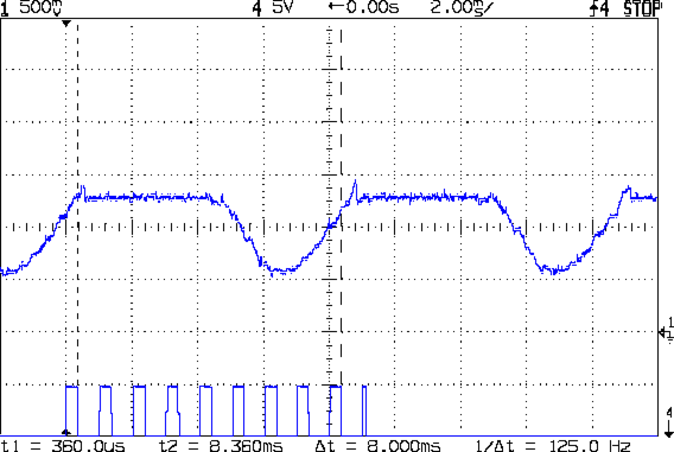
    Curr Sense RPM Spindle Pos
    Curr Sense RPM Spindle Pos

    The top trace is the motor current, sampled through the ferrite toroid / Hall effect sensor / differential amp, at about 525 mA/V, so the current limit along those flat tops is 630 mA. There’s a small initial spike leading into each flat top, where (I think) the rapidly rising collector voltage rams enough current through the Miller capacitance into the base to briefly push the collector current upward.

    The next trace is the motor RPM sensor, ticking along at 14 revolutions in 160 ms = 87.5 rev/s = 5250 RPM. The glitch toward the right side comes from me hitting the scope’s STOP button to freeze the display in mid-trace. There’s no trace of the setscrew glitch, although that may be due to the compressed scale rather than the absence of the glitch.

    The bottom trace is the shaft position sensor, with 1 rev in 125 ms = 8 rev/s = 480 RPM. It’s nicely divided into equal halves, which is what you’d expect from looking at the counterweight.

    Under these conditions the speed ratio works out to 10.93, a whopping 9% over my original guesstimate.

  • Kenmore 158: Power Switch Timing

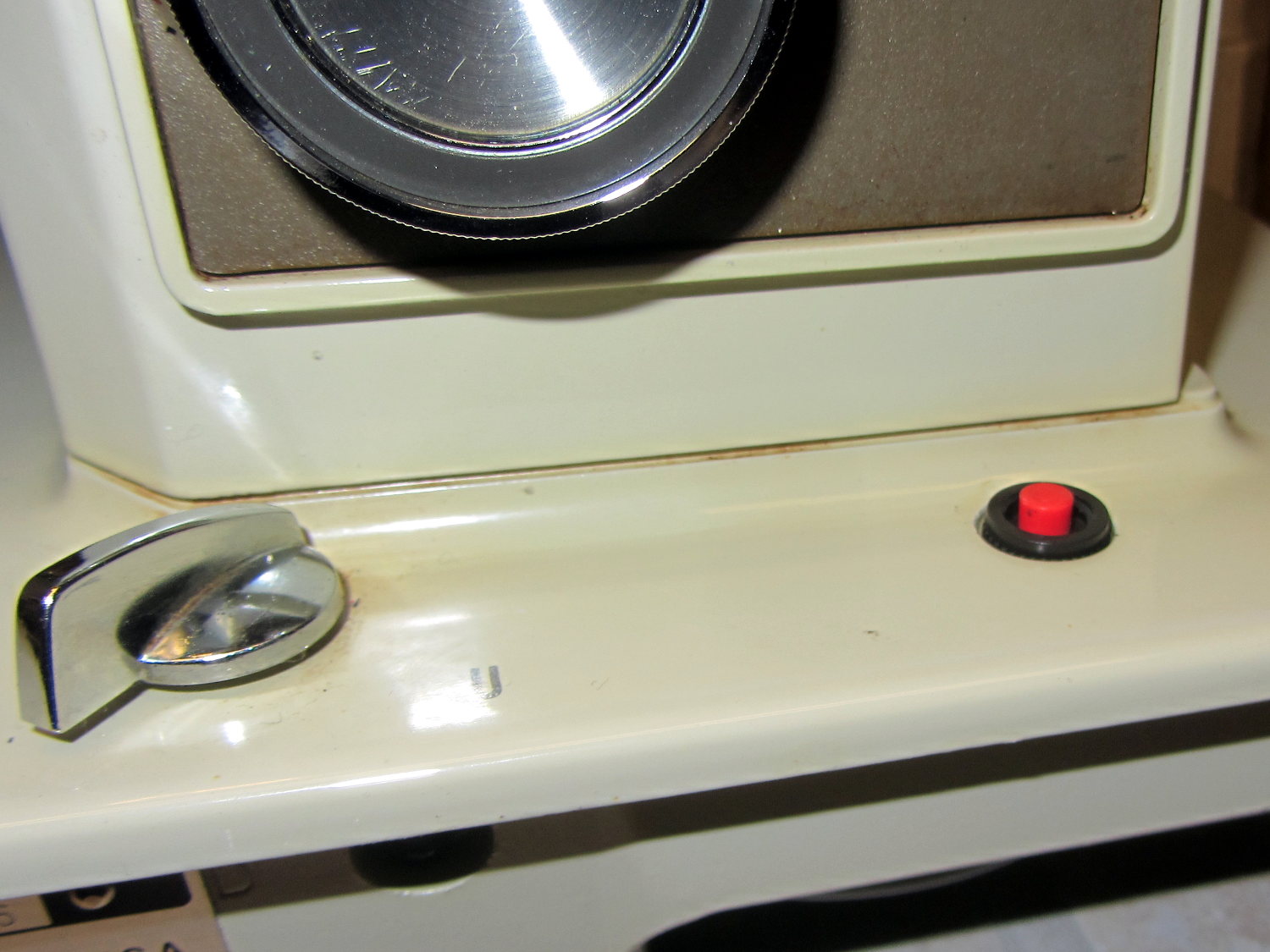
    The crash test dummy sewing machine now has a cheerful red momentary pushbutton in the same spot the original machine sported a 120 VAC push-on/push-off power switch:

    Kenmore 158 - Digital Power Switch
    Kenmore 158 – Digital Power Switch

    It’s held in place by a dab of epoxy on the bottom. The threads aren’t quite long enough to engage the ring, so another dab of epoxy holds that in place. In the unlikely event I must replace the button, I’ll deploy a punch and hammer it out from the top; the slick paint on the sides of the straight-sided hole doesn’t provide much griptivity.

    The button connects in parallel with the GX270’s front-panel button and the one on the Low Voltage Interface Board, so it operates exactly the same way. My original code didn’t include a delay before turning the power off, which meant that brushing the switch while doing something else would kill the power.

    This is not to be tolerated…

    You (well, I) must now hold the button down for one second to turn the power off. Releasing it before the deadline has no effect, other than blinking the green power LED on the front panel a few times.

    The routine maintains a timer that allows it to yield control to the mainline code, rather than depend on a blocking timer that would screw up anything else that’s in progress:

    //------------------
    // Handle shutdown timing when power button closes
    // Called every time around the main loop
    
    void TestShutdown(void) {
    	
    	if (LOW == digitalRead(PIN_BUTTON_SENSE)) {			// power button pressed?
    		if (ShutdownPending) {
    			if (1000ul < (millis() - ShutdownPending)) {
    				printf("Power going off!\r\n");
    				digitalWrite(PIN_ENABLE_AC,LOW);
    				digitalWrite(PIN_ENABLE_ATX,LOW);
    				while(true) {
    					delay(20);
    					TogglePin(PIN_PWR_G);				// show we have shut down
    				}
    			}
    		}
    		else {
    			ShutdownPending = millis();					// record button press time
    			printf("Shutdown pending...\r\n");
    		}
    	}
    	else {
    		if (ShutdownPending) {
    			ShutdownPending = 0ul;						// glitch or button released
    			printf("Shutdown cancelled\r\n");
    		}
    	}
    }
    

    The normal Arduino bootloader imposes a similar delay while turning the power on, which means that you can’t accidentally light the machine up by bumping the switch. All in all, it’s much more user-friendly this way.

  • Kenmore 158: LED Strip and Sensor Cable

    The shaft position and motor RPM sensors require +5 VDC, the LED strip lights run on +12 VDC, and the yet-to-be-built needle lights in the endcap probably need an entirely different supply. After a bit of doodling, all that, plus a power button conductor, fits into nine conductors:

    1. K – +5 VDC for sensors
    2. Bn – common for sensors
    3. R – RPM sensor output
    4. O – Shaft position sensor output
    5. Y – Power button
    6. G – +12 VDC for LED strips
    7. Bl – common for strips
    8. V – + supply for needle lights
    9. W – common for lights

    That’s fortunate, as I have a box of pre-built RS-232 cables. The nine color-coded 24 AWG (more or less) conductors seem a bit scanty for LED strip light currents, but they’ll suffice for now.

    Everything terminates in a hideous shrub down by the motor pulley, with cable ties holding the wires away from the action:

    LED Strips and Sensor - cable terminations
    LED Strips and Sensor – cable terminations

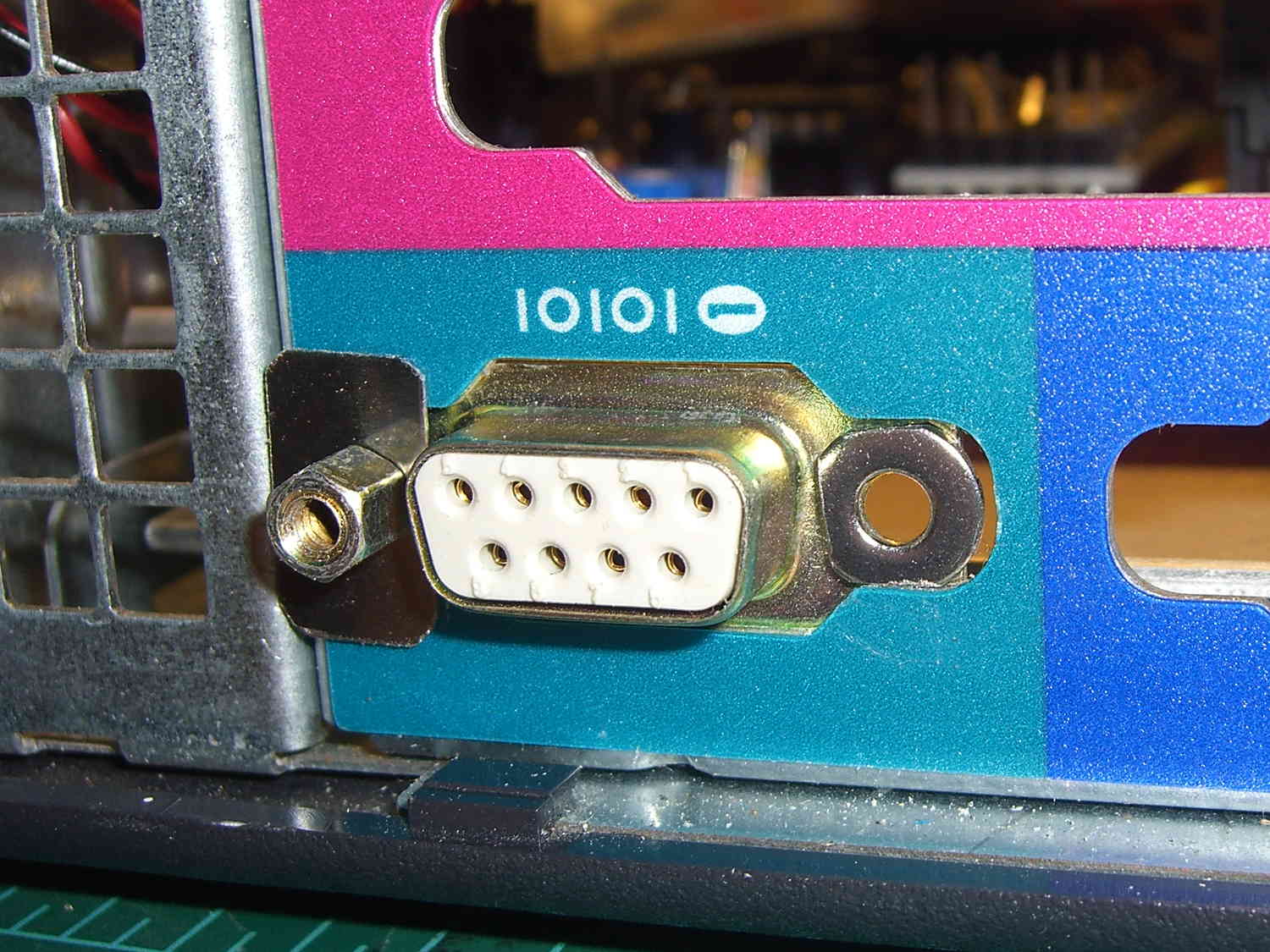
    Unlike the PS/2 connector for the foot pedal, mounting the DB9 “serial” connector required some bashing:

    LED and Sensor DB9 - mounting
    LED and Sensor DB9 – mounting

    A pair of 4-40 washers, filed to fit inside the chassis cutout and away from the shell, keep the connector from rotating / sliding; the dimensions aren’t conducive to a 3D printed widget. The flat metal strips hold the connector in place, with the mounting screws threaded into 4-40 nuts behind the connector.

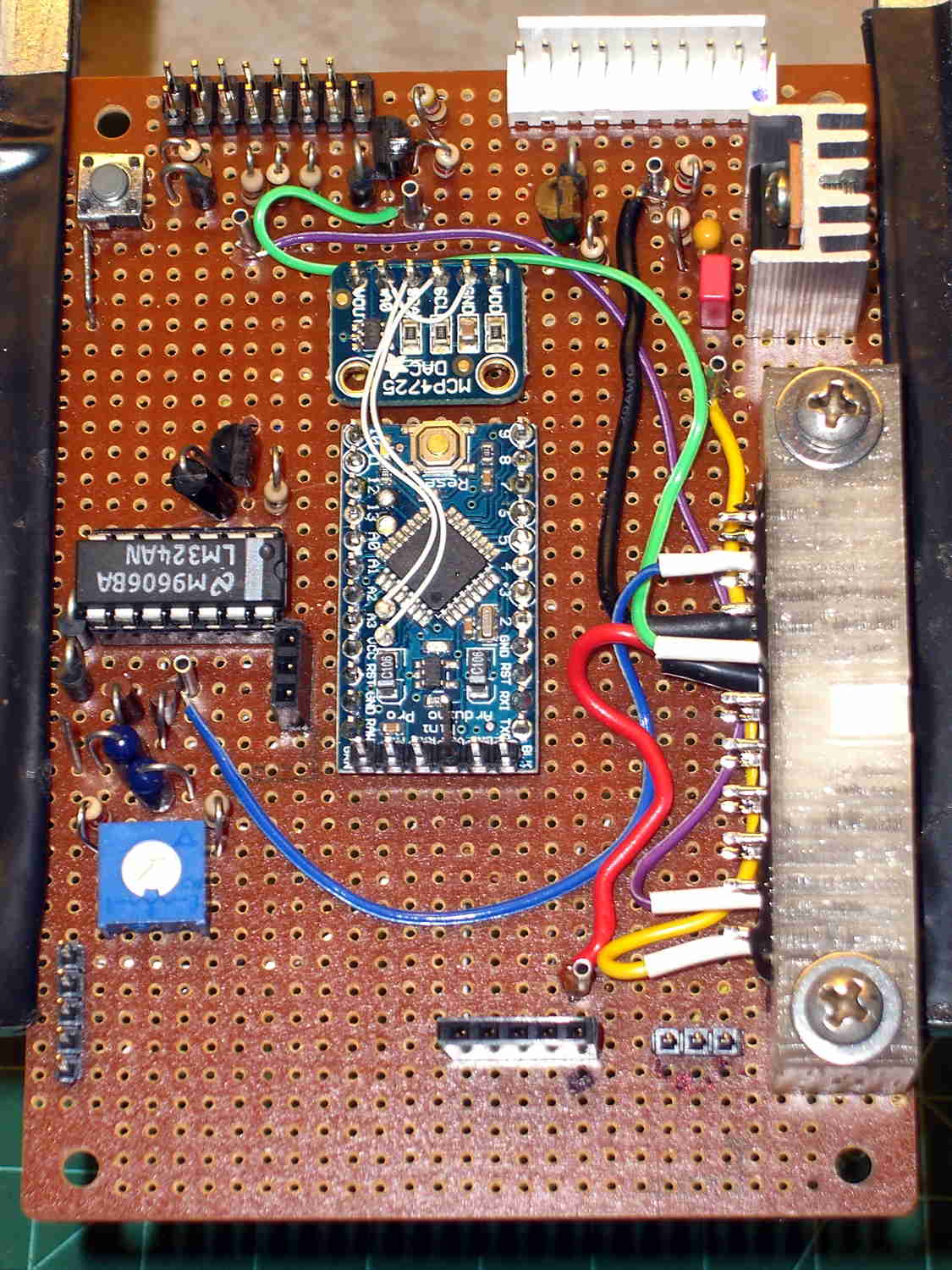
    The top row of pins goes to a header (a bit fuzzy, near the bottom of the image) on the Low Voltage Interface board, where the sensor inputs go directly to the Arduino Pro Mini and the power connections to the ATX connector:

    Low Voltage Interface Board - top view
    Low Voltage Interface Board – top view

    The LED power connections on the bottom row go to pins on an ATX wiring harness that used to send juice to the various disk drives.

    I’m not real happy with that lashup, but … more pondering is in order. I suspect I’ll need a few more conductors for other things on the sewing machine, so a larger cable may terminate at a DB25 connector in the cutout just above this one.

  • Shaft Position Sensor: Trimpot Wrench

    With the shaft position sensor mounted in this position:

    Kenmore 158 Shaft position sensor - overview
    Kenmore 158 Shaft position sensor – overview

    There’s no way to get a screwdriver into the trimpot that adjusts the sensor’s trip point.

    A few minutes with tin snips, nibbling tool, and square file produced a small wrench:

    Trimpot Wrench
    Trimpot Wrench

    One side of the wrench has a 45° bend that made tweaking the pot just slightly easier.

    The proper trip point turned out to be about 90° away from where the trimpot started, with the level midway between the detection points for shiny metal tape and the cutout side of the counterweight.

  • Kenmore 158: Shaft Position Sensor

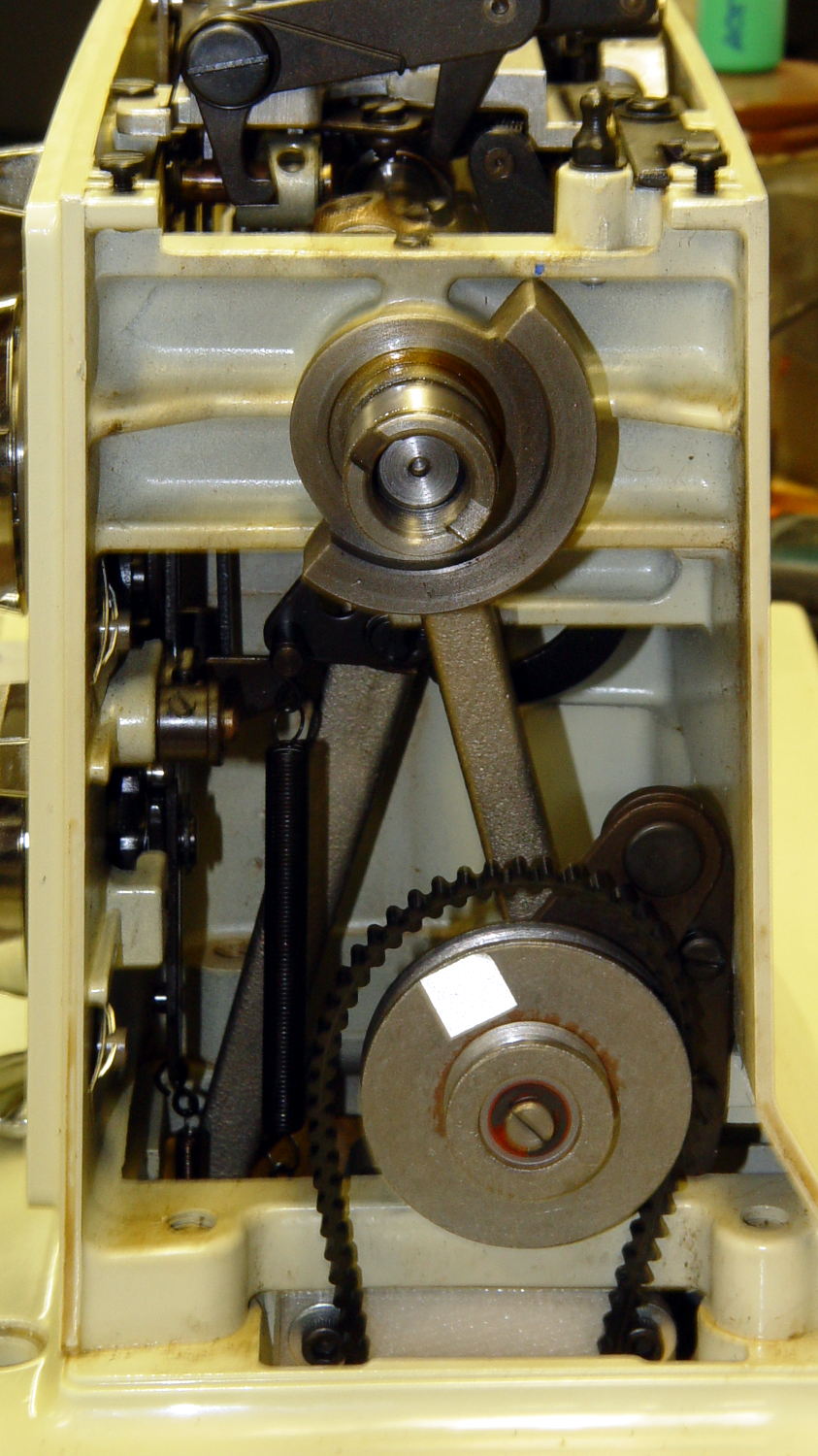
    In order to stop the sewing machine with the needle either up or down, the controller must know the angular position of the main shaft. Fortunately, the shaft has a counterweight in a not-too-inconvenient location behind the handwheel:

    Kenmore 158 - main shaft counterweight
    Kenmore 158 – main shaft counterweight

    The needle is fully down with the shaft in that position. I originally thought about putting a pair of sensors adjacent to the lower edge, but because the motor can rotate the shaft only counterclockwise (as seen from this end), watching a single sensor tells you everything you need to know:

    • Falling edge: needle at top
    • Rising edge: needle at bottom

    N.B.: Although you can rotate the shaft backwards by hand, the controller needs to know the position only when stopping.

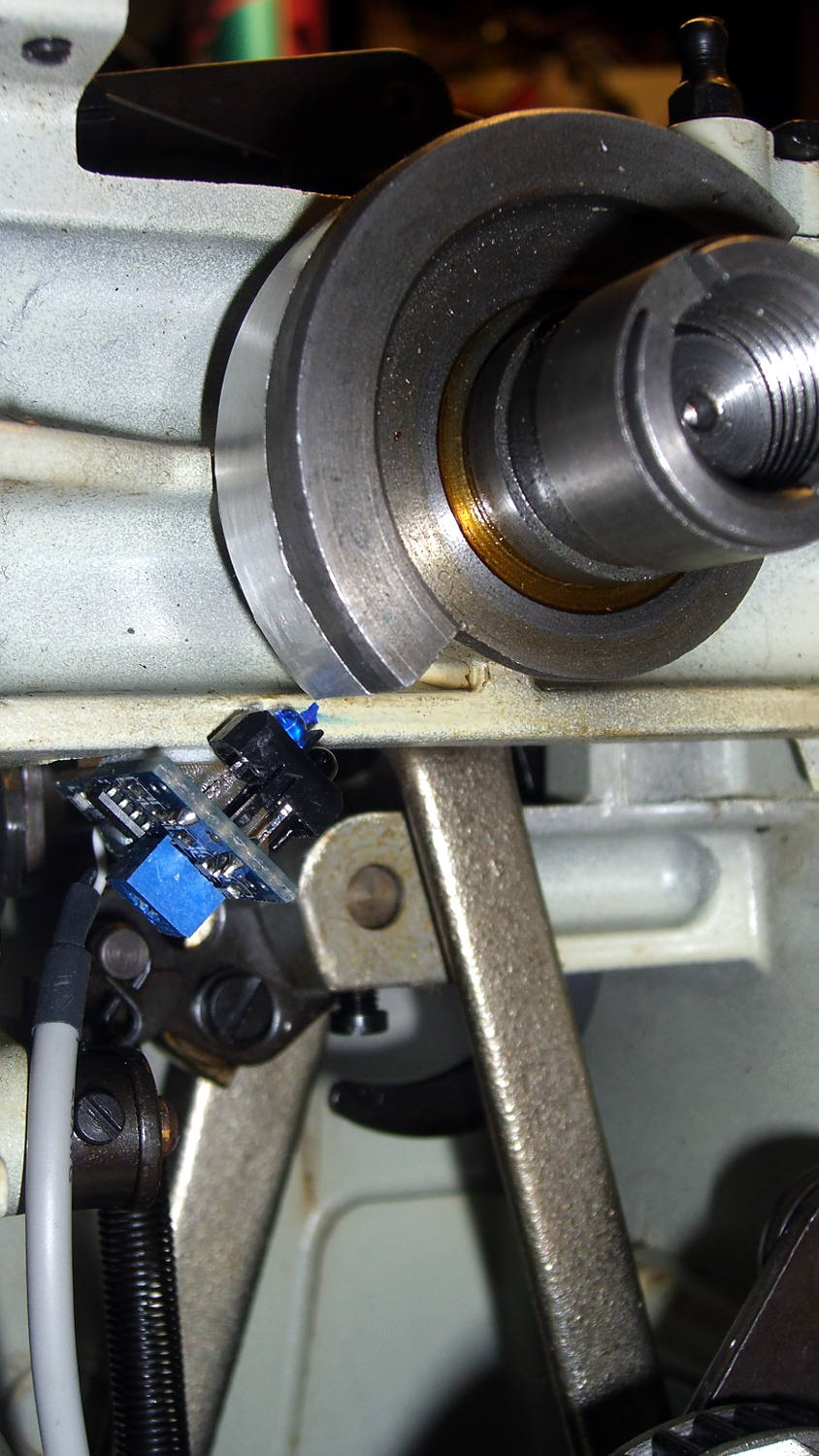
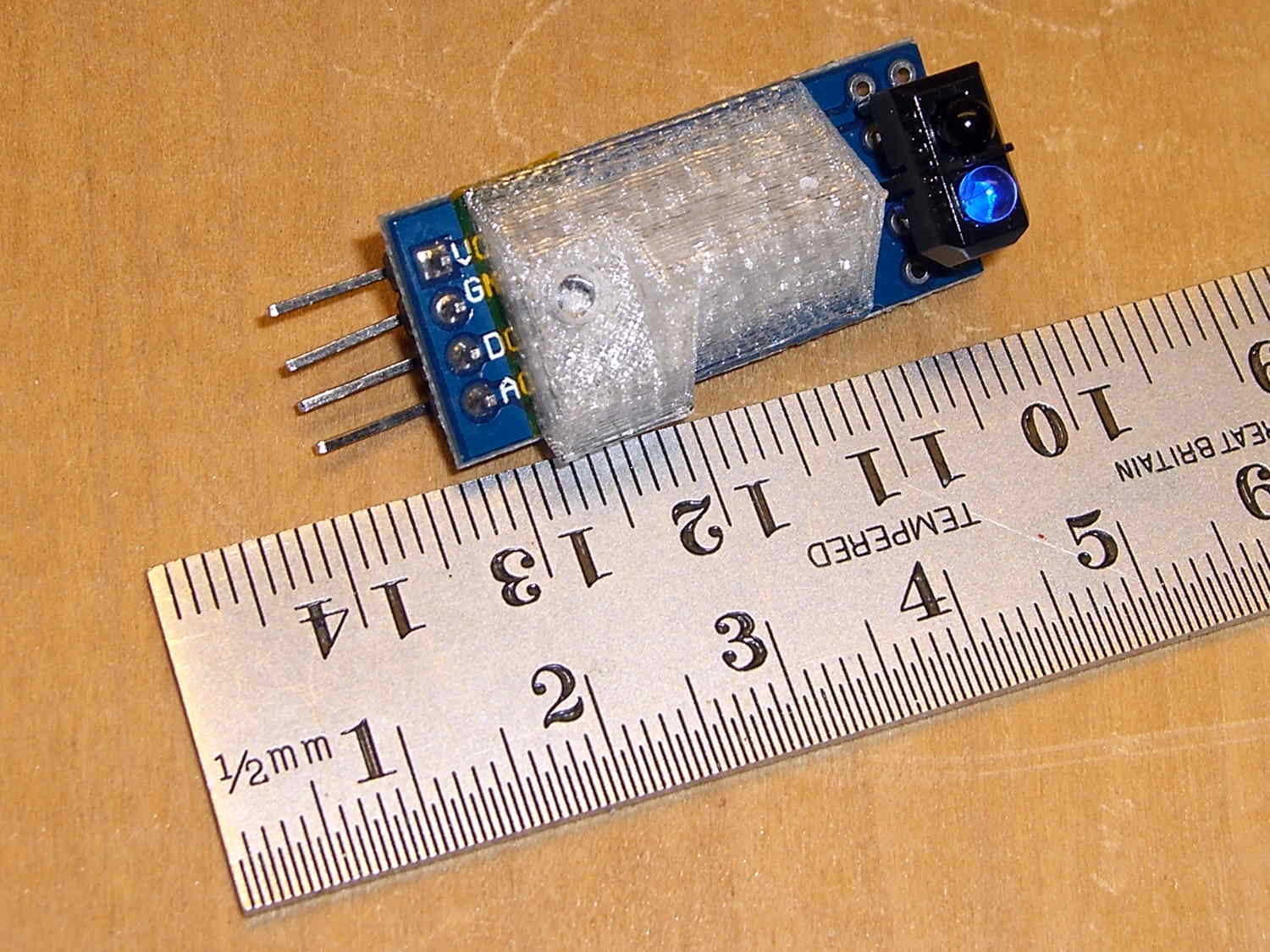
    Some fiddling around showed that a TCRT5000 sensor board would fit neatly below the frame cross flange at exactly the right spot:

    Shaft position sensor - in place
    Shaft position sensor – in place

    The counterweight now sports a strip of stainless steel tape (normally used on HVAC ductwork) burnished to a high shine:

    Kenmore 158 Shaft Counterweight - burnished steel tape
    Kenmore 158 Shaft Counterweight – burnished steel tape

    The tape tucks around the counterweight to keep the wind out of its hair:

    Kenmore 158 Shaft Counterweight - steel tape ends
    Kenmore 158 Shaft Counterweight – steel tape ends

    The handwheel spins on that smooth ring near the end of the shaft and covers the outer half of the counterweight, so the tape brightens up the only part of the counterweight that the sensor can see.

    The sensor mounts on a fiddly bit of plastic that’s ideally suited for 3D printing:

    Shaft Position Sensor Mount - left
    Shaft Position Sensor Mount – left

    The rectangular recess fits around the protruding trimpot leads, a screw in the hole fastens the sensor, the flange on the top fits against the inside edge of the frame flange to position the sensor head axially along the shaft, and the cutout to the left rear clears the whirling crank bearing on the shaft.

    It looked good on the bench:

    Shaft sensor mount - trial fit
    Shaft sensor mount – trial fit

    Rather than mess around with more connectors, I removed the pins and soldered a hank of CD-ROM audio cable (remember CD-ROMs?) directly into the top three holes.

    After scrubulating the bottom of the frame flange with denatured alcohol, a square of double-stick foam tape holds the mount to the frame, eyeballometrically aligned to the proper position:

    Kenmore 158 Shaft position sensor - end view
    Kenmore 158 Shaft position sensor – end view

    That may be slightly too close to the counterweight, as the ideal distance is about 2 mm. The source code can add a shim that moves the mounting plane straight down, allowing the whole thing to move slightly to the left: increase the clearance while maintaining the same angular position. The next version will have a 1 mm BaseShim and we’ll see how that goes.

    You could mirror the mount to put another sensor at the quadrature position on the right side of the counterweight.

    It’s getting closer to becoming a simple matter of software…

    The OpenSCAD source code:

    // Shaft Position Sensor Mount
    // Ed Nisley - KE4ZNU - October 2014
    
    Layout = "Show";
    
    //- Extrusion parameters must match reality!
    
    ThreadThick = 0.20;
    ThreadWidth = 0.40;
    
    HoleWindage = 0.2;			// extra clearance
    
    Protrusion = 0.1;			// make holes end cleanly
    
    AlignPinOD = 1.70;			// assembly alignment pins: filament dia
    
    function IntegerMultiple(Size,Unit) = Unit * ceil(Size / Unit);
    
    //----------------------
    // Dimensions
    
    SensorWidth = 14.0;			// sensor PCB width
    SensorLength = 21.0;		//  ... contact patch length
    NumSensors = 1;
    
    SensorScrewOffset = 5.0;	//  ... mounting hole to frame edge
    
    PotLeads = [5.0,8.0,1.0];	// trimpot lead recess
    PotOffset = [-1.5,8.5,0];
    
    SensorScrewHeadOD = 6.0;	//  ... mounting screw head dia
    SensorScrewTap = 2.25;		//  ... screw tap diameter
    SensorScrewLength = 4.0;	//  ... screw length inside block
    
    BaseShim = 1.0;				// additional height to align sensors
    BaseAngle = 45;				// downward from horizontal
    
    BaseSensors = NumSensors*SensorWidth;		// length along slanted top
    
    BaseLength = BaseSensors*cos(BaseAngle);
    BaseHeight = BaseSensors*sin(BaseAngle);
    
    echo(str("Angle: ",BaseAngle," Height: ",BaseHeight," Length: ",BaseLength));
    
    FrameWidth = 13.0;			// machine frame width
    
    LipHeight = 3.0;			// locates part on frame to position sensors
    LipWidth = IntegerMultiple(2.0,ThreadWidth);
    
    Block = [BaseLength,
    		 (FrameWidth + SensorScrewOffset + SensorScrewHeadOD/2),
    		 (BaseHeight + BaseShim + LipHeight)];
    
    echo(str("Block size: ",Block));
    
    //----------------------
    // Useful routines
    
    module PolyCyl(Dia,Height,ForceSides=0) {			// based on nophead's polyholes
    
      Sides = (ForceSides != 0) ? ForceSides : (ceil(Dia) + 2);
    
      FixDia = Dia / cos(180/Sides);
    
      cylinder(r=(FixDia + HoleWindage)/2,
               h=Height,
               $fn=Sides);
    }
    
    module ShowPegGrid(Space = 10.0,Size = 1.0) {
    
      RangeX = floor(100 / Space);
      RangeY = floor(125 / Space);
    
    	for (x=[-RangeX:RangeX])
    	  for (y=[-RangeY:RangeY])
    		translate([x*Space,y*Space,Size/2])
    		  %cube(Size,center=true);
    
    }
    
    //-- Build the sensor mount
    
    module SensorMount() {
    
    	difference() {
    		translate([0,(FrameWidth - Block[1]),0])
    			cube(Block);
    
    		translate([-Block[0],0,(Block[2] - LipHeight)])		// machine frame
    			cube([3*Block[0],(FrameWidth + Protrusion),Block[2]]);
    
    		translate([0,-Block[1]/2,0])						// sensor angle
    			rotate([0,(90 - BaseAngle),0])
    				cube(2*Block);
    
    		translate([-SensorScrewLength/cos(90 - BaseAngle),-(2*Block[1] + LipWidth),0])
    			rotate([0,-BaseAngle,0])						// remove all but lip on crank side
    				cube(2*Block);
    
    		for (i=[0:(NumSensors - 1)])						// screw hole
    			rotate([0,(-BaseAngle),0])
    				translate([(SensorWidth/2 + i*SensorWidth),-SensorScrewOffset,-Protrusion])
    					PolyCyl(SensorScrewTap,(SensorScrewLength + 2*Protrusion),6);
    
    		for (i=[0:(NumSensors - 1)])						// pot lead recess
    			rotate([0,(-BaseAngle),0])
    				translate(PotOffset + [i*SensorWidth + SensorWidth/2 - PotLeads[0]/2,
    						-(SensorScrewOffset + PotLeads[1]/2),
    						-Protrusion])
    					cube(PotLeads + [0,0,Protrusion]);
    	}
    }
    
    //----------------------
    // Build it
    
    ShowPegGrid();
    
    if (Layout == "Show")
    	SensorMount();
    
    if (Layout == "Build")
    	translate([-SensorWidth,0,0])
    		rotate([0,(90 - BaseAngle),0])
    			SensorMount();
    
  • Doorbell Switch Corrosion

    A friend, anticipating a stream of visitors for their freshly hatched baby, asked for help with a defunct remote doorbell. A bit of probing showed that shorting across the pushbutton switch contacts reliably triggered the bell, so I unsoldered it:

    Doorbell switch - intact
    Doorbell switch – intact

    A similar switch from the heap had a longer stem that was easy enough to shorten, so the repair didn’t take very long at all: ya gotta have stuff!

    An autopsy reveals the expected contact corrosion:

    Doorbell switch - parts
    Doorbell switch – parts

    Underexposing the image by about two stops retained some texture on the contact dome.

    The IC date codes suggest the box is over a decade old, which is as much life as one can expect from cheap consumer electronics, particularly with an unsealed switch placed outdoors.

    It’s probably good for another decade…