Ed Nisley's Blog: Shop notes, electronics, firmware, machinery, 3D printing, laser cuttery, and curiosities. Contents: 100% human thinking, 0% AI slop.
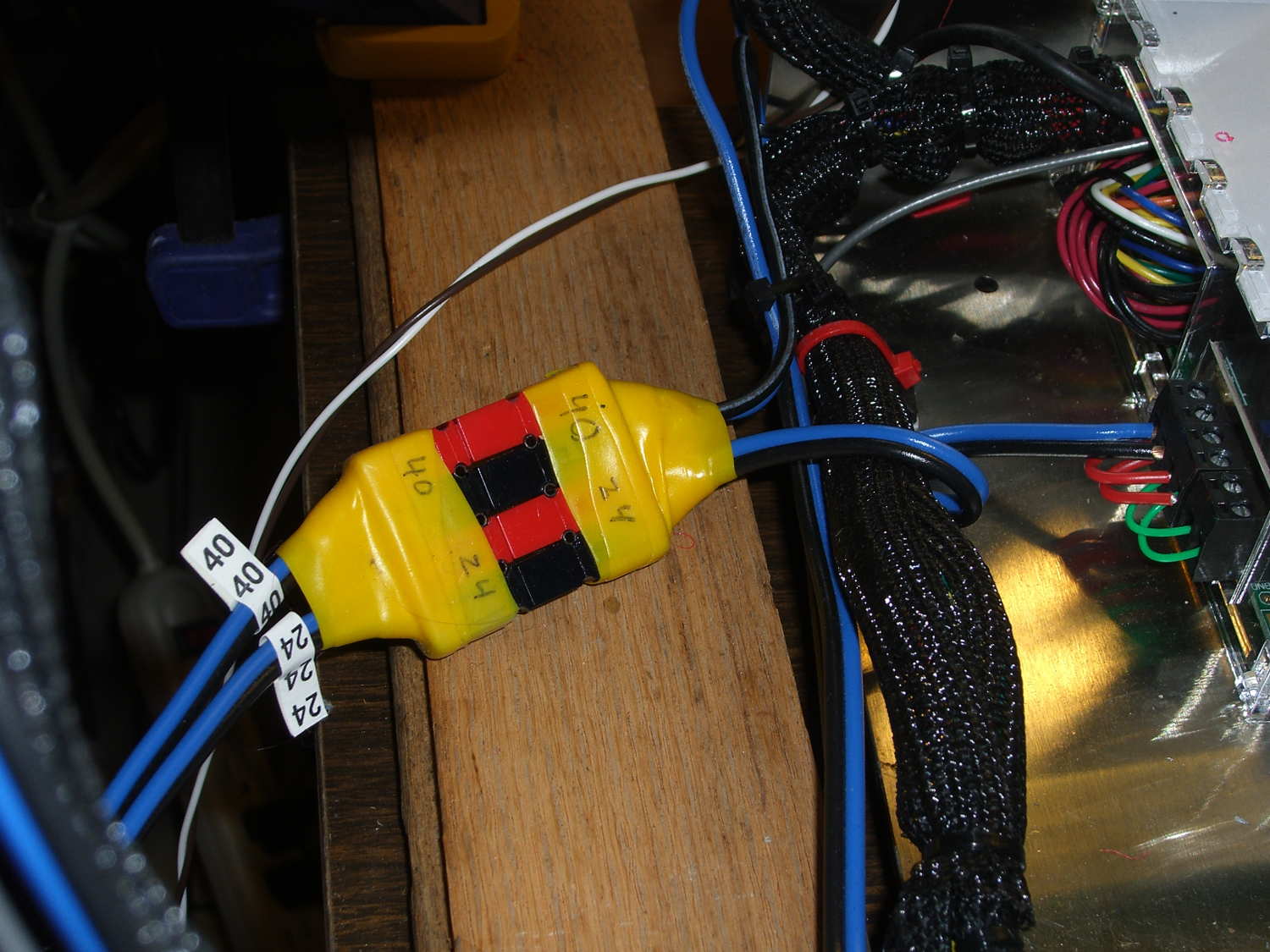
Now, with the V4 hot end and fans installed, I popped a 24 V supply brick off the heap and connected another set of Powerpoles:
M2 – Powerpole connector block
The 24 V supply now powers everything on the RAMBo board, with the platform heater running from the 40 V supply through the DC-DC solid state relay.
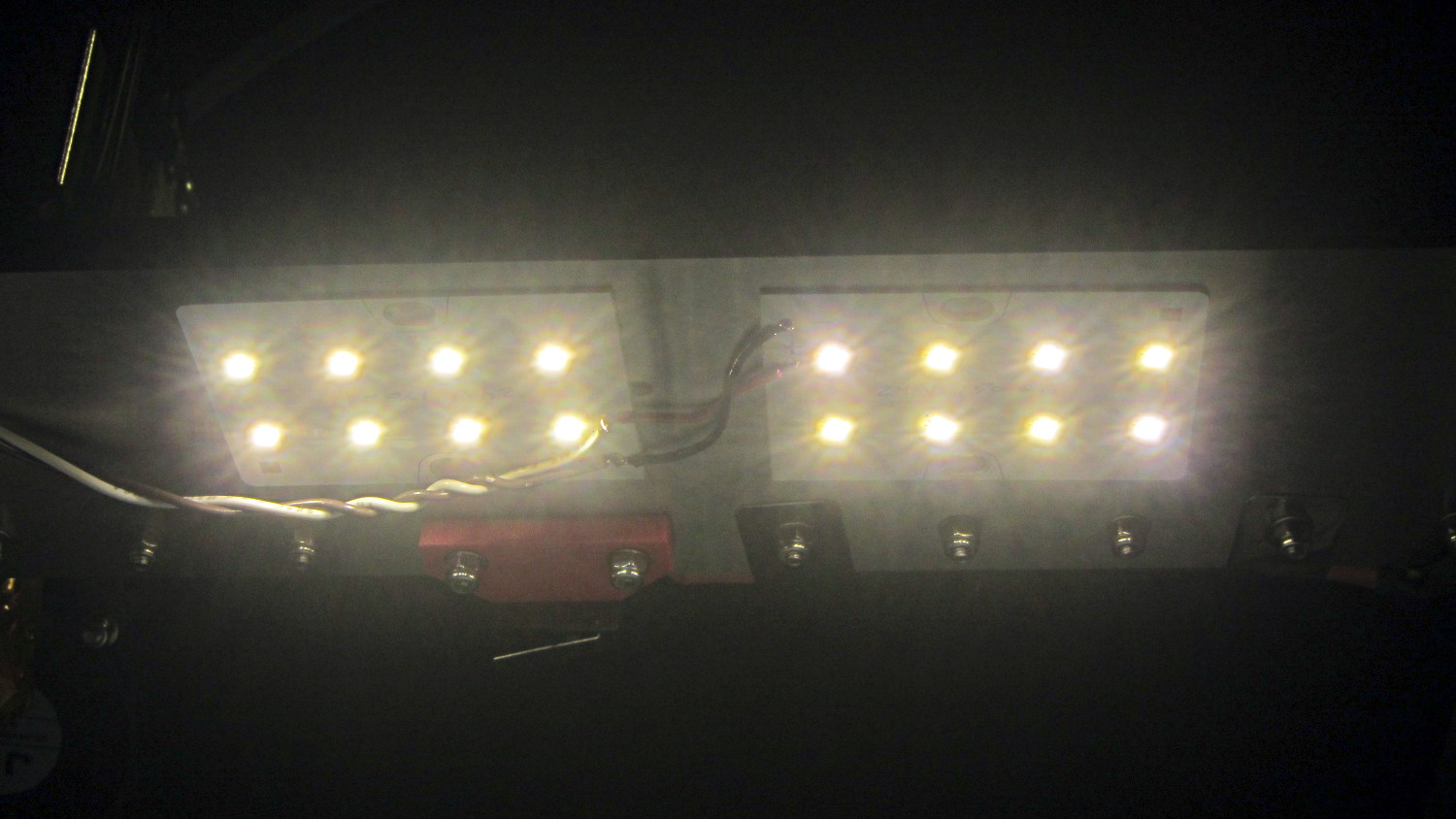
Unfortunately, wiring the LED panels to the RAMBo MOSFET driving the fans didn’t quite work. Turns out that the extruder PWM pulses produce corresponding LED blinks; the V4 hot end draws 1.5 A and that’s enough to flicker the lights. So they’re back on the wall wart and glow steadily again.
For whatever it’s worth, the panels don’t have limiting resistors, just eight 150 mA LED emitters in series…
Given that I’m throwing all the balls in the air at once:
V4 hot end / filament drive
24 VDC motor / logic power supply
PETG filament
It seemed reasonable to start with the current Marlin firmware, rather than the MakerGear version from long ago. After all, when you file a bug report, the first question is whether it happens with the Latest Version.
Marlin has undergone a Great Refactoring that moved many of the constants around. I suppose I should set up a whole new Github repository, but there aren’t that many changes and I’ve gotten over my enthusiasm for forking projects.
Anyhow, just clone the Marlin repo and dig in.
In Marlin_main.cpp, turn on the Fan 1 output on Arduino pin 6 that drives the fans on the extruder and electronics box:
pinMode(6,OUTPUT); // kickstart Makergear M2 extruder fan
digitalWrite(6,HIGH);
You could use the built-in extruder fan feature that turns on when the extruder temperature exceeds a specific limit. I may try that after everything else works; as it stands, this shows when the firmware gets up & running after a reset.
In Configuration_adv.h, lengthen the motor-off time and set the motor currents:
I missed the max & min position settings on the first pass (they’re new!), which matter because I put the origin in the middle of the platform, rather than the front-left corner. Marlin now clips coordinates outside that region, so the first thinwall calibration box only had lines in Quadrant 1…
So the ancient Dell E1405 laptop on the Electronics Bench, connected to this-and-that, woke up without network connections. As in, right after booting, the link and activity lights jammed on solid, the usual eth0 device wasn’t there, WiFi was defunct, and nothing made any difference.
After a bit of searching, the best summary of what to do appears on the Ubuntu forums. The gist of the story, so I need not search quite so much the next time, goes like this:
The laptop uses the Broadcom BCM4401 Ethernet and BCM4311 WiFi chips, which require the non-free Broadcom firmware found in the linux-nonfree-firmware package. There’s a proprietary alternative in bcmwl-kernel-source that apparently works well for most Broadcom chips, but not this particular set.
Guess which driver installed itself as part of the previous update?
The key steps:
sudo apt-get purge bcmwl-kernel-source
egrep 'blacklist (b43|ssb)' /etc/modprobe.d/*
... then manually kill any files that appear ...
Apparently that problem has been tripping people for at least the last four years. That this is the 14.04 Long Term Support version evidently has little to do with anything at all.
While I was at it, I deleted all the nVidia packages that somehow installed themselves without my noticing; the laptop has Intel 945 integrated graphics hardware.
I vaguely recall what I intended to do before this happened…
The Dell 2005FPW monitor that I’d been using in portrait mode suffered the common failure of rebooting itself, which suggested failing capacitors. Despite my reservations, I dropped eleven bucks on a repair kit containing exactly the right caps (from sunny California via eBay), hauled the carcass to a couple of Squidwrench sessions, replaced the offending caps, and it’s all good again.
No pix of the recapping, but a few notes that may prove useful next time.
The standard advice from the usual Internet Sages recommends prying the bezel apart along the nearly invisible outside joint. I did that, then found the user manuals and the Fine Repair Manual and discovered that you jam your fingernails under the inside of the bezel against the LCD screen, pry upward, rotate / bend the bezel around its outer edge, and it Just Pops Off. I doubt it’s that easy, but …
You should start from the top of the bezel, because the PCB behind the buttons & LEDs along the bottom doesn’t have a whole lot of slack in its cable. This shows the PCB and disconnected cable:
Dell 2005FPW monitor – button PCB cable
Just pull the small brown latch away from the cable and the cable will slide out. That would be significantly easier if the socket were on the backside of the PCB, but you must pop the PCB out of its own latches before you get access to the socket latch. Rotate the bezel carefully around the PCB and maybe it’ll survive.
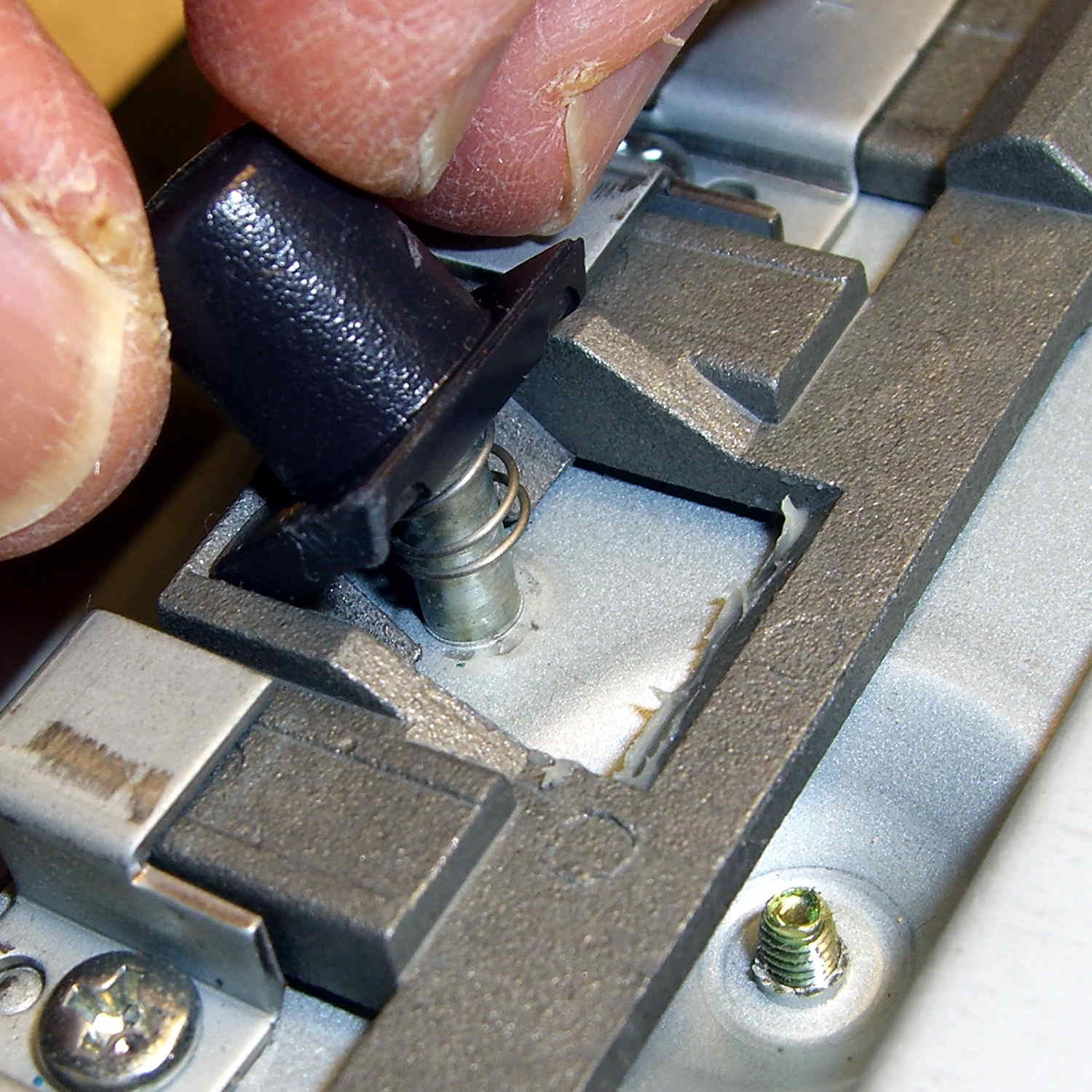
The pushbutton that releases the stand’s not-quite-a-VESA-mount bracket remains in place when you remove the rear cover, held in place by a wedge:
Dell 2005FPW monitor – mount release button detail
It is, however, the only thing sticking that far out of the back surface and, if you leave it alone, it will eventually release itself from captivity, whereupon its spring will fire it across the room. You have been warned.
Reassembly is in reverse order, although I didn’t snap the button-and-LED PCB firmly into place. Fixing that will require dismounting the bezel again, which I’m so not doing for a 1 mm gap along the bottom edge.
Part of the flailing about while working around the Ubuntu video driver update glitch included blindly swapping a Displayport cable, which triggered another failure after everything settled down: the (empty) DVD drive’s activity light remained dimly lit with the PC off and both monitors in power-save mode. Unplugging the PC’s power cord extinguished all the internal LEDs on the system board, but left the drive light shining the same dim green. Disconnecting the USB cables to the monitors (they both have USB hubs) had no effect. Unplugging the monitors extinguished the LED after a bit. Unplugging one of the Displayport cables turned it off instantly, which was a clue that took a while to recognize.
Worse, the landscape monitor, a year-old Dell U2711, now refused to wake up from power-save mode during boot, even when it was the only monitor connected to the PC. Searching with an assortment of relevant keywords produced severalinterestingresults, including a lengthy Dell support forum thread, all suggesting a deeper and surprisingly longstanding problem with Displayport connections on big Dell monitors.
I knew most of the remedies weren’t relevant, because this failure happened while the BIOS felt around to identify the monitors: not a driver issue (not in effect yet), not a Windows issue (fer shure!), not a Linux issue, and not a BIOS configuration issue (nothing changed, plus Dell doesn’t allow much configuration).
It turns out that the original pair of Displayport cables bore Amphenol logos on the connector shells and cable. One of the replacements was a Genuine eBay cable from halfway around the planet, bearing no markings of any sort. Given the hints in those search hits, I discovered that the Amphenol-branded cables did not carry pin 20 between the connectors, but the eBay cables did: just a little something extra from eBay!
Installing the two Amphenol cables extinguished the DVD drive light by preventing the monitor standby power from backfeeding the PC through the video card and the monitor woke up correctly on the next two boots. Whether that will permanently cure the startup problem remains to be seen, as it was somewhat intermittent with the wrong cable and the forum threads suggest that the monitor will continue to work for a while before failing again.
While pondering all that, I severed the pin 20 connection in one of the eBay cables, just to have a different cable in hand. This diagram from the Wikipedia article, with pin 20 highlighted, shows it sitting under the longer blank section above one of the keys:
DisplayPort Connector – pin 20 highlight
The connector shell has snap latches that succumb to gentle prying with a razor knife, revealing the hot-melt-glue potted interior, with the orange wire snaking away from pin 20 at the top of the other side:
DP connector – latch side
One snip, a bit of prying to extract the end from the glue, and it’s ready to be buttoned up again:
DP connector – pin 20 wire cut
Both Amphenol cables and the modified eBay cable now have labels noting that they do not connect pin 20. We’ll see if that makes any difference…
Adjusting the output voltage vs. position for the sewing machine’s food pedal quickly revealed that the code shouldn’t depend on the actual ADC values. That’s blindingly obvious in hindsight, of course.
The maximum with the pedal in its overtravel region doesn’t change by much, because the Hall effect sensor output voltage saturates in a high magnetic field. I used a hardcoded word PedalMax = 870; which comes from 4.25 V at the ADC input.
On the low end, the sensor output can change by a few counts depending on small position changes, so I sampled the (presumably released) pedal output during the power-on reset:
PedalMin = ReadAI(PIN_PEDAL); // set minimum pedal input value
printf("Set PedalMin: %u\r\n",PedalMin);
PedalMaxClamp = 100; // set upper speed limit
Given the complete ADC range, this function normalizes a value to the range [0,100], conveniently converting the pedal position into a percent of full scale:
int PedalPercent(word RawPos) {
int Clamped;
Clamped = constrain(RawPos,PedalMin,PedalMax);
return map(Clamped,PedalMin,PedalMax,0,100);
}
Graphing the normalized values against pedal position would have the same shape as the ADC values. All I’m doing is rescaling the Y axis to match the actual input limits.
The top of the main loop captures the pedal position:
Now, it’s easy to add a slight deadband that ensures the sewing machine doesn’t start when you give the pedal a harsh look; the deadband is now a percent of full travel, rather than a hard-coded ADC count or voltage.
For example, in needle-follows-pedal mode, you must press the pedal by more than 10% to start the stitch, slightly release it to finish the stitch, and then almost completely release it to proceed to the next stitch:
case PD_FOLLOW:
if (PedalPosition > 10) {
printf("Pedal Follow\r\n");
ParkNeedle(NS_DOWN);
do {
PedalPosition = PedalPercent(ReadAI(PIN_PEDAL));
} while (PedalPosition > 10);
ParkNeedle(NS_UP);
do {
PedalPosition = PedalPercent(ReadAI(PIN_PEDAL));
} while (PedalPosition > 2);
}
break;
Adjusting percentages turns out to be much easier than fiddling with ADC values.
With the Crash Test Dummy in place, Mary reports that the pedal required too much motion to reach the full speed position. The graph from the last time around shows the output as a function of pedal position:
Hall sensor output vs pedal depression
I’d done some fiddling around after recording that data, but it remained pretty close to the truth.
A new scale, not quite in the same spot as the previous one:
Kenmore 158 – Foot Pedal – motion recalibration
The two long lines mark the active region after I finished the mechanical tweaking described below; the pedal now produces nearly full output just beyond the 12 mm mark and has about that much overtravel. Measuring those values requires squeezing the pedal by hand, holding its position, and recording the ADC output dumped by the motor control program in the Arduino, a process that could be improved, but to not much benefit.
The original pedal writeup goes into the gory details, but the bottom line is that the mechanical motion producing that output range depends on the length of the rod from the actuator bar to the magnet.
The original version had a thin nut securing a screw inside the brass shaft to the actuator:
Kenmore 158 – Hall speed control – prototype interior
I later swapped the nut for three washers, after observing that the nut wasn’t actually necessary, but that produced too much dead travel at the beginning of motion.
We discovered that the actuator bar could slip off the end of the ramp cast into the pedal cover, jamming the end of the ramp, making the case extremely difficult to disassemble, and causing heartache & confusion. Affixing a pair of rubber feet to the rear wall of the pedal case with tapeless sticky keeps the bar about half a millimeter further forward and eliminates that problem:
Kenmore 158 – foot pedal – short actuation
A second nut moved the brass rod forward, but that turned out to be a bit too much, so it now has a single, slightly thicker, nut. The 3D printed frame allows for far more travel in each direction than is strictly necessary, specifically to allow this fine tuning; it’s possible to make the rod’s resting position too close to the Hall effect sensor and have them collide at full travel, but I managed to avoid that.
It’s impossible to measure anything with the case disassembled: each change requires reassembling everything, measuring, and iterating.
After some of this & that, this graph shows the final output curve, with the Y axis in raw ADC counts at 100/div:
Foot Pedal – ADC vs position – graph detail
The first 3 mm doesn’t produce much change in the output, it smoothly changes to the more-or-less linear ramp up to 12 mm, then tapers off to full output beyond 14 mm. That’s pretty close to the original graph, with full throttle occurring a bit more than 2 mm earlier; the difference between the two scales may have some effect. In any event, Mary reports it feels much better.
Trust me: that matters.
The original data from the first and second mods, plus a teeny version of that graph: