The Smell of Molten Projects in the Morning

Ed Nisley's Blog: Shop notes, electronics, firmware, machinery, 3D printing, laser cuttery, and curiosities. Contents: 100% human thinking, 0% AI slop.

Author: Ed

  • Bafang Motor: Chain Gap Filler

    Bafang Motor: Chain Gap Filler

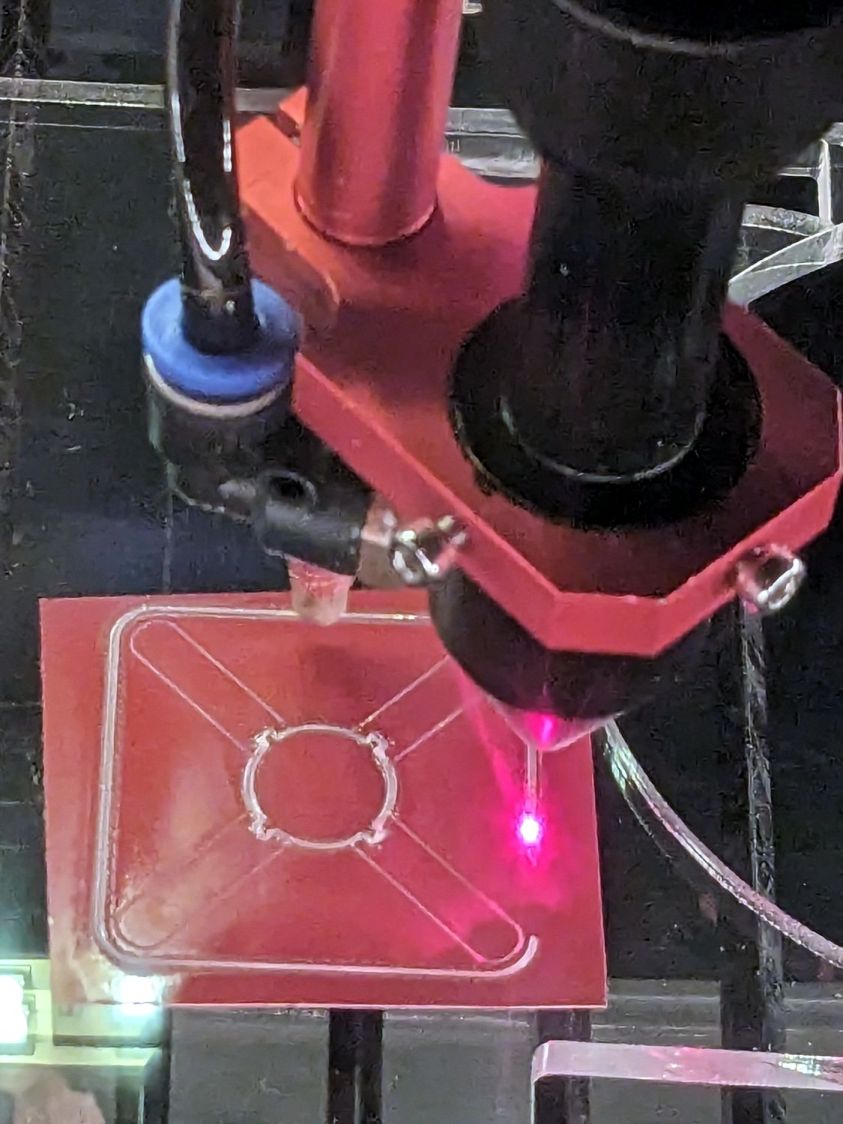
    When the chain falls off the top of the chainring toward the motor, the part remaining engaged with the chainring will inevitably drag the rest into the gap between the motor and the chainring spider, whereupon it will jam firmly in place and be almost impossible to extract. Preventing this means filling the gap, which required several iterations:

    Bafang motor gap filler - prototypes
    Bafang motor gap filler – prototypes

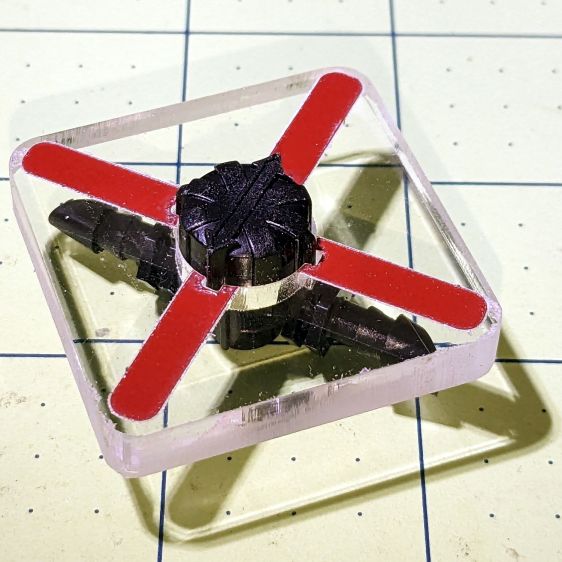
    The Bafang motor has a cover held in place by seven M3 flat-head screws, shown here below a test filler using pan head screws:

    Bafang motor gap filler - installed
    Bafang motor gap filler – installed

    Contrary to what you might think, the five screws that obviously sit on five points of a hexagon do not in fact sit 60° apart. How you find this out is by making the obvious layout, including the two screws bracketing the pinion gear in the lower right, then applying windage:

    Bafang motor housing gap filler - hole adjustments
    Bafang motor housing gap filler – hole adjustments

    That’s one of the paper templates seen above, with laser-cut holes 60° apart and ugly holes punched at the actual screw locations. Then you scan and overlay that image with the LightBurn layout and twiddle the hole locations to make the answer come out right:

    Bafang motor housing gap filler - hole adjustments - LB overlay
    Bafang motor housing gap filler – hole adjustments – LB overlay

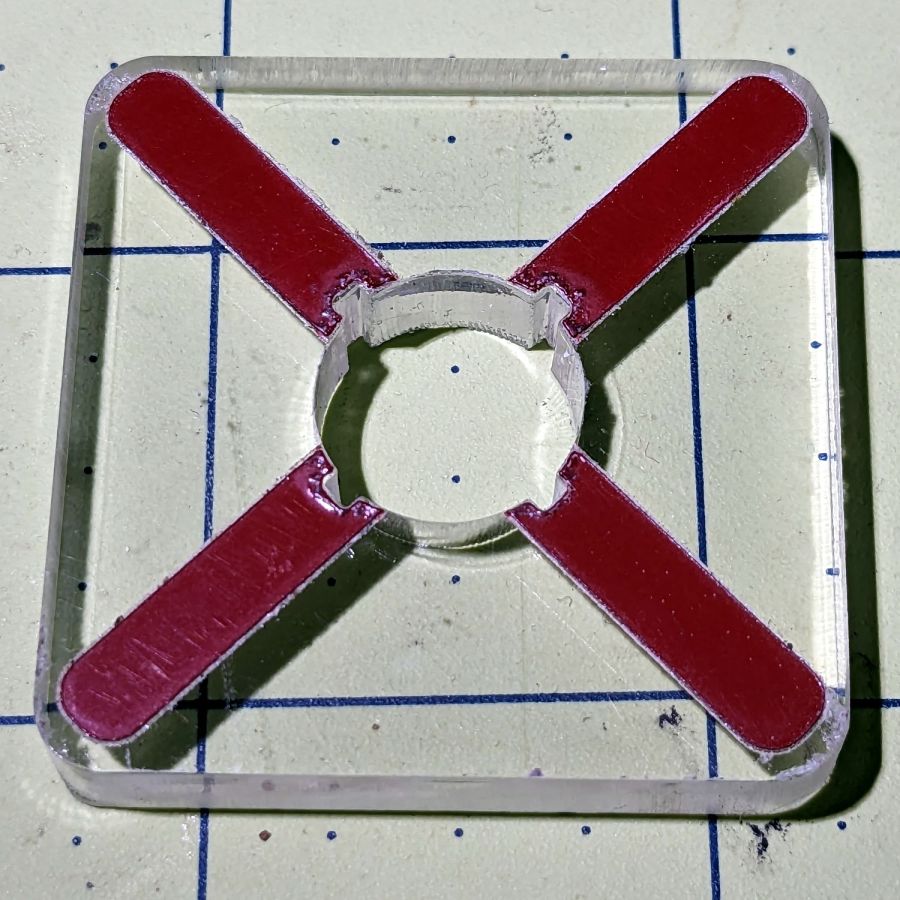
    With that in hand, I cut a 1 mm acrylic shape to measure the clearance between the motor + filler and the chainring spider, with pan-head screws replacing the original flat-head screws:

    Bafang motor gap filler - top view
    Bafang motor gap filler – top view

    That’s a single piece of 2.5 mm acrylic I used after discovering a pair of the 1 mm acrylic shapes fit with space to spare: hooray for rapid prototyping.

    A test chain drop suggested it might suffice:

    Bafang motor gap filler - test
    Bafang motor gap filler – test

    If I were so inclined, 3 mm acrylic with countersunk holes and slightly longer flat-head screws would probably work, but I’ll use this until it fails to prevent a chain snag.

    The careful observer will have noted the stress crack extending radially inward from the upper-right screw, which I am carefully avoiding doing anything about, pending the aforementioned failure.

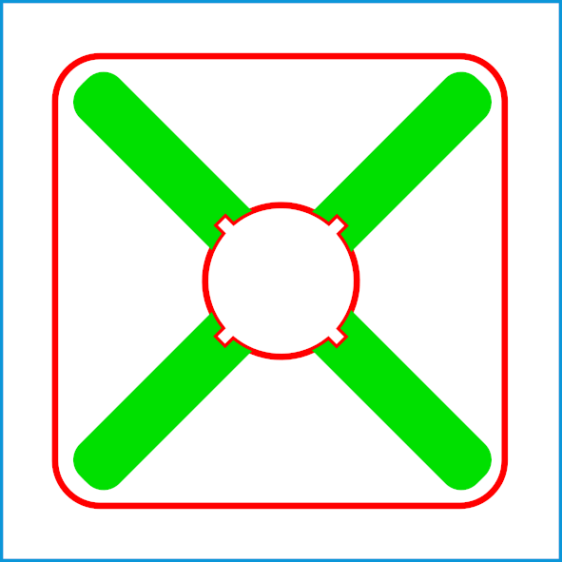
    The LightBurn layout as a GitHub Gist:

    Loading
    Sorry, something went wrong. Reload?
    Sorry, we cannot display this file.
    Sorry, this file is invalid so it cannot be displayed.

  • Zenni Optical Glasses: Nosepad Misalignment

    Zenni Optical Glasses: Nosepad Misalignment

    Mary’s new glasses arrived from halfway around the planet with excruciatingly misaligned nosepads:

    Zenni Optical glasses - misangled nosepads
    Zenni Optical glasses – misangled nosepads

    Despite past experience, Zenni generally does better than this.

    Fortunately, a few minutes with the same metal-forming pliers as before settled them in place.

    Ya gotta have tools!

  • Subaru Forest High Beam Bulbs: Thermal Damage

    Subaru Forest High Beam Bulbs: Thermal Damage

    Although these passed the annual New York State safety inspection, I thought they needed replacing:

    HB3 9005 Bulbs - bulged glass
    HB3 9005 Bulbs – bulged glass

    A closer look:

    HB3 9005 Bulbs - bulged glass - detail
    HB3 9005 Bulbs – bulged glass – detail

    The bulge was upward, of course.

    The Forester’s manual says they’re HB3 bulbs, but the rest of the world knows them as 9005 bulbs. At full power they draw 60 W = 5 A each, although we rarely drive at night and then rarely have the opportunity for much high-beam use. I assume the blackening comes from nine years of running at half-ish power as the Forester’s daytime running lights.

    The low beam headlights seem to be in fine shape.

    These two went into the tray under the floor of the rear cargo area, because the crappy bulb you have is better than the one that just burned out on the road.

  • Laser Cutter Z-Axis: Hitch in the Git-Along

    Laser Cutter Z-Axis: Hitch in the Git-Along

    My OMTech 60 W laser cutter has a stepper motor Z axis drive that has worked flawlessly since it arrived. However, it recently developed a periodic klonk during autofocusing and manual jogging, loud enough to shake the platform and rattle the cabinet’s bottom plate.

    A few minutes of poking around revealed the klonk happened on each turn of the Z axis leadscrews, which quickly led to finding the cause:

    Craft Stick - swarf in belt drive
    Craft Stick – swarf in belt drive

    It’s a rectangular wood chip, perfectly sized to jam into the Z axis motor pulley driving the belt: a belt tooth lifts up on the chip as the pulley turns, then klonks as it slips off the other side. The motor pulley and all four leadscrew pinons have the same number of teeth, so they’re all at the same point in their rotation when the belt slams down onto the pulley.

    Where might such a thing come from? Well, I recently finished a batch of plant markers and hadn’t yet cleaned out the “chip tray” which is also just the bottom plate of the cabinet:

    Craft Stick - swarf
    Craft Stick – swarf

    I briefly considered building a guard for the motor pulley, but the belt most likely carried it from elsewhere. The leadscrews have an ample coating of grease that was also smeared elsewhere on the cabinet, making the belt sticky enough to catch such things.

    The chip tray is once again pretty clean and the platform behaves normally again.

    That was easy …

  • Provide Drivers License Info

    Provide Drivers License Info

    You know how we’re constantly reminded not to click on links in emails from “people we don’t know” and never provide personal information?

    I’m certain this email came from a physician I’m about to see, but, with a concealed URL like that, somehow I just can’t bring myself to Get started like this:

    Provide Drivers License
    Provide Drivers License

    Remember, I’m in the US and *.co links are typically “foreign”, so they are going out of their way to look sketchy. I replaced several characters in the URL to make it invalid, but it closely resembles the original.

    Of course, everything is outsourced these days, so the physician and her staff have nothing to do with the scheduling and patient information group, so they will have no idea what’s going on or be able to do anything about it.

  • Craft Stick Plant Markers: Print-and-Cut Alignment

    Craft Stick Plant Markers: Print-and-Cut Alignment

    With the text laid out in the template, start LightBurn’s Print-and-Cut Wizard to align the template with the fixture on the laser platform.

    Jog the laser to the upper-right target on the fixture, click the upper-right target in the template, and tell P-n-C that’s the First Target. Jog to the lower-left target, click the lower left target, and that’s the Second P-n-C Target:

    Craft Stick Markers - fixture target detail
    Craft Stick Markers – fixture target detail

    The colored circles indicate the targets on the template:

    Craft Stick Markers - LB PnC layout
    Craft Stick Markers – LB PnC layout

    Select the Align No Scaling option, because the template and the fixture are exactly the same size.

    Click-n-drag to select the entire template (because you should always use Cut Selected Graphics), then frame it Just To Be Sure. The red dot pointer (or whatever you use) should kiss the fixture’s perimeter all the way around.

    Make sure the fill layer happens before the cut layer, then Release The Laser:

    Craft Stick Markers - engraving
    Craft Stick Markers – engraving

    The cut layer trims around the engraved letters to leave them standing in the rectangle:

    Craft Stick Markers - cutting
    Craft Stick Markers – cutting

    Some of the smaller bits won’t fall out as they’re cut, but a sharp thwack ejects them easily enough.

    Producing a set of ten sticks takes maybe seven minutes:

    Craft Stick Markers - fixture second fill
    Craft Stick Markers – fixture second fill

    Because craft sticks aren’t intended for fine woodworking, don’t expect consistent engraving results:

    Craft Stick Markers - wood engraving difference
    Craft Stick Markers – wood engraving difference

    Applying a finish would definitely improve their appearance, but most such chemicals don’t belong in an organic vegetable garden.

    I poked the first few test sticks along the edge of the herb garden:

    Craft Stick Markers - test sticks installed
    Craft Stick Markers – test sticks installed

    The rest will be deployed as their eponymous plants go in, then we’ll see how long they survive out there in the real world.

    They’re kinda cute and definitely improved my fixture / template skillz.

  • Craft Stick Plant Markers: Layout Template and Text Alignment

    Craft Stick Plant Markers: Layout Template and Text Alignment

    Putting the entire fixture layout onto a tool layer produces a template to align the text on the sticks:

    Craft Stick Plant Markers - fixture layout
    Craft Stick Plant Markers – fixture layout

    The rectangles mark where you put cut layer rectangles around the text in each stick. The sticks are 18 mm wide, so a 10 mm cutout leaves what should be enough wood along the edges. The rectangle length is a serving suggestion, as you must adjust the cut rectangle to fit the text.

    Group everything except the four targets into a single object so you won’t inadvertently move only a part of it. The targets must remain separate to work with the Print-and-Cut alignment. With that set up, Lock the position of the entire layout to prevent you from moving any part of it.

    Starting with a blank tag in the template:

    Craft Stick Markers - LB template - base
    Craft Stick Markers – LB template – base

    Draw a rectangle in a cut layer to match the template, which is easy if you have Object Snap set up properly:

    Craft Stick Markers - LB template - rectangle
    Craft Stick Markers – LB template – rectangle

    Add your text in a chunky font like Fira Sans Condensed Heavy, set to 15 mm tall with 5 mm horizontal spacing:

    Craft Stick Markers - LB template - lowercase text
    Craft Stick Markers – LB template – lowercase text

    LightBurn aggressively snaps a new text cursor to the nearest pre-existing text, so you may be forced to click far away from where you want to place the text, type the text, then move the finished string. LightBurn will also snap the text to the display grid as you drag it around, so hold the Ctrl key down to disable snapping while you eyeball the proper alignment with the rectangle. Leave about 2 mm between the left edge of the rectangle and the first letter to make an easily visible space.

    Although you can use lowercase letters, uppercase letters have the compelling advantage of being attached both top and bottom, so retype the text if you forgot about the Caps Lock key:

    Craft Stick Markers - LB template - uppercase aligned
    Craft Stick Markers – LB template – uppercase aligned

    The 15 mm font height I’m using seems to be the overall maximum from the top of the tallest letter to the bottom of the lowest descender, not the height of any specific capital letter, all of which extend beyond the cut rectangle by about half a millimeter. That’s crucial to make this thing work, so tune the font and its height appropriately.

    Select the text string when you have it properly aligned:

    Craft Stick Markers - LB template - text selected
    Craft Stick Markers – LB template – text selected

    Hit Ctrl-D to duplicate the text, tap the ↑ (Up) arrow key to move the copy out of the way, and set it to the fill layer.

    Now the magic happens.

    Select the rectangle, Shift-select the text, and Boolean Subtract (Alt minus) the text from the rectangle:

    Craft Stick Markers - LB template - subtracted text
    Craft Stick Markers – LB template – subtracted text

    Realize that you have screwed up by not shortening the right side of the rectangle to leave about 2 mm of open space. Bang on Ctrl-Z to undo the last step, shorten the rectangle, Shift-select the text again, then subtract the text from the rectangle:

    Craft Stick Markers - LB template - properly subtracted text
    Craft Stick Markers – LB template – properly subtracted text

    Select the filled copy and whack the ↓ (Down) arrow key to move it back over the cut layer:

    Craft Stick Markers - LB template - overlaid text
    Craft Stick Markers – LB template – overlaid text

    Now the filled layer will toast the characters to a nice brown and the cut layer will remove the background rectangle.

    After finishing the text dance for all the markers, the template should look something like this:

    Craft Stick Markers - LB PnC layout
    Craft Stick Markers – LB PnC layout

    The cheerful circles come from LightBurn’s Print-and-Cut Wizard aligning the template with the fixture holding the craft sticks on the laser platform, about which more tomorrow.