Ed Nisley's Blog: Shop notes, electronics, firmware, machinery, 3D printing, laser cuttery, and curiosities. Contents: 100% human thinking, 0% AI slop.
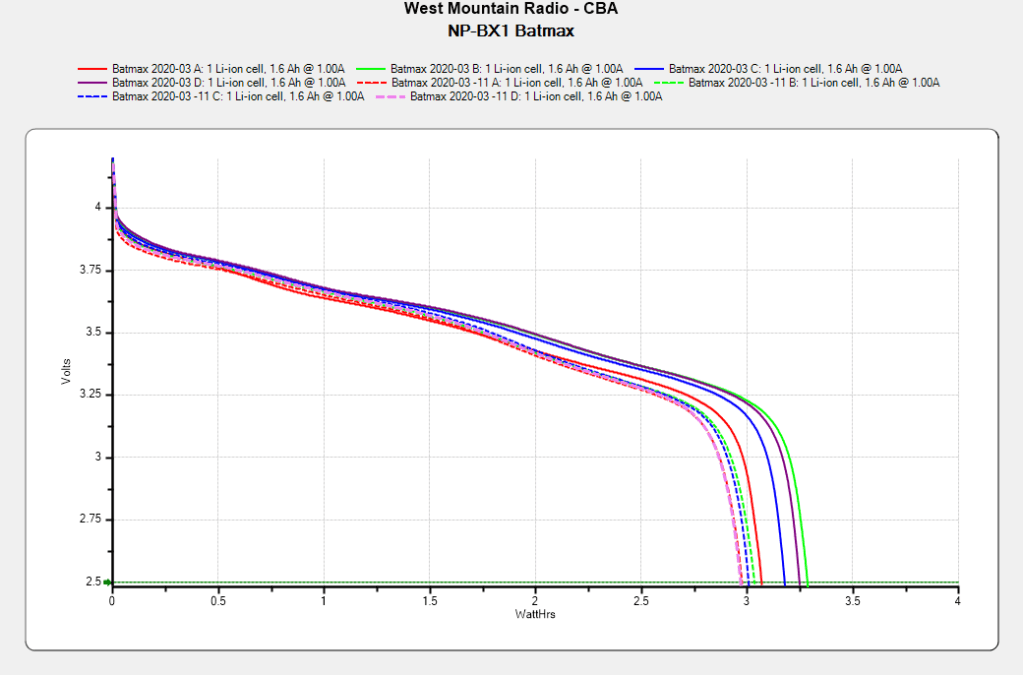
After powering my Sony HDR-AS30V helmet camera for nearly all of this year’s riding, the Batmax NP-BX1 lithium batteries still have roughly 90% of their original capacity:
Batmax NP-BX1 – 2020-11
Those are hot off the Official Batmax charger, which appears identical to other randomly named chargers available on Amazon.
They’re holding up much better after a riding season than the DOT-01 batteries I used two years ago:
Sony DOT-01 NP-BX1 – 2019-10-29
Empirically, they power the camera for about 75 minutes, barely enough for our typical rides. I should top off the battery sitting in the camera unused for a few days, although that hasn’t happened yet.
Of course, the Batmax NP-BX1 batteries I might order early next year for the new riding season have little relation to the ones you see here.
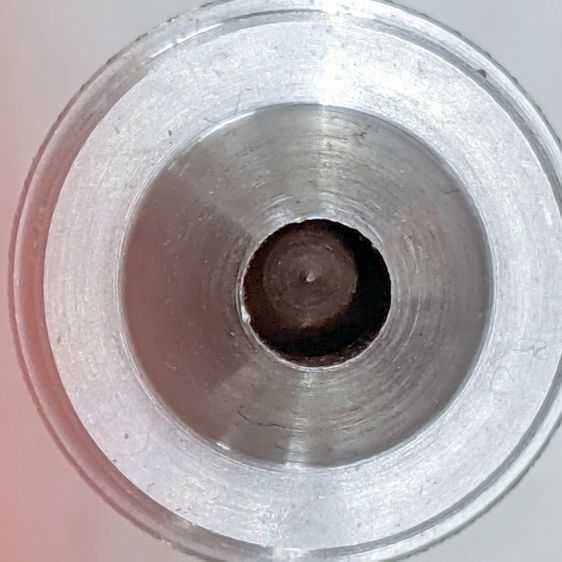
That’s the 5 mm punch, where being (at least) half a millimeter off-center matters more than it would in the 32 mm punch.
Unscrewing the painfully awkward screw in the side releases the pilot:
Neiko hole punch – punch tip debris
The debris on the back end of the pilot is a harbinger of things to come:
Neiko hole punch – damaged spring debris
Looks like whoever was on spring-cutting duty nicked the next coil with the cutoff wheel. I have no idea where the steel curl came from, as it arrived loose inside the spring.
Although it doesn’t appear here, I replaced that huge screw with a nice stainless steel grub screw that doesn’t stick out at all.
Chucking the pilot in the lathe suggested it was horribly out of true, but cleaning the burrs off the outside diameter and chamfering the edges with a file improved it mightily. Filing doesn’t remove much material, so apparently the pilot is supposed to have half a millimeter of free play in the handle:
Neiko hole punch – undersized pilot
That’s looking down at the handle, without a punch screwed onto the threads surrounding the pilot.
Wrapping a rectangle of 2 mil brass shimstock into a cylinder around the pilot removed the slop:
Neiko hole punch – cleaned tip brass shim
But chucking the handle in the lathe showed the pilot was still grossly off-center, so I set it up for boring:
Neiko hole punch – boring setup
The entry of the hole was comfortingly on-axis, but the far end was way off-center. I would expect it to be drilled on a lathe and, with a hole that size, it ought to go right down the middle. I’ve drilled a few drunken holes, though.
Truing the hole enlarged it enough to require a 0.5 mm shimstock wrap, but the pilot is now pretty much dead on:
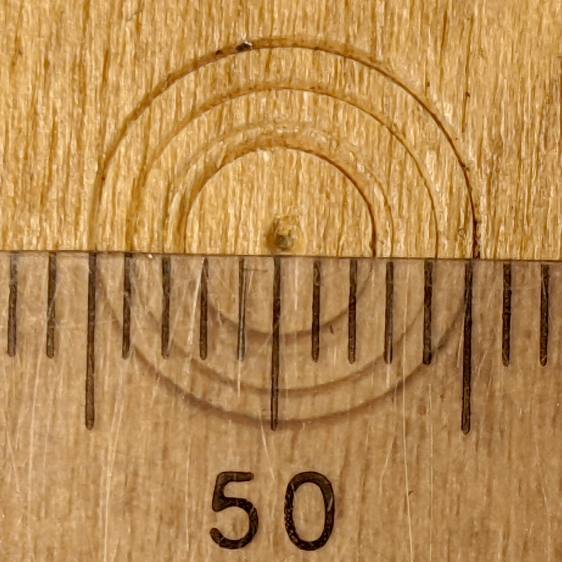
Neiko hole punch – accurized results
Those are 5, 6, 8, and 10 mm punches whacked into a plywood scrap; looks well under a quarter millimeter to me and plenty good enough for what I need.
This past summer we replaced a worn-out vegetable peeler with what was allegedly a high-quality Linden Jonas peeler. It worked quite well, which it should have, given that it cost nigh onto seven bucks, until I recently backed over it with my wheelchair (about which, more later) and smashed it flat.
World+dog having recently discovered the virtues of home-cooked meals, the replacement cost nigh onto ten bucks and, through the wonders of Amazon, came from a different seller, albeit with a letter-for-letter identical description:
Linden Jonas peeler orders
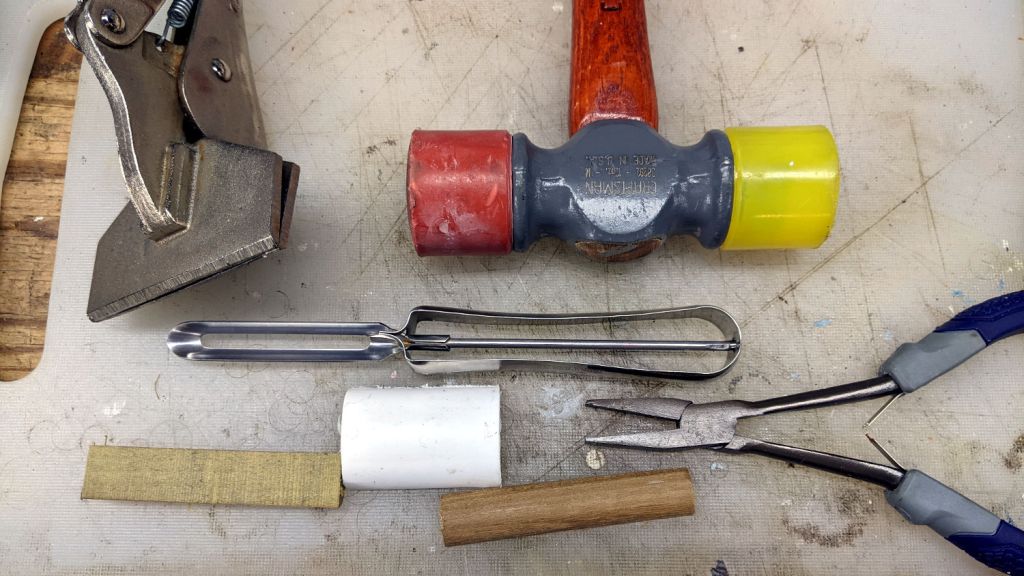
With a spare in the kitchen, I applied some shop-fu to unbend the first peeler:
Jonas peeler – reshaping tools
Tapping the handle against the bandsawed dowel sufficed to remove the sharpest bends. The final trick involved clamping one edge of the handle to the section cut from a thread spool, resting the Vise-Grip on the bench vise, and whacking the other edge with the rubber mallet to restore the smooth curve around the main axis, repeating the process along the other side, then hand-forming the gentle curve closer to the blade. It ain’t perfect and never will be, but it’s once again comfortable in the hand.
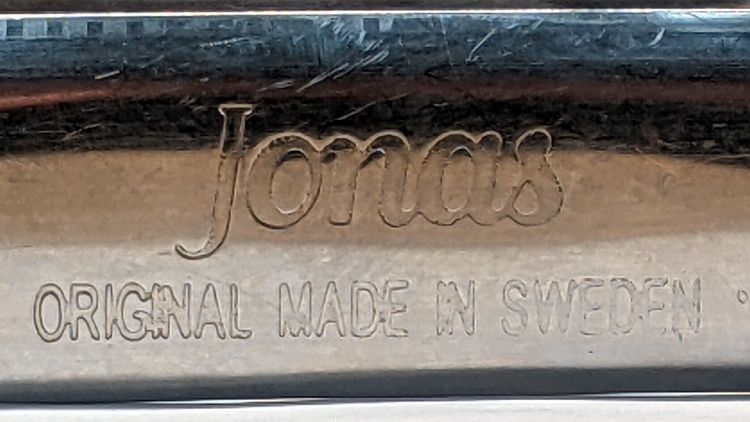
During that process I had plenty of time to admire the identification stamped into the handle:
Jonas peeler – weak emboss
Which, frankly, looks rather gritty on an allegedly high-quality product from a Swedish factory.
Compare it with the new peeler:
Jonas peeler – good emboss
Now, that’s more like it.
The genuine Linden website doesn’t provide much detail, so I can’t be absolutely sure which peeler is a counterfeit, but it sure looks like at least one fails the sniff test. Linden’s site redirects to Amazon through a Google search link (!) that, given the way Amazon works, could result in anything appearing as a valid result:
As one should expect by now, Amazon’s commingled inventory produces a fair percentage of reviews complaining about craptastic peelers stamped “Made in China” from any of the sellers unearthed by that search.
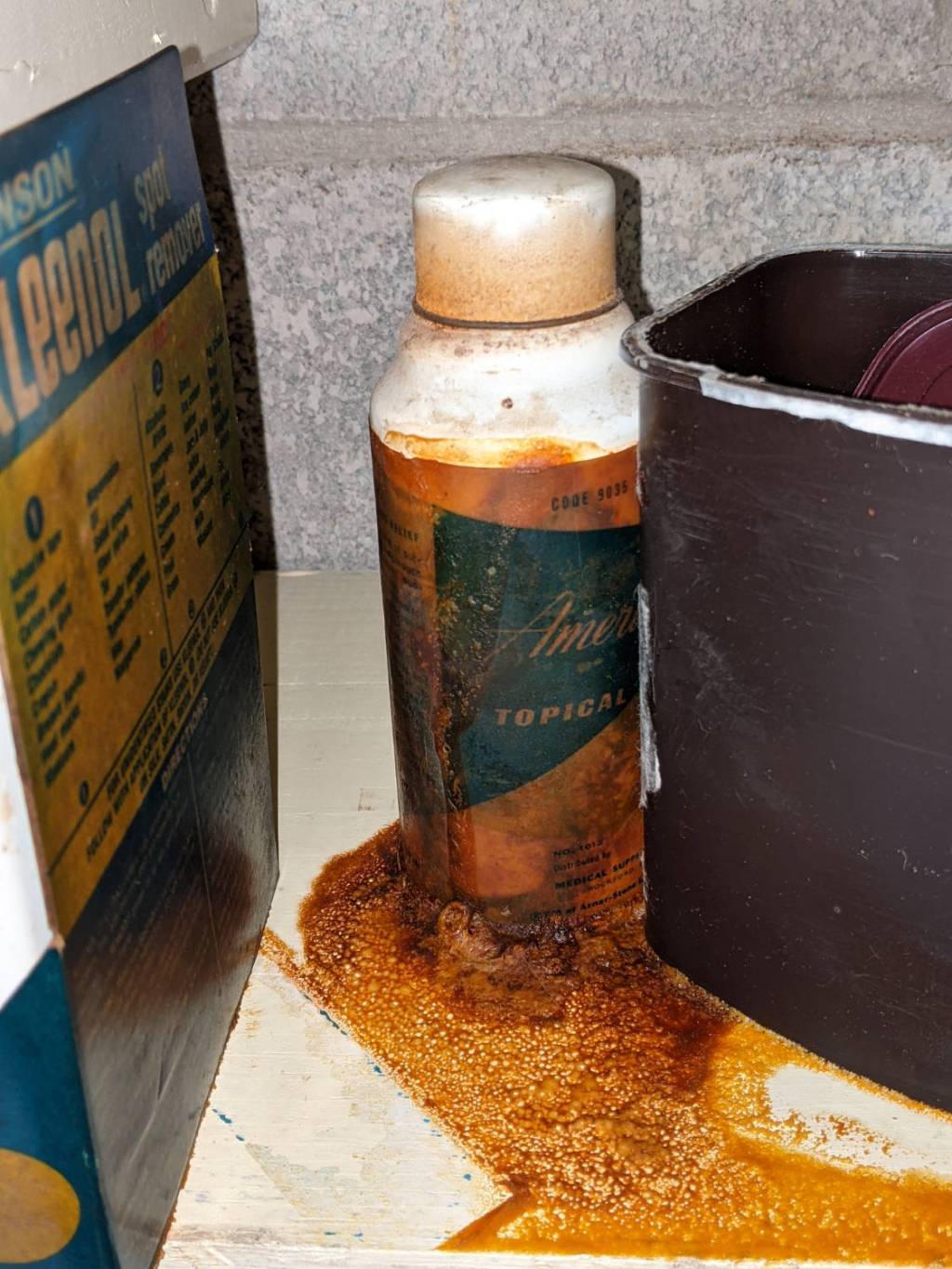
An odd smell in the Basement Laboratory Chemical Warehouse led to this discovery:
Leaking aerosol can
It’s a can of spray-on topical anesthetic That Came With The House™, so it’s almost certainly four decades old and, other than being moved to that shelf, hasn’t been touched in the last quarter century.
Surprisingly, the orange-brown goo wiped off the shelf almost completely. The similarly old box of stain remover on the left was a dead loss.
Adding a bit of trim to the bottom of the LED spider makes it look better and helps keep the strut wires in place:
Astable Multivibrator – Alkaline – Radome trim
It’s obviously impossible to build like that, so it’s split across the middle of the strut:
Astable Multivibrator – Alkaline – Radome trim
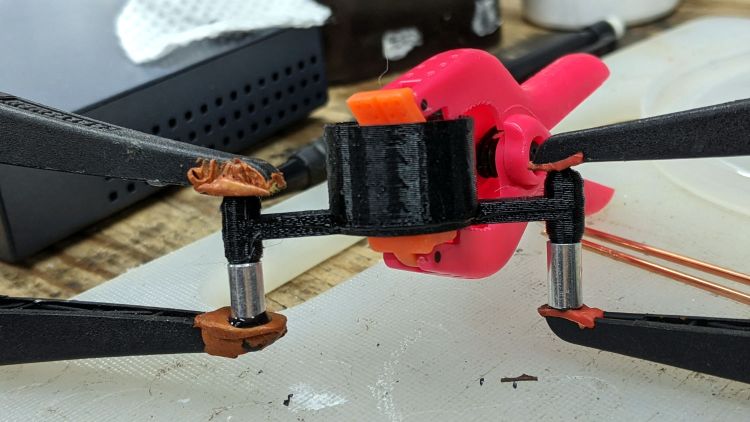
Glue it together with black adhesive and a couple of clamps:
LED Spider – glue clamping
The aluminum fixtures (jigs?) are epoxied around snippets of strut wire aligning the spider parts:
LED Spider – gluing fixture
Those grossly oversized holes came pre-drilled in an otherwise suitable aluminum rod from the Little Tray o’ Cutoffs. I faced off the ends, chopped the rod in two, recessed the new ends, and declared victory. Might need better ones at some point, but they’ll do for now.
Next step: wire up an astable with a yellow LED to go with the green and blueboosted LEDs.
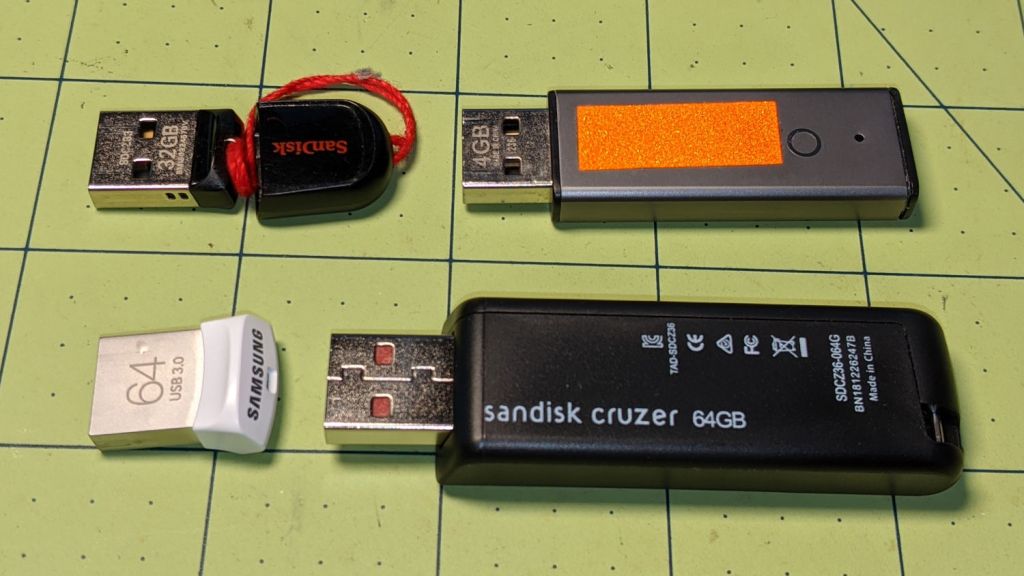
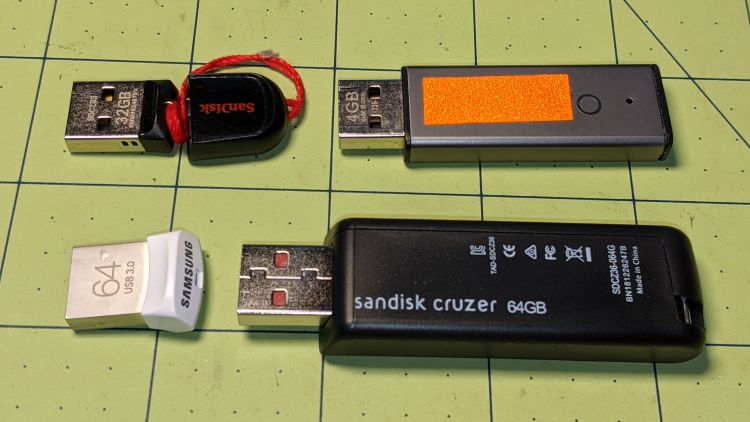
After about a year of streaming music, the music died over the course of a month, producing progressively bizarre symptoms on all the local Icecast stations. Killing the streaming server and yanking all the USB memory sticks produced this tableau:
USB Memory – streamer failures
The USB 2.0 32 GB SanDisk Cruzer Fit (tiny, black, upper left) holds images from various network cameras and is not involved with music. It’s nigh onto seven years old and, apparently, still going strong.
The USB 2.0 Centron (gray-and-retroreflective, upper right) was forgotten from the last time I set up a drive for our Forester’s player. There’s another one just like it in the car; they’re impossibly old, as you’d expect from their minuscule size.
The USB 3.0 64 GB Samsung Fit (small, white, lower left) is totally dead, to the extent it doesn’t even announce its presence when plugged into a USB socket. It’s 2.5 years into a five year warranty, but their new USB 3.1 version is twelve bucks; Samsung wins. It formerly contained an extensive selection of public-domain music.
The 64 GB Sandisk Cruzer (huge, black, lower right) suffered some serious damage:
sudo mount -o ro /dev/sdg1 /mnt/part
ll /mnt/part
 ls: cannot access '/mnt/part/PILZ': Input/output error
 total 384K
 drwxr-xr-x   6 ed   users 4.0K Nov 28  2019 ./
 drwxr-xr-x  17 root root  4.0K Jun  7  2019 ../
 -rw-r--r--   1 ed   ed    215K Mar  9  2019 CDClassical.m3u
 drwxrwxr-x  56 ed   ed    4.0K Mar  9  2019 Classical/
 drwx------   2 root root   16K Mar  9  2019 lost+found/
 d?????????   ? ?    ?        ?            ? PILZ/
 drwxrwxr-x 116 ed   ed     12K Mar  9  2019 Pop/
 -rw-r--r--   1 ed   ed    117K Nov 28  2019 Pop.m3u
It still contains a fair amount of music ripped from the CDs we’ve collected over the decades, but it’s obviously unusable. Just for fun, I tried reformatting and copying some files to it, but it eventually hard-crashed with I/O errors:
[37787.872410] usb 2-1: new high-speed USB device number 2 using xhci_hcd
 [37788.013027] usb 2-1: New USB device found, idVendor=0781, idProduct=5530, bcdDevice= 1.00
 [37788.013030] usb 2-1: New USB device strings: Mfr=1, Product=2, SerialNumber=3
 [37788.013032] usb 2-1: Product: Cruzer
 [37788.013034] usb 2-1: Manufacturer: SanDisk
 [37788.013036] usb 2-1: SerialNumber: 4C530001151215101233
 [37788.013604] usb-storage 2-1:1.0: USB Mass Storage device detected
 [37788.014778] scsi host9: usb-storage 2-1:1.0
 [37789.033409] scsi 9:0:0:0: Direct-Access     SanDisk  Cruzer           1.00 PQ: 0 ANSI: 6
 [37789.034569] sd 9:0:0:0: [sdf] 120225792 512-byte logical blocks: (61.6 GB/57.3 GiB)
 [37789.035820] sd 9:0:0:0: [sdf] Write Protect is off
 [37789.035825] sd 9:0:0:0: [sdf] Mode Sense: 43 00 00 00
 [37789.036137] sd 9:0:0:0: [sdf] Write cache: disabled, read cache: enabled, doesn't support DPO or FUA
 [37789.086533]  sdf: sdf1
 [37789.089418] sd 9:0:0:0: [sdf] Attached SCSI removable disk
 [38035.071013] EXT4-fs (sdf1): mounting ext3 file system using the ext4 subsystem
 [38035.183172] EXT4-fs (sdf1): mounted filesystem with ordered data mode. Opts: (null)
 [38485.302549] usb 2-1: reset high-speed USB device number 2 using xhci_hcd
 [38490.622285] usb 2-1: device descriptor read/64, error -110
 [38506.195617] usb 2-1: device descriptor read/64, error -110
 [38506.425616] usb 2-1: reset high-speed USB device number 2 using xhci_hcd
 [38511.742339] usb 2-1: device descriptor read/64, error -110
 <<< snippage >>>
 [38548.845743] usb 2-1: USB disconnect, device number 2
 [38548.858925] blk_update_request: I/O error, dev sdf, sector 99556320 op 0x1:(WRITE) flags 0x4800 phys_seg 30 prio class 0
 [38548.858933] EXT4-fs warning (device sdf1): ext4_end_bio:309: I/O error 10 writing to inode 1531939 (offset 0 size 0 starting block 12444541
 )
 [38548.858937] Buffer I/O error on device sdf1, logical block 12444284
 [38548.858944] EXT4-fs warning (device sdf1): ext4_end_bio:309: I/O error 10 writing to inode 1531939 (offset 0 size 0 starting block 12444542
 )
 <<< snippage >>>
 [38548.858984] Buffer I/O error on device sdf1, logical block 12444293
 [38548.859034] blk_update_request: I/O error, dev sdf, sector 99017520 op 0x1:(WRITE) flags 0x4000 phys_seg 3 prio class 0
 [38548.859158] blk_update_request: I/O error, dev sdf, sector 99556560 op 0x1:(WRITE) flags 0x4800 phys_seg 30 prio class 0
 [38548.859224] blk_update_request: I/O error, dev sdf, sector 99017760 op 0x1:(WRITE) flags 0x4000 phys_seg 2 prio class 0
 [38548.859237] blk_update_request: I/O error, dev sdf, sector 99018000 op 0x1:(WRITE) flags 0x4000 phys_seg 2 prio class 0
 >>
 [38549.230765] JBD2: Detected IO errors while flushing file data on sdf1-8
 [38549.230920] Aborting journal on device sdf1-8.
 [38549.231008] Buffer I/O error on dev sdf1, logical block 1545, lost sync page write
 [38549.231011] JBD2: Error -5 detected when updating journal superblock for sdf1-8.
 [38549.231325] Buffer I/O error on dev sdf1, logical block 0, lost sync page write
 [38549.231332] EXT4-fs (sdf1): I/O error while writing superblock
 [38549.231333] EXT4-fs error (device sdf1): ext4_journal_check_start:61: Detected aborted journal
 [38549.231334] EXT4-fs (sdf1): Remounting filesystem read-only
 <<< and so forth and so on >>>
The Icecast streaming server reads data continuously from the USB sticks and, given that I set up half a dozen “stations”, there’s plenty of reading going on. The drives are formatted as ext3 and mounted with the noatime option, so there shouldn’t be any writing going on, but it seems a year of constant reading can kill a USB drive.
Fortunately, the original data lives elsewhere, with scripts to copy the appropriate files to the right places, so rebuilding the drives on a pair of new USB sticks wasn’t a big deal.












 The Smell of Molten Projects in the Morning