Ed Nisley's Blog: Shop notes, electronics, firmware, machinery, 3D printing, laser cuttery, and curiosities. Contents: 100% human thinking, 0% AI slop.
Most of my machining involves one-off setups and simple cuts, so I usually type G-Code directly into EMC2’s Axis interface: CNC hits precise locations and makes smoother cuts than I ever could. Most of the time, that works really well.
Occasionally, though, I think one thing and type something else.
The reason I didn’t see the yellow low-overheat LED blink on when the Thermal Core ran away was that I’m usually upstairs except when actually printing.
My modus operandi involves sitting at my upstairs desk, fiddling with an OpenSCAD solid model until I like it, then exporting the STL file. This PC has larger screens, better graphics hardware, a fast CPU, a Comfy Chair, and ready access to the kitchen.
The Thing-O-Matic lives in the Basement Laboratory, connected to a dual-core Atom D520 PC running Ubuntu 10.04 LTS with ReplicatorG to control the printer. That PC dual-boots into the RTAI-patched kernel that runs EMC2 for the Sherline mill and is firmly cabled to the Sherline driver box. That PC’s monitor is up on the wall, the chair is a modified lab stool, and the miniature keyboard is barely suited for hunt-and-poke controls. Not a good place to sit and type.
That PC also has a USB webcam showing an interior view of the printer. I run XawTV, a minimal video capture program, to put that view on the PC’s desktop. I could set it up as a webserver camera, but that seems like too much work.
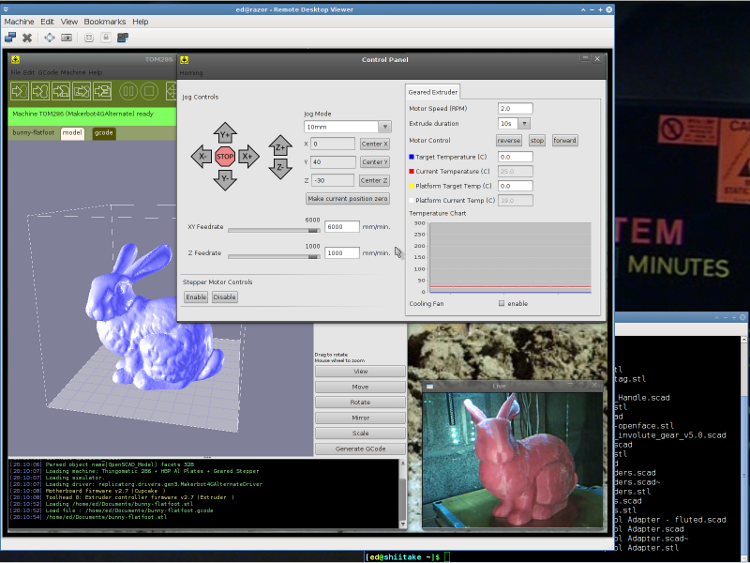
I use the Ubuntu desktop-sharing program to view / control the downstairs programs in a window on my (larger) upstairs monitor, so I can fiddle with RepG from the Comfy Chair. There’s a moderate lag due to stuffing the GUI through the network, but it’s tolerable for small changes & tweaks. The webcam view occupies one corner of the screen.
This is a staged reenactment showing the remote “downstairs” desktop in the left, with the “upstairs” desktop visible to the right:
Remote Desktop Screenshot – lowres
All the files live on our simpleminded server, which sits in the Basement Laboratory’s Computer Wing, and the PCs mount NFS shares from the server. I do all the bulk text editing & file fiddling from the Comfy Chair.
So I save the STL file from the upstairs PC, flip to the window showing the downstairs machine’s desktop, copy the STL to a local drive to avoid lag during operation, run RepG to open the STL and slice it into G-Code, fire the Thing-O-Matic, and trot downstairs to watch the proceedings.
As a rule, I don’t run the printer unattended, but now it looks like it’s a Bad Idea to run the heaters without being nearby. You knew that already, right?
The NEMA standards for stepper motors don’t specify the shaft dimensions, alas. While most NEMA 17 steppers have 5 mm shafts, the X and Y axis motors in a Thing-O-Matic have 3/16 inch shafts: MBI belt pulleys with 4.76-ish mm ID won’t fit on 5 mm OD shafts.
(Note: the “17” in NEMA 17 means the mounting holes are on a more-or-less 1.7 inch circle. The side of the motor frame will be close, but that’s not the controlled dimension. Some relevant diagrams live there.)
I plan to replace the Y axis stepper with a better motor (I got a set of three, one of which is now driving the stepper extruder), which means either buying a new pulley or having some Quality Shop Time. Plus, a bit more length on the Y axis shaft than what comes standard would be a Good Thing, too.
[Update: From the motor label, not that you’ll ever find one like it…
38 mm case
Minebea-Matsushita 17PM-K150-P1V
No T6824-02
]
So I built an adapter from 5/16 and 3/16 rod with a setscrew to grab a flat on the stepper shaft and a pin for the torque. The larger rod turned out to be La Salle Fatigue-Proof steel, not that it matters, and the smaller rod is plain old W-1 Water Hardening Drill Rod, both from Brownell’s, a long time ago in a universe far away. You could turn and drill the adapter from a single length of 5/16 rod if you prefer, but take some care to maintain the alignment.
A bit of lathe & Sherline CNC work:
Face one end of the 5/16 rod
Drill half an inch with a #9 drill (0.196 + runout = 5 mm)
Drill another quarter inch with a #12 drill (0.189 = 4.8 mm)
Saw off 3/4 inch, face the raw end
Saw & face an inch of 3/16 rod
Epoxy little rod in big rod, set upright, wait overnight
Cross drill #43 and tap 4-40 near big end
Cross drill #56 for 0.045 music wire pin
Chamfer pin hole, clean, epoxy pin in place, wait overnight
File two flats on 3/16 shaft for MBI pulley setscrews
Tapping shaft adapter
I grabbed the small rod in the vise with the large rod resting on the top of the jaws while the epoxy cured, figuring that it’d be pretty much self-aligning. Not that a few mils one way or the other will matter, as it’s driving a timing belt in a flexy machine anyway.
Cross-drilling the pin hole required eyeballing the center of the length of 3/16 rod within the 5/16 rod. It’s not critical, but avoid missing the poor thing entirely. You want to minimize the nested length, so as to keep the adapter as short as possible, but keep at least one diameter (3/16 inch) so as to maintain alignment.
Tapping should involve a bottoming tap, but I used what I had and it worked out OK.
Now, one reason I was willing to do this is that the stock Y axis motor shaft was already too short. As nearly as I can tell, the TOM dimensions were set before MBI started shipping those cork sound-deadening plates, because the shaft is recessed into the pulley by about the thickness of that plate.
The MBI pulleys are an extremely tight fit on a 3/16 inch rod, so, rather than forcing the pulley, I enlarged the hub with a #12 drill (same as in the adapter) to get another 1.5 mil of clearance; it’s now an easy slip fit on the rod.
Drilling MBI motor pulley
Anyhow, the bottom flange of the pulley is 17 mm above the ridge on the motor and this one worked out to a bit over 20. No problem, I can just lower the motor a little bit, flip the pulley over to get the setscrew end of the hub on the top, and it’ll have plenty of room. A bit more shaft is much better than not enough, sez I.
Y axis motor shaft extension
The motors came from the usual eBay seller complete with a squishy silicone sound deadening panel that turned out to be exactly the right thickness, when stacked atop a cork sheet, to put the pulley where it needed to be. I cut a second cork sheet, so as to isolate the bolt heads from that acrylic body panel, and it’s all good.
The first aluminum build plates had to fit around the gimcrackery atop my tweaked ABP: two solderless grounding lugs and a lump of Wire Glue. The new HBP setup put the grounding lug below the fixed plate and did away with the lump, so the removable plate could have five holes and a wiper cutout without any fancy trimming.
I’d squared up three plates and machined only two for the ABP, so I had one plate that just needed drilling. Rather than machining two new plates, I filled the cutouts on the old plates with JB Industro Weld epoxy, flycut the excess, and drilled new holes.
Flycut and drilled epoxy fill
This was straightforward manual CNC: get the plate square on the table, touch off the plate edges, and then drill the holes in two steps.
If those thin epoxy webs break off the outside of the holes, it’s not the end of the world: the plates won’t go anywhere because they’re indexed by the holes on the other side.
Memo to Self: Next time, make a fixture to hold the plates relative to a starting hole and eliminate all the tedious alignment steps.
The best place to mount a thermal switch (or a thermal sensor, depending on how much you trust your circuitry) is on the MK5 Thermal Core, but that’s far too hot for the switches I have in hand. As a compromise, I decided to mount the switch on the Thermal Riser tube leading vertically upward to the Filament Drive gear: good thermal contact, a solid mount, and out of harm’s way.
All the alternative locations seem worse. Tucking it inside the insulation wrap doesn’t provide a solid mechanical mount, so you don’t get a repeatable position and the leads get bent every time you move something. Bolting it to the plate over the Core looks solid, but that’s just a flat sheet of metal with four screws connecting it to the Core: no real thermal contact surrounded by lots of cooling air.
One good omen: with an operating temperature well under 100 °C, JB Industro Weld epoxy will work fine and eliminate any need for fussy clamps and fittings.
So I sawed off a random chunk of aluminum plate, squared it up in the Sherline mill, and poked a few holes in it. This doodle has dimensions roughly equivalent to the final object, but absolutely nothing is critical other than the 5/16 inch central hole:
Switch block sketch
The 4-40 setscrew secures the block to the Thermal Riser. Aluminum expands considerably more than stainless steel, so I dropped a snippet of PTFE wire insulation into the hole as a rubberdraulic plunger.
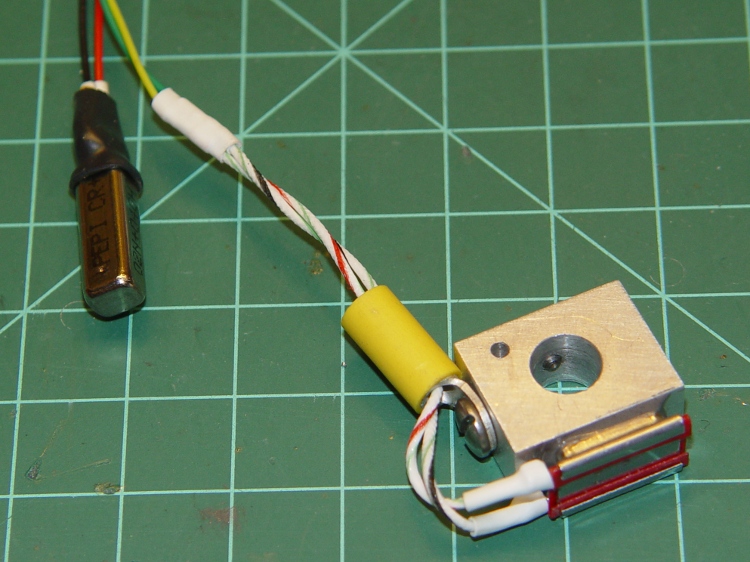
The lug on the top provides strain relief for the wires; it’s not an electrical connection. The modular phone cable trailing off to the Thermal Cutout box has wires insulated with low-temperature plastic, so a few inches of Teflon hookup wire keep them out of the Danger Zone.
The small hole is just big enough for a thermocouple bead.
This is what the thing eventually looked like, but I made some measurements before sticking that switch in place:
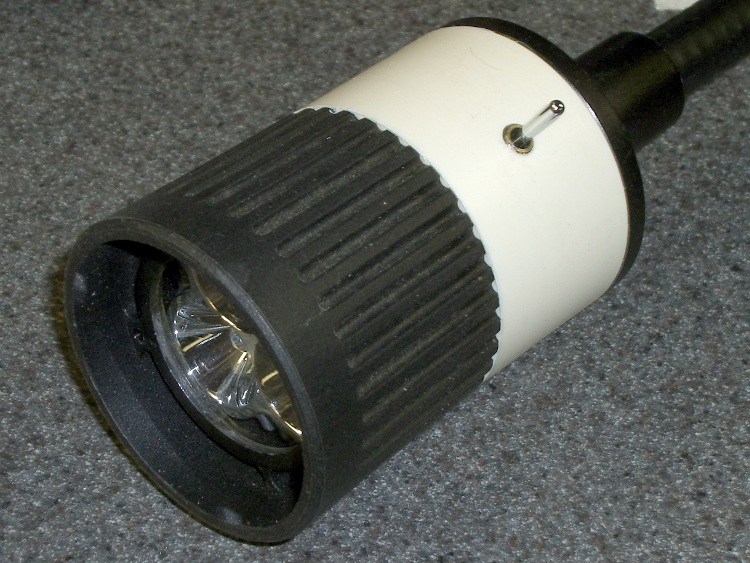
Eks forced me to take a pile of crap useful make-froms, including a gooseneck task lamp that was probably bolted onto a machine tool in its former life. It sported a 20 W halogen bulb, but looked to be just about exactly the right size for those LED floodlights, which is why I didn’t put up much of a fuss about taking it off his hands.
The LED lamps are much bigger than the halogen bulb, but they fit neatly into the housing diameter. All they needed was a bit more front-to-back room, which looked a lot like a chunk of PVC pipe. The housing screws together with a 1.5 mm thread that I can’t produce on my inch lathe; I’m still not set up for thread milling. This being a low-stress application with a lamp that ought to outlast me, I figured I’d just make the belly band slip-fit the two threads, glue it in place, and move on.
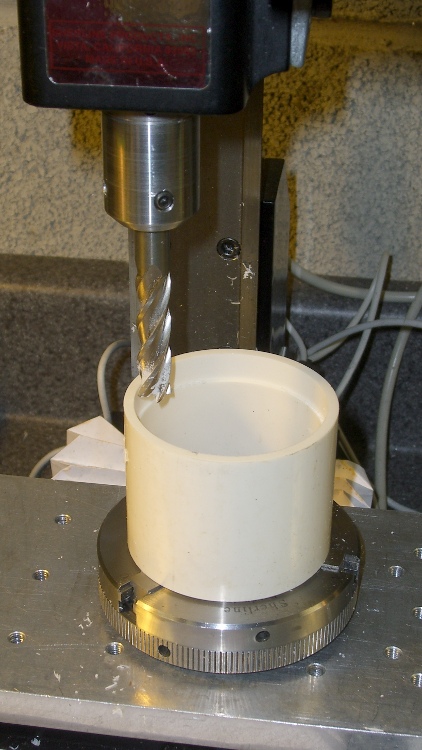
I sawed off a length of PVC pipe, faced off the ends in the lathe, then CNC milled a recess to clear the male threads on the gooseneck part (I hate precision boring in the lathe). Given the rather tenuous grasp of that 3-jaw chuck, I made two passes around the perimeter: pipe ID 52.1, thread OD 54.5, remove 1.2 mm all around, about 9 mm down.
Milling top recess
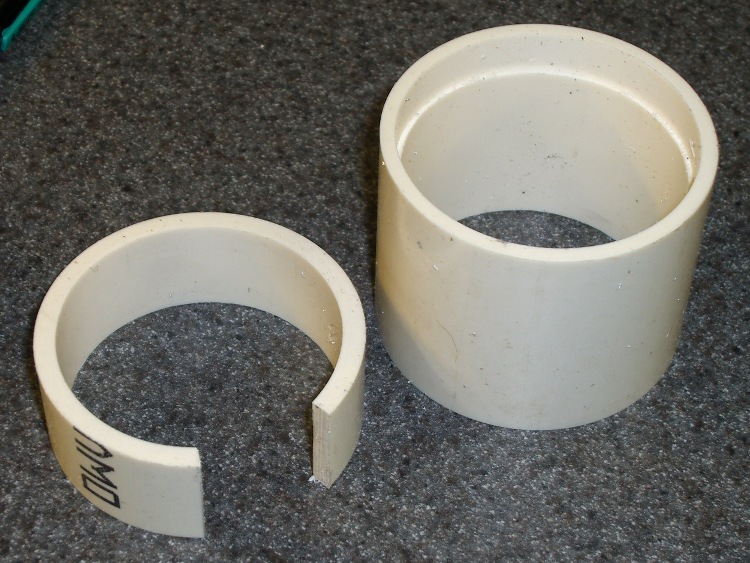
On the other end, the female thread ID = 52.2 and the pipe ID = 52.1, so I glued another ring of PVC pipe inside to provide enough meat to turn it down. Once again, saw off a ring, face the ends, then cut out a segment so that the OD circumference of the inner ring is just slightly smaller than the ID circumference of the outer pipe. The result looked like this:
PVC insert sizing
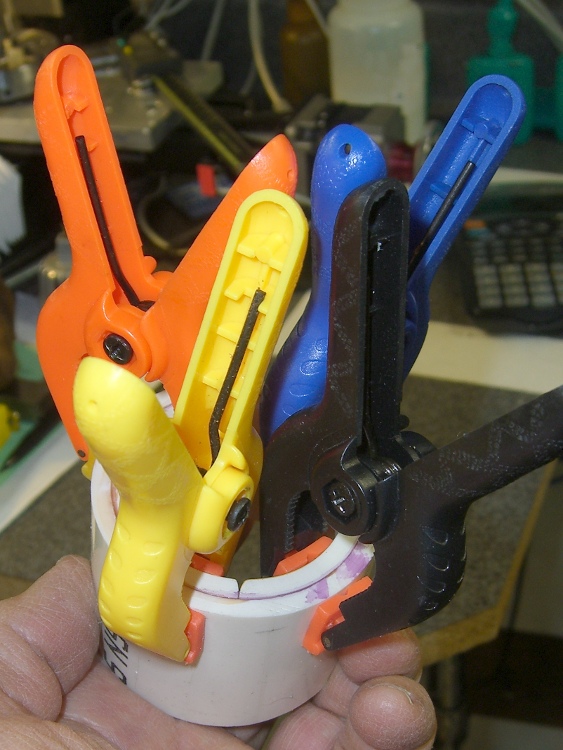
Apply a heat gun to the inner ring until it’s soft enough to stuff into the pipe, clamp it until it hardens, apply PVC cement, and clamp overnight. Contrary to appearances, the ends of the two pipes are flush at the surface. Once again, you cannot have too many clamps:
Clamped PVC insert
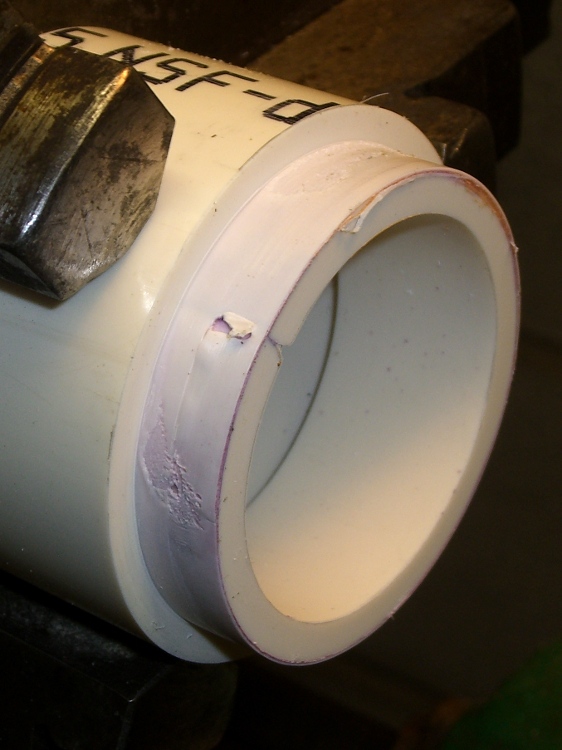
Turning down the outside to fit the threads shows just how little meat was left on that pipe:
Skinning down to the insert
While it was chucked up (and despite my dislike of boring) I bored a bevel to accept the LED lamp and adjusted the OD so the lamp fit snugly between the end of the belly band and the lens holder on the front of the housing:
Floodlight in holder
The switch comes from the Parts Heap. A D drill puts a slightly undersized hole that’s just right for the threaded switch; I simply turned it in by hand. A length of zip cord carries the power up the gooseneck, where various ends get soldered to the switch and lamp.
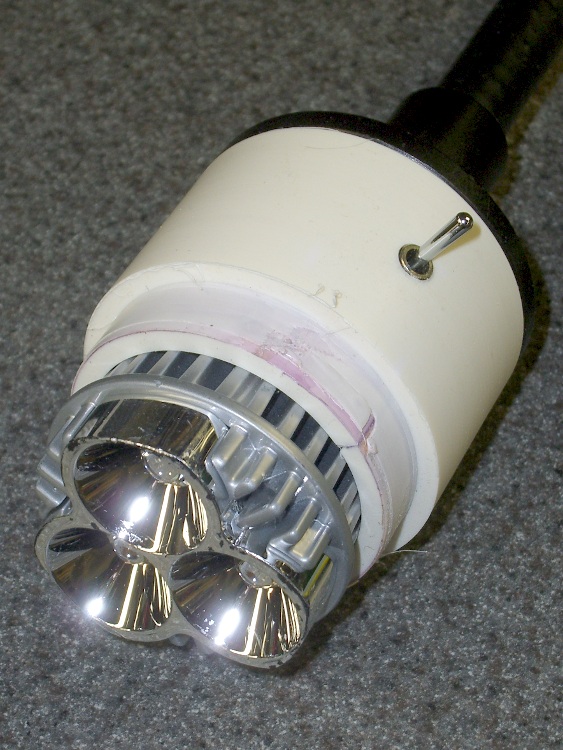
I applied some hot-melt glue to the threads and pushed everything together:
Finished LED Floodlight
The glass lens on the front fits in a molded holder with an annular air gap. The LED lamp housing has all those fancy cooling fins against the inner pipe, so there’s a bit of cooling air flow around the lamp and out through the rear black section. A thermocouple reports the lamp temperature gets up around 75 °C in a 14 °C shop; a 50 °C rise might be a tad warm in the summer, but we’ll see what happens.
The power supply came from the Parts Heap: a 12 V 1 A wall switching power supply in the shape of a wall wart. For now, the zip cord from the lamp terminates in a coaxial power jack that (amazingly enough) fits the wart’s connector, but I’ll eventually put a box in there somewhere.
Clamped the butt end of the gooseneck to the backsplash on the countertop under the mill and It Just Works!
This is a proof-of-concept lashup of a circuit to shut off the Thing-O-Matic’s power should the Thermal Core overheat. It vaguely resembles those doodles, but with the thermal switch cases grounded and an indicator for the main thermal switch.
[Update: You should read the rant at the bottom of that post to understand why this isn’t a firmware mod and doesn’t contain a microcontroller.]
Operation is straightforward:
The black NO (Normally Open) momentary switch energizes the DPDT relay, one NO pole of which then holds the relay power on.
The red NC (Normally Closed) momentary switch interrupts that circuit and releases the relay.
An NC thermal switch detects an overheated Thermal Core, opens that circuit, and releases the relay.
The other NO relay pole connects / disconnects the ATX power supply’s -Power On line from the Thing-O-Matic Motherboard. That connection requires a circuit-board cut to splice the relay into the Motherboard.
The LEDs:
Lower Green = ATX AC power on (from +5VSB power)
Upper Green = +Power On signal active
Red = Test / Fault (on = relay inactive)
Yellow = low over-temperature alarm
Orange atop box = high over-temp switch active
I included a second NO thermal switch that activates at a lower temperature, mostly because I had one, but that’s certainly not required. The multitude of LEDs makes for a happy-looking box; labels would be a nice touch, I agree.
When you turn on the ATX power supply, the Lower Green and Red LEDs turn on: the “Test” part of the “Test / Fault” indicator. Push the black button, the Red LED goes off, the Upper Green LED goes on, and the Thing-O-Matic is up & running. Push the red button, the TOM shuts down, and you’re back to the starting condition.
The Yellow LED goes on when the lower temperature switch goes on.
Shortly thereafter, presumably, the higher temperature switch opens, the Orange LED goes on, the TOM shuts down, and you’re left with the Lower Green, Yellow, and Orange LEDs: zowie! When the high temp switch cools off a bit, the Orange LED goes off and the Red LED goes on. After a while, the Yellow LED will go off, and you’re back to Square One again.
What’s not yet done: mounting the thermal switches to the Thermal Core in a way that’s mechanically solid, electrically isolated, and thermally dependable. I just got a bag of 100 °C NC switches, which make more sense than the 65 °C NC switches I’d been fooling with.
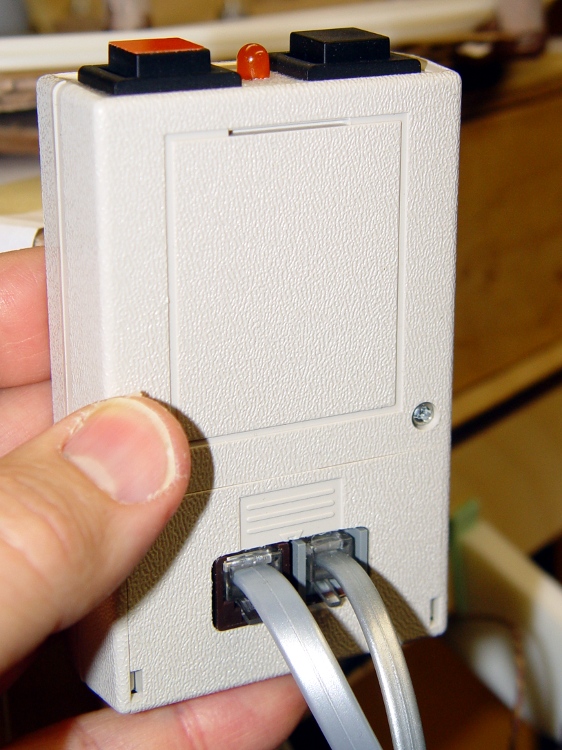
The wiring uses 4P4C and 6P6C modular phone connectors and cables, which are cheap & readily available, if not exactly proof against high temperatures. In normal use, failures tend to be open-circuit that will shut off the heater power. Take care not to position the cables so they melt first; they’re not intended as thermal switches.
Achtung: modular cable color codes are not standardized, particularly on the jack side, so pay more attention to the pin numbers than the colors. If I ever meet the guys who rearranged the jack colors, There. Will. Be. Gibbage.
A back view of the box shows a nice rectangular hole that’s obviously a manual CNC job on the Sherline, with no corner filing whatsoever. Hot melt glue holds the connectors in place, so I’m not showing off the inside:
Thermal lockout box – rear
The -Power On connection to the Motherboard requires the single cut shown in yellow:
Motherboard PCB Modification
It looks like this in real life, with the wire soldered to the Arduino header pin. Another dab of my Shop Assistant’s orange nail polish seals the PCB wound:
Motherboard -Power On modification
The remaining wires attach to the ATX power connector pins on the bottom of the board. The yellow wire passes through an unused mounting hole on its way to the top side, as above. Use a cable tie to tie the cable to the board, through a pair of otherwise unused RS-485 connector mounting holes.
Motherboard Connections – Bottom
While you’re chopping away at the Motherboard, add that isolating diode to keep +5 V USB power from turning the ATX fan with the power off.
The overall schematic (clicky for more dots):
Thermal Lockout Schematic
There is no corresponding PCB layout, because the circuitry forms a point-to-point hairball inside the box. If you were doing this for real, you’d want a PCB with a bazillion connections, but …
For example, here’s the FET driver for the Orange (it just looks Red) high temperature LED before a liberal application of heat stink shrink tubing:
Overtemperature LED driver hairball
You can test the thermal switches using a butane lighter.






 The Smell of Molten Projects in the Morning