The Smell of Molten Projects in the Morning

Ed Nisley's Blog: Shop notes, electronics, firmware, machinery, 3D printing, laser cuttery, and curiosities. Contents: 100% human thinking, 0% AI slop.

Tag: Sewing

Fabric arts and machines

  • Optoisolated ET227 Transistor Driver

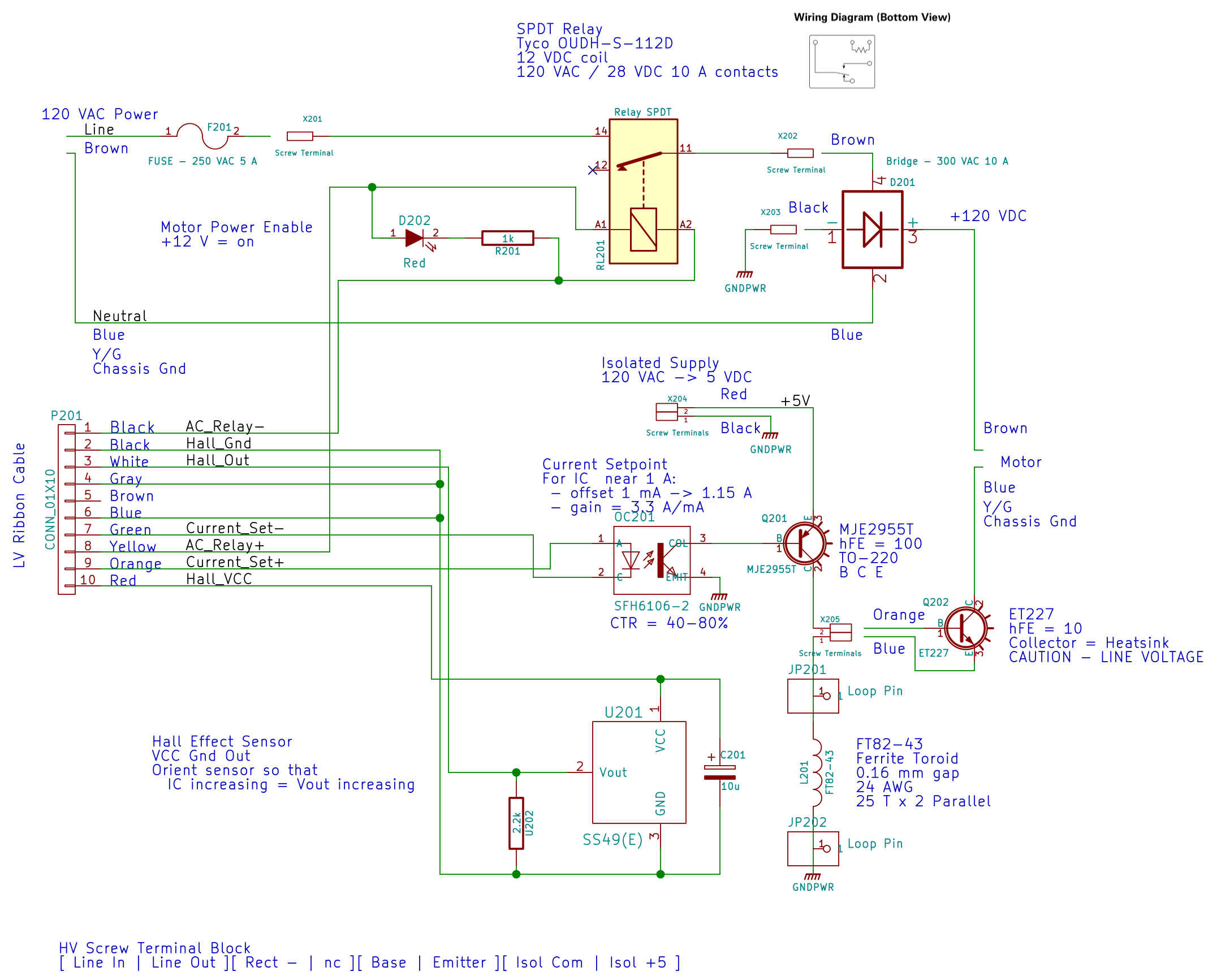
    Because the ET227 transistor operates at power line voltages through a full wave rectifier, the base drive circuit requires an optoisolator. The ET227 is a low-gain device with hFE < 10, so it takes about 100 mA of base drive to control an amp of motor current, soooo the optoisolator needs a current amplifier.

    I used an MJE2955T PNP transistor, with the emitter powered from an isolated +5 V supply to let the optoisolator pull current from the base. You could use an NPN transistor as a Darlington amp, but wiring the collectors together means the driver dissipates way too much power; the PNP seemed all-around easier.

    That circuitry sprawls across the middle of the schematic:

    AC Power Interface
    AC Power Interface

    The ET227 base runs at about 900 mV, so the MJE2955 PNP transistor will dissipate half a watt and needs a little heatsink, seen over on the right (with the hulking ET227 heatsink at the edge):

    HV Interface board - detail
    HV Interface board – detail

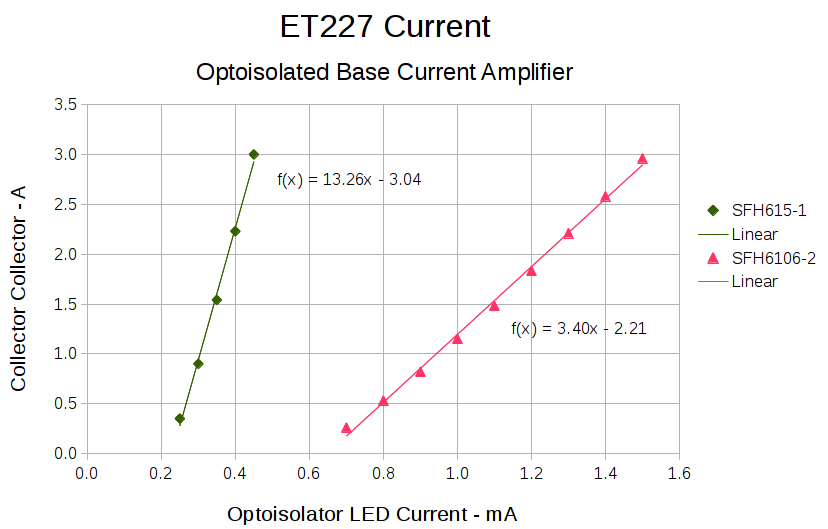
    With all those parts safely secured, I ran some end-to-end current measurements from the optoisolator’s LED to the ET227’s collector current, with a safe 10 VDC applied to the collector:

    ET227 - base drive - optoisolators
    ET227 – base drive – optoisolators

    It’s worth noting that the two optoisolators have different pinouts. The DIP socket has wiring for both of ’em, so I could swap the two without rewiring the board. No, I didn’t notice that the first time around.

    The curves are nicely linear above 250 mA, which is about what you’d expect for bipolar transistors driven from a current source. Below that, the current into the 13 Ω base-emitter resistor starts to overwhelm the actual base junction current and makes the curves all bendy. Given that the motor doesn’t start spinning the sewing machine with less than half an amp, that region doesn’t matter.

    It’s also worth noting that the ET227 normally sees tens of amps (!) into the base terminal to control up to 200 A pulsed collector current with up to 1 kV collector voltage. That puppy loafs along here…

    The ratio between the isolator gains doesn’t match the ratio between the spec sheet values, so maybe they’re mismarked or I (once again) have an outlier. In any event, there’s no point in getting too fussy, because the transistor gains depend strongly on temperature. I picked the lower-gain SFH6106-2 for more headroom, but it probably doesn’t make much difference.

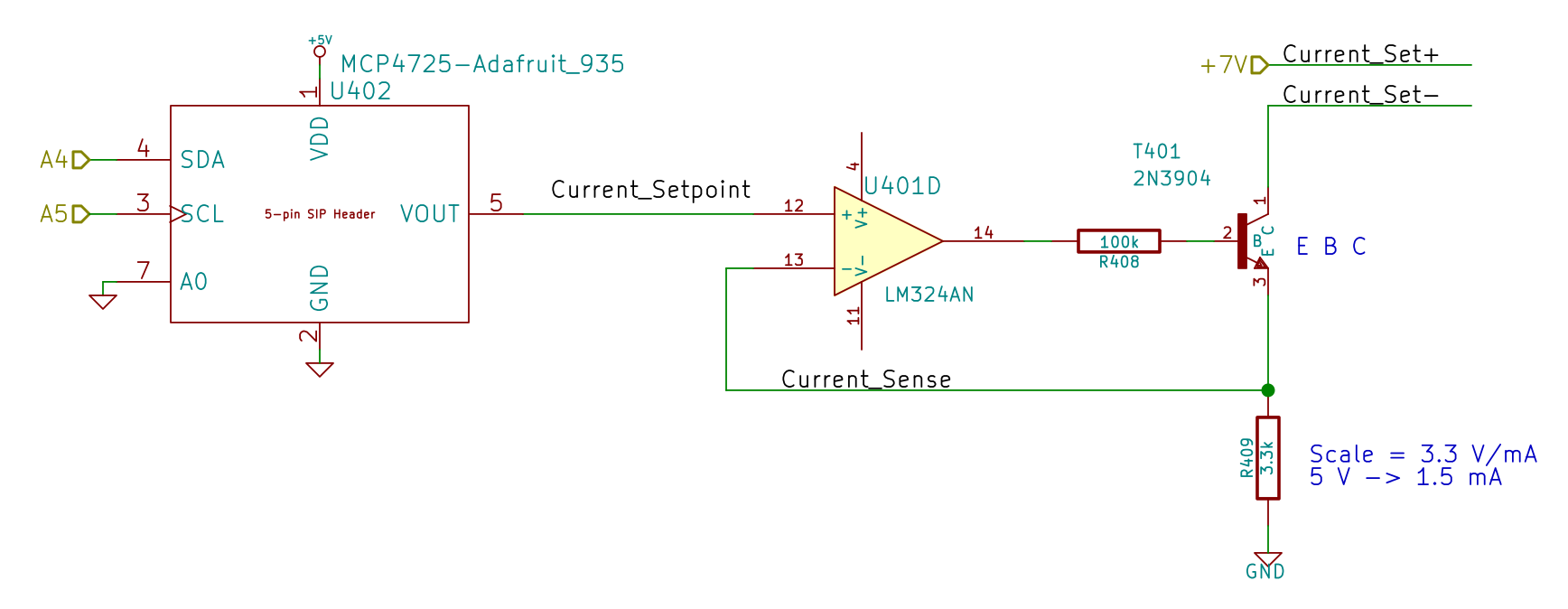
    The voltage-to-current circuitry driving the optoisolator’s LED lives on the Low Voltage Interface board, with the MCP4725 DAC breakout board above the Arduino Pro Mini and the rest just beyond the LM324 op amp over on the left:

    Low Voltage Interface Board - detail
    Low Voltage Interface Board – detail

    There’s nothing much to it:

    Current Control DAC and Driver - schematic
    Current Control DAC and Driver – schematic

    I finally broke down and got some of Adafruit’s nice MCP4725 I2C DAC breakout boards: 12 bits, rail-to-rail output, no PWM ripple. What’s not to like?

    R409 scales the gain so that +5 V tops out around 1.5 mA, which should deliver a collector current around 3 A: far more than seems absolutely necessary. R408 lets the op amp develop some voltage while trickling a few dozen microamps into the 2N3904’s base; the hFE runs around 50, so the error due to base current amounts to maybe 2% and, remember, the final current depends on the temperature anyway.

    It’s getting closer to working…

  • ATX Power Supply: Pushbutton Control

    Given that the GX270 case has a power pushbutton on the front panel, it seemed only reasonable to let it control the ATX power supply just like it used to. Most of the parts clumped in front of the panel’s ribbon cable handle that logic:

    Low Voltage Interface Board - detail
    Low Voltage Interface Board – detail

    The pushbutton on the far left parallels the front-panel button so I don’t have to reach around the box just to turn it on.

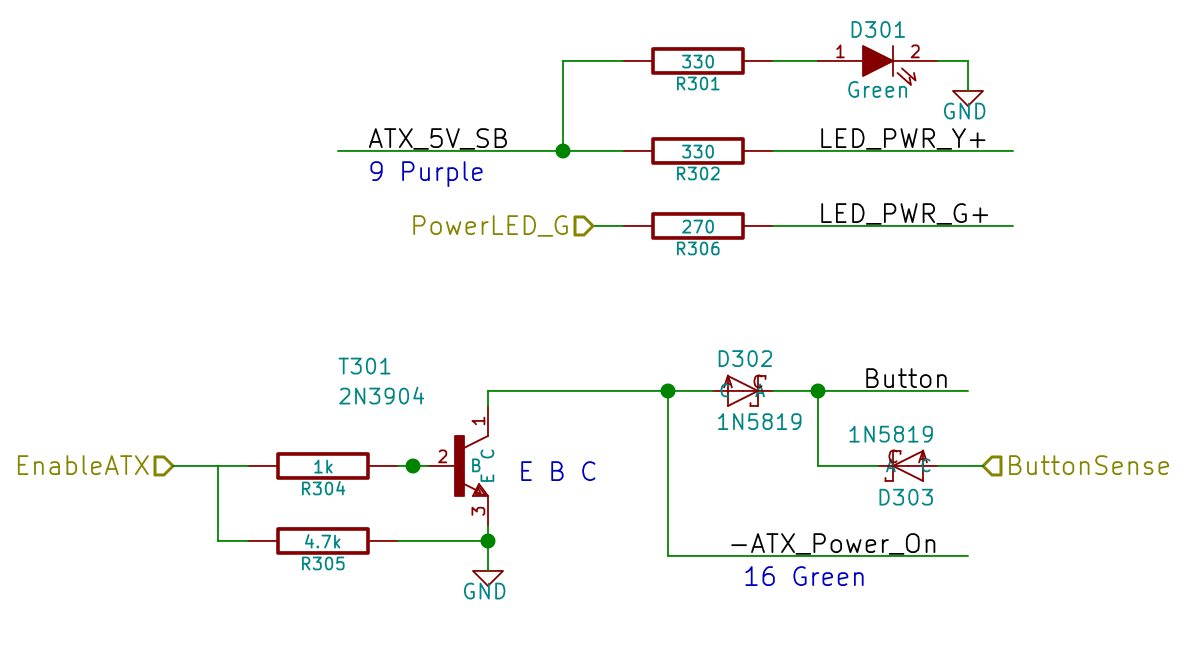
    The schematic shows the relevant bits:

    LV Power Interface - Power Button
    LV Power Interface – Power Button

    The ATX +5 V Standby output remains turned on all the time, so I wired that to the power button’s yellow LED, to show that the plug is in the wall.

    The pushbutton pulls the ATX Power_On line down, which turns on the supply outputs, which fires up the Arduino, which turns on the transistor, which holds the Power_On line down. D302 isolates the transistor from the button, so the code can sense the button’s on/off state with the power on. D303 isolates the Power_On line from the sense input to prevent the pullup on the Power_On line from back-powering the Arduino through its input protection diodes when the power is off.

    The Arduino code starts by arranging the I/O states, turning the transistor on, pulsing the green power LED until until the button releases, then leaving the green LED on:

    	pinMode(PIN_PWR_G,OUTPUT);
    	digitalWrite(PIN_PWR_G,HIGH);				// visible on front panel
    
    	pinMode(PIN_ENABLE_ATX,OUTPUT);				// hold ATX power supply on
    	digitalWrite(PIN_ENABLE_ATX,HIGH);
    
    	pinMode(PIN_ENABLE_AC,OUTPUT);				// turn on AC power
    	digitalWrite(PIN_ENABLE_AC,HIGH);
    
    	pinMode(PIN_BUTTON_SENSE,INPUT_PULLUP);		// wait for power button release
    	while (LOW == digitalRead(PIN_BUTTON_SENSE)) {
    		delay(50);
    		TogglePin(PIN_PWR_G);					// show we have control
    	}
    	digitalWrite(PIN_PWR_G,HIGH);
    

    Every time around the main loop, this chunk of code checks the button input:

    	if (LOW == digitalRead(PIN_BUTTON_SENSE)) {
    		printf("Shutting down!\r\n");
    		digitalWrite(PIN_ENABLE_AC,LOW);
    		digitalWrite(PIN_ENABLE_ATX,LOW);
    		while(true) {
    			delay(20);
    			TogglePin(PIN_PWR_G);				// show we have shut down
    		}
    	}


    The never-ending loop blinks the green LED until the power goes down, which happens when the button releases. That terminates the loop with extreme prejudice., which is the difference between embedded programming and high-falutin’ Webbish stuff.

    And it Just Worked the first time I fired it up…

  • Kenmore 158: LED Strip Light Cable Clips

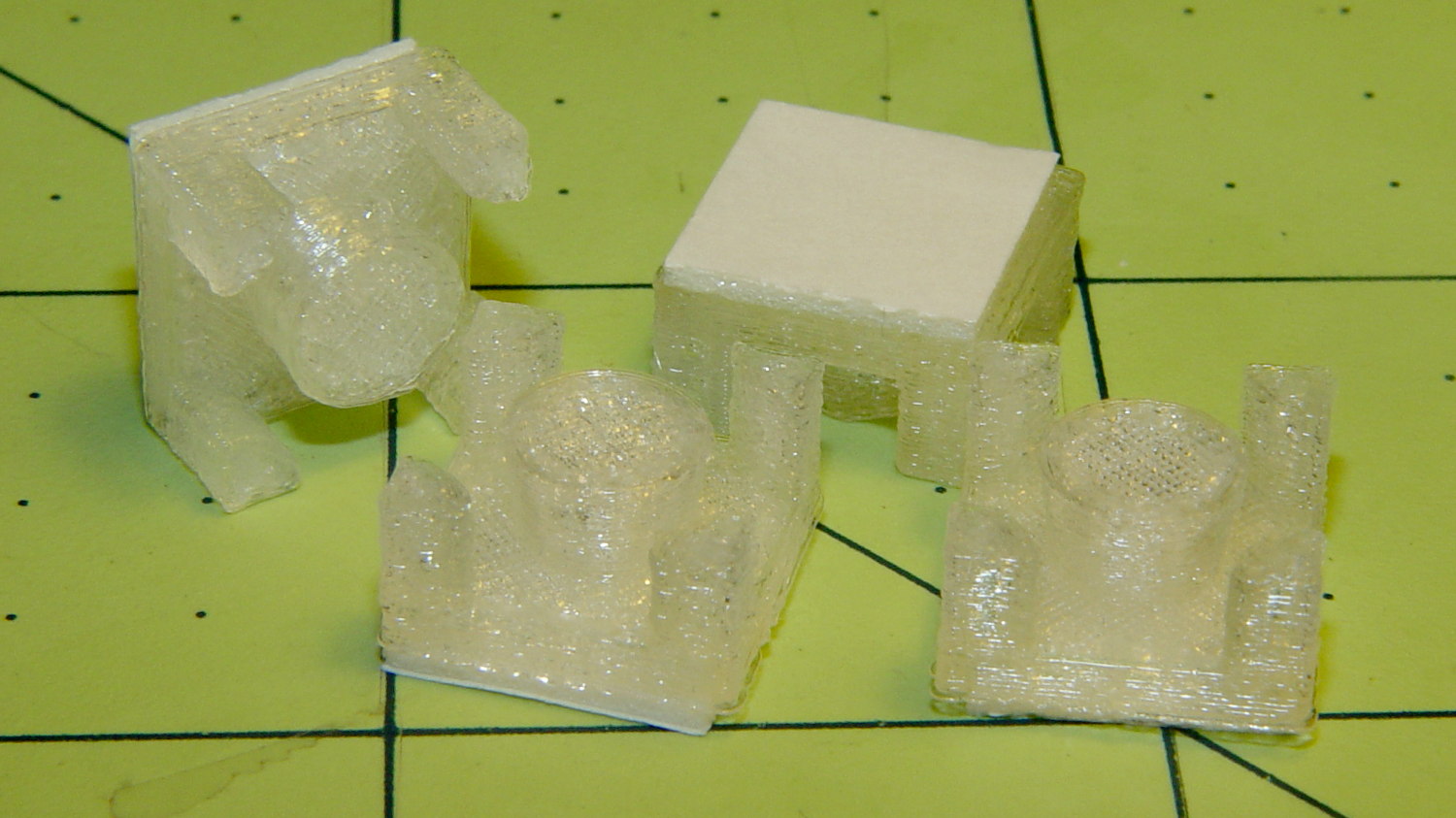
    Commercial LED strip lights for sewing machines mount their cables with little stick-on anchors and cable ties. I wasn’t happy with the cable tie thing and finally figured this out:

    Kenmore 158 - LED strip light cable clips
    Kenmore 158 – LED strip light cable clips

    The clips have that size & shape because they fit exactly atop some pre-cut foam squares from the Tape Lookaside Buffer:

    LED strip light cable clips
    LED strip light cable clips

    You can see the shape better in the solid model:

    LED Cable Clips
    LED Cable Clips

    The central bollard has a slight taper to retain the cable, the quarter-posts are straight, and they’re both twice the cable diameter tall. The clearance between the center and corner posts at the top matches the cable diameter, so there’s a bit of bending room at the bottom, and, with the cable bent around the center, it won’t fall out on its own.

    The cute coaxial cable I’m misusing for the LED strips measures just shy of 2 mm, making these into little bitty things. The corner posts seem surprisingly strong, despite 3D printing’s reputation for crappy quality; I haven’t been able to break one off with more effort than seemed warranted.

    The OpenSCAD source code:

    // LED Cable Clips
    // Ed Nisley - KE4ZNU - October 2014
    
    //- Extrusion parameters must match reality!
    
    ThreadThick = 0.20;
    ThreadWidth = 0.40;
    
    HoleWindage = 0.2;			// extra clearance
    
    Protrusion = 0.1;			// make holes end cleanly
    
    AlignPinOD = 1.70;			// assembly alignment pins: filament dia
    
    function IntegerMultiple(Size,Unit) = Unit * ceil(Size / Unit);
    
    //----------------------
    // Dimensions
    
    Base = [12.0,12.0,IntegerMultiple(2.0,ThreadThick)];	// base over sticky square
    
    CableOD = 2.0;
    
    BendRadius = 3.0;
    
    Bollard = [BendRadius,(sqrt(2)*Base[0]/2 - CableOD - BendRadius),2*CableOD];
    B_BOT = 0;
    B_TOP = 1;
    B_LEN = 2;
    
    NumSides = 5*4;
    
    //----------------------
    // Useful routines
    
    module PolyCyl(Dia,Height,ForceSides=0) {			// based on nophead's polyholes
    
      Sides = (ForceSides != 0) ? ForceSides : (ceil(Dia) + 2);
    
      FixDia = Dia / cos(180/Sides);
    
      cylinder(r=(FixDia + HoleWindage)/2,
               h=Height,
               $fn=Sides);
    }
    
    module ShowPegGrid(Space = 10.0,Size = 1.0) {
    
      RangeX = floor(100 / Space);
      RangeY = floor(125 / Space);
    
    	for (x=[-RangeX:RangeX])
    	  for (y=[-RangeY:RangeY])
    		translate([x*Space,y*Space,Size/2])
    		  %cube(Size,center=true);
    
    }
    
    //----------------------
    // Build it
    
    ShowPegGrid();
    
    intersection() {
    	translate([0,0,(Base[2] + Bollard[2])/2])			// overall XYZ outline
    		cube(Base + [0,0,Bollard[2]],center=true);
    	
    	union() {
    		translate([0,0,Base[2]/2])						// oversize mount base
    			scale([2,2,1])
    				cube(Base,center=true);
    				
    		for (i=[-1,1] , j=[-1,1]) {						// corner bollards
    			translate([i*Base[0]/2,j*Base[1]/2,(Base[2] - Protrusion)])
    				rotate(180/NumSides)
    				cylinder(r=Bollard[B_BOT],h=(Bollard[B_LEN] + Protrusion),center=false,$fn=NumSides);
    
    		translate([0,0,(Base[2] - Protrusion)])			// center tapered bollard
    			cylinder(r1=Bollard[B_BOT],r2=Bollard[B_TOP],h=(Bollard[B_LEN] + Protrusion),center=false,$fn=NumSides);
    		}
    	}
    }
    

    Now that I think of it, maybe a round clip would look nicer. The central bollard would stay, but the circular outside rim could have three cutouts. When these fall off, I’ll give that a try.

    They may be square and clunky, but they look much better than Gorilla Tape…


  • Model 158 Sewing Machine Controller: AC Interface Circuitry

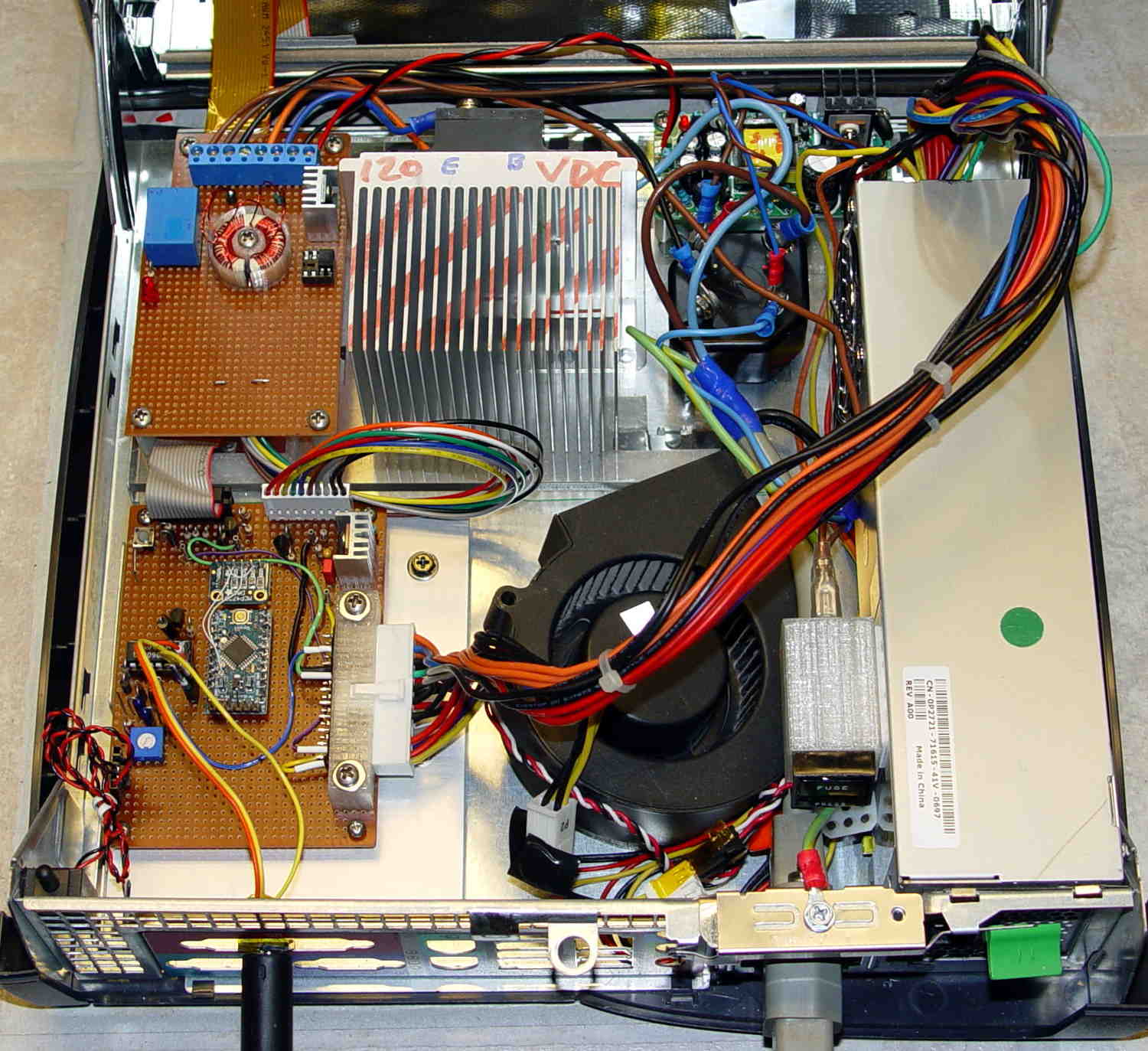
    That polycarbonate slab holds most of the pieces in place, with the rest on the prototype board to the left of the monster heatsink:

    Model 158 Controller - Interior Overview
    Model 158 Controller – Interior Overview

    That bulky wire harness got bent out of the way for the photo; normally, it’s jammed down beside the ATX power supply and over the blower.

    The AC Interface circuitry looks like this:

    AC Power Interface
    AC Power Interface

    The relay on the top disconnects the AC line from the circuitry when the clamshell case opens.

    The key hardware spreads neatly across the middle: the optoisolator, a 2955 PNP power transistor in a TO-220 case on a heatsink as a current amplifier, and the ET227 controlling the motor current. The gain of that mess depends strongly on the transistor temperatures, so there’s not much point in calibrating it. More on that later.

    Down at the bottom of the schematic is the slit toroid and knockoff SS49(E) Hall effect sensor that senses the actual motor current.

    A closer look at that board:

    HV Interface board - detail
    HV Interface board – detail

    The board in the bottom left corner of the overview picture holds the Arduino Pro Mini that runs the whole show (so far, anyway), along with various & sundry analog circuitry that I’ll write up in a bit.

    Conspicuous by their absence:

    • Motor speed sensing
    • Shaft position sensing
    • Power to the LED strip lights
    • Permanent mount for the pedal cable socket

    Now I can make measurements without killing myself…

  • ATX Power Supply: System Board Connector Bracket

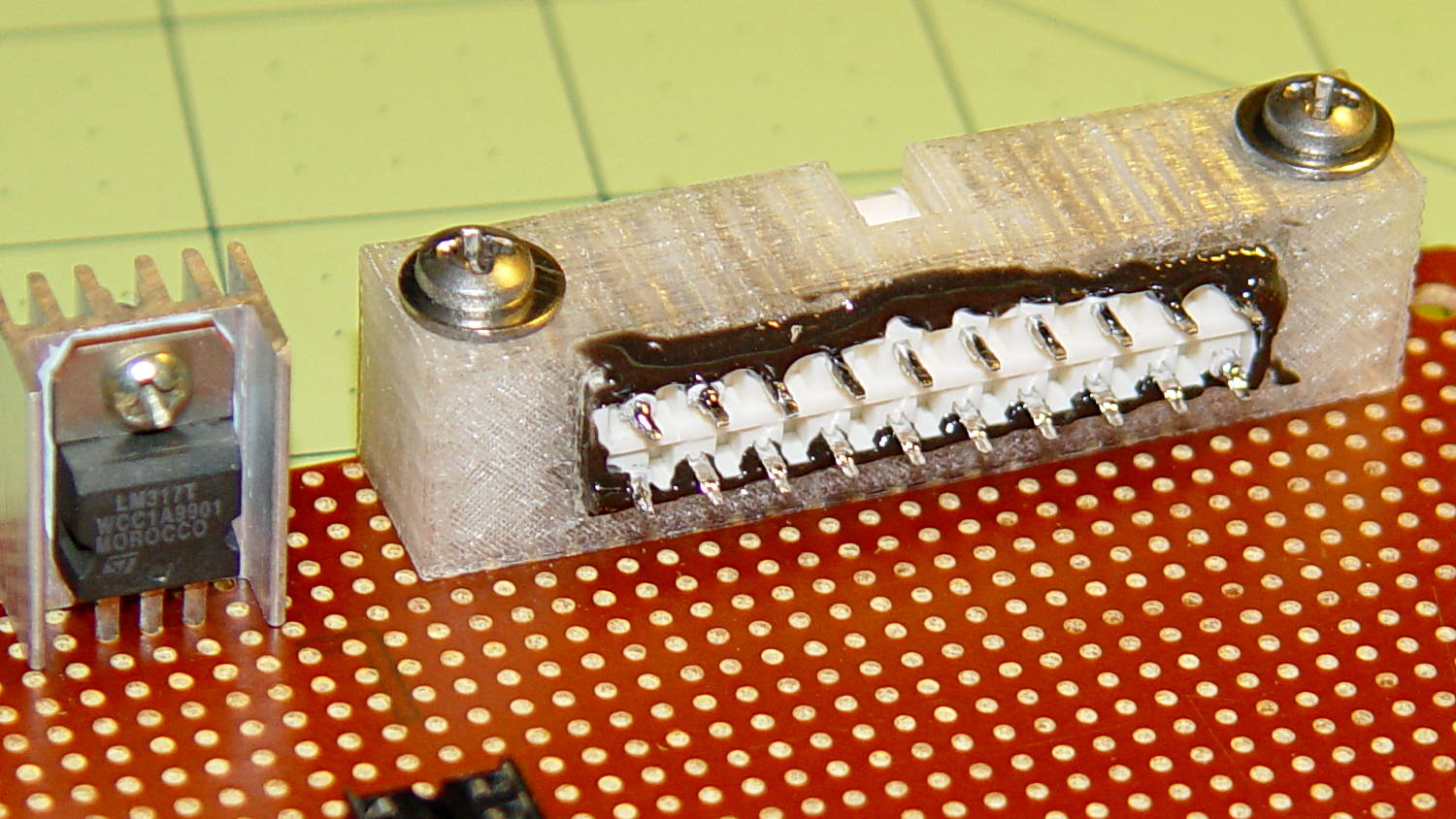
    The GX270 case contains a perfectly serviceable ATX power supply that can power all the bits & pieces that don’t run directly from the AC power line. I torched the connector off the system board, but there’s no practical way to mount it standing up through the prototyping board I’m using for the low voltage electronics. This bracket surrounds that connector and holds it at right angles to the board, with a pair of screws clamping it in place:

    ATX Connector Bracket - front
    ATX Connector Bracket – front

    I invoked the shade of Willy McCoy, slashed the outside of the connector with a razor knife, buttered it up with epoxy, and shoved it flush inside the adapter. That messy epoxy bead around the joint should prevent it from pulling out to the front:

    ATX Connector Bracket - rear
    ATX Connector Bracket – rear

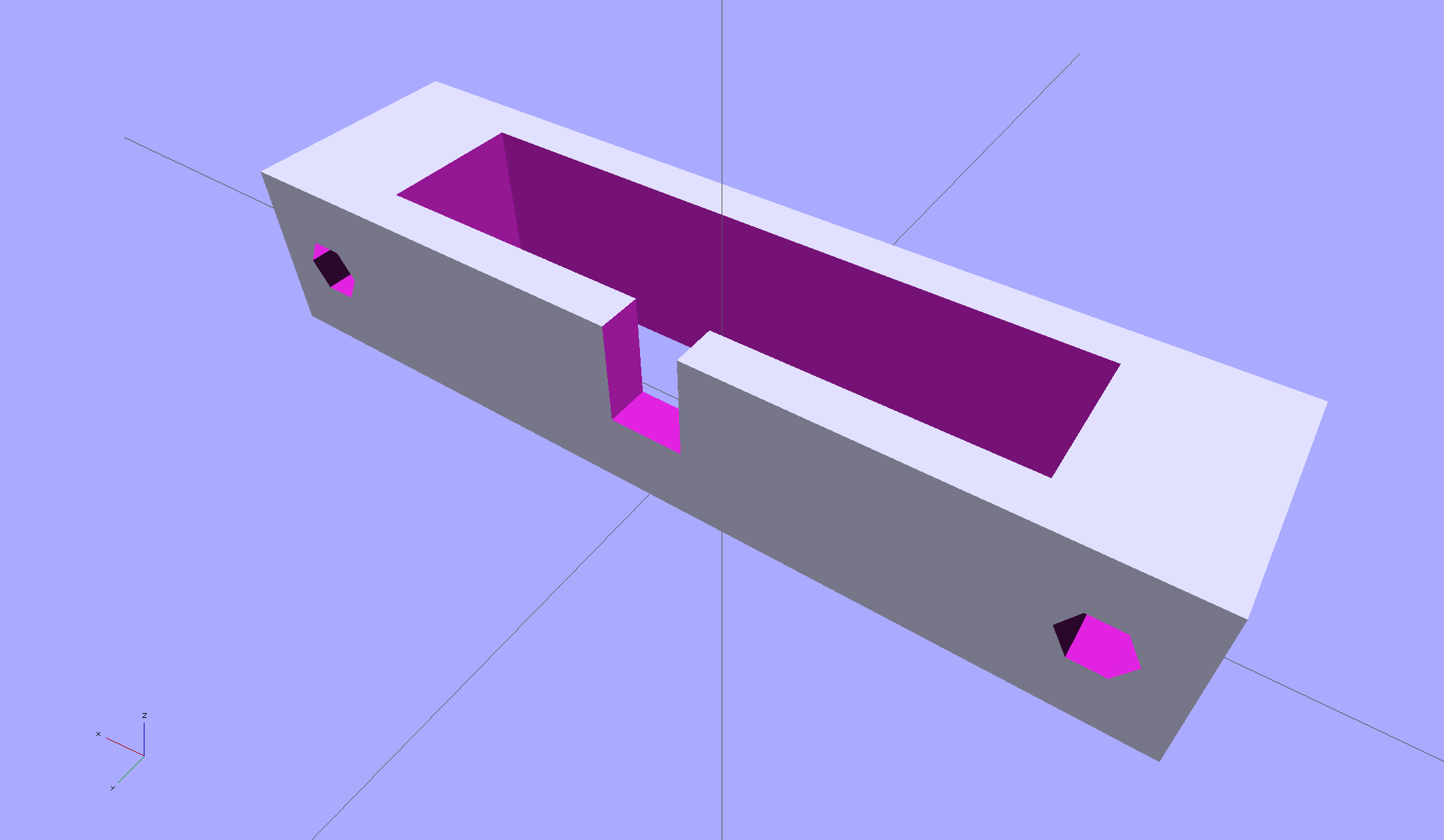
    The solid model looks like you’d expect:

    ATX Connector Mount
    ATX Connector Mount

    In the unlikely event you need one, make sure the slot clears the locking clip on your ATX connector, as they differ between (at least) the 20 and 24 pin versions. This is actually a split 20/24 connector, with the smaller connector terminating elsewhere to power the LED strips.

    The OpenSCAD source code:

    // ATX power supply connector mounting bracket
    // Ed Nisley - KE4ZNU - September 2014
    
    //- Extrusion parameters must match reality!
    
    ThreadThick = 0.20;
    ThreadWidth = 0.40;
    
    HoleWindage = 0.2;			// extra clearance
    
    Protrusion = 0.1;			// make holes end cleanly
    
    AlignPinOD = 1.70;			// assembly alignment pins: filament dia
    
    function IntegerMultiple(Size,Unit) = Unit * ceil(Size / Unit);
    
    //----------------------
    // Dimensions
    
    Screw = [3.5,7.0];						// mounting screws
    OD = 0;
    HEAD_OD = 1;
    
    Wall = 3.0;
    
    ATX = [43.5,9.75,12.0];					// connector outline
    
    Shell = ATX + [2*(2*Wall + Screw[OD]),2*Wall,0.0];	// mount outline
    
    Latch = [5.0,5.0,7.0];							// latch overlay
    
    ScrewOC = ATX[0] + Screw[OD] + 2*Wall;
    
    echo(str("Screw OC: ",ScrewOC," mm"));
    
    //----------------------
    // Useful routines
    
    module PolyCyl(Dia,Height,ForceSides=0) {			// based on nophead's polyholes
    
      Sides = (ForceSides != 0) ? ForceSides : (ceil(Dia) + 2);
    
      FixDia = Dia / cos(180/Sides);
    
      cylinder(r=(FixDia + HoleWindage)/2,
               h=Height,
               $fn=Sides);
    }
    
    module ShowPegGrid(Space = 10.0,Size = 1.0) {
    
      RangeX = floor(100 / Space);
      RangeY = floor(125 / Space);
    
    	for (x=[-RangeX:RangeX])
    	  for (y=[-RangeY:RangeY])
    		translate([x*Space,y*Space,Size/2])
    		  %cube(Size,center=true);
    
    }
    
    ShowPegGrid();
    
    difference() {
    	translate([0,0,Shell[2]/2])						// mount shell
    		cube(Shell,center=true);
    	translate([0,0,ATX[2]/2])					// connector shell
    		cube(ATX + [0,0,2*Protrusion],center=true);
    
    	translate([0,(Latch[1]/2 + ATX[1]/2 - Protrusion),(-Latch[2]/2 + Shell[2])])
    		cube(Latch + [0,Protrusion,Protrusion],center=true);
    
    	for (i=[-1,1])
    		translate([i*ScrewOC/2,(Shell[1]/2 + Protrusion),Shell[2]/2])
    			rotate([90,0,0])
    				PolyCyl(Screw[OD],(Shell[1] + 2*Protrusion));
    
    }
    
  • Low Voltage Interface Adapter Plate

    The Dell GX270 chassis has a small support plate under the CPU, evidently to support the heatsink and fan:

    Optiplex GX270 CPU heatsink mount
    Optiplex GX270 CPU heatsink mount

    It slides neatly into those clips on the system board tray, but it’s not actually locked into position. I think that allows it to slide around a bit under the system board, providing vertical support without constraining the board’s horizontal position. Anyhow, it looked like the easiest way to support the prototyping board that will hold the low voltage interface circuitry.

    By some mischance, I found a nice aluminum plate exactly the right width, so only one side needed a saw cut and squaring. Coordinate drilling four #6 clearance holes matched the support:

    LV Interface Adapter Plate - drilling
    LV Interface Adapter Plate – drilling

    That corner of the tray had another system board retaining clip, but rather than bashing it flat, I just sawed a slit in the plate so it can slide right into position. Note the perfect alignment of that screw hole:

    LV Interface Adapter Plate - retainer
    LV Interface Adapter Plate – retainer

    I love it when all my mistakes cancel out!

    Four more holes matched the prototyping circuit board and, while I had some epoxy mixed up for another part, I fastened four standoffs over the holes. A washer under each original screw soaked up exactly enough space that the screws barely indented the case and, as if by magic, hold the support plate firmly in place:

    LV Interface Adapter Plate - installed
    LV Interface Adapter Plate – installed

    Of course, that means I must remove the circuit board to get the tray out, but the AC interface board must also come out, so we’re not talking a spur-of-the-moment operation.

    The switch in the lower left corner is the original Dell “intrusion monitoring” switch harvested from a complex metal stamping in the diagonally opposite corner of the case. It’s epoxied to the case wall, with the plunger contacting a shim epoxied to the top of the case, and will eventually disconnect the AC line power from the drive electronics: case open = switch closed = lethal power off.

  • ET227 Transistor: Monster Heatsink Mounting

    Back in the day, heatsinks like this sat atop Moah Powah Pentium CPUs:

    ET227 transistor on heatsink
    ET227 transistor on heatsink

    I picked it because the hulking ET227 transistor fit neatly on its backside, it seemed capable of handling 30 to 50 W of power, and I have several of them in the Big Box o’ Heatsinks. No careful thermal analysis was involved…

    Mounting it on the polycarbonate sheet inside the repurposed GX270 case involved drilling & tapping a pair of 6-32 holes in one side:

    ET227 Heatsink - tapping
    ET227 Heatsink – tapping

    That’s not rigid tapping on a Sherline, it’s aligning a hand-turned tap in the spindle bore. Sorry.

    And, yeah, you’re not supposed to leave the semiconductors mounted when you’re drilling the heatsink. I figure there’s nothing I can possibly do without using a hammer that will bother that transistor in the slightest. What, me worry?

    The transistor collector runs at line voltage, which means the entire heatsink will pose a lethal shock hazard. I thought about isolating the collector and failed to come up with anything I’d trust to be both thermally conductive and electrically insulating over the long term; the screw heads must be isolated from the collector plate, too.

    The screws stick out below the polycarbonate sheet, just above the grounded EMI shell lining the case, so I flattened them a bit:

    ET227 Heatsink - mounting screws
    ET227 Heatsink – mounting screws

    The simple rectangular strip to the rear of the chassis mounting clips is just slightly thicker than the screw heads, so they can’t possibly contact the case:

    Chassis Clips
    Chassis Clips

    It gets glued to the underside of the nearly invisible sheet:

    ET227 heatsink - gluing screw shield
    ET227 heatsink – gluing screw shield

    With Kapton tape over the heads, Just In Case:

    ET227 Heatsink - mounted
    ET227 Heatsink – mounted

    It makes a nice linear counterpoint to the jumble of AC interface wiring:

    AC Interface Chassis
    AC Interface Chassis

    The insulating sheet on the case lid came from the bottom of the original GX270 system board, where I think it served much the same purpose. It’s surely not rated for AC line voltages, but the thought must count for something:

    AC Interface Chassis
    AC Interface Chassis

    More of the parts are flying in formation…