The Smell of Molten Projects in the Morning

Ed Nisley's Blog: Shop notes, electronics, firmware, machinery, 3D printing, laser cuttery, and curiosities. Contents: 100% human thinking, 0% AI slop.

Tag: RPi

Raspberry Pi

  • Raspberry Pi WiFi Adapters

    One might be forgiven for thinking these two USB Wifi adapters are essentially identical:

    USB Wifi adapters
    USB Wifi adapters

    Turns out the SunFounder RT5370 (on the top, with the stylin’ curved case) has better performance than the Wifi With Antenna (on the bottom, with full-frontal chunk goin’ on), by a not inconsiderable 5 to 10 dB. Boosting the received power level in the fringe areas of our house from -70 dBm to -63 dBm makes all the difference between not working and steady streaming.

    The built-in WiFi antenna on a Raspberry Pi 3 ticks along 10 dB lower, with -80 dBm (10 pW!) at the receiver making for poor communication: a Pi 3 works perfectly within reasonable line-of-sight of the router (even through our wood floor) and wakes up blind in fringe areas. Hacking an external antenna probably helps, but definitely isn’t a net win compared to ten bucks worth of USB adapter.

    The wavemon utility (it’s in the Raspbian repo) comes in handy for figuring that sort of thing.

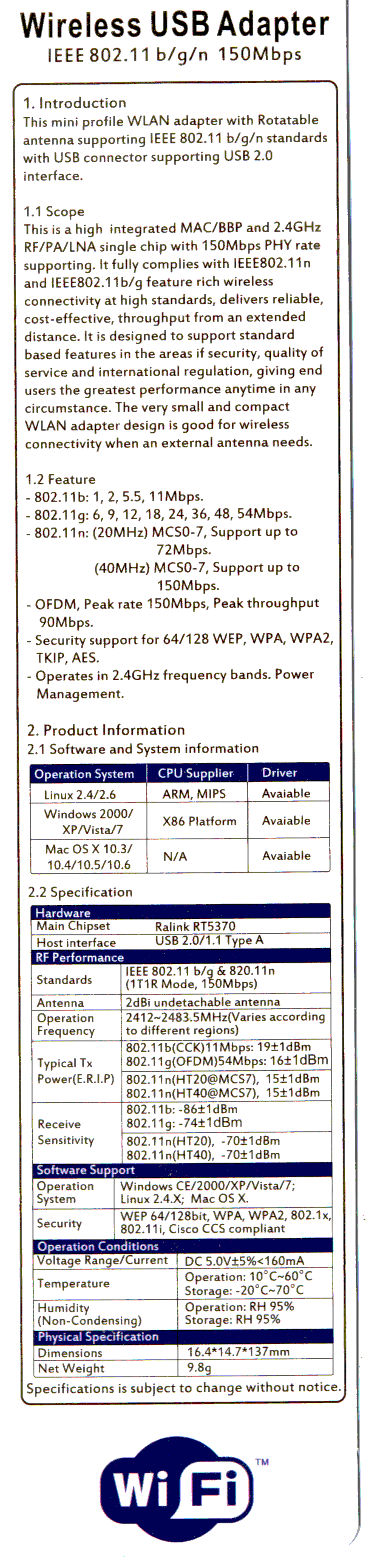
    There is, of course, no way to determine anything important about the adapters from their product descriptions, which are essentially identical, right down to the price. Neither have any product identification on their cases. The back of the package for the SunFounder gadget gives some specs, none of which may mean anything (clicky for more dots):

    SunFounder RT5370 USB WiFi Adapter Specs
    SunFounder RT5370 USB WiFi Adapter Specs

    I ordered another SunFounder adapter, Just In Case it comes in handy, with the hope that both behave the same way.

  • Raspberry Pi 3 Reset Switch

    The (relatively) new Raspberry Pi 3 PCB layout puts the Run header in a different location than in the Pi 2, but a minute of filing gnaws a suitable opening:

    Raspberry Pi 3 - Reset Switch
    Raspberry Pi 3 – Reset Switch

    As before, a hot-melt glue blob holds the switch in place. I’d prefer a black case, if only to hide the blob, but clear-ish is what’s available right now.

    Remember those orderly shutdowns, even at the cost of a keypad button!

  • IBM 5100 APL: Nested Emulators

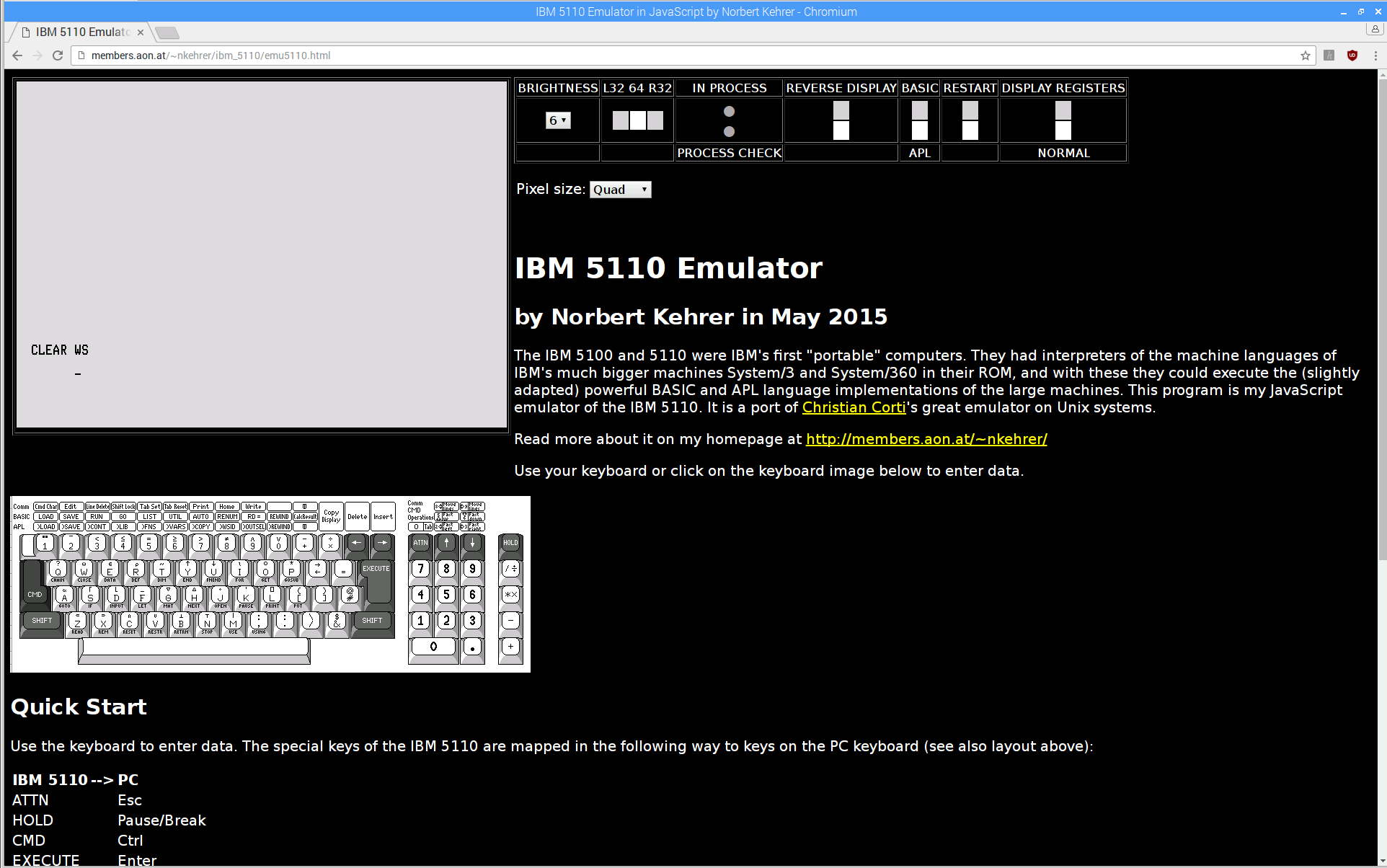
    A discussion about Raspberry Pi performance prompted this:

    IBM 5110 Emulator - Javascript on Raspberry Pi
    IBM 5110 Emulator – Javascript on Raspberry Pi

    From the inside out:

    Starting the show takes 17 seconds from clicking the Restart button (second from right, top row) to APL’s Clear WS prompt. I have no idea how that compares with a Genuine IBM 5100.

    I distinctly remember writing APL programs, but that’s about as far as my memory will take me. [sigh]

  • Making and Mounting SD Card Backup Images

    The process of creating, configuring, and backing up a Raspberry Pi goes a little something like this:

    unzip /mnt/diskimages/ISOs/Raspberry\ Pi/2016-11-25-raspbian-jessie-lite.zip
    sudo dcfldd statusinterval=16 bs=4M if=2016-11-25-raspbian-jessie-lite.img of=/dev/sdb
    ... Micro SD card to Pi, boot, perform various configuration tweaks ...
    ... card back to PC ...
    sudo dcfldd statusinterval=16 bs=4M if=/dev/sdb of=Streamer5-2017-01-02.img
    zip -1 Streamer5-2017-01-02.zip Streamer5-2017-01-02.img
    rsync -ahuv --progress Streamer5-2017-01-02.zip /mnt/diskimages/ISOs/Raspberry\ Pi/
    

    The ZIP operation crushes an 8 GB image down to 1.6 GB, obviously depending on most of the image being filled with binary zeros or foxes or something trivial like that. You could work around that with fsarchiver, at the cost of handling each partition separately.

    You can pipe the incoming image through GZIP when you don’t need the image right away:

    sudo dcfldd statusinterval=16 bs=4M if=/dev/sdb | gzip -1c > Streamer5-2017-01-02.gz
    

    There’s an obvious gotcha when you try to write an image to a (slightly) smaller card than the one it came from. Writing a smaller image on a larger card works just fine.

    With a raw image in hand, you must know the disk partition offsets within the image to mount them in loopback mode:

    fdisk -l Streamer5-2017-01-02.img
    Disk Streamer5-2017-01-02.img: 7.4 GiB, 7892631552 bytes, 15415296 sectors
    Units: sectors of 1 * 512 = 512 bytes
    Sector size (logical/physical): 512 bytes / 512 bytes
    I/O size (minimum/optimal): 512 bytes / 512 bytes
    Disklabel type: dos
    Disk identifier: 0xc280d360
    
    Device                    Boot  Start      End  Sectors  Size Id Type
    Streamer5-2017-01-02.img1        8192   137215   129024   63M  c W95 FAT32 (LBA)
    Streamer5-2017-01-02.img2      137216 15415295 15278080  7.3G 83 Linux
    

    Knowing the offsets, the mounts go like this:

    sudo mount -o loop,offset=$(( 8192*512 )) Streamer5-2017-01-02.img /mnt/loop/
    ... snippage ...
    sudo mount -o loop,offset=$(( 137216*512 )) Streamer5-2017-01-02.img /mnt/loop/
    

    Because a Jessie Lite system will fit neatly into a 2 GB SD Card, you can trim the disk image to eliminate most of the unused space:

    sudo losetup -f
    /dev/loop0
    
    sudo losetup /dev/loop0 Streamer5-2017-01-02.img
    
    sudo partprobe /dev/loop0
    
    sudo gparted /dev/loop0
    ... resize ext4 partition from 7 GB to 1.8 GB
    
    sudo losetup -d /dev/loop0
    
    fdisk -l Streamer5-2017-01-02.img
    Disk Streamer5-2017-01-02.img: 7.4 GiB, 7892631552 bytes, 15415296 sectors
    Units: sectors of 1 * 512 = 512 bytes
    Sector size (logical/physical): 512 bytes / 512 bytes
    I/O size (minimum/optimal): 512 bytes / 512 bytes
    Disklabel type: dos
    Disk identifier: 0xc280d360
    
    Device                    Boot  Start     End Sectors  Size Id Type
    Streamer5-2017-01-02.img1        8192  137215  129024   63M  c W95 FAT32 (LBA)
    Streamer5-2017-01-02.img2      137216 3833855 3696640  1.8G 83 Linux
    
    truncate --size=$(( (3833855+1)*512 )) Streamer5-2017-01-02.img
    ... or, if you don't care about an exact fit, use ...
    truncate --size=2G Streamer5-2017-01-02.img
    

    The partition and filesystem will plump up to fill the SD Card during the first boot on the Raspberry Pi.

    There exist automagic utilities for all that, but practicing simple stuff helps keep it all fresh…

  • Raspberry Pi Streaming Radio Player: Yet Another Cheap Wireless Keypad

    One might think, just from looking, that this black wireless USB numeric keypad:

    BonyTek Wireless USB Numeric Keypad
    BonyTek Wireless USB Numeric Keypad

    Was identical to the white keypads I already used on the streaming media players:

    Wireless Keypad - colored labels
    Wireless Keypad – colored labels

    One would, of course, be wrong.

    They both claim to be manufactured by “Creative Labs” with a 0x062a vendor ID, but with different model IDs:

    • White = 0x4101 “Wireless Keyboard/Mouse”
    • Black = 0x4182

    Astonishingly, that model ID appears nowhere in Google’s search results, yet it actually works when plugged into my desktop PC.

    The new model ID requires Yet Another Udev Rule in /etc/udev/rules.d/Streamer.rules:

    ATTRS{idVendor}=="062a", ATTRS{idProduct}=="4182", ENV{ID_INPUT_KEYBOARD}=="1", SYMLINK+="input/keypad"
    

    No big deal by now …

  • Raspberry Pi Streaming Radio Player: Ignoring a Missing Volume Knob

    The Dell AC511 USB SoundBars have volume control knobs, which this udev rule turns into the /dev/input/volume device:

    ATTRS{name}=="Dell Dell AC511 USB SoundBar", SYMLINK+="input/volume"
    

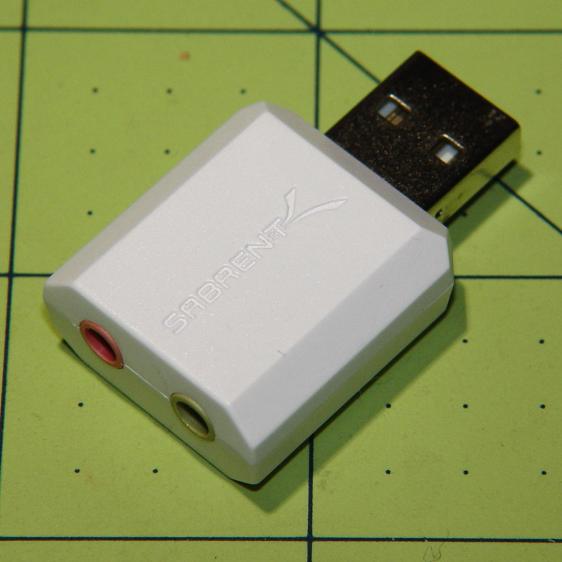
    I recently wanted to use an ordinary USB “sound card” that did not, of course, have a volume knob:

    Sabrent USB Audio Adapter
    Sabrent USB Audio Adapter

    This hack skips the configuration that makes the knob’s events visible to the Python program:

    import os.path
    
    ... snippage ...
    
    # if volume control knob exists, then set up its events
    
    VolumeDevice = '/dev/input/volume'
    
    vp = select.poll()
    if os.path.exists(VolumeDevice):
      v = InputDevice(VolumeDevice)
      v.grab()
      vp.register(v.fileno(),select.POLLIN + select.POLLPRI + select.POLLERR)
    

    It turns out that if you never register a device with the event polling interface, then the interface never reports any events and the rest of the code remains blissfully undisturbed: the non-existent knob doesn’t do anything, while the volume control buttons on the keypad continue to function as usual.

    The end result of this fiddling puts a Raspberry Pi 2 Model B to work as a streaming player on my Electronics Workbench, untethering the laptop from those powered speakers:

    RPi 2 Streaming Player - USB sound gadget
    RPi 2 Streaming Player – USB sound gadget

    It’s a shame that USB audio gadget is so big, because it crowds out standard USB plugs to the side.

    The most satisfactory LED configuration for a translucent case with an external WiFi adapter seems to be:

    dtparam=pwr_led_trigger=cpu0
    dtparam=act_led_trigger=mmc0
    

    The rest of the code remains unchanged as shown in that GitHub Gist.

    Bomb the bass!

  • Raspberry Pi: Forcing VNC Display Resolution

    You can use VNC with a headless Raspberry Pi, but, absent a display with which to negotiate the screen resolution, X defaults something uselessly small: 720×480. To force a more reasonable resolution, edit /boot/config.txt and set the framebuffer size:

    framebuffer_width=1920
    framebuffer_height=1280
    

    You can use a nonstandard resolutions, as with the 1920×1280 that fits neatly on my 2560×1440 landscape monitor, but getting too weird will surely bring its own reward. When you plug in a display, X will ought to negotiate as usual for the highest resolution the display can handle.

    The System Configuration dialog has a “Resolution” button offering standard resolutions:

    RPi display resolution configuration
    RPi display resolution configuration

    The shiny RPi Pixel UI bakes the RealVNC server directly into whatever handles the startup process these days, rendering all previous recommendations about forcing VNC resolutions inoperative. I found the trick of editing the config file on StackExchange after the usual flailing around.

    Memo to Self: Remmina (the VNC client I use in XFCE on my desktop PC) doesn’t respond well to having the VNC server shut down while it’s connected. Fire up a command prompt, enter this:

    sleep 10 ; sudo reboot
    

    Then, quick like a bunny, disconnect the VNC session.