Ed Nisley's Blog: Shop notes, electronics, firmware, machinery, 3D printing, laser cuttery, and curiosities. Contents: 100% human thinking, 0% AI slop.
Tag: Improvements
Making the world a better place, one piece at a time
The 25 g of silica gel in each Polydryer box produced these results after a month:
8 Sept 2025
11 Sept
23 Sept
Filament
%RH
Wt – g
Wt gain – g
%RH
%RH
PETG White
25
27.6
2.6
15
21
PETG Black
22
27.3
2.3
15
20
PETG Orange
21
27.2
2.2
21
23
PETG Blue
19
27.3
2.3
14
15
PETG-CF Blue
24
27.4
2.4
21
22
PETG-CF Black
21
27.3
2.3
15
19
PETG-CF Gray
27
27.1
2.1
24
26
TPU
25
27.4
2.4
22
24
Empty 1
51
no gel
n/a
27
30
Empty 2
35
27.9
2.9
19
28
The humidity levels seem higher than before, with a bit under 10% weight gain.
The two “Empty” boxes show the difference between ambient basement humidity and letting 25 g of silica gel work on the box for a month. Comparing the latter’s weight gain with the other boxes shows occupying (much of) the interior with (relatively) dry filament reduces the desiccant’s workload.
The beads in the “Empty 2” box were definitely darker after soaking up an entire box full of 50 %RH air:
Polydryer – 37%RH meter – empty
The meter reads 37%, rather than 35%, due to being out of the box for a few minutes.
They’re the darker swirl in the pan of beads:
Silica Gel regeneration – starting bead colors
That’s an accumulation of beads from a few months, not just what you see in the table.
I used an induction cooktop to heat the cast-iron pan. Some fiddling with the cooktop’s constant-temperature mode got the beads to 200 °F with a 460 °F setting in about an hour. Setting the cooktop to 50% in constant-power mode worked better, as the beads reached 220 °F in an hour and 230 °F after another hour.
The bead weights at various stages:
Start = 531 g
+1 hr at constant temperature = 491 g
+ 1 hr at 50% constant power = 483 g
+ 1 hr ditto = 480 g
The 41 g weight loss is 8.5% of the dry weight, roughly what you’d expect from the humidity readings.
After reloading the meters with 25 g of alumina beads, the 11 Sept humidity readings are slightly lower and the 23 Sept readings are roughly comparable.
My Fitbit Charge 5 has become fussy about its exact position while snapped to its magnetic charger, so I thought elevating it above the usual clutter might improve its disposition:
FitBit Charge 5 stand – installed
The Charge 5 now snaps firmly onto its charger, the two power pins make solid contact, and it charges just like it used to.
AFAICT, the Makergear M2’s filament drive gear has been in the same place on the motor shaft since I set it up nearly five years ago:
Makergear M2 – original filament drive pulley position
The filament rides along the white trail close to the front of the gear. This worked fine with PETG, but TPU occasionally squeezed out through the small gap toward the front of the extruder, so I moved the gear a few millimeters forward:
Makergear M2 – improved filament drive pulley position
The track on the idler bearing shows the filament is neatly centered where it should be:
Makergear M2 – filament idler bearing position
I haven’t adjusted the spring pressure on the idler, but it’s probably too high for TPU. If it continues to work, I’ll continue to do nothing.
I wanted to align the magnetic base plate first, but it has a lot of magnets and steel tools just weren’t going to work:
MakerGear M2 BuildTak – FlexPlate magnets
So I put the BuildTak FlexPlate on top and deployed the taper gauge, with all the magnetic fields held safely inside the steel sheet below the surface:
MakerGear M2 BuildTak – taper gauge
The plate turned out to be mostly flat, with two high spots at the center front and back. A few strips / layers of Kapton tape raised the lowest spots along the sides and middle enough to get the whole surface Close Enough™:
MakerGear M2 BuildTak – FlexPlate shims
That’s really thick 4 mil = 0.1 mm tape, not puny 1 mil stuff. Two layers added enough height to very slightly warp the steel plate when held down by all those magnets.
The final result was flat within ±0.05 mm across the entire plate, with those two high spots reduced to +0.2 mm.
The high spots lie outside the skirt at the front & rear of the plate, where they should be easy to avoid with most models I can imagine building in TPU. Stipulated: I have a stunted imagination.
TPU boxes are bendy little things with 0.45 mm walls:
MakerGear M2 BuildTak – test square
After I got the plate flattened, even a single-thread wall of TPU sticks to BuildTak like it was glued there.
I had PrusaSlicer print them sequentially to avoid excessive back-and-forth, although combining 2 mm Retraction with Avoid crossing perimeters has eliminated much of the previous stringing:
Terracycle Chain Idler Tire – TPU stringing
I modified the startup G-Code to purge & wipe the nozzle at the right-front corner of the plate:
MakerGear M2 BuildTak – nozzle cleaning
If I’d done that at the start, the BuildTak surface wouldn’t have a small divot melted into the center front edge where the previous G-Code paused the nozzle at the edge of the glass plate while heating. Pausing a millimeter off the diagonal seems to isolate the hot nozzle from the plastic surface.
The revised startup G-Code, with the earlier clearing motions commented out:
;-- PrusaSlicer Start G-Code for M2 starts --
; Ed Nisley KE4NZU
; Makergear V4 hot end
; Origin at platform center, set by MANUAL_X_HOME_POS compiled constants
; Z-min switch at platform, must move nozzle to X=135 to clear
; 2025-08-29 tweak priming spot to avoid scorching BuildTak surface
G90 ; absolute coordinates
G21 ; millimeters
M83 ; relative extrusion distance
M104 S[first_layer_temperature] ; start extruder heating
M140 S[first_layer_bed_temperature] ; start bed heating
M17 ; enable steppers
G4 P500 ; ... wait for power up
G92 Z0 ; set Z to zero, wherever it might be now
G0 Z10 F1000 ; move platform downward to clear nozzle; may crash at bottom
G28 Y ; home Y to clear plate, offset from compiled constant
G28 X ; home X, offset from M206 X, offset from compiled constant
G0 X135 Y0 F15000 ; move off platform to right side, center Y
G28 Z ; home Z to platform switch, offset from M206 Z measured
G0 Z2.0 F1000 ; get air under switch
;G0 Y-126 F10000 ; set up for priming, zig around corner
;G0 X0 ; center X
;G0 Y-125.5 ; just over platform edge
G0 Y-121 F15000 ; set up for priming
G0 X96 ; diagonally beyond trimmed corner of BuildTak plate
G0 Z0 F500 ; exactly at platform
M190 S[first_layer_bed_temperature] ; wait for bed to finish heating
M109 S[first_layer_temperature] ; set extruder temperature and wait
G1 E25 F200 ; prime to get pressure, generate blob on edge
;G0 Y-123 F5000 ; shear off blob
;G0 X15 F15000 ; jerk away from blob, move over surface
;G4 P500 ; pause to attach
;G1 X45 F500 ; slowly smear snot to clear nozzle
G0 X94 Y-119 F5000 ; shear off blob
G0 X90 F15000 ; jerk away
G4 P500 ; pause
G1 X50 Y-124 F500 ; smear snot
G1 Z1.0 F2000 ; clear bed for travel
;-- PrusaSlicer Start G-Code ends --
The one on the left came from the M2’s glass plate (with a brim barely improving its adhesion) and the one on the right was on BuildTak after all the fussing; I just noticed I laid them out in opposite directions.
An edge view shows the fuzzy surface on the left:
Makergear M2 BuildTak – small holes – edge
The tiniest holes in both are undersized, but AFAICT you could ram a screw through that bendy sheet without much effort.
The BuildTak sheet works well enough that I have not tried the PEI-covered FlexPlate, which I’m sure will require similar shimming to get a level surface.
And, no, I am not going to install a surface probe on the M2’s hot end.
Based on someearlieritems, I’d been printing TPU at 220 °C, but 230 °C fuses the threads together:
Terracycle Chain Idler Tire – correct settings
The filament turned out to be 1.79 mm diameter, rather than the nominal 1.75 mm, and a few iterations showed a 0.95 Extrusion Multiplier worked much better.
Those were printed at 30 mm/s with 0.25 mm layer height.
I now have a good stock of spare tires, each slightly different than all the others:
Terracycle Chain Idler Tire – spares
The first two slightly delaminated printed tires will remain in service until they show signs of falling apart, because I’d rather ride the bike than fiddle with it.
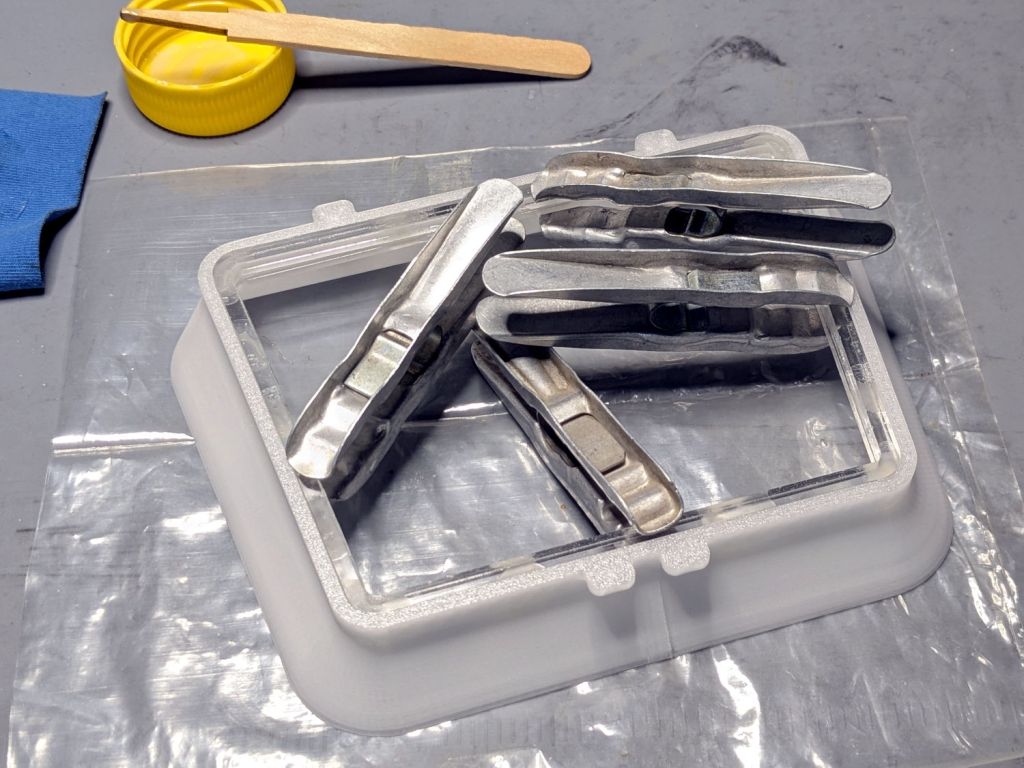
I sprayed the white-ish fragments (on the left) with satin-finish clear rattlecan “paint” in the hopes it would keep epoxy out of the cracks between the glass cuboids and leave the highly reflective air gaps. While it did a reasonable job of sealing, it bonded poorly with the epoxy and produced a dull surface finish.
The unsprayed fragments (on the right) turned out better, although the one in the upper right has a thin air bubble / layer on top. The unsealed cracks between the cuboids show well against the reflective layers, so I think spraying the fragments isn’t worth the effort.
The printed base has a 1 mm tall rim to retain the epoxy:
Printed Coaster Layout – solid model
I mixed enough epoxy to fill half the volume of a disk with the same overall OD and depth (V = h × π × d²/4), which turned out to be barely enough produce a level surface at the rim. There didn’t seem that much epoxy left on the various measuring / mixing cups, but next time I’ll round upward.
Many of the bubbles emerged from below the metalized paper, as well as between the glass and paper, so next time:
Set up a level platform with a sacrificial cover
Omit the adhesive sheet under the metallized paper
Pour a little epoxy into the recesses
Squish the metallized paper into place
Pour more epoxy to cover the paper
Gently squish the glass fragments into place
Ease more epoxy around the fragments
Chivvy the bubbles away
Fill to the rim
The top isn’t exactly flat and has some dull areas, so at some point I want to make it flat with 220 grit sandpaper, work up to some 3000 grit paper I’ve been saving for a special occasion, then finish it off with Novus polish. Which seems like enough hassle to keep the coaster under my sippy cup for a while.
The motivation for making Yet Another Coaster was to see if combining a few techniques I’ve recently learned would produce a nicer result.
Spoiler: Yup, with more to be learned and practiced.
This is a somewhat nonlinear narrative reminding me of things to do and not do in the future, so don’t treat it as a direct how-to set of instructions.
The glass fragments sit inside holes in the next two (or three or whatever) acrylic layers, which must have a total thicknesses slightly more than the glass thickness andremain properly aligned while assembling the whole stack:
Smashed Glass Coaster 5 – alignment pin
Bonus: all that cutting generates an absurd amount of acrylic scrap. I eventually put much of it to good use, but not producing it in the first place would be a Good Thing …
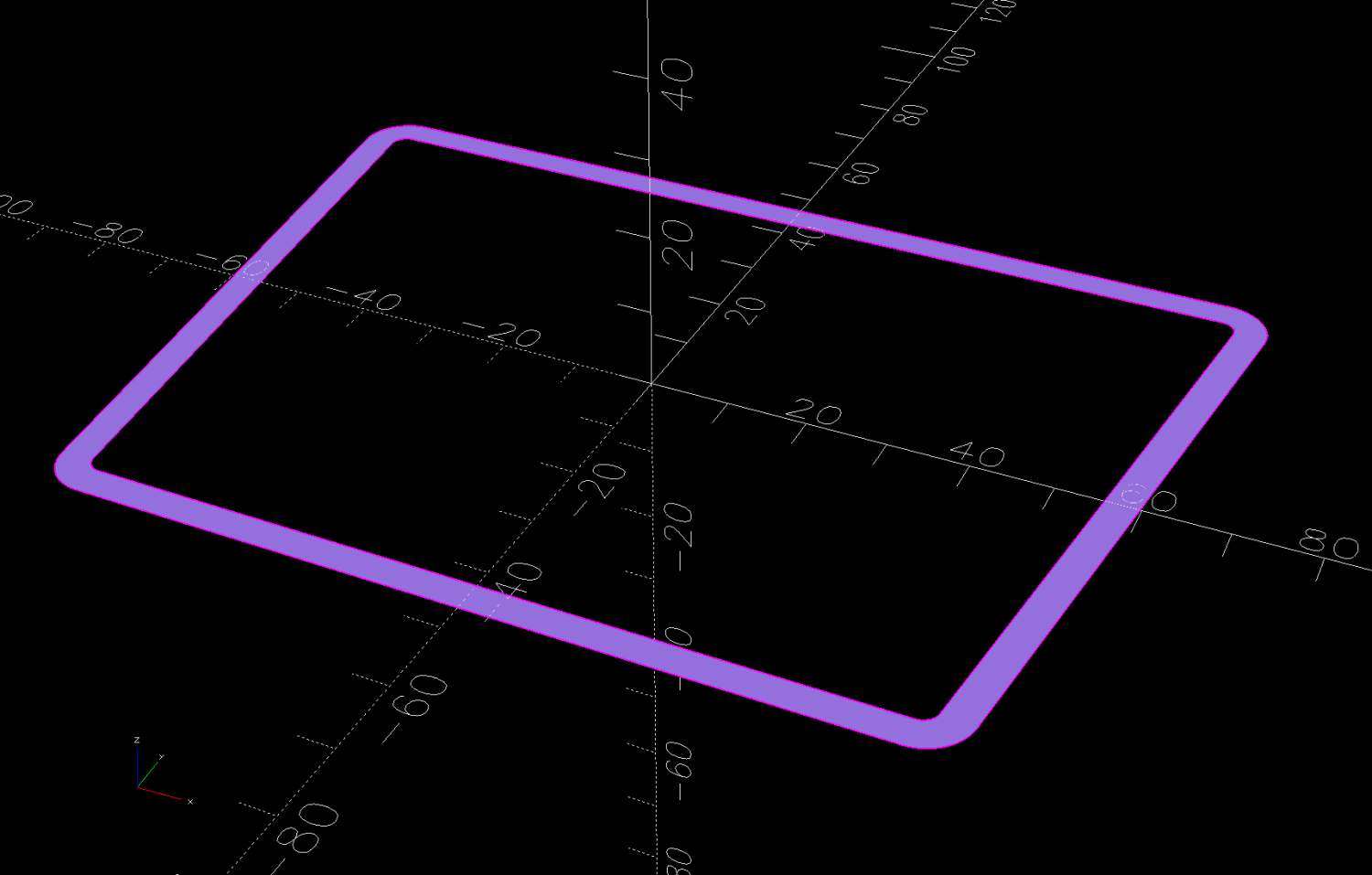
So 3D print the entire base, which requires generating a solid model with recesses for the fragments:
Printed Coaster Layout – solid model
Because there’s no real justification for an optical-quality mirror under smashed glass, use reflective metallized paper in the recesses as reflectors:
Smashed glass printed coaster – metallized paper assembly
The glass is more-or-less greenish-blueish, so I used a strip of green metallized paper that made the glass fragments green. Obviously there’s some room for choice down there.
Both the base and the reflectors use outlines of the fragments, so I started with a scan of the approximate layout in GIMP:
Smashed Glass – 4in – group A – tweaked
I traced the outline of each fragment using the Scissors Select Tool, which lays line segments along the sharpest gradient between clicked points, then switched into Quick Mask mode to adjust & smooth the results:
Smashed Glass paths – quick mask
That’s the result after sketching & saving all the paths as separate SVG files to allow importing them individually into InkScape, OpenSCAD, and LightBurn.
Which turned out to be suboptimal, as it let me write an off-by-one blooper omitting the last file from the OpenSCAD model:
A better choice puts all the paths into a single named group, saved as a single SVG file, then importing that group from the file using its name, along these lines:
It’s not clear if I can do that directly from GIMP by saving all the paths in a single file, then importing that lump into Inkscape as a group, but it’ll go something like that.
After getting the fragment paths into Inkscape, add a 0.5 mm offset to each path to clear any non-vertical edges. This will be checked with the template cut using LightBurn as described below.
Add a 1 mm rim around the outside, with the 4 inch OD matching the usual PSA cork base:
Fragment layout – 4in
Now’s the time to nudge / rotate the outlines so they have at least a millimeter of clearance on all sides / ends, because that’s about as thin a section of printed plastic as you want.
Locating the center of the OD (and, thus, everything inside) at the lower-left corner of the Inkscape page will put them at the OpenSCAD origin. I have set Inkscape to have its origin at the lower left, rather than the default upper left, so your origin may vary.
Select one of the paths:
Fragment layout – Inkscape A
Then set the ID in its Object Properties:
Fragment layout – Inkscape A – properties
There is an interaction between the name over in the Layers and Objects window, which apparently comes from the GIMP path name for the imported fragments, and the resulting ID and Label in the Object Properties window. However, renaming an object on the left, as for the Rim and Perimeter circles, does not set their ID or Label on the right. Obviously, I have more learning to do before this goes smoothly.
With everything laid out and named and saved in an SVG file, the OpenSCAD program is straightforward (and now imports all the fragments):
Which squirts out the solid model appearing above.
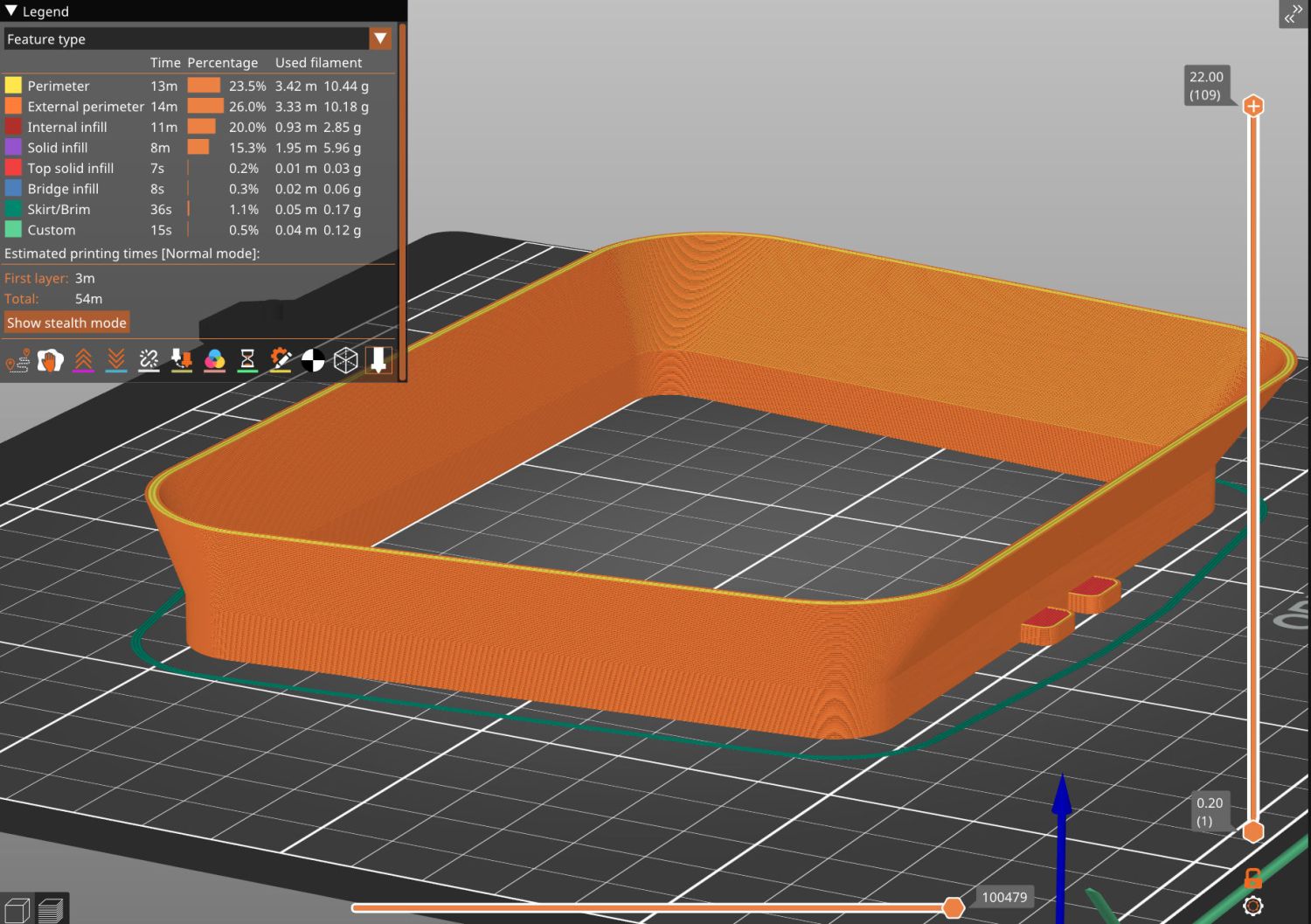
Feeding it into PrusaSlicer turns the model into something printable:
Printed Coaster Layout – slicer
And after supper I had one in my hands.
Before doing that, however, import the same SVG file into LightBurn, as on the left:
Printed Coaster Layout – LightBurn
On the right, duplicate it, put the inner Rim on a tool layer, put the rest on a layer set to cut chipboard, and make a template to verify those holes fit around the fragments:
Smashed glass printed coaster – fragment test fit
Which a few didn’t, explaining why I go to all that trouble. Iterate through GIMP → paths → SVG → Inkscape → LightBurn until it’s all good. Obviously, you do this before you get too far into OpenSCAD, but they all derive from the Inkscape layout, so there’s not a lot of wasted motion.
The middle LightBurn layout insets the fragment outlines by 0.25 mm to ensure the paper fits easily and puts them on a layer set to cut metallized paper. Those fragments then get duplicated and rearranged within the rectangle on the top to fit a strip of metallized paper from the scrap box. Fire The Laser to cut them out and stick them to the bottom of their corresponding 3D printed recesses with leftover snippets of craft adhesive sheet as shown above.
I had originally intended to cover the bottom of the entire sheet of metallized paper with an adhesive sheet, but realized the whole affair was going to be submerged in epoxy, so just making sure the paper didn’t float away would suffice.