The Smell of Molten Projects in the Morning

Ed Nisley's Blog: Shop notes, electronics, firmware, machinery, 3D printing, laser cuttery, and curiosities. Contents: 100% human thinking, 0% AI slop.

Tag: Improvements

Making the world a better place, one piece at a time

  • Thing-O-Matic: X and Z Axis Rod Alignment

    Many of the discussions in the Makerbot Operators Google Group involve bad prints due to “missing steps”, overheated stepper motors, and other motion-related maladies. The proposed cures generally don’t address the real problem, which has nothing to do with slipping belts, inadequate motor current, or general hygene.

    The problem is rod alignment, which is not guaranteed by the laser-cut plywood frame.

    The Thing-O-Matic guides all its moving parts with bronze bushings sliding on polished steel rods to ensure low friction and exceedingly long life. Unfortunately, you can easily assemble a TOM with X and Z (and sometimes Y) stages you can barely push by hand: I’ve done it!

    The symptoms involve the actual position gradually departing from the commanded position: a G0 X10 Y20 command might actually put the extrusion nozzle at X=9.9 Y=20. That error produces a small offset along the X axis that gets worse on successive layers and eventually causes the object to resemble the Leaning Tower of Pisa. The TOM can’t correct the error, because it doesn’t know where the stage actually stops after a command: the steppers run open-loop.

    This can’t be due to a slipping belt, because a toothed timing belt can only skip by multiples of the tooth pitch: a one-tooth “skip” means a 2 mm positioning error that’s immediately obvious. In any event, if the belts are that loose, you have other problems.

    It could be a loose belt drive pulley on the motor shaft, but that will produce random offsets in both directions as the setscrew gradually chews a slot around the motor shaft. If that’s the symptom, fix it now because you won’t be able to get that pulley off after the setscrew finishes raising a burr around the shaft.

    The errors generally happen in the X direction because the X stage slides on two rods, each of which is fixed at four places: both ends of the Y stage and both ends of the X stage. The tech term for this is “overconstrained”: two points determine a line, but here we have a line that must pass through four points.

    If the rod-to-rod spacing in those four places isn’t exactly equal, then the X stage bushings will bind on the rods. Alas, tolerance creep in the plywood and maybe a bit of off-center sanding when you fitted the bushings into the plywood can produce exactly that situation.

    The Y stage doesn’t have this problem, because the right side rides on bushings and the left side rides on three ball bearings, making it not so sensitive to
    horizontal misalignments.

    Diagnosing this in an assembled Thing-O-Matic presents a major nuisance, but is well worth the effort. Release the X stage drive belt by loosening the X axis motor bolts (or, if you haven’t modified those bolts, by dismounting the idler pulley, which means extracting the whole XY assembly from the TOM and taking it apart) so the carriage can slide without moving the belt and turning the motor.

    If you can move the X stage back and forth along the entire length of its travel by pushing gently with one fingertip, it’s all good. Most likely, you must apply far more force than that, as was the case in my TOM after I first assembled it: moving the X stage required quite a shove and it definitely didn’t slide freely.

    Fixing this is straightforward, at least with the entire X and Y assembly out of the TOM. There are two steps:

    • Align the X stage bushings so the rods move freely
    • Align the Y stage mounting points to match the X stage spacing

    To begin…

    Remove the X stage from the Y stage, then remove the base plate so you can see the inside end of all the bushings. Slide each rod out of one bushing, then try to slide it back. I predict it’ll look something like this:

    Misaligned X Axis bushing
    Misaligned X Axis bushing

    The rod wants to avoid the hole in the left bushing. Orbit it around in the right-side bushing until it’s well centered on the left bushing. You want it to look like this when it approaches that bushing:

    Aligned X Axis bushing
    Aligned X Axis bushing

    When it’s properly aligned, slide it in. You should then be able to bat the rod back and forth with your fingertips; if it doesn’t slide freely, slide it out of one bushing, apply more wiggly jiggly action, and get it aligned. Bat the rod back and forth a few times to get a feel for free motion, then repeat for the other rod.

    About lubrication: the bronze bushings are self-lubricating, but a bit of oil won’t do any harm. Machine oil is good, cooking oil is bad, butter is terrible. If the rods feel nice and slippery, it’s fine.

    When both rods slide freely, pop the X stage back into the Y stage. This is actually possible with both rods in the X stage, although now that you know what you’re looking for, you can slide them out, put the X stage inside, then slide the rods back in again. Remember, you want free rod motion within the X stage itself.

    With the rod ends captured in the Y stage, put the front end caps on to hold that rod in place. Slide the X carriage to the right end of its travel (hold the loose rear rod!), then push the rear rod out of the one end piece by pushing it into the plywood while supporting the X carriage. Most likely, the rod will go spung a fraction of a millimeter horizontally as it exits the end piece (you control the vertical offset by supporting the carriage).

    That’s the rod’s way of telling you that the end hole is in the wrong position. If the rod slides easily in and out of that hole, then it’s all good. If it doesn’t, then sand the offending side of the hole until the rod slides easily into the hole.

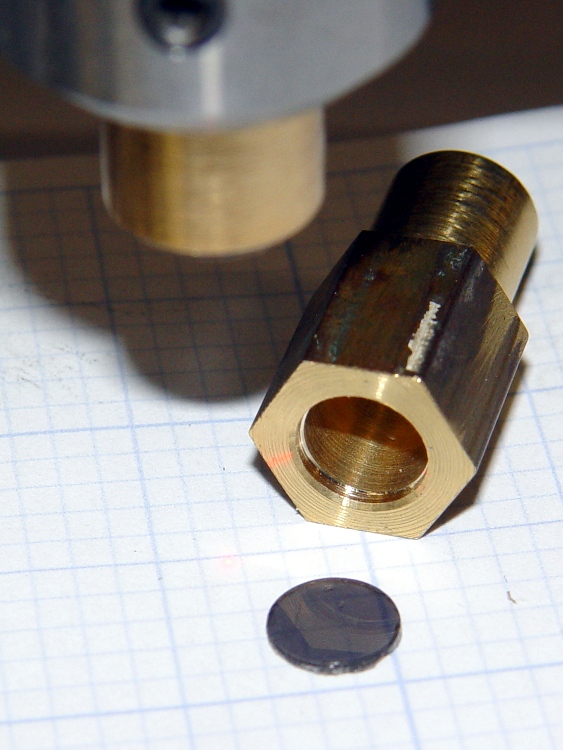
    I wrapped a length of sandpaper around a brass tube so the sandpaper formed a cylinder nearly the same diameter as the rod, which prevents sanding a notch into the plywood that makes things worse. Remove wood from the side of the hole, not the top or bottom:

    Adjusting rod hole position
    Adjusting rod hole position

    When the rod slides freely into the hole with the X stage at that end, slide the stage to the other end and repeat the process. You must do both ends of travel to get all four constraining points lined up properly.

    Recheck the rod fit at both ends of travel, then install the end caps.

    The X stage should now slide back and forth with just light finger pressure.

    If you overdo the sanding, shim the loose side of the hole with aluminum foil and a dab of adhesive. If the rod rattles around, that’s bad; add an all-around shim and put a very thin slice of foam under the end cap to calm it down.

    Verily, it is far better to sand a little and check a lot!

    You can apply the same process to the Z axis stage and rods. Remove the bolts holding the motor to the top plate, then verify that:

    • The Z stage freely slides up and down the rods
    • The rods align with their mounting holes with the Z stage each end

    Sand the holes for one of the rods to make that answer come out right, too.

    Those bronze bushings work wonderfully well, but only when the rods are
    exactly parallel and properly spaced.

    [This post is a revised, corrected, and expanded version of a comment I posted on the MBO group.]

  • Thing-O-Matic: Lazy Susan Filament Spool

    All of those thermal tests on the MK5 head gave me plenty of time to ponder the problem of what to do with the filament bundle. Thingiverse has many plans for spools that fit over, under, or beside the printer, but they all seemed complex and fiddly. Besides, I didn’t have the printer running yet, so I couldn’t print up the parts… much less laser-cut anything.

    The Parts Heap disgorged a 4-inch Lazy Susan bearing, some double-layer corrugated cardboard, and odd bits of wood. The end result fits neatly atop the Thing-O-Matic printer:

    Filament spool - front view
    Filament spool – front view

    The base is 2 x 3-inch (actually measuring 1.5 x 2.5 inch) lumber, cut to exactly fit between the front and back plates of the printer box. The boards also butt against the socket-head cap screws securing the printer’s side plates, so they’re not moving. A scrap of 1/4-inch plywood bridges the two; it’s held in place with hot-melt glue atop the lumber. The weight of all that wood holds the assembly in place; making it lighter might not be productive.

    Filament spool - left side
    Filament spool – left side

    The filament coil rests on a hexagon of double-thick corrugated cardboard, cut about 12 inches across the flats and 13 inches across the points; you could glue two single-thickness sheets together. I laid it out with compass-and-ruler techniques, but do what you like.

    The pegs are 7/16-inch wood about 2 inches tall; the outer ones are on the hexagon points and the inner pegs are on a circle 1.5 inches inside the outer pegs. The rectangular caps on the inner pegs prevent the filament from creeping upward while feeding and are angled to let it slide off into the conduit. They’re held in place with hot-melt glue, of course, and a bit more glue stiffens the hexagon points.

    The only store-bought part is the 90-degree PVC elbow originally intended for electrical work: it’s a “1/2-inch Schedule 40 Rigid Nonmetallic Conduit” elbow. I slipped a spring inside the bore to prevent collapse, applied a hot-air gun until it was flexy, bent the second right angle to align the end bell with the incoming filament, and introduced it to Mr Belt Sander to angle the entrance bell more-or-less at right angles to the incoming filament.

    The Lazy Susan bearing must be centered on the top of the printer, but the hole for the conduit must be forward of center to align with the MK5 Extruder head’s filament entry. As it turned out, butting the conduit against the forward rim of the bearing (the non-rotating base part) worked perfectly. More hot-melt glue holds it in place.

    Filament spool - front detail
    Filament spool – front detail

    This front view shows an out-of-focus peg and filament pile at the top, the Lazy Susan bearing between the plywood and cardboard, and the filament dropping straight into the MK5 head.

    The spool easily rotates backwards when the extruder motor reverses. You can lift the spool off, put it down next to the printer, fiddle with the extruder machinery, then replace the spool without cutting the filament. Trust me on this, I’ve done it a lot.

    If I hadn’t dropped the filament bundle, it would probably have slipped right into the spool without any fiddling; the coils are about a foot in diameter as shipped. I devoted a few minutes to feeding the greatly enlarged and somewhat tangled mess neatly into the spool, after securing the bitter end to the cardboard with (wait for it) a dab of hot-melt glue.

    If I ever build another spool, I’ll replace the cardboard with either 1/4-inch plywood or acrylic, then print up some better-looking peg-like objects. A shot coat of paint couldn’t possibly hurt its appearance in the least, either…

  • Adobe Reader Print Colors

    While printing up handouts for my talk at Cabin Fever, I finally tracked down why Adobe Reader was producing such crappy colors.

    The left is before and the right is after the fix, scanned at the same time with the same image adjustments:

    Oversaturated vs normal printing
    Oversaturated vs normal printing

    All of the print settings appeared correct (plain paper, 720 dpi, normal contrast, etc, etc), but Adobe Reader (and only Adobe Reader) looked like it was trying to print on vastly higher quality paper than I was using. Too much ink, too much contrast, generally useless results.

    The solution was, as always, trivial, after far too much fiddling around.

    In Reader’s Print dialog, there’s a button in the lower-left corner labeled Advanced. Clicky, then put a checkmark in the box that says Let printer determine colors.

    And then It Just Works.

    Equally puzzling: ask for 25 copies of a two-page document, check the Collate box, and you get 25 page 1, 25 page 2, then more page 1 starts coming out. I bet I’d get 25 x 25 sheets of paper by the time it gave up.

    I have no idea what’s going on, either.

    Memo to Self: verify that the box stays checked after updates.

  • X10 Appliance Module Local Control: Disablement Thereof

    After we rearranged the living room, we had a few floor lights in different locations that called for more X10 Appliance Controllers. I’m not a big fan of automated housing, because X10 communication is unreliable with a bullet, but it’s convenient to turn off all the lamps from the bedroom.

    Anyhow, the old RCA HC25 X10 Appliance Modules I pulled out of the Big Box o’ X10 Stuff suffered from the usual conflict between compact fluorescent lamps and the “local control” misfeature that’s supposed to let you turn the appliance on by simply flipping the switch. The problem is that a CFL ballast draws a nonlinear trickle of current that the module misinterprets as a switch flip, thus occasionally turning the lamp on shortly after you turn it off.

    This has been true since the first compact fluorescent bulbs appeared. The circuitry inside X10 modules hasn’t changed much, at least up until I bought the last round of switches quite some time ago. That’s either a Bad Thing (still a problem) or a Good Thing (everybody knows about it).

    The solution (everybody knows about it, just use the obvious keywords) is to cut a jumper on the module’s circuit board that’s obviously placed there for this very reason. In this view, it’s just below the lower-right corner of the fat blue capacitor. If you need confirmation, it’s connected to pin 7 of the only IC on the board.

    Snip the wire, move the cut end a little bit, and button the module up again.

    Local control jumper cut
    Local control jumper cut

    Oh, yeah. No user serviceable parts inside is a challenge around here…

  • Thing-O-Matic: Arduino Mega Heatsinking

    The Thing-O-Matic Motherboard rides atop an Arduino Mega (with the auto-reset option disabled), drawing most of its power from the hulking ATX connector at one end. The Mega draws power from the ATX +12 V supply and produces +5 V through its on-board regulator.

    As I noted there, that regulator runs surprisingly hot when fed from +12 V, even without any additional current flowing to the Mega’s pins. The solution here required another search through the parts heap, which eventually disgorged a small heatsink that was, I think, intended for a 16-pin DIP, although I obviously added the hole for some other, long-forgotten purpose.

    Motherboard regulator heatsink
    Motherboard regulator heatsink

    A bit of fin-bending to clear the (unused) power entry jack, a dab of JB Kwik epoxy, and a clamp to keep it in place while the epoxy cures:

    Clamping the Motherboard regulator heatsink
    Clamping the Motherboard regulator heatsink

    You won’t have such a heatsink, but any similarly shaped chunk of metal, even without fins, should suffice. Nothing critical about it, as long as it clears the Motherboard that will be plugged atop the Mega; you’re just increasing the surface area for heat dissipation.

    The Motherboard and Mega sit in the large opening across the Thing-O-Matic’s baseplate from the ATX supply’s fan intake, where they get plenty of cooling air. Do a before-and-after test with a fingertip on the regulator to feel the improvement for yourself.

    This is, admittedly, just a feel-good tweak, but a cool regulator is a happy regulator. Spread the joy…

  • Thing-O-Matic / MK5 Extruder: Cartridge Heater Doodles

    During the conversation following my original post on the MakerBot support forum, CodeRage suggested using cartridge heaters. I asked Eks about that and he said something along the lines of “Damn straight! We used ’em all over the place! Just do it!”

    CodeRage plans to retrofit his MK5 head with a pair of 230 V 150 W heaters running at 120 V to get a total of 75 W. I have qualms about running line voltage around the extruder head, but it’s certainly a better solution than toasting power resistors.

    The trouble with 1/2-inch models is that they don’t fit conveniently on the Thermal Core. I’d make an adapter block with a hole for the heater and two holes for the existing cap screws, but the screws don’t quite pass around a half-inch cartridge heater.

    He suggested 1/8-inch heaters from Sun Electric Heater Company, which look like just the ticket except that they’re nigh onto 40 bucks a pop. Ouch.

    High Temp Industries [Edit: new link 2013-12-27has 1/4-inch heaters for under $20 that will fit in the space available. If I understand the configuration options, you can even get 12 V 30 W heaters (the same power as the existing resistors) with a 1000 °F (call it 500 °C) temperature rating.

    So I think what’s needed is to get some of those heaters, machine blocks to hold them on each side of the Core, and see how that works. The heaters will fit between the resistor screw holes and the Core is just about exactly 1 inch long. What’s not to like?

    This might work… except for the fact that HTI has a $150 minimum order, which is somewhat off-putting even for me. Anybody up for a group buy of ten cartridge heaters?

    Note that if you swap in some cartridge heaters, you really should do the separate +12 V supply Extruder Controller hack described there.

    [Update: Zach @ MBI has ordered a stack of cartridge heaters for their internal testing (he promises to send me some), plans a retrofit kit, and may become a retail source for the heaters. He reports the lead time to get heaters in bulk is something over two weeks, which is a lot longer than I expected.

    In light of that, I will hold the “group order” until I have a better handle on what’s needed to retrofit cartridge heaters into the existing MK5 head, how they’ll actually work, and what PID loop retuning may be required. Once I know more about all that, we can proceed.

    Having MBI handle the ordering & shipping makes sense to me!]

  • Thing-O-Matic / MK5 Extruder: Resistor Wrapup

    Extruder resistor wiring
    Extruder resistor wiring

    As nearly as I can tell, using a pair of 10 W power resistors as 30 W heating elements in the Thing-O-Matic’s MK5 Extruder Thermal Core isn’t going to work, at least if you want even minimal reliability.

    The fundamental problem is that the resistor specification limits the dissipation to a few watts, tops, near 250 °C, where they must run in order to melt any of the plastic filaments.

    The Thermal Core requires 20-30 W to maintain 225 °C, so each resistor must dissipate an average of 10-15 W at that temperature. That’s half of the MK5 extruder’s original design point and still nearly a factor of 10 beyond the resistor rating.

    The original design runs at less than 50% duty cycle to maintain 225 °C, which agrees with my measurements:

    • 50% of 60 W = 30 W
    • 33% of 60 W = 20 W

    If you want to run at lower power, it’s a drop-in replacement. Change the original 5 Ω resistors to 2.5 Ω resistors (from Digikey / Mouser / wherever), change the wiring to put them in series (not parallel!), and see how long they last. They’ll certainly fare better than at 30 W, but I wouldn’t expect more than a few hours of lifetime. The specs give them 1000 hours at rated power, which this certainly is not.

    A series connection means that when one resistor fails, the heat goes off. The original parallel connection left one resistor carrying the load and, at 30 W, it can actually get the Core up to operating temperature and keep it there. Many folks have been baffled by that, but the diagnosis is simple. Measure the resistance of the parallel resistors at the Extruder Controller end of the wires:

    • 5 Ω → one resistor has failed
    • An open circuit (infinite resistance) → both are dead

    The problem with the lower power dissipation, whether from a failed resistor in the original design or my suggested change, is that the extruder head has a thermal time constant of 10-11 minutes. Lower power means a longer cold-start time; 30 W should get it up to 225 °C in about 20-30 minutes depending on the insulation. That’s not really a problem if you’re printing a series of objects, but might be objectionable for quick printing sessions.

    However, when a resistor fails, the heat goes off, the plastic stiffens up, the DC extruder motor stalls, and the essentially unlimited motor current kills the A3977 driver on the extruder board. My incandescent lamp workaround may alleviate that problem: when the light goes on, check for a failed resistor.

    I picked up a stock of 2-to-3 Ω power resistors and will do some further experimenting with power levels, insulation, and suchlike. This is a short-term fix to get my Thing-O-Matic running, but there’s a better long-term way to go: cartridge heaters on a modified Thermal Core, which I’ll discuss shortly.

    If you arrived by search engine, jump there for my earliest guesstimates, go there to the beginning of the Thing-O-Matic hardware hackage posts, then read until you get back here. The story will, perforce, continue…