Ed Nisley's Blog: Shop notes, electronics, firmware, machinery, 3D printing, laser cuttery, and curiosities. Contents: 100% human thinking, 0% AI slop.
Tag: Improvements
Making the world a better place, one piece at a time
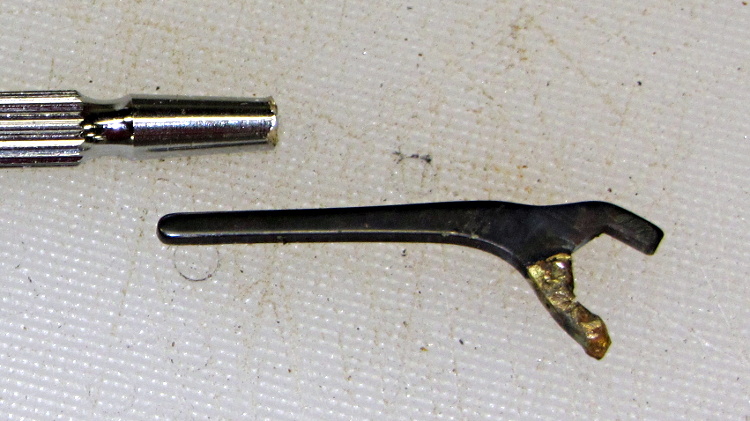
Decades ago, one jaw on my little 1/4 inch wrench that fits 4-40 nuts broke off. I brazed it back on, fully aware that one day it would break off again, because brazing isn’t really a suitable repair technique for a wrench, even one labeled as “Precision” in that time-honored manner of all low-cost tools.
Time passes, I’m tightening screws against 4-40 nuts, and the jaw gives way:
Precision wrench – broken jaw
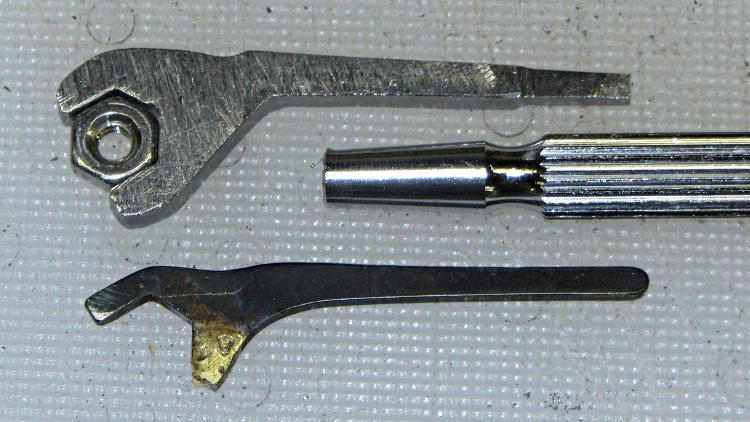
So I sawed off a strip of bedframe steel that fit the nuts better than the original stamped steel, did a bit of hand filing, and came up with a reasonable replacement:
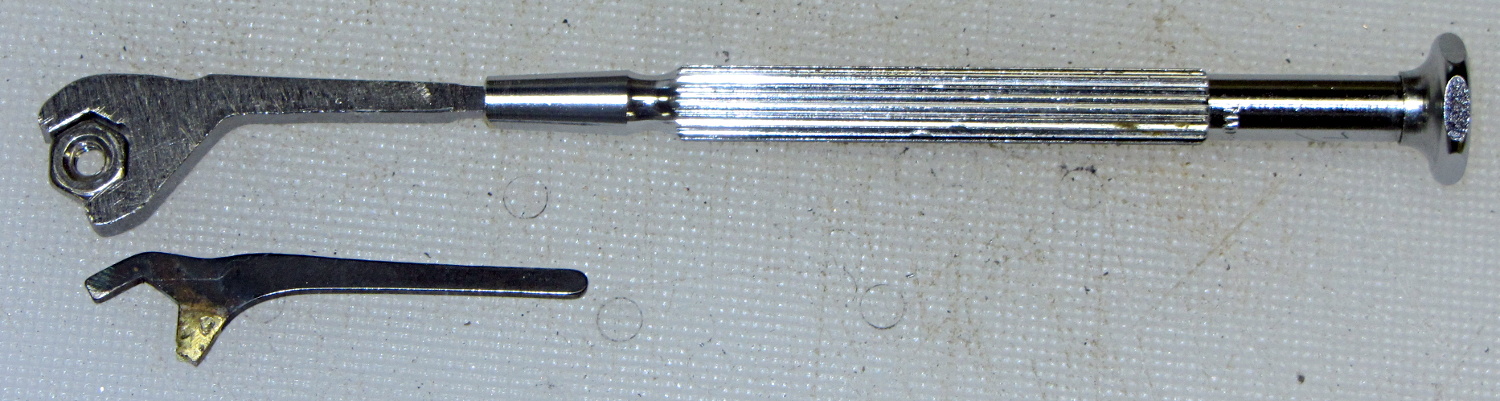
Precision wrench – detail
I rammed it into the handle, just as they’d done with the original stamped steel shape:
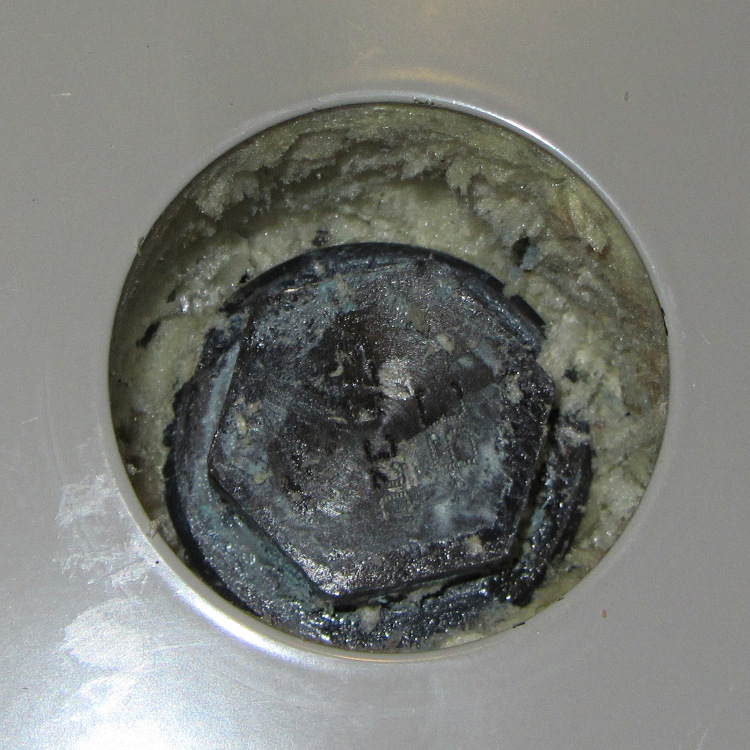
For reasons I won’t go into, I just installed another water heater. This one, nominally a GE that’s made by Rheem, has a perfectly aligned anode rod access port. This view shows the insulation filling the port, after removing the plastic cap:
GE Water Heater Anode Rod – as shipped
A bit of excavation reveals the top of the rod:
GE Water Heater Anode Rod – excavated
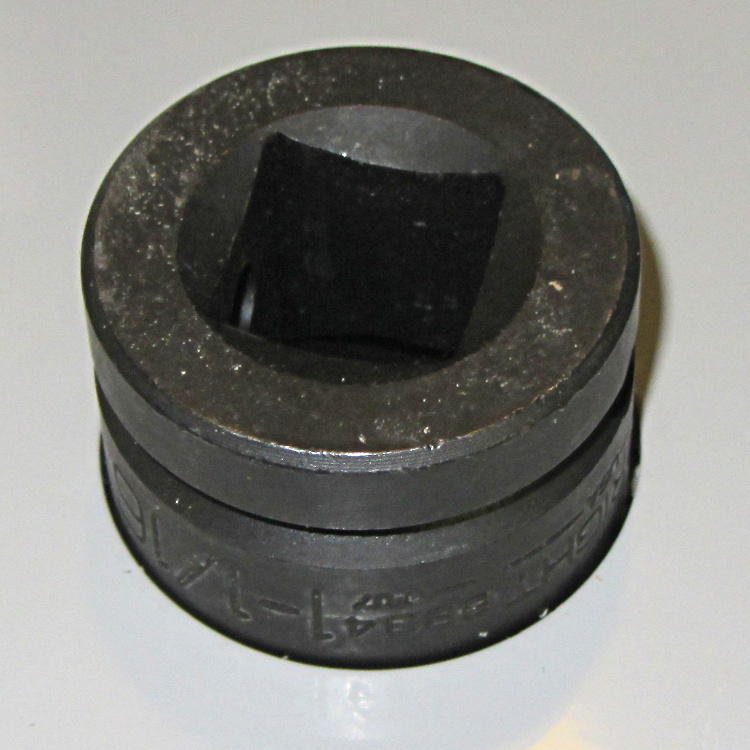
And the 1-1/16 six-point socket fits exactly through the port and mates perfectly with the rod:
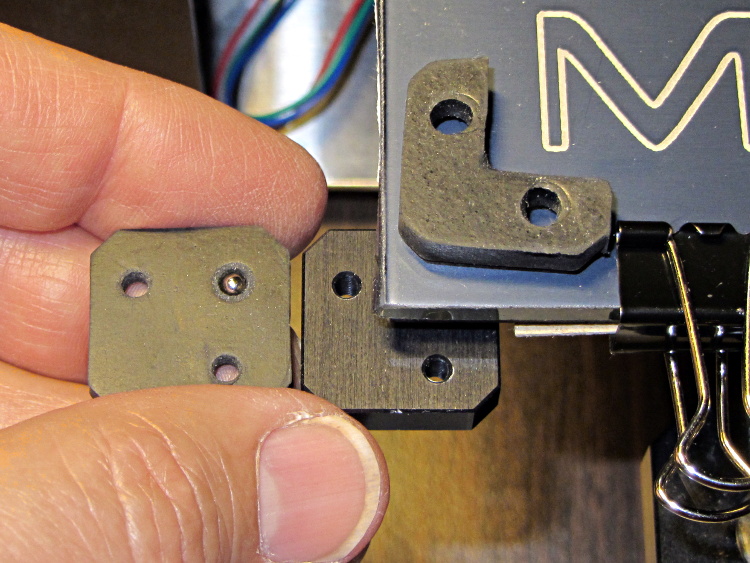
The CNC version of the corner clips looks much better than the prototypes:
M2 glass retaining clip
Tightening the screws until the clip just flattens puts enough force on the glass + heat spreader stack to hold it firmly against the balls in the bottom pad. The solid rubber L-shaped bumpers and screws hold the glass in position against XY forces… and the whole affair looks much better than the original (and perfectly serviceable) bulldog clips. These clips free up the entire surface of the glass plate, minus four 12 mm triangles that you could, if you were desperate, print right over.
Although it’d be easier to just hack out an angular clip, I wrote a bit of G-Code to put a nice radius on each corner. The clip sits atop the rubber bumper with a 0.5 mm margin to keep the metal edges away from fingers; they’re smooth, but it’s still a strip of 6 mil (= 0.15 mm) phosphor bronze and feels a lot like a knife edge if you press hard enough.
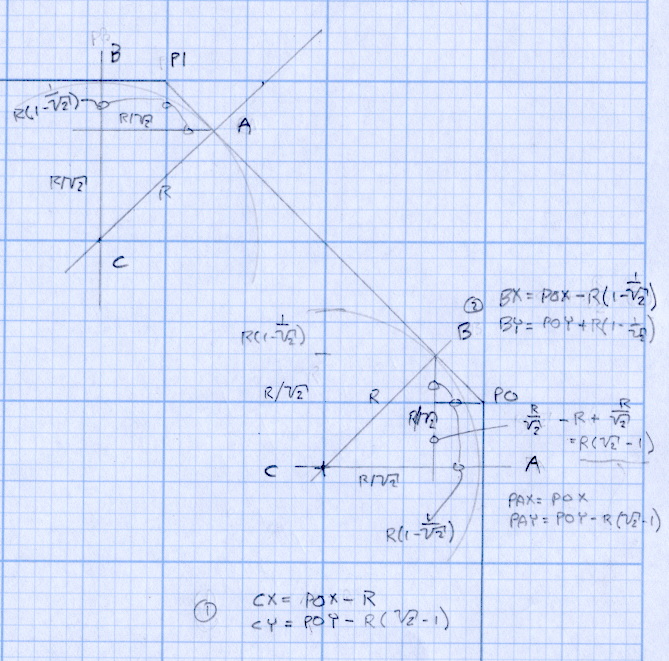
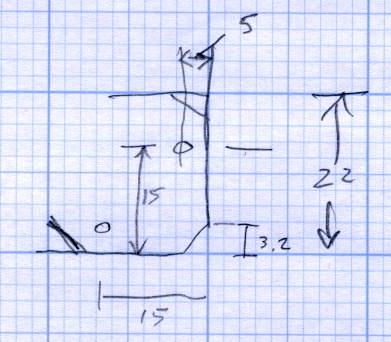
The radius on the three outside corners is a special-case solution of the general circle-through-three-points problem, taking advantage of the symmetry and right-triangle-ness of the corners. This sketch shows the details:
M2 Platform Clip Doodles 4 – corner fairing with margin
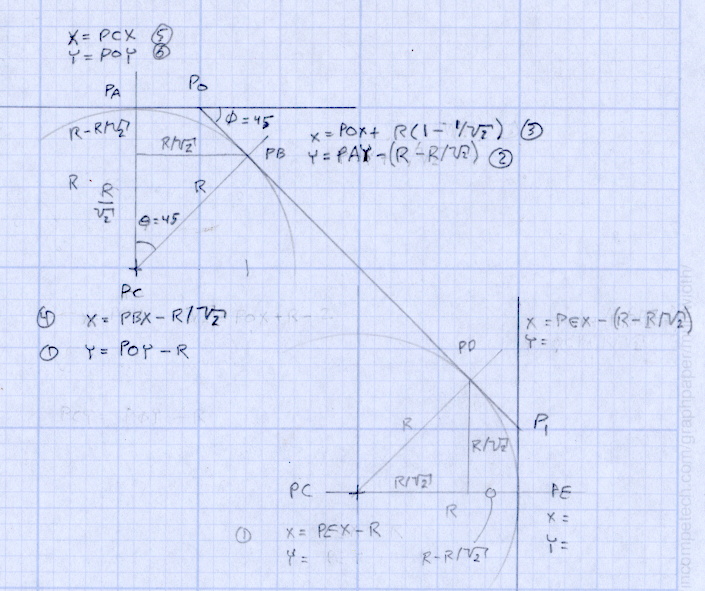
The two corners on the bevel over the glass plate have a fixed radius. I reworked my original fairing arc solution for outside cutting and doodled it up for this situation:
M2 Platform Clip Doodles 5 – bevel full solution
The outside corner radius worked out to 5 mm and I set the bevel radius at 3 mm. I think the latter made those corners a bit too sharp, but it’s Good Enough for my simple needs.
Drilling and machining the clips required a fixture:
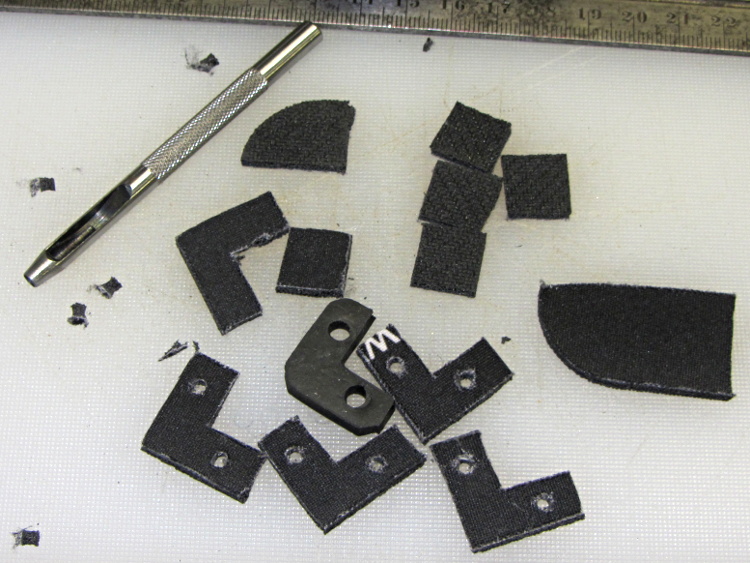
I used cutter diameter compensation to mill the edges, starting oversize by 1.5 mm and working downward by 0.5 mm on each pass to the actual diameter. That gradually trimmed off the edges without any excitement, so I could start with rough-trimmed stock and not worry about precision hand trimming.
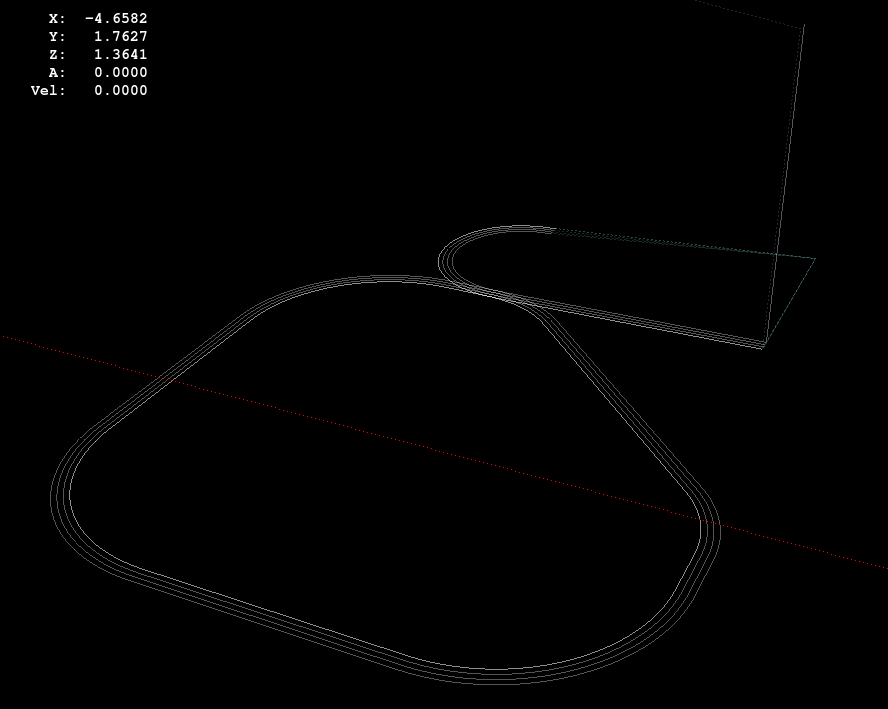
I thought climb milling (CW around the part) would produce better results, but it tended to smear the phosphor bronze against the fixture:
M2 Corner Clips – Climb milling tool paths
Conventional milling (CCW around the part) actually worked, but it required fancier entry and exit moves:
M2 Corner Clips – Conventional milling tool paths
This part is the kind and size of machining perfectly suited to a Sherline CNC mill…
The LinuxCNC G-Code source:
( M2 Build Platform Corner Clips )
( Ed Nisley - KE4ZNU - July 2013 )
( Fixture origin at right-front corner pip )

( Flow Control )
#<_Do_Drill> = 0		( Drill two holes in clip )
#<_Do_Mill> = 1			( Mill clip outline )
#<_Climb_Mill> = 0		( 0 = conventional 1 = climb)

( Fixture info )
#<_Drill_X_Fixture> = 5.0	( Drill station origin )
#<_Drill_Y_Fixture> = 5.0

#<_Drill_Num> = 30			( Drill number in tool table)
#<_Drill_Retract> = 15
#<_Drill_Depth> = -1.0
#<_Drill_Feed> = 300
#<_Drill_Speed> = 3000

#<_Mill_X_Fixture> = 40.0	( Mill station origin )
#<_Mill_Y_Fixture> = 5.0

#<_Mill_Num> = 3			( Mill number in tool table)
#<_Mill_Dia> = 4.60			( actual tool diameter)
#<_Mill_Dia_Incr> = 0.50
#<_Mill_Dia_Steps> = 3
#<_Mill_Retract> = 15
#<_Mill_Depth> = -0.5
#<_Mill_Feed> = 300
#<_Mill_Speed> = 8000

(----------------)

(  Initialize first tool length at probe switch )
(     Assumes G59.3 is still in machine units, returns in G54 )
(  ** Must set these constants to match G20 / G21 condition! )

#<_Probe_Speed>     = 400            ( set for something sensible in mm or inch )
#<_Probe_Retract>   =   1            ( ditto )

O<Probe_Tool> SUB

G49                     ( clear tool length compensation )
G30                     ( move above probe switch )
G59.3                   ( coord system 9 )

G38.2 Z0 F#<_Probe_Speed>           ( trip switch on the way down )
G0 Z[#5063 + #<_Probe_Retract>]     ( back off the switch )
G38.2 Z0 F[#<_Probe_Speed> / 10]    ( trip switch slowly )

#<_ToolZ> = #5063                    ( save new tool length )

G43.1 Z[#<_ToolZ> - #<_ToolRefZ>]    ( set new length )

G54                     ( coord system 0 )
G30                     ( return to safe level )

O<Probe_Tool> ENDSUB

(-------------------)
(-- Initialize first tool length at probe switch )

O<Probe_Init> SUB

#<_ToolRefZ> = 0.0      ( set up for first call )

O<Probe_Tool> CALL

#<_ToolRefZ> = #5063    ( save trip point )

G43.1 Z0                ( tool entered at Z=0, so set it there )

O<Probe_Init> ENDSUB

(-------------------)
(-- Mill one pass around outline with tool diameter passed in #1 )

O<MillOutline> SUB

#<X_Size> = 22.0		( size of support spider pad = nominal clip size )
#<Y_Size> = 22.0
#<Base_Bevel> = 3.2		( X or Y length of corners clipped from spider pad )

#<Bevel_Size> = 9.0		( remaining part of trimmed edges on clip )
#<Bevel_Radius> = 3.0	( fairing radius at bevel corners on clip)

#<R_Div_Root2> = [#<Bevel_Radius> / SQRT[2]]
#<R_1M_Recip_R2> = [#<Bevel_Radius> * [1 - 1/SQRT[2]]]
#<R_Root2_M1> = [#<Bevel_Radius> * [SQRT[2] - 1]]

#<Margin> = 0.5			( recess inside of nominal )

#<X_Min> = [#<Margin>]
#<X_Max> = [#<X_Size> - #<Margin>]

#<Y_Min> = [#<Margin>]
#<Y_Max> = [#<Y_Size> - #<Margin>]

#<Corner_Rad> = [[#<Margin> * [1 - SQRT[2]] + [#<Base_Bevel> / SQRT[2]]] / [SQRT[2] - 1]]

O<Climb> IF [#<_Climb_Mill>]

G0 X#<X_Min> Y[#<Y_Max> + 3*#<_Mill_Dia>]
G1 Z#<_Mill_Depth> F#<_Mill_Feed>

G41.1 D#1

G3 X[#<X_Min>] Y#<Y_Max> I0 J[0-1.5*#<_Mill_Dia>]	( cutter comp on: entry move)

G1 X[#<Bevel_Size> - #<R_Root2_M1>]
G2 X[#<Bevel_Size> + #<R_1M_Recip_R2>] Y[#<Y_Max> - #<R_1M_Recip_R2>] J[0-#<Bevel_Radius>]

G1 X[#<X_Max> - #<R_1M_Recip_R2>] Y[#<Bevel_Size> + #<R_1M_Recip_R2>]
G2 X#<X_Max> Y[#<Bevel_Size> - #<R_Root2_M1>] I[0-#<R_Div_Root2>] J[0-#<R_Div_Root2>]

G1 Y[#<Y_Min> + #<Corner_Rad>]
G2 X[#<X_Max> - #<Corner_Rad>] Y#<Y_Min> I[0-#<Corner_Rad>] J0

G1 X[#<X_Min> + #<Corner_Rad>]
G2 X#<X_Min> Y[#<Y_Min> + #<Corner_Rad>] I0 J#<Corner_Rad>

G1 Y[#<Y_Max> - #<Corner_Rad>]
G2 X[#<X_Min> + #<Corner_Rad>] Y#<Y_Max> I#<Corner_Rad> J0

G40

G0 X#<X_Min> Y[#<Y_Max> + 3*#<_Mill_Dia>]
(G3 X#<Bevel_Size> Y[#<Y_Max> + 3*#<_Mill_Dia>] I0 J[1.5*#<_Mill_Dia>])	( cutter comp off: safe exit)

G0 X#<X_Min>			( return to start)

O<Climb> ELSE

G0 X#<X_Size> Y[#<Y_Size> + #1/2]

G1 Z#<_Mill_Depth> F#<_Mill_Feed>

G42.1 D#1

G1 X#<Bevel_Size> Y[#<Y_Max>]	( cutter comp on: entry move)

G1 X[#<X_Min> + #<Corner_Rad>]
G3 X#<X_Min> Y[#<Y_Max> - #<Corner_Rad>] I0 J[0-#<Corner_Rad>]

G1 Y[#<Y_Min> + #<Corner_Rad>]
G3 X[#<X_Min> + #<Corner_Rad>] Y[#<Y_Min>] I#<Corner_Rad> J0

G1 X[#<X_Max> - #<Corner_Rad>]
G3 X[#<X_Max>] Y[#<Y_Min> + #<Corner_Rad>] I0 J#<Corner_Rad>

G1 Y[#<Bevel_Size> - #<R_Root2_M1>]
G3 X[#<X_Max> - #<R_1M_Recip_R2>] Y[#<Bevel_Size> + #<R_1M_Recip_R2>] I[-#<Bevel_Radius>]

G1 X[#<Bevel_Size> + #<R_1M_Recip_R2>] Y[#<Y_Max> - #<R_1M_Recip_R2>]
G3 X[#<Bevel_Size> - #<R_Root2_M1>] Y#<Y_Max> I[-#<R_Div_Root2>] J[-#<R_Div_Root2>]

G2 Y[#<Y_Max> + 3*#<_Mill_Dia>] J[#<_Mill_Dia>*1.5]		( get away from corner)
G40

G0 X#<X_Size>					( cutter comp off: safe exit)
G0 Y[#<Y_Size> + #1/2]			( return to start)

O<Climb> ENDIF

O<MillOutline> ENDSUB

(----------------)
( Start machining... )

G17 G40 G49 G54 G80 G90 G94 G99	( reset many things )

G21								( metric! )
G91.1 							( incremental arc centers)

(msg,Verify: G30.1 position in G54 above tool change switch? )
M0
(msg,Verify: fixture origin XY touched off? )
M0
(msg,Verify: Current tool Z=0 touched off? )
M0

( Set up probing)
O<Probe_Init> CALL
T0 M6

(---- Drill holes)

O<DoDrill> IF [#<_Do_Drill>]

(debug,Insert drill tool = #<_Drill_Num>)
T#<_Drill_Num> M6
O<Probe_Tool> CALL
(debug,Set spindle to #<_Drill_Speed> rpm )
M0

G0 X#<_Drill_X_Fixture> Y#<_Drill_Y_Fixture>
G0 Z#<_Drill_Retract>

G10 L20 P2 X0 Y0 Z#<_Drill_Retract>	( P2 = G55)
G55					( drill station coordinates )

G81 X5.0 Y15.0 Z#<_Drill_Depth> R#<_Drill_Retract> F#<_Drill_Feed>

G81 X15.0 Y5.0

G54

O<DoDrill> ENDIF

(---- Mill outline )
( Start with large diameter and end with actual diameter to trim in stages)

O<DoMill> IF [#<_Do_Mill>]

(debug,Insert mill tool = #<_Mill_Num>)
T#<_Mill_Num> M6
O<Probe_Tool> CALL
(debug,Set spindle to #<_Mill_Speed> rpm )
M0

G0 X#<_Mill_X_Fixture> Y#<_Mill_Y_Fixture>
G0 Z#<_Mill_Retract>

G10 L20 P2 X0 Y0 Z#<_Mill_Retract>	( P2 = G55)
G55					( mill station coordinates )

#<PassCount> = 0

O<MillLoop> DO
#<Diameter> = [#<_Mill_Dia> + [#<_Mill_Dia_Steps> - #<PassCount>]*#<_Mill_Dia_Incr>]

O<MillOutline> CALL [#<Diameter>]

#<PassCount> = [#<PassCount> + 1]
O<MillLoop> WHILE [#<PassCount> LE #<_Mill_Dia_Steps>]

( Finishing pass with zero cut )
O<MillOutline> CALL [#<Diameter>]

G0 Z#<_Mill_Retract>
G54

O<DoMill> ENDIF

G30

(msg,Done!)
M2
The rest of the doodles, which don’t match up with the final G-Code because they represent the earliest versions of the layout:
In the course of normal events around here, the M2 gets tipped to one side or the other. Every time that happens, I rediscover the blindingly obvious fact that there’s nothing holding the glass build plate and the heater to the support spider:
M2 build platform corner
A few minutes with a metric ruler produced some useful dimensions for the ends of the spider’s arms:
M2 Platform Support Spider Pad Dimensions
The Big Box o’ Foamy Things emitted a mouse pad (remember mouse pads?) of exactly the right thickness to bring the corner pads just barely above the level of the glass plate, thus allowing for slight compression:
M2 corner bumpers
That’s a 1/8 inch hole punch, which is close enough to the M3 screw diameter in foam rubber. It worked fine for the balls in the corner support pads, too.
The long-suffering shop scissors produced results about as pretty as one might expect:
img_3157 – M2 platform retaining clips – raw cut
Which is to say, not very.
The material is 6 mil (about 0.15 mm) phosphor bronze, nice and springy. Combined with ripply edges and sharp corners, you get perfectly serviceable serrated knife blades suitable for use in traditional shop ceremonies of ritual scarification of the fingertips.
I stacked the slips, clamped them to the Sherline’s table between sacrificial plastic sheets, used manual CNC to poke a pair of #31 holes (0.120 inch, about the right clearance for M3 screws) at the right spots, and then stacked everything up on the M2:
M2 platform retaining clip oops – in place
The alert reader will notice a third #31 hole at the wrong spot, which was the first one I drilled and partially explains the lack of pictures of the operation.
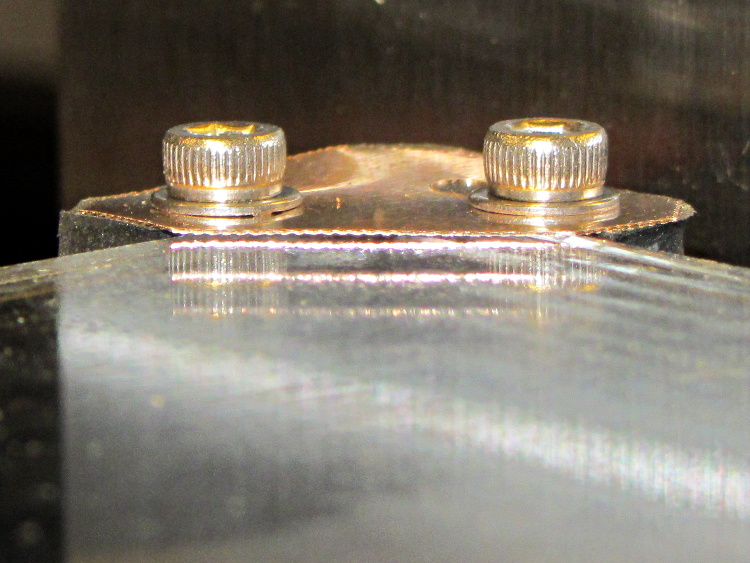
Sighting across the platform shows that the clip doesn’t lie quite flat on the glass, due to the scissors-cut bending:
M2 platform retaining clip – edge view
However, four of these clips hold the glass firmly to the heat spreader and eliminate the need for the stock bulldog clips, which is what I wanted to find out.
But they’re ugly and I don’t want to explain that extra hole…
The pads measure just slightly less than 1/8 inch thick, so the balls support the aluminum heat spreader plate. Unlike the pads, the balls hold the plate at a constant distance from the spider which shouldn’t vary with mechanical load.
As nearly as I can tell, generic rubber expands by maybe 100 parts per million per degree C, so a 3 mm slab might expand by all of 0.02 mm over a 70 °C range: temperature obviously doesn’t make much difference. However, I’m about to add some hold-down clamps to keep the glass plate firmly in place and that pressure might squish the pads.
Obviously, putting a steel ball between two aluminum plates isn’t something you’d do in a high-stress machine, but the balls must support only the platform and won’t get any shock loading: any shock strong enough to indent the aluminum will probably shatter the glass. I’m pretty sure there won’t be enough motion in the XY plane to produce any wear, either.
Four points do not define a plane, but the spider and the spreader seem close enough to being planar that all four balls make firm contact. The M2 really does have a good mechanical foundation!
Somehow, I think I’m never going to get around to doing a CNC version of this thing, but at least now I have more pictures…
The overall problem comes from the fact that the Tour Easy frame geometry doesn’t match the expectations of the front shifter: the cable bends over a small finger that, on a diamond frame bike, should simply hold it in position. Here’s the finger, with a very early version of the pulley that just holds the cable slightly higher than the normal position, complete with one snapped wire showing that the pulley wasn’t getting the job done:
Front derailleur cable with broken strand
The obvious solution involves running the cable over a nice, rounded surface that prevents abrupt bending. The most recent version looks like this:
Shifter pulley installed – left view
Yes, the end of the cable sticks out over the chain; I haven’t tucked it in yet.
A bit of lathe work produces a 0.42 inch diameter thin brass disk with a 50 mil half-circle trench around it; in retrospect, the diameter of the trench bottom should be 0.42 inch and the OD should be about 0.45 inch. If you have really good parting-off-fu, you can produce a disk with a finished backside right on the lathe, but I had to drill an off-center hole anyway, so I thinned it on the Sherline:
Shifter pulley – thinning
It looks like this after all the thinning:
Shifter pulley – thinned
One flange is wider than the other: the thin flange faces front and gets a bunch of cutouts, the wide flange faces rearward and must support the bitter end of the cable.
I lined it up in the shifter, filed a notch to fit around the shifter finger, scribed the hole location, clamped it down, and drilled the hole:
Shifter pulley – center drilling
I think the hole could be on-center with the larger disk; now that I’m keeping better notes, I’ll try that next time. If so, then I can drill it on the lathe, part it off to the correct width, and hand-file the backside flat. The general idea is to have the cable pass over the finger, which almost happens with the smaller diameter.
Some tedious hand-filing produces notches that index over the finger and clear some protuberances on the shifter arm. This is the front face of the pulley that sits against the shifter arm, with a 5 mm socket head cap screw for scale:
Shifter pulley with bolt – front face
The rear face has one side of the trench filed away to get the cable out of the trench and around the bolt:
Shifter pulley with bolt – rear face
Then it looks like this from the right side of the bike:
Adding a strip of white LEDs under the X stage helps shed some light on events atop the M2’s build platform; this was very nearly the first improvement after getting the printer, but somehow I’ve never written down where that nice white glow comes from.
This view shows the strip from below, looking up from the -Y direction in front of the stage:
White LED strip under X axis frame
I originally screwed the wires into the terminals from the hulking 12 V Dell laptop brick for the platform heater, but then I had to unscrew the wires whenever I moved the M2 and I didn’t like sharing the connectors with those huge conductors. Now the LEDs are in parallel with the extruder fan (which runs continuously), sharing the FAN1 screw terminals inside the electronics case.
The M2 firmware uses PWM to cut the 19.5 V supply from a much smaller laptop brick down to roughly 12 V RMS for the fans, but that isn’t such a Good Thing for LEDs. The strip has 120 Ω resistors that drop about 2.4 V at 20 mA from a 12 V supply, leaving 9.6 V for the LEDs (at about 3.2 V each). Running from 19.5 V means the resistors will see about 9.5 V and pass nearly 80 mA, four times the nominal rating, during each PWM pulse.
Based on those measurements, the light output doesn’t go up by nearly a factor of four during each pulse.
I plan to add a 12 V supply to the LinuxCNC box, probably by recycling the 12 V brick from the M2, which will get the LED current back down to a reasonable level. With any luck, they’ll survive this mistreatment and not carry a grudge.
You could, of course, just power the LEDs from a separate 12 V wall wart, but that adds Yet Another Thing when I carry the M2 to demos.