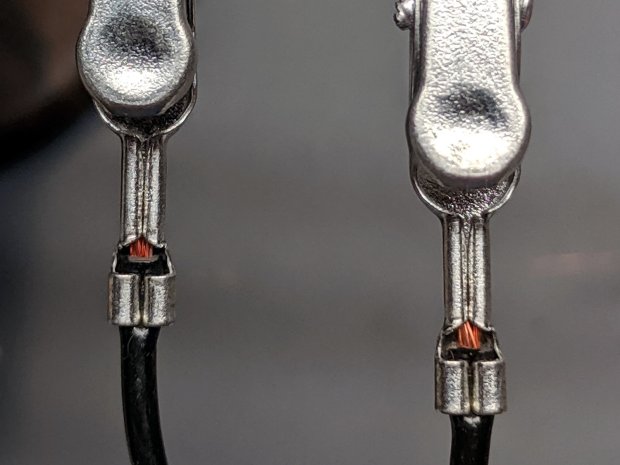
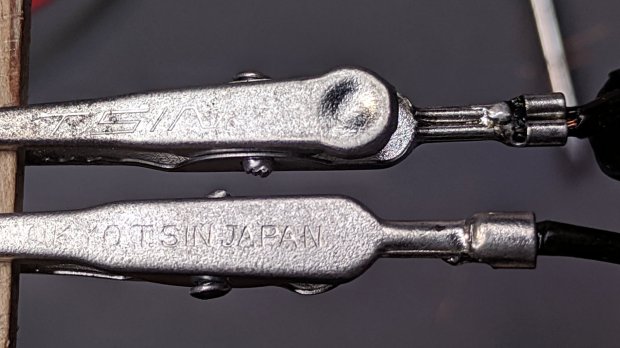
Up to this point, the Sherline has been drilling 3.5 inch hard drive platters to serve as as reflecting bases for the vacuum tubes:
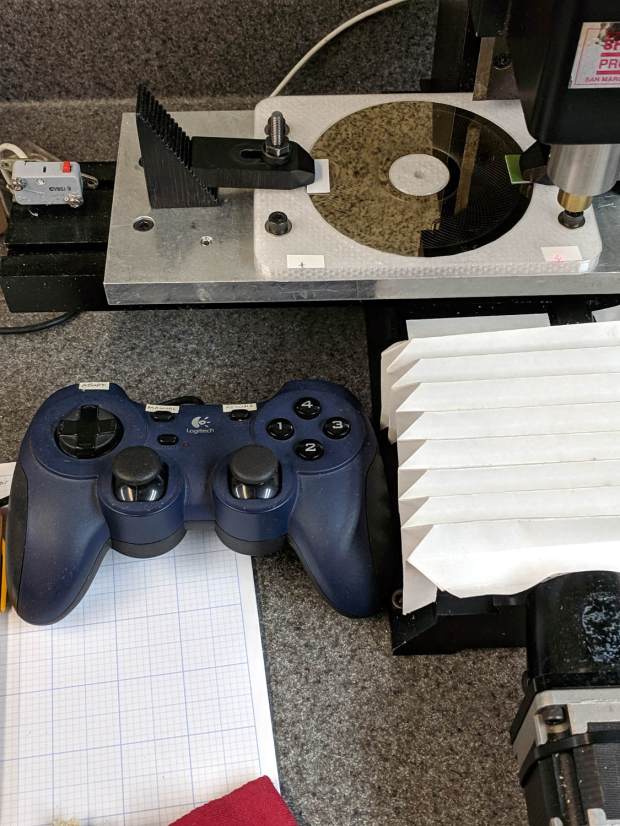
The CNC 3018-Pro has a work envelope large enough for CD / DVD platters, so I mashed the Sherline fixture with dimensions from the vacuum tube code, added the 3018’s T-slot spacing, and conjured a pair of fixtures for a pair of machines.
Because I expect to practice on scrap CDs and DVDs for a while:
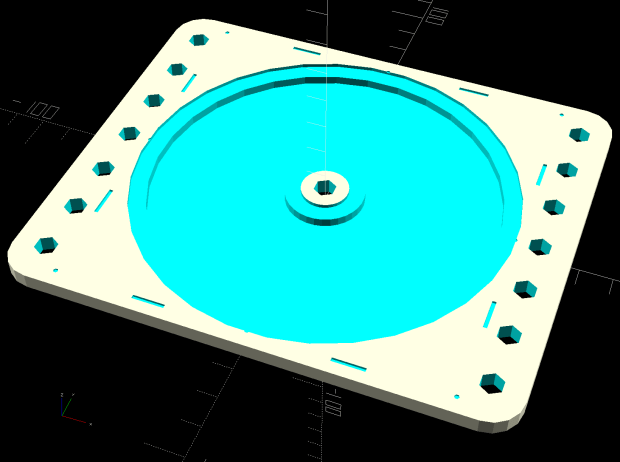
And a 3.5 inch hard drive platter version:
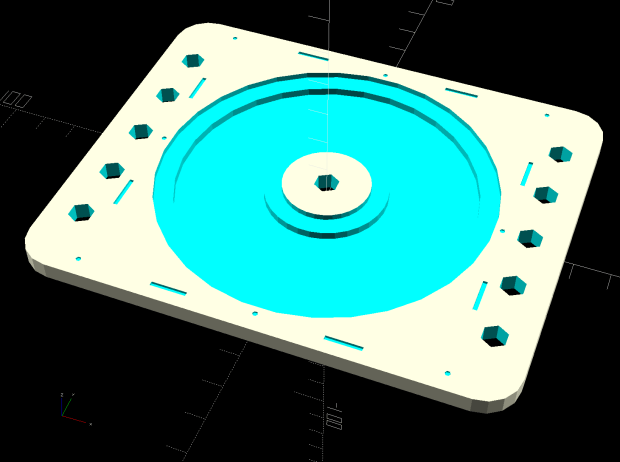
The holes sit at half the 3018’s T-slot spacing (45 mm / 2), so you can nudge the fixtures to the front or rear, as you prefer.
The alignment dots & slots should help touch off the XY coordinate system on the Sherline, although it can’t reach all of a CD. Using bCNC’s video alignment on the hub hole will be much easier on the 3018.
After fiddling around with the 3018 for a while, however, the CD fixture doesn’t have many advantages over simply taping the disc to a flat platen. Obviously, you’d want a sacrificial layer for drilling, but it’s not clear the OEM motor / ER11 chuck would be up to that task.
The OpenSCAD source code as a GitHub Gist:
| // Machining fixtures for CD and hard drive platters | |
| // Ed Nisley KE4ZNU February … September 2016 | |
| // 2019-08 split from tube base models | |
| PlatterName = "CD"; // [3.5inch,CD] | |
| CNCName = "3018"; // [3018,Sherline] | |
| PlateThick = 5.0; // [5.0,10.0,15.0] | |
| RecessDepth = 4.0; // [0.0,2.0,4.0] | |
| //- Extrusion parameters must match reality! | |
| /* [Hidden] */ | |
| ThreadThick = 0.25; | |
| ThreadWidth = 0.40; | |
| HoleWindage = 0.2; | |
| Protrusion = 0.1; // make holes end cleanly | |
| inch = 25.4; | |
| function IntegerMultiple(Size,Unit) = Unit * ceil(Size / Unit); | |
| module PolyCyl(Dia,Height,ForceSides=0) { // based on nophead's polyholes | |
| Sides = (ForceSides != 0) ? ForceSides : (ceil(Dia) + 2); | |
| FixDia = Dia / cos(180/Sides); | |
| cylinder(d=(FixDia + HoleWindage),h=Height,$fn=Sides); | |
| } | |
| ID = 0; | |
| OD = 1; | |
| LENGTH = 2; | |
| //———————- | |
| // Dimensions | |
| P_NAME = 0; // platter name | |
| P_ID = 1; // … inner diameter | |
| P_OD = 2; // … outer diameter | |
| P_THICK = 3; // … thickness | |
| PlatterData = [ | |
| ["3.5inch", 25.0, 95.0, 1.75], | |
| ["CD", 15.0, 120.0, 1.20], | |
| ]; | |
| PlatterSides = 3*4*5; // polygon approximation | |
| B_NAME = 0; // machine name | |
| B_OC = 1; // … platform screw OC, use small integer for slot | |
| B_STUD = 2; // … screw OD clearance | |
| BaseData = [ | |
| ["3018", [5.0, 45.0], 6.0], // slots along X axis | |
| ["Sherline", [1.16*inch,1.16*inch], 5.0], // tooling plate | |
| ]; | |
| //———————- | |
| // Drilling fixture for disk platters | |
| module PlatterFixture(Disk,Machine) { | |
| PI = search([Disk],PlatterData,1,0)[P_NAME]; // get platter index | |
| echo(str("Platter: ",Disk)); | |
| Platter = [PlatterData[PI][P_ID], | |
| PlatterData[PI][P_OD], | |
| PlatterData[PI][P_THICK]]; | |
| BI = search([Machine],BaseData,1,0)[B_NAME]; // get base index | |
| echo(str("Machine: ",Machine)); | |
| AlignOC = IntegerMultiple(Platter[OD],10); | |
| echo(str("Align OC: ",AlignOC)); | |
| AlignSlot = [3*ThreadWidth,10.0,3*ThreadThick]; | |
| StudClear = BaseData[BI][B_STUD]; // … clearance | |
| StudOC = [IntegerMultiple(AlignOC + 2*StudClear,BaseData[BI][B_OC].x), // … screw spacing | |
| BaseData[BI][B_OC].y]; | |
| echo(str("Stud spacing: ",StudOC)); | |
| NumStuds = [2,1 + 2*floor(Platter[OD] / StudOC.y)]; // holes only along ±X edges | |
| echo(str("Stud holes: ",NumStuds)); | |
| BasePlate = [(20 + StudOC.x*ceil(Platter[OD] / StudOC.x)), | |
| (10 + AlignOC), | |
| PlateThick]; | |
| echo(str("Plate: ",BasePlate)); | |
| PlateRound = 10.0; // corner radius | |
| difference() { | |
| hull() // basic plate shape | |
| for (i=[-1,1], j=[-1,1]) | |
| translate([i*(BasePlate.x/2 – PlateRound),j*(BasePlate.y/2 – PlateRound),0]) | |
| cylinder(r=PlateRound,h=BasePlate.z,$fn=4*4); | |
| for (i=[-1,0,1], j=[-1,0,1]) // origin pips | |
| translate([i*AlignOC/2,j*AlignOC/2,BasePlate.z – 2*ThreadThick]) | |
| cylinder(d=4*ThreadWidth,h=1,$fn=6); | |
| for (i=[-1,1], j=[-1,1]) { // alignment slots | |
| translate([i*(AlignOC + AlignSlot.x)/2, | |
| j*Platter[OD]/4, | |
| (BasePlate.z – AlignSlot.z/2 + Protrusion/2)]) | |
| cube(AlignSlot + [0,0,Protrusion],center=true); | |
| translate([i*Platter[OD]/4, | |
| j*(AlignOC + AlignSlot.x)/2, | |
| (BasePlate.z – AlignSlot.z/2 + Protrusion/2)]) | |
| rotate(90) | |
| cube(AlignSlot + [0,0,Protrusion],center=true); | |
| } | |
| for (i=[-1,1], j=[-floor(NumStuds.y/2):floor(NumStuds.y/2)]) // mounting stud holes | |
| translate([i*StudOC.x/2,j*StudOC.y/2,-Protrusion]) | |
| rotate(180/6) | |
| PolyCyl(StudClear,BasePlate.z + 2*Protrusion,6); | |
| translate([0,0,-Protrusion]) // center clamp hole | |
| rotate(180/6) | |
| PolyCyl(StudClear,BasePlate.z + 2*Protrusion,6); | |
| translate([0,0,BasePlate.z – Platter[LENGTH]]) // disk locating recess | |
| rotate(180/PlatterSides) | |
| linear_extrude(height=(Platter[LENGTH] + Protrusion),convexity=2) | |
| difference() { | |
| circle(d=(Platter[OD] + HoleWindage),$fn=PlatterSides); | |
| circle(d=Platter[ID] – HoleWindage,$fn=PlatterSides); | |
| } | |
| translate([0,0,BasePlate.z – RecessDepth]) // drilling recess | |
| rotate(180/PlatterSides) | |
| linear_extrude(height=(RecessDepth + Protrusion),convexity=2) | |
| difference() { | |
| circle(d=(Platter[OD] – 10),$fn=PlatterSides); | |
| circle(d=(Platter[ID] + 10),$fn=PlatterSides); | |
| } | |
| } | |
| } | |
| //———————- | |
| // Build it | |
| PlatterFixture(PlatterName,CNCName); | |