The Smell of Molten Projects in the Morning

Ed Nisley's Blog: Shop notes, electronics, firmware, machinery, 3D printing, laser cuttery, and curiosities. Contents: 100% human thinking, 0% AI slop.

Tag: Arduino

All things Arduino

  • USB Charger: Abosi Waveforms

    USB Charger: Abosi Waveforms

    For comparison with the Anonymous White Charger of Doom, I bought a trio of Abosi USB chargers:

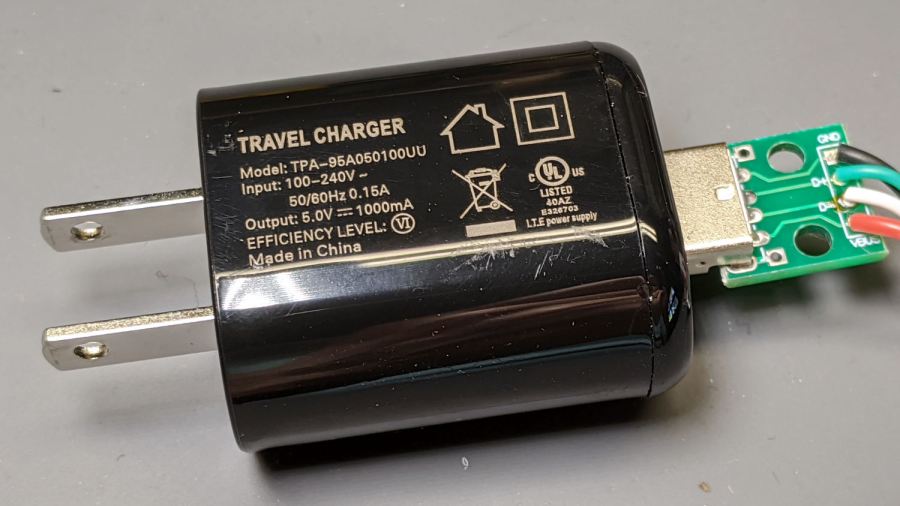
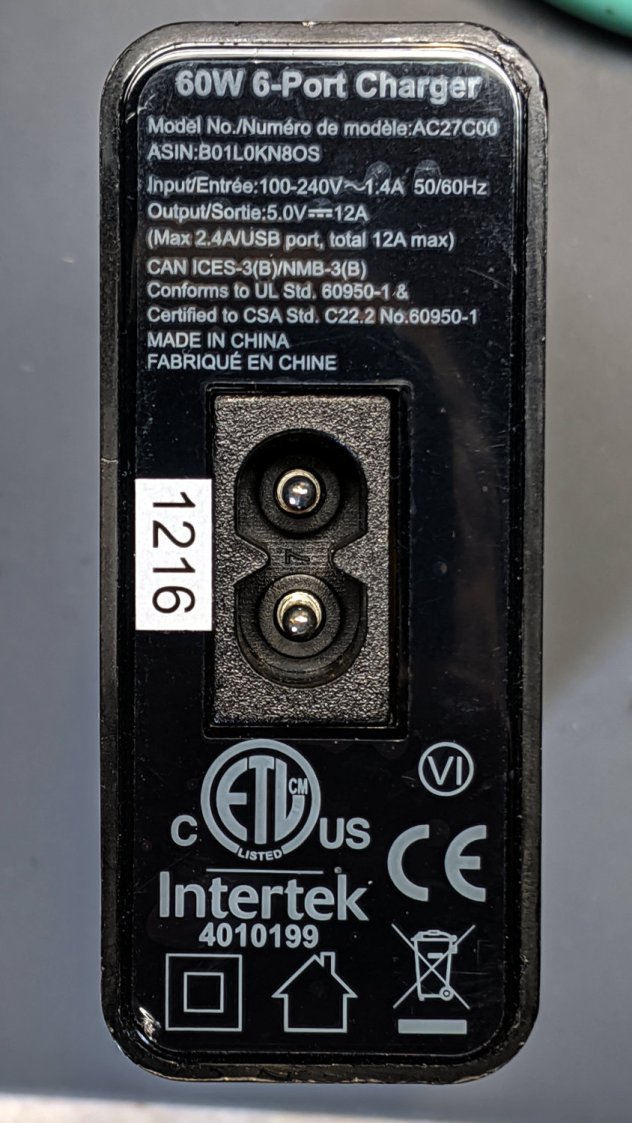
    Abosi charger - dataplate
    Abosi charger – dataplate

    The symbology indicates it’s UL, but not CE, listed. Consumer Reports has a guide to some of the symbols; I can’t find anything more comprehensive.

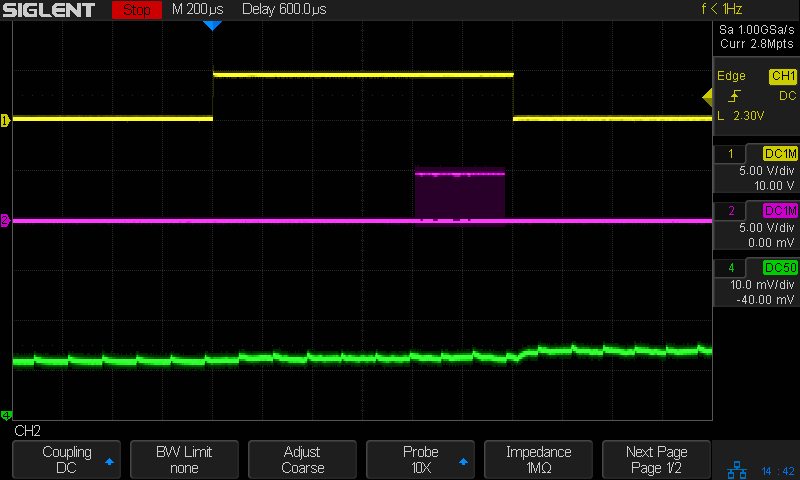
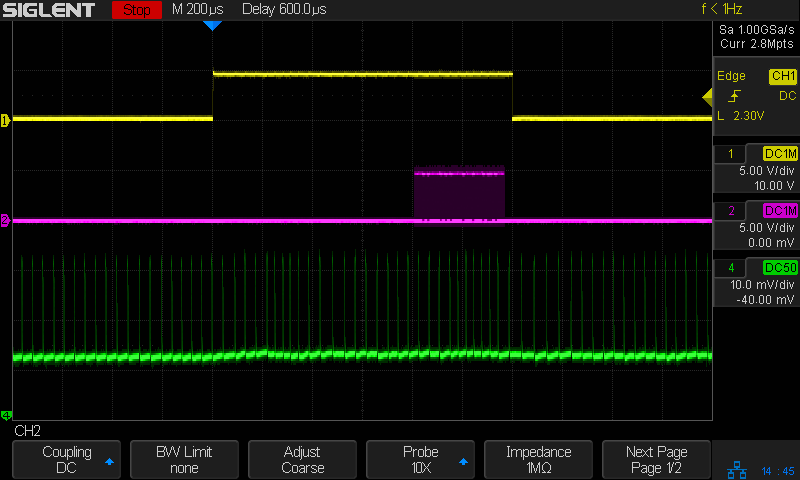
    Applying the same 8 Ω + 100 µF load as before:

    Abosi charger - 8 ohm 100 uF detail - 100 ma-div
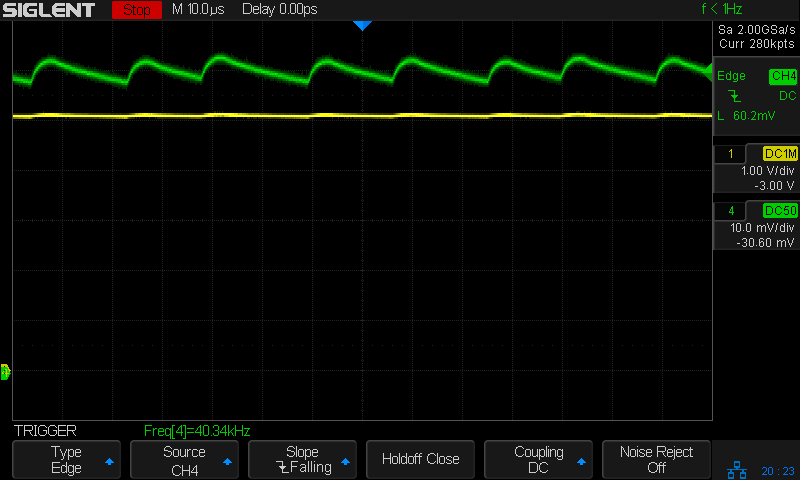
    Abosi charger – 8 ohm 100 uF detail – 100 ma-div

    The voltage (yellow) and current (green, 100 mA/div) waveforms look downright tame compared to some of the other chargers!

    I made a cursory attempt to crack the case open, but gave up before doing any permanent damage. Hey, that UL listing (and, presumably, the interior details) means they’re three times the price of those Anonymous chargers!

  • Anonymous White USB Charger: Teardown

    Anonymous White USB Charger: Teardown

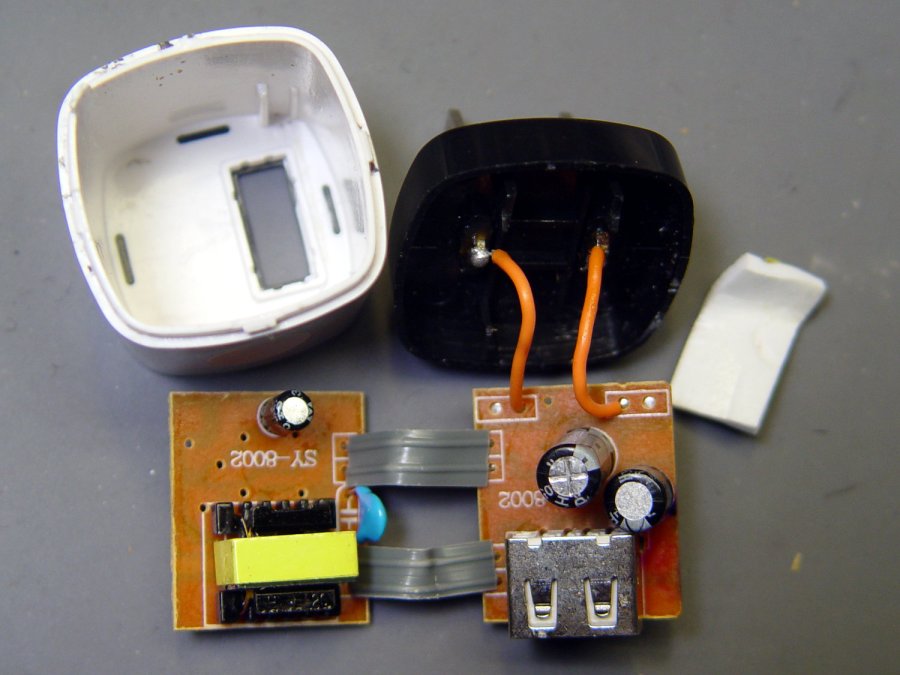
    Prompted by ericscott’s comment, I had to tear down the Anonymous White USB Charger to see what caused the bizarre current waveform when connected to the Arduino in a Glass Tile:

    Tiles 2x2 - anon white charger - pulse detail - 50 mA-div
    Tiles 2×2 – anon white charger – pulse detail – 50 mA-div

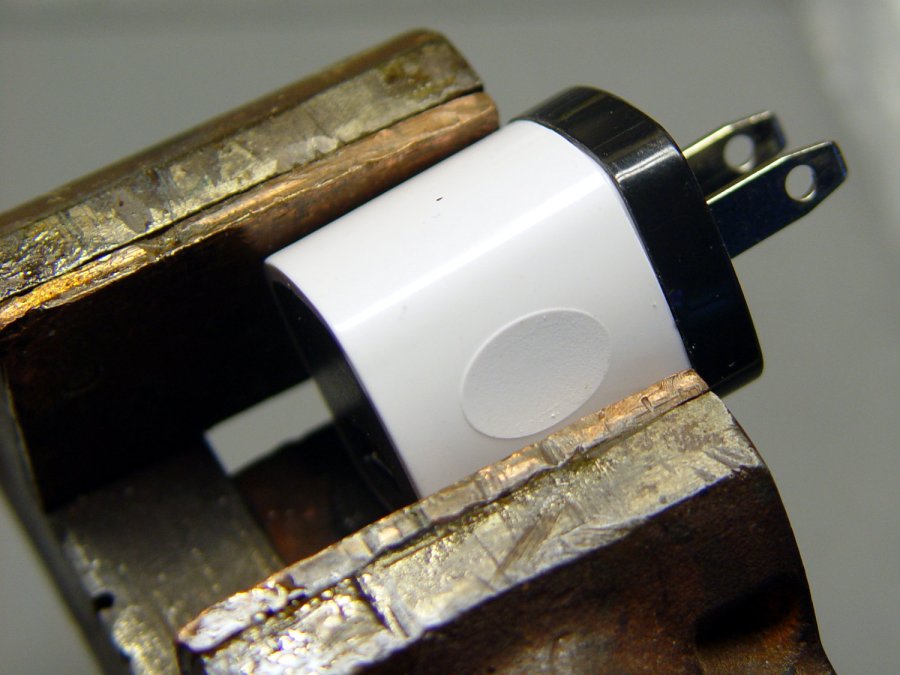
    Start by grabbing opposite corners in a small vise and gently cracking the solvent-bonded joint between the sections:

    Anon white charger - case cracking
    Anon white charger – case cracking

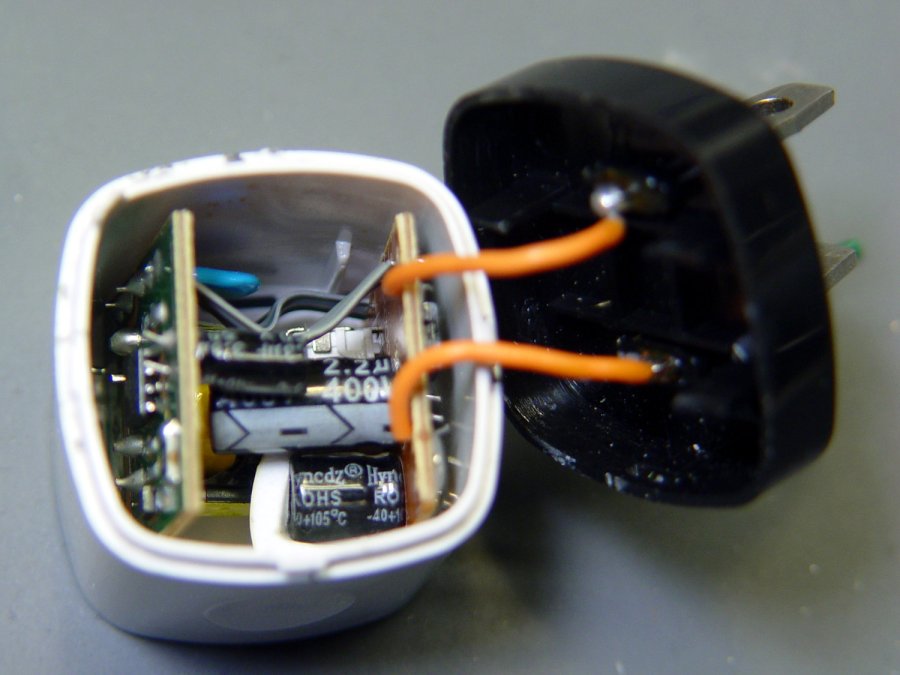
    Pull the base past the molded latches:

    Anon white charger - case opened
    Anon white charger – case opened

    Behold: components!

    Anon white charger - PCB top
    Anon white charger – PCB top

    On both sides of both PCBs!

    Anon white charger - PCB bottom
    Anon white charger – PCB bottom

    The top half of both boards, above the isolation cut, handles the line voltage and the lower half handles the 5 V USB output. You’ll note the absence of extra-cost parts like voltage feedback or ahem safety fuses.

    The IC on the right half is labeled DP3773, which doesn’t seem to exist, but is surely similar to the LP3773 Low-Power Off-Line / PSR Controller.

    Treating the whole regulator as a black box simplifies the schematic:

    Anonymous white charger - schematic
    Anonymous white charger – schematic

    The cap bridging the two sides should be a Y capacitor, but it’s an ordinary 1 nF ceramic cap with a generous 1 kV rating. As far as I can tell, having it inject AC line noise directly into the +5 V side of the USB supply is just a bonus.

    The base markings again:

    Anonymous white charger - dataplate
    Anonymous white charger – dataplate

    Whaddaya want for a buck, right?

    Other folks give better teardown pr0n

  • Glass Tiles: USB Charger Current Waveforms

    Glass Tiles: USB Charger Current Waveforms

    Looking at what comes out of various USB chargers, with the Tek current probe monitoring the juice:

    USB Current-Probe Extender - in action
    USB Current-Probe Extender – in action

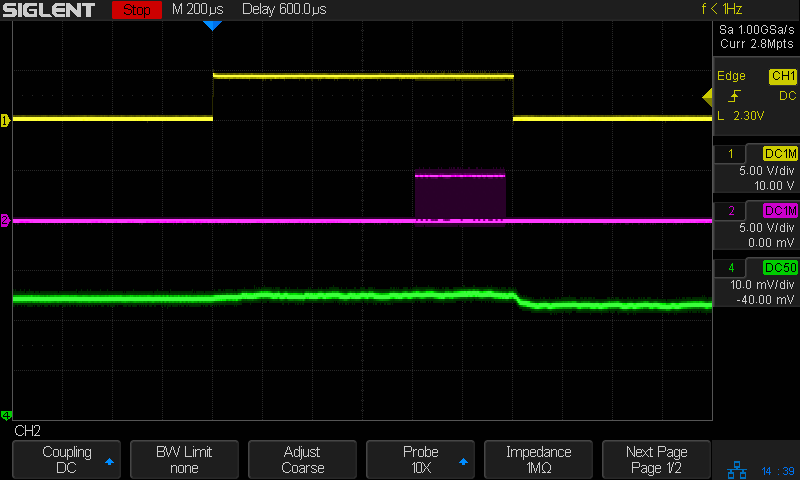
    First, a known-good bench supply set to 5.0 V:

    Tiles 2x2 - bench supply - 50 mA-div
    Tiles 2×2 – bench supply – 50 mA-div

    The yellow trace is the Glass Tile Heartbeat output, which goes high during the active part of the loop. The purple trace shows the serial data going to the SK6812 RGBW LEDs. The green trace is the USB current at 50 mA/div, with the Glass Tile LED array + Arduino drawing somewhere between 50 and 100 mA; most of that goes to the LEDs.

    The current steps downward by about 10 mA just after the data stream ends, because that’s where the LEDs latch their new PWM values. The code is changing a single LED from one color to another, so the current will increase or decrease by the difference of the two currents.

    A charger from my Google Pixel 3a phone (actually made by Flextronics and, uniquely, UL listed), with Google’s ever-so-trendy and completely unreadable medium gray lettering on a light gray plastic body:

    Google Pixel charger - dataplate
    Google Pixel charger – dataplate

    The current waveform looks only slightly choppy:

    Tiles 2x2 - Google Flextronics charger - 50 mA-div
    Tiles 2×2 – Google Flextronics charger – 50 mA-div

    An AmazonBasics six-port USB charger from tested by Intertek:

    AmazonBasics charger - dataplate
    AmazonBasics charger – dataplate

    The waveform:

    Tiles 2x2 - Amazon Basics Intertek Basics charger - 50 mA-div
    Tiles 2×2 – Amazon Basics Intertek Basics charger – 50 mA-div

    A blackweb (their lack of capitalization) charger, also made tested by Intertek:

    blackweb charger - dataplate
    blackweb charger – dataplate

    The current:

    Tiles 2x2 - blackweb charger - 50 mA-div
    Tiles 2×2 – blackweb charger – 50 mA-div

    Finally, one from a lot of dirt-cheap chargers from eBay:

    Anonymous white charger - dataplate
    Anonymous white charger – dataplate

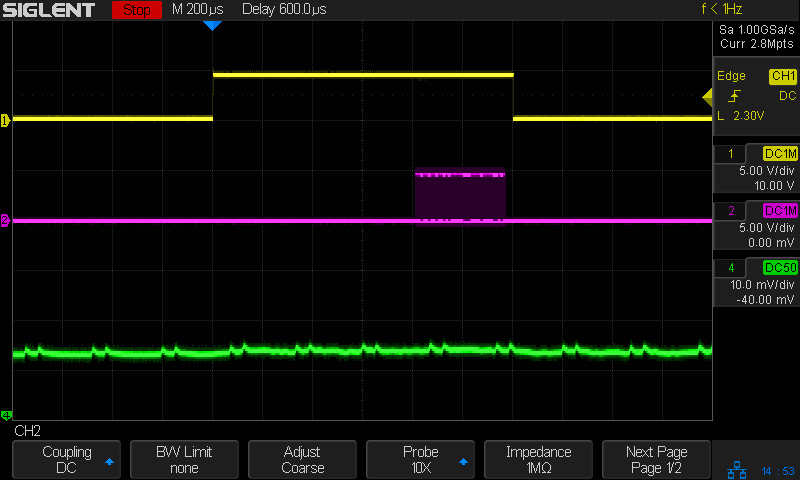
    Which has the most interesting current waveform of all:

    Tiles 2x2 - anon white charger - 50 mA-div
    Tiles 2×2 – anon white charger – 50 mA-div

    A closer look:

    Tiles 2x2 - anon white charger - pulse detail - 50 mA-div
    Tiles 2×2 – anon white charger – pulse detail – 50 mA-div

    From the 75 mA baseline, the charger is ramming 175 mA pulses at 24 kHz into the filter cap on the Arduino Nano PCB! The green trace has a few seconds of (digital) persistence, so you’re seeing a lot of frequency jitter; the pulses most likely come from a voltage comparator controlling the charger’s PWM cycle.

    It’s about what one should expect for $1.28 apiece, right?

    They’re down to $1.19 today: who knows what the waveform might be?

    Update: Having gotten a clue from a comment posted instantly after I fat-fingered the schedule for this post, I now know Intertek is a testing agency, not a manufacturer.

  • USB Current Probe Extender

    USB Current Probe Extender

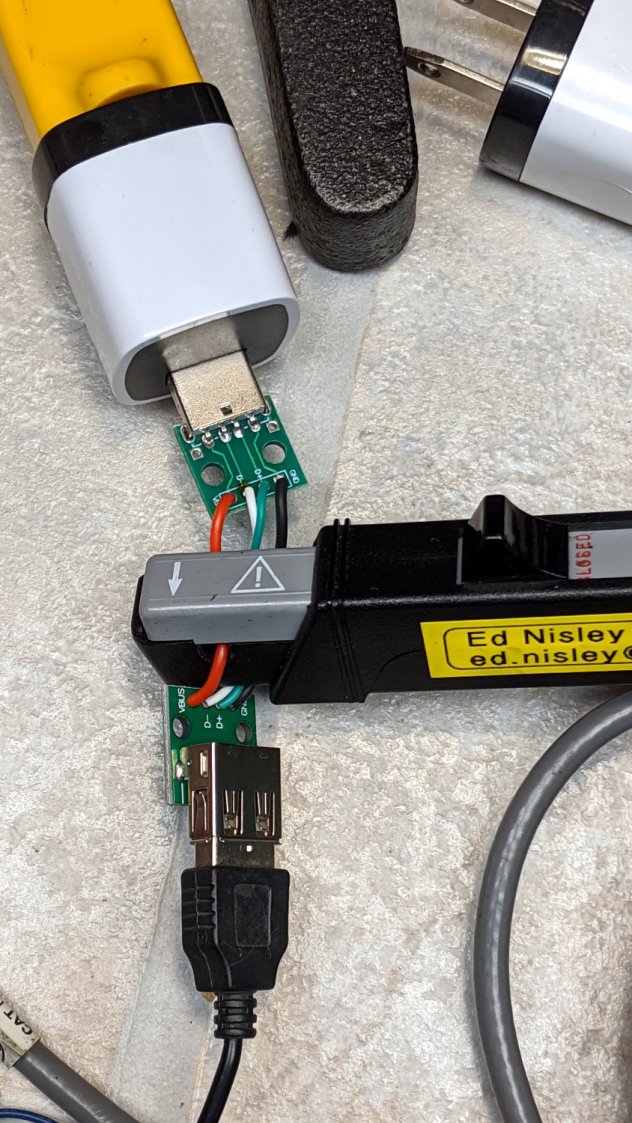
    Having gotten two answers from two USB meters, I figured it was time to get primal:

    USB Current-Probe Extender - wiring
    USB Current-Probe Extender – wiring

    That’s a pair of USB breakout connectors and lengths of nice silicone wire (24 AWG power & 28 AWG data), with just enough slack for a Tek A6302 current probe:

    USB Current-Probe Extender - in action
    USB Current-Probe Extender – in action

    So I can see the actual current waveform of a Glass Tile box running from a bench power supply:

    Tiles 2x2 - bench supply - 50 mA-div
    Tiles 2×2 – bench supply – 50 mA-div

    The top trace is the firmware heartbeat from the Arduino Nano, the middle trace is the SK6812 LED data stream, and the bottom trace is the USB current at 50 mA/div. The current steps downward by about 10 mA (just after the data burst) when one of the tiles changes color and and LED shuts off.

    The current probe reveals some mysteries, such as this waveform from a dirt-cheap USB charger:

    Tiles 2x2 - anon white charger - 50 mA-div
    Tiles 2×2 – anon white charger – 50 mA-div

    I wonder why it’s ramming 100 mA current spikes into the circuit, too. At least now I can see what’s going on.

  • Glass Tiles: Matrix for SK6812 PCBs

    Glass Tiles: Matrix for SK6812 PCBs

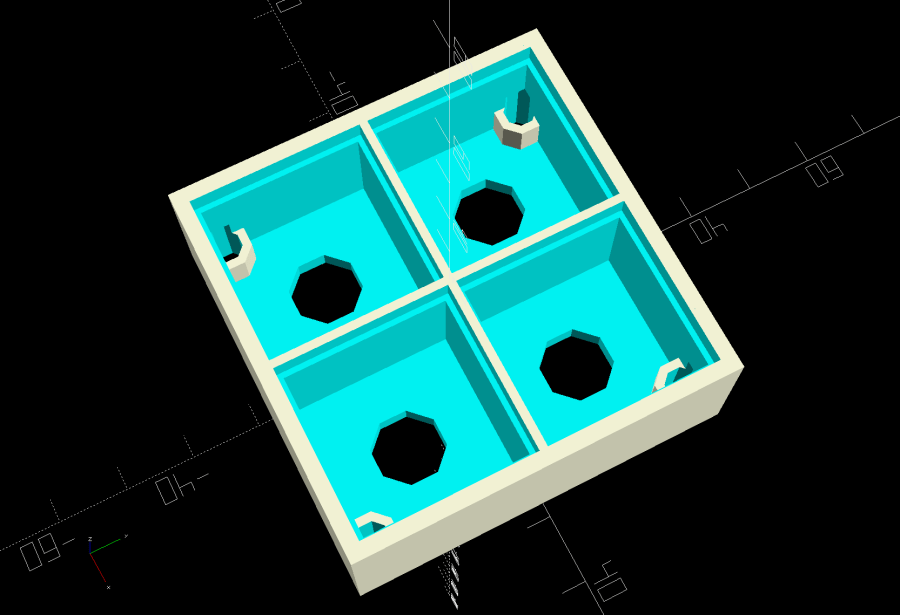
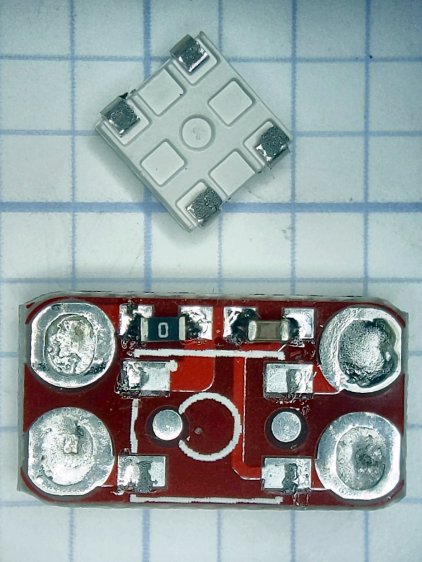
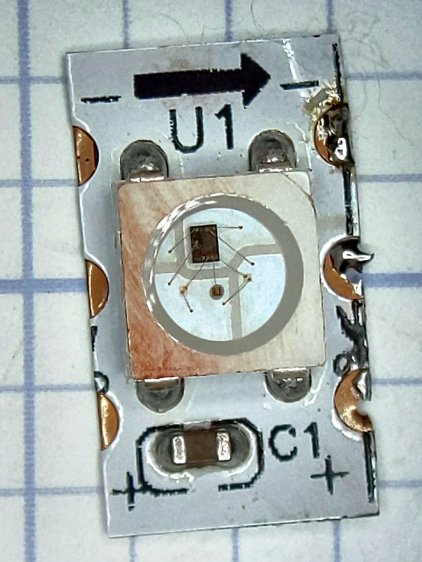
    Tweaking the glass tile frame for press-fit SK6812 PCBs in the bottom of the array cells:

    Glass Tile Frame - cell array - openscad
    Glass Tile Frame – cell array – openscad

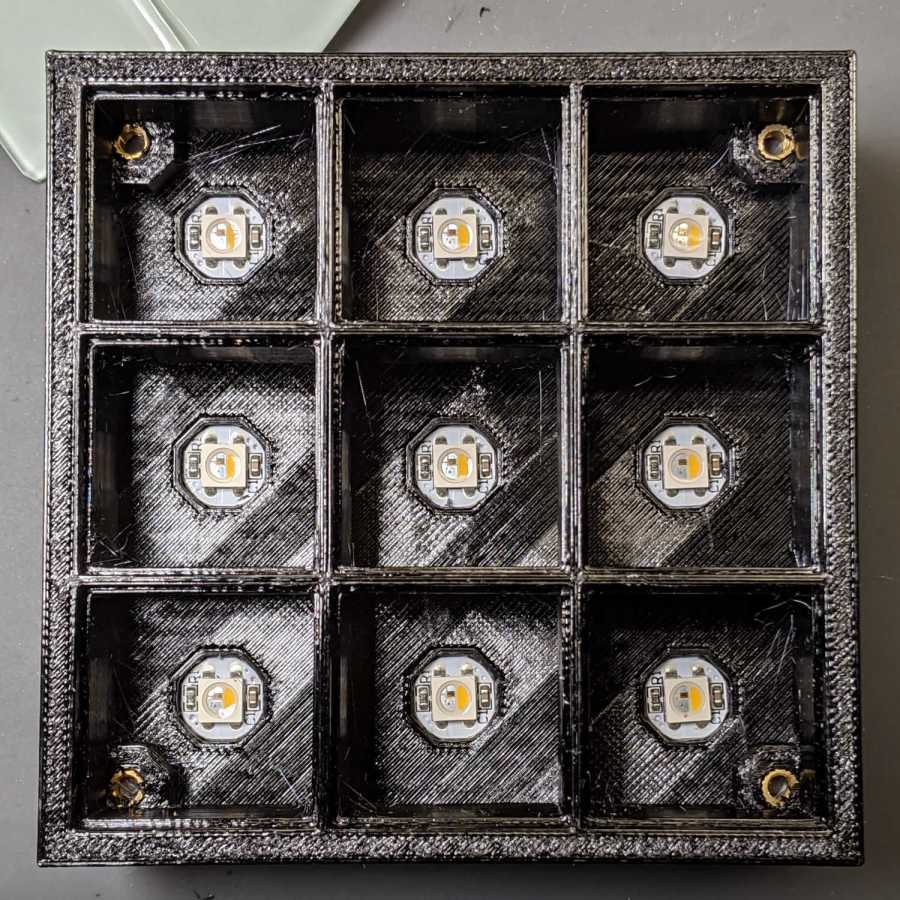
    Which looks like this with the LEDs and brass inserts installed:

    Glass Tile - 2x2 array - interior
    Glass Tile – 2×2 array – interior

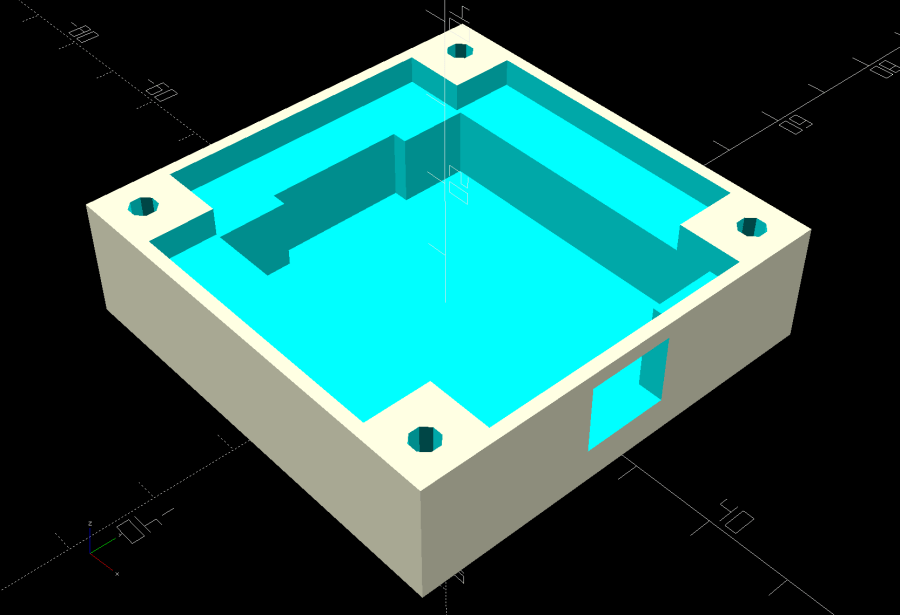
    The base holds an Arduino Nano with room for wiring under the cell array:

    Glass Tile Frame - base - openscad
    Glass Tile Frame – base – openscad

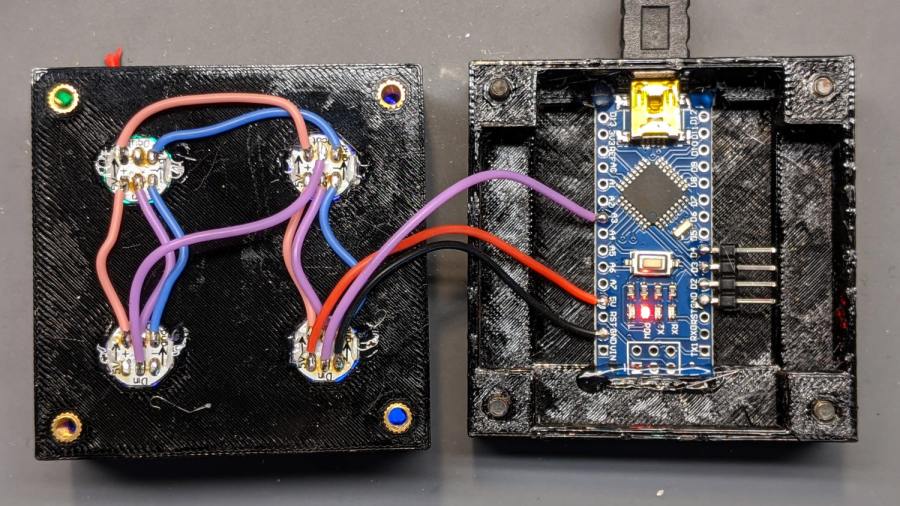
    Which looks like this after it’s all wired up:

    Glass Tile - 2x2 array - wiring
    Glass Tile – 2×2 array – wiring

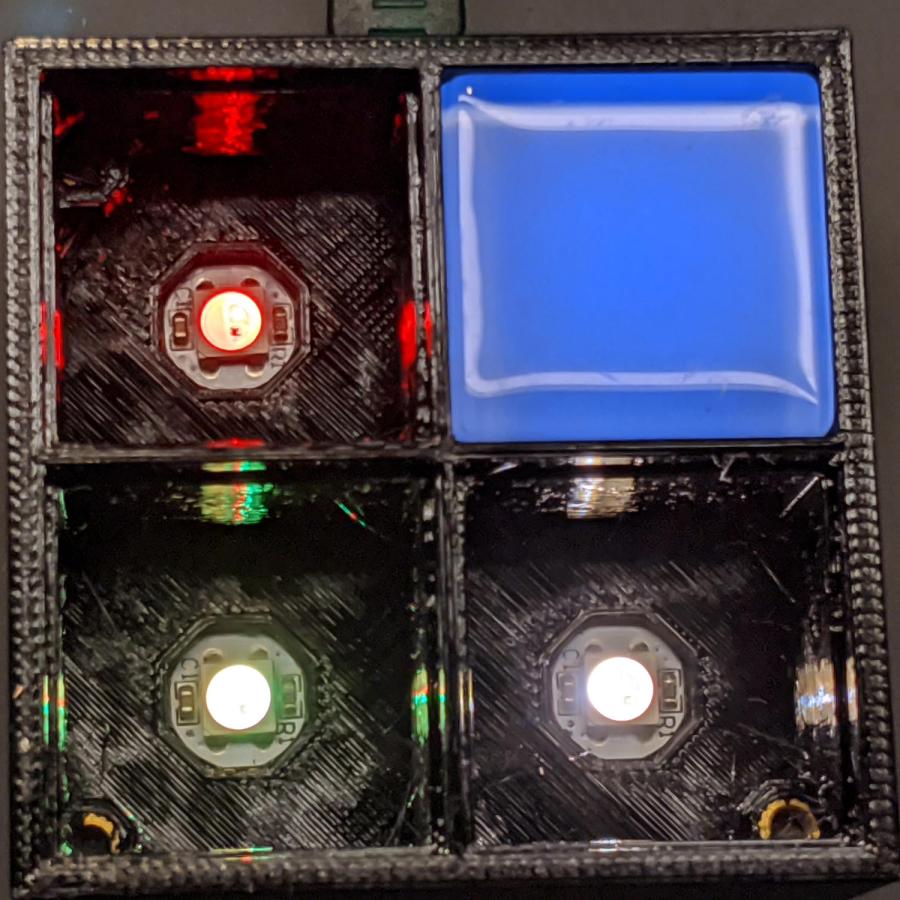
    The weird colors showing through the inserts are from the LEDs. The red thing in the upper left is a silicone insulation snippet. Yes, that’s hot-melt glue holding the Arduino Nano in place and preventing the PCBs from getting frisky.

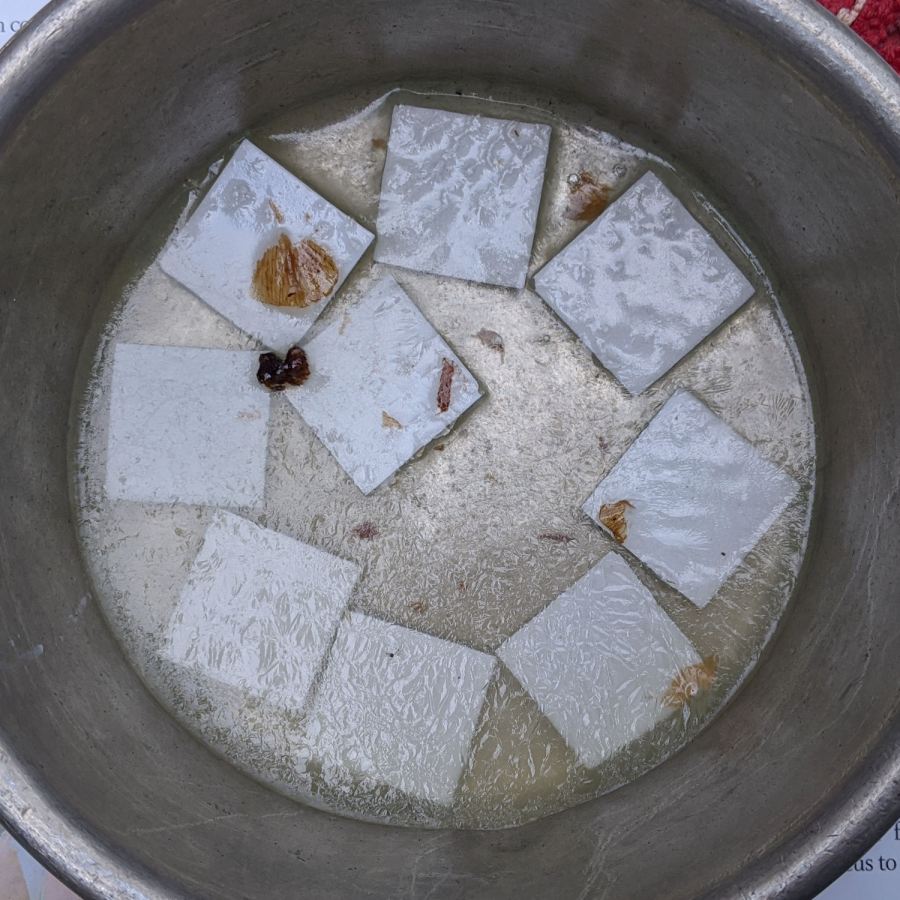
    Soak a handful of glass tiles overnight in paint stripper:

    Glass Tiles - paint stripper soak
    Glass Tiles – paint stripper soak

    Whereupon the adhesive slides right off with the gentle application of a razor scraper. Rinse carefully, dry thoroughly, and snap into place.

    Tighten the four M3 SHCS and it’s all good:

    Glass Tile - 2x2 array - operating
    Glass Tile – 2×2 array – operating

    So far, I’ve had two people tell me they don’t know what it is, but they want one:

    Glass Tile - various versions
    Glass Tile – various versions

    The OpenSCAD Customizer lets you set the array size:

    Glass Tile Frame - 3x3 - press-fit SK6812 LEDs
    Glass Tile Frame – 3×3 – press-fit SK6812 LEDs

    However, just because you can do something doesn’t mean you should:

    Glass Tile Frame - 6x6 cell array - openscad
    Glass Tile Frame – 6×6 cell array – openscad

    Something like this might be interesting:

    Glass Tile Frame - 2x6 cell array - openscad
    Glass Tile Frame – 2×6 cell array – openscad

    In round numbers, printing the frame takes about an hour per cell, so a 2×2 array takes three hours and 3×3 array runs around seven hours. A 6×6 frame is just not happening.

    The OpenSCAD source code as a GitHub Gist:

    // Illuminated Tile Grid
    // Ed Nisley – KE4ZNU
    // 2020-05
    /* [Configuration] */
    Layout = "Build"; // [Cell,CellArray,MCU,Base,Show,Build]
    Shape = "Square"; // [Square, Pyramid, Cone]
    Cells = [2,2];
    CellDepth = 15.0;
    Inserts = true;
    SupportInserts = true;
    /* [Hidden] */
    ThreadThick = 0.25;
    ThreadWidth = 0.40;
    HoleWindage = 0.2;
    function IntegerMultiple(Size,Unit) = Unit * ceil(Size / Unit);
    Protrusion = 0.1; // make holes end cleanly
    ID = 0;
    OD = 1;
    LENGTH = 2;
    Tile = [25.0 + 0.1,25.0 + 0.1,4.0];
    WallThick = 4*ThreadWidth;
    FloorThick = 3.0;
    Flange = [2*ThreadWidth,2*ThreadWidth,0]; // ridge supporting tile
    Separator = [3*ThreadWidth,3*ThreadWidth,Tile.z – 1]; // between tiles
    Screw = [3.0,6.0,3.5]; // M3 SHCS, OD=head, LENGTH=head
    Insert = [3.0,4.2,8.0]; // threaded brass insert
    ScrewRecess = Screw[LENGTH] + 4*ThreadThick;
    LEDPCB = [9.6,9.6,2.9]; // round SK6812, squared-off sides
    LED = [5.0 + 2*HoleWindage,5.0 + 2*HoleWindage,1.3];
    LEDOffset = [0.0,0.0,0.0]; // if offset from PCB center
    CellOAL = [Tile.x,Tile.y,0] + Separator + [0,0,CellDepth] + [0,0,FloorThick];
    ArrayOAL = [Cells.x*CellOAL.x,Cells.y*CellOAL.y,CellOAL.z]; // just the LED cells
    BlockOAL = ArrayOAL + [2*WallThick,2*WallThick,0]; // LED cells + exterior wall
    echo(str("Block OAL: ",BlockOAL));
    InsertOC = ArrayOAL – [Insert[OD],Insert[OD],0] – [WallThick,WallThick,0];
    echo(str("Insert OC: ",InsertOC));
    TapeThick = 1.0;
    Arduino = [44.0,18.0,8.0 + TapeThick]; // Arduino Nano to top of USB Mini-B plug
    USBPlug = [15.0,11.0,9.0]; // USB Mini-B plug insulator
    USBOffset = [0,0,5.0]; // offset from PCB base
    WiringSpace = 3.5;
    WiringBay = [(Cells.x – 1)*CellOAL.x + LEDPCB.x,(Cells.y – 1)*CellOAL.y + LEDPCB.x,WiringSpace];
    PlateOAL = [BlockOAL.x,BlockOAL.y,FloorThick + Arduino.z + WiringSpace]; // allow wiring above Arduino
    echo(str("Base Plate: ",PlateOAL));
    echo(str("Screw length: ",(PlateOAL.z – ScrewRecess) + Insert.z/2," to ",(PlateOAL.z – ScrewRecess) + Insert.z));
    LegendRecess = 1*ThreadThick;
    //————————
    module PolyCyl(Dia,Height,ForceSides=0) { // based on nophead's polyholes
    Sides = (ForceSides != 0) ? ForceSides : (ceil(Dia) + 2);
    FixDia = Dia / cos(180/Sides);
    cylinder(d=(FixDia + HoleWindage),h=Height,$fn=Sides);
    }
    //———————–
    // Base and optics in single tile
    module LEDCone() {
    hull() {
    translate([0,0,CellDepth + Tile.z/2])
    cube(Tile – 2*[Flange.x,Flange.y,0],center=true);
    if (Shape == "Square") {
    translate([0,0,LEDPCB.z/2])
    cube([Tile.x,Tile.y,LEDPCB.z] – 2*[Flange.x,Flange.y,0],center=true);
    }
    else if (Shape == "Pyramid") {
    translate([0,0,LEDPCB.z/2])
    cube(LEDPCB,center=true);
    }
    else if (Shape == "Cone") {
    translate([0,0,LEDPCB.z/2])
    cylinder(d=1.0*LEDPCB.x,h=LED.z,center=true);
    }
    else {
    echo(str("Whoopsie! Invalid Shape: ",Shape));
    cube(5);
    }
    }
    }
    // One complete LED cell
    module LEDCell() {
    difference() {
    translate([0,0,CellOAL.z/2])
    cube(CellOAL + [Protrusion,Protrusion,0],center=true); // force overlapping adjacent sides!
    translate([0,0,CellOAL.z – Separator.z + Tile.z/2])
    cube(Tile,center=true);
    translate([0,0,LEDPCB.z])
    LEDCone();
    // cube([LED.x,LED.y,CellOAL.z],center=true);
    translate(-LEDOffset + [0,0,-CellOAL.z/2])
    rotate(180/8)
    PolyCyl(LEDPCB.x,CellOAL.z,8);
    }
    }
    // The whole array of cells
    module CellArray() {
    difference() {
    union() {
    translate([CellOAL.x/2 – Cells.x*CellOAL.x/2,CellOAL.y/2 – Cells.y*CellOAL.y/2,0])
    for (i=[0:Cells.x – 1], j=[0:Cells.y – 1])
    translate([i*CellOAL.x,j*CellOAL.y,0])
    LEDCell();
    if (Inserts) // bosses
    for (i=[-1,1], j=[-1,1])
    translate([i*InsertOC.x/2,j*InsertOC.y/2,0])
    rotate(180/8)
    cylinder(d=Insert[OD] + 2*WallThick,h=Insert[LENGTH],$fn=8);
    }
    if (Inserts) // holes
    for (i=[-1,1], j=[-1,1])
    translate([i*InsertOC.x/2,j*InsertOC.y/2,-Protrusion])
    rotate(180/8)
    PolyCyl(Insert[OD],Insert[LENGTH] + FloorThick + Protrusion,8);
    }
    difference() {
    translate([0,0,CellOAL.z/2])
    cube(BlockOAL,center=true);
    translate([0,0,CellOAL.z])
    cube(ArrayOAL + [0,0,2*CellOAL.z],center=true);
    }
    }
    // Arduino bounding box
    // Origin at center bottom of PCB
    module Controller() {
    union() {
    translate([0,0,Arduino.z/2])
    cube(Arduino,center=true);
    translate([Arduino.x/2 – Protrusion,-USBPlug.y/2,USBOffset.z + TapeThick – USBPlug.z/2])
    cube(USBPlug + [Protrusion,0,0],center=false);
    }
    }
    // Baseplate
    module BasePlate() {
    difference() {
    translate([0,0,PlateOAL.z/2])
    cube(PlateOAL,center=true);
    translate([PlateOAL.x/2 – Arduino.x/2 – 2*WallThick,0,FloorThick])
    Controller();
    translate([PlateOAL.x/2 – Arduino.x/2 – 2*WallThick,0,FloorThick + PlateOAL.z/2])
    cube([Arduino.x – 2*2.0,WiringBay.y,PlateOAL.z],center=true); // cutouts beside MCU
    translate([0,0,PlateOAL.z – WiringBay.z + PlateOAL.z/2 – Protrusion])
    cube([PlateOAL.x – 2*WallThick,WiringBay.y,PlateOAL.z],center=true); // cutout above MCU
    translate([0,0,PlateOAL.z – WiringBay.z + PlateOAL.z/2 – Protrusion])
    cube([WiringBay.x,PlateOAL.y – 2*WallThick,PlateOAL.z],center=true); // cutout above MCU
    if (Inserts)
    for (i=[-1,1], j=[-1,1])
    translate([i*InsertOC.x/2,j*InsertOC.y/2,-Protrusion])
    rotate(180/8) {
    PolyCyl(Screw[ID],2*PlateOAL.z,8);
    PolyCyl(Screw[OD],ScrewRecess + Protrusion,8);
    }
    cube([45,17.0,2*LegendRecess],center=true);
    }
    linear_extrude(height=2*LegendRecess) {
    translate([0,1])
    rotate(-0*90) mirror([1,0,0])
    text(text="Ed Nisley",size=6,font="Arial:style:Bold",halign="center");
    translate([0,-6.5])
    rotate(-0*90) mirror([1,0,0])
    text(text="softsolder.com",size=4.5,font="Arial:style:Bold",halign="center");
    }
    Fin = [Screw[OD]/2 – 1.5*ThreadWidth,2*ThreadWidth,ScrewRecess – ThreadThick];
    if (Inserts && SupportInserts)
    color("Yellow")
    for (i=[-1,1], j=[-1,1])
    translate([i*InsertOC.x/2,j*InsertOC.y/2,0]) {
    rotate(180/8)
    cylinder(d=6*ThreadWidth,h=ThreadThick,$fn=8);
    for (a=[0:90:360])
    rotate(a)
    translate([Fin.x/2 + ThreadWidth/2,0,(ScrewRecess – ThreadThick)/2])
    cube(Fin,center=true);
    }
    }
    //———————–
    // Build things
    if (Layout == "Cell")
    LEDCell();
    else if (Layout == "CellArray")
    CellArray();
    else if (Layout == "MCU")
    Controller();
    else if (Layout == "Base")
    BasePlate();
    else if (Layout == "Show") {
    translate([0,0,3*PlateOAL.z])
    CellArray();
    BasePlate();
    translate([PlateOAL.x/2 – Arduino.x/2 – 2*WallThick,0,FloorThick])
    color("Orange",0.3)
    Controller();
    }
    else if (Layout == "Build") union() {
    translate([0,0.6*BlockOAL.y,0])
    CellArray();
    translate([0,-0.6*BlockOAL.x,0])
    rotate(90)
    BasePlate();
    }
  • Glass Tiles: Glow vs. Flash Firmware

    Glass Tiles: Glow vs. Flash Firmware

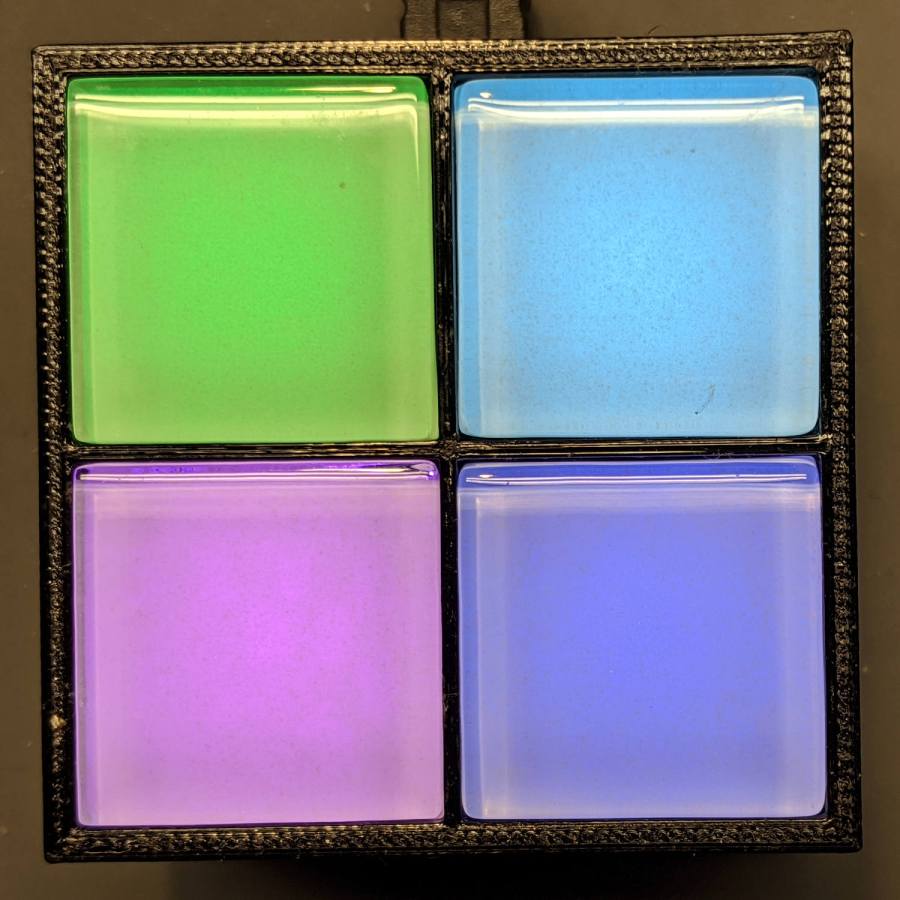
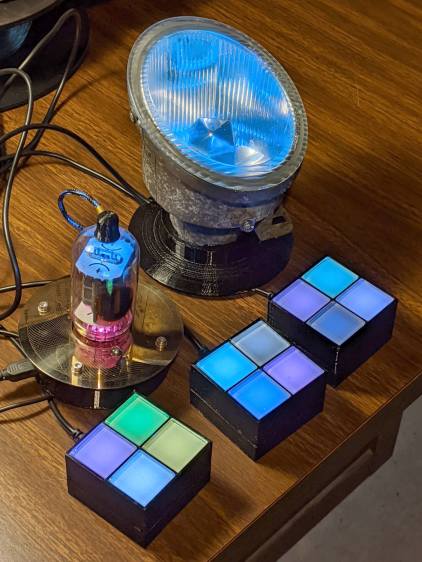
    Although it’s not obvious in a still picture, the firmware now supports both the continuously changing colors of the Nissan fog lamp (mashed with tweaks from the vacuum tube lights) and the randomly changing colors from the LED matrix, both using SK6812 LEDs rather than the failing WS2812 modules:

    Glass Tile - glow vs flash
    Glass Tile – glow vs flash

    Flash is a misnomer, as the tiles simply change from one color to the next, but I’ve never been adept at picking catchy names. In any event, the glass tiles on the left show nice pastel shades, in contrast to the bright primary(-ish) colors appearing on the right.

    The colors are random numbers from 1 to 7, because 0 produces a somewhat ugly dark cell. The SK6812 modules have a white LED in addition to the RGB LEDs in the WS2812 modules, so I replace the “additive white” R+G+B color with the more-or-less true white (warm, for these modules) LED.

    The new color goes into a cell picked at random (0 through 3, for 2×2 frames), except if the cell already holds the same color, whereupon a simple XOR flips the colors, except if the cell is already full-on white, whereupon it becomes half-on white to avoid going completely dark.

    The glass tiles must change colors at a much slower pace than the 8×8 LED matrix, because there are so few cells; a random delay between 500 ms and 6 s seems about right.

    They look really great in a dim room!

    The Arduino source code as a GitHub Gist:

    // Neopixel lighting for glass tiles
    // Ed Nisley – KE4ANU – May 2020
    #include <Adafruit_NeoPixel.h>
    #include <Entropy.h>
    //———-
    // Pin assignments
    const byte PIN_NEO = A3; // DO – data to first Neopixel
    const byte PIN_MODE = 2; // DI – select mode
    const byte PIN_SPEED = 3; // DI – select speed
    const byte PIN_SELECT = 4; // DO – drive adjacent pins low
    const byte PIN_HEARTBEAT = 13; // DO – Arduino LED
    //———-
    // Constants
    // number of pixels
    #define PIXELS 9
    // lag between adjacent pixels in degrees of slowest period
    #define PIXELPHASE 45
    // update LEDs only this many ms apart (minus loop() overhead)
    #define UPDATEINTERVAL 50ul
    // number of steps per cycle, before applying prime factors
    #define RESOLUTION 500
    //———-
    // Globals
    // instantiate the Neopixel buffer array
    Adafruit_NeoPixel strip = Adafruit_NeoPixel(PIXELS, PIN_NEO, NEO_GRBW + NEO_KHZ800);
    struct pixcolor_t {
    unsigned int Prime;
    unsigned int NumSteps;
    unsigned int Step;
    float StepSize;
    float Phase;
    byte MaxPWM;
    };
    unsigned int PlatterSteps;
    byte PrimeList[] = {3,5,7,13,19,29};
    unsigned int MaxTileTime;
    // colors in each LED
    enum pixcolors {RED, GREEN, BLUE, WHITE, PIXELSIZE};
    struct pixcolor_t Pixels[PIXELSIZE]; // all the data for each pixel color intensity
    uint32_t UniColor;
    enum dispmode {GLOW, FLASH}; // based on input pin
    unsigned long UpdateMS;
    unsigned long MillisNow;
    unsigned long MillisThen;
    //– Select three unique primes for the color generator function
    // Then compute all the step parameters based on those values
    void SetColorGenerators(void) {
    Pixels[RED].Prime = PrimeList[random(sizeof(PrimeList))];
    do {
    Pixels[GREEN].Prime = PrimeList[random(sizeof(PrimeList))];
    } while (Pixels[RED].Prime == Pixels[GREEN].Prime);
    do {
    Pixels[BLUE].Prime = PrimeList[random(sizeof(PrimeList))];
    } while (Pixels[BLUE].Prime == Pixels[RED].Prime ||
    Pixels[BLUE].Prime == Pixels[GREEN].Prime);
    do {
    Pixels[WHITE].Prime = PrimeList[random(sizeof(PrimeList))];
    } while (Pixels[WHITE].Prime == Pixels[RED].Prime ||
    Pixels[WHITE].Prime == Pixels[GREEN].Prime ||
    Pixels[WHITE].Prime == Pixels[BLUE].Prime);
    if (!digitalRead(PIN_SPEED)) { // force fast for debugging
    Pixels[RED].Prime = 3;
    Pixels[GREEN].Prime = 5;
    Pixels[BLUE].Prime = 7;
    Pixels[WHITE].Prime = 11;
    }
    printf("Primes: %d %d %d %d\r\n",Pixels[RED].Prime,Pixels[GREEN].Prime,Pixels[BLUE].Prime,Pixels[WHITE].Prime);
    Pixels[RED].MaxPWM = 255;
    Pixels[GREEN].MaxPWM = 255;
    Pixels[BLUE].MaxPWM = 255;
    Pixels[WHITE].MaxPWM = 255;
    unsigned int PhaseSteps = (unsigned int) ((PIXELPHASE / 360.0) *
    RESOLUTION * (unsigned int) max(max(Pixels[RED].Prime,Pixels[GREEN].Prime),Pixels[BLUE].Prime));
    printf("Pixel phase offset: %d deg = %d steps\r\n",(int)PIXELPHASE,PhaseSteps);
    for (byte c=0; c < PIXELSIZE; c++) {
    Pixels[c].NumSteps = RESOLUTION * Pixels[c].Prime; // steps per cycle
    Pixels[c].StepSize = TWO_PI / Pixels[c].NumSteps; // radians per step
    Pixels[c].Step = random(Pixels[c].NumSteps); // current step
    Pixels[c].Phase = PhaseSteps * Pixels[c].StepSize;; // phase in radians for this color
    printf(" c: %d Steps: %5d Init: %5d Phase: %3d deg",c,Pixels[c].NumSteps,Pixels[c].Step,(int)(Pixels[c].Phase * 360.0 / TWO_PI));
    printf(" PWM: %d\r\n",Pixels[c].MaxPWM);
    }
    }
    //– Helper routine for printf()
    int s_putc(char c, FILE *t) {
    Serial.write(c);
    }
    //——————
    // Set the mood
    void setup() {
    pinMode(PIN_HEARTBEAT,OUTPUT);
    digitalWrite(PIN_HEARTBEAT,LOW); // show we arrived
    pinMode(PIN_MODE,INPUT_PULLUP);
    pinMode(PIN_SPEED,INPUT_PULLUP);
    pinMode(PIN_SELECT,OUTPUT);
    digitalWrite(PIN_SELECT,LOW); // drive adjacent pins
    Serial.begin(57600);
    fdevopen(&s_putc,0); // set up serial output for printf()
    printf("\r\nAlgorithmic Art Light – Glass Tiles\r\nEd Nisley – KE4ZNU – May 2020\r\n");
    printf("Display mode: %s\r\n",digitalRead(PIN_MODE) == GLOW ? "Glow" : "Flash");
    printf("Speed: %s\r\n",digitalRead(PIN_SPEED) ? "Normal" : "Override");
    Entropy.initialize(); // start up entropy collector
    // set up pixels
    strip.begin();
    strip.show();
    // lamp test
    printf("Lamp test: flash full-on colors\r\n");
    uint32_t FullRGBW = strip.Color(255,255,255,255);
    uint32_t FullRGB = strip.Color(255,255,255,0);
    uint32_t FullR = strip.Color(255,0,0,0);
    uint32_t FullG = strip.Color(0,255,0,0);
    uint32_t FullB = strip.Color(0,0,255,0);
    uint32_t FullW = strip.Color(0,0,0,255);
    uint32_t FullOff = strip.Color(0,0,0,0);
    uint32_t TestColors[] = {FullR,FullG,FullB,FullRGB,FullW,FullRGBW,FullOff};
    for (byte i=0; i < sizeof(TestColors)/sizeof(uint32_t) ; i++) {
    printf(" color: %08lx\r\n",TestColors[i]);
    for (int j=0; j < strip.numPixels(); j++) {
    strip.setPixelColor(j,TestColors[i]);
    }
    strip.show();
    delay(1000);
    }
    // while (1) {continue;}; // all LEDs constant for burn-in testing
    // get an actual random number
    uint32_t rn = Entropy.random();
    printf("Random seed: %08lx\r\n",rn);
    randomSeed(rn);
    // set up the color generators
    SetColorGenerators();
    MaxTileTime = (digitalRead(PIN_SPEED) ? 6 : 1) * (1000.0 / UPDATEINTERVAL);
    UpdateMS = UPDATEINTERVAL;
    MillisNow = MillisThen = millis();
    }
    //——————
    // Run the mood
    void loop() {
    MillisNow = millis();
    if ((MillisNow – MillisThen) >= UpdateMS) { // time for color change?
    digitalWrite(PIN_HEARTBEAT,HIGH);
    if (digitalRead(PIN_MODE) == GLOW) {
    boolean CycleRun = false; // check to see if all cycles have ended
    for (byte c=0; c < PIXELSIZE; c++) { // compute next increment for each color
    if (++Pixels[c].Step >= Pixels[c].NumSteps) {
    Pixels[c].Step = 0;
    printf("Cycle %5d steps %5d at %8ld delta %8ld ms\r\n",c,Pixels[c].NumSteps,MillisNow,(MillisNow – MillisThen));
    }
    else {
    CycleRun = true; // this color is still cycling
    }
    }
    if (!CycleRun) {
    printf("All cycles ended: setting new color generator values\r\n");
    SetColorGenerators();
    }
    for (int i=0; i < strip.numPixels(); i++) { // for each pixel
    byte Value[PIXELSIZE];
    for (byte c=0; c < PIXELSIZE; c++) { // … for each color
    Value[c] = (Pixels[c].MaxPWM / 2.0) * (1.0 + sin(Pixels[c].Step * Pixels[c].StepSize – i*Pixels[c].Phase));
    }
    byte WhiteBias = min(min(Value[RED],Value[GREEN]),Value[BLUE]); // hack to reduce power
    UniColor = strip.Color((Value[RED] – WhiteBias) * Pixels[RED].MaxPWM/255,
    (Value[GREEN] – WhiteBias) * Pixels[GREEN].MaxPWM/255,
    (Value[BLUE] – WhiteBias) * Pixels[BLUE].MaxPWM/255,
    WhiteBias * Pixels[WHITE].MaxPWM/255);
    strip.setPixelColor(i,UniColor);
    }
    }
    else {
    byte c = random(1,8); // exclude 0 = all off, to avoid darkness
    printf("Color %d ",c);
    byte r = c & 0x04 ? 0xff : 0;
    byte g = c & 0x02 ? 0xff : 0;
    byte b = c & 0x01 ? 0xff : 0;
    byte w = 0;
    if (c == 7) { // use white LED instead of R+G+B
    r = g = b = 0;
    w = 0xff;
    }
    UniColor = strip.Color(r, g, b, w);
    byte i = random(strip.numPixels());
    printf("at %d ",i);
    if (UniColor == strip.getPixelColor(i)) { // flip color
    printf("^ ");
    if (w) { // white becomes dim
    w = 0x7f;
    UniColor = strip.Color(r, g, b, w);
    }
    else
    UniColor ^= 0xffffff00l; // other colors flip
    }
    else {
    printf(" ");
    }
    strip.setPixelColor(i,UniColor);
    UpdateMS = random(10,MaxTileTime) * UPDATEINTERVAL; // pick time for next update
    printf("delay: %6ld ms\r\n",UpdateMS);
    }
    strip.show(); // send out precomputed colors
    MillisThen = MillisNow;
    digitalWrite(PIN_HEARTBEAT,LOW);
    }
    }
    view raw GlassTiles.ino hosted with ❤ by GitHub
  • More WS2812 Failures

    More WS2812 Failures

    Even though I’m using what seem to be good-quality parts, one of the WS2812 RGB LEDs in a Glass Tile frame died:

    Glass Tile - 2x2 - first WS2812B failure
    Glass Tile – 2×2 – first WS2812B failure

    It passed the Josh Sharpie Test:

    Glass Tile - WS2812 failure - PCB unknown
    Glass Tile – WS2812 failure – PCB unknown

    After building the third Glass Tile unit, one of the LEDs didn’t light up due to an easily diagnosed problem:

    Glass Tile - WS2812 failure - PCB cold solder - as found
    Glass Tile – WS2812 failure – PCB cold solder – as found

    A closer look:

    Glass Tile - WS2812 failure - PCB cold solder
    Glass Tile – WS2812 failure – PCB cold solder

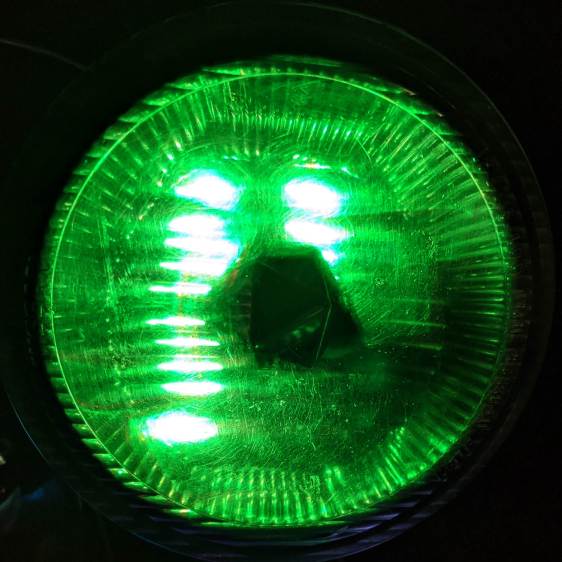
    Shortly thereafter, the Nissan Fog Lamp developed an obvious beam problem:

    Nissan Fog Lamp - failed WS2812 effect
    Nissan Fog Lamp – failed WS2812 effect

    The WS2812 had the proper voltages / signals at all its pins and was still firmly stuck to the central “heatsink”:

    Nissan Fog Lamp - failed WS2812 detail
    Nissan Fog Lamp – failed WS2812 detail

    It also passed the Josh Sharpie Test:

    Glass Tile - WS2812 failure - tape - unknown
    Glass Tile – WS2812 failure – tape – unknown

    I’m particularly surprised by this one, because eleven of the twelve flex-PCB WS2812s in the Hard Drive Platter light have been running continuously for years with no additional failures.

    The alert reader will note the common factor: no matter what substrate the LED is (supposed to be) soldered to, no matter when I bought it, no matter what it’s wired into, a WS2812 will fail.

    They’re all back in operation:

    Glowing Algorithmic Art
    Glowing Algorithmic Art

    Although nobody knows for how long …

    Obviously, it’s time to refresh my programmable RGB LED stockpile!