The Smell of Molten Projects in the Morning

Ed Nisley's Blog: Shop notes, electronics, firmware, machinery, 3D printing, laser cuttery, and curiosities. Contents: 100% human thinking, 0% AI slop.

Category: Software

General-purpose computers doing something specific

  • Human Lumbar Vertebrae

    Human Lumbar Vertebrae

    Having once again reawakened a back injury from long ago, I figured these were good for some comic relief:

    L4 L5 vertebrae - assembled
    L4 L5 vertebrae – assembled

    The full-scale L4-L5 vertebrae are from Printables and the ¾ scale L5 is from somewhere I cannot recall. A mother lode of anatomical models is on Thingiverse if you want some 3D printing challenges.

    The L4-L5 pair are part of an extensive human anatomic model locating all the pieces at their proper coordinates, so these two hovered about 800 mm above the XY plane. I ran them through the Grid:Tool mesh editor to center them at the XY origin, then put the bottom-most point at Z=0.

    Rotating them individually in PrusaSlicer and painting only the most essential support got them to this state:

    L4 L5 vertebrae - PrusaSlicer
    L4 L5 vertebrae – PrusaSlicer

    Each one take about three hours, so I ran them individually to reduce surface blemishes and maximize the likelihood of happy outcomes. Worked like a champ.

    The retina-burn orange disk is not anatomically correct, because the InterWebz apparently does not have a model for spinal cartilage:

    L4 L5 vertebrae - assembled - disk detail
    L4 L5 vertebrae – assembled – disk detail

    Instead, it’s a rounded cylinder resized into an oval, with its top and bottom surfaces formed by subtracting the vertebrae:

    L4 L5 vertebrae disk - solid model
    L4 L5 vertebrae disk – solid model

    The OpenSCAD code doing the heavy lifting:

    // Disk between L4 and L5 vertebrae
    // Ed Nisley - KE4ZNU
    // 2025-03-07
    
    Layout = "Show";    // [Show,Build]
    
    include <BOSL2/std.scad>
    
    module Disk() {
      color("Red")
        difference() {
          translate([9,-18,36])
            rotate(110)
            resize([33,45])
            cyl(d=50,h=14,$fn=48,rounding=7,anchor=BOTTOM);
          import("../Spine/human-spinal-column-including-cervical-thoracic-and-lumbar-vertebra-model_files/L4 L5 vertebrae stacked.stl",
            convexity=10);
        }
    }
    
    if (Layout == "Show") {
      Disk();
    
      color("White",0.3)
          import("../Spine/human-spinal-column-including-cervical-thoracic-and-lumbar-vertebra-model_files/L4 L5 vertebrae stacked.stl",
            convexity=10);
    
    }
    
    if (Layout == "Build") {
      Disk();
    
    }
    

    All of the magic numbers come from eyeballometric measurement & successive approximation.

    The Build layout left the disk floating in space, whereupon I used PrusaSlicer to reorient it edge-downward on the platform with painted-on support for minimal distortion:

    L4 L5 vertebrae disk - PrusaSlicer
    L4 L5 vertebrae disk – PrusaSlicer

    Two dots of E6000+ adhesive hold everything together.

    All in all, it was a useful distraction. I’ve been vertically polarized for the last five days and it’s good to be … back.

  • Subpixel Zoo: Capturing the Specimens

    Subpixel Zoo: Capturing the Specimens

    A Hacker News discussion led to the Subpixel Zoo, which led to thinking the patterns might make interesting layered “art”. After fetching the *.webp images and figuring out how to persuade Thunar to display them, the next step was converting them into paths suitable for laser cutting.

    Although the images are algorithmically generated in a common layout, figuring out how to get the outlines as paths seemed to require a journey into the depths of the Pygame library and that would turn into a major digression.

    Instead, start with one of the webp images:

    sq_RGBY
    sq_RGBY

    The deliberate blurring apparently simulates what you see in real life.

    Import the image into LightBurn, which converts it to grayscale under the plausible assumption you’re going to engrave the image on something. Then:

    • Create a rounded rectangle overlaying the lower-left-most subpixel to good eyeballometric accuracy
    • Turn it into a four-element rectangular array, twiddling the center-to-center spacing to match the subpixel layout
    • Duplicate those four upward in another array to create a subpixel block, as marked in the upper-left corner of the original image
    • Slam another array across the bottom row and upward, twiddling the spacing to match the subpixel block spacing along both axes

    Which eventually looks like this:

    SubPixels - LightBurn vector overlay
    SubPixels – LightBurn vector overlay

    I made the final array absurdly large, cropped it with a square to match the template I used for the layered paper patterns, resized the result to be 170 mm on a side, then dropped the square into the middle of the template:

    Subpixel Zoo - Quattron RGBY - LightBurn black mask layer
    Subpixel Zoo – Quattron RGBY – LightBurn black mask layer

    One gotcha: crop the subpixels on a Fill layer so LightBurn will close the truncated edges, then put them on a Line layer for cutting. The doc explains why, although it’s not obvious at first, as is the fact that you must delete the group of shapes outside the square before it looks like anything happened during the cut operation.

    The resulting layout contains all the subpixel rectangles, so it’s what you want for the top black mask layer. Duplicate the pattern and delete the subpixels corresponding to each color, until you have one template for each of the Red / Green / Blue layers:

    Subpixel Zoo - Quattron RGBY - LightBurn layers
    Subpixel Zoo – Quattron RGBY – LightBurn layers

    The blank over on the right is the Yellow layer, which does get a quartet of layer ID holes cut in the lower right corner.

    Then it’s just a matter of cutting the blanks, locating the fixture on the platform, dropping the appropriate color sheet in place, cutting it, then assembling the stack in the gluing fixture:

    Subpixel Zoo - Quattron RGBY
    Subpixel Zoo – Quattron RGBY

    It’s kinda cute, in a techie way.

    I did a bunch of layouts, just to see what they looked like:

    Subpixel Zoo - 8x8 layouts
    Subpixel Zoo – 8×8 layouts

    In person, the RGBY patterns look bright and the RGB patterns seem dull by comparison. I’m using cardstock paper, rather than fancy art paper, which surely makes all the difference.

  • HQ Sixteen: Table Leveling Blocks

    HQ Sixteen: Table Leveling Blocks

    The Handi-Quilter HQ Sixteen rides on two tracks along the 11 foot length of the table, with an unsupported 8 foot span between the legs on each end:

    HQ Sixteen - remounted handlebars in use
    HQ Sixteen – remounted handlebars in use

    Contemporary versions of the table have support struts in the middle that our OG version lacks and, as a result, our table had a distinct sag in the middle. During the course of aligning the table top into a plane surface with tapered wood shims, I discovered the floor was half an inch out of level between the table legs.

    Now that the whole thing has settled into place, I measured the shim thicknesses and made tidy blocks to replace them:

    HQ Sixteen - table shims - finished
    HQ Sixteen – table shims – finished

    The OpenSCAD code has an array with the thickness and the number of blocks:

    SHIM_THICK = 0;
    SHIM_COUNT = 1;
    
    Shims = [
        [3.5,1],
        [5.0,3],
        [6.0,2],
        [6.5,1],
        [7.0,1]
    ];
    

    Yes, I call them “blocks” here and wrote “shims” in the code. A foolish consistency, etc.

    The model is a chamfered block with a chunk removed to leave a tongue of the appropriate thickness:

    HQ Sixteen - table shims - solid model - single
    HQ Sixteen – table shims – solid model

    Building them with the label against the platform produces a nice nubbly surface:

    HQ Sixteen - table shims - solid model
    HQ Sixteen – table shims – PrusaSlicer – bottom

    The labels print first and look lonely out there by themselves:

    HQ Sixteen - table shims - legends
    HQ Sixteen – table shims – legends

    The rest of the first layer fills in around the labels:

    HQ Sixteen - table shims - first layer
    HQ Sixteen – table shims – first layer

    Putting the labels on the bottom makes the wipe tower only two layers tall and eliminates filament changes above those layers. Those eight blocks still took a little over three hours, because there’s a lot of perimeter wrapped around not much interior.

    Having had the foresight to draw a sketch showing where each block would go, I slid one next to its wood shim, yanked the shim out, and declared victory:

    HQ Sixteen - table shims - installed
    HQ Sixteen – table shims – installed

    The tension rod welded under the table rail prevents even more sag, but the struts under the new version of the table show other folks were unhappy with the sag of this one. Another leg or two seems appropriate.

    With the table leveled and the surface aligned, the HQ Sixteen glides easily in all directions. The result isn’t perfect and Mary keeps the anchor block at hand, but the machine now displays much less enthusiasm for rolling toward the middle of the table.

    The OpenSCAD source code as a GitHub Gist:

    // HQ Sixteen – table shims
    // Ed Nisley – KE4ZNU
    // 2025-02-27
    include <BOSL2/std.scad>
    Layout = "Show"; // [Show,Build]
    /* [Hidden] */
    SHIM_THICK = 0;
    SHIM_COUNT = 1;
    Shims = [
    [3.5,1],
    [5.0,3],
    [6.0,2],
    [6.5,1],
    [7.0,1]
    ];
    Block = [40.0,20.0,15.0]; // overall shim size
    Grip = 10.0; // … handle length
    BlockRadius = 1.0; // corner rounding / chamfer
    LabelThick = 0.4;
    LabelSize = 5.5;
    LabelFont = "Arial:style:Bold";
    LabelColor = "Red";
    Protrusion = 0.1;
    Gap = 5.0;
    //———-
    // Define shim shape
    module ShimBlock(Height = Shims[0][SHIM_THICK],Part="All") {
    if (Part == "Block" || Part == "All")
    difference() {
    left(Grip)
    cuboid(Block,anchor=BOTTOM + LEFT,chamfer=BlockRadius);
    up(Height)
    cube(Block + 2*[Protrusion,Protrusion,0],anchor=BOTTOM + LEFT);
    left(Grip/2 – BlockRadius/2) fwd(Block.y/2 – LabelThick) up(Block.z/2)
    xrot(90) zrot(-90)
    linear_extrude(height=LabelThick + Protrusion,convexity=20)
    text(text=format_fixed(Height,1),size=LabelSize,spacing=1.00,
    font=LabelFont,halign="center",valign="center");
    }
    if (Part == "Text" || Part == "All")
    color(LabelColor)
    left(Grip/2 – BlockRadius/2) fwd(Block.y/2 – LabelThick) up(Block.z/2)
    xrot(90) zrot(-90)
    linear_extrude(height=LabelThick,convexity=20)
    text(text=format_fixed(Height,1),size=LabelSize,spacing=1.00,
    font=LabelFont,halign="center",valign="center");
    }
    //———-
    // Build them all
    if (Layout == "Show")
    ShimBlock();
    if (Layout == "Build") {
    for (j=[0:len(Shims)-1])
    back(j*(Block.z + Gap))
    for (i=[0:(Shims[j][SHIM_COUNT] – 1)])
    right(i*(Block.x + Gap))
    up(Block.y/2) xrot(90)
    ShimBlock(Shims[j][SHIM_THICK],Part="Block");
    for (j=[0:len(Shims)-1])
    back(j*(Block.z + Gap))
    for (i=[0:(Shims[j][SHIM_COUNT] – 1)])
    right(i*(Block.x + Gap))
    up(Block.y/2) xrot(90)
    ShimBlock(Shims[j][SHIM_THICK],Part="Text");
    }
  • HQ Sixteen: Stylus Laser Ball Mount

    HQ Sixteen: Stylus Laser Ball Mount

    My version of a mount for the HQ Sixteen’s “stylus laser” clamps a 1 inch polypropylene ball between two plates:

    HQ Sixteen - Stylus Laser - ball clamp test fit
    HQ Sixteen – Stylus Laser – ball clamp test fit

    The plates have a sphere subtracted from them and a kerf sliced across the sphere’s equator for clamping room:

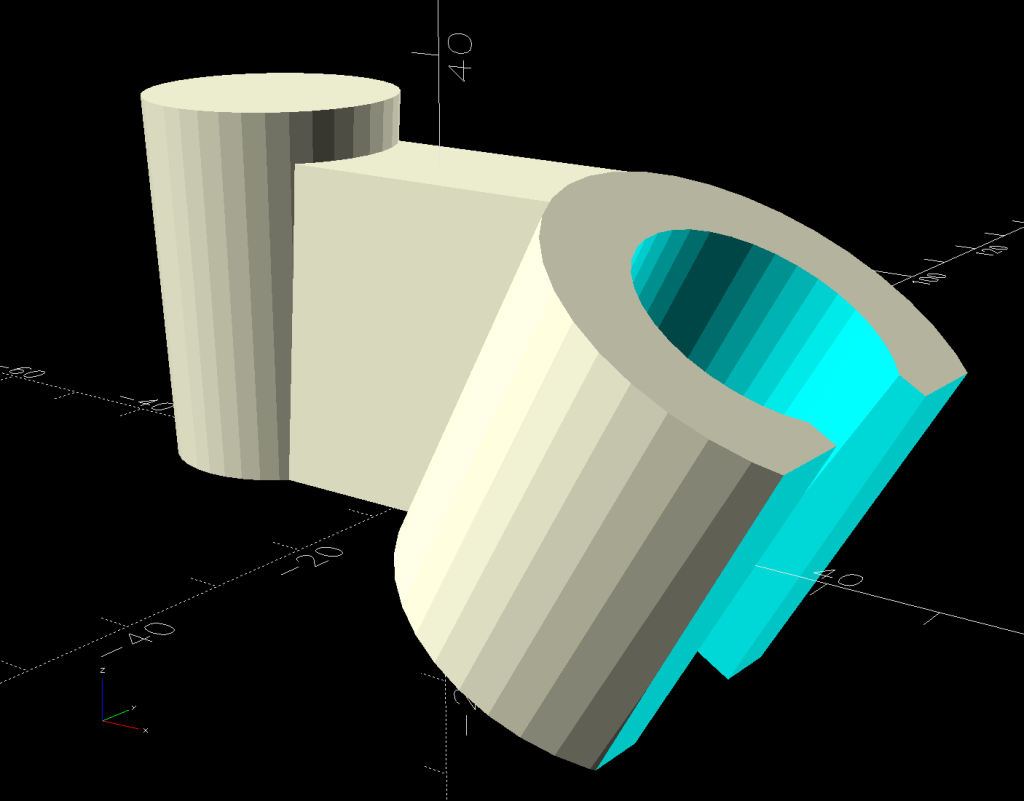
    HQ Sixteen - Stylus Laser Mount - solid model
    HQ Sixteen – Stylus Laser Mount – solid model

    Given that this is a relatively low-stress situation, I embedded BOSL2 nuts to produce threads in the plate rather than use brass inserts.

    The side plates start as simple rectangles:

    HQ Sixteen - Stylus Laser Mount - solid model - mount sides
    HQ Sixteen – Stylus Laser Mount – solid model – mount sides

    Subtracting the electronics pod shape from those slabs matches them exactly to the curvalicious corner:

    HQ Sixteen - Stylus Laser Mount - solid model - mount shaping
    HQ Sixteen – Stylus Laser Mount – solid model – mount shaping

    The weird angle comes from tilting the mount to aim the laser in roughly the right direction when perpendicular to the plates:

    HQ Sixteen - Stylus Laser Mount - solid model - show
    HQ Sixteen – Stylus Laser Mount – solid model – show

    That angle can be 0° to 30°, although 25° seems about right. The slab sides neither stick out the top nor leave gaps in the corner over that range, after some cut-and-try tinkering sizing.

    One of the M3 screws just did not want to go into its hole:

    HQ Sixteen - Stylus Laser - threadless M3 screw
    HQ Sixteen – Stylus Laser – threadless M3 screw

    A bad day in the screw factory, I suppose.

    The OpenSCAD source code as a GitHub Gist:

    // Handiquilter HQ Sixteen Stylus Laser Mount
    // Ed Nisley – KE4ZNU
    // 2025-02-23
    include <BOSL2/std.scad>
    include <BOSL2/threading.scad>
    Layout = "Pod"; // [Show,Build,Pod,Mount]
    /* [Hidden] */
    PodWidth = 110.0; // overall width of pod
    PodScrewClear = 50.0; // clear distance between pod screws
    PodRecenter = [0,0]; // pod trace upper corner to origin if not done in Inkscape
    BaseAngle = -25; // laser neutral angle
    BallOD = 25.4 + 0.2; // bearing ball + easy fit clearance
    BallOffset = [70.0,0,-35.0]; // upper corner to ball center
    LaserOD = 12.2; // laser module
    LaserLength = 38.0;
    Kerf = 1.0; // clamp gap
    Plate = [35.0,35.0,8.0 + Kerf]; // basic mount plate
    WallThick = 5.0; // upright walls: plate to pod
    WasherOD = 7.0;
    ScrewPitch = 0.5;
    ScrewNomOD = 3.0;
    ScrewNomID = ScrewNomOD – ScrewPitch;
    ScrewOC = Plate – [WasherOD,WasherOD,0];
    Gap = 5.0; // build spacing
    //———-
    // HQ Sixteen electronics pod
    module Pod() {
    xrot(90)
    down(PodWidth/2)
    linear_extrude(height=PodWidth,convexity=5)
    translate(PodRecenter)
    import("HQ Sixteeen – pod profile.svg",
    layer="Pod Profile");
    }
    module LaserPointer() {
    cylinder(d=LaserOD,h=LaserLength,center=true);
    }
    module Ball() {
    union() {
    sphere(d=BallOD,$fn=4*12);
    down(0.25*LaserLength)
    LaserPointer();
    }
    }
    module Mount() {
    union() {
    difference() {
    union() {
    cuboid(Plate,anchor=CENTER);
    for (j=[-1,1])
    translate([-(BallOffset.x – Plate.x)/2,j*(Plate.y + WallThick)/2,Kerf/2])
    cuboid([BallOffset.x,WallThick,-0.75*BallOffset.z],anchor=BOTTOM);
    }
    cuboid([4*Plate.x,4*Plate.y,Kerf],anchor=CENTER);
    Ball();
    for (i=[-1,1], j=[-1,1])
    translate([i*ScrewOC.x/2,j*ScrewOC.y/2,0])
    cylinder(d=1.2*ScrewNomOD,h=2*Plate.z,anchor=CENTER,$fn=6);
    yrot(-BaseAngle)
    translate(-BallOffset)
    Pod();
    }
    for (i=[-1,1], j=[-1,1])
    translate([i*ScrewOC.x/2,j*ScrewOC.y/2,Kerf/2])
    // flat size root dia height pitch
    threaded_nut(1.5*ScrewNomOD,ScrewNomID,(Plate.z – Kerf)/2,ScrewPitch,$slop=0.10,
    bevel=false,ibevel=false,anchor=BOTTOM);
    }
    }
    //———-
    // Build things
    if (Layout == "Pod")
    Pod();
    if (Layout == "Mount")
    Mount();
    if (Layout == "Show") {
    yrot(BaseAngle) {
    color("SteelBlue")
    Mount();
    color("Magenta",0.5)
    Ball();
    color("Red")
    yrot(180)
    cylinder(d=2,h=-2*BallOffset.z,$fn=12);
    }
    translate(-BallOffset)
    color("Silver",0.8)
    Pod();
    }
    if (Layout == "Build") {
    left(Plate.x/2 + Gap/2)
    intersection() {
    cuboid([4*Plate.x,4*Plate.y,-BallOffset.z],anchor=DOWN);
    down(Kerf/2)
    Mount();
    }
    right(Plate.x/2 + Gap/2)
    intersection() {
    cuboid([4*Plate.x,4*Plate.y,Plate.z/2],anchor=DOWN);
    up(Plate.z/2)
    Mount();
    }
    }
  • HQ Sixteen: Electronics Pod Solid Model

    HQ Sixteen: Electronics Pod Solid Model

    The HQ Sixteen came with a small red-dot laser pointer attached to a threaded pin:

    HQ Sixteen - Stylus LED Mount - OEM version
    HQ Sixteen – Stylus Laser Mount – OEM version

    The pin can go into either of a pair of threaded holes in the machine castings or the laser + clamp can, as in the picture, attach to a spool pin.

    With a “pantograph” pattern laid along the rear of the table, you can stitch that design (at full size, hence “pantograph” seems aspirational) by guiding the red dot along the lines. The laser’s flimsy clamp mount seems prone to move at the worst possible moment, so neither of us liked the idea.

    Mary is good at free-motion quilting and says she’s unlikely to use the laser, but I figured staying slightly ahead of the curve would be a Good Idea. Bonus: 3D printing.

    The general idea is to tuck a (similar) red-dot laser module under the overhang of the electronics pod, with a ball mount for easy aiming and stable setting, something like this:

    HQ Sixteen - Stylus LED Mount - solid model - show
    HQ Sixteen – Stylus Laser Mount – solid model – show

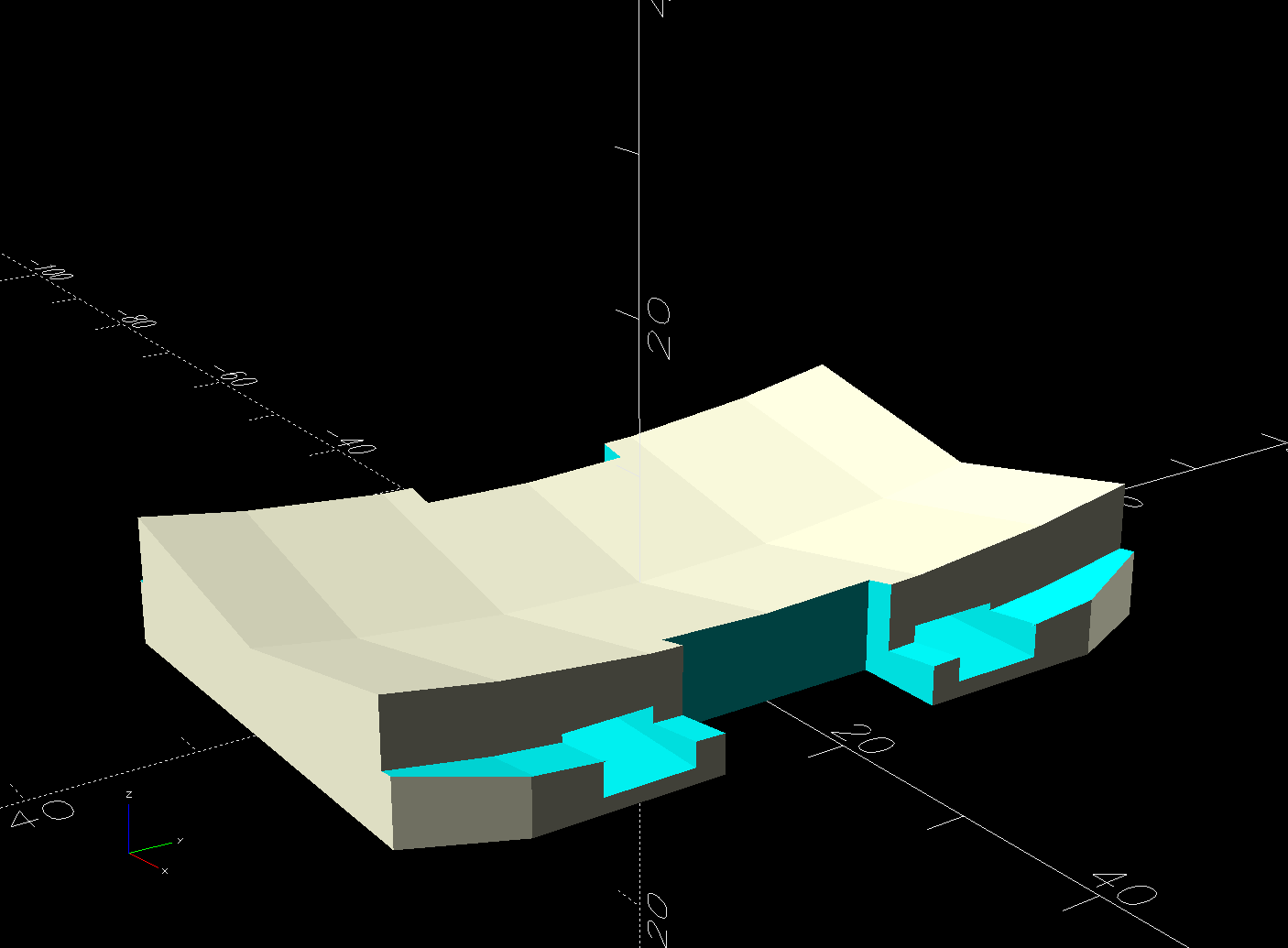
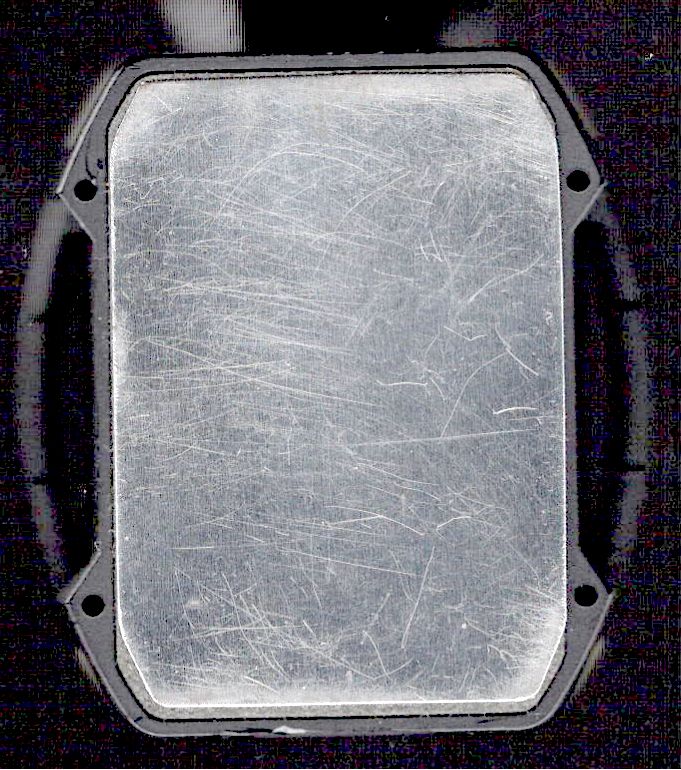
    Fitting the mount into that curved corner requires a model of the electronics pod, so I held a pad of paper against the pod and traced the outline:

    HQ Sixteen - pod profile trace
    HQ Sixteen – pod profile trace

    Scan it, import the image into Inkscape, fit lines and curves around the shape:

    HQ Sixteen - pod outline - Inkscape
    HQ Sixteen – pod outline – Inkscape

    I only needed the top of the pod, so the bottom is truncated from the actual 250 mm height.

    Save the SVG, import into OpenSCAD, extrude to match the pod’s 110 mm width:

    module Pod() {
    
        xrot(90)
        down(PodWidth/2)
            linear_extrude(height=PodWidth,convexity=5)
                translate(PodRecenter)
                    import("HQ Sixteeen - pod profile.svg",
                            layer="Pod Profile");
    }
    

    The model origin is where the upper lip meets the slightly sloped top surface in the middle of the extrusion, because that’s the only easy-to-locate feature:

    HQ Sixteen - Stylus LED Mount - electronics pod - solid model
    HQ Sixteen – Stylus Laser Mount – electronics pod – solid model

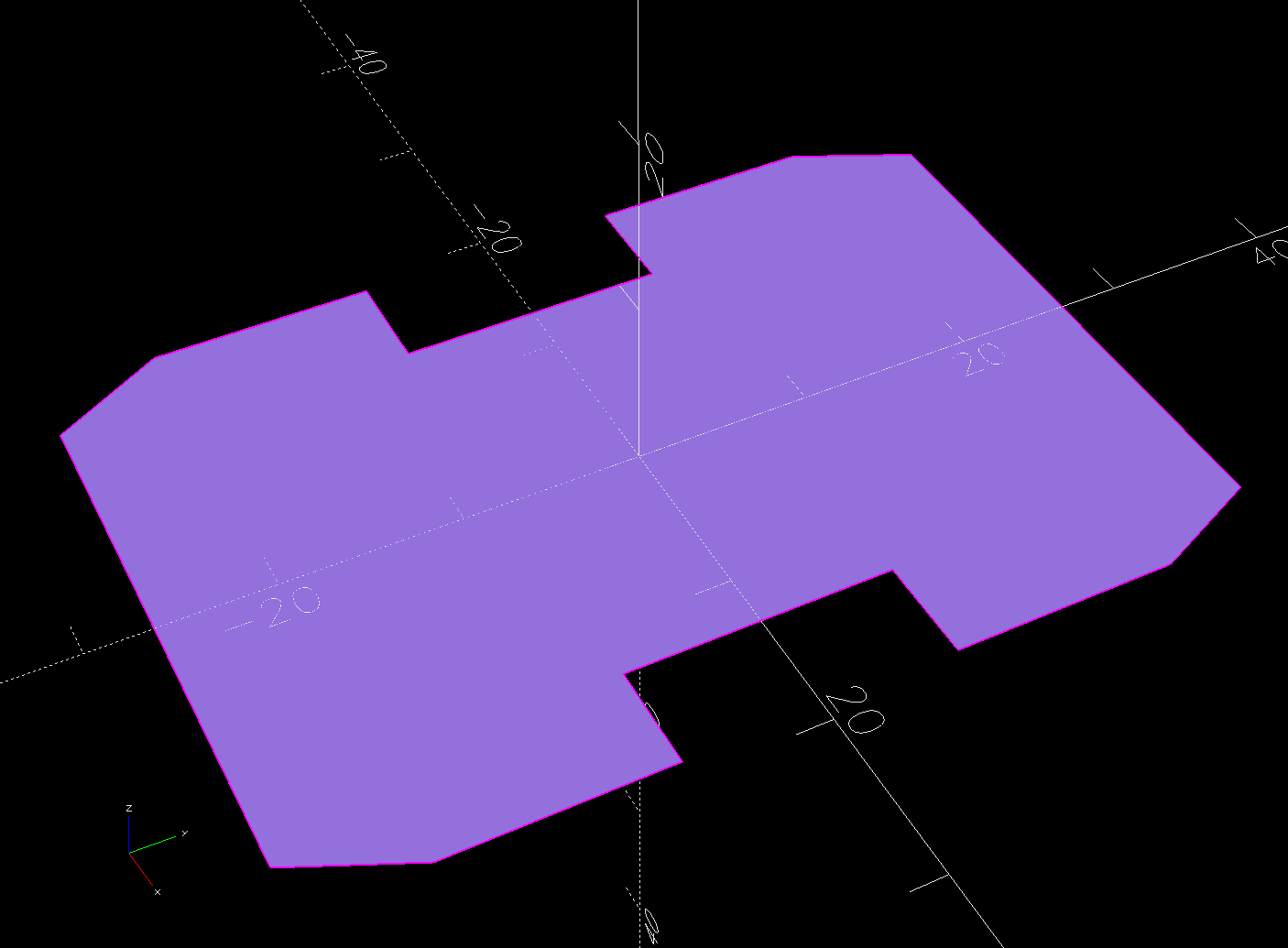
    Something Has Changed in the Inkscape SVG → OpenSCAD model chain, because the parts of an Inkscape drawing lying outside the page boundary are no longer cropped from the OpenSCAD model. Now, simply putting a feature at the Inkscape origin at the lower-left corner of the document’s Page produces a complete OpenSCAD 2D shape with that feature at the 3D coordinate origin.

    For reference:

    The Inkscape layout with the entire shape off the page:

    HQ Sixteeen - pod profile - Inkscape origin
    HQ Sixteeen – pod profile – Inkscape origin

    The 2D imported shape in OpenSCAD with a matching origin:

    HQ Sixteeen - pod profile - OpenSCAD origin
    HQ Sixteeen – pod profile – Inkscape origin

    I do not know what changed or if, in fact, my misunderstanding of how things worked required the previous workaround, but this is much better. The OpenSCAD code includes a [0,0] offset value, should you need it.

    More on the mount tomorrow …

  • HQ Sixteen: Track Lock Blocks

    HQ Sixteen: Track Lock Blocks

    Mary’s practice quilts on the HQ Sixteen suggest locking the machine’s wheels will simplify sewing a line parallel to the long edge of a quilt parallel to the table, but contemporary “Channel Locks” fit newer machines with larger wheels than on this one.

    Duplicating those rings in a smaller size seemed both difficult and not obviously functional, so I built a pair of blocks to capture the wheel on its track:

    HQ Sixteen - track lock - engaged
    HQ Sixteen – track lock – engaged

    The wheel sits in a recess holding it just barely above the track surface, so the (considerable) weight of the machine holds the block in place.

    Because lines on quilts have precise placement and Mary has quilting rulers within reach, the block measures exactly two inches from the point where it first touches the wheel to the center of the recess:

    HQ Sixteen - track lock - setup
    HQ Sixteen – track lock – setup

    She can then lay a ruler on the quilt, roll the machine front or back two inches, slide a block against each wheel, then roll the machine up a slight incline until the wheel drops into the recess:

    HQ Sixteen - track lock block - solid model
    HQ Sixteen – track lock block – solid model

    The spacing looks like this:

    HQ Sixteen - track lock block - solid model - show view
    HQ Sixteen – track lock block – solid model – show view

    The usual 3D printing process puts 0.2 mm steps along the ramp, but they’re almost imperceptible while rolling the machine:

    HQ Sixteen - track lock block - PrusaSlicer preview
    HQ Sixteen – track lock block – PrusaSlicer preview

    The ramp slope is all of 1:20 = 2.5°, so pulling / pushing the machine requires very little oomph.

    I put thin cloth tape (approximately friction tape, but with real adhesive) on the bottom of the block by the simple expedient of sticking it to the block and scissoring off the excess. A little compliance between the block and the track prevents the hard plastic shapes from sliding more easily than I’d like. If your tape is thicker than mine, knock a little off the WheelZ value.

    The OpenSCAD code can produce shapes to laser-cut an adhesive sheet, although stacking a foam sheet will definitely require height adjustment :

    HQ Sixteen - track lock block - glue sheet
    HQ Sixteen – track lock block – glue sheet

    The OpenSCAD source code as a GitHub Gist:

    // HQ Sixteen – wheel track lock block
    // Ed Nisley – KE4ZNU
    // 2025-02-14
    include <BOSL2/std.scad>
    Layout = "Show"; // [Show,Build,Glue,Track,Block,Wheel]
    /* [Hidden] */
    ID = 0;
    OD = 1;
    LENGTH = 2;
    Protrusion = 0.1;
    Windage = 0.1;
    WallThick = 5.0; // minimum wall thickness
    RailOD = 5.5; // rounded top of rail
    RailHeight = RailOD; // … flange to top
    RailBase = [100,2*15.7 + RailOD,3]; // … Y = flange width, arbitrary X & Z
    WheelOD = 38.0; // rail roller
    WheelMinor = 6.2; // … rail recess
    WheelWidth = 8.3 + 2*Windage; // … outer sides
    WheelZ = RailHeight + (WheelOD – WheelMinor)/2; // axle centerline wrt rail flange
    LockOC = 2.0*INCH; // engagement to lock recess
    GripLength = 20.0;
    BlockOA = [GripLength + WheelOD/2 + LockOC,WheelWidth + 2*WallThick,2*RailHeight];
    BlockRadius = 2.0;
    $fn = 12*3*4; // smooth outer perimeters
    //———-
    // Construct the pieces
    module Track(Len = 2*BlockOA.x) {
    zrot(90) back(Len/2) down(RailBase.z) xrot(90)
    linear_extrude(height=Len,convexity=5)
    rect([RailBase.y,RailBase.z],anchor=FRONT)
    attach(BACK,FRONT) rect([RailOD,RailHeight – RailOD/2])
    attach(BACK) circle(d=RailOD);
    }
    module Wheel(Len = WheelWidth) {
    xrot(90)
    difference() {
    cylinder(d=WheelOD,h=Len,center=true);
    torus(r_maj=WheelOD/2,d_min=WheelMinor);
    }
    }
    module Block() {
    difference() {
    left(GripLength + WheelOD/2)
    cuboid(BlockOA,anchor=LEFT + BOTTOM,rounding=BlockRadius,except=BOTTOM);
    Track();
    up(WheelZ) xrot(90)
    cylinder(d=WheelOD,h=WheelWidth,center=true);
    right(LockOC)
    up(WheelZ – WheelOD/2) yrot(atan((RailHeight – WheelMinor/2)/LockOC))
    cuboid([LockOC,WheelWidth,BlockOA.z],anchor=RIGHT+BOTTOM);
    }
    }
    //———-
    // Show & build the results
    if (Layout == "Block" || Layout == "Build")
    Block();
    if (Layout == "Track")
    Track();
    if (Layout == "Wheel")
    Wheel();
    if (Layout == "Glue")
    projection(cut=true)
    Block();
    if (Layout == "Show") {
    color("SteelBlue")
    Block();
    for (i=[0,1])
    right(i*LockOC)
    color("Silver",0.7)
    up(WheelZ) Wheel();
    color("White",0.5)
    Track();
    }

  • Thunar WEBP Thumbnails

    Thunar WEBP Thumbnails

    For whatever reason, the Thunar file browser in XFCE does not automagically show thumbnails for webp images. Some searching produced a recipe, although the displayed webp.xml file needs the last two lines to close the tags:

    <?xml version="1.0" encoding="UTF-8"?>
    <mime-info xmlns="http://www.freedesktop.org/standards/shared-mime-info">
        <mime-type type="image/webp">
            <comment>WebP file</comment>
            <icon name="image"/>
            <glob-deleteall/>
            <glob pattern="*.webp"/>
        </mime-type>
    </mime-info>
    

    The magic copy-to-clipboard button includes those tags, so I suppose it’s another case of being careful what you believe on the Intertubes.

    Going through the steps displayed images of the Subpixel Zoo:

    Thunar - webp previews
    Thunar – webp previews

    They’ll turn into layered paper patterns:

    Subpixel Zoo - Quattron RGBY Shifted - detail
    Subpixel Zoo – Quattron RGBY Shifted – detail