The Smell of Molten Projects in the Morning

Ed Nisley's Blog: Shop notes, electronics, firmware, machinery, 3D printing, laser cuttery, and curiosities. Contents: 100% human thinking, 0% AI slop.

Category: Software

General-purpose computers doing something specific

  • Under-cabinet Lamp Brackets: Angled Edition

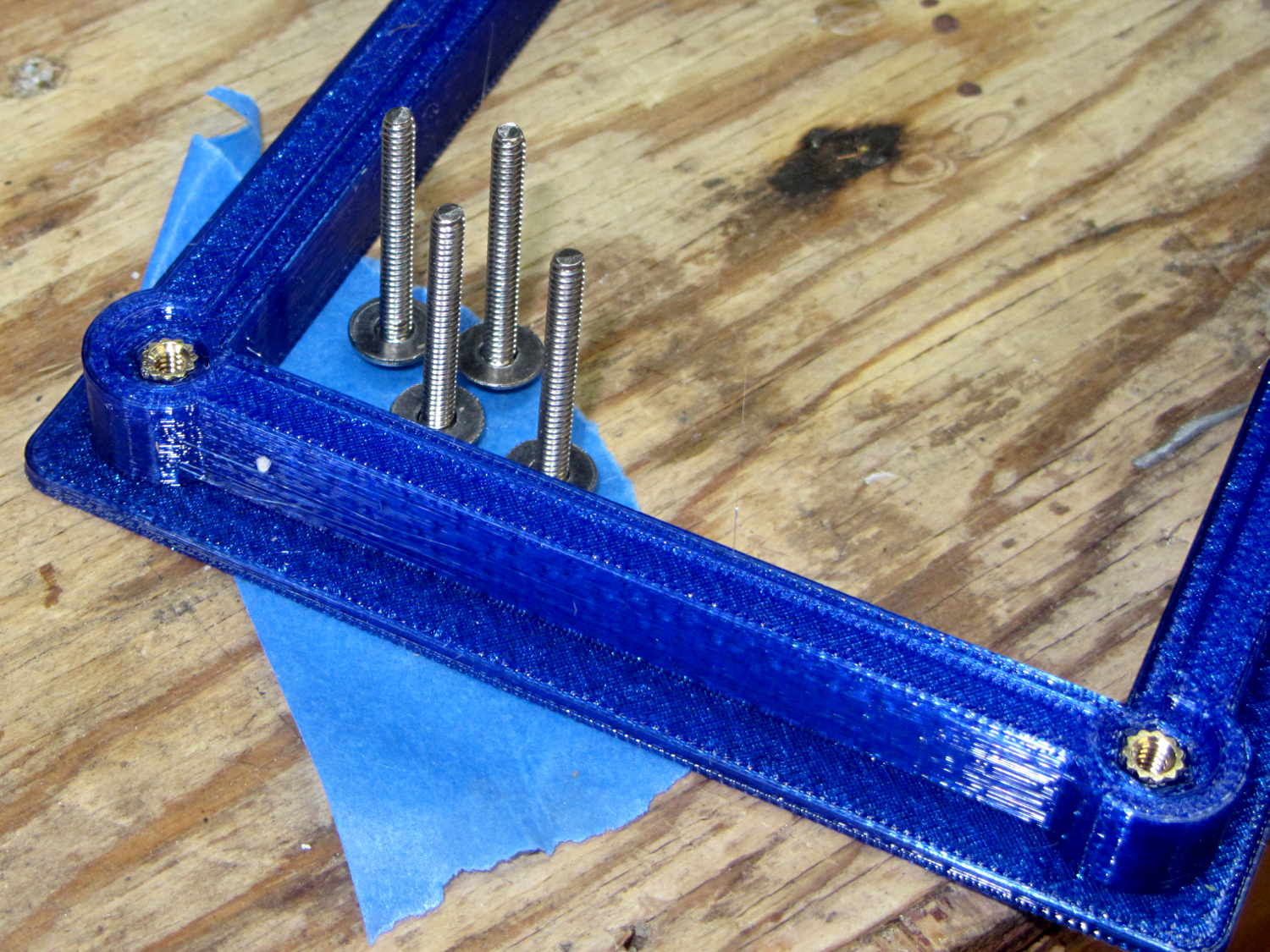
    The LED strip lights have a reasonably diffuse pattern with an on-axis bright area that puts more light on the rear of the counter than seems strictly necessary. Revising the original brackets to tilt the strips moves the bright patch half a foot forward:

    Kitchen Light Bracket - angled - solid model
    Kitchen Light Bracket – angled – solid model

    For lack of anything smarter, the angle puts the diagonal of the LED strip on the level:

    Kitchen Light Bracket - angled - Slic3r preview
    Kitchen Light Bracket – angled – Slic3r preview

    The translucent block represents the strip (double-thick and double-wide), with a peg punching a hole for the threaded brass insert.

    Although the source code has an option to splice the middle blocks together, it can also build them separately:

    Kitchen Light Bracket - angled - LED block
    Kitchen Light Bracket – angled – LED block

    Turns out they’re easier to assemble that way; screw ’em to the strips, then screw the strips to the cabinet.

    I moved the deck screw holes to the other end of the block, thus putting the strips against the inside of the cabinet face. It turns out the IR sensor responds to the DC level of the reflected light, not short-term changes, which meant the reflection from the adjacent wood blinded it to anything waved below. Adding a strip of black electrical tape killed enough of the reflected light to solve that problem:


    Under-cabinet light - IR sensor shield
    Under-cabinet light – IR sensor shield

    The tape isn’t quite as far off-center as it looks, but I’m glad nobody will ever see it …

    The before-and-after light patterns, as viewed on B-size metric graph paper centered on the left-hand strip and aligned with the belly side of the countertop:

    Under-cabinet light - straight vs angled patterns
    Under-cabinet light – straight vs angled patterns

    Those look pretty much the same, don’t they? So much for photography as evidence for anything.

    The OpenSCAD source code as a GitHub Gist:


    // Mounting brackets for eShine under-counter LED lights
    // Ed Nisley KE4ZNU December 2016
    Layout = "Build";
    //- Extrusion parameters must match reality!
    ThreadThick = 0.25;
    ThreadWidth = 0.40;
    HoleWindage = 0.2;
    Protrusion = 0.1; // make holes end cleanly
    inch = 25.4;
    function IntegerMultiple(Size,Unit) = Unit * ceil(Size / Unit);
    //———-
    // Dimensions
    MountHeight = (1 + 0*3/16) * inch; // distance from cabinet bottom
    THREADOD = 0;
    HEADOD = 1;
    LENGTH = 2;
    WoodScrew = [4.0,8.3,41]; // 8×1-5/8 Deck screw
    WoodScrewRecess = 3.0;
    WoodScrewMargin = 1.5 * WoodScrew[HEADOD]; // head OD + flat ring
    Insert = [3.9,4.6,5.8 + 2.0]; // 4-40 knurled brass insert
    JoinerLength = 19.0; // joiner between strips
    LEDEndBlock = [11.0,28.8,9.5]; // LED plastic end block
    LEDScrewOffset = [1.0,8.2,0]; // hole offset from end block center point
    StripAngle = atan2(LEDEndBlock[2],LEDEndBlock[1]);
    echo(str("Strip angle: ",StripAngle));
    MountBlock = [WoodScrewMargin,(WoodScrewMargin + LEDEndBlock[1]*cos(StripAngle)),MountHeight];
    //———————-
    // Useful routines
    module PolyCyl(Dia,Height,ForceSides=0) { // based on nophead's polyholes
    Sides = (ForceSides != 0) ? ForceSides : (ceil(Dia) + 2);
    FixDia = Dia / cos(180/Sides);
    cylinder(d=(FixDia + HoleWindage),h=Height,$fn=Sides);
    }
    //—–
    // LED end block with positive insert for subtraction
    // returned with mounting hole end of strip along X axis
    // ready for positioning & subtraction
    module EndBlock(Side = "L") {
    LSO = [((Side == "L") ? 1 : -1)*LEDScrewOffset[0],LEDScrewOffset[1],LEDScrewOffset[2]];
    rotate([-StripAngle,0,0])
    translate([0,LEDEndBlock[1]/2,LEDEndBlock[2]])
    union() {
    cube(LEDEndBlock + [LEDEndBlock[0],0,LEDEndBlock[2]],center=true);
    translate(LSO + [0,0,-(LEDEndBlock[2] + Insert[2])])
    rotate(180/6)
    PolyCyl(Insert[1],2*Insert[2],6);
    }
    }
    //—–
    // End mounting block with proper hole offsets
    module EndMount(Side = "L") {
    translate([0,0,MountBlock[2]/2])
    difference() {
    translate([0,MountBlock[1]/2,0])
    cube(MountBlock,center=true);
    translate([0,WoodScrewMargin,MountBlock[2]/2])
    EndBlock(Side);
    translate([0,WoodScrewMargin/2,-MountBlock[2]])
    rotate(180/6)
    PolyCyl(WoodScrew[THREADOD],2*MountBlock[2],6);
    translate([0,WoodScrewMargin/2,(MountBlock[2]/2 – WoodScrewRecess)])
    rotate(180/6)
    PolyCyl(WoodScrew[HEADOD],WoodScrewRecess + Protrusion,6);
    translate([((Side == "L") ? 1 : -1)*MountBlock[0]/2,3*MountBlock[1]/4,-MountBlock[2]/4])
    rotate([90,0,((Side == "L") ? 1 : -1)*90])
    translate([0,0,-2*ThreadThick])
    linear_extrude(height=4*ThreadThick,convexity=3)
    text(Side,font=":style=bold",valign="center",halign="center");
    }
    }
    module MidMount() {
    XOffset = (JoinerLength + MountBlock[0])/2;
    BridgeThick = 5.0;
    union() {
    translate([XOffset,0,0])
    EndMount("L");
    translate([0,MountBlock[1]/2,BridgeThick/2])
    cube([JoinerLength,MountBlock[1],BridgeThick] + [2*Protrusion,0,0],center=true);
    translate([-XOffset,0,0])
    EndMount("R");
    }
    }
    //———-
    // Build them
    if (Layout == "EndBlock")
    EndBlock("L");
    if (Layout == "EndMount")
    EndMount("R");
    if (Layout == "MidMount")
    MidMount();
    if (Layout == "BuildJoined") {
    translate([-(JoinerLength + 2*MountBlock[0]),0,0])
    EndMount("L");
    MidMount();
    translate([(JoinerLength + 2*MountBlock[0]),0,0])
    EndMount("R");
    }
    if (Layout == "Build") {
    translate([-MountBlock[0],0,0])
    EndMount("L");
    translate([MountBlock[0],0,0])
    EndMount("R");
    }

  • Quilt Blocks: Scan and Montage

    Mary has been working on the Splendid Sampler project, with 56 completed blocks (*) stacked on her sewing table. We agreed that those blocks would make a nice background for our Christmas Letter, but the labor involved to photograph all the fabric squares and turn them into a page seemed daunting.

    Turned out it wasn’t all that hard, at least after we eliminated all the photography and hand-editing.

    The 6½x6½ inch blocks include a ¼ inch seam allowance on all sides and, Mary being fussy about such things, they’re all just about perfect. I taped a template around one block on the scanner glass:

    Quilt block in scanner template
    Quilt block in scanner template

    Then set XSane to scan at 150 dpi and save sequentially numbered files, position a square scan area over the middle of the template, and turn off all the image enhancements to preserve a flat color balance.

    With “picture taking” reduced to laying each square face-down on the glass, closing the lid, and clicking Scan, the scanner’s throughput became the limiting factor. She scanned the blocks in the order of their release, while tinkering the auto-incremented file number across the (few) gaps in her collection, to produce 56 files with unimaginative auto-generated names along the lines of Block 19.jpg, thusly:

    Block 19
    Block 19

    The “square” images were 923×933 pixels, just slightly larger than the ideal finished size of 6 inch × 150 dpi = 900 pixel you’d expect, because we allowed a wee bit (call it 1/16 inch) on all sides to avoid cutting away the sharp points and, hey, I didn’t get the scan area exactly square.

    With the files in hand, turning them into a single page background image requires a single Imagemagick incantation:

    montage -verbose B*jpg -density 150 -geometry "171x173+0+0" -tile "7x" Page.jpg
    

    I figured the -geometry value to fill the 8 inch page width at 150 dpi, which is good enough for a subdued background image: 8 inch × 150 dpi / 7 images = 171 pixels. Imagemagick preserves the aspect ratio of the incoming images during the resize, so, because these images are slightly higher than they are wide, the height must be slightly larger to avoid thin white borders in the unused space. With all that figured, you get a 1197×1384 output image.

    Bumping the contrast makes the colors pop, even if they’re not quite photo-realistic:

    Quilt block montage - contrast
    Quilt block montage – contrast

    I’ll lighten that image to make the Christmas Letter text (in the foreground, atop the “quilt”) readable, which is all in the nature of fine tuning.

    She has 40-odd blocks to go before she can piece them together and begin quilting, with a few other projects remaining to be finished:

    Mary quilting
    Mary quilting

    (*) She’s a bit behind the block schedule, having had a year of gardening, bicycling, and other quilting projects, plus whatever else happens around here. Not a problem, as we see it.

  • 60 kHz Preamp: Simulation

    This circuitry descends directly from a QEX article (Nov/Dec 2015, p 13) by John Magliacane, KD2BD: A Frequency Standard for Today’s WWVB. The key part, at least for me, is a 60 kHz preamplifier using a resonant-tuned loop antenna and an instrumentation amplifier to reject common-mode interference from local electrostatic fields.

    I tinkered up an LTSpice IV simulation using somewhat more contemporary parts (clicky for more dots):

    60 kHz Preamp - LTSpice schematic
    60 kHz Preamp – LTSpice schematic

    The simulation quickly revealed that the original schematic interchanged the filter amp’s pins 2 and 3; the filter doesn’t work at all when you swap the + and – inputs.

    The stuff in the dotted box fakes the loop antenna parameters, with a small differential AC signal that injects roughly the right voltage to simulate a nominal 100 µV/m WWVB field strength. I biased the center tap to the DC virtual ground at + 10 V and bypassed it to circuit common, so the RF should produce a nice differential signal about the virtual ground. The 5 kΩ resistors provide ESD protection and should help tamp down damage from nearby lightning strikes and suchlike.

    It works pretty much as you’d expect:

    60 kHz Preamp - Frequency Response
    60 kHz Preamp – Frequency Response

    The LT1920 is mostly flat with 40 dB gain out through 60 kHz, although the actual hardware becomes a nice oscillator with that much gain; my layout and attention to detail evidently leaves a bit to be desired. The LF353 implements a multiple-feedback bandpass filter with about 20 dB of gain; its 4 MHz GBW gives it enough headroom. The LT1010 can drive 150 mA and, with a bit of luck and AC coupling, will feed a 50 Ω SDR input just fine.

    This obviously turns into a Circuit Cellar column: March 2017, if you’re waiting by the mailbox.

  • Kenmore Progressive Vacuum Tool Adapters: Second Failure

    Pretty much as expected, the dust brush nozzle failed again, adjacent to the epoxy repair:

    Dust brush adapter - second break
    Dust brush adapter – second break

    A bit of rummaging turned up some ¾ inch Schedule 40 PVC pipe which, despite the fact that no plumbing measurement corresponds to any physical attribute, had about the right OD to fit inside the adapter’s ID:

    Dust brush - PVC reinforcement
    Dust brush – PVC reinforcement

    The enlarged bore leaves just barely enough space for a few threads around the circumference. Fortunately, the pipe OD is a controlled dimension, because it must fit inside all the molded PVC elbows / tees / caps / whatever.

    The pipe ID isn’t a controlled dimension and, given that the walls seemed far too thick for this purpose, I deployed the boring bar:

    Dust brush adapter - reinforced tube - boring
    Dust brush adapter – reinforced tube – boring

    That’s probably too much sticking out of the chuck, but sissy cuts saved the day. The carriage stop keeps the boring bar 1 mm away from the whirling chuck.

    Bandsaw it to length and face the ends:

    Dust brush adapter - reinforcement
    Dust brush adapter – reinforcement

    The PVC tube extends from about halfway along the steep taper from the handle fitting out to the end, with the section closest to the handle making the most difference.

    Ram it flush with the end:

    Dust brush adapter - reinforced tube - detail
    Dust brush adapter – reinforced tube – detail

    I thought about gluing it in place, but it’s a sufficiently snug press fit that I’m sure it won’t go anywhere.

    Natural PETG probably isn’t the right color:

    Dust brush adapter - reinforced tube - installed
    Dust brush adapter – reinforced tube – installed

    Now, let’s see how long that repair lasts …

    The OpenSCAD source code as a GitHub Gist:

    //——————-
    // eBay horsehair dusting brush
    // Hacked for 3/4" Schedule 40 PVC stiffening tube
    module DustBrush() {
    union() {
    translate([0,0,40.0])
    rotate([180,0,0])
    difference() {
    union() {
    cylinder(d1=EndStop[OD1],d2=31.8,h=10.0);
    translate([0,0,10.0 – Protrusion])
    cylinder(d1=32.0,d2=30.0,h=30.0 + Protrusion);
    }
    translate([0,0,-Protrusion])
    cylinder(d1=26.0,d2=24.0,h=100);
    translate([0,0,-Protrusion]) // 3/4 inch Sch 40 PVC
    PolyCyl(27.0,100);
    }
    translate([0,0,40.0 – Protrusion])
    MaleFitting();
    }
    }
  • Cropping Images in a PDF

    For reasons not relevant here, I had a PDF made from scanned page images with far too much whitespace around the Good Stuff. As with all scanned pages, the margins contain random artifacts that inhibit automagic cropping, so manual intervention was required.

    Extract the images as sequentially numbered JPG files:

    pdfimages -j mumble.pdf mumble
    

    Experimentally determine how much whitespace to remove, then:

    for f in mumble-0??.jpg ; do convert -verbose $f -shave 225x150 ${f%%.*}a.jpg ; done
    

    You could use mogrify to shave the images in-place. However, not modifying the files simplifies the iteration process by always starting with the original images.

    Stuff the cropped images back into a PDF:

    convert mumble-0??a.jpg mumble-shaved.pdf
    

    Profit!

  • Compose Key Sequences for Useful Unicode Characters

    If you activate a Compose key on your keyboard:

    Compose key selection
    Compose key selection

    Then you can insert Unicode characters without memorizing their hex values. Of course, you must memorize the Compose key sequences. Fortunately, they’re more-or-less mnemonic for the ones I occasionally use, which are hereby cherrypicked from that list.

    Press-and-release the Compose key (right-Win), then type the characters as shown to get the symbol in quotes:

    • o c “©” copyright # COPYRIGHT SIGN
    • o o “°” degree # DEGREE SIGN
    • o r “®” registered # REGISTERED SIGN
    • t m “™” U2122 # TRADE MARK SIGN
    • s m “℠” U2120 # SERVICE MARK
    • . . “…” ellipsis # HORIZONTAL ELLIPSIS
    • . – “·” periodcentered # MIDDLE DOT
    • . = “•” enfilledcircbullet # BULLET
    • + – “±” plusminus # PLUS-MINUS SIGN (∓ MINUS-PLUS is U2213)
    • x x “×” multiply # MULTIPLICATION SIGN
    • < < “«” guillemotleft # LEFT-POINTING DOUBLE ANGLE QUOTATION MARK
    • > > “»” guillemotright # RIGHT-POINTING DOUBLE ANGLE QUOTATION MARK
    • c / “¢” cent # CENT SIGN
    • – – . “–” U2013 # EN DASH
    • – – – “—” U2014 # EM DASH
    • < – “←” U2190 # LEFTWARDS ARROW
    • | ^ “↑” U2191 # UPWARDS ARROW
    • – > “→” U2192 # RIGHTWARDS ARROW
    • | v “↓” U2193 # DOWNWARDS ARROW
    • = > “⇒” U21D2 # RIGHTWARDS DOUBLE ARROW
    • ? ! “‽” U203D # INTERROBANG
    • p o o “💩” U1F4A9 # PILE OF POO
    • m u “µ” mu # MICRO SIGN
    • d i “⌀” U2300 # DIAMETER SIGN
    • 1 4 “¼” onequarter # VULGAR FRACTION ONE QUARTER
    • 1 2 “½” onehalf # VULGAR FRACTION ONE HALF
    • 3 4 “¾” threequarters # VULGAR FRACTION THREE QUARTERS
    • 1 1 0 “⅒” U2152 # VULGAR FRACTION ONE TENTH (and similar)
    • ^ 1 “¹” onesuperior # SUPERSCRIPT ONE (also 0 2 3 + -…)
    • _ 1 “₁” U2081 # SUBSCRIPT ONE (also 0 2 3 + -…)
    • e ‘ “é” eacute # LATIN SMALL LETTER E WITH ACUTE
    • e ` “è” egrave # LATIN SMALL LETTER E WITH GRAVE

    Producing Greek letters requires a “dead_greek” key, so it’s easier to start with bare hex Unicode values at U0391 (Α) and U03b1 (α) and work upward until you find what you need:

    • U03A3 Σ uppercase sigma
    • U03a9 Ω uppercase omega
    • U03C3 σ lowercase sigma
    • U03c9 ω lowercase omega
    • U03c4 τ lowercase tau
    • U03c0 π lowercase pi
    • U0394 Δ uppercase delta
    • U03F4 ϴ uppercase theta
    • U03B8 θ lowercase theta
    • U03D5 ϕ phi math symbol
    • U03A6 Φ uppercase phi
    • U03C6 φ lowercase phi

    Odds and ends:

    • U00a0 | | non-breaking space
    • U2007 | | figure space (invisible digit space)
    • U202F | | narrow space
    • U2011 ‑ non-breaking hyphen
    • U2030 ′ prime (not quote)
    • U2033 ″ double-prime (not double-quote)
    • U2018 ‘ left single quote
    • U2019 ’ right single quote
    • U201C “ left double quote
    • U201D ” right double quote
    • U2245 ≅ approximately equal
    • U2264 ≤ less-than or equal
    • U2265 ≥ greater-than or equal
    • U221A √ square root
    • U221B ∛ cube root
    • U221C ∜ fourth root (yeah, right)
    • U221D ∝ proportional to
    • U2300 ⌀ diameter
    • U25CA ◊ lozenge

    If you set the keyboard layout to US International With Dead Keys, maybe you (definitely not I) could remember all the dead keys.

  • Vacuum Tube Lights: Poughkeepsie Day School Mini Maker Faire 2016

    Should you be around Poughkeepsie today, drop in on the Poughkeepsie Day School’s Mini Maker Faire, where I’ll be showing off some glowy LED goodness:

    21HB5A on platter - orange green
    21HB5A on platter – orange green

    The 5U4GB side lighted dual rectifier looks pretty good after I increased the phase between the two LEDs:

    5U4GB Full-wave vacuum rectifier - cyan red phase
    5U4GB Full-wave vacuum rectifier – cyan red phase

    A gaggle of glowing vacuum tubes makes for a rather static display, though, so I conjured a color mixer so folks could play with the colors:

    Color mixer - overview
    Color mixer – overview

    Three analog potentiometers set the intensity of the pure RGB colors on the 8 mm Genuine Adafruit Neopixels. A closer look at the circuitry shows it’s assembled following a freehand “the bigger the blob, the better the job” soldering technique:

    Color mixer - controls
    Color mixer – controls

    The blended RGB color from a fourth Neopixel backlights the bulb to project a shadow of the filament on the front surface:

    Color mixer - bulb detail
    Color mixer – bulb detail

    It’s worth noting that the three Genuine Adafruit 8 mm Neopixels have a nonstandard RGB color layout, while the knockoff 5050 SMD Neopixel on the bulb has the usual GRB layout. You can’t mix-n-match layouts in a single Neopixel string, so a few lines of hackage rearrange the R and G values to make the mixed colors come out right.

    An IR proximity sensor lets you invert the colors with the wave of a fingertip to send Morse code in response to (some of) the vacuum tubes on display nearby. The sensor glows brightly in pure IR, with all the other LEDs going dark:

    Color mixer - controls - IR image
    Color mixer – controls – IR image

    The switch sits in a little printed bezel to make it big enough to see. The slight purple glow in the visible-light picture comes from the camera’s IR sensitivity; you can’t see anything with your (well, my) unaided eyes.

    The “chassis” emerged from the wood pile: a slab of laminate flooring and two strips of countertop, with a slab of bronze-tint acrylic from a Genuine IBM PC Printer Stand that had fallen on hard times quite a while ago. Bandsaw to size, belt-sand to smooth; nothing particularly precise, although I did use the Sherline for coordinate drilling:

    Color mixer panel - drill setup
    Color mixer panel – drill setup

    That’s laying it all out by hand to get a feel for what it’ll look like and drilling the holes at actual coordinates to make everything line up neatly.

    Hot melt glue and epoxy hold everything together, with foam tape securing the two PCBs. Those cap screws go into 10-32 brass inserts hammered into the laminate flooring strip.

    There’s no schematic. Connect the pots to A0 through A2, wire the Neopixels in series from D8 with the bulb LED last in the string, wire the prox sensor to D9, and away you go.

    It’s fun to play with colors!

    The Arduino source code as a GitHub Gist:

    // Color mixing demo for Mini Maker Faire
    // Ed Nisley – KE4ANU – November 2016
    #include <Adafruit_NeoPixel.h>
    //———-
    // Pin assignments
    #define PIN_NEO 8 // DO – data out to first Neopixel
    #define PIN_HEARTBEAT 13 // DO – Arduino LED
    #define PIN_FLASH 9 // DI – flash button
    #define PIN_POTRED A0 // AI – red potentiometer
    #define PIN_POTGREEN A1 // AI – green potentiometer
    #define PIN_POTBLUE A2 // AI – blue potentiometer
    //———-
    // Constants
    #define PIXELS 4 // number of pixels
    #define PIXEL_RED 2 // physical channel layout
    #define PIXEL_GREEN 1
    #define PIXEL_BLUE 0
    #define PIXEL_MIX (PIXELS – 1) // pixel with mixed color
    #define PIXEL_FLASH (PIXELS – 1) // pixel that flashes
    // update LEDs only this many ms apart (minus loop() overhead)
    #define UPDATEINTERVAL 25ul
    #define UPDATEMS (UPDATEINTERVAL – 1ul)
    //———-
    // Globals
    // instantiate the Neopixel buffer array
    // color order is RGB for 8 mm diffuse LEDs, GRB for mixed 5050 LED at end
    Adafruit_NeoPixel strip = Adafruit_NeoPixel(PIXELS, PIN_NEO, NEO_RGB + NEO_KHZ800);
    uint32_t FullWhite = strip.Color(255,255,255);
    uint32_t FullOff = strip.Color(0,0,0);
    // colors in each LED
    enum pixcolors {RED, GREEN, BLUE, PIXELSIZE};
    uint32_t PotColors[PIXELSIZE];
    uint32_t UniColor;
    unsigned long MillisNow;
    unsigned long MillisThen;
    //– Helper routine for printf()
    int s_putc(char c, FILE *t) {
    Serial.write(c);
    }
    //——————
    // Set the mood
    void setup() {
    pinMode(PIN_HEARTBEAT,OUTPUT);
    digitalWrite(PIN_HEARTBEAT,LOW); // show we arrived
    Serial.begin(57600);
    fdevopen(&s_putc,0); // set up serial output for printf()
    printf("Color Mixer Demo for Mini Maker Faire\r\nEd Nisley – KE4ZNU – November 2016\r\n");
    // set up pixels
    strip.begin();
    strip.show();
    // lamp test: a brilliant white flash on all pixels
    // pixel color layout doesn't matter for a white flash
    printf("Lamp test: flash white\r\n");
    for (byte i=0; i<5 ; i++) {
    for (int j=0; j < strip.numPixels(); j++) { // fill LEDs with white
    strip.setPixelColor(j,FullWhite);
    }
    strip.show();
    delay(500);
    for (int j=0; j < strip.numPixels(); j++) { // fill LEDs with black
    strip.setPixelColor(j,FullOff);
    }
    strip.show();
    delay(500);
    }
    // lamp test: walk a white flash along the string
    printf("Lamp test: walking white\r\n");
    strip.setPixelColor(0,FullWhite);
    strip.show();
    delay(500);
    for (int i=1; i<strip.numPixels(); i++) {
    digitalWrite(PIN_HEARTBEAT,HIGH);
    strip.setPixelColor(i-1,FullOff);
    strip.setPixelColor(i,FullWhite);
    strip.show();
    digitalWrite(PIN_HEARTBEAT,LOW);
    delay(500);
    }
    strip.setPixelColor(strip.numPixels() – 1,FullOff);
    strip.show();
    delay(500);
    MillisNow = MillisThen = millis();
    }
    //——————
    // Run the mood
    void loop() {
    MillisNow = millis();
    if ((MillisNow – MillisThen) >= UPDATEMS) { // time for color change?
    digitalWrite(PIN_HEARTBEAT,HIGH);
    PotColors[RED] = strip.Color(analogRead(PIN_POTRED) >> 2,0,0);
    PotColors[GREEN] = strip.Color(0,analogRead(PIN_POTGREEN) >> 2,0);
    PotColors[BLUE] = strip.Color(0,0,analogRead(PIN_POTBLUE) >> 2);
    strip.setPixelColor(PIXEL_RED,PotColors[RED]); // load up pot indicators
    strip.setPixelColor(PIXEL_GREEN,PotColors[GREEN]);
    strip.setPixelColor(PIXEL_BLUE,PotColors[BLUE]);
    strip.setPixelColor(PIXEL_MIX,strip.getPixelColor(PIXEL_RED) |
    strip.getPixelColor(PIXEL_GREEN) |
    strip.getPixelColor(PIXEL_BLUE));
    if (PIXEL_FLASH != PIXEL_MIX) {
    strip.setPixelColor(PIXEL_FLASH,strip.getPixelColor(PIXEL_MIX));
    }
    if (LOW == digitalRead(PIN_FLASH)) { // if flash input active, overlay flash
    strip.setPixelColor(PIXEL_FLASH,0x00FFFFFF ^ strip.getPixelColor(PIXEL_FLASH));
    strip.setPixelColor(PIXEL_RED, 0x00FF0000 ^ strip.getPixelColor(PIXEL_RED));
    strip.setPixelColor(PIXEL_GREEN,0x0000FF00 ^ strip.getPixelColor(PIXEL_GREEN));
    strip.setPixelColor(PIXEL_BLUE, 0x000000FF ^ strip.getPixelColor(PIXEL_BLUE));
    }
    UniColor = 0x000000ff & strip.getPixelColor(PIXELS – 1); // hack to rearrange colors for 5050 LED
    UniColor |= 0x00ff0000 & (strip.getPixelColor(PIXELS – 1) << 8);
    UniColor |= 0x0000ff00 & (strip.getPixelColor(PIXELS – 1) >> 8);
    strip.setPixelColor(PIXELS – 1,UniColor);
    strip.show(); // send out colors
    MillisThen = MillisNow;
    digitalWrite(PIN_HEARTBEAT,LOW);
    }
    }
    view raw ColorMixer.ino hosted with ❤ by GitHub