The Smell of Molten Projects in the Morning

Ed Nisley's Blog: Shop notes, electronics, firmware, machinery, 3D printing, laser cuttery, and curiosities. Contents: 100% human thinking, 0% AI slop.

Category: Software

General-purpose computers doing something specific

  • Layered Paper: Tapered Blocks

    Layered Paper: Tapered Blocks

    Just to see what it’d look like, I tweaked the SVG generator to reduce the size of the square blocks on successive layers:

            MatrixEls.append(
                svg.Rect(
                    x=as_mm(SheetCenter[X] - MatrixOA[X]/2 + x + ThisLayer*args.inset),
                    y=as_mm(SheetCenter[Y] - MatrixOA[Y]/2 + y + ThisLayer*args.inset),
                    width=as_mm(CellSize[X] - 2*ThisLayer*args.inset),
                    height=as_mm(CellSize[Y] - 2*ThisLayer*args.inset),
                    stroke=s,
                    stroke_width=DefStroke,
                    fill="none",
                )
            )


    Which looks OK-ish, although not significantly different from the straight-hole versions:

    Layered Paper - tapered blocks
    Layered Paper – tapered blocks

    The taper shows off the layer colors along the sides of the holes:

    Layered Paper - tapered blocks - oblique detail
    Layered Paper – tapered blocks – oblique detail

    Unfortunately, it also makes the corner blemishes painfully obvious:

    Layered Paper - tapered blocks - detail
    Layered Paper – tapered blocks – detail

    My first attempt didn’t skootch the squares over by the size of the inset, thus neatly aligning the upper left corners and giving the bottom right corners twice the inset:

    Layered Paper - tapered blocks - fixed origin - detail
    Layered Paper – tapered blocks – fixed origin – detail

    Which made those gnarly corners painfully obvious.

    I tried stacking the sheets with their bottom side upward, hoping to disguise the edge charring, but to no avail.

    The inset code remains in place with a default of zero:

    parser.add_argument('--inset', type=float, default=0.0)


    Sometimes the simplest choice is the right one.

  • Taylor Rain Gauge Holder Spike

    Taylor Rain Gauge Holder Spike

    One of Mary’s gardening buddies gave her a Taylor rain gauge he picked up at a closeout sale, but the exceedingly thin aluminum holder obviously wasn’t up to the task:

    Taylor Rain Gauge - OEM metal stake
    Taylor Rain Gauge – OEM metal stake

    I briefly considered 3D printing a better bracket, but came to my senses:

    Taylor Rain Gauge holder - front
    Taylor Rain Gauge holder – front

    A generous fillet of tan JB PlasticBonder holds the thin aluminum clamp ring to the top of the dagger spike:

    Taylor Rain Gauge holder - rear
    Taylor Rain Gauge holder – rear

    The spike is 6.3 mm acrylic and should survive for a while despite the stress-raiser corners. The next iteration will have radiused corners and could last longer:

    Taylor Rain Gauge Holder - LightBurn layout
    Taylor Rain Gauge Holder – LightBurn layout

    The holes will fit 4 mm screws, although the OEM holder isn’t good for more than 3 mm.

    The LightBurn SVG layout as a GitHub Gist:

    Loading
    Sorry, something went wrong. Reload?
    Sorry, we cannot display this file.
    Sorry, this file is invalid so it cannot be displayed.

    Took longer to write it up than to do it, even counting mixing the adhesive.

  • Delta Model 1400 Shower Faucet Knob Insert

    Delta Model 1400 Shower Faucet Knob Insert

    Having just replaced the shower faucet cartridge, the knob insert (probably from 1998, according to a label on the shower stall) could also use some improvement:

    Delta 1400 Shower Faucet knob insert - front
    Delta 1400 Shower Faucet knob insert – front

    That oblong blue tint is water. The shattered sections formerly had small fingers holding the insert into the knob:

    Delta 1400 Shower Faucet knob insert - rear
    Delta 1400 Shower Faucet knob insert – rear

    Pry the aluminum disk out of the insert and scan it:

    Delta Shower Faucet - label scan
    Delta Shower Faucet – label scan

    There is no feature in the knob to capture the semicircular notch at the arrow tip, so the disk can rotate as it pleases. I think the arrow should point to the OFF label on the bezel when the water is turned off, but who knows?

    Import it into Inkscape, whereupon it becomes obvious the printed legend is not centered on the disk, lay suitable construction lines & circles, then draw similar shapes:

    Delta Shower Faucet - Inkscape layout
    Delta Shower Faucet – Inkscape layout

    I located the circles at the Inkscape page corner to put their center at the (0,0) origin with the arrow pointed along the X axis to simplify importing it into OpenSCAD.

    The three useful graphic features go on separate layers so OpenSCAD can treat them as separate objects:

    Delta Shower Faucet - Inkscape layers
    Delta Shower Faucet – Inkscape layers

    Build the overall insert shape in OpenSCAD:

    difference() {
      union() {
        tube(Insert[LENGTH],id=Insert[ID],od=Insert[OD],anchor=BOTTOM) position(TOP)
          cyl(FaceThick,d=Insert[OD],anchor=TOP);
      }
      zrot(KnobAngle)
        down(Protrusion)
          cube([2*Insert[OD],IndexWidth,Insert[LENGTH] - FaceThick + Protrusion],anchor=BOTTOM);
    }
    

    The KnobAngle rotation comes from the angle of the features inside the knob that locate the insert, which are aligned horizontally here, but at about 30° when the knob is installed on the faucet :

    Delta 1400 Shower Faucet knob - insert recess features
    Delta 1400 Shower Faucet knob – insert recess features

    The knob shined up surprisingly well for being three decades old; that photo is as-found.

    Import the Inkscape graphics into OpenSCAD and align them an itsy above the top of the insert structure to prevent Z fighting without triggering the slicer into adding another layer:

    up(Insert[LENGTH] - LabelThick + 0.01)
      color("DarkSlateGray")
        linear_extrude(LabelThick)
          import(LabelFN,center=false,layer="Angle Indicator");
    up(Insert[LENGTH] - LabelThick + 0.01)
      color("Red")
        linear_extrude(LabelThick)
          import(LabelFN,center=false,layer="Hot Arc");
    up(Insert[LENGTH] - LabelThick + 0.01)
      color("Blue")
        linear_extrude(LabelThick)
          import(LabelFN,center=false,layer="Cold Arc");


    Those three shapes must be handled separately, lest OpenSCAD combine them into one thing that PrusaSlicer won’t recognize as distinct shapes. There’s no need to subtract them from the main insert shape, but getting separate colors to come out right is definitely not straightforward.

    Which looks like this, with cheerful colors that need not correspond to the printer filaments:

    Delta Shower Faucet Insert - solid model
    Delta Shower Faucet Insert – solid model

    Normally I have a set of Build transformations to orient the thing for printing, but doing a simple rotation to put the top down on the platform also blows away the separate nature of the graphics.

    I use the EIA color code sequence in PrusaSlicer so I can identify the filament number by eye:

    Shower Fauce Knob Insert - PrusaSlicer preview
    Shower Fauce Knob Insert – PrusaSlicer preview

    A little while later:

    Delta 1400 Shower Faucet knob insert - installed
    Delta 1400 Shower Faucet knob insert – installed

    The insert is a loose fit in the knob, held in place by good double-sided foam tape to the screw securing the knob. I decided to not bother with little fingers, because I loves me some simple removable adhesive action.

    Yeah, you can buy an entire replacement knob for ten bucks, but where’s the fun in that?

    The OpenSCAD source code as a GitHub Gist:

    // Delta shower faucet knob insert
    // Ed Nisley – KE4ZNU
    // 2025-08-09
    include <BOSL2/std.scad>
    /* [Hidden] */
    HoleWindage = 0.2;
    Protrusion = 0.01;
    NumSides = 4*3*4;
    $fn=NumSides;
    ID = 0;
    OD = 1;
    LENGTH = 2;
    LabelFN = "Shower Fauce Knob Insert.svg";
    LabelThick = 0.8;
    KnobAngle = 30; // horizontal to index features
    IndexWidth = 2.5; // slot to fit knob locating features
    Insert = [33.5,37.7,7.0]; // slides into knob
    FaceThick = 1.6;
    //———-
    // Construct it in the obvious orientation
    // Flip it in the slicer to preserve the artwork for separate filaments!
    difference() {
    union() {
    tube(Insert[LENGTH],id=Insert[ID],od=Insert[OD],anchor=BOTTOM) position(TOP)
    cyl(FaceThick,d=Insert[OD],anchor=TOP);
    }
    zrot(KnobAngle)
    down(Protrusion)
    cube([2*Insert[OD],IndexWidth,Insert[LENGTH] – FaceThick + Protrusion],anchor=BOTTOM);
    }
    // Must be handled separately to produce separate objects for different filaments
    up(Insert[LENGTH] – LabelThick + 0.01)
    color("DarkSlateGray")
    linear_extrude(LabelThick)
    import(LabelFN,center=false,layer="Angle Indicator");
    up(Insert[LENGTH] – LabelThick + 0.01)
    color("Red")
    linear_extrude(LabelThick)
    import(LabelFN,center=false,layer="Hot Arc");
    up(Insert[LENGTH] – LabelThick + 0.01)
    color("Blue")
    linear_extrude(LabelThick)
    import(LabelFN,center=false,layer="Cold Arc");

  • Layered Paper: Going Big

    Layered Paper: Going Big

    Change the physical sizes in the SVG layered paper generator to match 24×18 inch construction paper:

    PageSize = (round(24*INCH,3), round(18*INCH,3))
    
    SheetCenter = (PageSize[X]/2,PageSize[Y]/2)
    
    SheetSize = (610,450)           # overall sheet
    
    AlignOC = (600,440)             # alignment pins in corners
    AlignOD = 5.0                    #  … pin diameter
    
    MatrixOA = (590,430)            # outer limit of cell matrix


    Tweak the defaults for 59×43 squares:

    parser = ArgumentParser()
    parser.add_argument('--layernum', type=int, default=0)
    parser.add_argument('--colors', type=int, default=8)
    parser.add_argument('--seed', type=int, default=1)
    parser.add_argument('--width', type=int, default=59)
    parser.add_argument('--height', type=int, default=43)
    args = parser.parse_args()


    Run the program ten times to generate ten SVG images:

    for i in {00..09} ; do python Layers\ -\ 24x18.py --layernum=$i --colors=9 > Test_$i.svg ; done
    

    The LightBurn layout dwarfs the machine platform:

    Layered Paper - circular colors - 24x18in - LightBurn layout
    Layered Paper – circular colors – 24x18in – LightBurn layout

    Fire The Laser ten times and you get a wall hanging:

    Layered Paper - 24x18 - trial alignment
    Layered Paper – 24×18 – trial alignment

    That’s a trial alignment atop a cardboard box on the Basement Shop floor, because gluing those 24×18 inch sheets of paper requires time on the Sewing Table, which is currently occupied by a much higher priority project. The brown innermost circle in the design is entirely separate from the brown Amazon cardboard box underneath everything.

    Fairly obviously, you’d want something other than brown at the focal point of that design, but following the EIA color code gives me some confidence the result matches the intention. Feel free to tart it up with your own colors.

    I laid a 29×23 inch sheet of sketch paper on the honeycomb, distributed neodymium bar magnets around the perimeter, and cut a 24×18 rectangle out of the middle:

    Layered Paper - 24x18 - brown squares
    Layered Paper – 24×18 – brown squares

    Those squares are the cutouts from the brown sheet, minus what you see in the lead picture.

    The black rectangle on the left of the LightBurn layout above is the 24×18 inch cut for the fixture. Centering that rectangle on the LightBurn layout (click-select, Ctrl-D to duplicate, then hit P to move it to the center) means aligning each of the ten patterns requires nothing more than the same click-select / dupe / P, with no delicate fiddling.

    Then just lay each colored sheet into the hole and it’s properly aligned. Because the machine homes to the same physical location every time it’s turned on and the fixture is mmm fixed to the platform, cutting all ten sheets over the course of two days proceeded smoothly.

    Cutting 2537 holes in the black mask takes a little under an hour:

    Layered Paper - 24x18 - cutting black
    Layered Paper – 24×18 – cutting black

    The other sheets have fewer holes and go progressively faster:

    Layered Paper - 24x18 - cutting yellow
    Layered Paper – 24×18 – cutting yellow

    The white sheet on the bottom has four alignment holes and four layer ID holes, so the cuts take a few seconds.

    That was easy …

  • Layered Paper: SVG Generator

    Layered Paper: SVG Generator

    Changing the formula generating the matrix values and cleaning up some infelicitous code choices produces a much more pleasing result:

    Layered paper - circular rainbow
    Layered paper – circular rainbow

    The random squares still look OK, though:

    Layered Paper - SVG generator results
    Layered Paper – SVG generator results

    Thresholding the distance from a randomly chosen point creates circular rainbows:

    CenterPoint = (choice(range(args.width)),choice(range(args.height)))
    
    CellMatrix = [[math.hypot(x - CenterPoint[X],y - CenterPoint[Y])
                    for y in range(args.height)]
                    for x in range(args.width)]
    
    dmax = max(list(chain.from_iterable(CellMatrix)))
    
    LayerThreshold = (ThisLayer/Layers)*dmax
    

    The Python program generates one SVG image file representing a single layer, as determined by the Bash one-liner invoking it:

    for i in {00..16} ; do python Layers\ -\ 200mm.py > Test_$i.svg ; done
    

    In real life you’d also use a different random seed for each set of layers, but that’s just another command line optIon.

    Import those 17 SVG images into LightBurn, arrange neatly, snap each one to the middle of the workspace grid (and thus the aligned template), then Fire The Laser:

    Layered Blocks - circular colors - 200mm 16x16 - LightBurn layout
    Layered Blocks – circular colors – 200mm 16×16 – LightBurn layout

    Feeding paper into the laser in rainbow (actually, heavily augmented / infilled EIA color code) order, plus the black mask, produces the aforementioned pleasing result:

    Layered Paper - rainbow oblique view
    Layered Paper – rainbow oblique view

    Glue the sheets in the assembly fixture:

    Layered Paper - gluing fixture side view
    Layered Paper – gluing fixture side view

    The white layer is uncut, other than the four alignment holes (with a rivnut poking up) and its binary layer number (16, backwards because upside-down), and appears in only the farthest corners of the rainbow.

    Protip: doing the stack upside-down means you smear glue stick on the hidden side of each sheet. If you avoid slobbering glue into the cut square holes, nothing can go wrong.

    Making these things produces the happiest chip tray ever:

    Layered Paper - rainbow chip tray
    Layered Paper – rainbow chip tray

    I swept half a dozen pictures worth of squares into a small box and gave it away to someone with a larger small-child cross-section than mine, whereupon a slight finger fumble turned the contents into a glitter bomb. Sorry ’bout that.

    The Python source code as a GitHub Gist:

    # Generator for rainbow block layered paper
    # Ed Nisley – KE4ZNU
    # 2025-08-03 cargo-culted from svg library examples
    import svg
    import math
    from argparse import ArgumentParser
    from random import randint, choice, seed
    from itertools import chain
    from pprint import pprint
    INCH = 25.4
    X = 0
    Y = 1
    def as_mm(number):
    return repr(number) + "mm"
    parser = ArgumentParser()
    parser.add_argument('–layernum', type=int, default=0)
    parser.add_argument('–colors', type=int, default=16)
    parser.add_argument('–seed', type=int, default=1)
    parser.add_argument('–width', type=int, default=16)
    parser.add_argument('–height', type=int, default=16)
    parser.add_argument('–debug', default=False)
    args = parser.parse_args()
    PageSize = (round(8.5*INCH,3), round(11.0*INCH,3))
    SheetCenter = (PageSize[X]/2,PageSize[X]/2) # symmetric on Y!
    SheetSize = (200,200) # overall sheet
    AlignOC = (180,180) # alignment pins in corners
    AlignOD = 5.0 # … pin diameter
    MatrixOA = (170,170) # outer limit of cell matrix
    CellCut = "black" # C00 Black
    SheetCut = "red" # C02 Red
    HeavyCut = "rgb(255,128,0)" # C05 Orange black mask paper is harder
    HeavyCellCut = "rgb(0,0,160)" # C09 Dark Blue ditto
    Tooling = "rgb(12,150,217)" # T2 Tool
    DefStroke = "0.2mm"
    DefFill = "none"
    ThisLayer = args.layernum # determines which cells get cut
    Layers = args.colors # black mask = 0, color n = not perforated
    SashWidth = 1.5 # between adjacent cells
    CellSize = ((MatrixOA[X] – (args.width – 1)*SashWidth)/args.width,
    (MatrixOA[Y] – (args.height – 1)*SashWidth)/args.height)
    CellOC = (CellSize[X] + SashWidth,CellSize[Y] + SashWidth)
    if args.seed:
    seed(args.seed)
    #— accumulate tooling layout
    ToolEls = []
    # mark center of sheet for drag-n-drop location
    ToolEls.append(
    svg.Circle(
    cx=SheetCenter[X],
    cy=SheetCenter[Y],
    r="2mm",
    stroke=Tooling,
    stroke_width=DefStroke,
    fill="none",
    )
    )
    # mark page perimeter for alignment check
    if False:
    ToolEls.append(
    svg.Rect(
    x=0,
    y=0,
    width=as_mm(PageSize[X]),
    height=as_mm(PageSize[Y]),
    stroke=Tooling,
    stroke_width=DefStroke,
    fill="none",
    )
    )
    # center huge box on matrix center
    if False:
    ToolEls.append(
    svg.Rect(
    x=as_mm(SheetCenter[X] – 2*SheetSize[X]/2),
    y=as_mm(SheetCenter[Y] – 2*SheetSize[Y]/2),
    width=as_mm(2*SheetSize[X]),
    height=as_mm(2*SheetSize[Y]),
    stroke=Tooling,
    stroke_width=DefStroke,
    fill="none",
    )
    )
    #— accumulate sheet cuts
    SheetEls = []
    # cut perimeter
    SheetEls.append(
    svg.Rect(
    x=as_mm(SheetCenter[X] – SheetSize[X]/2),
    y=as_mm(SheetCenter[Y] – SheetSize[Y]/2),
    width=as_mm(SheetSize[X]),
    height=as_mm(SheetSize[Y]),
    stroke=SheetCut if ThisLayer > 0 else HeavyCut,
    stroke_width=DefStroke,
    fill="none",
    ),
    )
    # cut layer ID holes except on mask layer
    if ThisLayer > 0:
    c = ((1,1))
    h = f'{ThisLayer:0{Layers.bit_length()}b}'
    for i in range(Layers.bit_length()):
    SheetEls.append(
    svg.Circle(
    cx=as_mm(SheetCenter[X] + c[X]*AlignOC[X]/2 – (i + 2)*AlignOD),
    cy=as_mm(SheetCenter[Y] + c[Y]*AlignOC[Y]/2),
    r=AlignOD/4 if h[-(i + 1)] == '1' else AlignOD/8,
    stroke=SheetCut,
    stroke_width=DefStroke,
    fill="none",
    )
    )
    # cut alignment pin holes except on mask layer
    if ThisLayer > 0:
    for c in ((1,1),(-1,1),(-1,-1),(1,-1)):
    SheetEls.append(
    svg.Circle(
    cx=as_mm(SheetCenter[X] + c[X]*AlignOC[X]/2),
    cy=as_mm(SheetCenter[Y] + c[Y]*AlignOC[Y]/2),
    r=as_mm(AlignOD/2),
    stroke=SheetCut,
    stroke_width=DefStroke,
    fill="none",
    )
    )
    #— calculate matrix contents
    CenterPoint = (choice(range(args.width)),choice(range(args.height)))
    CellMatrix = [[math.hypot(x – CenterPoint[X],y – CenterPoint[Y])
    for y in range(args.height)]
    for x in range(args.width)]
    dmax = max(list(chain.from_iterable(CellMatrix)))
    if args.debug:
    print(CenterPoint)
    print(dmax)
    pprint(CellMatrix)
    print()
    #— accumulate matrix cuts
    LayerThreshold = (ThisLayer/Layers)*dmax
    if args.debug:
    print(LayerThreshold)
    MatrixEls = []
    for i in range(args.width):
    x =i*CellOC[X]
    for j in range(args.height):
    y = j*CellOC[Y]
    if args.debug:
    print(i)
    print(j)
    print(CellMatrix[i][j])
    if ThisLayer == 0: # black mask
    s = HeavyCellCut
    elif LayerThreshold < CellMatrix[i][j]: # rest of sheets above color layer
    s = CellCut
    else:
    s = Tooling # at or below color layer
    MatrixEls.append(
    svg.Rect(
    x=as_mm(SheetCenter[X] – MatrixOA[X]/2 + x),
    y=as_mm(SheetCenter[Y] – MatrixOA[Y]/2 + y),
    width=as_mm(CellSize[X]),
    height=as_mm(CellSize[Y]),
    stroke=s,
    stroke_width=DefStroke,
    fill="none",
    )
    )
    #— assemble and blurt out the SVG file
    if not args.debug:
    canvas = svg.SVG(
    width=as_mm(PageSize[X]),
    height=as_mm(PageSize[Y]),
    elements=[
    ToolEls,
    SheetEls,
    MatrixEls
    ],
    )
    print(canvas)
  • Layered Paper: Random Block Generator MVP

    Layered Paper: Random Block Generator MVP

    This definitely isn’t ready for prime time, but it’s already much better than the manual process and a few notes are in order.

    The general idea is to have a Python program generate a set of SVG images, each one describing a single layer of paper in the stack:

    Layered Paper - Random Blocks - MVP - single layer
    Layered Paper – Random Blocks – MVP – single layer

    As expected, there’s a Python SVG library handling the details of creating SVG images.

    Define a bunch of “constants” with all the physical measurements and suchlike:

    PageSize = (round(8.5*INCH,3), round(11.0*INCH,3))
    
    SheetCenter = (PageSize[X]/2,PageSize[X]/2)     # symmetric on Y!
    
    SheetSize = (200,200)           # overall sheet
    
    AlignOC = (180,180)             # alignment pins in corners
    AlignOD = 5.0                    #  … pin diameter
    
    MatrixOA = (170,170)            # outer limit of cell matrix
    
    CellCut = "black"               # C00 Black
    SheetCut = "red"                # C02 Red
    HeavyCut = "rgb(255,128,0)"     # C05 Orange        black mask paper is harder
    HeavyCellCut = "rgb(0,0,160)"   # C09 Dark Blue     ditto
    Tooling = "rgb(12,150,217)"     # T2  Tool
    
    DefStroke = "0.2mm"
    DefFill = "none"
    

    Then marking the middle of the layout with that little circle looks like this:

    ToolEls = []                    # accumulates tooling layout
    # mark center of sheet for drag-n-drop location
    ToolEls.append(
        svg.Circle(
            cx=SheetCenter[X],
            cy=SheetCenter[Y],
            r="2mm",
            stroke=Tooling,
            stroke_width=DefStroke,
            fill="none",
        )
    )
    

    Cutting the perimeter and four alignment holes:

    SheetEls = []                   # accumulates sheet cuts
    # cut perimeter
    SheetEls.append(
        svg.Rect(
            x=as_mm(SheetCenter[X] - SheetSize[X]/2),
            y=as_mm(SheetCenter[Y] - SheetSize[Y]/2),
            width=as_mm(SheetSize[X]),
            height=as_mm(SheetSize[Y]),
            stroke=SheetCut if ThisLayer > 0 else HeavyCut,
            stroke_width=DefStroke,
            fill="none",
        ),
    )
    # cut alignment pin holes except on mask layer
    if ThisLayer > 0:
        for c in ((1,1),(-1,1),(-1,-1),(1,-1)):
            SheetEls.append(
                svg.Circle(
                    cx=as_mm(SheetCenter[X] + c[X]*AlignOC[X]/2),
                    cy=as_mm(SheetCenter[Y] + c[Y]*AlignOC[Y]/2),
                    r=as_mm(AlignOD/2),
                    stroke=SheetCut,
                    stroke_width=DefStroke,
                    fill="none",
                )
            )
    

    Burning the layer ID in binary:

    # cut layer ID holes except on mask layer
    if ThisLayer > 0:
        c = ((1,1))
        h = f'{ThisLayer:0{Layers.bit_length()}b}'
        for i in range(Layers.bit_length()):
            SheetEls.append(
                svg.Circle(
                    cx=as_mm(SheetCenter[X] + c[X]*AlignOC[X]/2 - (i + 2)*AlignOD),
                    cy=as_mm(SheetCenter[Y] + c[Y]*AlignOC[Y]/2),
                    r=AlignOD/4 if h[-(i + 1)] == '1' else AlignOD/8,
                    stroke=SheetCut,
                    stroke_width=DefStroke,
                    fill="none",
                 )
            )
    

    Filling the matrix of blocks with random numbers turned out to be a one-liner:

    CellMatrix = [[randint(1,args.colors) for _ in range(args.height)] for _ in range(args.width)]


    That matrix is a constant for all the layers, which is why you must feed the program the same random number seed to generate the layers.

    Given the layer number and that matrix, deciding what to do for each hole is a walk through the cells:

    MatrixEls = []                  # accumulates matrix cuts
    for i in range(args.width):
        x =i*CellOC[X]
        for j in range(args.height):
            y = j*CellOC[Y]
    
            if ThisLayer == 0:                          # black mask
                s = HeavyCellCut
            elif ThisLayer < CellMatrix[i][j]:          # rest of sheets above color layer
                s = CellCut
            else:
                s = Tooling                             # at or below color layer
    
            MatrixEls.append(
                svg.Rect(
                    x=as_mm(SheetCenter[X] - MatrixOA[X]/2 + x),
                    y=as_mm(SheetCenter[Y] - MatrixOA[Y]/2 + y),
                    width=as_mm(CellSize[X]),
                    height=as_mm(CellSize[Y]),
                    stroke=s,
                    stroke_width=DefStroke,
                    fill="none",
                )
            )
    

    After accumulating all the other elements in similar lists, this creates and emits the entire SVG file to stdout:

    canvas = svg.SVG(
        width=as_mm(PageSize[X]),
        height=as_mm(PageSize[Y]),
        elements=[
            ToolEls,
            SheetEls,
            MatrixEls
        ],
    )
    
    print(canvas)
    

    The whole program has a bit more going on, but those are the high points.

    Invoke the program with a Bash one-liner:

    for i in {00..08} ; do python Layers.py --layernum=$i > Test_$i.svg ; done
    

    That produces nine SVG image files that you import into LightBurn and arrange in a tidy array:

    Layered Paper - Random Blocks - MVP - LightBurn import
    Layered Paper – Random Blocks – MVP – LightBurn import

    I discovered that holding down the Shift key while importing the SVG files stacks them at the workspace origin (the upper-right corner for my machine) in the order of the file names, so clicking on the stack selects successive layers in the right order; just drop each one wherever you need it, then tidy the lineup.

    The Python program sets the vector stroke colors using LightBurn palette values, so that LightBurn automagically assigns them to the appropriate layers. It turns out the black paper I used for the mask requires different speed / power values than the other colored paper.

    I put the alignment features on a different layer than the matrix holes to make them more visible, even though they have the same speed / power values.

    Align the template so the middle of the layer pattern is in the middle of the grid, then use LightBurn’s Print and Cut to align the template with the fixture on the laser platform:

    Layered Paper - Random Blocks - MVP - template
    Layered Paper – Random Blocks – MVP – template

    Then the process requires just a few clicks per layer:

    • Drop a sheet of paper into the fixture
    • Click to select a layer layout
    • Ctrl-D to duplicate it
    • P to snap it to the middle of the grid
    • Alt-S to Fire The Laser
    • Del to delete that layer (which is why it’s a duplicate!)
    • Iterate until done!

    Which looks pretty much like you’d expect:

    Layered Paper - Random Blocks - cutting
    Layered Paper – Random Blocks – cutting

    Take the stack of paper to the workbench, use an Xacto knife to cut the tabs holding the square into the Letter page, apply glue stick, stack in the fixture, and iterate to create a solid sheet with lots of holes:

    Layered Paper - Random Blocks - MVP
    Layered Paper – Random Blocks – MVP

    More refinement is in order, but that’s the overview …

  • Hose Fitting Grip Redux

    Hose Fitting Grip Redux

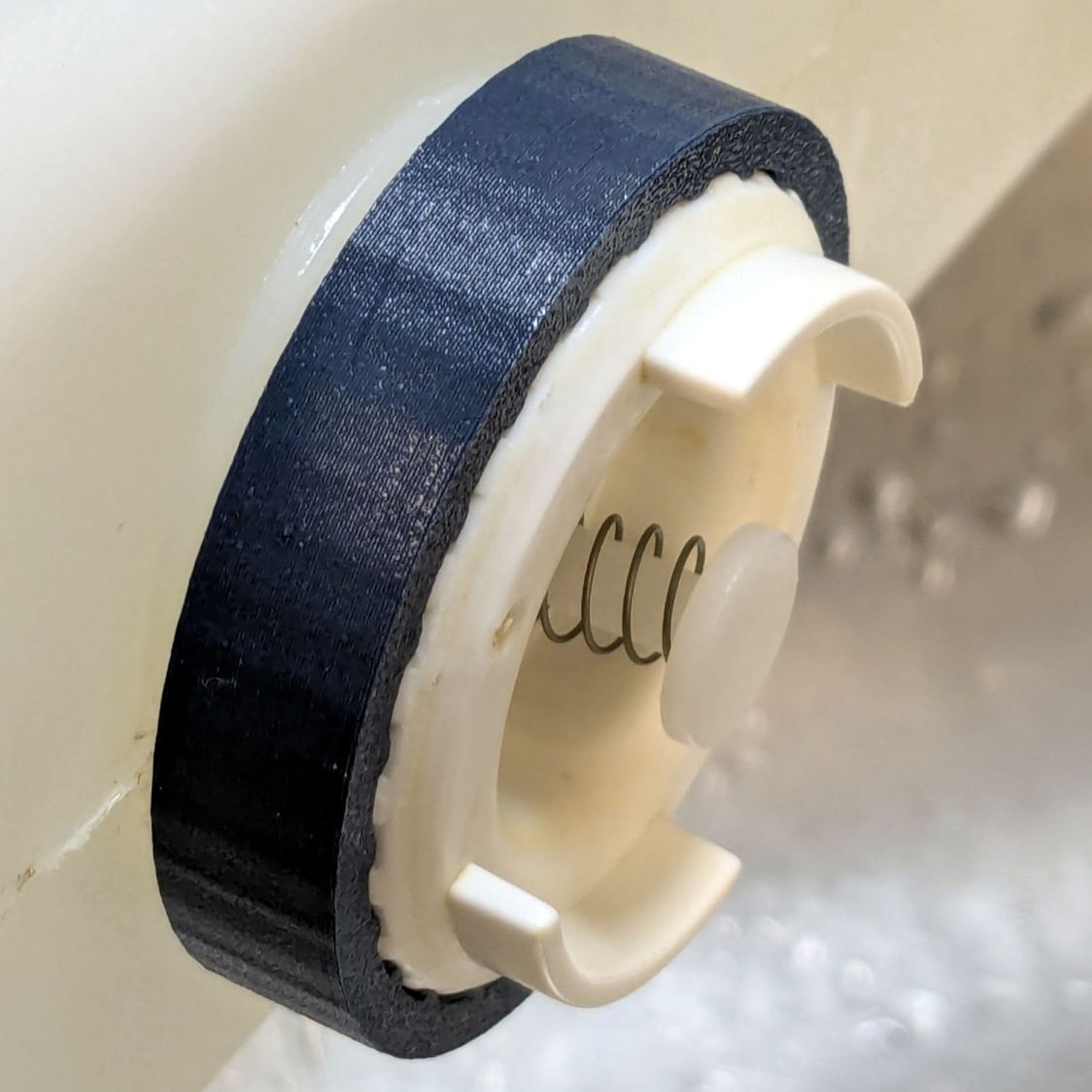
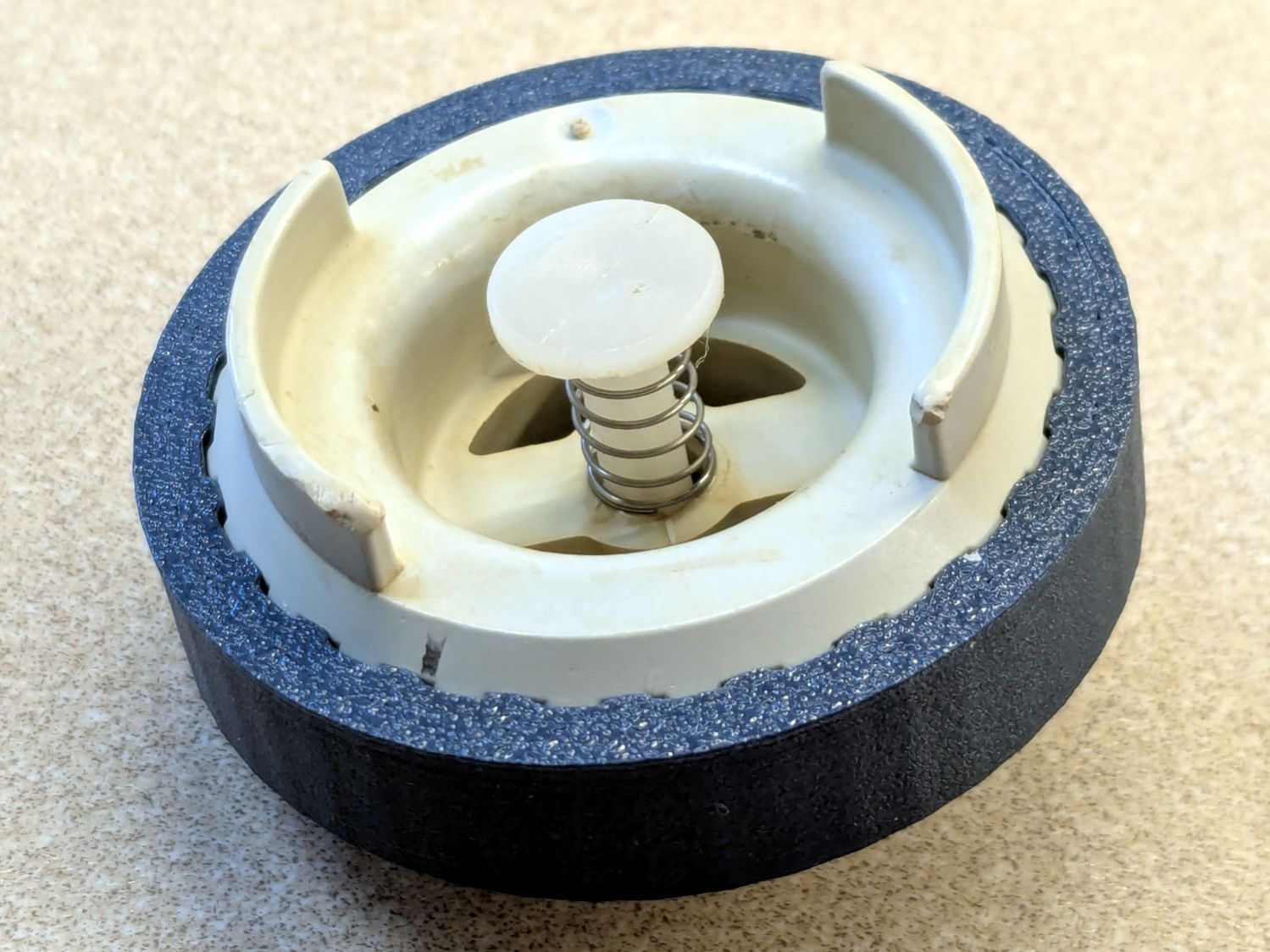
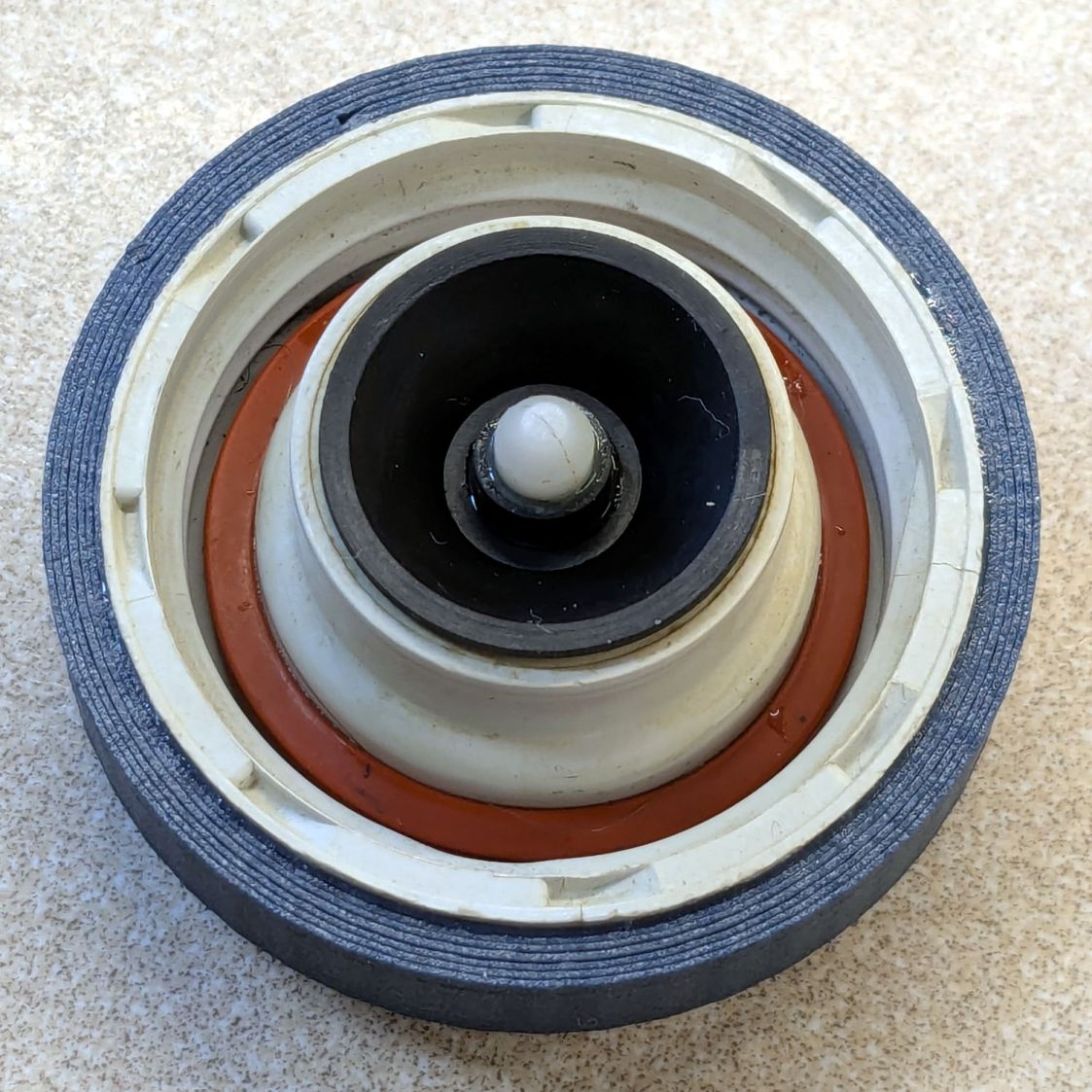
    Replacing the sun-rotted hose for Mary’s garden called for a new grip, because of course all hose fittings are different:

    Garden Hose Fitting Grip - installed
    Garden Hose Fitting Grip – installed

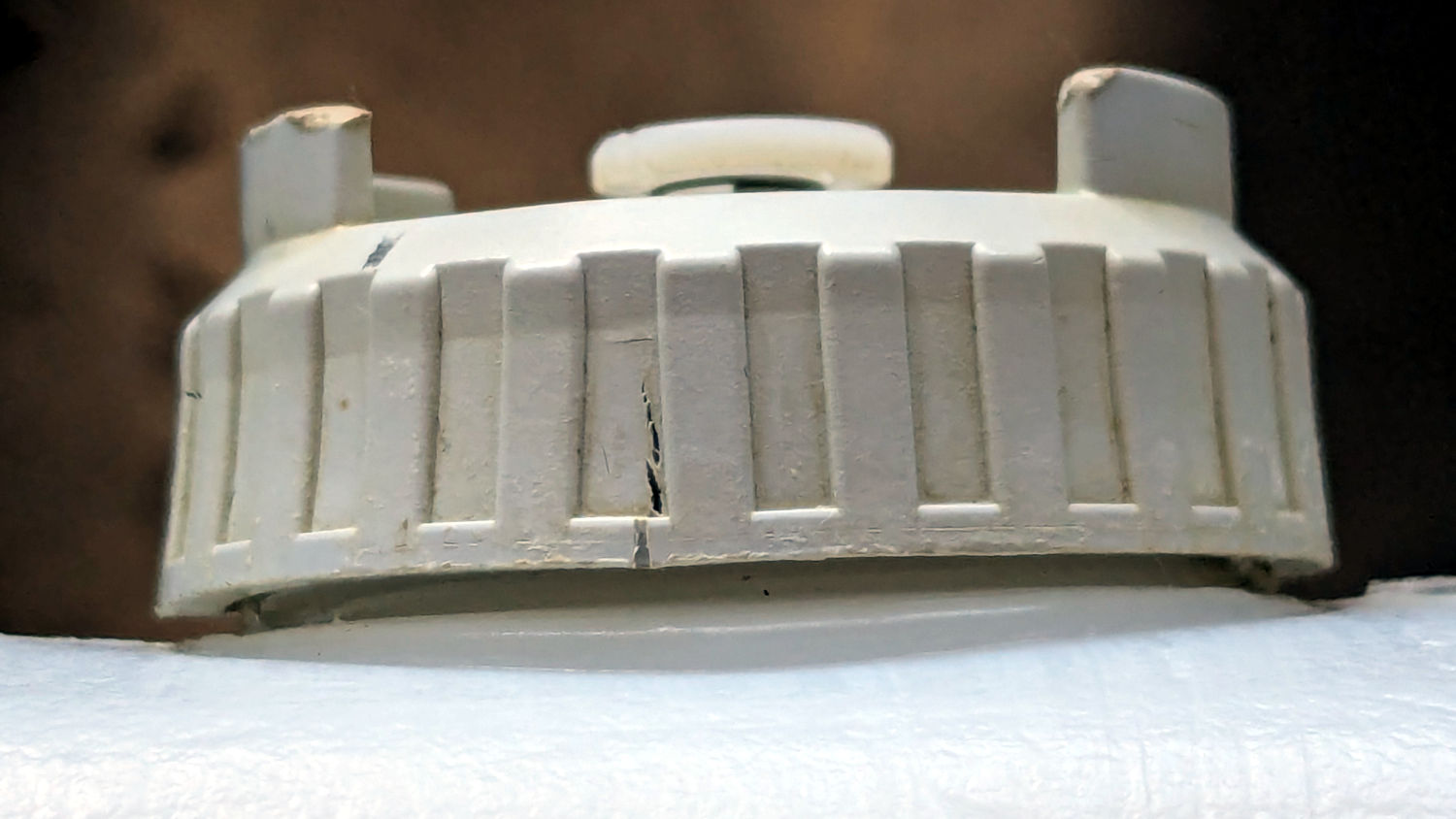
    The ridges on the fitting looked close enough to half-cylinders and the fitting wasn’t tapered enough to worry about:

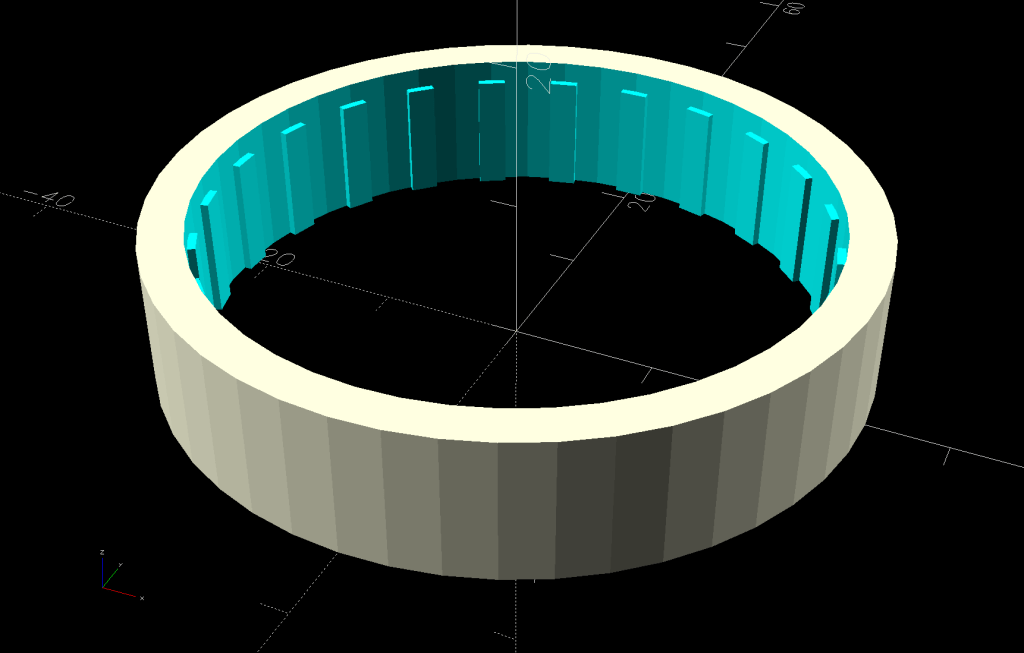
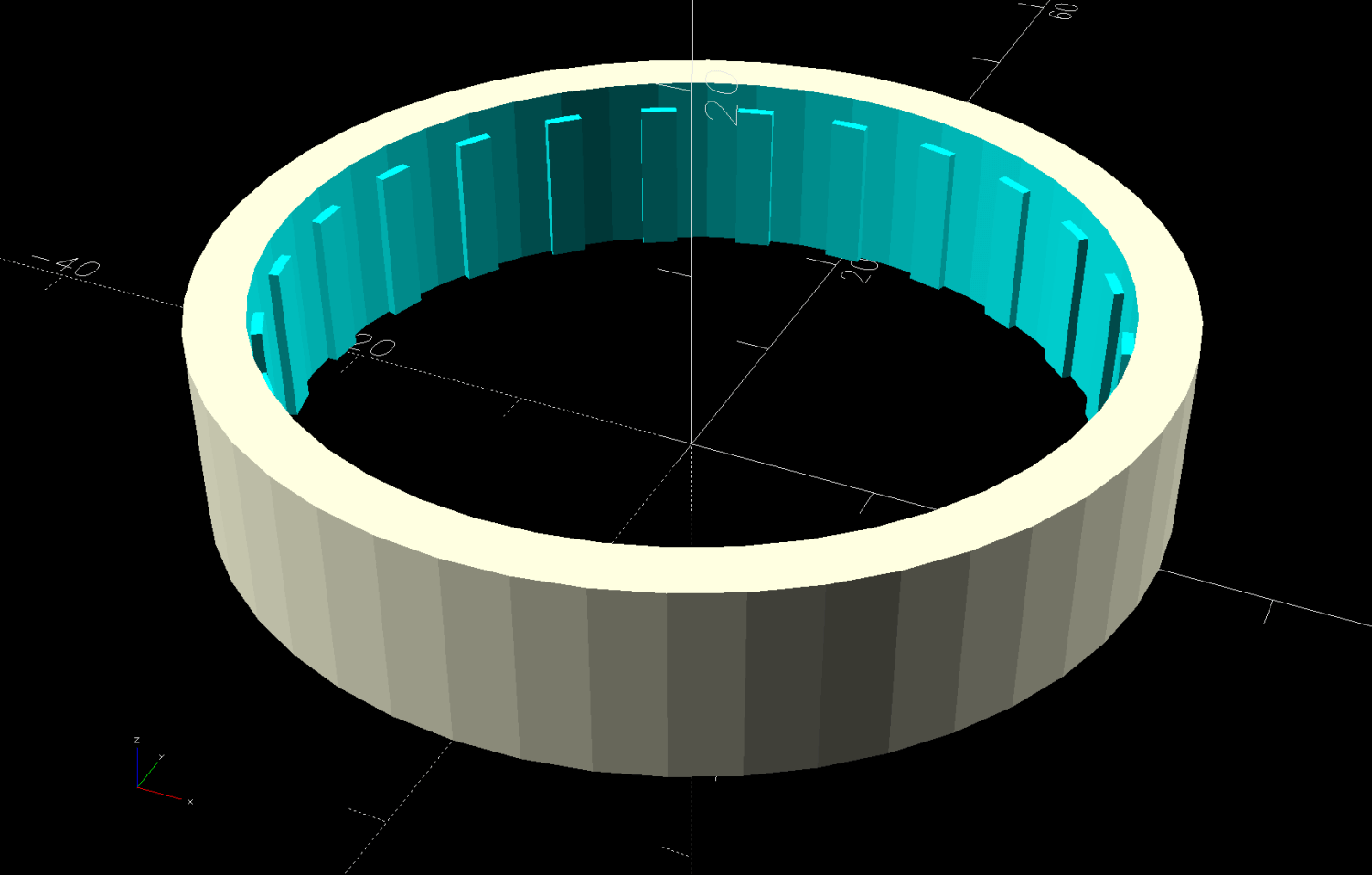
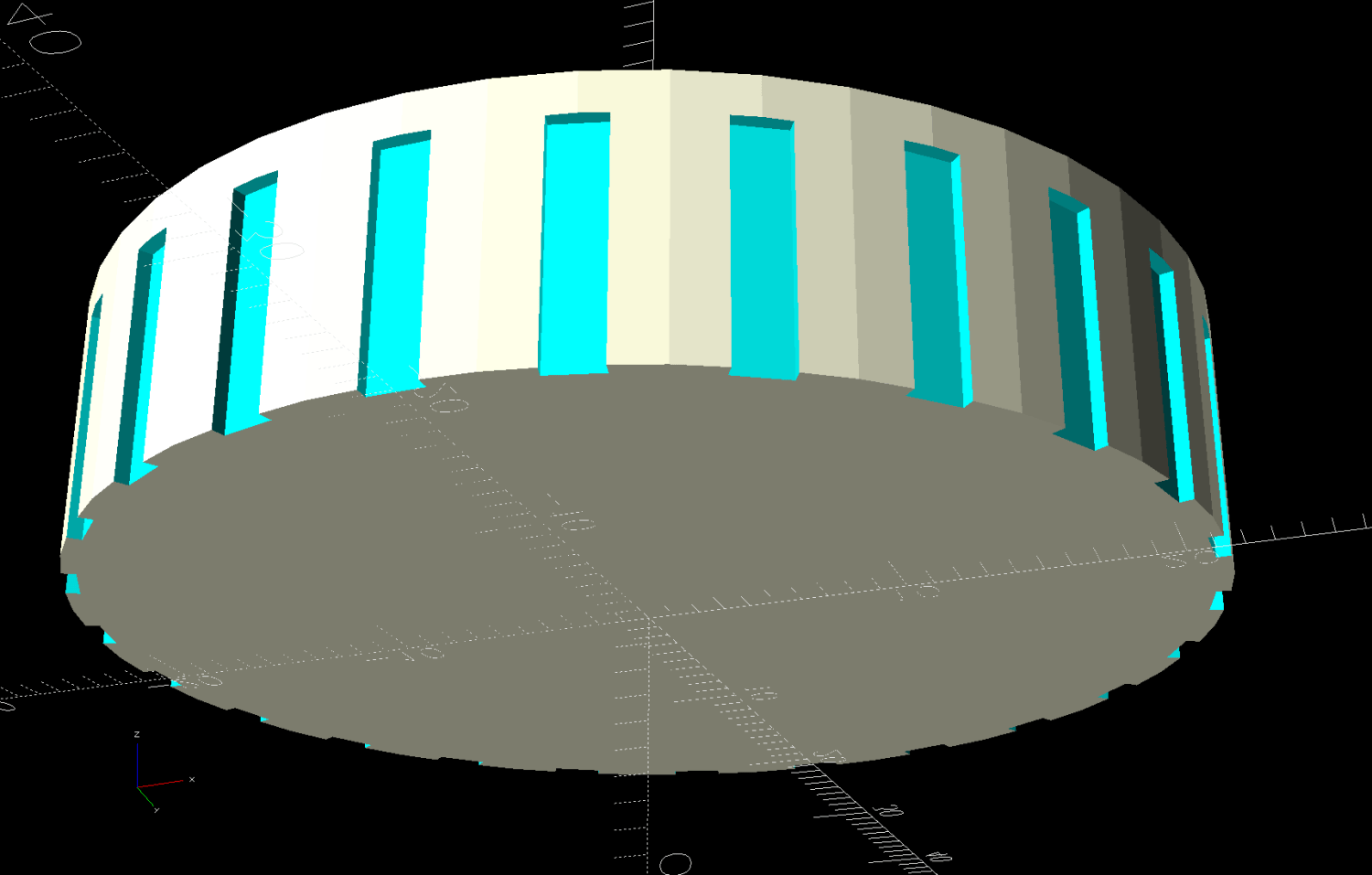
    Hose Fitting Grip - simple - solid model
    Hose Fitting Grip – simple – solid model

    The OD came from the original grip, because it neatly fits Mary’s hand, and the nubbles are round-end cylinders.

    Got it done the day after the old hose split, glued it on the hose with E6000+, installed it the next morning, whereupon the weather delivered three inches of rain. It’ll get screwed onto the faucet in a few days …

    The OpenSCAD source code as a GitHub Gist:

    // Hose fitting grip – simple plastic extrusion
    // Ed Nisley – KE4ZNU
    // 2025-07-30
    include <BOSL2/std.scad>
    /* [Hidden] */
    HoleWindage = 0.2;
    Protrusion = 0.1;
    NumSides = 3*2*4;
    $fn=NumSides;
    ID = 0;
    OD = 1;
    LENGTH = 2;
    NumRibs = 8;
    RibOD = 3.0;
    GripOA = [32.5,66.0,16.0];
    KnobBallOD = 6.0;
    union() {
    difference() {
    tube(GripOA[LENGTH],id=GripOA[ID],od=GripOA[OD],orounding=2.0,anchor=BOTTOM);
    for (a = [0:NumRibs-1])
    rotate(a*360/NumRibs)
    right(GripOA[ID]/2) down(Protrusion)
    cyl(GripOA[LENGTH] + 2*Protrusion,d=RibOD,anchor=BOTTOM);
    }
    for (a = [0:NumSides-1])
    rotate(a*360/NumSides)
    right(GripOA[OD]/2)
    up(GripOA[LENGTH]/2)
    cyl(GripOA[LENGTH]/2,d=KnobBallOD,rounding=KnobBallOD/2);
    }